How to Fix Selenium WebDriver Error: No Display Specified
Fix Selenium’s “no display specified” error with native headless mode, Xvfb, or a real X11 display. Includes runnable Python, JavaScript, and CI examples.
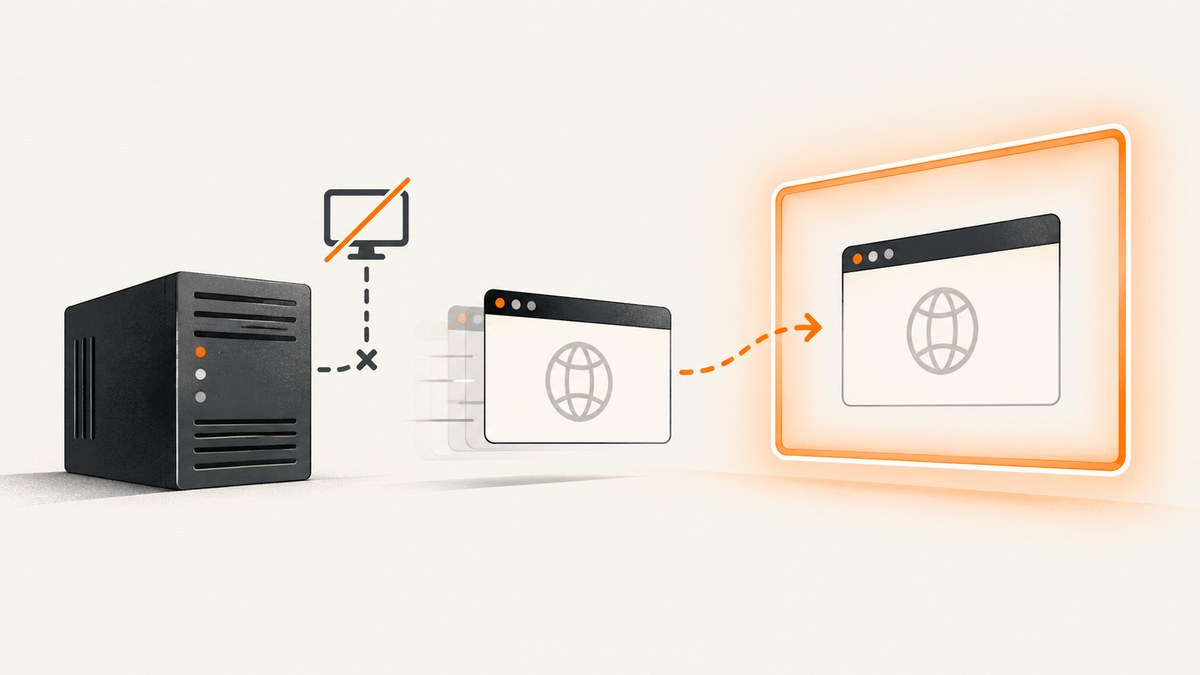
Short answer: Selenium is trying to start a visible browser on Linux, but the machine has no usable X11 display. If you do not need a visible window, launch Chrome or Firefox in native headless mode. If the test must run with a headed browser, start an X server such as Xvfb and run Selenium inside its display environment. For a real desktop session, use its valid DISPLAY and Xauthority permissions.
The message Error: no display specified commonly appears in CI, SSH sessions, containers, and Selenium Grid nodes. Setting DISPLAY=:99 alone does not fix it: an X server must actually be running on that display, and the Selenium process must be allowed to connect.
1. Choose the right fix
| Situation | Use | Why |
|---|---|---|
| Tests do not need a visible window | Native browser headless mode | Fewer display and X11 authorization dependencies |
| Tests require a headed browser or display-dependent behavior | Xvfb | Provides a virtual X display without a physical monitor |
| A desktop session is already running | That session’s display and authorization | Connects to the existing X server |
| Browsers must run remotely or across multiple machines | Selenium Grid | The browser runs on a node; configure the display there if it is headed |
Headless mode is usually the simplest choice for ordinary page interaction and automated checks. Choose Xvfb when the test specifically requires a headed session, or when you need to preserve a headed browser setup in a display-less CI environment. A screenshot alone does not always require a headed window; try the browser’s headless mode first and validate the rendering your test depends on.
2. Fix it with native headless mode
Firefox with Python
Pass Firefox’s -headless argument through Selenium’s options before creating the driver:
from selenium import webdriver

options = webdriver.FirefoxOptions()
options.add_argument("-headless")

driver = webdriver.Firefox(options=options)
try:
    driver.get("https://example.com")
    print(driver.title)
    driver.save_screenshot("page.png")
finally:
    driver.quit()
Selenium’s Firefox examples use -headless. The cited Selenium guidance says Selenium 4 requires Firefox 78 or newer and recommends using the latest geckodriver. Confirm the browser and driver are installed on the machine that starts the browser, and capture their versions in CI logs.
Chrome with Node.js
Use Chrome’s new headless mode argument, --headless=new, when building the driver:
const { Builder, Browser } = require("selenium-webdriver");
const chrome = require("selenium-webdriver/chrome");

async function main() {
  const options = new chrome.Options().addArguments("--headless=new");
  const driver = await new Builder()
    .forBrowser(Browser.CHROME)
    .setChromeOptions(options)
    .build();

  try {
    await driver.get("https://example.com");
    console.log(await driver.getTitle());
    await driver.takeScreenshot().then((png) => {
      require("node:fs").writeFileSync("page.png", png, "base64");
    });
  } finally {
    await driver.quit();
  }
}

main().catch((error) => {
  console.error(error);
  process.exitCode = 1;
});
The screenshot bytes returned by Selenium’s JavaScript binding are base64 encoded, so the example decodes them when writing the PNG. Always call quit() in a finally block; otherwise a failed test can leave browser processes running and consume CI resources.
Headless mode checklist
- Add the headless argument to the browser options used to create the driver. Adding it after the browser has started has no effect.
- Check that the browser binary and driver are available on the browser-running machine, not merely on the test author’s workstation.
- Let Selenium Manager resolve the driver or configure a driver path deliberately; record the Selenium, browser, and driver versions if startup fails.
- Keep a fixed viewport if your assertions depend on layout. A different viewport can change responsive breakpoints and page geometry.
- Test the rendering that matters. Headless and headed runs can differ in environment, fonts, available resources, or display behavior.
3. Keep a headed browser with Xvfb
Xvfb is an X virtual framebuffer: it supplies a virtual X display that browser processes can use even when the host has no physical screen. Install the package using your Linux distribution’s package manager, then wrap the test command with xvfb-run:
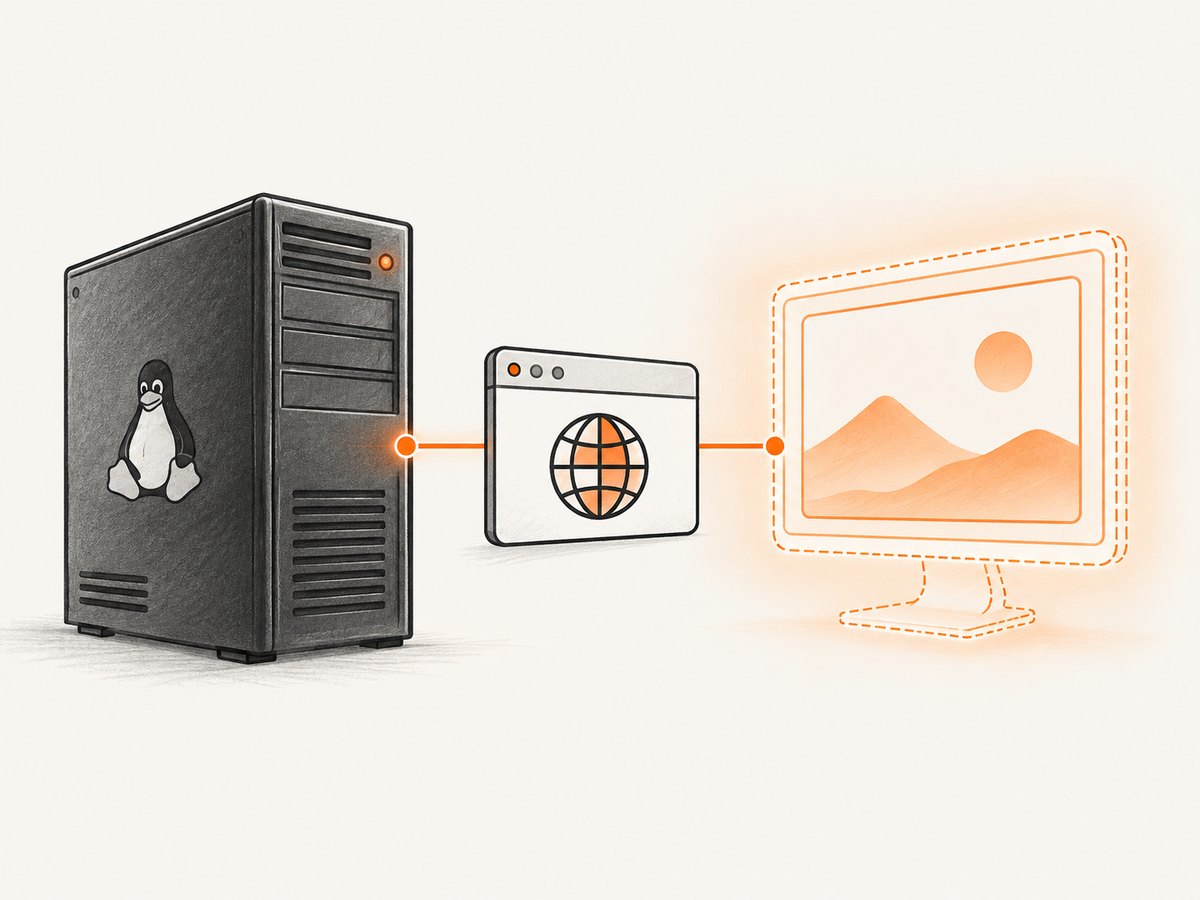
xvfb-run --server-args="-screen 0 1920x1080x24" pytestThis example starts a virtual screen with a 1920 by 1080 pixel area and 24-bit color, runs pytest within its environment, and stops the display when the command exits. Replace pytest with your runner command. The exact package name and installation command depend on the Linux distribution, so use that distribution’s package documentation.
If you manage Xvfb directly, the important sequence is: start the X server, set DISPLAY in the environment of the Selenium process, run the test, and keep the server alive until the browser exits. For example, with a server already started on display :99:
export DISPLAY=:99
python -m pytest
This only works if an X server is listening on :99. A variable assignment points applications to a display; it does not create one. Ensure the test process inherits the variable and runs as a user permitted to connect to the X server. For a managed CI job, xvfb-run is often easier because it sets up and tears down the display around the command.
4. Check a real display or a remote Grid node
If the host has a desktop session, inspect the environment of the process that launches the browser:
echo "$DISPLAY"
An empty value means the process has no display address. A nonempty value is not proof that the server is reachable. Check that the X server is running and that Xauthority credentials permit the Selenium user to connect. SSH sessions may need X forwarding configured on both ends; in a container, the host display socket and authorization would also need to be made available to the container.
For Selenium Grid, the client sends commands to the Grid, but the browser process starts on a node. Check DISPLAY, browser installation, driver resolution, and Xauthority on that node rather than only on the client or hub.
Selenium Grid’s official quick start describes standalone mode as a Selenium Server JAR started with Java 11 or newer, browsers, and drivers installed:
java -jar selenium-server-<version>.jar standaloneStandalone Grid accepts RemoteWebDriver requests on port 4444. A Java client can connect with a remote driver, for example:
import org.openqa.selenium.By;
import org.openqa.selenium.WebDriver;
import org.openqa.selenium.remote.RemoteWebDriver;
import org.openqa.selenium.chrome.ChromeOptions;
import java.net.URL;

public class RemoteExample {
  public static void main(String[] args) throws Exception {
    ChromeOptions options = new ChromeOptions();
    options.addArguments("--headless=new");
    WebDriver driver = new RemoteWebDriver(
        new URL("http://localhost:4444"), options);
    try {
      driver.get("https://example.com");
      System.out.println(driver.getTitle());
    } finally {
      driver.quit();
    }
  }
}
For a headed remote browser, omit the headless argument and configure a working display on the Grid node. Grid supports CI/CD, multi-machine browser and operating-system coverage, and adding nodes to scale execution. Its guidance recommends small, isolated nodes and mentions Docker as an isolation option. The page gives about one CPU and roughly 1 GB RAM per browser session as an operational recommendation, not a universal resource guarantee. Protect Grid endpoints with firewall controls: Selenium warns that an exposed Grid can provide access to internal applications and allow custom binaries to be executed.
5. Configure CI and containers deliberately
For a CI job, first identify which host runs the browser: the job worker, a container, or a Grid node. Then choose exactly one display strategy for that browser: headless mode, Xvfb, or a real desktop display. Keep the configuration alongside the test command so developers can reproduce the same startup conditions locally.
- Install the chosen browser and ensure Selenium Manager or the configured driver path can resolve a compatible driver.
- For headless execution, pass the browser-specific flag in the options used to build the driver.
- For headed execution, install Xvfb and run the tests under
xvfb-run, or start a persistent X server and export its real display number. - In containers, make sure the packages, browser binaries, fonts, and libraries the browser needs are present inside the image. A display variable cannot make missing dependencies available.
- For Grid, verify node registration and requested browser capabilities, and inspect logs on the node when session creation fails.
- Log the Selenium, browser, and driver versions with each failing run. This helps distinguish an unavailable display from a browser-driver compatibility issue.
Do not combine headed mode with an unset or fictitious DISPLAY. That leaves the original failure in place, even if the variable looks configured in a job script.
6. Troubleshooting common startup failures
| Symptom | Likely cause | Fix |
|---|---|---|
Error: no display specified |
Browser started headed without a usable display | Enable native headless mode or run under Xvfb; for a desktop, use the valid display and authorization. |
Cannot open display or connection refused |
DISPLAY points to no running X server, or the process cannot reach it |
Start Xvfb on that display, check the server remains alive, and confirm the browser process inherits the correct value. |
| Authorization or Xauthority error | The Selenium user cannot authenticate to the X server | Run with the intended user and configure access to the display’s Xauthority credentials. |
| Browser or driver not found | Binary is absent on the machine or node that launches the browser, or driver resolution is wrong | Install the browser and driver there; inspect Selenium Manager resolution or the configured driver path. |
| Session creation fails only on Grid | Node is unregistered, lacks the requested browser, or has its own display problem | Inspect node registration, capabilities, browser logs, and the node’s display environment. |
| Headless test starts but layout assertions fail | Viewport, fonts, resources, or rendering differ from the expected environment | Set a consistent window size, install required fonts, and validate the specific rendering in the target environment. |
| Intermittent browser exits or timeouts | Display server or browser process ends early, or the node is under-resourced | Keep Xvfb alive for the full test, clean up drivers reliably, and inspect resource use and browser logs. |
7. Performance, reliability, and cost
Headless mode removes the need to start and authorize a separate X server, so it is generally simpler to operate in a container or CI worker when visible output is unnecessary. Xvfb adds a display process and its lifecycle to manage. Grid adds network communication and remote node operations, while making it possible to distribute sessions across machines. These are operational tradeoffs, not universal speed rankings; measure on the browser, pages, and CI hardware you use.
For reliable jobs, use bounded waits in tests, always quit drivers, retain browser and driver logs on failure, and distinguish display errors from page-load timeouts. A browser that starts successfully can still fail to load a page for unrelated network or application reasons. When scaling Grid, allocate resources per browser session and treat Selenium’s approximate CPU and memory guidance as a planning starting point, not a promise.
Native headless mode and Xvfb are software configuration choices; Xvfb itself does not require a physical display. Grid requires the Selenium server and browser nodes to run somewhere, so account for that infrastructure and the maintenance of browser versions. Choose the least complex setup that preserves the behavior your test needs.
8. Or skip the browser setup
If the task is to capture a page image rather than automate an interactive browser workflow, ScreenshotNeo provides a website screenshot API and MCP server. A GET request returns a PNG, JPEG, WebP, or PDF. The API accepts a URL in one call; see the ScreenshotNeo API documentation for request options.
curl -G "https://api.screenshotneo.com/v1/shot" \
  -d access_key=YOUR_API_KEY \
  --data-urlencode url=https://example.com \
  -o shot.webp
import requests
r = requests.get(
"https://api.screenshotneo.com/v1/shot",
params={"access_key": "YOUR_API_KEY", "url": "https://example.com"},
timeout=90,
)
r.raise_for_status()
open("shot.webp", "wb").write(r.content)const q = new URLSearchParams({
access_key: 'YOUR_API_KEY',
url: 'https://example.com'
});
const res = await fetch(`https://api.screenshotneo.com/v1/shot?${q}`);
if (!res.ok) throw new Error(`Screenshot request failed: ${res.status}`);
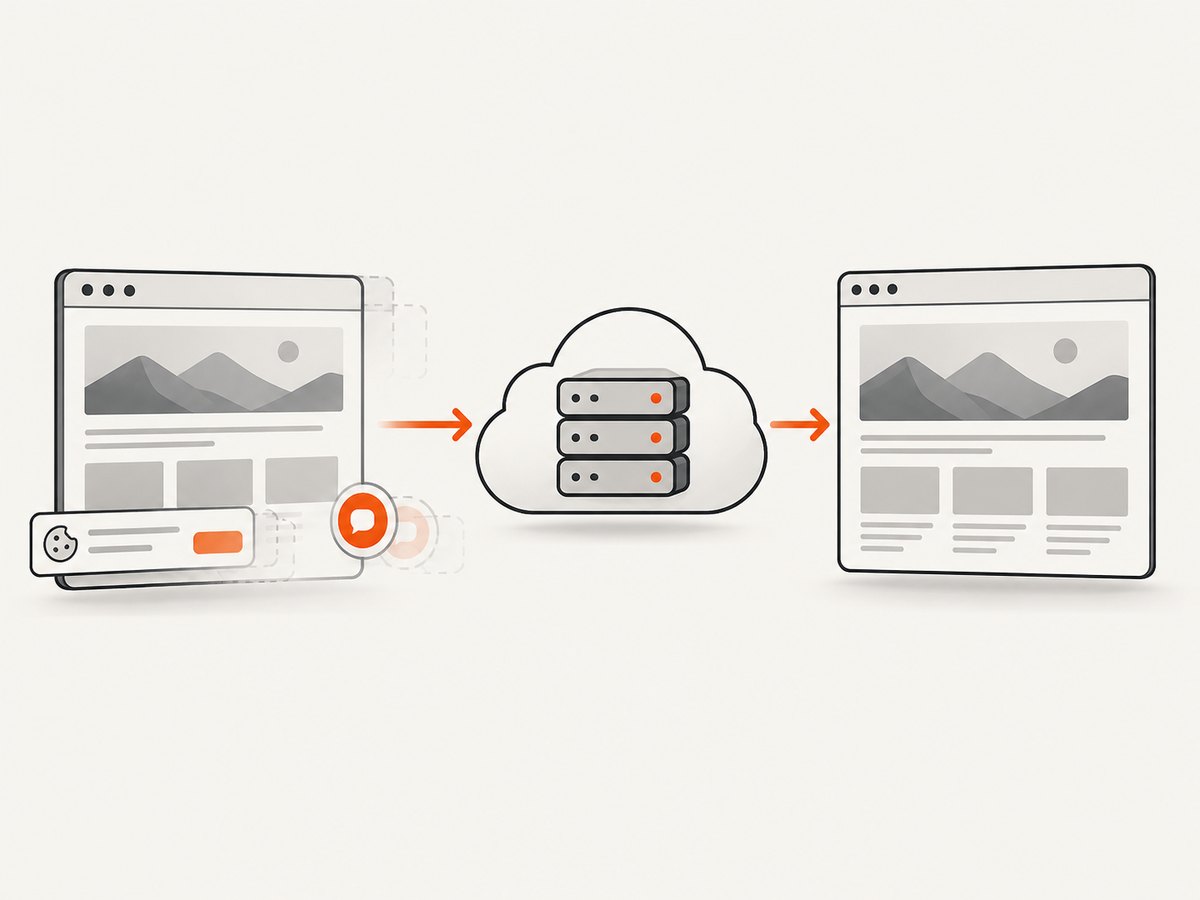
require('node:fs').writeFileSync('shot.webp', Buffer.from(await res.arrayBuffer()));ScreenshotNeo removes cookie and consent banners, newsletter popups, and chat widgets before capture; each of those steps can be turned off. Bot checks, blank pages, timeouts, failed loads, and cache hits are not billed, and response headers report the page verdict and billing status. Its MCP server provides take_screenshot, get_page_info, and capture_pdf tools for Claude, Cursor, and other MCP clients. The free plan includes 1,000 shots a month without a card; paid plans start at $5 for 3,000 shots. Every feature is on every plan. Create a free account for 1,000 screenshots a month, with no card required.
9. Frequently asked questions
Does setting DISPLAY fix the error?
Only when it names a reachable, running X server and the browser process has permission to connect. It does not start a server.
Should I use Xvfb or headless mode?
Use native headless mode when the test does not need a visible browser. Use Xvfb when you need to run a headed browser without a physical screen or need that display-backed behavior.
Does Selenium Grid remove the need for a display?
No. Grid runs the browser on a node. A headless browser needs no X display, while a headed browser on a display-less node still needs Xvfb or another usable X server.
Can I take screenshots in headless mode?
Yes. Selenium’s browser APIs can save screenshots from headless sessions. Check viewport and rendering assumptions if the image is part of a visual check.


