Why Selenium PhantomJS Screenshots Randomly Turn Black and How to Fix Them
Diagnose black Selenium PhantomJS screenshots with checks for timing, missing resources, transparency, formats, and migration paths.
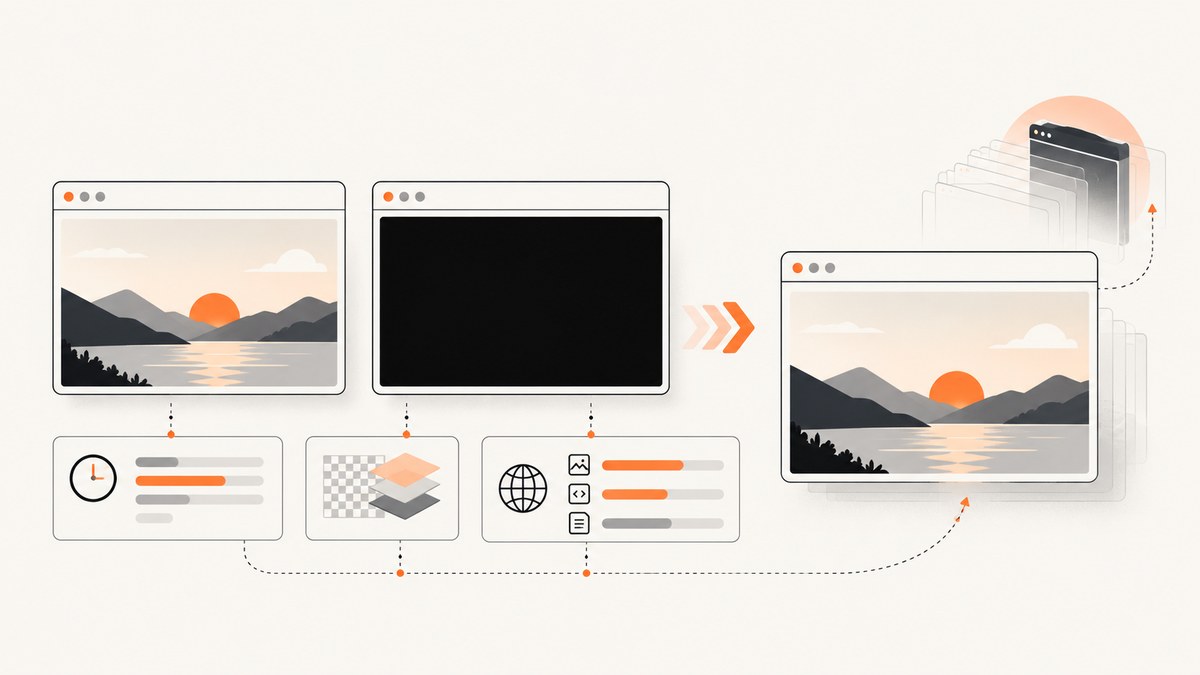
A black Selenium or PhantomJS screenshot is an output symptom, not a diagnosis. The page may have failed to load, an asynchronous element may not be ready, an ad or image request may have been blocked, or a transparent page may have been flattened to black during encoding. Start by checking what the page actually rendered, then wait for the state your test needs, compare PNG and JPEG output, and inspect navigation and resource logs. For maintained automation, migrate from PhantomJS to Selenium with headless Chrome or Firefox.
What a black screenshot usually means
There is no single “random black screenshot” bug. A 2014 Selenium report described a black 400×300 PNG while opening an advertising URL; the discussion raised the possibility that an ad blocker meant the expected content never appeared. That is a page-specific failure possibility, not proof of a general PhantomJS rendering defect.
Use the location and behavior of the black area to narrow the cause:
| Symptom | Likely area to investigate | Fastest check |
|---|---|---|
| The whole image is black | Navigation failure, missing page content, transparent background, or an early capture | Save a PNG, inspect alpha, and verify the navigation result |
| One ad, image, or widget is black or absent | Blocked request, failed resource, or content that loads after navigation | Open the URL independently and inspect resource logs |
| PNG looks correct but JPEG is black | Transparency flattened against black | Set an explicit background or keep PNG |
| A second capture succeeds | Race between navigation and asynchronous rendering | Wait for a meaningful element or application-ready state |
Step-by-step diagnostic workflow
1. Confirm the intended page and content
Open the target URL outside PhantomJS. Follow redirects and check authentication, access-denied responses, certificate errors, ad-blocking rules, and whether the supposedly missing element exists at all. A screenshot cannot contain an image or advertisement that the page never received.
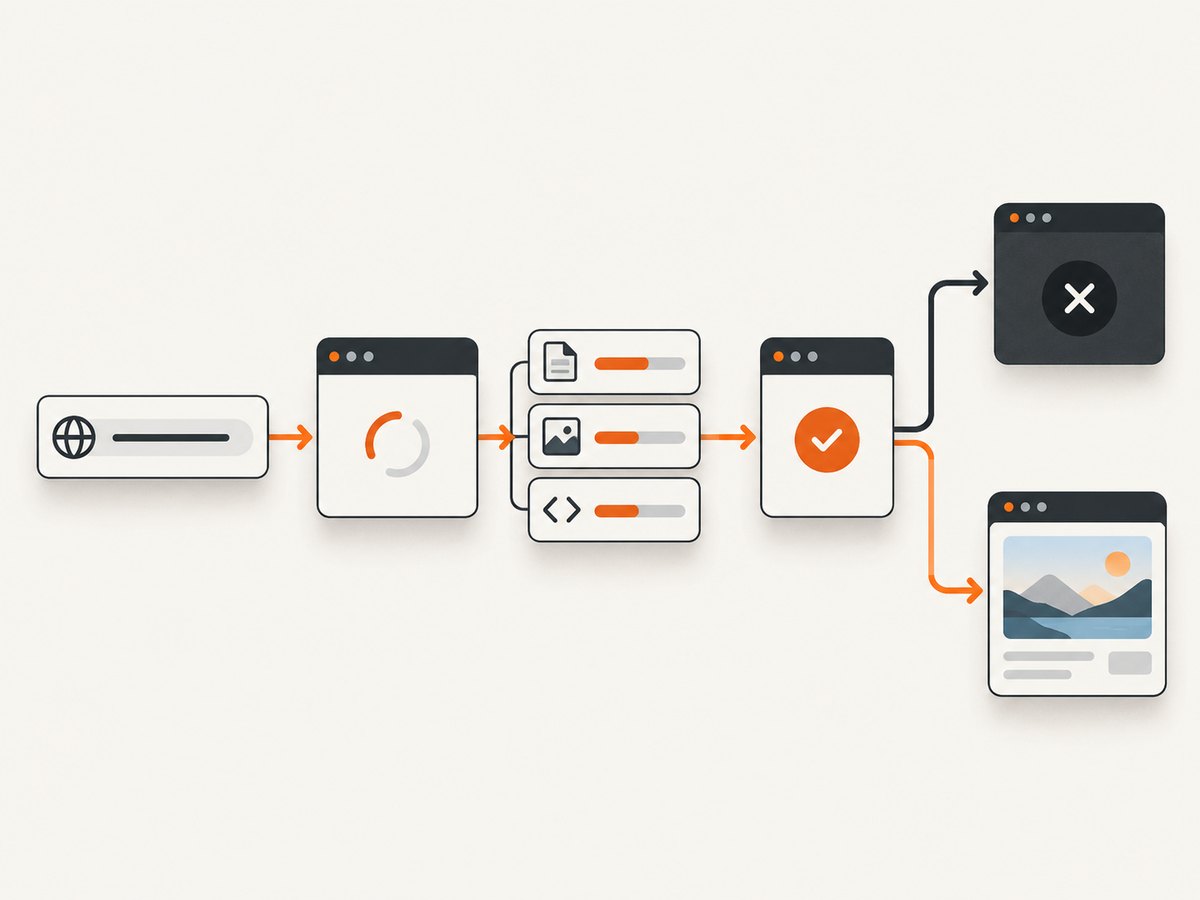
Record the final URL, HTTP status where available, viewport size, user agent, and whether the page requires a login. Remove tokens and personal data before sharing a reproduction.
2. Capture navigation and resource evidence
PhantomJS can report console messages, page errors, and requested resources. Log them before changing browser flags. A request that returns an error, an unexpected redirect, or a blocked script often explains a missing region better than a rendering flag does.
var page = require('webpage').create();
var system = require('system');

page.onConsoleMessage = function (message) {
  console.log('[console] ' + message);
};
page.onError = function (message, trace) {
  console.log('[page error] ' + message);
  trace.forEach(function (item) {
    console.log('  at ' + item.file + ':' + item.line);
  });
};
page.onResourceError = function (resourceError) {
  console.log('[resource error] ' + resourceError.url + ' :: ' + resourceError.errorString);
};
page.onResourceRequested = function (requestData) {
  console.log('[request] ' + requestData.method + ' ' + requestData.url);
};

page.open(system.args[1], function (status) {
  console.log('[open] ' + status + ' ' + page.url);
  page.render('debug.png');
  phantom.exit(status === 'success' ? 0 : 1);
});
Do not disable TLS or other security checks as a default fix. First establish from logs that transport or certificate failure is the cause.
3. Wait for the content you need
PhantomJS’s simple capture example renders in the page.open callback, while its fuller rasterize example adds a delay. Modern applications can continue fetching data and painting after the load callback. Selenium’s troubleshooting guidance likewise identifies poor synchronization as a common source of failures and recommends explicit waits.
Use a condition tied to the page’s required state. A temporary long sleep can prove that timing is involved, but it is not a reliable cross-site strategy.
from selenium import webdriver
from selenium.webdriver.common.by import By
from selenium.webdriver.support.ui import WebDriverWait
from selenium.webdriver.support import expected_conditions as EC

options = webdriver.ChromeOptions()
options.add_argument("--headless=new")
options.add_argument("--window-size=1440,1200")
driver = webdriver.Chrome(options=options)
try:
    driver.get("https://example.com/dashboard")
    wait = WebDriverWait(driver, 30)
    wait.until(EC.presence_of_element_located((By.CSS_SELECTOR, "[data-ready='true']")))
    wait.until(lambda d: d.execute_script("return document.readyState") == "complete")
    driver.save_screenshot("dashboard.png")
finally:
    driver.quit()
For a PhantomJS script, wait for the application’s own completion signal or poll for a selector:
var ready = false;
var timer = setInterval(function () {
  ready = page.evaluate(function () {
    return document.querySelector('[data-ready="true"]') !== null;
  });
  if (ready) {
    clearInterval(timer);
    page.render('ready.png');
    phantom.exit();
  }
}, 100);
4. Separate missing content from transparency
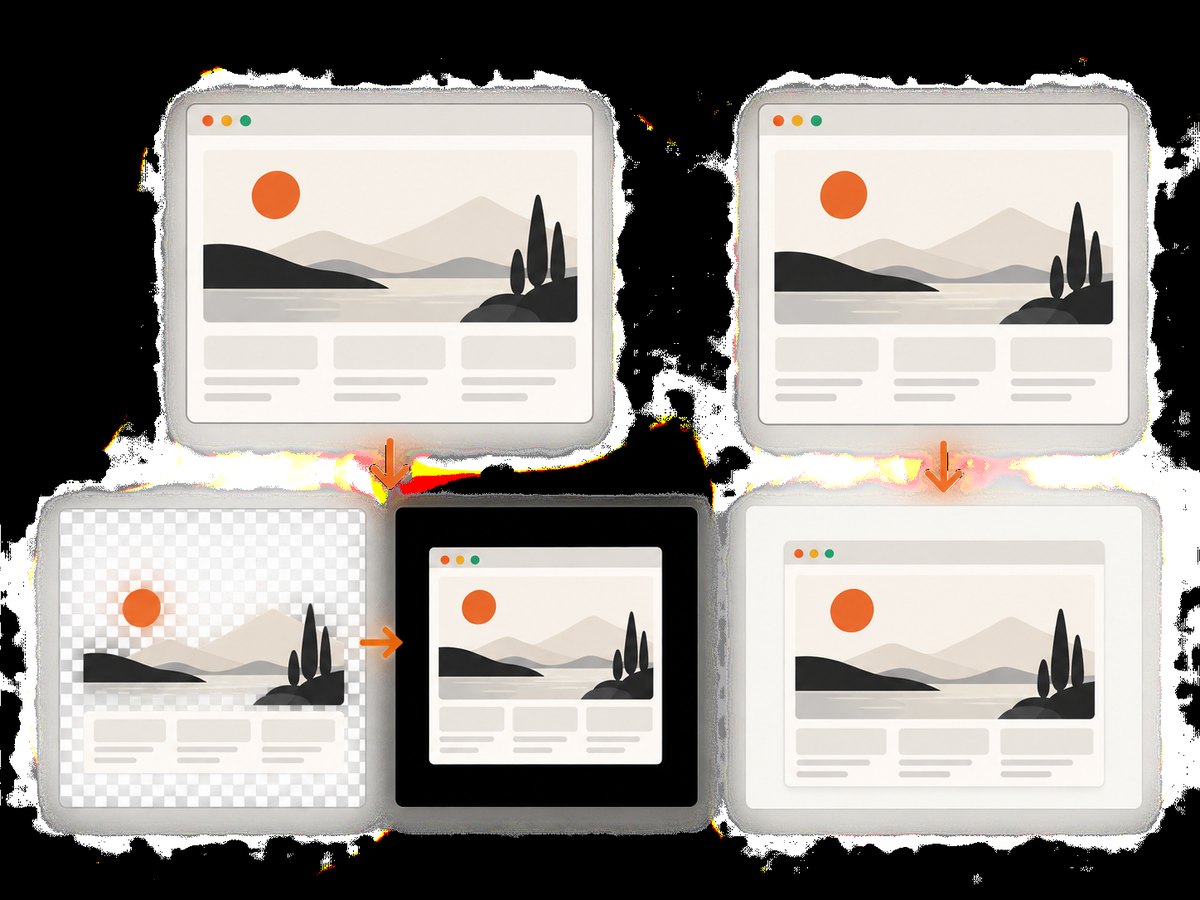
PhantomJS leaves the page background to the page. If no background is set, the capture can remain transparent. An archived PhantomJS issue describes transparent output appearing black when saved as JPEG, while PNG preserved transparency. Compare formats before rewriting the browser setup.
page.evaluate(function () {
  document.documentElement.style.backgroundColor = '#ffffff';
  document.body.style.backgroundColor = '#ffffff';
});
page.render('opaque.png');
If PNG contains the expected pixels but JPEG is black, treat encoding and alpha flattening as the primary suspect. Keep PNG for transparency or set an explicit background before rendering.
5. Make the failure reproducible
Keep a sanitized URL, output format, viewport, browser and Selenium versions, operating system, capture timestamp, page and resource errors, and a comparison image. Change one variable at a time: wait condition, format, viewport, or browser version. The available reports support this diagnostic method, but they do not establish which mechanism affects every site.
Complete Selenium examples
Python with an explicit readiness wait
from selenium import webdriver
from selenium.webdriver.chrome.options import Options
from selenium.webdriver.common.by import By
from selenium.webdriver.support.ui import WebDriverWait
from selenium.webdriver.support import expected_conditions as EC

URL = "https://example.com/app"
options = Options()
options.add_argument("--headless=new")
options.add_argument("--window-size=1365,900")
options.add_argument("--disable-gpu")

driver = webdriver.Chrome(options=options)
try:
    driver.get(URL)
    wait = WebDriverWait(driver, 30)
    wait.until(lambda d: d.execute_script("return document.readyState") == "complete")
    wait.until(EC.visibility_of_element_located((By.CSS_SELECTOR, "main")))
    wait.until(lambda d: d.execute_script("return !document.querySelector('.loading')"))
    driver.save_screenshot("page.png")
finally:
    driver.quit()
Use a selector that represents the content your test needs. A generic sleep may pass once and fail under a slower network or a busy CI runner.
JavaScript Selenium with a readiness condition
const { Builder, By, until } = require('selenium-webdriver');
const chrome = require('selenium-webdriver/chrome');

(async function () {
  const options = new chrome.Options()
    .addArguments('--headless=new', '--window-size=1365,900');
  const driver = await new Builder()
    .forBrowser('chrome')
    .setChromeOptions(options)
    .build();
  try {
    await driver.get('https://example.com/app');
    await driver.wait(async () => {
      return (await driver.executeScript('return document.readyState')) === 'complete';
    }, 30000);
    await driver.wait(until.elementLocated(By.css('main')), 30000);
    await driver.takeScreenshot().then(data => require('fs').writeFileSync('page.png', data, 'base64'));
  } finally {
    await driver.quit();
  }
})();
PhantomJS-specific maintenance checks
PhantomJS is a legacy WebKit-based browser. Selenium’s Python changelog deprecated PhantomJS and recommended headless Chrome or Firefox; Selenium’s JavaScript changelog recorded removal of native PhantomJS support in Selenium 4.0 alpha. New automation should use a supported browser and the options API for the installed Selenium and browser versions. Existing PhantomJS jobs should be isolated, pinned, and scheduled for migration.
Do not assume a Chrome flag will repair a PhantomJS capture. PhantomJS has different WebKit behavior, JavaScript support, and resource handling. A flag copied from a current Chromium guide may be ignored or may hide the actual failure.
Common errors and fixes
| Error or observation | Cause to test | Fix |
|---|---|---|
page.open reports success, but the app is empty |
Application data arrives after navigation | Wait for a data selector, loading marker removal, or application-ready flag |
| Only an advertisement is black or missing | Ad request blocked or destination behaves differently in automation | Inspect the URL and resource log; verify the content exists independently |
| JPEG is black, PNG has content | Transparent background flattened to black | Set a page background or use PNG |
| Intermittent timeout or blank page | Network, redirect, TLS, or authentication failure | Log final URL and resource errors; fix access before changing timing |
| Element exists but is invisible | CSS animation, lazy loading, overlay, or viewport mismatch | Wait for visibility, scroll the element into view, and use a deterministic viewport |
| Works locally, fails in CI | Different browser version, fonts, network, or sandbox environment | Pin versions, record logs, install required fonts, and compare viewport and user agent |
Performance, reliability, and cost considerations
- Wait narrowly. Waiting for one meaningful selector reduces unnecessary delay compared with a large fixed sleep.
- Control the viewport. Responsive breakpoints change layout and can trigger different lazy-loading behavior.
- Use stable output formats. PNG is useful while diagnosing alpha and pixel output; JPEG is smaller but can expose transparency problems.
- Capture only after required work. Waiting for every third-party request can make jobs slow or impossible; define the application state that matters.
- Preserve evidence. Store logs and a failed image for retries. A retry without diagnostics can hide a deterministic content failure.
- Plan browser upgrades. Legacy PhantomJS may not support modern JavaScript or TLS behavior, so migration reduces compatibility maintenance.
Or skip the browser setup
ScreenshotNeo provides a website screenshot API when you do not want to maintain Selenium or PhantomJS. One GET request returns PNG, JPEG, WebP, or a PDF. Before capture, it accepts cookie and consent banners and removes more than 60 known consent platforms, newsletter popups, and chat widgets; each step can be disabled.
Only clean shots are billed. Bot checks and CAPTCHAs, blank pages, timeouts, failed loads, and cache hits cost nothing, and the response identifies the result with X-Page-Verdict and X-Billed headers. An MCP server provides take_screenshot, get_page_info, and capture_pdf tools for Claude, Cursor, and other MCP clients.
See the ScreenshotNeo API documentation for all options. The basic call is:
curl -G "https://api.screenshotneo.com/v1/shot" -d access_key=YOUR_API_KEY --data-urlencode url=https://stripe.com -o shot.webpimport requests
r = requests.get("https://api.screenshotneo.com/v1/shot", params={"access_key": "YOUR_API_KEY", "url": "https://stripe.com"}, timeout=90)
open("shot.webp", "wb").write(r.content)const q = new URLSearchParams({ access_key: 'YOUR_API_KEY', url: 'https://stripe.com' });
const res = await fetch(`https://api.screenshotneo.com/v1/shot?${q}`);ScreenshotNeo also supports full-page capture with lazy images loaded, CSS element capture, dark mode, 12 device presets and custom viewports, retina scale, PDF paper settings and page ranges, custom CSS and JavaScript, clicks, selector hiding, selector or network-idle waits, request blocking, headers, cookies, user agents, authorization, timezone, geolocation, transparent backgrounds, resizing, chosen cache TTLs, signed image links, asynchronous jobs with signed webhooks, bulk capture of up to 100 URLs per call, a usage API, and an OpenAPI specification. Common parameter names from other screenshot APIs work as well.
There is a free allowance of 1,000 shots per month with no card. Paid plans start at $5 for 3,000 shots; yearly billing gives two months free, and every feature is available on every plan. Create your free ScreenshotNeo account.
Migration checklist
- Inventory PhantomJS jobs, URLs, output formats, and required selectors.
- Add navigation, console, page-error, and resource-error logging.
- Replace fixed sleeps with readiness conditions.
- Compare PNG output and explicit backgrounds before investigating browser flags.
- Run the same cases in headless Chrome or Firefox and record visual differences.
- Set retry limits and retain failed artifacts for diagnosis.
- Choose a maintained browser workflow or use an API when browser management is not part of your product.
FAQ
Is PhantomJS randomly turning screenshots black?
The word “randomly” describes the observed symptom. It does not identify a single PhantomJS defect. Check page content, timing, resources, and transparency for each case.
Should I add a longer sleep?
Use a temporary sleep to test whether timing matters, then replace it with a condition tied to the content you need.
Why does PNG work while JPEG fails?
The page may be transparent. JPEG has no alpha channel and can flatten that transparency to black. Set a background or retain PNG.
Can I keep a PhantomJS job running?
You can isolate and pin a legacy job, but Selenium deprecated PhantomJS and recommends headless Chrome or Firefox. Treat migration as maintenance work.
What should I log in a bug report?
Include a sanitized URL, browser and Selenium versions, viewport, format, timing, final URL, navigation status, resource and page errors, and the image produced.


