How to Handle Website Bot Detection When Scraping with Selenium and PhantomJS
Learn why bot detection is not a Selenium setting, why PhantomJS is legacy, and how to build authorized automation with maintained browsers.

Website bot detection is a site-side security and access policy, not a Selenium setting with one universal fix. PhantomJS is a legacy choice: its project says development is suspended, and Selenium’s JavaScript WebDriver notes say native PhantomJS support was removed because its WebDriver implementation was no longer actively developed. For authorized automation, use a maintained browser such as Chrome or Firefox with Selenium, make the automation’s identity clear, follow the site’s access rules, and ask the operator or use an official API if access is challenged.
Changing headless mode, headers, delays, or any one browser setting does not guarantee access and does not establish permission. This guide covers how to migrate a Selenium workflow, diagnose challenges responsibly, and decide when to stop browser automation.
1. What bot detection means for Selenium scraping
A bot defense evaluates whether requests and browser activity match the site’s policies. It may combine request patterns, session characteristics, browser signals, JavaScript checks, and behavior. Cloudflare, for example, describes heuristics, JavaScript detections, machine learning, and behavioral analysis; the exact engines depend on its plan. That is one vendor’s documented approach, not a description of every site.
As a result, there is no Selenium option that reliably or appropriately “turns off” bot detection. A challenge might mean the site needs proof that a visitor is human, that the traffic is outside permitted use, or that the site’s own test configuration is wrong. First establish which situation applies. If this is your application, adjust your test environment and challenge rules. If it is someone else’s site, consult its published access rules and request authorization when needed.
2. Why PhantomJS should be treated as legacy
PhantomJS is a scriptable headless browser that historically supported page automation, screenshots, headless testing, and network monitoring. Its official project page says: “Important: PhantomJS development is suspended until further notice.” Selenium’s JavaScript WebDriver change notes say native PhantomJS support was removed because PhantomJS’s WebDriver implementation was no longer actively developed; they recommend Chrome or Firefox in headless mode for users moving from PhantomJS.
The Selenium guidance above is specific to its JavaScript WebDriver notes; bindings in other languages may have different histories. The practical point is broader: a suspended browser project is a fragile foundation for new automation. Browser compatibility, security fixes, and current site behavior are harder to rely on when the browser is no longer actively developed.
| Choice | Maintenance and Selenium fit | When it makes sense |
|---|---|---|
| PhantomJS | Project development is suspended; Selenium JavaScript notes removed native support. | Only when maintaining an existing, isolated legacy workflow is unavoidable. |
| Chrome or Firefox with Selenium | Recommended replacement direction in Selenium’s JavaScript notes; use current browser and compatible driver. | New authorized tests and browser automation. |
| Official API or approved data feed | Defined interface and access terms are provided by the site operator. | Repeated data access where an API exists and meets the need. |
3. Set up maintained Selenium automation
Install Selenium for Python
python -m pip install --upgrade seleniumSelenium Manager ships with Selenium releases starting with version 4.6. It can discover, download, and cache browser drivers and browser releases, reducing the need to download a driver manually. Install Chrome or Firefox separately if needed, then keep the browser and Selenium installation current.
Runnable Python example using Chrome
from selenium import webdriver
from selenium.webdriver.chrome.options import Options

options = Options()
options.add_argument("--headless")

# Selenium Manager handles driver discovery for supported setups.
driver = webdriver.Chrome(options=options)
try:
    driver.set_page_load_timeout(45)
    driver.get("https://example.com")
    print("Title:", driver.title)
    print("URL:", driver.current_url)
finally:
    driver.quit()
Replace the example URL with an endpoint you own or are authorized to access. The finally block closes the browser even when navigation or inspection fails. The explicit page-load timeout prevents a single navigation from waiting indefinitely.
Runnable Python example using Firefox
from selenium import webdriver
from selenium.webdriver.firefox.options import Options

options = Options()
options.add_argument("-headless")

driver = webdriver.Firefox(options=options)
try:
    driver.set_page_load_timeout(45)
    driver.get("https://example.com")
    print("Title:", driver.title)
finally:
    driver.quit()
Choose a browser supported by your application and environment. These examples use standard headless operation for automation; headless mode is a way to run the browser without a visible window, not a promise that a site will permit or fail to detect the session.
Migration checklist
- Inventory PhantomJS scripts, browser-specific options, and any PhantomJS-only dependencies.
- Choose Chrome or Firefox based on the browser behavior your own application needs to exercise.
- Update Selenium and install the selected browser.
- Replace PhantomJS driver construction with the matching Selenium driver, as above.
- Run authorized tests against a staging environment or a site that has granted access.
- Check page content and test assertions after navigation; a successful browser launch does not prove that the expected page loaded.
- Configure your own bot rules and test endpoints so expected test traffic is handled deliberately.
4. Handle a challenge or block responsibly
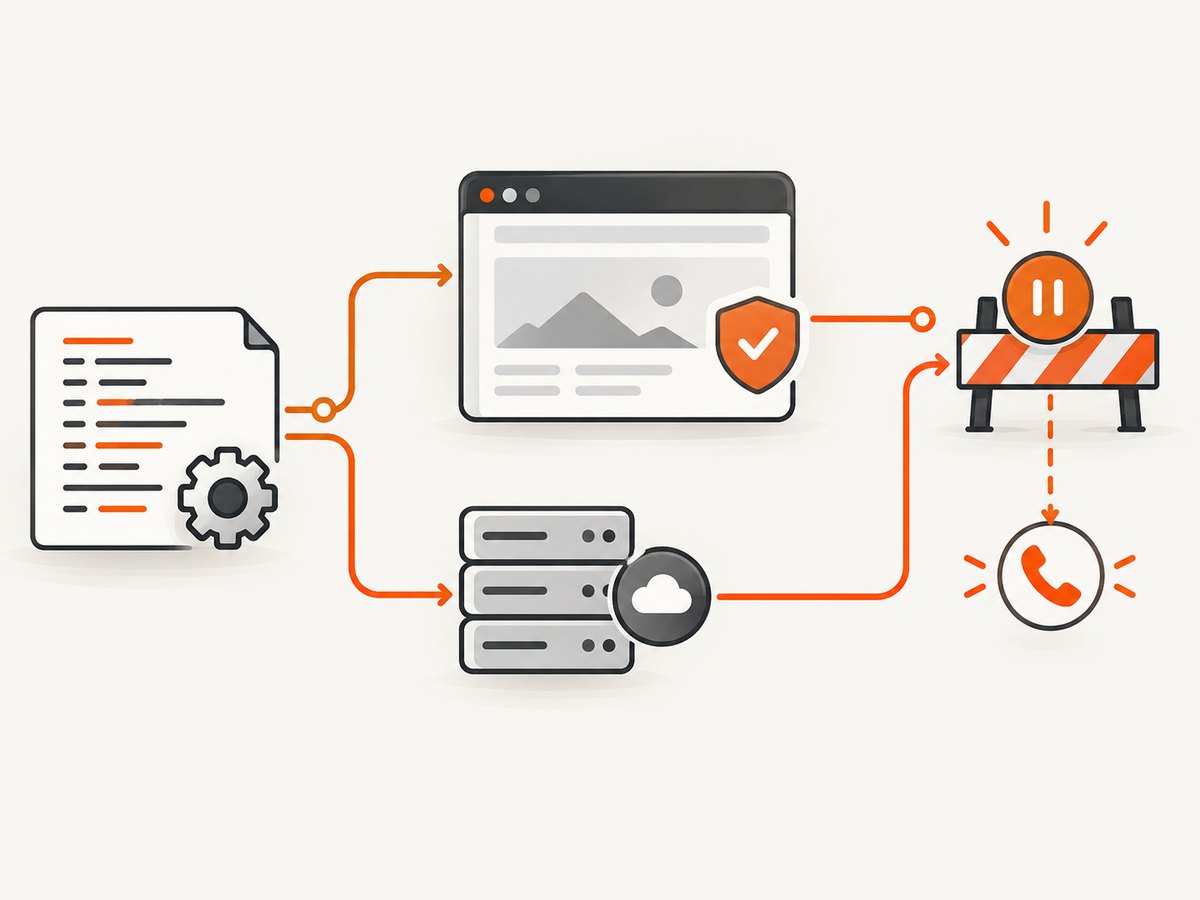
When a challenge appears, treat it as an access decision to investigate, not as a puzzle to defeat. Pause repeated requests. Check the site’s terms, robots.txt or crawler instructions, developer documentation, and any official API. If those do not clearly permit the workflow, contact the site operator and ask for an approved access method. A browser reaching a page is not evidence that the activity is authorized.
For your own application, coordinate with the security or platform owner. Confirm that the tests use the expected environment and routes, then configure challenge rules for those routes. Cloudflare’s scraping-detection guidance, for example, advises excluding API calls from a challenge rule when those paths should not be challenged. Apply that only to endpoints you control and intend to exempt.
Cloudflare also documents scraping detections that analyze request patterns by ASN and JA4 fingerprint, and recommends honest, deterministic identity and non-abusive conduct for verified bots. Its verified-bots documentation describes such a bot as transparent about who it is and what it does, and says it does not abuse the access that transparency earns. These are Cloudflare-specific examples; they do not guarantee that another provider uses the same signals or offers the same process.
5. Identify automation and control its request pattern
For permitted automation, make the purpose and owner of the workflow understandable to the site operator. Use a stable, honest identity where the site’s rules allow it, and keep request rates reasonable. Follow published crawl directives and honor restrictions. If the site offers a registration process for crawlers or a developer API, use it rather than presenting automation as an ordinary person.
Do not assume that changing a User-Agent, adding delays, using proxies, or modifying browser fingerprints will resolve a challenge. Detection can use multiple signals, and a technical change cannot grant permission. Repeatedly retrying a blocked request can increase load and make diagnosis harder. Record the URL, time, response or challenge details, and your request rate; share that information with the site operator or your internal security team.
6. Troubleshooting common Selenium and bot-detection errors
| Symptom | Likely cause | Practical fix |
|---|---|---|
| PhantomJS executable or driver cannot be found | Legacy setup depends on a browser and driver that are absent or no longer maintained. | Migrate to Chrome or Firefox and a current Selenium release. Let Selenium Manager resolve a compatible driver where supported. |
| Browser starts, but navigation shows a challenge | The site’s security policy has challenged this traffic. | Stop automated retries. Check permission and access guidance; use the official API or request access. For your own site, inspect challenge rules and test routes. |
| Navigation times out | The page or a resource did not finish loading within the configured time. | Set a reasonable page-load timeout, inspect whether the environment can reach the host, and distinguish slow loading from a deliberate challenge. Do not retry indefinitely. |
| Driver and browser versions are incompatible | A stale manually installed driver or browser update changed compatibility. | Update Selenium and browser; use Selenium Manager or install a compatible driver according to Selenium’s documentation. |
| Tests fail only in headless mode | The application may render differently in the test environment, or the test may rely on visible-window behavior. | Compare authorized headed and headless runs in your own test environment. Fix timing or viewport assumptions in the test; do not treat headed mode as a way to bypass site policy. |
| API endpoint receives an unexpected challenge | A site-side rule may be applying browser challenges to a route intended for API traffic. | If you operate the site, review route-specific rules and exclude only the API calls intended to avoid challenges. Otherwise, contact the operator. |
| Content is blank or incomplete | Navigation may not have completed, the page may require application state, or access may have been denied. | Inspect the resulting URL, title, and page content; wait for the application’s documented readiness condition in your own app. If the site denied access, follow its access process. |
7. Reliability, performance, and cost considerations
Running a full browser has more operational overhead than calling a documented data API: you manage browser processes, navigation timeouts, driver compatibility, and page readiness. Keep sessions short, always quit the driver, and cap concurrent browsers to what your own environment can support. Reuse a browser session only when doing so fits the application’s test design and does not carry state between unrelated tests.
Use bounded retries for transient failures in systems you control, with a delay between attempts and a clear maximum. Do not retry challenges, access denials, or CAPTCHA pages as if they were ordinary network errors. Log enough to diagnose failures without collecting sensitive page data unnecessarily. For a third-party site, the permitted request rate and any cost or access limits come from that operator; this guide cannot infer them.
Cost depends on your compute environment, browser runtime, and the site’s permitted access model. An official API may offer a clearer contract and simpler operational footprint. Browser automation remains appropriate for testing browser behavior, visual checks, and workflows where you have permission and need a real browser.
8. Capture a permitted page without managing a browser
If your goal is an authorized screenshot rather than interactive browser testing, ScreenshotNeo provides a website screenshot API and MCP server. Its API returns a screenshot or PDF from one GET request. It can also accept consent banners and remove supported consent platforms, newsletter popups, and chat widgets before capture; each cleanup step can be turned off. Its response identifies page verdict and billing status in headers, and only clean shots are billed. This is a screenshot workflow, not a way to gain access to a site that has denied it.

Or skip the browser setup
Use the API for a one-off screenshot of a page you are allowed to capture. See the ScreenshotNeo API documentation for configuration options.
curl -G "https://api.screenshotneo.com/v1/shot" -d access_key=YOUR_API_KEY --data-urlencode url=https://stripe.com -o shot.webpimport requests
r = requests.get(
"https://api.screenshotneo.com/v1/shot",
params={"access_key": "YOUR_API_KEY", "url": "https://stripe.com"},
timeout=90,
)
open("shot.webp", "wb").write(r.content)const q = new URLSearchParams({ access_key: 'YOUR_API_KEY', url: 'https://stripe.com' });
const res = await fetch(`https://api.screenshotneo.com/v1/shot?${q}`);
if (!res.ok) throw new Error(`Screenshot request failed: ${res.status}`);
const bytes = new Uint8Array(await res.arrayBuffer());
await import('node:fs/promises').then(fs => fs.writeFile('shot.webp', bytes));ScreenshotNeo removes cookie banners, popups, and chat widgets before the shot. Bot checks, blank pages, and failed loads are never billed. Its MCP server gives AI agents tools to take screenshots, get page information, and capture PDFs. The free plan includes 1,000 screenshots a month with no card; paid plans start at $5 for 3,000 screenshots. Sign up for 1,000 free screenshots a month, with no card.
9. Frequently asked questions
Can Selenium still use PhantomJS?
PhantomJS development is suspended, and Selenium’s JavaScript WebDriver notes say native support was removed. For new work, use a maintained browser with Selenium.
Does headless Chrome avoid bot detection?
No. Headless mode does not guarantee that a site will permit the session or that its security system will not challenge it.
Is a CAPTCHA permission to keep trying?
No. Treat it as a signal to stop automated attempts and consult the site’s published access options or operator.
Should I use Selenium or an API?
Use Selenium when you need authorized browser behavior, such as application testing. Prefer the official API when the task is data access and the site provides an API that fits it.


