How to Click Buttons and Fill Forms with Selenium and PhantomJS
Learn how to locate controls, fill fields, click buttons, handle waits and errors, and migrate legacy PhantomJS automation to modern Selenium.
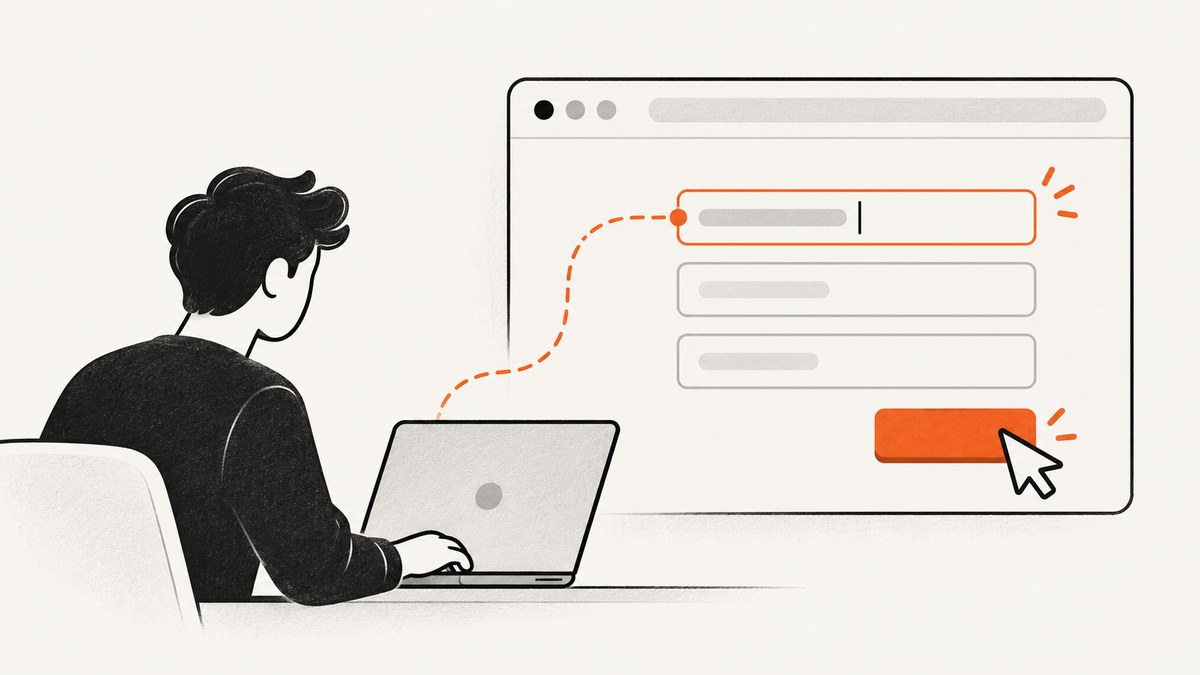
Short answer: Selenium fills an editable control with send_keys(), clears existing text with clear() when replacement is required, and activates a button with click(). Locate elements with stable IDs, names or CSS selectors, wait until they are usable, then verify the page state after the interaction. PhantomJS is a historical part of this topic: Selenium’s JavaScript binding removed native PhantomJS support because its WebDriver implementation was no longer actively developed. For new work, use Chrome or Firefox in headless mode.
This guide shows the complete interaction flow, current Python and Node.js examples, a legacy PhantomJS migration path, waits, frames, alerts, file inputs, troubleshooting, and production considerations.
1. Understand the interaction model
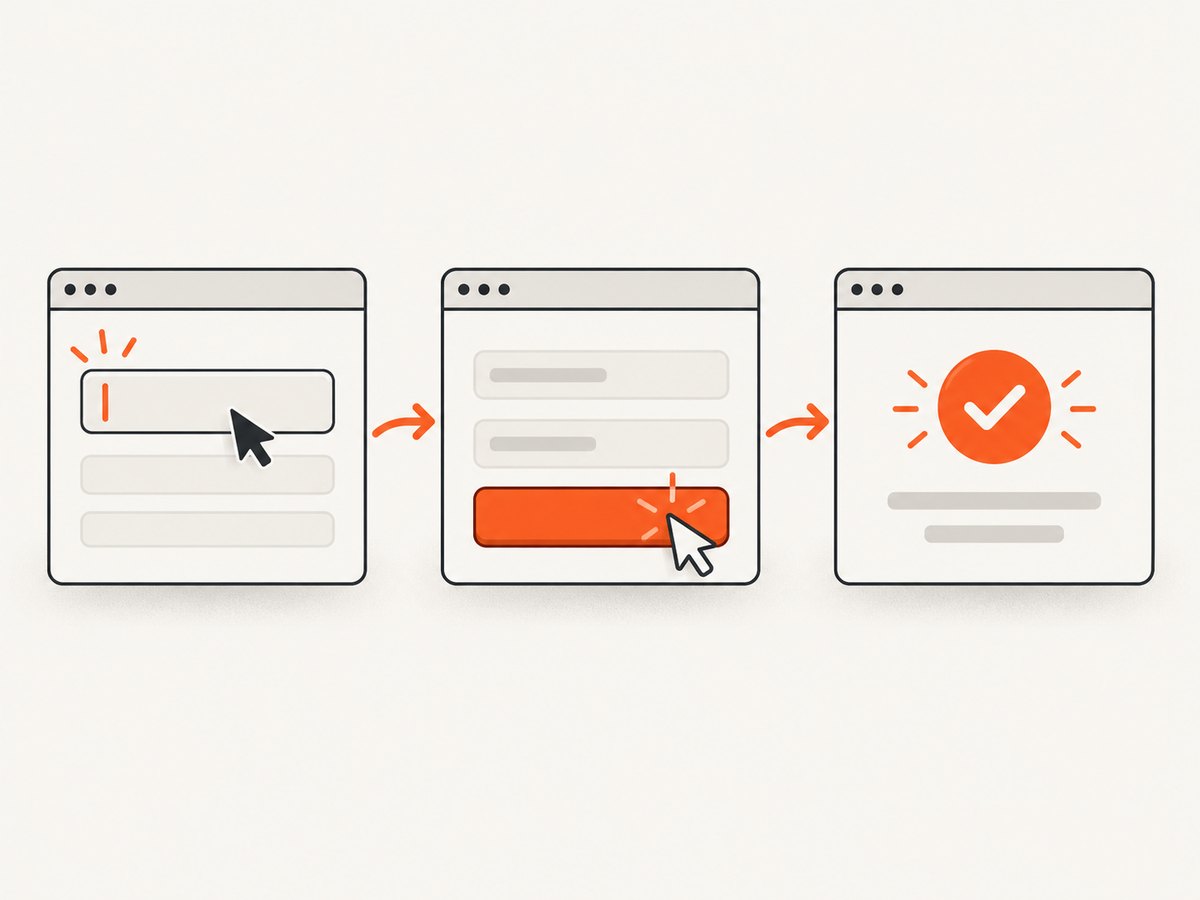
Selenium exposes element commands for the actions most form workflows need: click, send keys, clear, submit and select. The usual sequence is:
- Start a browser driver.
- Open the page.
- Locate the input and button.
- Wait for the controls to be present and interactable.
- Clear and fill the input.
- Click the visible submit button.
- Wait for a result and assert the expected state.
- Close the browser in a
finallyblock.
Prefer a stable ID or name. CSS selectors are useful when a stable attribute is unavailable; XPath can express relationships but is usually harder to maintain. Selenium documents these locator strategies in its element API.
2. Install Selenium and a current headless browser
PhantomJS should not be the default for a new project. Selenium’s JavaScript binding changelog says native PhantomJS support was removed because the browser’s WebDriver implementation was no longer under active development, and recommends Chrome or Firefox headless mode. Modern Selenium includes Selenium Manager, which handles browser and driver installation for most supported platforms. Manual browser and driver installation is still possible when your build environment requires pinned binaries.
Python setup
python -m venv .venv
source .venv/bin/activate       # Windows: .venv\\Scripts\\activate
python -m pip install -U selenium
Node.js setup
mkdir selenium-form-demo
cd selenium-form-demo
npm init -y
npm install selenium-webdriver
Install Chrome or Firefox on the machine or container. In CI, use a browser image supplied by your platform, or install the browser and let Selenium Manager resolve the matching driver.
3. Fill and submit a form with Python
The following script uses Chrome headless mode. It waits for an email field, replaces any existing value, clicks the submit button and waits for a result element. Replace the URL and selectors with those from your application.
from selenium import webdriver
from selenium.webdriver.chrome.options import Options
from selenium.webdriver.common.by import By
from selenium.webdriver.support.ui import WebDriverWait
from selenium.webdriver.support import expected_conditions as EC
from selenium.common.exceptions import TimeoutException

URL = "https://example.com/signup"

options = Options()
options.add_argument("--headless=new")
options.add_argument("--window-size=1440,1000")

browser = webdriver.Chrome(options=options)
wait = WebDriverWait(browser, 20)

try:
    browser.get(URL)

    email = wait.until(EC.element_to_be_clickable((By.ID, "email")))
    email.clear()
    email.send_keys("developer@example.com")

    submit = wait.until(EC.element_to_be_clickable((By.CSS_SELECTOR, "button[type='submit']")))
    submit.click()

    result = wait.until(EC.visibility_of_element_located((By.CSS_SELECTOR, ".success-message")))
    print(result.text)
except TimeoutException as error:
    print(f"Form did not become ready: {error}")
    browser.save_screenshot("form-timeout.png")
    raise
finally:
    browser.quit()
send_keys() sends keyboard input to an editable, keyboard-interactable element. Call clear() first when the field may contain a value and the requirement is to replace it. Do not use clear() on a non-editable element.
4. The same workflow in Node.js
const { Builder, By, until } = require('selenium-webdriver');
const chrome = require('selenium-webdriver/chrome');

(async function fillForm() {
  const options = new chrome.Options()
    .addArguments('--headless=new', '--window-size=1440,1000');
  const driver = await new Builder()
    .forBrowser('chrome')
    .setChromeOptions(options)
    .build();

  try {
    await driver.get('https://example.com/signup');

    const email = await driver.wait(
      until.elementLocated(By.id('email')), 20000
    );
    await driver.wait(until.elementIsVisible(email), 20000);
    await email.clear();
    await email.sendKeys('developer@example.com');

    const submit = await driver.wait(
      until.elementLocated(By.css("button[type='submit']")), 20000
    );
    await driver.wait(until.elementIsEnabled(submit), 20000);
    await submit.click();

    const result = await driver.wait(
      until.elementLocated(By.css('.success-message')), 20000
    );
    console.log(await result.getText());
  } finally {
    await driver.quit();
  }
})();
Click the form’s visible submission control when possible. Selenium’s interaction guidance notes that Selenium 4 implements submit() by executing a script and recommends clicking the applicable submit button instead.
5. Choosing reliable locators
| Locator | Example | When to use |
|---|---|---|
| ID | By.ID, "email" |
Best when the ID is unique and stable. |
| Name | By.NAME, "email" |
Useful for conventional form controls. |
| CSS | button[type='submit'] |
Compact selectors based on stable attributes. |
| XPath | //button[@type='submit'] |
Relationships or text-based matching when CSS is insufficient. |
Avoid selectors based on generated class names, changing numeric indexes or visible text that localization can change. Add dedicated test attributes such as data-testid when you control the application. After navigation, locate the element again: an element reference from the previous document can become stale.
6. Wait for state instead of sleeping
Network latency, JavaScript rendering and animations make fixed sleeps unreliable. Use explicit waits for the condition your next action requires:
presence_of_element_located: the node exists in the DOM.visibility_of_element_located: the node exists and is visible.element_to_be_clickable: visible and enabled for a click.url_containsor a title condition: navigation reached the expected state.- A custom predicate: application-specific text, class or attribute is ready.
from selenium.webdriver.support import expected_conditions as EC

wait.until(EC.url_contains("/account"))
wait.until(EC.text_to_be_present_in_element(
    (By.CSS_SELECTOR, "[role='status']"), "Saved"
))
Implicit waits apply broadly and can make failure timing difficult to understand. Pick one waiting strategy for a project and keep explicit waits around transitions that matter.
7. Controls that need special handling
Checkboxes and radio buttons
checkbox = wait.until(EC.element_to_be_clickable((By.ID, "terms")))
if not checkbox.is_selected():
    checkbox.click()
Check the state before clicking so a rerun does not accidentally uncheck an already selected control.
Select menus
from selenium.webdriver.support.ui import Select

country = Select(wait.until(EC.presence_of_element_located((By.ID, "country"))))
country.select_by_value("us")
# Other choices: select_by_visible_text("United States") or select_by_index(1)
File uploads
Send the absolute path to an input[type=file]; do not attempt to automate the operating system’s file picker.
upload = wait.until(EC.presence_of_element_located((By.CSS_SELECTOR, "input[type='file']")))
upload.send_keys("/absolute/path/report.pdf")
Frames
Elements inside an iframe are invisible to locators until you switch into that frame. Return to the top document afterward.
frame = wait.until(EC.presence_of_element_located((By.CSS_SELECTOR, "iframe.payment")))
browser.switch_to.frame(frame)
wait.until(EC.element_to_be_clickable((By.ID, "card-number"))).send_keys("4111111111111111")
browser.switch_to.default_content()
Alerts and new windows
wait.until(EC.alert_is_present())
browser.switch_to.alert.accept()

original = browser.current_window_handle
# after an action that opens a window:
wait.until(lambda d: len(d.window_handles) == 2)
for handle in browser.window_handles:
    if handle != original:
        browser.switch_to.window(handle)
        break
8. PhantomJS: what legacy code means today
Older JavaScript Selenium examples often constructed a PhantomJS driver. That code may still appear in archived projects, but the Selenium JavaScript binding removed native PhantomJS support. The removal notice does not define compatibility for every old Selenium version or language binding, so treat any surviving PhantomJS setup as version-specific legacy code. A practical migration is to replace the PhantomJS driver with Chrome or Firefox and keep the element interaction code unchanged.
// Legacy shape seen in older projects (not a current default):
// const driver = new webdriver.Builder().forBrowser('phantomjs').build();

// Current replacement:
const driver = await new Builder()
  .forBrowser('chrome')
  .setChromeOptions(new chrome.Options().addArguments('--headless=new'))
  .build();
Review browser-specific differences after migration: viewport size, downloads, font rendering, JavaScript APIs, certificate handling and sandbox flags can affect screenshots and form behavior. Compare the actual state your test needs rather than assuming the two browsers are identical.
9. Common errors and fixes
| Error | Likely cause | Fix |
|---|---|---|
NoSuchElementException |
The selector is wrong or the element has not rendered. | Verify the selector in browser tools and wait for presence or visibility. |
ElementNotInteractableException |
The element is hidden, disabled or outside the usable state. | Wait for visibility and enabled state; target the associated visible control. |
ElementClickInterceptedException |
An overlay, cookie banner or animation covers the click point. | Close the overlay, wait for the animation to finish, scroll the control into view, then click. |
StaleElementReferenceException |
The DOM or document changed after you located the element. | Perform the navigation or update, then locate the element again. |
| Timeout | The expected state never occurred, or the timeout is too short. | Capture a screenshot and page source, inspect console/application logs, and confirm the expected state is correct. |
| Driver or browser mismatch | Manually installed binaries do not match. | Use Selenium Manager or pin compatible browser and driver versions in the build image. |
| Works headed, fails headless | Different viewport, timing, permissions or sandbox environment. | Set an explicit window size, use explicit waits and configure the container’s required browser flags. |
10. Reliability, performance and cost considerations
- Reuse a driver for a related test flow, but isolate tests that depend on cookies, local storage or a pristine profile.
- Keep selectors and expected states close to the action so failures identify the broken transition.
- Use a modest explicit timeout based on the application’s real service-level behavior; a longer timeout does not fix a selector that can never match.
- Save a screenshot, URL and HTML source when a failure occurs. These artifacts reveal overlays, validation messages and redirects.
- Headless mode reduces display requirements, but browser startup and page loading remain the main costs. Parallel sessions increase CPU and memory use; cap concurrency to the capacity of the runner.
- Do not disable TLS checks, browser security or bot protections simply to make a test pass. Configure the test environment or use test credentials and fixtures.
11. Or skip the browser setup
If your goal is a clean page image or PDF rather than interaction testing, ScreenshotNeo provides a website screenshot API and MCP server. It accepts one GET request and returns PNG, JPEG, WebP or PDF. Cookie and consent banners are accepted and 60+ known consent platforms, newsletter popups and chat widgets are removed before capture; each step can be turned off. Bot checks, blank pages, timeouts, failed loads and cache hits are not billed, and the response identifies the result with X-Page-Verdict and X-Billed headers.
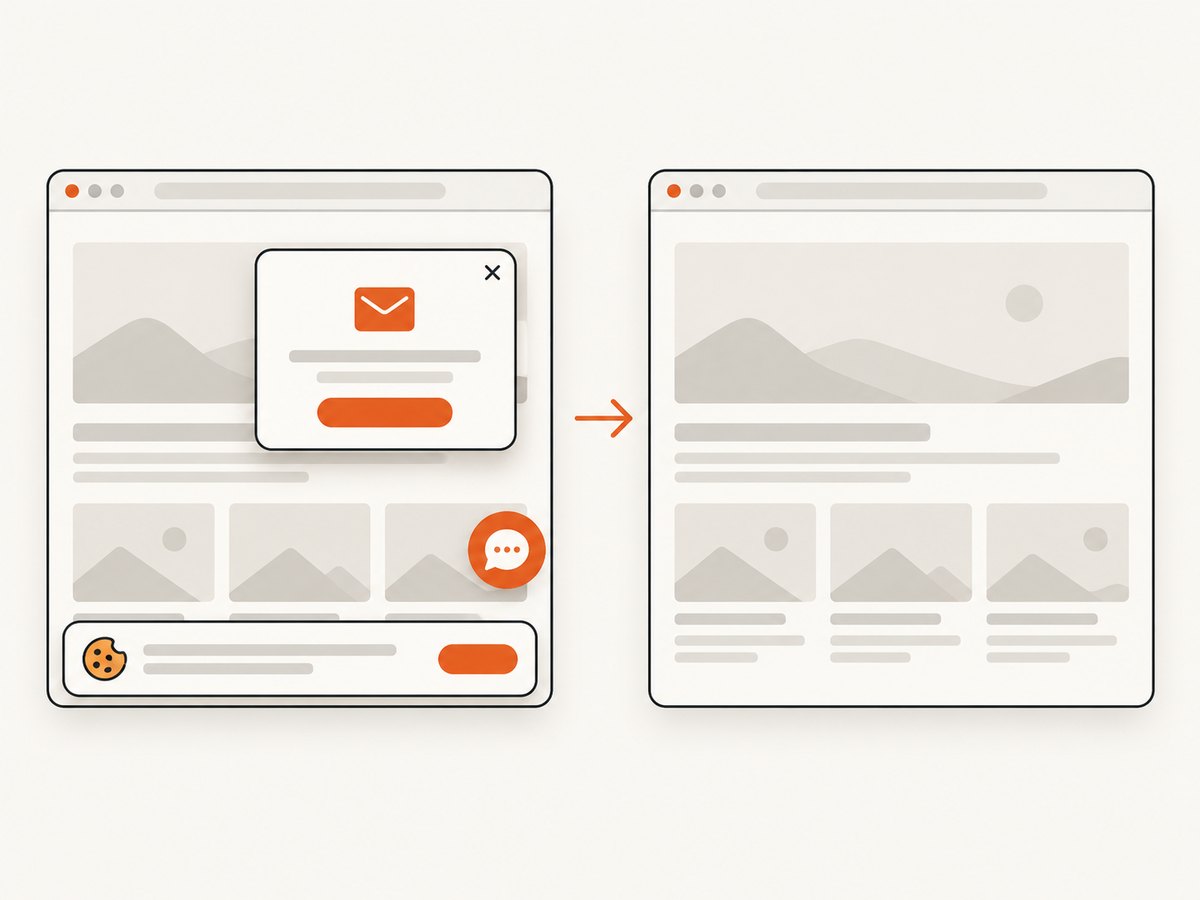
See the ScreenshotNeo API documentation for all options, including full-page and element capture, device presets, custom CSS and JavaScript, waits, headers, cookies, blocking rules, PDFs, caching, signed links, asynchronous jobs, bulk capture and usage reporting.
curl -G "https://api.screenshotneo.com/v1/shot" -d access_key=YOUR_API_KEY --data-urlencode url=https://stripe.com -o shot.webpimport requests
r = requests.get("https://api.screenshotneo.com/v1/shot", params={"access_key": "YOUR_API_KEY", "url": "https://stripe.com"}, timeout=90)
open("shot.webp", "wb").write(r.content)const q = new URLSearchParams({ access_key: 'YOUR_API_KEY', url: 'https://stripe.com' });
const res = await fetch(`https://api.screenshotneo.com/v1/shot?${q}`);An MCP server lets Claude, Cursor and other MCP clients call take_screenshot, get_page_info and capture_pdf. The Free plan includes 1,000 shots each month with no card; paid plans start at $5 for 3,000 shots. Create a free ScreenshotNeo account.
12. Practical checklist
- Use a stable locator.
- Wait for the required state.
- Clear before replacing text.
- Click the visible submit control.
- Switch into frames before locating their contents.
- Locate elements again after navigation or DOM replacement.
- Capture diagnostics when a wait or click fails.
- Use Chrome or Firefox headless for new projects instead of PhantomJS.
FAQ
Can Selenium still use PhantomJS?
Native PhantomJS support was removed from Selenium’s JavaScript binding. The cited changelog recommends Chrome or Firefox headless mode. Older combinations may behave differently, so migration is the safer current path.
Should I use XPath or CSS?
Use whichever expresses a stable contract. IDs, names and concise CSS selectors are usually easier to maintain; XPath is useful for relationships that CSS cannot express.
Why does click() fail when the button exists?
Existence is different from interactability. The button may be hidden, disabled, covered by an overlay or still moving. Wait for the relevant state and remove the obstruction.
When is ScreenshotNeo a better fit?
Use it when you need rendered screenshots or PDFs without maintaining a browser and when clean captures, billing protection for failed loads and MCP access are useful.


