How to Capture Full-Page Screenshots with Selenium PhantomJS
Learn legacy Selenium PhantomJS techniques for full-page screenshots, scroll-and-stitch fallbacks, troubleshooting, and modern alternatives.
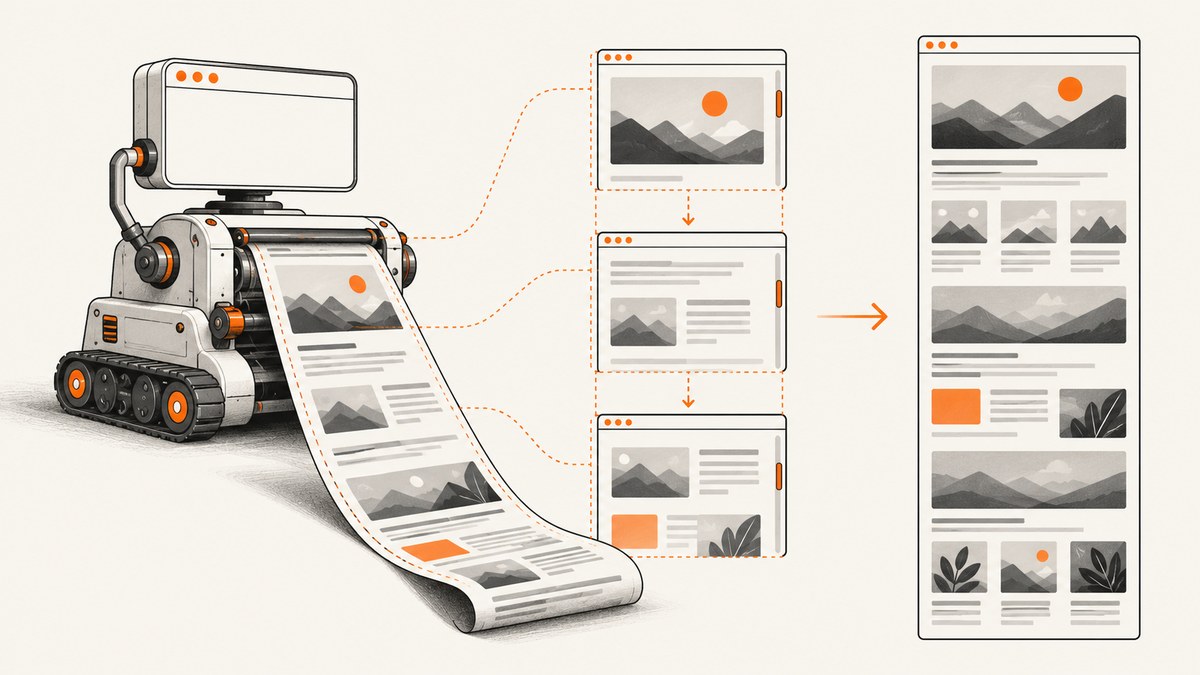
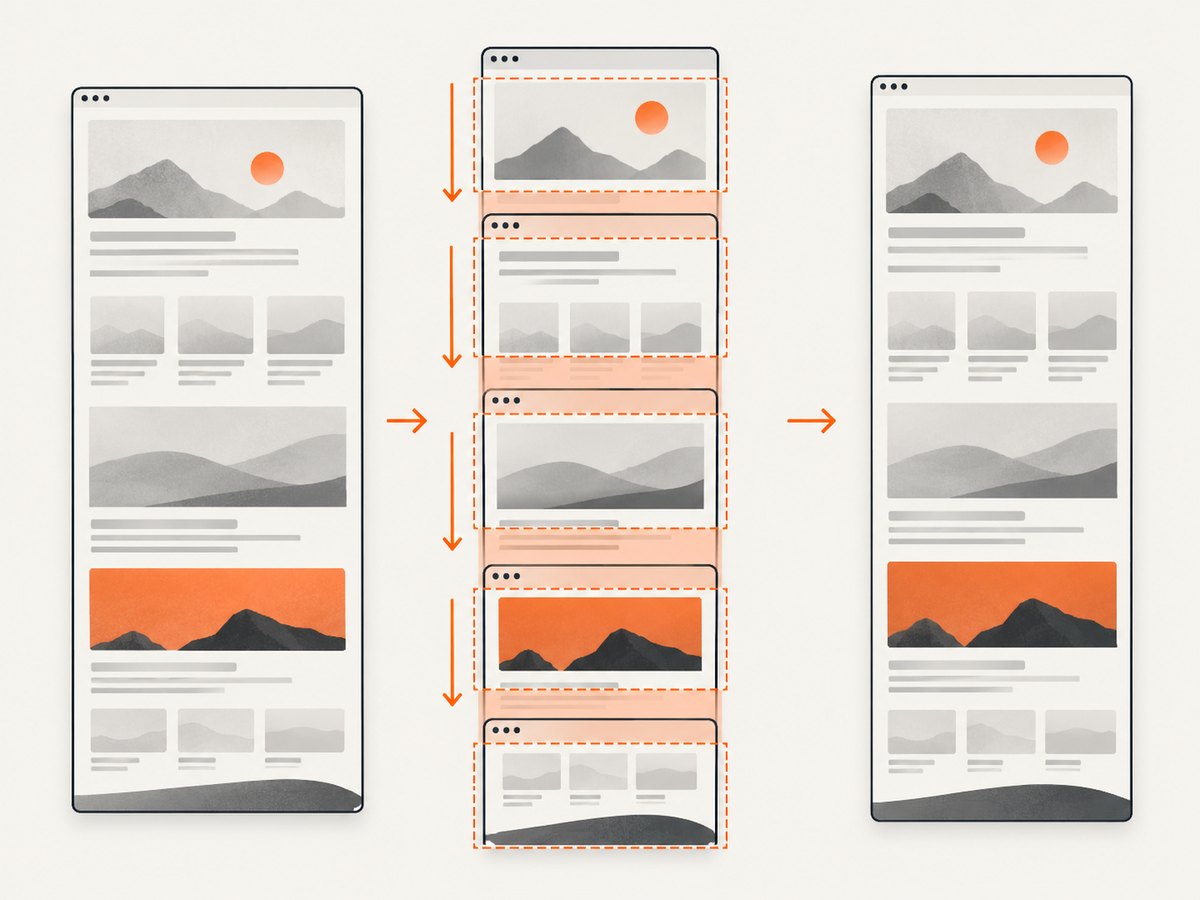
Direct answer: Selenium’s PhantomJS screenshot method captures the current viewport. For a full-page image, measure the document’s scroll width and height with JavaScript, resize the PhantomJS window to those dimensions, wait for the page to settle, and call save_screenshot(). If enlarging the viewport is unreliable, capture viewport-sized tiles while scrolling and stitch them together.
PhantomJS is a legacy option. The project homepage states: “Important: PhantomJS development is suspended until further notice.” Selenium removed native PhantomJS support because its WebDriver implementation was no longer actively developed. Use a pinned legacy environment only when you must reproduce an old workflow, and plan a move to maintained Firefox or Chromium automation.
How Selenium and PhantomJS handle screenshots
PhantomJS renders pages with its WebKit-based headless browser. Its WebPage API uses page.render() and supports PNG, JPEG, GIF, and PDF output. The viewport is controlled with page.viewportSize; its height is required. Selenium’s save_screenshot(path) is viewport-oriented, and set_window_size(width, height) controls that viewport.
Those facts explain why a normal Selenium screenshot often contains only the visible window. Full-page capture is an engineering pattern built on top of the viewport APIs rather than a guaranteed PhantomJS feature.
Prerequisites for the legacy Python recipe
- Install a Selenium version and Python binding compatible with your pinned PhantomJS binary.
- Make the PhantomJS executable available on
PATH, or pass its explicit path to the driver constructor. - Record the exact Selenium and PhantomJS versions. Old bindings differ in constructor arguments and startup behavior.
- Use a page you are permitted to automate, and expect JavaScript-heavy pages to need explicit readiness checks.
The examples below use the legacy webdriver.PhantomJS() shape from older Selenium Python bindings. Current Selenium releases may not expose that constructor.
Method 1: resize PhantomJS to the document dimensions
This is the shortest full-page approach for a mostly static page. It measures the largest relevant document dimensions, resizes the browser, and saves one image.
from selenium import webdriver

url = "https://example.com/long-page"
driver = webdriver.PhantomJS()
try:
    driver.set_window_size(1365, 900)
    driver.get(url)

    # Replace this fixed pause with a readiness condition in production.
    driver.implicitly_wait(2)

    width, height = driver.execute_script("""
        var body = document.body;
        var root = document.documentElement;
        return [
            Math.max(
                body ? body.scrollWidth : 0,
                root ? root.scrollWidth : 0,
                body ? body.offsetWidth : 0,
                root ? root.offsetWidth : 0,
                root ? root.clientWidth : 0
            ),
            Math.max(
                body ? body.scrollHeight : 0,
                root ? root.scrollHeight : 0,
                body ? body.offsetHeight : 0,
                root ? root.offsetHeight : 0,
                root ? root.clientHeight : 0
            )
        ];
    """)

    if not width or not height:
        raise RuntimeError("The page returned zero document dimensions")

    driver.set_window_size(int(width), int(height))
    driver.save_screenshot("full-page.png")
finally:
    driver.quit()
The documented Selenium calls are set_window_size() and save_screenshot(). The JavaScript measurement combines common document metrics because different layouts report dimensions through different elements. It is a practical legacy pattern, not a guarantee for every page.
Wait for fonts, images, and application rendering
A screenshot taken immediately after navigation can miss late layout changes. For a page that exposes a reliable readiness flag, wait for that flag instead of sleeping for an arbitrary duration.
from selenium.webdriver.support.ui import WebDriverWait

# Example: the application adds data-ready="true" to the document root.
WebDriverWait(driver, 30).until(
    lambda d: d.execute_script(
        "return document.documentElement.getAttribute('data-ready') === 'true';"
    )
)

# Wait until images that are already in the DOM have completed.
WebDriverWait(driver, 30).until(lambda d: d.execute_script("""
    return Array.prototype.every.call(
        document.images,
        function (img) { return img.complete; }
    );
"""))
If the site has no readiness signal, wait for a stable selector, a known API response, or a short page-specific delay. A delay alone cannot prove that a dynamic application has finished rendering.
Use clipRect when only part of the page is needed
PhantomJS’s WebPage renderer supports a clipRect rectangle. In a direct PhantomJS script, set the viewport first, then render only the requested region. Selenium’s screenshot API does not expose clipRect directly, so use PhantomJS’s own WebPage API when that control is required.
Method 2: scroll, capture, and stitch tiles
Resizing a window to several thousand pixels can fail or can interact badly with fixed elements. A tiled strategy keeps the viewport at a normal size, scrolls through the page, captures each viewport, and combines the images. Capture an overlap so seams can be cropped consistently.
import os
import time
from PIL import Image
from selenium import webdriver

URL = "https://example.com/long-page"
OUT_DIR = "tiles"
FINAL = "stitched-full-page.png"
VIEWPORT_WIDTH = 1365
VIEWPORT_HEIGHT = 900
OVERLAP = 80

os.makedirs(OUT_DIR, exist_ok=True)
driver = webdriver.PhantomJS()
try:
    driver.set_window_size(VIEWPORT_WIDTH, VIEWPORT_HEIGHT)
    driver.get(URL)

    # Scroll once through the page to trigger common lazy-loading handlers.
    total_height = driver.execute_script("""
        return Math.max(document.body.scrollHeight,
                        document.documentElement.scrollHeight);
    """)
    y = 0
    while y < total_height:
        driver.execute_script("window.scrollTo(0, arguments[0]);", y)
        time.sleep(0.2)
        y += VIEWPORT_HEIGHT - OVERLAP
        total_height = driver.execute_script("""
            return Math.max(document.body.scrollHeight,
                            document.documentElement.scrollHeight);
        """)

    driver.execute_script("window.scrollTo(0, 0);")
    time.sleep(0.2)

    positions = []
    y = 0
    index = 0
    while True:
        total_height = driver.execute_script("""
            return Math.max(document.body.scrollHeight,
                            document.documentElement.scrollHeight);
        """)
        max_y = max(0, total_height - VIEWPORT_HEIGHT)
        actual_y = min(y, max_y)
        driver.execute_script("window.scrollTo(0, arguments[0]);", actual_y)
        time.sleep(0.2)

        path = os.path.join(OUT_DIR, "tile-%04d.png" % index)
        driver.save_screenshot(path)
        positions.append((path, actual_y))

        if actual_y >= max_y:
            break
        y += VIEWPORT_HEIGHT - OVERLAP
        index += 1

    # Stitch using the recorded scroll positions. The final tile is cropped
    # to the document height; overlap is removed from every later tile.
    document_height = int(driver.execute_script("""
        return Math.max(document.body.scrollHeight,
                        document.documentElement.scrollHeight);
    """))
    canvas = Image.new("RGB", (VIEWPORT_WIDTH, document_height), "white")
    for i, (path, scroll_y) in enumerate(positions):
        tile = Image.open(path).convert("RGB")
        top = 0 if i == 0 else OVERLAP
        usable = tile.crop((0, top, VIEWPORT_WIDTH, tile.height))
        destination_y = scroll_y + top
        remaining = document_height - destination_y
        if remaining <= 0:
            continue
        if usable.height > remaining:
            usable = usable.crop((0, 0, usable.width, remaining))
        canvas.paste(usable, (0, destination_y))

    canvas.save(FINAL)
finally:
    driver.quit()
The exact overlap depends on the target page and how accurately PhantomJS reports scroll positions. Fractional scrolling, browser scaling, and sticky elements can require page-specific cropping rules. Keep the tile metadata so you can reproduce and debug seams.
Prevent common stitching defects
- Sticky headers: hide or temporarily disable them during capture, or crop their repeated area from every tile after the first.
- Fixed navigation: fixed elements appear in every viewport. Apply a temporary CSS rule such as
position: static !importantonly when changing the page is acceptable. - Animations: inject CSS that pauses transitions and animations before taking tiles.
- Lazy images: make one complete scroll pass before final capture, then verify that image elements are complete.
- Nested scroll containers: document scrolling will not reveal content inside an element with
overflow: auto. Scroll that container separately or capture it as its own region. - Fonts: wait for web fonts when possible. Late font swaps change line wrapping and invalidate tile alignment.
Disabling motion and overlays before capture
For pages where you control the content, add a capture-only stylesheet before measuring dimensions:
driver.execute_script("""
var style = document.createElement('style');
style.id = 'capture-stabilizer';
style.textContent = '* { animation: none !important; transition: none !important; caret-color: transparent !important; }';
document.head.appendChild(style);
""")
Hide cookie notices, chat launchers, or promotional overlays only when your capture requirements allow it. Removing an overlay can change the document height, so apply the rule before measuring and before taking tiles.
Firefox: a maintained Selenium full-document option
Firefox’s official Python Selenium API exposes save_full_page_screenshot() and related full-document methods. For new automation, evaluate maintained Firefox or Chromium drivers before extending a PhantomJS deployment. Native full-page methods can still need validation for sticky elements, lazy loading, and application-specific rendering.
from selenium import webdriver

options = webdriver.FirefoxOptions()
options.add_argument("-headless")
driver = webdriver.Firefox(options=options)
try:
    driver.get("https://example.com/long-page")
    driver.save_full_page_screenshot("full-page.png")
finally:
    driver.quit()
Comparison of full-page approaches
| Approach | Maintenance | Dynamic pages | Sticky or fixed elements | Formats | Operational notes |
|---|---|---|---|---|---|
| PhantomJS enlarged viewport | Legacy; project suspended | Depends on explicit waits | May appear once at the enlarged position | PNG, JPEG, GIF, PDF through PhantomJS APIs | Simple, but dimensions and limits vary by old binary |
| PhantomJS scroll-and-stitch | Legacy | Can trigger lazy loading, but timing-sensitive | Usually duplicated unless cropped or disabled | Usually image output from Selenium | More code and seam handling |
| Firefox native full-document capture | Maintained Selenium route | Validate against the target application | Still requires page-specific checks | Image output through Selenium | Prefer for new browser automation |
| Hosted screenshot API | Provider-managed browser setup | Depends on provider controls | Check the provider’s full-page behavior | Varies by service | Pay per usage or plan; no local driver maintenance |
PhantomJsCloud documents a fullPage: true option for capturing the full scrollable page. Compare any hosted service on fidelity, authentication controls, waiting behavior, output formats, reproducibility, and cost before switching.
Troubleshooting
| Symptom | Likely cause | Fix |
|---|---|---|
webdriver.PhantomJS is missing |
Your Selenium binding removed the legacy constructor. | Pin a compatible legacy binding and PhantomJS binary, or migrate to Firefox or Chromium. |
| Only the visible viewport is saved | save_screenshot() captures the current viewport. |
Measure document dimensions and resize first, or use tiled capture. |
| Bottom content is missing | Height was measured before asynchronous content or lazy images loaded. | Wait for a readiness condition, scroll once to trigger lazy loading, then measure again. |
| Repeated header bands appear | A fixed or sticky header was present in every tile. | Disable it during capture or crop the overlap from later tiles. |
| Tiles have visible seams | Scroll offsets, overlap, animations, or font loading changed between captures. | Pause motion, wait for fonts, record actual scroll positions, and tune overlap. |
| Images are blank | Capture occurred before image completion, or the resource failed. | Wait for document.images, verify the URL and network access, and inspect the page in the same legacy environment. |
| Window resize is ignored or capped | The old PhantomJS binary or operating environment limits viewport dimensions. | Use scroll-and-stitch, reduce the capture width, or migrate to a maintained browser. |
| Content inside a panel is absent | The page uses a nested scroll container. | Scroll that element independently and capture it separately, or change the page’s overflow behavior for the capture. |
| Driver startup hangs | Binary, executable permissions, Selenium binding, or environment mismatch. | Pin versions, verify the executable path, run the binary directly, and capture driver logs before changing application code. |
Performance, reliability, and cost
- Performance: Enlarged-viewport capture uses one screenshot but may consume substantial memory for very tall pages. Tiled capture uses more screenshot operations and stitching time, while keeping each browser surface smaller.
- Reliability: Record the URL, viewport, browser versions, measured dimensions, tile positions, and readiness condition. Keep representative pages with lazy images, fixed headers, nested scrolling, and long text in regression checks.
- Reproducibility: Pin the PhantomJS binary, Selenium binding, fonts, timezone, user agent, and network conditions where possible. Dynamic ads and third-party widgets can still change output.
- Cost: Self-hosting has no per-shot API charge, but it carries browser installation, maintenance, compute, storage, and debugging work. A hosted API trades that operational work for usage pricing. Do not assume a screenshot provider’s limits or billing rules without checking its current documentation.
Or skip the browser setup
ScreenshotNeo provides a website screenshot API and MCP server. One GET request returns a PNG, JPEG, WebP, or PDF. It removes cookie and consent banners, newsletter popups, and chat widgets before capture. Bot checks, blank pages, timeouts, failed loads, and cache hits are not billed, and the response identifies the result with X-Page-Verdict and X-Billed headers. Its MCP server lets Claude, Cursor, and other MCP clients use take_screenshot, get_page_info, and capture_pdf.

See the ScreenshotNeo API documentation for all options.
cURL
curl -G "https://api.screenshotneo.com/v1/shot" -d access_key=YOUR_API_KEY --data-urlencode url=https://stripe.com -o shot.webpPython
import requests; r = requests.get("https://api.screenshotneo.com/v1/shot", params={"access_key": "YOUR_API_KEY", "url": "https://stripe.com"}, timeout=90); open("shot.webp", "wb").write(r.content)Node.js
const q = new URLSearchParams({ access_key: 'YOUR_API_KEY', url: 'https://stripe.com' }); const res = await fetch(`https://api.screenshotneo.com/v1/shot?${q}`);ScreenshotNeo supports full-page capture with lazy images loaded, CSS-selector element capture, custom CSS and JavaScript, waits for selectors or network idle, device presets and custom viewports, retina scale, headers, cookies, user agents, authorization, timezone, geolocation, request blocking, caching with a chosen TTL, signed links, asynchronous jobs, signed webhooks, bulk capture, usage reporting, PDFs, and HTML/CSS rendering.
There are 1,000 free screenshots per month with no card. Paid plans start at $5 for 3,000 screenshots; every feature is available on every plan. Create a free ScreenshotNeo account.
FAQ
Can PhantomJS capture a PDF of a full page?
PhantomJS’s WebPage renderer supports PDF output. Selenium’s screenshot call itself is an image-oriented viewport operation, so use PhantomJS’s rendering API or a tool that exposes PDF capture when PDF output is the requirement.
Why does a full-page image differ from what I see in a normal browser?
PhantomJS uses an older WebKit engine and may differ in JavaScript, CSS, fonts, network behavior, and viewport handling. Compare the exact browser, viewport, and page state when investigating differences.
Should a new project use PhantomJS?
Usually no. PhantomJS development is suspended and Selenium removed native support. Use a maintained browser driver or a hosted screenshot service unless compatibility with a legacy environment is the specific requirement.
How do I capture one element instead of the entire page?
Locate the element, read its bounding rectangle, scroll it into view, and crop the resulting image, or use a capture API that accepts a CSS selector. Validate the result when the element changes size after scrolling.


