How to Fix Selenium Python Element Could Not Be Scrolled into View
Fix Selenium's “element could not be scrolled into view” error with reliable waits, overlay checks, iframe handling, scrolling code, and diagnostics.
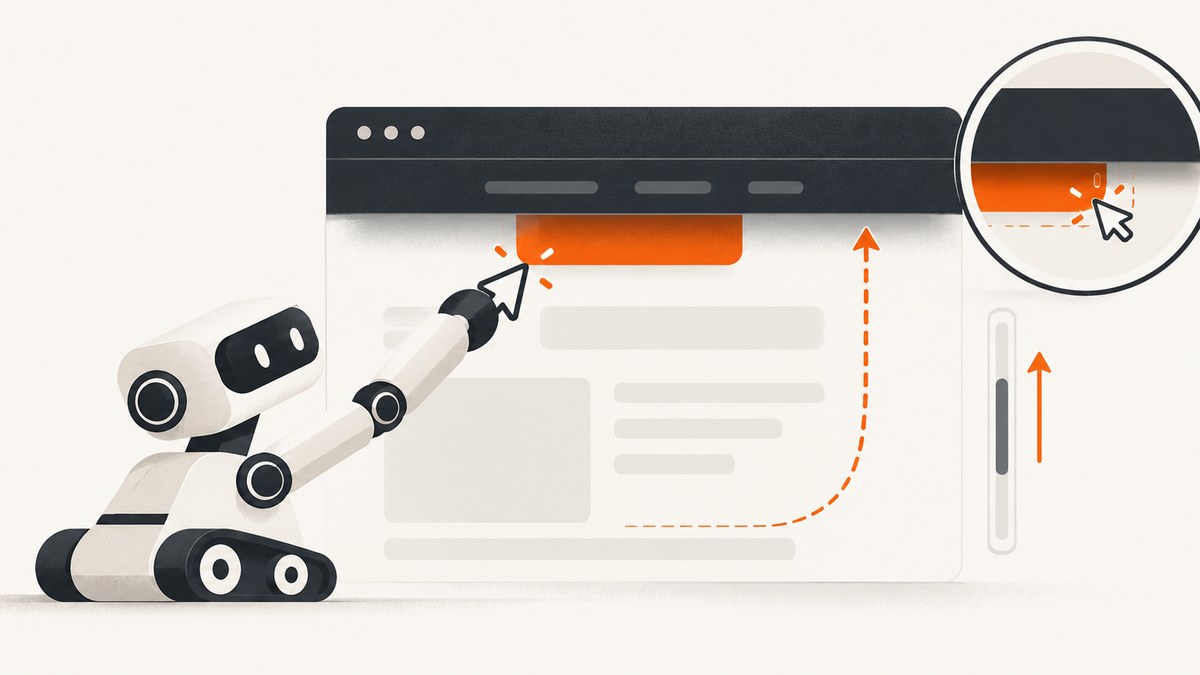
Quick answer: Selenium raises ElementNotInteractableException: element could not be scrolled into view when WebDriver cannot place a rendered, enabled element at a usable pointer position. Wait for the element’s real state, scroll it to the center of the viewport, remove overlays, use the correct iframe or shadow root, and locate the element again after the page changes.
DOM presence alone does not mean that a control is visible, enabled, inside the viewport, or the node that receives the pointer event. Selenium’s interaction algorithm scrolls an element into view and then checks whether it can be interacted with. The WebDriver specification describes a click as scrolling the element’s container into view and clicking its in-view center point; if that center is covered, WebDriver reports an interception error instead. See the Selenium interaction documentation and the W3C WebDriver specification.
What the error means
The exception usually appears during element.click(), but the same underlying problem can affect typing, selecting, submitting, or any user-like command. Selenium first tries to make the element pointer-interactable. Its documented behavior aligns the bottom of an out-of-viewport element with the bottom of the viewport. A sticky header, modal, cookie banner, disabled state, zero-size node, or moving layout can leave the final click point unusable.
| Observed condition | Likely result | What to inspect |
|---|---|---|
| Element is hidden or has no client rectangle | ElementNotInteractableException |
is_displayed(), dimensions, computed layout |
| Another painted element covers the center | ElementClickInterceptedException |
Cookie banner, modal, header, spinner, chat widget |
| Element was replaced after you found it | StaleElementReferenceException |
React/Vue/Angular re-render, navigation, virtual list |
| Element is inside another browsing context | Not found or not interactable | Iframe and shadow-root context |
A reliable Python fix
Use an explicit wait for visibility, verify that the control is enabled, center it below fixed headers, then re-find it and click. The second lookup matters on pages that replace nodes while scrolling or rendering.

from selenium import webdriver
from selenium.common.exceptions import (
    ElementClickInterceptedException,
    ElementNotInteractableException,
    StaleElementReferenceException,
    TimeoutException,
)
from selenium.webdriver.common.by import By
from selenium.webdriver.support import expected_conditions as EC
from selenium.webdriver.support.ui import WebDriverWait

options = webdriver.ChromeOptions()
options.add_argument("--headless=new")
options.add_argument("--window-size=1440,1000")
driver = webdriver.Chrome(options=options)
wait = WebDriverWait(driver, 15)
locator = (By.CSS_SELECTOR, "button.submit")

try:
    driver.get("https://example.com/checkout")

    # Wait for a rendered control, not merely a DOM node.
    button = wait.until(EC.visibility_of_element_located(locator))
    if not button.is_enabled():
        raise RuntimeError("The control is visible but disabled")

    # Centering avoids many sticky-header collisions.
    driver.execute_script(
        "arguments[0].scrollIntoView({block: 'center', inline: 'nearest'});",
        button,
    )

    # Re-find after scrolling in case the framework replaced the node.
    button = wait.until(EC.element_to_be_clickable(locator))
    button.click()

except (ElementClickInterceptedException, ElementNotInteractableException) as exc:
    print(f"Pointer interaction failed: {exc}")
finally:
    driver.quit()
WebDriverWait polls a callable until it returns a truthy result or the timeout expires. visibility_of_element_located checks that the node is displayed with non-zero dimensions; element_to_be_clickable combines visibility and enabled state. Neither condition guarantees that an overlay will remain absent between the check and the click, so persistent failures require overlay inspection.
Diagnose the exact state before changing the code
1. Confirm that the locator selects the intended node
element = driver.find_element(By.CSS_SELECTOR, "button.submit")
print("displayed:", element.is_displayed())
print("enabled:", element.is_enabled())
print("size:", element.size)
print("rect:", element.rect)
print("count:", len(driver.find_elements(By.CSS_SELECTOR, "button.submit")))
Duplicate desktop and mobile controls are common. A template button can exist in the DOM while its visible counterpart has a different ancestor. Narrow the locator to the semantic button or link that a user would actually click.
2. Inspect the browser’s hit-test point
details = driver.execute_script("""
const el = arguments[0];
const r = el.getBoundingClientRect();
const x = r.left + r.width / 2;
const y = r.top + r.height / 2;
const top = document.elementFromPoint(x, y);
return {
  rect: {left:r.left, top:r.top, width:r.width, height:r.height},
  viewport: {width: innerWidth, height: innerHeight},
  centerElement: top ? top.outerHTML.slice(0, 300) : null,
  targetIsCenterElement: top === el || el.contains(top)
};
""", element)
print(details)
If targetIsCenterElement is false, something is painted over the click center. Save a screenshot and inspect the returned HTML to identify the covering element.
3. Wait for overlays to disappear
cookie_banner = (By.CSS_SELECTOR, ".cookie-banner")
modal = (By.CSS_SELECTOR, "[role='dialog']")
spinner = (By.CSS_SELECTOR, ".loading-spinner")

for overlay in (cookie_banner, modal, spinner):
    try:
        wait.until(EC.invisibility_of_element_located(overlay))
    except TimeoutException:
        print("Overlay is still present:", overlay)

button = wait.until(EC.element_to_be_clickable(locator))
button.click()
Close a consent banner or modal through its real button when possible. Do not hide an overlay with JavaScript in a test that is supposed to reflect a user’s experience; that can conceal a production layout defect.
Targeted fixes for common causes
Hidden, zero-size, or duplicate controls
Check is_displayed(), size, and getBoundingClientRect(). Select the visible instance, wait for its parent panel to open, or target the button rather than a decorative child such as a span. A disabled control must remain disabled until validation or loading completes.
Page still rendering
A node can be present before its dimensions, position, or enabled state stabilizes. Replace fixed sleeps with a state-based wait. After a framework re-render, discard the old WebElement and locate it again. A cached reference becomes stale after navigation or DOM replacement.
Sticky headers and fixed toolbars
Selenium’s default scroll can place the element under a fixed header. Center alignment is a practical fix:
driver.execute_script(
    "arguments[0].scrollIntoView({block: 'center', inline: 'nearest'});",
    element,
)
wait.until(EC.element_to_be_clickable(locator)).click()
For a known header height, add a controlled offset:
driver.execute_script("""
const el = arguments[0];
const offset = arguments[1];
const y = el.getBoundingClientRect().top + window.scrollY - offset;
window.scrollTo({top: y, behavior: 'instant'});
""", element, 96)
Nested scroll containers and virtualized lists
scrollIntoView() scrolls the nearest scrollable ancestors, but overflow: hidden, custom list containers, and virtualized rows can still prevent a usable center. Scroll the container explicitly, wait for the row to render, and re-locate the control:
container = wait.until(EC.presence_of_element_located(
    (By.CSS_SELECTOR, ".results-scroll")
))
driver.execute_script(
    "arguments[0].scrollTop = arguments[0].scrollHeight;",
    container,
)
row_button = wait.until(EC.element_to_be_clickable(
    (By.CSS_SELECTOR, ".results-scroll button[data-id='42']")
))
row_button.click()
Wrong iframe or shadow root
An element inside an iframe belongs to a different browsing context. Switch before locating it, then return to the top-level document:
frame = wait.until(EC.presence_of_element_located(
    (By.CSS_SELECTOR, "iframe.checkout")
))
driver.switch_to.frame(frame)
submit = wait.until(EC.element_to_be_clickable((By.CSS_SELECTOR, "button.submit")))
submit.click()
driver.switch_to.default_content()
For shadow DOM, obtain the host’s shadow root and locate the descendant inside it:
host = driver.find_element(By.CSS_SELECTOR, "payment-widget")
root = host.shadow_root
submit = root.find_element(By.CSS_SELECTOR, "button.submit")
submit.click()
Moving layouts and browser differences
Images without dimensions, late fonts, animations, and responsive breakpoints can move a control between the wait and click. Disable nonessential animation in test environments, set a deterministic viewport, wait for the relevant content to settle, and record browser, driver, Selenium version, URL, viewport, and window state for intermittent failures. The protocol defines the interaction behavior, but it does not establish that a workaround is portable across every browser version.
JavaScript click: a deliberate fallback
button = wait.until(EC.presence_of_element_located(locator))
driver.execute_script("arguments[0].click();", button)
This dispatches a DOM click without WebDriver’s normal pointer hit-testing. Use it when the test specifically validates the handler and pointer reachability is irrelevant. It can hide a fixed-header collision, overlay, disabled state, or broken layout, so it should not be the first repair for a user-facing interaction.
A reusable diagnostic helper
def click_safely(driver, locator, timeout=15):
    wait = WebDriverWait(driver, timeout)
    element = wait.until(EC.visibility_of_element_located(locator))
    if not element.is_enabled():
        raise RuntimeError(f"Disabled element: {locator}")
    driver.execute_script(
        "arguments[0].scrollIntoView({block:'center', inline:'nearest'});",
        element,
    )
    element = wait.until(EC.element_to_be_clickable(locator))
    try:
        element.click()
    except StaleElementReferenceException:
        element = wait.until(EC.element_to_be_clickable(locator))
        element.click()
    except ElementClickInterceptedException:
        raise RuntimeError(
            "Click center is covered; inspect cookie banners, dialogs, headers, and spinners"
        )
Performance, reliability, and test design
- Use explicit waits: They poll for the state you need and usually finish sooner than a long fixed sleep.
- Keep locators stable: Prefer accessible roles, names, test IDs, or semantic attributes over generated class names.
- Control the viewport: A fixed window size makes responsive layouts and sticky-header behavior reproducible.
- Minimize retries: Re-locate after a known DOM replacement; blind retries can repeat a real defect and slow a suite.
- Capture evidence: On failure, save a screenshot, page source, browser console output, URL, viewport, and the element rectangle.
- Separate handler tests from pointer tests: A JavaScript click may be valid for the former, while the latter must use a real WebDriver click.
Or skip the browser setup
If your goal is to obtain a clean page image rather than test pointer interaction, ScreenshotNeo handles the capture with one request. It accepts cookie and consent banners before capture and removes more than 60 known consent platforms, newsletter popups, and chat widgets. Each step can be turned off. Bot checks, blank pages, timeouts, failed loads, and cache hits are not billed, and response headers identify the page verdict and billing result.
See the ScreenshotNeo API documentation for all options, including full-page and element capture, dark mode, device presets, custom viewport and retina scale, waits, custom CSS and JavaScript, hidden selectors, request blocking, headers, cookies, user agents, authorization, timezone, geolocation, transparent backgrounds, resizing, caching, signed links, asynchronous jobs, bulk capture, usage, and the OpenAPI specification.
cURL
curl -G "https://api.screenshotneo.com/v1/shot" -d access_key=YOUR_API_KEY --data-urlencode url=https://stripe.com -o shot.webpPython
import requests
r = requests.get("https://api.screenshotneo.com/v1/shot", params={"access_key": "YOUR_API_KEY", "url": "https://stripe.com"}, timeout=90)
r.raise_for_status()
open("shot.webp", "wb").write(r.content)
Node.js
const q = new URLSearchParams({ access_key: 'YOUR_API_KEY', url: 'https://stripe.com' });
const res = await fetch(`https://api.screenshotneo.com/v1/shot?${q}`);
if (!res.ok) throw new Error(`${res.status} ${res.statusText}`);
const fs = await import('node:fs/promises');
await fs.writeFile('shot.webp', Buffer.from(await res.arrayBuffer()));
ScreenshotNeo also provides an MCP server with take_screenshot, get_page_info, and capture_pdf tools for Claude, Cursor, and other MCP clients. The Free plan includes 1,000 shots per month with no card; paid plans start at $5 for 3,000 shots. Create a free ScreenshotNeo account.
Short troubleshooting checklist
- Confirm the locator returns the intended current element exactly once.
- Check displayed state, enabled state, dimensions, and bounding rectangle.
- Wait for rendering, validation, and loading state rather than sleeping for a fixed duration.
- Inspect the click center for a header, modal, consent banner, spinner, or chat widget.
- Center the element, then re-find it after scrolling.
- Scroll the correct nested container for virtualized content.
- Switch into the correct iframe or shadow root.
- Record browser, driver, Selenium, viewport, URL, and page state for intermittent failures.
- Use JavaScript click only when bypassing pointer hit-testing is intentional.

FAQ
Why does Selenium find the element but fail to click it?
Finding proves DOM presence only. The node may be hidden, disabled, outside a usable scroll container, replaced after lookup, or covered at its center point.
Should I always call scrollIntoView()?
Use it when the target is outside the viewport or a fixed header causes collisions. Center alignment is usually safer than relying on the browser’s default bottom alignment.
Is element_to_be_clickable enough?
It checks visibility and enabled state, but it cannot guarantee that an overlay will not appear before the click. Persistent interception requires overlay and hit-test diagnostics.
When is JavaScript click appropriate?
When you intentionally test a DOM handler without modeling a user’s pointer. It is not equivalent to a real click and can conceal layout defects.
Can a screenshot help prove the cause?
Yes. Capture the viewport at failure time and inspect the target’s rectangle and document.elementFromPoint() result. A screenshot alone may not reveal transparent or off-screen overlays, so collect both.