How to Fix Selenium Python find_element_by_name Clicks That Do Nothing
Replace legacy name lookups with Selenium’s documented By.NAME locator, then check readiness, page context, click interception, and the actual post-click result.
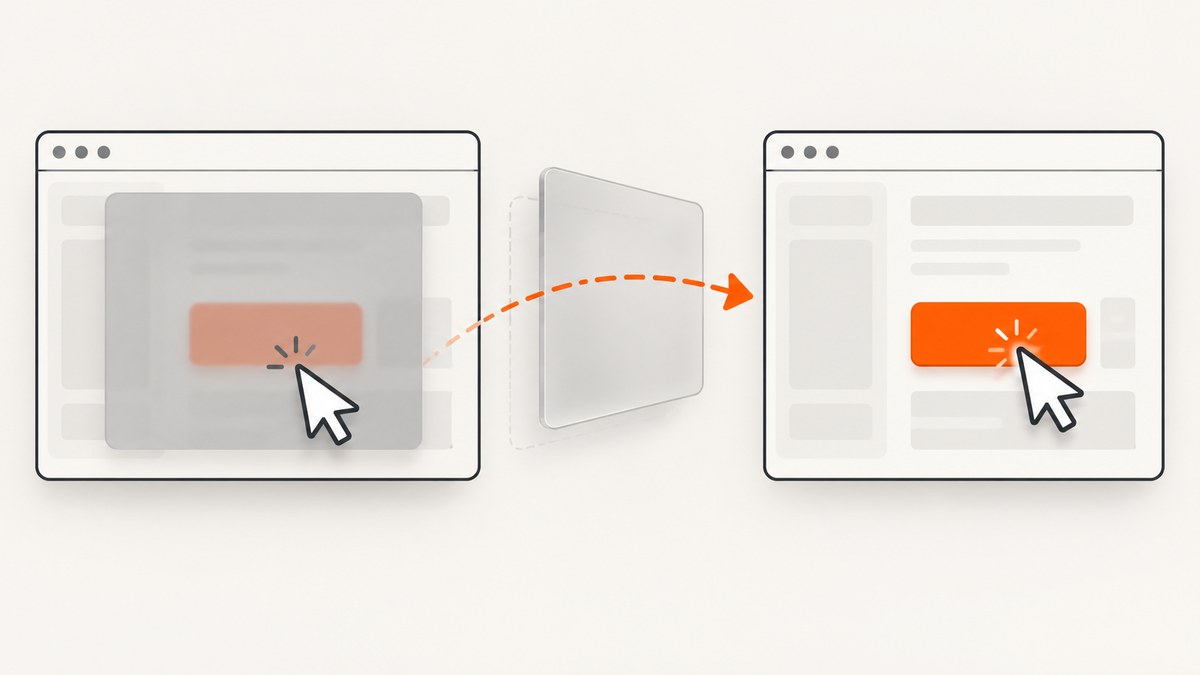
If a Selenium Python script finds an element by name but its click appears to do nothing, use the current documented locator form, then check whether the element is ready, unobstructed, in the right browsing context, and producing the result your test expects. Finding an element, clicking it, and confirming the application responded are separate steps.
Use driver.find_element(By.NAME, "target-name"), importing By from selenium.webdriver.common.by. The current Python API reference documents find_element(by, value) and By.NAME; use this documented form instead of relying on the legacy find_element_by_name spelling.
1. Replace find_element_by_name with By.NAME
from selenium.webdriver.common.by import By

button = driver.find_element(By.NAME, "target-name")
button.click()
Replace target-name with the exact value of the target element’s name attribute. For example, for <button name="save">Save</button>, use By.NAME, "save". This lookup returns the first match. If several elements share the same name, narrow the locator or inspect all matches rather than assuming the first one is the intended control.
2. Wait until the element can be clicked and verify the result
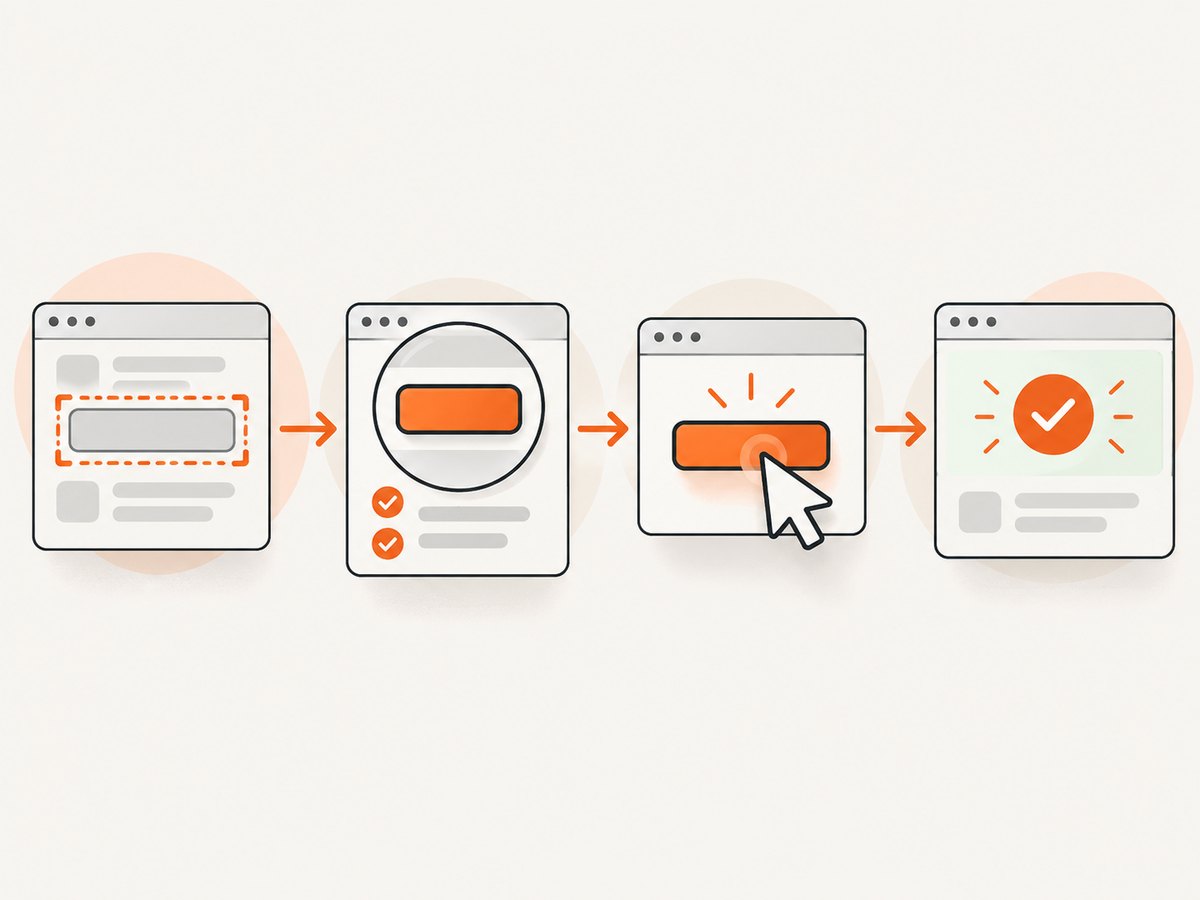
A successful lookup only shows that Selenium found a matching node. It does not show that the element is visible, enabled, unobstructed, or that the application completed the action. Selenium’s element_to_be_clickable expected condition checks that an element is visible and enabled. After clicking, wait for a page-specific success signal.
from selenium.webdriver.common.by import By
from selenium.webdriver.support.ui import WebDriverWait
from selenium.webdriver.support import expected_conditions as EC

name_locator = (By.NAME, "target-name")
wait = WebDriverWait(driver, 10)

old_url = driver.current_url
button = wait.until(EC.element_to_be_clickable(name_locator))
button.click()

# Choose a condition that represents success on this page.
# For navigation:
wait.until(EC.url_changes(old_url))

# Alternatively, wait for a success message or changed application state:
# wait.until(EC.visibility_of_element_located((By.CSS_SELECTOR, ".success")))
The 10-second timeout is an example, not a universal setting. Choose a timeout that fits the application and test environment. If the action does not navigate, replace the URL condition with an observable result specific to the page. A returned .click() call alone is not proof that the intended business action succeeded.
3. Diagnose a click that appears to do nothing
- Check the locator and match. Inspect the live page’s exact
namevalue. If multiple nodes match, identify which one Selenium finds. If no element is found, check the selector and whether the page has finished loading. - Check the page, window, and frame. Confirm the browser is on the expected page and window. If the element is inside an iframe, switch into that frame before locating it. Switch back when continuing work in the parent document.
- Wait for readiness. Presence in the DOM is different from visibility. Selenium’s visibility condition requires the element to be present and have non-zero width and height. Use an explicit wait for clickability when the element must be visible and enabled.
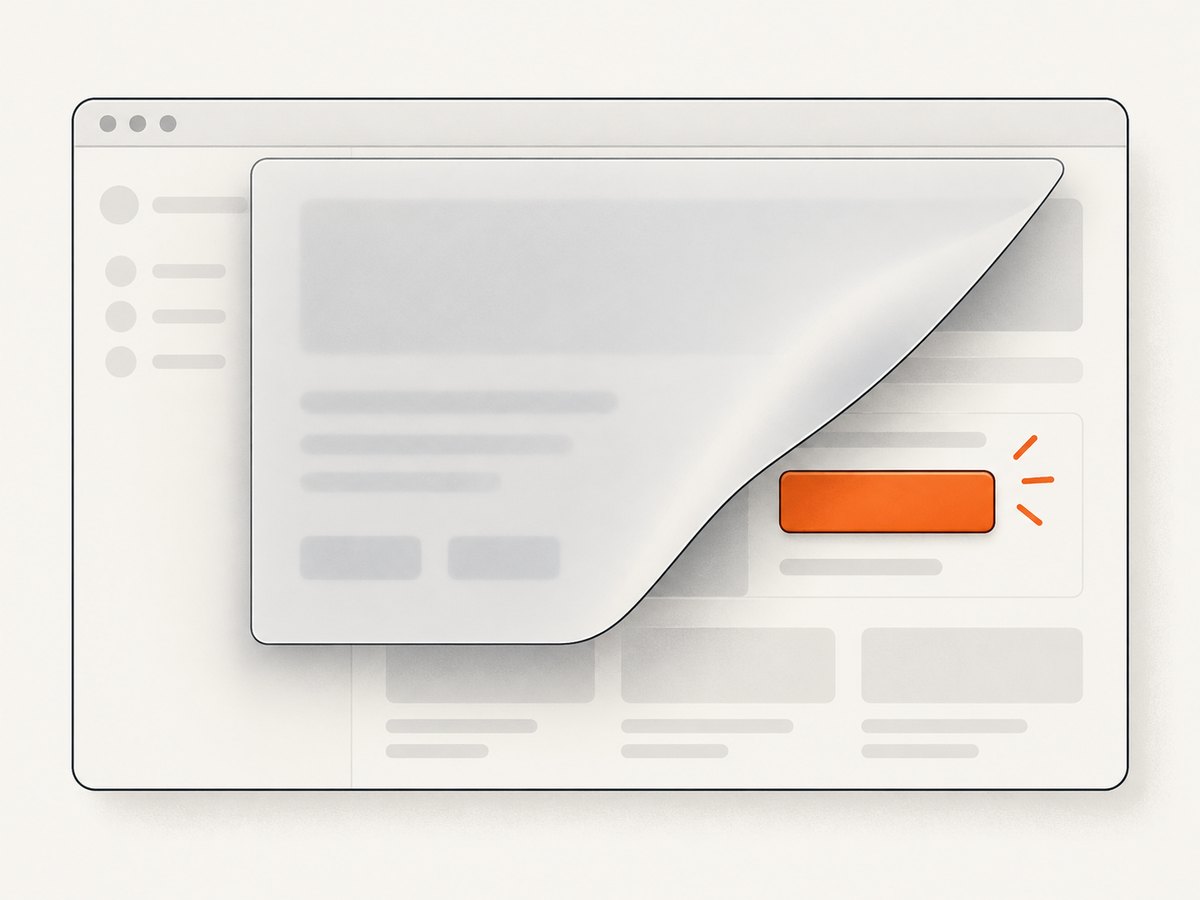
- Check for an overlay. A cookie banner, modal, sticky header, or loading mask can cover the target. Selenium raises
ElementClickInterceptedExceptionwhen another element would receive the click. Inspect the visible page and dismiss or wait for the obstruction as the application requires. - Locate again after DOM changes. Navigation, refresh, dynamic replacement, or a refreshed frame can make a stored element reference stale. Selenium does not automatically relocate that reference. Wait for the update, then find the element again.
- Verify the application response. Check for form validation, a disabled control, a changed state, a success message, or navigation. If no exception is raised but nothing changes, verify that the locator selected the intended control and that the page’s expected action is valid.
4. Use the right browsing context
WebDriver searches the current document in the current frame. If the control is in an iframe, switch to it first. The example below finds a frame by name; use the frame’s actual name or another suitable locator.
from selenium.webdriver.common.by import By
from selenium.webdriver.support.ui import WebDriverWait
from selenium.webdriver.support import expected_conditions as EC

wait = WebDriverWait(driver, 10)
wait.until(EC.frame_to_be_available_and_switch_to_it((By.NAME, "payment-frame")))

button = wait.until(EC.element_to_be_clickable((By.NAME, "target-name")))
button.click()

# Return to the top-level document before locating elements outside the frame.
driver.switch_to.default_content()
If the target is in a different browser window or tab, switch to the appropriate window handle before searching. If the page navigates or the frame is replaced, establish the correct context again and locate a fresh element.
5. Common errors and fixes
| Symptom or exception | Likely cause | What to check or change |
|---|---|---|
AttributeError for find_element_by_name |
The code uses a legacy method spelling that is not in the current documented Python API. | Import By and use driver.find_element(By.NAME, "..."). |
NoSuchElementException |
The name is wrong, the page is still loading, or the current frame/window is not the one containing the element. | Check the live attribute, wait for the page or element, and verify the current browsing context. |
ElementNotInteractableException |
The node exists but is not in a state Selenium can interact with, such as being hidden. | Wait for visibility and enabled state; inspect whether the page exposes a different visible control. |
ElementClickInterceptedException |
Another element covers the target and receives the click. | Inspect banners, dialogs, sticky elements, and loading masks; wait for or dismiss the obstruction. |
StaleElementReferenceException |
The page updated or replaced the node after it was located. | Wait for the update and find the element again in the correct context. |
| No exception, but no visible result | The wrong matching control may have been clicked, the application may reject the form, or the expected outcome may not be navigation. | Check match count, control state, validation messages, and a concrete post-click condition. |
| Wait times out | The condition never became true, possibly because the locator or context is wrong or the page is blocked. | Inspect the current page and exception details; confirm the condition matches the page’s actual success state. |
6. Reliability and performance notes
- Prefer explicit waits for the condition you need. A short fixed sleep can wake too early on a slow page or waste time on a fast one. Wait for visibility, clickability, a frame, a URL change, or the actual result.
- Keep locators specific. A duplicated
namecan lead to a valid click on the wrong control. Confirm the match and use a more specific locator when necessary. - Re-find after meaningful page updates. Reusing a reference after navigation or DOM replacement can cause stale-element errors. Locate after the update has completed.
- Choose timeouts from observed environment needs. The example timeout is illustrative. Browser speed, application load, and CI conditions affect an appropriate value; the dossier provides no benchmark or universal timeout.
- Make success observable. Waiting for the intended outcome helps distinguish a click attempt from a successful application action and makes failures easier to diagnose.
7. Or skip the browser setup
If the task is capturing a page rather than testing an interactive workflow, ScreenshotNeo is a website screenshot API and MCP server. One GET request returns a PNG, JPEG, WebP, or PDF. See the ScreenshotNeo API documentation.
curl -G "https://api.screenshotneo.com/v1/shot" -d access_key=YOUR_API_KEY --data-urlencode url=https://stripe.com -o shot.webpPython:
import requests

r = requests.get(
    "https://api.screenshotneo.com/v1/shot",
    params={"access_key": "YOUR_API_KEY", "url": "https://stripe.com"},
    timeout=90,
)
open("shot.webp", "wb").write(r.content)
Node.js:
const q = new URLSearchParams({ access_key: 'YOUR_API_KEY', url: 'https://stripe.com' });
const res = await fetch(`https://api.screenshotneo.com/v1/shot?${q}`);
ScreenshotNeo accepts cookie and consent banners and removes more than 60 known consent platforms, newsletter popups, and chat widgets before capture; each of those steps can be turned off. Bot checks, blank pages, failed loads, timeouts, and cache hits are not billed, and response headers report the page verdict and billing status. Its MCP server provides take_screenshot, get_page_info, and capture_pdf tools for Claude, Cursor, and other MCP clients. The Free plan includes 1,000 screenshots a month with no card; paid plans start at $5 for 3,000 screenshots.
Sign up for 1,000 free screenshots a month, with no card.
FAQ
How do I find an element by name in Selenium 4 Python?
Import By from selenium.webdriver.common.by, then call driver.find_element(By.NAME, "the-name").
Does element_to_be_clickable guarantee the application action worked?
No. It checks visibility and enabled state. Wait separately for the page-specific outcome that proves the action completed.
Should I use JavaScript to click the element?
First determine why the normal click did not work. An overlay, wrong context, hidden element, stale reference, or rejected form requires fixing that condition. The reviewed documentation does not establish JavaScript clicking as a general fix for these causes.


