How to Locate an Input Inside an Iframe With Selenium Python and Headless Chrome
Switch into the iframe before locating its input. This guide covers reliable waits, nested frames, headless Chrome setup, troubleshooting, and a complete Selenium example.
To locate an input inside an iframe with Selenium, switch the driver into that iframe first, then search for the input. Selenium searches only the current browsing context; while the driver remains in the top-level page, elements in a frame’s separate document are out of reach. For frames that load asynchronously, use an explicit wait that waits for the frame and switches into it.
The same rule applies in headless Chrome. Headless mode changes how Chrome runs, not how Selenium searches documents. This guide shows a runnable Python example, frame-switching choices, nested-frame handling, diagnostics, and what to check when headless startup fails.
1. Install Selenium and start headless Chrome
Install a current Selenium package in the Python environment used by your script:
python -m pip install seleniumCurrent Selenium includes Selenium Manager, which can manage a compatible driver in supported configurations when you create a Chrome driver without supplying one yourself. Configure Chrome through ChromeOptions; --headless=new runs Chrome without a visible window.
from selenium import webdriver

options = webdriver.ChromeOptions()
options.add_argument("--headless=new")
driver = webdriver.Chrome(options=options)
Keep the browser and driver setup simple first. Add environment-specific flags only when the environment requires them. In particular, --no-sandbox is not a general fix for iframe lookups: add it only when the execution environment requires it.
2. Wait for the iframe, switch, then find the input
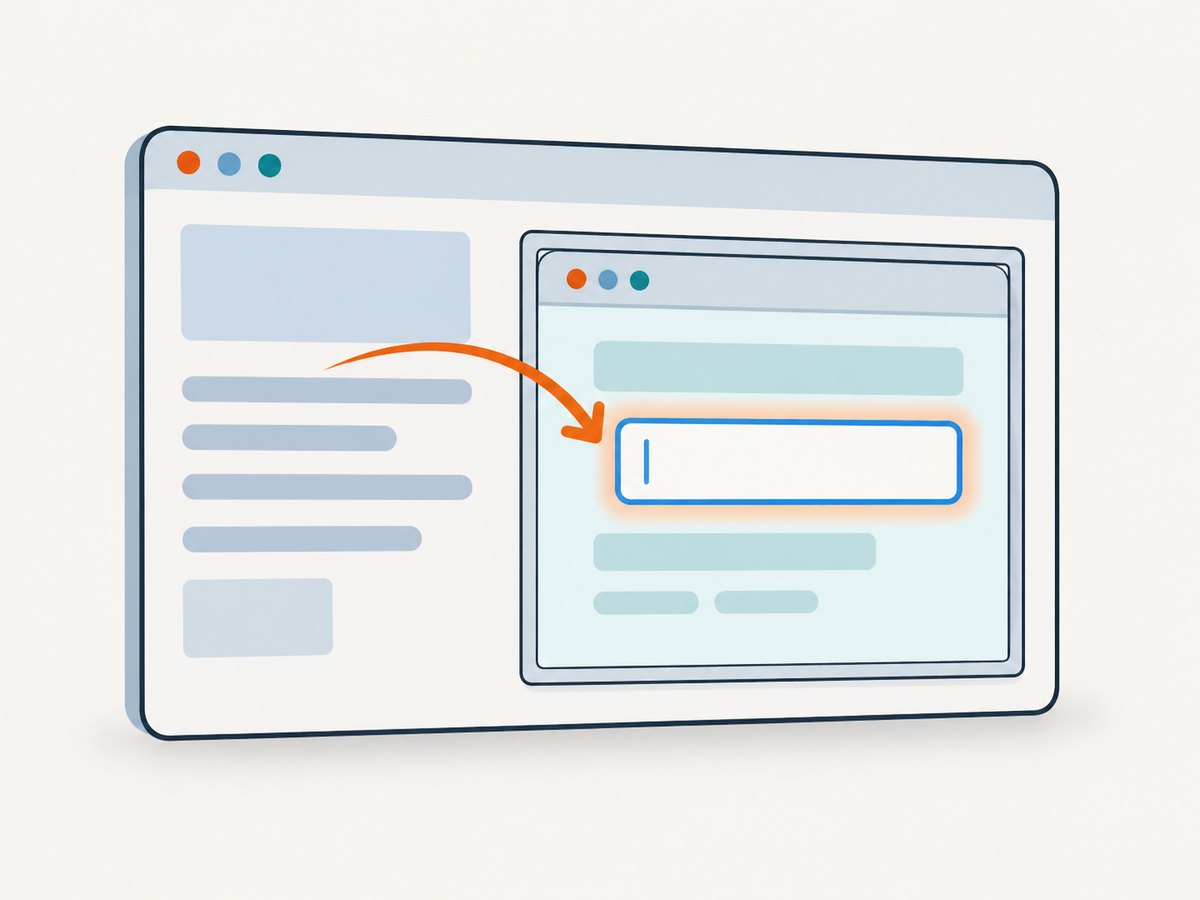
Use frame_to_be_available_and_switch_to_it when a page inserts or loads its iframe after navigation. This expected condition waits for the frame and switches into it when it becomes available. Then wait for the input in that frame’s document.
from selenium import webdriver
from selenium.webdriver.common.by import By
from selenium.webdriver.support.ui import WebDriverWait
from selenium.webdriver.support import expected_conditions as EC

options = webdriver.ChromeOptions()
options.add_argument("--headless=new")
driver = webdriver.Chrome(options=options)

try:
    driver.get("https://example.test/page")
    wait = WebDriverWait(driver, 15)

    # Wait until the frame is available, then switch into it.
    wait.until(
        EC.frame_to_be_available_and_switch_to_it((By.ID, "login-frame"))
    )

    # This lookup now searches inside login-frame.
    email = wait.until(
        EC.visibility_of_element_located((By.ID, "email"))
    )
    email.clear()
    email.send_keys("person@example.com")
finally:
    # Restore the top-level page context and always close Chrome.
    driver.switch_to.default_content()
    driver.quit()
Replace the example URL and selectors with values from the page under test. The iframe selector must identify the frame in the current document; the input selector must match the input inside that frame. Selenium’s official frame guide explains that it is aware only of elements in the top-level document until you switch context. See the Selenium frames guide and the ScreenshotNeo API documentation.
Why the wait belongs on the frame
A common mistake is to wait for the input while still in the parent document. That wait keeps searching the wrong document until it times out. First wait for the iframe and switch into it; only then wait for the input. The frame condition combines availability and switching, so the subsequent lookup starts in the correct context.
Use visibility when you intend to type into the input and need it displayed. If you only need to confirm that markup exists, a presence condition may be more appropriate. A present element can still be hidden or not ready for interaction.
3. Choose a frame locator that will stay stable
Selenium’s Python switch_to.frame() accepts a frame WebElement, a string name or ID, or an integer index. Prefer a stable locator that describes the intended iframe. Index-based switching depends on frame order, which can change when the page adds an advertisement, consent frame, or another embedded component.
| Method | Example | When to use it | Tradeoff |
|---|---|---|---|
| WebElement | driver.switch_to.frame(iframe) |
The frame has a stable CSS or other locator. | Find the iframe first, then switch. |
| Name or ID | driver.switch_to.frame("login-frame") |
The iframe has a dependable name or ID. | A string is interpreted as a frame name or ID. |
| Index | driver.switch_to.frame(0) |
A controlled page has a known, fixed frame order. | Fragile if frame order changes. |
Switch using a WebElement
iframe = driver.find_element(
    By.CSS_SELECTOR, "iframe[data-testid='login']"
)
driver.switch_to.frame(iframe)
email = driver.find_element(By.ID, "email")
For a frame that may not exist immediately, use the frame wait with the same locator instead of calling find_element immediately:
wait.until(
    EC.frame_to_be_available_and_switch_to_it(
        (By.CSS_SELECTOR, "iframe[data-testid='login']")
    )
)
Switch using a name, ID, or index
# The string can identify the frame by name or ID.
driver.switch_to.frame("login-frame")

# Index is zero-based and depends on frame order.
driver.switch_to.frame(0)
These calls switch immediately. If the frame loads later, wrap the appropriate frame locator in frame_to_be_available_and_switch_to_it so your script does not race the page.
4. Work with nested iframes and return to the right level
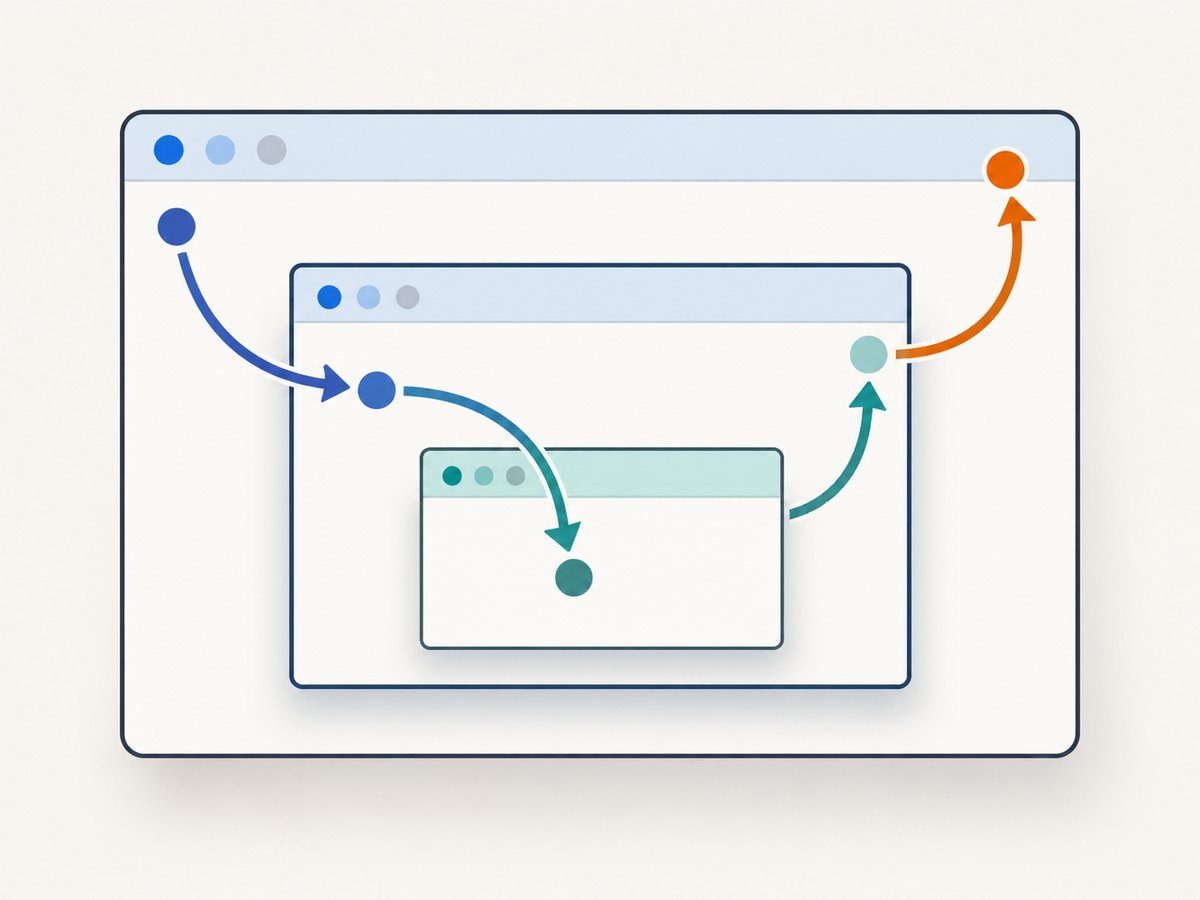
A nested iframe is found from within its parent frame. Switch into each ancestor in order, locate the next iframe in that current context, then switch again. Use parent_frame() to move up one level or default_content() to return directly to the top-level page.
# Start in the top-level document and enter the outer frame.
wait.until(
    EC.frame_to_be_available_and_switch_to_it((By.ID, "outer"))
)

# The inner frame is searched for inside the outer frame.
wait.until(
    EC.frame_to_be_available_and_switch_to_it(
        (By.CSS_SELECTOR, "iframe.inner")
    )
)

# Locate a control inside the nested frame.
search = wait.until(
    EC.visibility_of_element_located((By.NAME, "query"))
)
search.send_keys("example")

# Go up one level, to the outer frame.
driver.switch_to.parent_frame()

# Return to the top-level document.
driver.switch_to.default_content()
Do not try to find the inner iframe from the top-level page if it is inside the outer frame. Likewise, after returning to a parent or the top-level document, selectors are evaluated there. Re-enter the relevant frame before interacting with its contents again.
5. Use current Selenium locators
Use the By class with find_element and find_elements. For example:
from selenium.webdriver.common.by import By

email = driver.find_element(By.ID, "email")
submit = driver.find_element(By.CSS_SELECTOR, "button[type='submit']")
Older examples may use methods such as find_element_by_id. Those legacy methods were removed from current Selenium. Update old scripts to the By locator form rather than trying to install an old Selenium version to preserve obsolete calls.
Choose selectors from the iframe’s own DOM. An ID that exists on the parent page does not prove the same ID exists inside the frame. When possible, use a stable ID, name, or site-provided test attribute rather than a long structural CSS path.
6. Diagnose “no such element” when the input is visible
If a browser window shows an input but Selenium cannot find it, check the browsing context before changing the input selector.
- Confirm the iframe exists in the current context. If it is nested, first switch into each ancestor. If the frame is top-level, locate it from the page document.
- Wait for frame availability. A visible page can render its frame after the initial navigation completes. Use an explicit wait rather than a fixed sleep.
- Switch into the frame. Only then search for the input.
- Check the selector inside the frame document. Verify the input’s actual ID, name, or attributes in the embedded page, not only in the parent page.
- Check visibility and readiness separately. The element may exist but be hidden, disabled, covered, or not yet ready for interaction.
- Check context after earlier operations. A previous frame switch may still be active. Return with
default_content()before locating a frame in the top page. - Check whether the element is actually in a frame. A visually embedded component might instead be rendered in the main document or another nested frame; inspect the document structure.
Keep waits targeted. A long global delay can obscure the real issue, while an explicit wait on the frame or expected input state documents what the script needs.
7. Headless Chrome startup and environment issues
Headless mode does not alter Selenium’s frame-switching model. If the script works with a visible browser but not headless, separate browser startup and page behavior from locator logic.
- Driver startup fails: let Selenium Manager manage the driver in a supported setup, or verify that a manually managed ChromeDriver has a compatible major version for Chrome.
- Chrome cannot launch in a restricted runtime: inspect the environment’s browser requirements. Add
--no-sandboxonly if that runtime requires it; it does not repair selectors or frame context. - Page timing differs: use explicit waits for navigation-dependent frames and controls instead of assuming they are ready immediately.
- Input interaction fails after lookup: confirm the input is visible and enabled, and that the driver is still in its iframe. Successful location and successful interaction are separate conditions.
Selenium Manager is bundled with Selenium and can discover, download, and cache compatible drivers and browsers in supported configurations. If you provide a driver yourself, Chrome and ChromeDriver major versions must match. See Selenium’s Selenium Manager documentation and Chrome driver guidance.
8. Reliability, speed, and cost considerations
Explicit waits are a reliability tool: they let the script proceed when the specific frame or element is ready, without guessing a fixed sleep duration. A wait timeout should reflect the page and environment; it is a maximum wait, not a command to pause for that full period. Keep the browser lifecycle bounded with try/finally so Chrome is quit even when a lookup or interaction raises an exception.
For repeated captures or tests, avoid adding extra navigation and repeated frame searches without need. Use stable selectors and switch once to the required context for a sequence of operations. There is no universal timing benchmark: page load, network, frame creation, and runtime conditions determine elapsed time.
Running Selenium means provisioning a browser and driver and maintaining that execution environment. Driver management can be handled by Selenium Manager in supported configurations, but browser startup and page interaction remain part of the job. For screenshot-only work, compare that setup and its operational cost with a screenshot API. Do not assume a screenshot service can interact with a form as Selenium does; choose based on whether you need browser automation or an image of the page.
9. Or skip the browser setup
If the task is to capture a page image rather than type into an iframe, ScreenshotNeo provides a website screenshot API and MCP server. One GET request returns a PNG, JPEG, WebP, or PDF. See the ScreenshotNeo API documentation for parameters and options.
import requests

r = requests.get(
    "https://api.screenshotneo.com/v1/shot",
    params={
        "access_key": "YOUR_API_KEY",
        "url": "https://example.com",
    },
    timeout=90,
)
r.raise_for_status()
open("shot.webp", "wb").write(r.content)
ScreenshotNeo removes cookie banners, popups, and chat widgets before the shot. Bot checks, blank pages, and failed loads are never billed. Its MCP server lets AI agents use take_screenshot, get_page_info, and capture_pdf. The free plan includes 1,000 screenshots per month with no card; paid plans start at $5 for 3,000. Those capture features do not replace Selenium when your task requires locating an input and entering data.
Sign up for 1,000 free screenshots a month, with no card required.
10. FAQ
Can I locate an iframe input without switching into the frame?
No. Selenium searches the active browsing context. Switch into the frame containing the input before locating it.
Should I use a frame index?
Use an index only when the page has a controlled, stable frame order. A stable frame locator or name/ID is easier to maintain.
How do I return to the top page?
Call driver.switch_to.default_content(). Use parent_frame() when you only need to move up one nesting level.
Does headless Chrome need a different iframe locator?
No. The frame switching and locator rules are the same. Headless Chrome is configured through Chrome options.
Can ScreenshotNeo fill the input for me?
ScreenshotNeo is for page screenshots and PDFs. Use Selenium when the task requires interacting with a form control.


