How to Open Several URLs One by One in the Same Tab with Selenium Python
Reuse one Selenium WebDriver, navigate with get(), wait for page state, process each URL, and close the browser safely.

To open several URLs one by one in the same tab with Selenium Python, create one WebDriver before the loop and call driver.get(url) for every URL. Read or interact with the current page inside the loop, then continue to the next URL. The same browser tab is reused and each navigation replaces the page currently displayed.
from selenium import webdriver

urls = [
    "https://example.com/first",
    "https://example.com/second",
    "https://example.com/third",
]

driver = webdriver.Chrome()
try:
    for url in urls:
        driver.get(url)
        print(driver.title)
        # Extract data or interact with this page here.
finally:
    driver.quit()
The placement of webdriver.Chrome() is the key. If it is inside the loop, Selenium starts a new browser session for every URL. If you call get() repeatedly without processing the page between calls, navigation happens so quickly that the tab finishes on the last URL and earlier pages appear to have been skipped.
What driver.get() does
Selenium’s Python WebDriver API defines get(url) as navigation to a URL in the current window or tab. The URL must include a protocol such as http:// or https://. The call returns after the browser’s page load event (onload) has fired, but modern sites can continue fetching data and rendering components afterward. See the official Selenium Python WebDriver API.
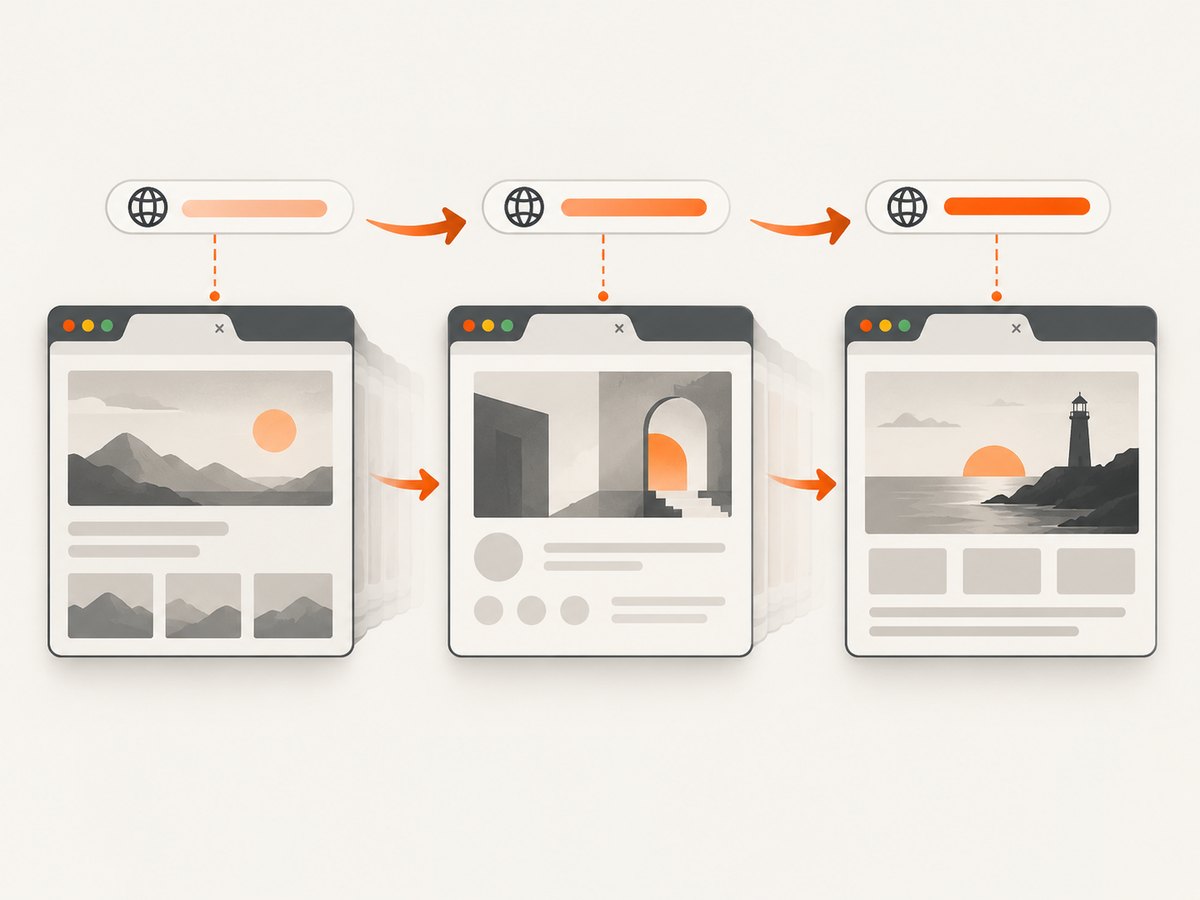
Because each call targets the current tab, this sequence replaces the previous document:
driver.get("https://example.com/first")
# The first document is active here.
driver.get("https://example.com/second")
# The first document is replaced by the second.
Any element references from the first page become invalid after the second navigation. Locate elements again after every get().
Complete sequential scraper with explicit waits
Use an explicit wait when the next operation depends on an element, text, or application state. A load event alone does not prove that an AJAX request, chart, table, or client-side route has finished.
from selenium import webdriver
from selenium.webdriver.common.by import By
from selenium.webdriver.support.ui import WebDriverWait
from selenium.webdriver.support import expected_conditions as EC
from selenium.common.exceptions import TimeoutException

urls = [
    "https://example.com/first",
    "https://example.com/second",
    "https://example.com/third",
]

driver = webdriver.Chrome()
wait = WebDriverWait(driver, 20)

try:
    for url in urls:
        driver.get(url)
        try:
            heading = wait.until(
                EC.visibility_of_element_located((By.CSS_SELECTOR, "h1"))
            )
            print({"url": url, "title": driver.title, "heading": heading.text})
        except TimeoutException:
            print({"url": url, "error": "h1 did not appear within 20 seconds"})
finally:
    driver.quit()
Choose a condition that represents readiness for your page: presence_of_element_located when the node only needs to exist, visibility_of_element_located when it must be visible, or text_to_be_present_in_element when a known status is required. Keep the wait inside the loop so every URL receives the same readiness check.
Installation and browser setup
- Install Selenium in the Python environment:
python -m pip install -U selenium. - Use a supported browser such as Chrome, Edge, or Firefox.
- Create the driver once and always call
quit()in afinallyblock.
Modern Selenium includes Selenium Manager, which handles browser-driver installation for most supported platforms and browsers. The Selenium Python API documentation describes this behavior. If your environment blocks automatic downloads or pins a corporate browser build, configure the driver manually according to the current browser documentation.
A headless configuration is useful in CI or on a server:
from selenium import webdriver
from selenium.webdriver.chrome.options import Options

options = Options()
options.add_argument("--headless=new")
options.add_argument("--window-size=1440,1000")

driver = webdriver.Chrome(options=options)
try:
    driver.get("https://example.com")
    print(driver.title)
finally:
    driver.quit()
Process each page before navigating onward
Put extraction, clicks, screenshots, and persistence inside the loop. Save results immediately if a long run must survive a later failure.
import json
from selenium import webdriver

urls = ["https://example.com/one", "https://example.com/two"]
results = []
driver = webdriver.Chrome()

try:
    for index, url in enumerate(urls, start=1):
        driver.get(url)
        record = {
            "position": index,
            "url": driver.current_url,
            "title": driver.title,
            "html_length": len(driver.page_source),
        }
        results.append(record)
        with open("results.json", "w", encoding="utf-8") as file:
            json.dump(results, file, indent=2)
finally:
    driver.quit()
Use driver.current_url because redirects can change the final address. Use page_source for the current DOM serialization, and locate elements again after every navigation.
URL validation, redirects, and failures
Reject malformed input before opening the browser. A missing protocol causes an invalid-argument error.
from urllib.parse import urlparse

def valid_http_url(value: str) -> bool:
    parsed = urlparse(value)
    return parsed.scheme in {"http", "https"} and bool(parsed.netloc)

urls = ["https://example.com", "example.org", "https://example.net/path"]
for url in urls:
    if not valid_http_url(url):
        print(f"Skipping URL without a valid HTTP(S) scheme: {url}")
A site can redirect to a login page, consent page, regional domain, or error endpoint. Record current_url and title after waiting, and decide whether the final address is acceptable. For a single bad URL, catch a navigation exception, log it, and continue; for a systemic browser failure, stop and preserve the partial output.
from selenium.common.exceptions import WebDriverException

for url in urls:
    try:
        driver.get(url)
        print(url, "->", driver.current_url)
    except WebDriverException as exc:
        print({"url": url, "error": str(exc)})
Cookies, authentication, and state in one tab
Reusing one driver preserves browser state between navigations: cookies, local storage, session storage, and an authenticated session may remain available when the next URL is on the same origin. Cross-origin navigation does not expose cookies to another domain because browser security rules still apply.
Log in once, then visit protected pages:
driver.get("https://example.com/login")
# Fill the form and submit it, then wait for a post-login element.
wait.until(EC.presence_of_element_located((By.CSS_SELECTOR, ".account")))

for url in ["https://example.com/orders", "https://example.com/settings"]:
    driver.get(url)
    wait.until(EC.presence_of_element_located((By.CSS_SELECTOR, "main")))
    print(driver.title)
For independent test cases, clear state deliberately with driver.delete_all_cookies() and clear storage through JavaScript, or start a fresh driver. Do not assume a new URL means a new session.
One tab versus multiple tabs
Sequential get() calls are the right model when only one page needs to be active. If pages must remain open simultaneously, use Selenium window handles and switch between tabs or windows. Selenium documents this model in its windows and tabs guide; the new-window and new-tab feature is available in Selenium 4 and later.
original = driver.current_window_handle
driver.switch_to.new_window("tab")
second = driver.current_window_handle
driver.get("https://example.com/second")

driver.switch_to.window(original)
driver.get("https://example.com/first")

# Close the extra tab when finished.
driver.switch_to.window(second)
driver.close()
driver.switch_to.window(original)
Multiple tabs require handle management and cleanup. They do not satisfy a one-by-one same-tab workflow.
Timing, performance, and reliability
Use the smallest reliable wait
Fixed sleeps are easy to write but slow successful pages and still fail when a page is slower than the chosen duration. Prefer a short explicit wait for a meaningful condition. Use a longer timeout only for known slow operations, and report which URL timed out.
Set page-load strategy when appropriate
For pages where you only need an early DOM state, a less blocking page-load strategy can reduce waiting, but it shifts responsibility to your own readiness checks. Keep the default strategy when you need the browser’s normal load behavior, and validate any change against the target sites.
Reduce work per page
Reuse one browser process, avoid unnecessary screenshots, and extract only required fields. Headless mode can reduce desktop overhead. If a URL list is very large, checkpoint results and resume from the first unprocessed index after a crash.
Make retries bounded
Retry transient navigation failures with a small limit and a delay. Do not retry indefinitely: a permanent DNS error, authentication failure, or blocked page will only increase run time.
import time
from selenium.common.exceptions import TimeoutException, WebDriverException

for url in urls:
    for attempt in range(1, 4):
        try:
            driver.get(url)
            wait.until(EC.presence_of_element_located((By.CSS_SELECTOR, "body")))
            break
        except (TimeoutException, WebDriverException) as exc:
            if attempt == 3:
                print({"url": url, "error": str(exc)})
            else:
                time.sleep(attempt * 2)
Troubleshooting common errors
| Symptom | Cause | Fix |
|---|---|---|
| Only the last URL is visible | The loop navigates repeatedly without processing or saving each page. | Move extraction or interaction immediately after each get(); save a result before the next iteration. |
| A new browser opens for every URL | WebDriver construction is inside the loop. | Instantiate the driver before the loop and call quit() once. |
| Invalid argument or malformed URL | The string lacks http:// or https://, or contains invalid characters. |
Validate with urlparse and normalize input. |
TimeoutException |
The expected selector never appeared, the page is slow, or the selector is wrong. | Inspect the rendered DOM, choose a stable condition, increase the timeout only when justified, and log the URL. |
StaleElementReferenceException |
The page navigated or re-rendered after you located the element. | Locate the element again after navigation or after the component refreshes. |
| Driver or browser version error | The browser and driver are incompatible, or automatic setup is blocked. | Upgrade Selenium, check browser versions, or configure a matching driver manually. |
| Protected page shows a login or CAPTCHA | The session is unauthenticated or the site requires an interactive challenge. | Authenticate through the permitted flow, verify cookies, and respect the site’s access rules. |
Data is missing from page_source |
Content is rendered after the load event by JavaScript. | Wait for the specific data element or status, then read the DOM. |
Or skip the browser setup
If your goal is a clean image or PDF of each URL rather than browser interaction, ScreenshotNeo provides a website screenshot API. It accepts one GET request and supports PNG, JPEG, WebP, or PDF output. The API can load lazy images, capture full pages or one CSS-selected element, apply a device preset or custom viewport, use dark mode and retina scale, run custom CSS or JavaScript, click an element, wait for a selector, delay, or network idle, and block ads, trackers, requests, or resource types. See the ScreenshotNeo documentation for parameter details.
curl -G "https://api.screenshotneo.com/v1/shot" -d access_key=YOUR_API_KEY --data-urlencode url=https://example.com -o shot.webpimport requests
r = requests.get(
"https://api.screenshotneo.com/v1/shot",
params={"access_key": "YOUR_API_KEY", "url": "https://example.com"},
timeout=90,
)
r.raise_for_status()
open("shot.webp", "wb").write(r.content)const q = new URLSearchParams({ access_key: 'YOUR_API_KEY', url: 'https://example.com' });
const res = await fetch(`https://api.screenshotneo.com/v1/shot?${q}`);
if (!res.ok) throw new Error(`HTTP ${res.status}`);
const buffer = Buffer.from(await res.arrayBuffer());
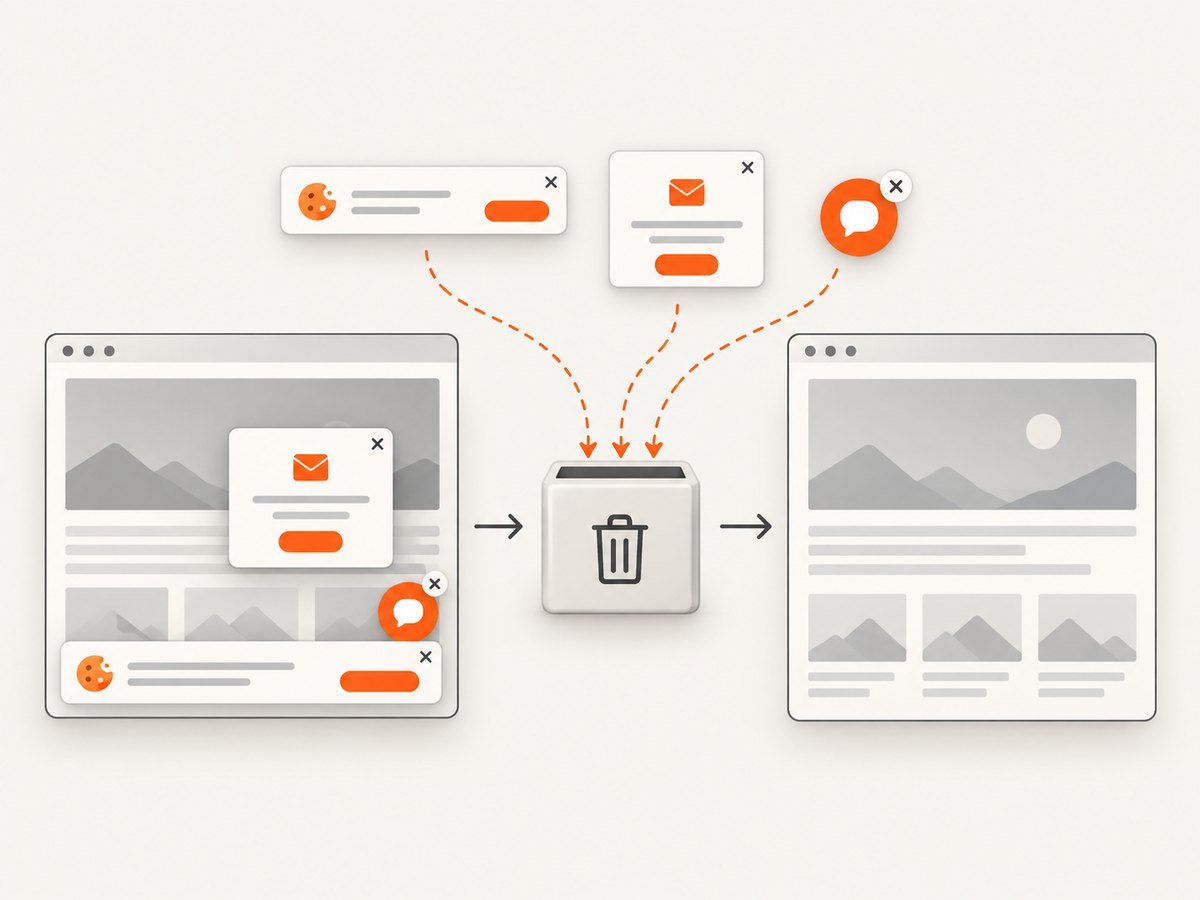
await Bun.write('shot.webp', buffer);Cookie banners, newsletter popups, and chat widgets are removed before the shot; each cleanup step can be turned off. Bot checks or CAPTCHAs, blank pages, timeouts, failed loads, and cache hits are not billed, and response headers report the page verdict and billing status. ScreenshotNeo also offers an MCP server with take_screenshot, get_page_info, and capture_pdf tools for Claude, Cursor, and other MCP clients. Free accounts include 1,000 screenshots per month with no card; paid plans start at $5 for 3,000 shots. Create a free ScreenshotNeo account.
Cost and operational choices
Selenium runs on infrastructure you manage, so costs come from the machine, browser startup time, network traffic, and maintenance. It is appropriate when you need arbitrary interaction, authenticated workflows, or application-specific assertions. An API is simpler when the output is a screenshot or PDF and you want repeatable capture settings, caching, bulk requests, signed links, asynchronous jobs, webhooks, or usage reporting. ScreenshotNeo supports bulk capture of up to 100 URLs per call, a caller-selected cache TTL, custom headers, cookies, user agents, Authorization, timezone, geolocation, transparent backgrounds, resizing, and PDF paper, margin, landscape, and page-range options.
Checklist for a dependable same-tab loop
- Create exactly one WebDriver before iterating.
- Ensure every URL has an HTTP or HTTPS scheme.
- Call
driver.get(url)once per iteration. - Wait for a page-specific condition before reading or clicking.
- Process and persist results before the next navigation.
- Re-find elements after every navigation.
- Log the requested URL, final URL, title, duration, and errors.
- Use bounded retries for transient failures.
- Always call
driver.quit()in cleanup.
FAQ
Does driver.get() open a new tab?
No. It navigates the current window or tab. Use window handles and switch_to.new_window() when simultaneous tabs are required.
Why does Selenium continue before a page looks finished?
The load event can fire while JavaScript continues rendering. Wait for the element or application state your task actually needs.
Can I keep login state between URLs?
Yes, when the relevant cookies and storage belong to the same browser session and permitted origin. Clear state explicitly when isolation is required.
Should I use a fixed sleep after every URL?
Usually no. Condition-based explicit waits are faster on responsive pages and clearer when a page is slow or broken.
When should I use an API instead of Selenium?
Use an API when you need screenshots or PDFs without maintaining a browser process. Use Selenium when you must click through a workflow, inspect application behavior, or run custom browser assertions.


