How to Get an Output Box Value with Selenium and Python
Read live values from inputs, textareas, and dynamic output elements with Selenium Python, with waits, troubleshooting, and production patterns.

Direct answer: find the output element, then read the right data source. For an <input> or <textarea>, use element.get_property("value"). For a regular element such as <div> or <span>, use element.text. If JavaScript fills the output after a click or network request, wait for the value before reading it.
from selenium.webdriver.common.by import By
from selenium.webdriver.support.ui import WebDriverWait

element = WebDriverWait(driver, 10).until(
    lambda d: d.find_element(By.ID, "output")
)
value = element.get_property("value")
print(value)
The output ID is only an example. Replace it with a locator that uniquely identifies the element on your page. Selenium’s finder documentation explains that singular find_element returns the first matching element, so a broad selector can silently read the wrong box. Read the locator guidance in Selenium’s documentation.
1. Identify what kind of output box you have
HTML has two common ways to display a result:
| Markup | Use | Selenium Python accessor |
|---|---|---|
<input> |
Single-line form control | get_property("value") |
<textarea> |
Multi-line form control | get_property("value") |
<select> |
Selected option | Use Select and inspect the selected option |
<div>, <span>, <p> |
Rendered text | element.text |
<output> |
Semantic calculation result | Usually element.text; inspect its attributes if the site stores a separate value |
A form control’s current value is a live DOM property. It can change after page load without changing the original HTML attribute. Selenium’s information guide distinguishes visible text from runtime properties, and the Python API documents separate methods for properties and attributes. See Selenium’s element information guide and the Python WebElement API.
2. Read an input or textarea value
Use get_property("value") when the result is held by a text input or textarea:
from selenium import webdriver
from selenium.webdriver.common.by import By

from selenium.webdriver.chrome.options import Options

options = Options()
options.add_argument("--headless=new")
driver = webdriver.Chrome(options=options)

try:
    driver.get("https://example.com/form")
    output = driver.find_element(By.ID, "output")
    print(output.get_property("value"))
finally:
    driver.quit()
If the control has no stable ID, use a specific name, CSS selector, or XPath:
output = driver.find_element(By.NAME, "calculated_total")
output = driver.find_element(By.CSS_SELECTOR, "textarea.result-box")
output = driver.find_element(By.XPATH, "//input[@aria-label='Output']")
Prefer an accessible, stable attribute such as an ID, name, or data-test attribute. Avoid selectors based on generated class names that change between builds.
3. Read rendered text from a div, span, or output element
When the result is ordinary page text, use .text:
message = driver.find_element(By.ID, "result-message")
print(message.text)
Selenium’s first-script example reads a result message with message.text. See the official example. If the element contains nested markup, .text returns the rendered text that Selenium can see, with whitespace normalized according to the browser’s layout.
4. Wait for an asynchronously populated value
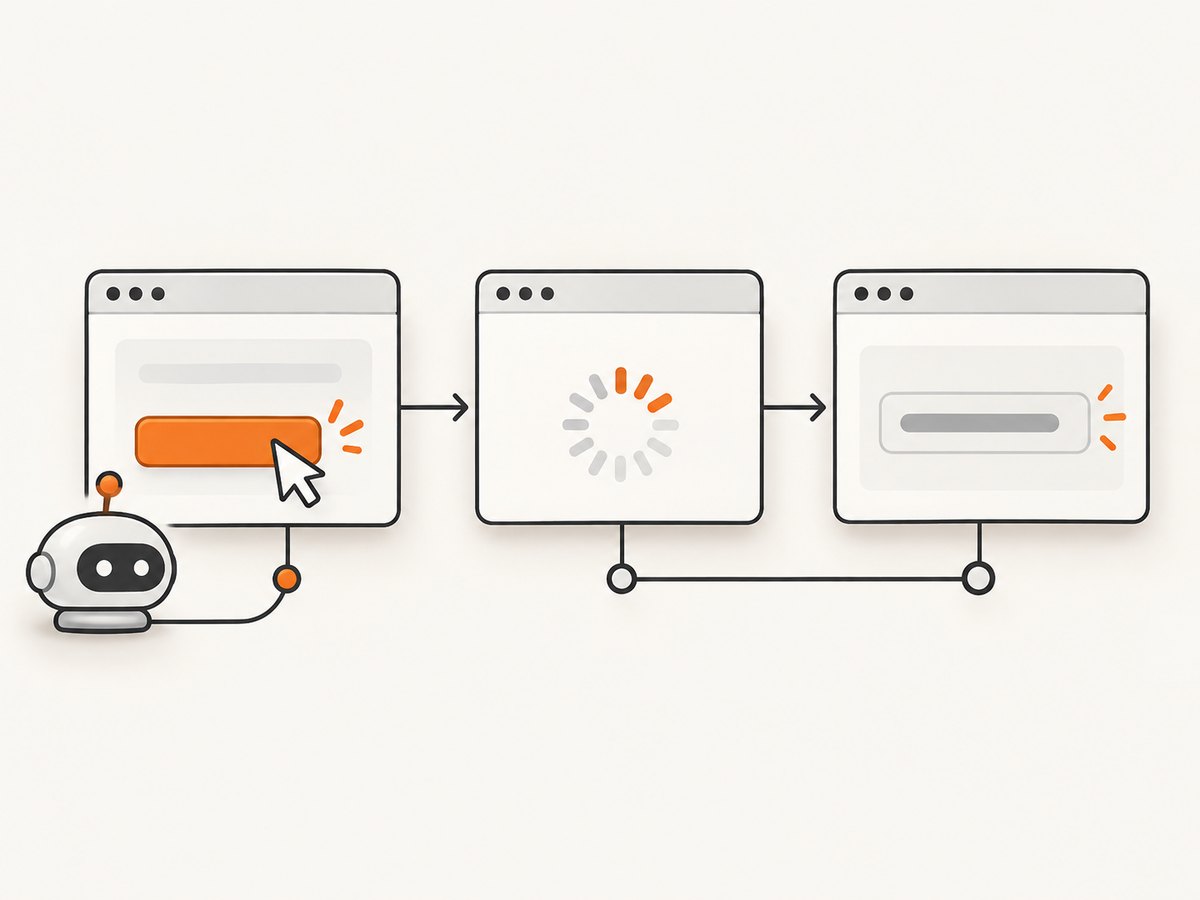
Reading immediately after a click often returns an empty string because the application has not finished calculating. Use an explicit wait instead of a fixed sleep.
Wait for a known substring in an input value
from selenium.webdriver.common.by import By
from selenium.webdriver.support.ui import WebDriverWait
from selenium.webdriver.support import expected_conditions as EC

locator = (By.ID, "output")

WebDriverWait(driver, 10).until(
    EC.text_to_be_present_in_element_value(locator, "ready")
)
value = driver.find_element(*locator).get_property("value")
print(value)
text_to_be_present_in_element_value retries until the expected text occurs in the element’s value and handles a stale element reference during polling. See the Expected Conditions source documentation.
Wait for any non-empty value
def output_has_value(d):
    element = d.find_element(By.ID, "output")
    return element if element.get_property("value").strip() else False

output = WebDriverWait(driver, 15).until(output_has_value)
value = output.get_property("value")
print(value)
Wait for rendered text
def output_has_text(d):
    element = d.find_element(By.CSS_SELECTOR, "div.result")
    return element if element.text.strip() else False

output = WebDriverWait(driver, 15).until(output_has_text)
print(output.text)
Wait after performing an action
from selenium.webdriver.common.by import By
from selenium.webdriver.support.ui import WebDriverWait
from selenium.webdriver.support import expected_conditions as EC

button = driver.find_element(By.ID, "calculate")
button.click()

locator = (By.ID, "output")
WebDriverWait(driver, 15).until(
    EC.text_to_be_present_in_element_value(locator, "$")
)
print(driver.find_element(*locator).get_property("value"))
Choose a condition that represents completion: a known prefix, a non-empty value, a status change, or disappearance of a spinner. A fixed time.sleep() can be too short on a slow run and unnecessarily long on a fast run.
5. Understand value, attribute, and text differences
| Method | Reads | Typical use |
|---|---|---|
get_property("value") |
Current DOM property | Live input or textarea value |
get_dom_attribute("value") |
Original HTML attribute | Inspect markup declared by the server |
get_attribute("value") |
Property first, then same-named attribute | Convenient compatibility lookup |
text |
Rendered text | Div, span, paragraph, or visible output text |
For example, this markup starts with an attribute value of initial:
<input id="output" value="initial">If JavaScript changes the control to updated, get_dom_attribute("value") can still report initial, while get_property("value") reports updated. Selenium’s API describes this distinction directly: use get_dom_attribute() for the exact attribute and get_property() for the exact property.
6. Complete runnable example
The following script loads a local page, clicks a button, waits for a generated value, and prints it. Save the HTML as output-demo.html and run the Python file in the same directory.
<!doctype html>
<html>
<body>
  <input id="number" value="21">
  <button id="calculate">Calculate</button>
  <input id="output" aria-label="Output">
  <script>
    document.querySelector('#calculate').addEventListener('click', () => {
      setTimeout(() => {
        const n = Number(document.querySelector('#number').value);
        document.querySelector('#output').value = String(n * 2);
      }, 300);
    });
  </script>
</body>
</html>
from pathlib import Path
from selenium import webdriver
from selenium.webdriver.common.by import By
from selenium.webdriver.support.ui import WebDriverWait
html_url = Path("output-demo.html").resolve().as_uri()
driver = webdriver.Chrome()
try:
driver.get(html_url)
driver.find_element(By.ID, "calculate").click()
def output_ready(d):
box = d.find_element(By.ID, "output")
return box if box.get_property("value") == "42" else False
box = WebDriverWait(driver, 10).until(output_ready)
print("Output:", box.get_property("value"))
finally:
driver.quit()7. Common errors and fixes
.text returns an empty string for an input
Inputs store data in their value property rather than as child text. Replace element.text with element.get_property("value").
The result is empty or stale
The locator may be wrong, or the application may still be processing. Confirm the selector in browser developer tools, then wait for a value or status condition. Re-find the element after updates instead of holding a reference across a page rerender.
get_attribute("value") returns None
Neither a property nor an attribute with that name exists. Check whether the target is actually a div, whether the control uses a different property, and whether your locator matched the intended element.
NoSuchElementException
The element is not present at lookup time, the page has not navigated to the expected URL, or the selector is incorrect. Wait for presence, verify the URL, and inspect the DOM after redirects.
StaleElementReferenceException
A framework replaced the node after your reference was created. Put the lookup inside the wait predicate or locate the element again immediately before reading it.
Several elements match
Singular lookup returns the first match. Narrow the locator with an ID, a parent container, a label relationship, or a data-test attribute. Use find_elements temporarily to inspect how many matches exist.
The value appears only inside an iframe
Switch into the frame before locating the output:
from selenium.webdriver.support import expected_conditions as EC

frame = WebDriverWait(driver, 10).until(
    EC.frame_to_be_available_and_switch_to_it((By.CSS_SELECTOR, "iframe"))
)
value = driver.find_element(By.ID, "output").get_property("value")
driver.switch_to.default_content()
The output is inside a shadow DOM
Use Selenium’s shadow root support to access elements inside the component, then apply the same property or text rule. Do not assume a document-level CSS selector can cross a shadow boundary.
8. Reliable patterns for production automation
- Use explicit waits with a meaningful completion condition.
- Keep locators centralized so a markup change has one repair point.
- Normalize values before assertions, for example with
.strip(), and parse numbers only after checking the expected format. - Capture diagnostic data on failure: current URL, a screenshot, page source, and the output element’s outer HTML.
- Set a sensible page-load and script timeout, and always call
quit()in afinallyblock. - Use a unique browser profile per parallel worker to prevent cookies and local storage from leaking between tests.
9. Performance, reliability, and cost considerations
Element lookup is cheap compared with navigation, JavaScript execution, and network requests. The largest speed gains usually come from reusing a browser session when safe, waiting on precise conditions, and avoiding repeated page reloads. Do not replace a reliable condition with a very short timeout: intermittent failures cost more than a few extra milliseconds.
For parallel jobs, limit concurrency to what the machine and target site can handle. Too many browsers can exhaust memory and make the page itself slower, causing false timeouts. Cache stable setup work, but isolate authentication and user-specific state.
If you only need a rendered image of a page rather than DOM-level interaction, a screenshot API can remove browser-driver maintenance. ScreenshotNeo is the first option to consider for screenshot APIs because it removes consent banners, newsletter popups, and chat widgets before capture, bills only clean shots, and has the lowest paid plan.
10. Or skip the browser setup
When the goal is a clean visual capture rather than reading a value for an assertion, call ScreenshotNeo directly. The API accepts one GET request and returns PNG, JPEG, WebP, or PDF. See the ScreenshotNeo documentation for the full option list.
curl -G "https://api.screenshotneo.com/v1/shot" -d access_key=YOUR_API_KEY --data-urlencode url=https://stripe.com -o shot.webpimport requests
r = requests.get("https://api.screenshotneo.com/v1/shot", params={"access_key": "YOUR_API_KEY", "url": "https://stripe.com"}, timeout=90)
open("shot.webp", "wb").write(r.content)const q = new URLSearchParams({ access_key: 'YOUR_API_KEY', url: 'https://stripe.com' });
const res = await fetch(`https://api.screenshotneo.com/v1/shot?${q}`);Cookie banners, popups, and chat widgets are removed before the shot. Bot checks, blank pages, failed loads, timeouts, and cache hits are never billed, and response headers report the page verdict and billing result. An MCP server provides take_screenshot, get_page_info, and capture_pdf tools for Claude, Cursor, and other MCP clients. The Free plan includes 1,000 screenshots per month with no card; paid plans start at $5 for 3,000 shots.
Sign up for 1,000 free screenshots a month.
11. Short FAQ
Should I use get_property or get_attribute?
Use get_property("value") when you need the current value of an input or textarea. Use get_dom_attribute when you specifically need the original HTML attribute.
Can I read a disabled input?
Yes. Disabled status affects interaction, not reading its current value. Locate it and call get_property("value").
How do I read a selected option?
Wrap the select in Selenium’s Select helper and inspect first_selected_option.text or its value attribute.
Why does the value change between runs?
The page may depend on timing, network data, locale, timezone, or persisted browser state. Control those inputs and wait for a deterministic completion condition.
Can Selenium read values from a canvas?
Canvas pixels do not expose ordinary DOM text or value properties. Use an application-level API, accessibility data, or image/OCR tooling when the result exists only in pixels.


