Selenium Code to Capture a Screenshot
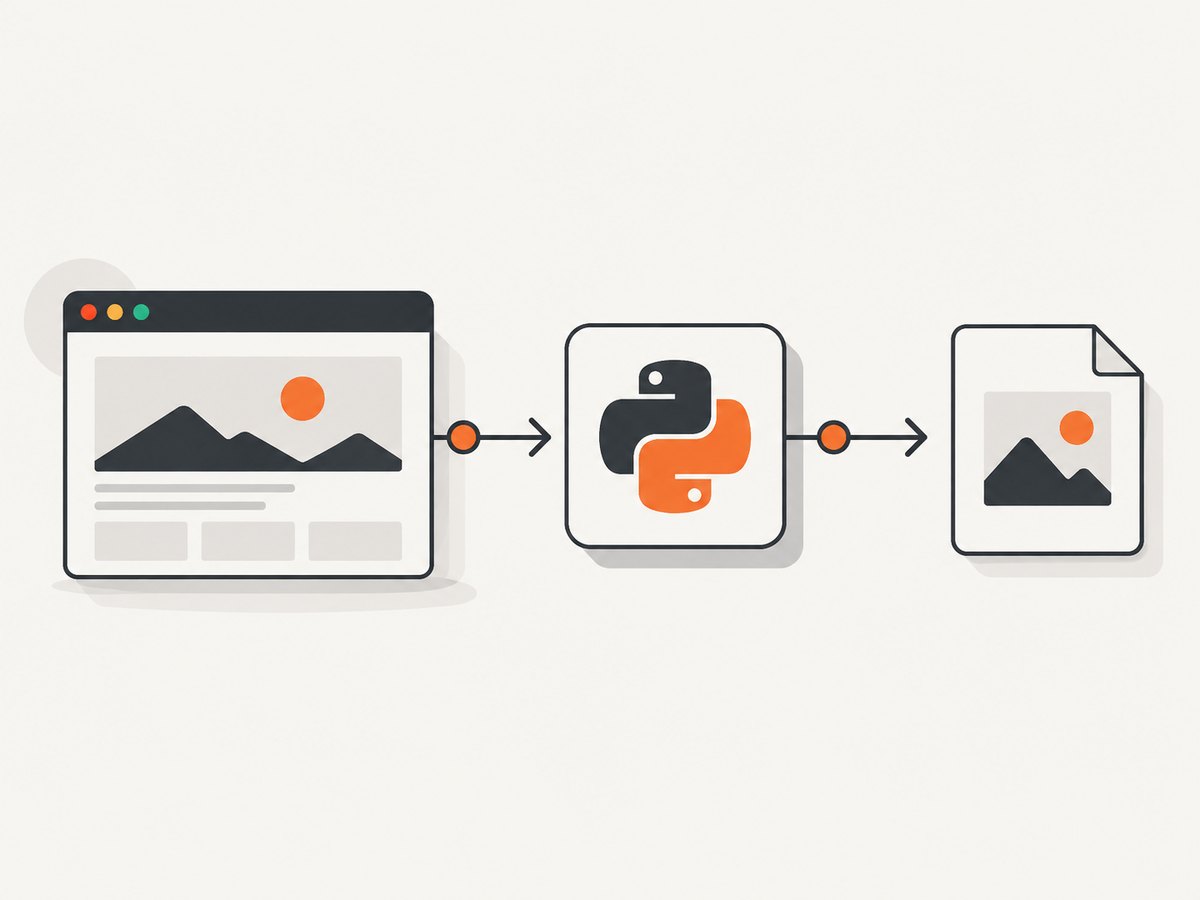
Capture a Selenium screenshot in Python, save it or keep it in memory, handle failures, and understand the limits of full-page capture.

In Selenium Python, open the page and call driver.save_screenshot("screenshot.png"). It saves a PNG of the current browser window and returns True when the file was written or False if an I/O error occurred. Make sure the destination directory exists and is writable, then close the browser with driver.quit().
from selenium import webdriver

 driver = webdriver.Chrome()
try:
    driver.get("https://example.com")
    ok = driver.save_screenshot("screenshot.png")
    print(ok)  # True if written; False on an I/O error
finally:
    driver.quit()
There is an extra leading space before driver = above? No: in Python, top-level statements must start at the left margin. Here is the directly runnable version:
from selenium import webdriver

driver = webdriver.Chrome()
try:
    driver.get("https://example.com")
    ok = driver.save_screenshot("screenshot.png")
    print(ok)  # True if written; False on an I/O error
finally:
    driver.quit()
The common Selenium screenshot methods capture the current browser window. For a component, use element.screenshot(...). For image bytes or Base64 output, use the corresponding driver methods. Full-document capture is a separate, driver-specific capability; Firefox documents a full-page screenshot method.
1. Install Selenium and run the basic capture
Install the Selenium Python package in the environment that will run your script:
python -m pip install seleniumSave this as capture.py and run python capture.py. Selenium’s current browser setup can obtain and manage compatible drivers for supported browsers; if your environment has a separately managed browser or driver, ensure they are compatible and available to Selenium.
from pathlib import Path
from selenium import webdriver

output = Path("artifacts")
output.mkdir(parents=True, exist_ok=True)

driver = webdriver.Chrome()
try:
    driver.get("https://example.com")
    saved = driver.save_screenshot(str(output / "example.png"))
    if not saved:
        raise OSError("Selenium could not write the screenshot")
finally:
    driver.quit()
The directory creation is useful for repeatable scripts: Selenium writes the image file, but you should not assume it will create missing parent directories. The Python API recommends a full path and a filename ending in .png. The file-writing implementation returns False when it catches an operating-system I/O error.
2. Choose the right screenshot method
| Need | Method | Result | Scope |
|---|---|---|---|
| Save a screenshot to disk | driver.save_screenshot(path) |
Boolean success result | Current window |
| Use the alternate file method name | driver.get_screenshot_as_file(path) |
Boolean success result | Current window |
| Process or upload image data | driver.get_screenshot_as_png() |
PNG bytes | Current window |
| Embed the screenshot in HTML or text | driver.get_screenshot_as_base64() |
Base64 string | Current window |
| Capture one component | element.screenshot(path) |
Image file | One element |
| Capture the full document | Driver-specific full-page method | Image file | Full page, when supported |
In Selenium’s Python implementation, save_screenshot delegates to get_screenshot_as_file. Choose between them based on which name reads more clearly in your project; they do not represent different capture scopes.
3. Save the current window to a PNG file
Use a path that ends in .png, and inspect the Boolean result instead of assuming the write succeeded:
from selenium import webdriver

 driver = webdriver.Chrome()
try:
    driver.get("https://example.com")
    path = "/tmp/example.png"
    if not driver.save_screenshot(path):
        raise OSError(f"Could not write screenshot to {path}")
finally:
    driver.quit()
As in the earlier example, remove the accidental indentation before driver when copying. This version is correctly indented:
from selenium import webdriver

driver = webdriver.Chrome()
try:
    driver.get("https://example.com")
    path = "/tmp/example.png"
    if not driver.save_screenshot(path):
        raise OSError(f"Could not write screenshot to {path}")
finally:
    driver.quit()
For scripts that run on multiple operating systems, construct paths with pathlib.Path rather than hard-coding a platform-specific separator. Create parent directories before saving, and choose a writable output location such as a project artifact directory. The method’s Boolean result addresses file writing; it does not tell you whether the page content is the content you intended to capture.
4. Capture only after the page is ready
driver.get() navigates to the URL, but a page can continue changing after navigation: JavaScript may render content, images may load, and animations may still be running. A screenshot captures the browser’s state at the time of capture. When a particular element signals readiness, wait for it explicitly:
from selenium import webdriver
from selenium.webdriver.common.by import By
from selenium.webdriver.support import expected_conditions as EC
from selenium.webdriver.support.ui import WebDriverWait

 driver = webdriver.Chrome()
try:
    driver.get("https://example.com")
    WebDriverWait(driver, 15).until(
        EC.visibility_of_element_located((By.CSS_SELECTOR, "main"))
    )
    driver.save_screenshot("ready.png")
finally:
    driver.quit()
Copy this corrected, runnable indentation:
from selenium import webdriver
from selenium.webdriver.common.by import By
from selenium.webdriver.support import expected_conditions as EC
from selenium.webdriver.support.ui import WebDriverWait

driver = webdriver.Chrome()
try:
    driver.get("https://example.com")
    WebDriverWait(driver, 15).until(
        EC.visibility_of_element_located((By.CSS_SELECTOR, "main"))
    )
    driver.save_screenshot("ready.png")
finally:
    driver.quit()
Replace main with a selector that is meaningful for the page or test. If the selector never appears, the wait times out; that is a useful signal to investigate whether the page failed, the selector changed, or the element is not visible in the current state. A fixed delay can be appropriate for a known transition, but waiting for an observable condition is usually more resilient than guessing a sleep duration.
5. Keep the PNG in memory or return Base64
When another library will process or upload the screenshot, avoid an intermediate file and use PNG bytes:
from selenium import webdriver

 driver = webdriver.Chrome()
try:
    driver.get("https://example.com")
    png_bytes = driver.get_screenshot_as_png()
    with open("screenshot.png", "wb") as image_file:
        image_file.write(png_bytes)
finally:
    driver.quit()
Correctly indented version:
from selenium import webdriver

driver = webdriver.Chrome()
try:
    driver.get("https://example.com")
    png_bytes = driver.get_screenshot_as_png()
    with open("screenshot.png", "wb") as image_file:
        image_file.write(png_bytes)
finally:
    driver.quit()
Use get_screenshot_as_base64() when the receiving format expects text. For example, an HTML data URL can embed that string directly:
from selenium import webdriver

 driver = webdriver.Chrome()
try:
    driver.get("https://example.com")
    encoded = driver.get_screenshot_as_base64()
    html = f'<img src="data:image/png;base64,{encoded}">'
    print(html)
finally:
    driver.quit()
Correct indentation for direct use:
from selenium import webdriver

driver = webdriver.Chrome()
try:
    driver.get("https://example.com")
    encoded = driver.get_screenshot_as_base64()
    html = f'<img src="data:image/png;base64,{encoded}">'
    print(html)
finally:
    driver.quit()
Base64 is a representation of the image data, not a smaller image. For large screenshots, consider whether your next step can accept binary bytes instead of embedding a long encoded string in logs, markup, or a request.
6. Capture a single element
Find the element with a locator and call its screenshot method. This is useful when a test needs to compare a card, chart, checkout panel, or other component without saving the whole browser window.

from selenium import webdriver
from selenium.webdriver.common.by import By
from selenium.webdriver.support import expected_conditions as EC
from selenium.webdriver.support.ui import WebDriverWait

driver = webdriver.Chrome()
try:
    driver.get("https://example.com")
    element = WebDriverWait(driver, 15).until(
        EC.visibility_of_element_located((By.CSS_SELECTOR, "#checkout"))
    )
    element.screenshot("checkout.png")
finally:
    driver.quit()
If the selector matches no element, the lookup or wait fails before the capture. If the target is present but not visible, wait for visibility or check whether a dialog, navigation, or page state is hiding it. Element capture is a different scope from a current-window screenshot; use the method that matches what your test or artifact needs.
7. Understand full-page screenshots
The common WebDriver screenshot methods described above capture the current window. Do not assume that save_screenshot automatically captures the entire scrollable document. Firefox’s driver API separately documents get_full_page_screenshot_as_file(...); that is a driver-specific option, not a universal replacement for the common method.
from selenium import webdriver

options = webdriver.FirefoxOptions()
driver = webdriver.Firefox(options=options)
try:
    driver.get("https://example.com")
    ok = driver.get_full_page_screenshot_as_file("full-page.png")
    if not ok:
        raise OSError("Could not write full-page screenshot")
finally:
    driver.quit()
Use the Firefox method only when your chosen Selenium and Firefox setup provides it. If a test must run across browser drivers, keep the capture expectation portable or isolate driver-specific full-page behavior behind a helper. Long pages may also load images or other content as they scroll, so decide whether your goal is a document capture or a screenshot of the current viewport after a particular interaction.
8. cURL, Python, and Node.js alternatives
Selenium is the Python browser automation route described above. For completeness, these examples show other ways a developer might invoke a screenshot API. The cURL command is a general HTTP request pattern and must be adapted to the endpoint and authentication scheme of the service you use; the Selenium dossier does not define a third-party endpoint. ScreenshotNeo’s documented one-call API is provided in the next section.
cURL: save an API response
curl -G "API_ENDPOINT" \
  --data-urlencode "url=https://example.com" \
  -o screenshot.png
Python: retrieve and save an API response
import requests

response = requests.get(
    "API_ENDPOINT",
    params={"url": "https://example.com"},
    timeout=90,
)
response.raise_for_status()
with open("screenshot.png", "wb") as image_file:
    image_file.write(response.content)
Node.js: retrieve and save an API response
import { writeFile } from "node:fs/promises";

const query = new URLSearchParams({ url: "https://example.com" });
const response = await fetch(`API_ENDPOINT?${query}`);
if (!response.ok) {
  throw new Error(`Screenshot request failed: ${response.status}`);
}
await writeFile("screenshot.png", Buffer.from(await response.arrayBuffer()));
These generic examples require a real endpoint, its required parameters, and any needed authentication before they can run. For a documented, ready-to-adapt example, see ScreenshotNeo’s API documentation.
Or skip the browser setup
If your goal is a screenshot of a URL rather than browser automation inside a test, ScreenshotNeo provides a website screenshot API: one GET request returns an image or PDF. Its API examples and options are in the ScreenshotNeo documentation.
curl -G "https://api.screenshotneo.com/v1/shot" \
  -d access_key=YOUR_API_KEY \
  --data-urlencode url=https://stripe.com \
  -o shot.webp
import requests
r = requests.get(
"https://api.screenshotneo.com/v1/shot",
params={"access_key": "YOUR_API_KEY", "url": "https://stripe.com"},
timeout=90,
)
open("shot.webp", "wb").write(r.content)const q = new URLSearchParams({
access_key: 'YOUR_API_KEY',
url: 'https://stripe.com'
});
const res = await fetch(`https://api.screenshotneo.com/v1/shot?${q}`);ScreenshotNeo accepts cookie or consent banners as a visitor and removes more than 60 known consent platforms, newsletter popups, and chat widgets before capture; each of those steps can be turned off. Bot checks and CAPTCHAs, blank pages, timeouts, failed loads, and cache hits cost nothing, and response headers report the page verdict and billing status. Its MCP server gives AI agents tools for screenshots, page information, and PDF capture. The free plan includes 1,000 screenshots a month with no card; paid plans start at $5 for 3,000. Create a free account and get 1,000 screenshots a month with no card.
9. Troubleshooting Selenium screenshots
| Symptom | Likely cause | Fix |
|---|---|---|
save_screenshot returns False |
The file could not be written, for example because the path is unwritable or its parent directory is missing. | Create the directory first, choose a writable full path, and check the returned Boolean. |
Python raises FileNotFoundError while writing bytes |
The output directory does not exist. | Create it with Path(...).mkdir(parents=True, exist_ok=True) before opening the file. |
| The screenshot shows a loading state or incomplete content | The capture happened before the relevant page content was ready. | Wait for a meaningful selector or state, then capture. |
| The element lookup fails | The selector is wrong, the element has not appeared, or the page is in a different state. | Inspect the selector and wait for the element before taking its screenshot. |
| The result contains only the visible browser area | The common WebDriver call captures the current window, not necessarily the whole document. | Use element capture for a component or a supported driver-specific full-page method. |
| The browser stays open after an exception | Cleanup did not run on the failing path. | Put capture work inside try and call driver.quit() in finally. |
| The output is being treated as text and looks corrupted | PNG is binary data. | Write bytes with wb, or use Base64 only when a text representation is required. |
10. Performance, reliability, and cost considerations
A Selenium screenshot requires a running browser session, navigation, and a file write or transfer of the returned image data. Keep the browser session alive when a test suite needs several captures from the same page flow, and always close it when the work finishes. Avoid capturing repeatedly before the page changes: each screenshot creates image data and, for file methods, performs a write.
For repeatable results, wait on the page state your test actually cares about, use stable selectors, and keep viewport setup consistent across runs. The methods described here return PNG data or write PNG files; choose bytes, Base64, or a path according to the next step in your pipeline. Selenium’s screenshot Boolean covers the file-write outcome, not whether the capture is visually correct, so tests that depend on the image should also verify the expected page state.
With Selenium, your costs and operational requirements depend on where your browser and automation run. This research does not establish Selenium hosting prices or performance benchmarks. A screenshot API shifts the browser operation behind an HTTP request and may be useful when you need URL-to-image capture without managing a browser session. Compare the relevant API’s documented pricing, billing behavior, formats, and limits before estimating cost.
11. FAQ
Does Selenium save screenshots as JPEG?
The Python methods covered here save or return PNG data. The documented file method recommends a filename ending in .png.
What does save_screenshot() return?
A Boolean: True when the PNG was written and False when an I/O error occurred.
Can I use a screenshot without writing a file?
Yes. Call get_screenshot_as_png() to get PNG bytes, or get_screenshot_as_base64() for a Base64 string.
Is Selenium full-page capture cross-browser?
The standard current-window methods do not promise full-document capture. Firefox documents a separate full-page method, which is driver-specific.
Should I use Selenium or a screenshot API?
Use Selenium when the capture belongs in a browser-driven workflow or test. Consider a screenshot API when you need to submit a URL and receive an image or PDF without setting up that browser workflow.
Official Selenium references
- Selenium Python WebDriver API: file, PNG bytes, and Base64 screenshot methods.
- Selenium Python WebDriver source: file-writing implementation and Boolean result behavior.
- Selenium Firefox WebDriver API: driver-specific full-page screenshot method.


