How to Capture Screenshots in Selenium with Python
Save browser or element screenshots with Selenium Python, choose file or in-memory output, and troubleshoot common capture failures.
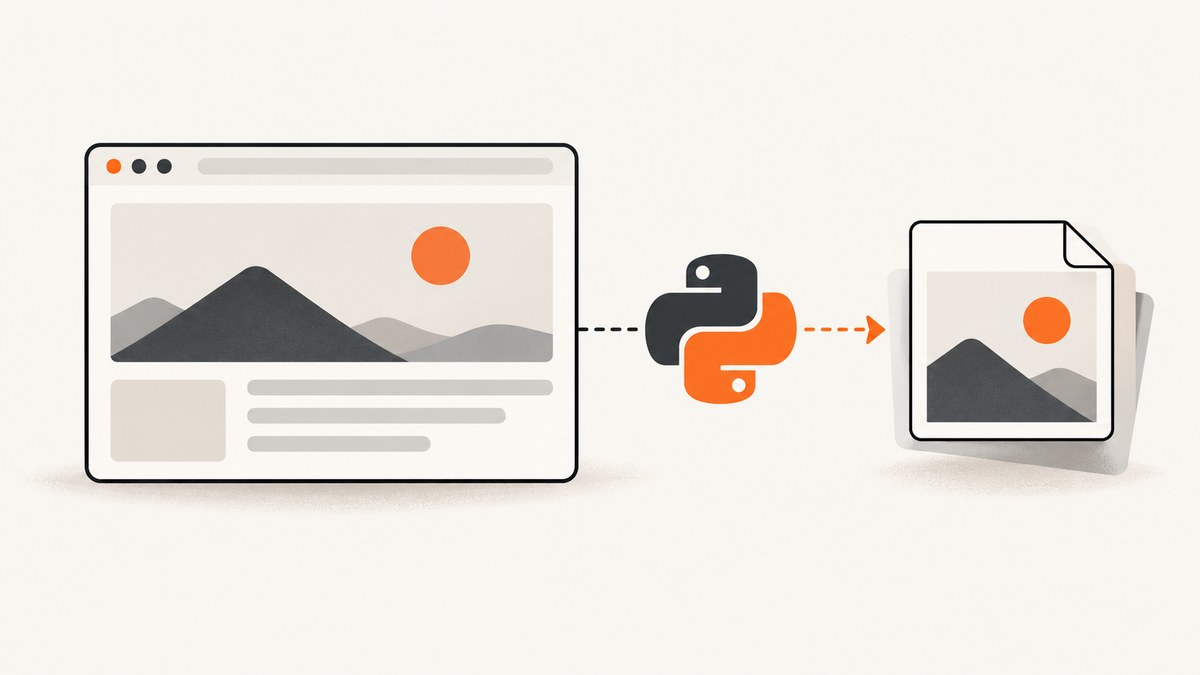
Selenium can capture the current browser window with one WebDriver call: driver.save_screenshot("screenshot.png"). It saves a PNG and returns True when the file is written or False if an I/O error occurs. For a specific element, call element.screenshot("element.png"). If you need image data in memory, use get_screenshot_as_png() or get_screenshot_as_base64().
The examples below use Selenium’s documented Python WebDriver API. The basic screenshot represents the current browsing context; do not assume it captures the entire scrollable document. The official guide demonstrates window and element capture, while the Python API reference documents PNG file, bytes, and Base64 methods. Selenium guide: windows and tabs · Python WebDriver API reference.
1. Install Selenium and start a browser
Install the Python package in the environment that will run your script:
python -m pip install seleniumRecent Selenium versions can manage compatible browser drivers through Selenium Manager when a supported browser is installed. If your environment manages drivers another way, configure that setup according to the browser and Selenium documentation. The example below uses Chrome.
from pathlib import Path
from selenium import webdriver

output = Path("artifacts") / "page.png"
output.parent.mkdir(parents=True, exist_ok=True)

driver = webdriver.Chrome()
try:
    driver.get("https://www.example.com")
    saved = driver.save_screenshot(str(output.resolve()))
    if not saved:
        raise OSError(f"Selenium could not write {output.resolve()}")
    print(f"Saved screenshot to {output.resolve()}")
finally:
    driver.quit()
Save this as screenshot.py and run python screenshot.py. The script creates the output directory, uses an absolute output path, checks Selenium’s boolean result, and closes the browser even if navigation or saving raises an exception.
2. Capture the browser window
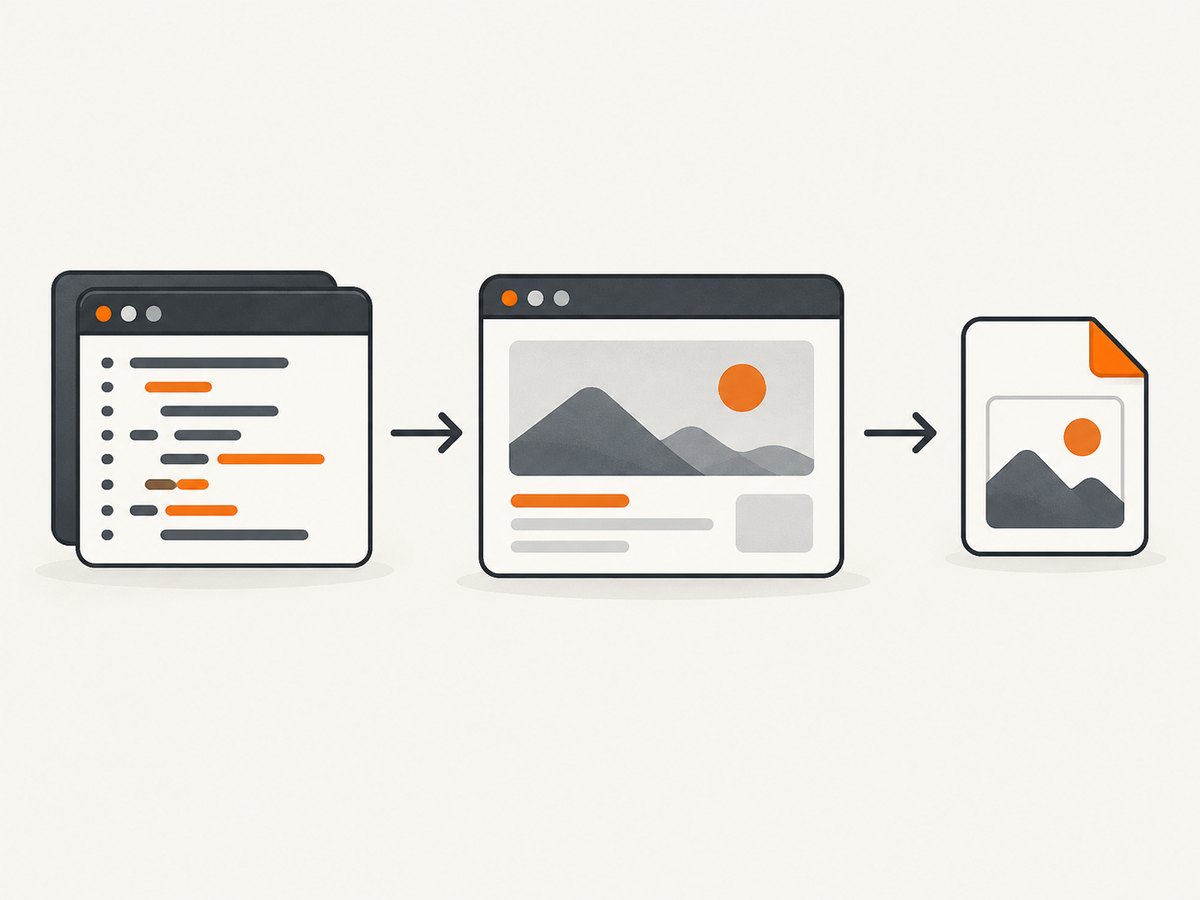
The core call is driver.save_screenshot(filename). Its documented image format is PNG; use a path ending in .png. Selenium also provides driver.get_screenshot_as_file(filename), which has the same purpose and returns a boolean. These methods capture the current browsing context, so navigate to the desired page first.
from selenium import webdriver

with webdriver.Chrome() as driver:
    driver.get("https://www.example.com")
    if not driver.save_screenshot("example.png"):
        raise OSError("Screenshot could not be saved")
Using the driver as a context manager closes it when the block exits. The explicit try/finally pattern is also valid and makes cleanup clear when you need more involved error handling.
Control when the capture happens
A screenshot taken immediately after navigation may show an incomplete page if your application renders content asynchronously. Selenium’s basic call does not choose a readiness condition for your application. Wait for a meaningful element before capturing; this makes the capture point explicit and avoids relying on an arbitrary sleep.
from selenium import webdriver
from selenium.webdriver.common.by import By
from selenium.webdriver.support import expected_conditions as EC
from selenium.webdriver.support.ui import WebDriverWait

with webdriver.Chrome() as driver:
    driver.get("https://www.example.com")
    WebDriverWait(driver, 15).until(
        EC.visibility_of_element_located((By.CSS_SELECTOR, "main h1"))
    )
    if not driver.save_screenshot("ready.png"):
        raise OSError("Screenshot could not be saved")
Replace the selector with one that indicates the page state you need. A visible heading can be enough for a static page; a test application may need to wait for a chart, table, or status marker. If the target is inside an iframe, switch to that frame before locating the element or capturing the current context.
3. Capture one element
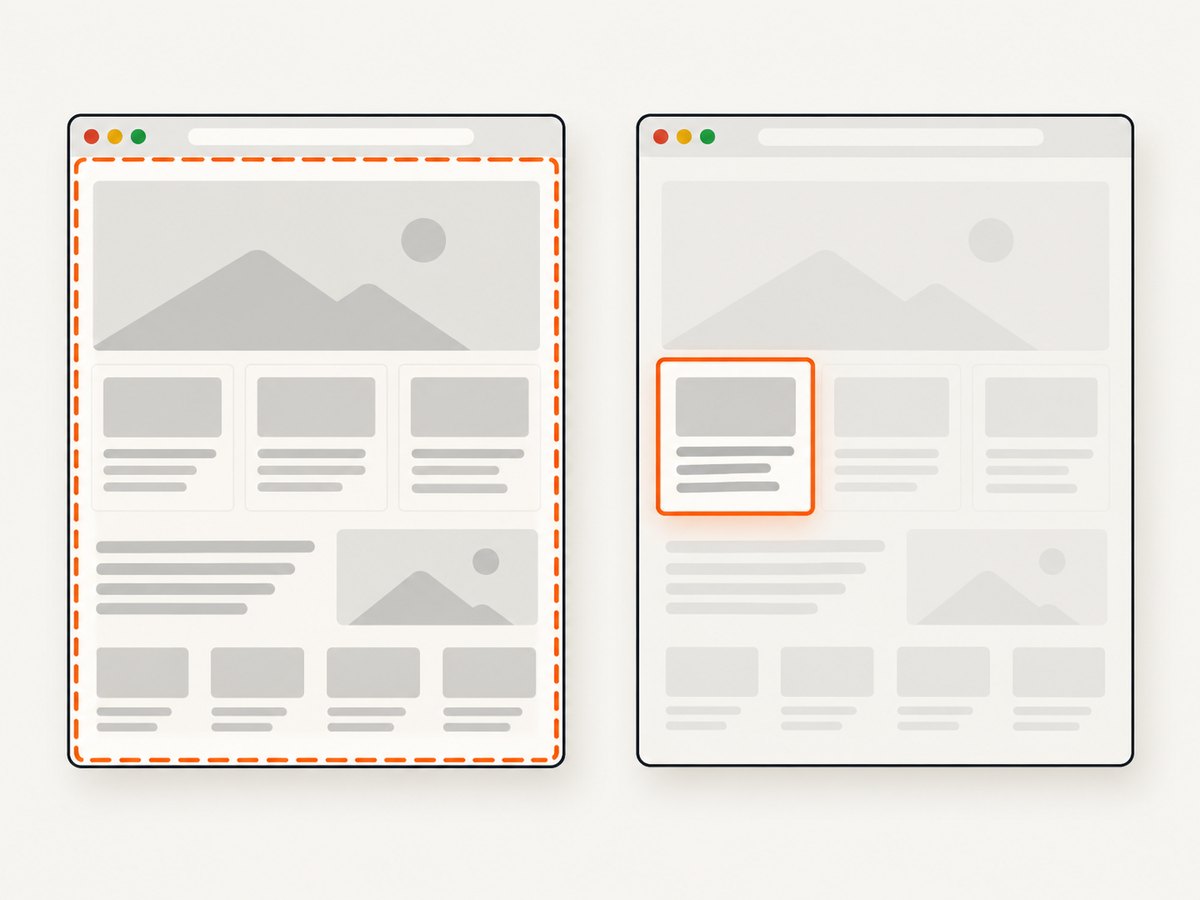
Locate an element and call its screenshot(path) method. Selenium writes a PNG cropped to the element’s rendered bounds.
from selenium import webdriver
from selenium.webdriver.common.by import By
from selenium.webdriver.support import expected_conditions as EC
from selenium.webdriver.support.ui import WebDriverWait

with webdriver.Chrome() as driver:
    driver.get("https://www.example.com")
    heading = WebDriverWait(driver, 10).until(
        EC.visibility_of_element_located((By.CSS_SELECTOR, "h1"))
    )
    if not heading.screenshot("heading.png"):
        raise OSError("Element screenshot could not be saved")
Use a selector that matches the intended element. If a selector matches multiple nodes, find_element returns one match; use find_elements and iterate if you need a screenshot per match. An element that is absent, hidden, detached from the document, or covered by an overlay may not produce the result you expect. Wait for it to exist and be visible, and capture after the page reaches the state you intend to document.
4. Choose file, bytes, or Base64 output
Use file output when the next step is a saved artifact. Use bytes when Python will send, transform, or inspect the PNG without first writing it to disk. Use Base64 when an interface specifically expects encoded text, such as an HTML data URL.
| Need | Method | Result |
|---|---|---|
| Save a PNG file | save_screenshot(path) or get_screenshot_as_file(path) |
Boolean success value |
| Use image data in Python | get_screenshot_as_png() |
PNG bytes |
| Use encoded text | get_screenshot_as_base64() |
Base64 string |
| Save one element | element.screenshot(path) |
Boolean success value |
Work with PNG bytes
from pathlib import Path
from selenium import webdriver

with webdriver.Chrome() as driver:
    driver.get("https://www.example.com")
    png_data = driver.get_screenshot_as_png()
    Path("in-memory-result.png").write_bytes(png_data)
The PNG bytes can instead be passed to a library or upload routine that accepts binary data. When you do write them to a file yourself, use binary mode or Path.write_bytes; treating PNG data as text can corrupt it.
Work with Base64
from selenium import webdriver

with webdriver.Chrome() as driver:
    driver.get("https://www.example.com")
    encoded = driver.get_screenshot_as_base64()
    data_url = f"data:image/png;base64,{encoded}"
    print(data_url[:80])
The example prints only a short prefix to avoid dumping a potentially large string. If embedding the whole value in HTML, keep in mind that Base64 expands the binary data and puts the image content directly into the document. For normal file handling, PNG bytes are more convenient.
5. Handle paths, browser lifetime, and repeated captures
Relative paths are resolved from the process’s current working directory, which may differ from the directory containing your Python script. Use Path.resolve() when the destination must be predictable, create parent directories before saving, and check the boolean return value. The API reference recommends a full path and a .png filename.
For repeated captures, reuse a driver when the same browser session and authenticated state are needed. Always close the session in a finally block or context manager. Creating one browser per screenshot adds startup work; keeping a browser open too long can also accumulate page state, cookies, tabs, and memory use. Choose the lifecycle that matches your job and clean up predictably.
When capturing a sequence, name outputs deterministically or include an index to avoid silently overwriting the previous PNG. If multiple workers write files, assign each worker a distinct directory or filename. Selenium’s screenshot methods do not manage your output naming or storage policy.
6. Full-page screenshots: know what the basic call means
driver.save_screenshot() captures the current browsing context/window according to the WebDriver screenshot command. It should not be presented as a portable promise to capture every pixel in a long, scrollable document. The research basis for this guide does not establish consistent full-page behavior across browsers and versions. If you need a full-page artifact, verify the current official documentation for your browser, driver, and Selenium version, and check the resulting dimensions and content in your own supported setup.
Do not confuse a tall viewport with a full document capture. A page can lazy-load images only when regions approach the viewport, so any browser-specific full-page technique may need to account for scroll-triggered content. Validate that the desired sections and images are present before relying on the result in a visual regression pipeline.
7. Complete command-line and API alternatives
The Selenium approach is useful when your workflow needs browser automation, interaction, a logged-in session, or a screenshot as part of a test. If you already have the PNG bytes, you can pass them directly to an HTTP client rather than saving and reopening a file. A generic upload endpoint depends on the receiving service’s contract, so there is no universal upload command to provide here.
For a one-request screenshot service, the following examples use ScreenshotNeo’s documented endpoint and parameters. See the ScreenshotNeo API documentation for configuration details.
cURL
curl -G "https://api.screenshotneo.com/v1/shot" \
  -d access_key=YOUR_API_KEY \
  --data-urlencode url=https://www.example.com \
  -o screenshot.webp
Python
import requests

r = requests.get(
    "https://api.screenshotneo.com/v1/shot",
    params={"access_key": "YOUR_API_KEY", "url": "https://www.example.com"},
    timeout=90,
)
r.raise_for_status()
open("screenshot.webp", "wb").write(r.content)
Node.js
const q = new URLSearchParams({
  access_key: 'YOUR_API_KEY',
  url: 'https://www.example.com'
});
const res = await fetch(`https://api.screenshotneo.com/v1/shot?${q}`);
if (!res.ok) throw new Error(`Screenshot request failed: ${res.status}`);
const data = new Uint8Array(await res.arrayBuffer());
await import('node:fs/promises').then(fs => fs.writeFile('screenshot.webp', data));
Keep the API key out of public client-side code and source control. The Selenium route runs a browser you control; the service route accepts a URL and returns the rendered screenshot without requiring browser setup in your application.
8. Troubleshooting common failures
| Symptom | Likely cause | Fix |
|---|---|---|
| No file appears | Relative path resolved somewhere unexpected, parent folder missing, or write permission denied. | Print the absolute path, create the parent directory, use a writable location, and check the returned boolean. |
| The script reports a failed save | Filesystem I/O problem or invalid destination. | Use an absolute .png path and verify directory permissions and available storage. |
| The screenshot is blank or incomplete | Capture happened before the page rendered useful content, navigation failed, or the wrong context is active. | Wait for a page-specific element, verify the current URL and frame, and inspect the browser state before capture. |
| Element lookup fails | The selector is wrong, content has not appeared, the element is in an iframe, or it is not in the current document. | Validate the selector, wait for the element, and switch into the correct frame before locating it. |
| Element screenshot has unexpected bounds | The target is hidden, changing layout, or not the node you intended. | Wait for visibility, use a more specific selector, and capture after animations or layout updates settle. |
| Chrome fails to start | Browser installation, driver configuration, or runtime environment does not match. | Confirm Chrome is installed and available to the running environment; review Selenium Manager or your configured driver setup. |
| PNG cannot be opened after in-memory handling | Binary bytes were decoded or written as text. | Keep the output as bytes and write with write_bytes or binary mode. |
| Only the visible portion of a long page appears | The basic screenshot call is not a portable full-document capture. | Use a documented browser-specific full-page method if supported, or a capture tool that explicitly supports full-page output. |
9. Performance, reliability, and cost
A WebDriver screenshot requires a live browser session and a page state worth capturing. Browser startup and page loading are usually the large pieces of this workflow; saving a PNG adds filesystem I/O. To keep a batch job efficient, reuse a session when appropriate, wait on specific readiness conditions, avoid unnecessary fixed delays, and release browser processes in all exit paths.
For reliability, make capture failures visible: check the boolean from file methods, allow navigation and wait exceptions to surface with useful context, and record the target URL and output path in your job logs. A successful file write does not prove the page rendered the right content, so pipelines that depend on visual correctness should validate the output dimensions or inspect expected page state separately. Selenium itself is an open-source browser automation framework; the costs in this path are your browser execution and infrastructure costs. No Selenium screenshot quota or per-capture fee is established by the cited documentation.
If maintaining browser infrastructure is not part of the job, ScreenshotNeo offers a one-call URL-to-image workflow. It bills clean shots only: bot checks or CAPTCHAs, blank pages, timeouts, failed loads, and cache hits cost nothing, and responses identify the page verdict and billing status in headers.
Or skip the browser setup
Use one GET request to capture a URL with ScreenshotNeo:
import requests

r = requests.get(
    "https://api.screenshotneo.com/v1/shot",
    params={"access_key": "YOUR_API_KEY", "url": "https://www.example.com"},
    timeout=90,
)
open("shot.webp", "wb").write(r.content)
ScreenshotNeo accepts cookie and consent banners like a visitor and removes more than 60 known consent platforms, newsletter popups, and chat widgets before capture; each cleanup step can be turned off. Bot checks, blank pages, and failed loads are never billed. Its MCP server gives AI agents tools to take screenshots, get page information, and capture PDFs. The free plan includes 1,000 screenshots per month with no card; paid plans start at $5 for 3,000. Every feature is on every plan. See the API docs for options including formats, viewport and device presets, full-page capture, element selection, waiting, request blocking, caching, and batch jobs.
Create a free ScreenshotNeo account to get 1,000 screenshots a month with no card.
FAQ
Does Selenium save screenshots as JPEG?
The documented WebDriver file methods in this guide save PNG screenshots. The Selenium API reference also exposes PNG bytes and Base64; convert the bytes with an image library if another format is required.
Can I capture a screenshot without writing it to disk?
Yes. get_screenshot_as_png() returns PNG bytes, and get_screenshot_as_base64() returns an encoded string. Choose based on what the next step consumes.
Should I use a screenshot library for the basic task?
No separate utility is needed for the documented window and element captures. Selenium’s WebDriver API provides both directly.
What should I capture in a visual test?
Wait for a stable, meaningful page state, then capture the window or the specific element relevant to the assertion. Keep selectors, viewport, and application state consistent between runs.


