How to Fix Selenium Python’s Unhandled Inspector Error When Taking Screenshots
Diagnose Selenium’s unhandled inspector error by separating zero-width elements from missing browser windows, then apply targeted fixes.
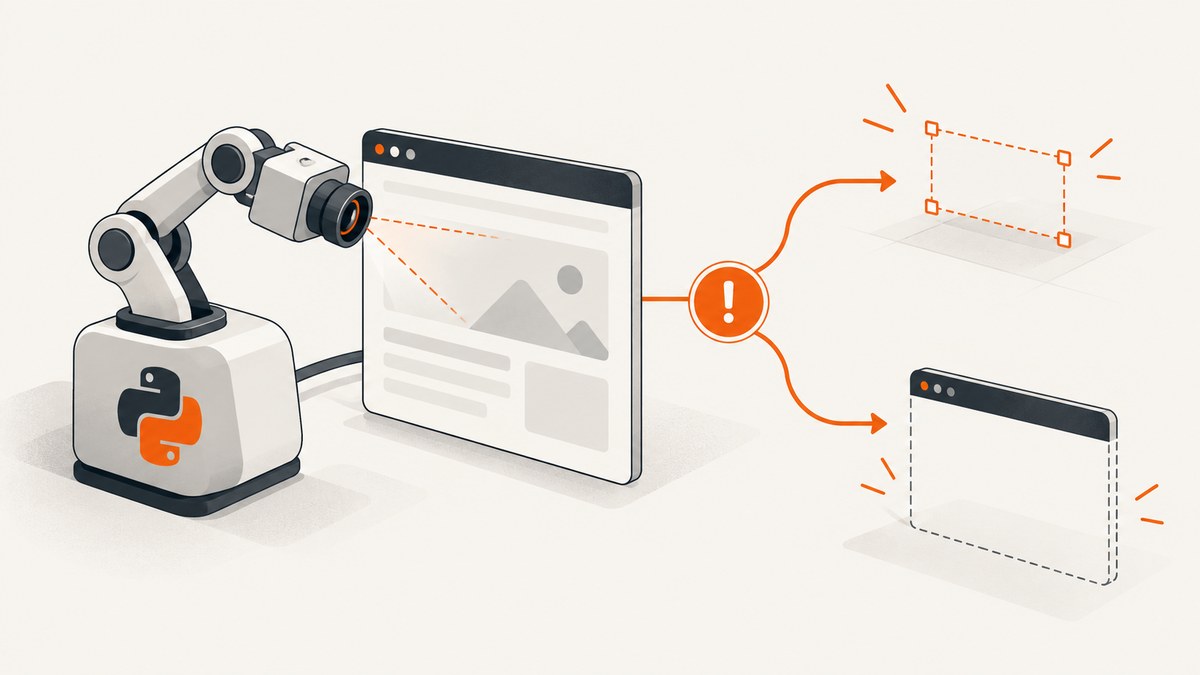
“Unhandled inspector error” is a wrapper, not a diagnosis. Read the complete inner message and identify the WebDriver operation that failed. In screenshot reports, two different failures appear repeatedly:
- “Cannot take screenshot with 0 width”: the target element is not currently rendered with usable dimensions.
- “Browser window not found”: Chrome or the WebDriver session disappeared, often during window sizing, maximizing, navigation, or another command before the screenshot.
Fix the first by waiting for the actual element to become visible and checking its dimensions. Fix the second by checking the browser process, session, and browser/driver pairing. Do not treat either message as proof that the screenshot API itself is broken.
1. Read the full exception before changing code
Python often surfaces an outer error such as WebDriverException: unknown error: unhandled inspector error. The useful diagnosis is in the inner JSON message. Save the complete traceback and record:
- the exact
messageafterunhandled inspector error; - the line that failed: element screenshot, full-window screenshot, navigation, maximize, or window sizing;
- Selenium and Python versions;
- Chrome and ChromeDriver versions;
- operating system and headless/headed mode;
- the locator and URL being captured.
These details separate an element-rendering problem from a dead or missing browser window.
2. Fix “Cannot take screenshot with 0 width”
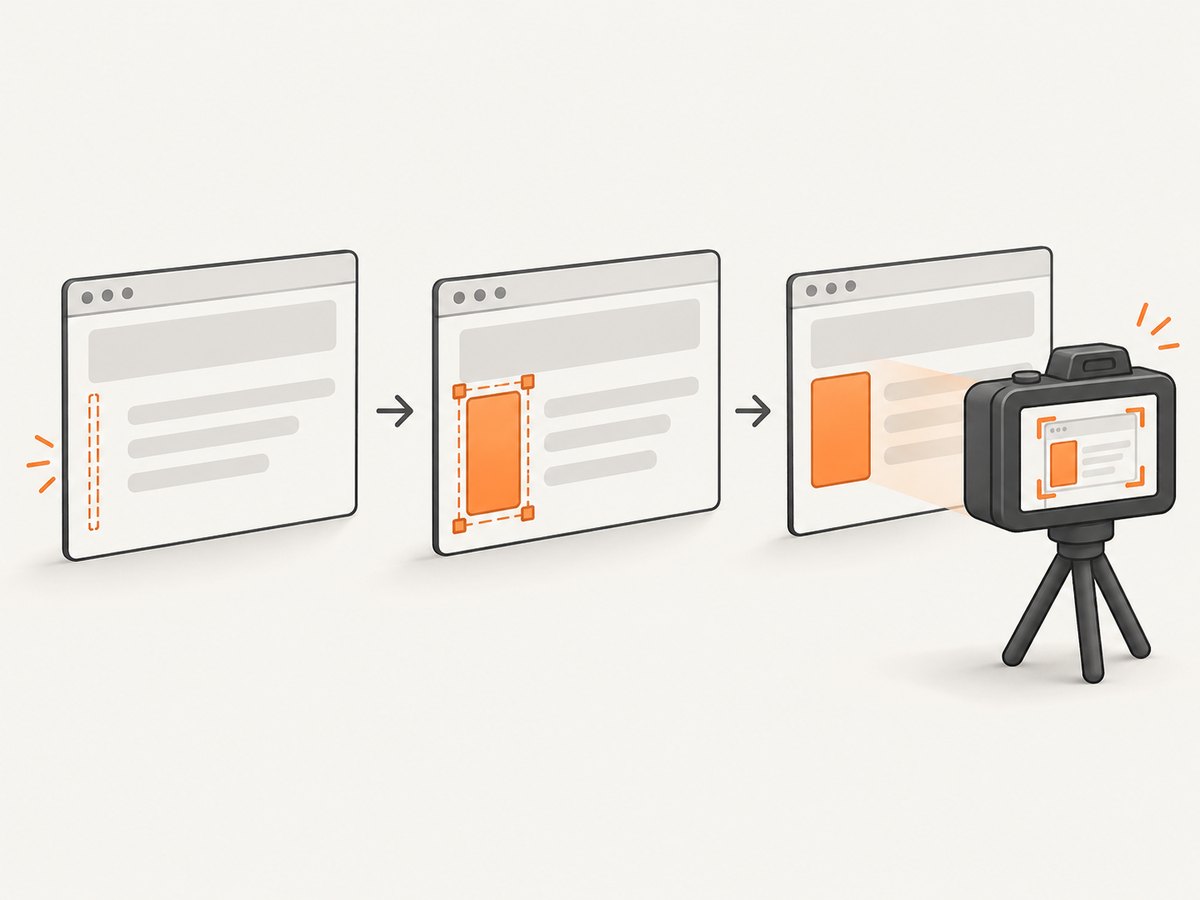
This variant occurs with an element screenshot when the located element has no usable rendered width. Common causes include a hidden responsive menu, a page that has not finished loading, a wrong locator, an element rendered only after JavaScript runs, or a page state that differs from the expected interface.
Wait for visibility, then capture
from pathlib import Path

from selenium import webdriver
from selenium.webdriver.common.by import By
from selenium.webdriver.support.ui import WebDriverWait
from selenium.webdriver.support import expected_conditions as EC

URL = "https://example.com"
SELECTOR = "main"  # Replace with the element you need
OUTPUT = Path("element.png")

options = webdriver.ChromeOptions()
# options.add_argument("--headless=new")  # Enable when running without a display.
options.add_argument("--window-size=1440,1000")

driver = webdriver.Chrome(options=options)
wait = WebDriverWait(driver, 20)

try:
    driver.get(URL)
    element = wait.until(
        EC.visibility_of_element_located((By.CSS_SELECTOR, SELECTOR))
    )

    # Visibility is a first check. Confirm that the rendered box is usable.
    width = element.size["width"]
    height = element.size["height"]
    if width <= 0 or height <= 0:
        raise RuntimeError(
            f"Element has unusable dimensions: width={width}, height={height}"
        )

    element.screenshot(str(OUTPUT))
    print(f"Saved {OUTPUT} ({width}x{height})")
finally:
    driver.quit()
The visibility wait follows the community recommendation for the zero-width report. If it times out, investigate the page rather than retrying blindly.
When the visibility wait times out
- Verify the URL and inspect the current page title and URL.
- Check the locator in browser developer tools. A CSS selector that matches a desktop element may match a hidden mobile element at another viewport.
- Wait for a page-specific condition, such as a loading mask disappearing or a result count becoming nonzero.
- Check whether a cookie banner, login wall, bot check, or consent dialog covers or replaces the expected content.
- Inspect
element.is_displayed(),element.rect, and computed CSS such asdisplay,visibility, and dimensions.
element = driver.find_element(By.CSS_SELECTOR, SELECTOR)
print("displayed:", element.is_displayed())
print("rect:", element.rect)
print("size:", element.size)
print("outerHTML:", element.get_attribute("outerHTML")[:1000])
An element can exist in the DOM while remaining hidden or measuring zero pixels. Presence alone is therefore weaker than visibility plus a positive rectangle.
Element screenshots versus full-window screenshots
WebElement.screenshot_as_png returns PNG bytes, while WebElement.screenshot(path) writes an element image. A whole-window capture uses the WebDriver screenshot method available in your Selenium version. Check the API documentation for the version installed in your environment before relying on an exact method name.
# Element PNG bytes
png_bytes = element.screenshot_as_png
Path("element-bytes.png").write_bytes(png_bytes)

# Whole browser viewport
Path("viewport.png").write_bytes(driver.get_screenshot_as_png())
3. Fix “Browser window not found”
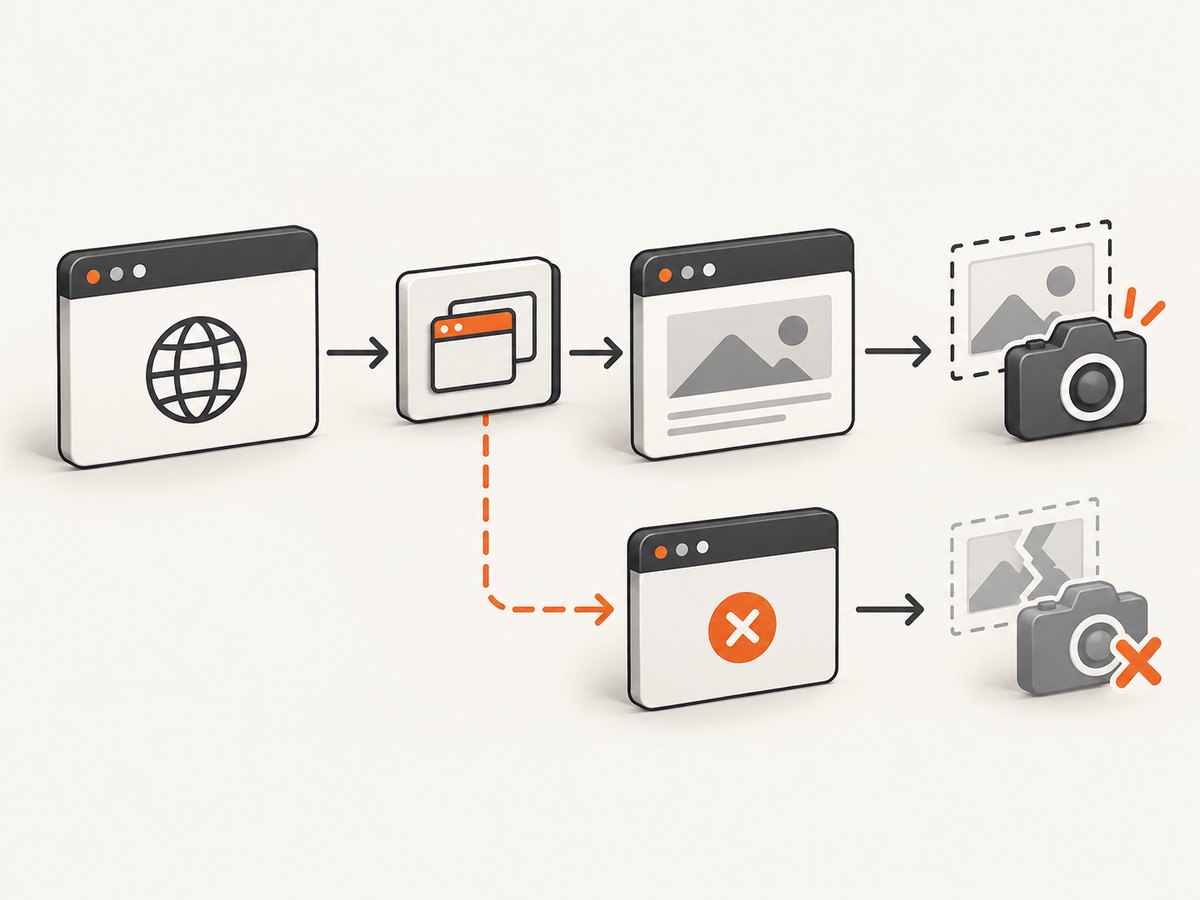
“Browser window not found” means the command could not find the browser window controlled by the session. Reports show it during set_window_size and maximize operations, so the failure may happen before any screenshot call.
Confirm that the session is alive
from selenium import webdriver
from selenium.common.exceptions import WebDriverException

options = webdriver.ChromeOptions()
options.add_argument("--window-size=1440,1000")

driver = webdriver.Chrome(options=options)
try:
    print("session:", driver.session_id)
    print("handles:", driver.window_handles)
    driver.get("https://example.com")
    print("title:", driver.title)
    print("current URL:", driver.current_url)
    driver.save_screenshot("viewport.png")
except WebDriverException as exc:
    print("WebDriver failed:", exc)
    raise
finally:
    driver.quit()
If driver.get() fails, the screenshot is only a downstream symptom. Check whether Chrome exited, whether the session has any window handles, and whether another part of the test already called quit() or closed the last window.
Check browser and driver pairing
Capture the versions in every failing environment:
import platform
from selenium import webdriver

options = webdriver.ChromeOptions()
driver = webdriver.Chrome(options=options)
try:
    print("Python platform:", platform.platform())
    print("Selenium capabilities:", driver.capabilities)
    print("Chrome reported:", driver.capabilities.get("browserVersion"))
    print("Driver reported:", driver.capabilities.get("chrome", {}).get("chromedriverVersion"))
finally:
    driver.quit()
Use a matching Chrome and ChromeDriver pair and verify that the browser process remains open. Selenium issue #13257 describes Python 3.12, Selenium 4.16.0, and Chrome for Testing/ChromeDriver 120.0.6099.71 on Windows 11; Chrome opened and then closed around window sizing, producing “Browser window not found.” The issue was closed as “not planned,” which does not establish a universal fix.
A separate Chrome for Testing report compared CfT builds with a regular installed Chrome build and found the problem only in that reporter’s environment. Treat that comparison as a diagnostic lead, not a support matrix or a blanket downgrade instruction. Another Selenium report, #14231, shows the same message during maximize with Chrome 126.0.6478.127 and Selenium 4.22.0.
Reduce the failing operation
Remove window manipulation temporarily and run a minimal navigation plus screenshot. If that works, reintroduce sizing or maximize one operation at a time.
from selenium import webdriver

options = webdriver.ChromeOptions()
# Prefer an explicit size while diagnosing instead of maximize().
options.add_argument("--window-size=1365,900")

driver = webdriver.Chrome(options=options)
try:
    driver.get("https://example.com")
    driver.save_screenshot("minimal.png")
finally:
    driver.quit()
This isolates the command that fails; it does not prove that a particular headless flag, Selenium release, or Chrome release is a universal solution.
4. A decision table for the two common variants
| Inner message | Typical failing operation | Evidence to inspect | First action |
|---|---|---|---|
| Cannot take screenshot with 0 width | Element screenshot | Visibility, rectangle, computed style, locator | Wait for visibility and positive dimensions |
| Browser window not found | Window sizing, maximize, navigation, or screenshot | Process, window handles, session, versions | Confirm Chrome is open and the browser/driver pair matches |
5. A robust diagnostic script
import json
import platform
from pathlib import Path

from selenium import webdriver
from selenium.common.exceptions import TimeoutException, WebDriverException
from selenium.webdriver.common.by import By
from selenium.webdriver.support.ui import WebDriverWait
from selenium.webdriver.support import expected_conditions as EC

URL = "https://example.com"
SELECTOR = "main"

options = webdriver.ChromeOptions()
options.add_argument("--window-size=1440,1000")
# options.add_argument("--headless=new")

driver = webdriver.Chrome(options=options)
try:
    print(json.dumps({
        "platform": platform.platform(),
        "session_id": driver.session_id,
        "capabilities": driver.capabilities,
        "window_handles": driver.window_handles,
    }, indent=2, default=str))

    driver.get(URL)
    print("loaded:", driver.current_url, driver.title)

    wait = WebDriverWait(driver, 20)
    try:
        element = wait.until(
            EC.visibility_of_element_located((By.CSS_SELECTOR, SELECTOR))
        )
    except TimeoutException:
        print("Element never became visible")
        print("URL:", driver.current_url)
        print("title:", driver.title)
        raise

    print("element rect:", element.rect)
    if element.size["width"] <= 0 or element.size["height"] <= 0:
        raise RuntimeError(f"Zero-sized element: {element.rect}")

    Path("diagnostic-element.png").write_bytes(element.screenshot_as_png)
except WebDriverException as exc:
    print("Complete WebDriver exception:", repr(exc))
    raise
finally:
    driver.quit()
6. Performance and reliability practices
- Use explicit waits. Replace arbitrary sleeps with a condition tied to the page state. A short fixed delay can miss slow pages; a long delay wastes every fast run.
- Set the viewport at startup. An explicit
--window-sizemakes responsive layouts reproducible and avoids a maximize call while diagnosing window errors. - Keep one session per independent capture when isolation matters. Reusing a session is faster, but stale windows, redirects, and cookies can affect later captures.
- Always call
quit()infinally. Orphaned processes can exhaust resources and create misleading later failures. - Save diagnostics on failure. Record the URL, title, screenshot attempt, versions, window handles, and page HTML when permitted by your data policy.
- Do not retry a zero-width element forever. If the locator is wrong or the element is intentionally hidden, retries only increase runtime.
- Retry only recoverable session failures. If Chrome has exited, create a fresh driver and preserve the original exception for investigation.
7. Cost and operational notes
Local Selenium costs come from browser and machine resources: startup time, CPU, memory, storage for artifacts, and maintenance of compatible browser and driver versions. A hosted screenshot API can move that browser setup out of your application, but it introduces request costs and service configuration. Compare the total workflow, including retries and failed captures, rather than image price alone.
Or skip the browser setup
If you need a clean URL screenshot without maintaining Selenium, ScreenshotNeo provides a GET endpoint that returns PNG, JPEG, WebP, or PDF. Its capture can accept cookie or consent banners and remove more than 60 known consent platforms, newsletter popups, and chat widgets before the shot; each step can be disabled.
Only clean shots are billed. Bot checks, CAPTCHAs, blank pages, timeouts, failed loads, and cache hits cost nothing, and the response identifies the result with X-Page-Verdict and X-Billed headers. An MCP server provides take_screenshot, get_page_info, and capture_pdf tools for Claude, Cursor, and other MCP clients.
See the ScreenshotNeo API documentation for the complete option list.
cURL
curl -G "https://api.screenshotneo.com/v1/shot" -d access_key=YOUR_API_KEY --data-urlencode url=https://stripe.com -o shot.webpPython
import requests

r = requests.get(
    "https://api.screenshotneo.com/v1/shot",
    params={"access_key": "YOUR_API_KEY", "url": "https://stripe.com"},
    timeout=90,
)
r.raise_for_status()
open("shot.webp", "wb").write(r.content)
Node.js
const q = new URLSearchParams({ access_key: 'YOUR_API_KEY', url: 'https://stripe.com' });
const res = await fetch(`https://api.screenshotneo.com/v1/shot?${q}`);
if (!res.ok) throw new Error(`Screenshot request failed: ${res.status}`);
const fs = await import('node:fs/promises');
await fs.writeFile('shot.webp', Buffer.from(await res.arrayBuffer()));
ScreenshotNeo includes full-page capture with lazy images loaded, CSS-selector element capture, dark mode, device presets and custom viewports, retina scale, PDF controls, custom CSS and JavaScript, clicks, selector waits, delays, network-idle waits, request blocking, headers, cookies, user agents, authorization, timezone, geolocation, transparent backgrounds, resizing, selectable cache TTLs, signed links, asynchronous jobs with signed webhooks, bulk capture of up to 100 URLs per call, a usage API, and an OpenAPI specification. Parameter names used by other screenshot APIs also work to ease migration.
The Free plan includes 1,000 shots per month with no card. Paid plans start at $5 for 3,000 shots; yearly billing gives two months free, and every feature is available on every plan. Create a free ScreenshotNeo account.
8. Troubleshooting checklist
- Only the outer phrase is logged: log the full exception and inner message.
- Element wait times out: verify URL, locator, responsive layout, login state, consent dialogs, and page loading conditions.
- Element is present but width is zero: inspect visibility, CSS, rectangle, and whether a hidden duplicate matched.
- Failure occurs at maximize or set size: remove that operation and test navigation plus screenshot first.
- Browser window not found after navigation: check Chrome process lifetime, window handles, session ID, and prior calls to
close()orquit(). - Failure occurs only with Chrome for Testing: compare with a regular installed Chrome build as an environment diagnostic; do not assume it is a universal fix.
- Intermittent failures: record browser/driver versions, headless mode, viewport, URL, and the exact command that failed before adding retries.
9. FAQ
Is “unhandled inspector error” one Selenium bug?
No. The phrase wraps different inspector or browser-control failures. The inner message and failing operation determine the next step.
Should I always add a sleep before taking a screenshot?
No. Use an explicit wait for visibility or another page-specific condition. A sleep does not prove that the target is rendered or has nonzero dimensions.
Does upgrading Selenium guarantee that “Browser window not found” disappears?
No. The reports establish examples across several versions, not a universal upgrade fix. Verify the session, browser process, and matching versions.
Can a whole-window screenshot succeed when an element screenshot fails?
Yes. A zero-width element can fail independently while the browser viewport remains capturable. That result points back to the element’s rendered state and locator.
What should a useful bug report contain?
Include the full traceback and inner message, failing operation, Selenium/Python/browser/driver versions, operating system, headless mode, URL, locator, and whether Chrome for Testing or a regular installation is used.


