Take a Screenshot of a WebElement in Selenium Python and Save It
Capture one Selenium WebElement as a PNG, handle save failures, use in-memory bytes, and troubleshoot the most common issues.
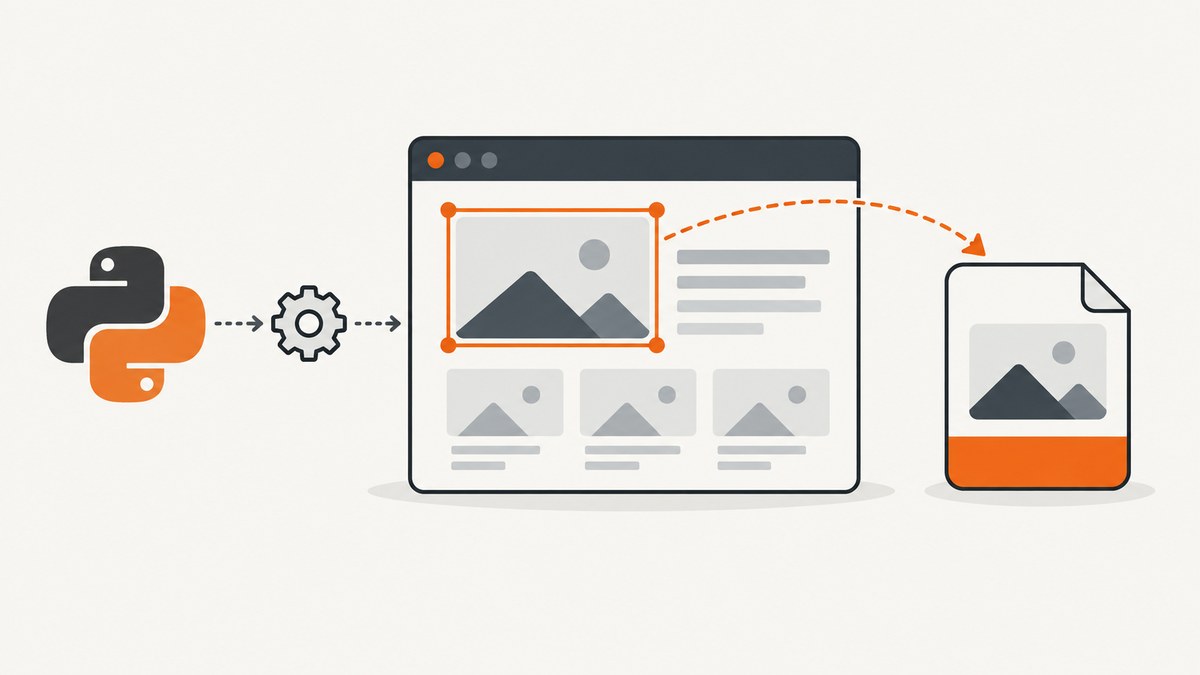
Use Selenium Python’s WebElement.screenshot() method after locating the element:
element.screenshot("/absolute/path/element.png")The method writes a PNG file and returns True when the save succeeds. It returns False when writing raises an OSError. Use a full, writable path and a filename ending in .png. The official Selenium Python WebElement API documents this behavior.
Complete runnable example
from selenium import webdriver
from selenium.webdriver.common.by import By

url = "https://example.com"
output_path = "/tmp/example-heading.png"

driver = webdriver.Chrome()
try:
    driver.get(url)
    element = driver.find_element(By.CSS_SELECTOR, "h1")
    saved = element.screenshot(output_path)
    if not saved:
        raise OSError(f"Could not save element screenshot to {output_path}")
    print(f"Saved screenshot to {output_path}")
finally:
    driver.quit()
Install Selenium first if it is not already available:
python -m pip install seleniumThe browser and WebDriver must also be available to your Selenium setup. The example uses Chrome, but the Python API call is the same when your configured driver is another supported browser.
How the capture works
- Create a WebDriver instance.
- Navigate with
driver.get(). - Locate the target with
find_element(). - Call
element.screenshot(path). - Check the Boolean result.
- Quit the driver in a
finallyblock.
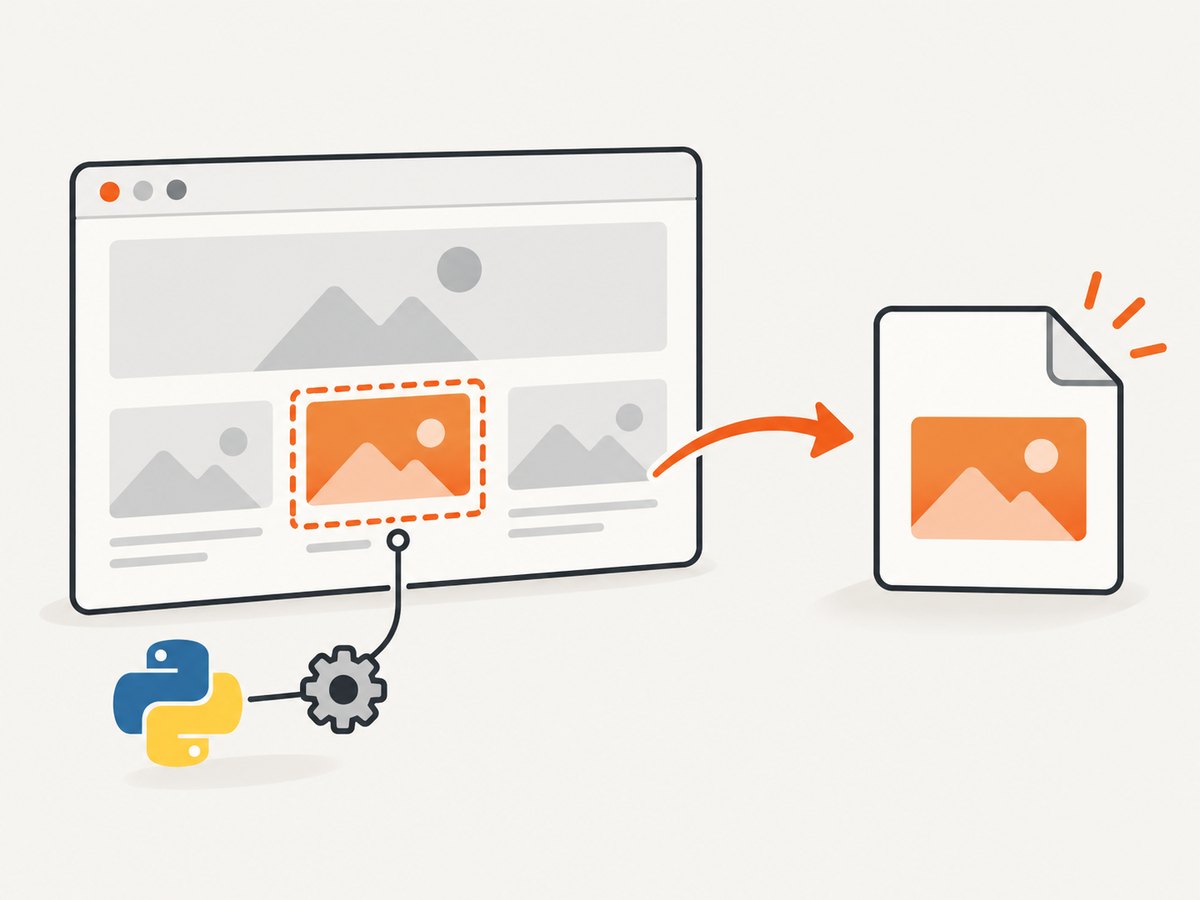
The screenshot covers the selected element, rather than the entire browser window. The element must exist in the current page and be located with a selector that matches the rendered DOM.
Choosing a reliable selector
Prefer stable attributes that are intended for automation:
# ID
By.ID, "pricing-card"

# Data attribute
By.CSS_SELECTOR, "[data-testid='hero-title']"

# Semantic selector
By.CSS_SELECTOR, "article h1"

# XPath when CSS is insufficient
By.XPATH, "//section[@aria-label='Results']//h2"
Avoid selectors based on generated class names or positions such as div:nth-child(3) when the page can change. If more than one element matches, use find_elements() and select deliberately, or narrow the selector.
Wait until the element is ready
Pages that render content with JavaScript may expose the element before its final content or size is ready. Use an explicit wait:
from selenium import webdriver
from selenium.webdriver.common.by import By
from selenium.webdriver.support.ui import WebDriverWait
from selenium.webdriver.support import expected_conditions as EC

 driver = webdriver.Chrome()
try:
    driver.get("https://example.com")
    element = WebDriverWait(driver, 20).until(
        EC.visibility_of_element_located((By.CSS_SELECTOR, "h1"))
    )
    if not element.screenshot("/tmp/heading.png"):
        raise OSError("Screenshot save failed")
finally:
    driver.quit()
Remove the accidental leading space before driver if copying this into a Python file; top-level indentation is invalid. For a page that updates after becoming visible, wait for a specific text, attribute, or application state that represents the final version.
Save PNG data without writing immediately
Use screenshot_as_png when you need bytes for an upload, image processor, object store, or test assertion:
png_bytes = element.screenshot_as_png
with open("/tmp/element.png", "wb") as image_file:
    image_file.write(png_bytes)
For a base64 representation, use:
png_base64 = element.screenshot_as_base64These properties capture the same element but let your code control storage and transport.
Element screenshot versus browser screenshot
| Need | API | Result |
|---|---|---|
| One WebElement | element.screenshot(path) |
Writes that element as PNG and returns a Boolean |
| One element in memory | element.screenshot_as_png |
PNG bytes |
| One element as text-safe data | element.screenshot_as_base64 |
Base64 string |
| Current browser window | driver.save_screenshot(path) |
Window screenshot, not an element crop |
| Current browser window (alternative) | driver.get_screenshot_as_file(path) |
Window screenshot saved to a file |
Selenium’s Python WebDriver API documents the window-level methods. Choose the narrowest scope that matches the output you need.
Handling save paths and failures
- Create the parent directory before saving.
- Use a path your process can write.
- Use a
.pngextension because the output is PNG. - Check the returned Boolean instead of assuming success.
- Catch filesystem errors around your own directory and permission checks.
from pathlib import Path

output = Path("artifacts/element.png")
output.parent.mkdir(parents=True, exist_ok=True)

saved = element.screenshot(str(output))
if not saved:
    raise OSError(f"Selenium could not write {output}")
if not output.is_file() or output.stat().st_size == 0:
    raise OSError(f"Screenshot file is missing or empty: {output}")
The API warns when the filename does not end in .png. Do not rename the file to a different image format without converting the bytes with an image library.
Common errors and fixes
NoSuchElementException
Cause: the selector does not match the current DOM, the page has not loaded the element, or the element is inside a frame.
Fix: verify the selector, wait for visibility, and switch into the correct iframe before locating it:
driver.switch_to.frame(driver.find_element(By.CSS_SELECTOR, "iframe"))
element = WebDriverWait(driver, 20).until(
    EC.visibility_of_element_located((By.CSS_SELECTOR, "h1"))
)
StaleElementReferenceException
Cause: JavaScript replaced the node after you located it.
Fix: wait for the update to finish, then locate the element again immediately before taking the screenshot.
ElementNotInteractableException or an empty-looking image
Cause: the element is hidden, has no rendered size, is covered by a state change, or its content has not finished rendering.
Fix: wait for visibility and, when appropriate, scroll it into view:
driver.execute_script(
    "arguments[0].scrollIntoView({block: 'center', inline: 'nearest'});",
    element,
)
False returned from screenshot()
Cause: Selenium caught an OSError while writing.
Fix: check that the parent directory exists, the process has write permission, the path is valid for the operating system, and the destination is not a directory.
Permission denied or read-only filesystem
Cause: the execution environment blocks writes to the chosen location.
Fix: write to an application-owned temporary or artifacts directory and pass its absolute path.
Only part of a component appears
Cause: the selected WebElement is smaller than the visual component, or the component uses overflow clipping.
Fix: select the outer container that defines the desired bounds. If you need the whole page, use the WebDriver window screenshot API or a full-page capture tool.
Capturing multiple elements
from pathlib import Path
from selenium.webdriver.common.by import By

output_dir = Path("artifacts/cards")
output_dir.mkdir(parents=True, exist_ok=True)

cards = driver.find_elements(By.CSS_SELECTOR, "article.card")
for index, card in enumerate(cards, start=1):
    path = output_dir / f"card-{index}.png"
    if not card.screenshot(str(path)):
        raise OSError(f"Could not save {path}")
Re-locate elements when the page rerenders between captures. For long lists, process items in batches so browser memory and disk usage remain predictable.
Performance and reliability notes
- Element screenshots are usually cheaper than stitching a full-page image because the captured region is smaller, but page load and rendering still dominate total time.
- Use explicit waits targeted to the required state instead of a large fixed sleep.
- Keep the browser session alive when capturing several elements from one page; start a new session only when isolation is required.
- Use deterministic viewport, zoom, fonts, timezone, and test data when comparing screenshots.
- Write to local storage first, then upload or process the file. This makes a filesystem failure distinct from a browser failure.
- Always call
quit()infinallyso failed captures do not leave browser processes running.
Selenium’s API documentation does not establish a browser-by-browser support matrix for element screenshots. Validate the exact browser and driver versions used by your deployment.
Or skip the browser setup
ScreenshotNeo provides a website screenshot API when you want a rendered page image without managing Selenium, browsers, drivers, waits, and file paths. See the ScreenshotNeo documentation for all options.
curl -G "https://api.screenshotneo.com/v1/shot" -d access_key=YOUR_API_KEY --data-urlencode url=https://stripe.com -o shot.webpimport requests
r = requests.get("https://api.screenshotneo.com/v1/shot", params={"access_key": "YOUR_API_KEY", "url": "https://stripe.com"}, timeout=90)
open("shot.webp", "wb").write(r.content)const q = new URLSearchParams({ access_key: 'YOUR_API_KEY', url: 'https://stripe.com' });
const res = await fetch(`https://api.screenshotneo.com/v1/shot?${q}`);ScreenshotNeo removes cookie and consent banners, newsletter popups, and chat widgets before capture. Bot checks, blank pages, timeouts, failed loads, and cache hits are not billed; response headers identify the page verdict and billing state. It also offers an MCP server for AI agents, including Claude, Cursor, and other MCP clients, with take_screenshot, get_page_info, and capture_pdf tools. The free plan includes 1,000 screenshots per month with no card, and paid plans start at $5 for 3,000 shots. Create a free ScreenshotNeo account.
FAQ
Does element.screenshot() save JPEG or WebP?
No. Selenium’s WebElement screenshot API writes PNG data. Convert the bytes separately if another format is required.

Can I return the image from an API endpoint?
Yes. Read element.screenshot_as_png and return those bytes with an image/png content type.
Should I use a full path?
Yes. A full, writable path avoids ambiguity about the process working directory and follows the API guidance.
What if I need the whole page?
Use a full-page capture approach or a service designed for full-page screenshots. element.screenshot() is scoped to one WebElement.


