How to Get Screenshots from a Selenium RemoteWebDriver Server
Capture and save Selenium RemoteWebDriver screenshots in Java and Python, understand remote paths, full-page limits, failures, and faster API options.
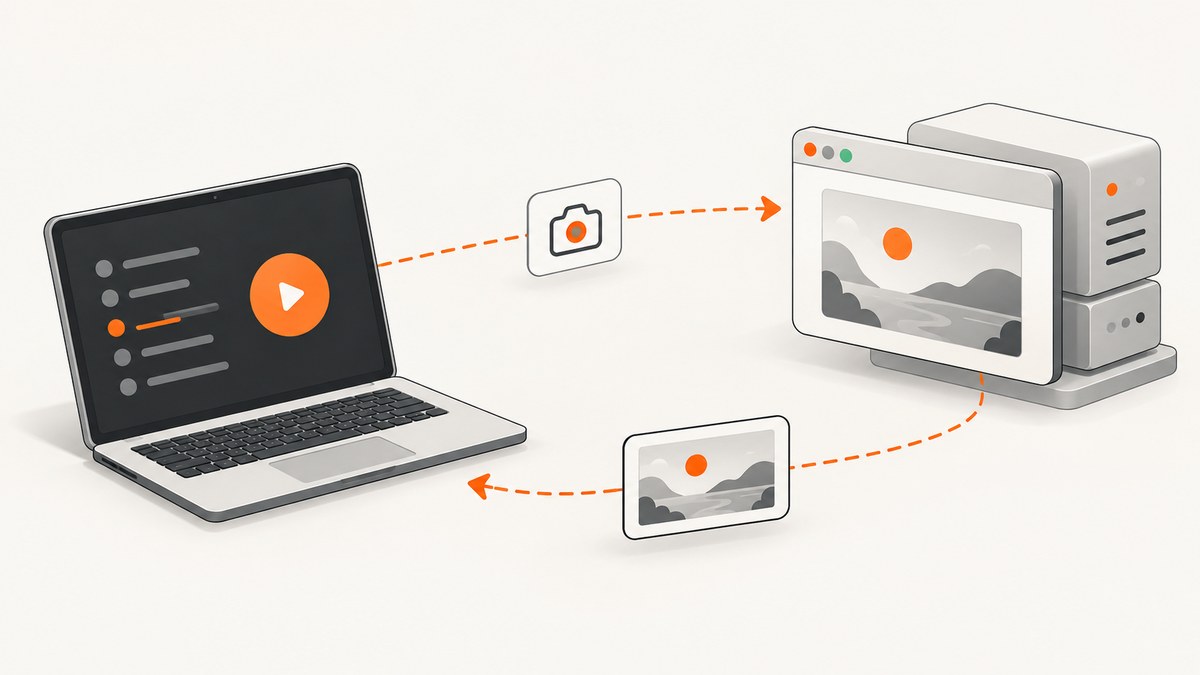
A Selenium RemoteWebDriver session takes a screenshot through the normal WebDriver screenshot command. In Java, cast the driver to TakesScreenshot and call getScreenshotAs. In Python, use save_screenshot, get_screenshot_as_file, or an in-memory PNG method. The browser node captures the image, but a path you provide is resolved by the client process running your test.
This distinction matters when the test runner and Selenium Grid node are on different machines: the file is saved on the runner, not magically in the node’s filesystem. The examples below show persistent files, bytes and Base64, element captures, waits, troubleshooting, and full-page limitations.
1. The direct answer: capture a RemoteWebDriver screenshot
The basic flow is:
- Create a remote session and navigate to the page.
- Wait until the state you want to document is present.
- Invoke the screenshot command on the current window or element.
- Save or upload the returned data from the test runner.
Java: save the returned temporary file
import java.io.File;
import java.nio.file.Files;
import java.nio.file.Path;
import java.nio.file.StandardCopyOption;
import org.openqa.selenium.OutputType;
import org.openqa.selenium.TakesScreenshot;
import org.openqa.selenium.WebDriver;
import org.openqa.selenium.remote.RemoteWebDriver;

WebDriver driver = new RemoteWebDriver(hubUrl, capabilities);
try {
    driver.get("https://example.com/login");

    File temporary = ((TakesScreenshot) driver)
        .getScreenshotAs(OutputType.FILE);

    Path destination = Path.of("artifacts", "remote-login.png");
    Files.createDirectories(destination.getParent());
    Files.copy(
        temporary.toPath(),
        destination,
        StandardCopyOption.REPLACE_EXISTING
    );
} finally {
    driver.quit();
}
OutputType.FILE gives Java a temporary file. Copy it to a destination you control before the temporary file is cleaned up. The destination path belongs to the machine running this Java process.
Java: keep the image in memory
byte[] png = ((TakesScreenshot) driver)
    .getScreenshotAs(OutputType.BYTES);

String base64Png = ((TakesScreenshot) driver)
    .getScreenshotAs(OutputType.BASE64);
Bytes are convenient for an object-store upload, test report attachment, or HTTP request. Base64 is useful when the receiving system expects a text field, but it increases payload size and memory use compared with raw bytes.
Python: save a file or obtain image data
from selenium import webdriver

# driver is an already-created Remote WebDriver session
driver.get("https://example.com/login")
driver.save_screenshot("/absolute/path/artifacts/remote-login.png")

# Equivalent file API:
ok = driver.get_screenshot_as_file(
    "/absolute/path/artifacts/remote-login-2.png"
)
if not ok:
    raise OSError("Could not write the screenshot")

png_bytes = driver.get_screenshot_as_png()
base64_png = driver.get_screenshot_as_base64()
Python’s file methods expect a full path ending in .png. save_screenshot returns a boolean, while get_screenshot_as_file reports an I/O failure with False. Use the byte or Base64 methods when you will attach or upload the result directly.
The Selenium screenshots documentation describes the standard WebDriver and element screenshot operations. The Java TakesScreenshot API defines the capture targets and output conversions, and the Python Remote WebDriver API documents the file, PNG and Base64 methods.
2. What happens on a remote server?
Your client sends a WebDriver screenshot command to the remote endpoint. The browser driver on the node captures the current browser state and returns image data. Selenium then converts that response to the requested output type. With Java’s FILE output or Python’s file methods, the client writes the data to its own filesystem.
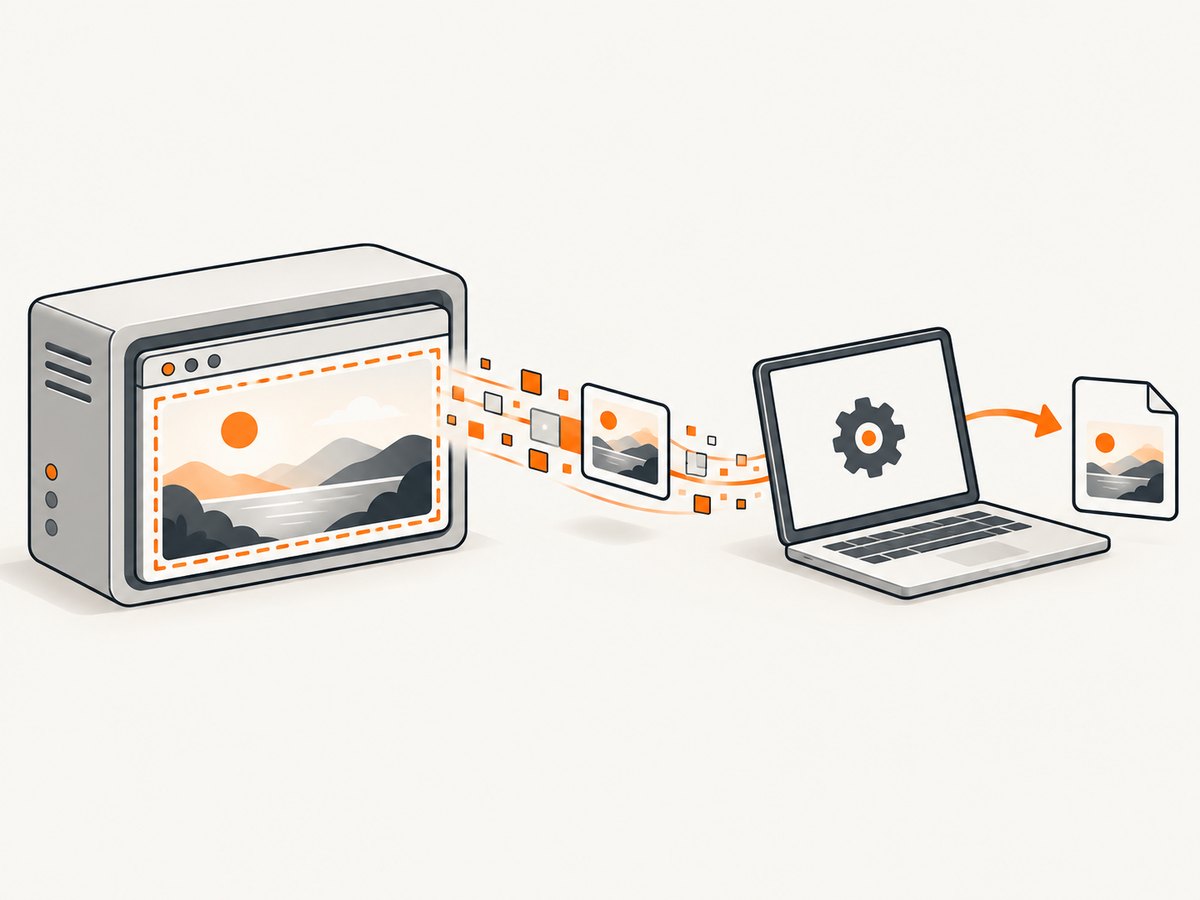
For a Grid deployment, keep these locations separate:
| Operation | Where it occurs | Practical consequence |
|---|---|---|
| Browser rendering | Remote node | The node must support the screenshot command. |
| WebDriver response conversion | Client library | Bytes and Base64 are available to your test process. |
| File creation | Client process | Use a path writable by the runner, not a node-only path. |
| Artifact upload | Your CI or storage code | Upload after capture if reports are hosted elsewhere. |
If you need a file on the node for diagnostic purposes, add an explicit artifact-transfer step. A screenshot path passed to the client API does not create a shared network file.
3. Capture the correct state before calling the API
A screenshot is a snapshot of the session’s current state. Navigate first, switch to the intended window or frame, dismiss overlays when appropriate, and wait for the visual state you need.
Wait for an element before capture in Java
import java.time.Duration;
import org.openqa.selenium.By;
import org.openqa.selenium.support.ui.ExpectedConditions;
import org.openqa.selenium.support.ui.WebDriverWait;

WebDriverWait wait = new WebDriverWait(driver, Duration.ofSeconds(20));
wait.until(ExpectedConditions.visibilityOfElementLocated(
    By.cssSelector("[data-testid='dashboard']")
));

byte[] png = ((TakesScreenshot) driver)
    .getScreenshotAs(OutputType.BYTES);
Wait for an element before capture in Python
from selenium.webdriver.common.by import By
from selenium.webdriver.support.ui import WebDriverWait
from selenium.webdriver.support import expected_conditions as EC

wait = WebDriverWait(driver, 20)
wait.until(EC.visibility_of_element_located(
    (By.CSS_SELECTOR, "[data-testid='dashboard']")
))
driver.save_screenshot("/absolute/path/dashboard.png")
For animations, wait for a stable class, text value, or application condition instead of relying only on a fixed sleep. If the page uses an iframe, switch into it before locating an element; switch back before capturing the top-level page if that is your target. If a new tab is opened, select its window handle first.
Element screenshots
WebElement implementations can expose the same screenshot contract. This is useful for a component or error message rather than the entire viewport.
var button = driver.findElement(By.cssSelector("button.submit"));
File elementFile = button.getScreenshotAs(OutputType.FILE);
Files.copy(
    elementFile.toPath(),
    Path.of("artifacts", "submit-button.png"),
    StandardCopyOption.REPLACE_EXISTING
);
Element capture depends on browser and driver support. Confirm it on the browser versions used by your Grid.
4. Viewport, full-page, and scrolling behavior
The portable expectation for the basic command is the current window or viewport. A W3C-compliant implementation follows the WebDriver screenshot contract; browser-specific implementations may provide broader page capture. Do not assume that every RemoteWebDriver session returns one stitched image of the entire document.
When full-page coverage is required:
- Check the selected browser and driver documentation for full-page support.
- Run a small verification on the exact Grid configuration.
- Consider a browser-specific full-page method or a scroll-and-stitch workflow.
- Record the viewport size, device scale factor, and browser version with the artifact.
A scroll-and-stitch implementation must account for sticky headers, lazy-loaded images, fixed elements, and device-pixel scaling. It can also change page state while scrolling. For a stable audit image, a browser or service that supports full-page capture in one operation is usually easier to operate.
5. Common errors and fixes
| Symptom | Likely cause | Fix |
|---|---|---|
WebDriverException or unsupported operation |
The browser driver does not implement the screenshot command or element capture. | Verify the browser/driver pair and try a current-window capture first. |
Python returns False |
The runner cannot write the destination path. | Use an absolute path, create the parent directory, and check permissions. |
| Java file disappears | OutputType.FILE produced a temporary file. |
Copy it immediately to a durable artifact path. |
| Screenshot is from the wrong page | Capture occurred before navigation, a wait, frame switch, or tab switch. | Perform the navigation and state selection explicitly before capture. |
| Only part of a long page appears | The driver returned a viewport screenshot. | Use a verified full-page capability or a scroll-and-stitch approach. |
| Blank or half-rendered image | Capture raced network loading, a transition, or lazy content. | Wait for a meaningful application condition and, when needed, a stable network or rendering state. |
| Artifact cannot be found in CI | The file was saved on the runner but never uploaded. | Publish the runner’s artifact directory in the CI job. |
Diagnostic checklist
- Log the session URL, browser name, viewport dimensions, and window handle.
- Confirm the destination parent directory exists and is writable.
- Capture a small viewport image before debugging full-page behavior.
- Check that authentication, cookies, and frame context are set before the wait.
- Keep the screenshot call inside the session’s lifetime and before
driver.quit().
6. Performance, reliability, and cost considerations
A screenshot transfers image data from the node to the client, so large viewports, high device scale factors, and full-page images consume more bandwidth and memory. PNG preserves detail but is often larger than JPEG or WebP; choose the format required by your report or comparison workflow. Avoid capturing every polling iteration. Capture at assertion boundaries, on failure, or at explicitly selected checkpoints.
For reliable test artifacts, use deterministic viewport dimensions, wait on application state rather than arbitrary delays, and include a unique test and timestamp in the filename. If a remote node is lost, the session and any unsaved in-memory screenshot are lost; upload important bytes promptly. Redact or protect screenshots that contain credentials, personal data, or tokens.
Running Selenium has an infrastructure cost: a browser session, node capacity, startup time, and network transfer are involved even when you need one static image. A screenshot API can be simpler for public pages, scheduled previews, documentation images, and bulk URL capture.
7. Or skip the browser setup
ScreenshotNeo provides a one-request website screenshot API when you do not need to manage a Selenium session. It accepts a URL and returns PNG, JPEG, WebP, or PDF. The API has options for full-page capture with lazy images loaded, CSS element capture, dark mode, device presets or custom viewports, retina scale, custom CSS and JavaScript, clicks, waits, request blocking, cookies, headers, user agents, authorization, timezone, geolocation, transparent backgrounds, resizing, caching, signed links, asynchronous jobs, webhooks, bulk capture, and usage reporting. See the ScreenshotNeo documentation for parameter details.
cURL
curl -G "https://api.screenshotneo.com/v1/shot" \
  -d access_key=YOUR_API_KEY \
  --data-urlencode url=https://stripe.com \
  -o shot.webp
Python
import requests

r = requests.get(
    "https://api.screenshotneo.com/v1/shot",
    params={
        "access_key": "YOUR_API_KEY",
        "url": "https://stripe.com",
    },
    timeout=90,
)
r.raise_for_status()
open("shot.webp", "wb").write(r.content)
Node.js
const q = new URLSearchParams({
  access_key: 'YOUR_API_KEY',
  url: 'https://stripe.com'
});
const res = await fetch(`https://api.screenshotneo.com/v1/shot?${q}`);
if (!res.ok) throw new Error(`Screenshot failed: ${res.status}`);
const fs = await import('node:fs/promises');
await fs.writeFile('shot.webp', Buffer.from(await res.arrayBuffer()));
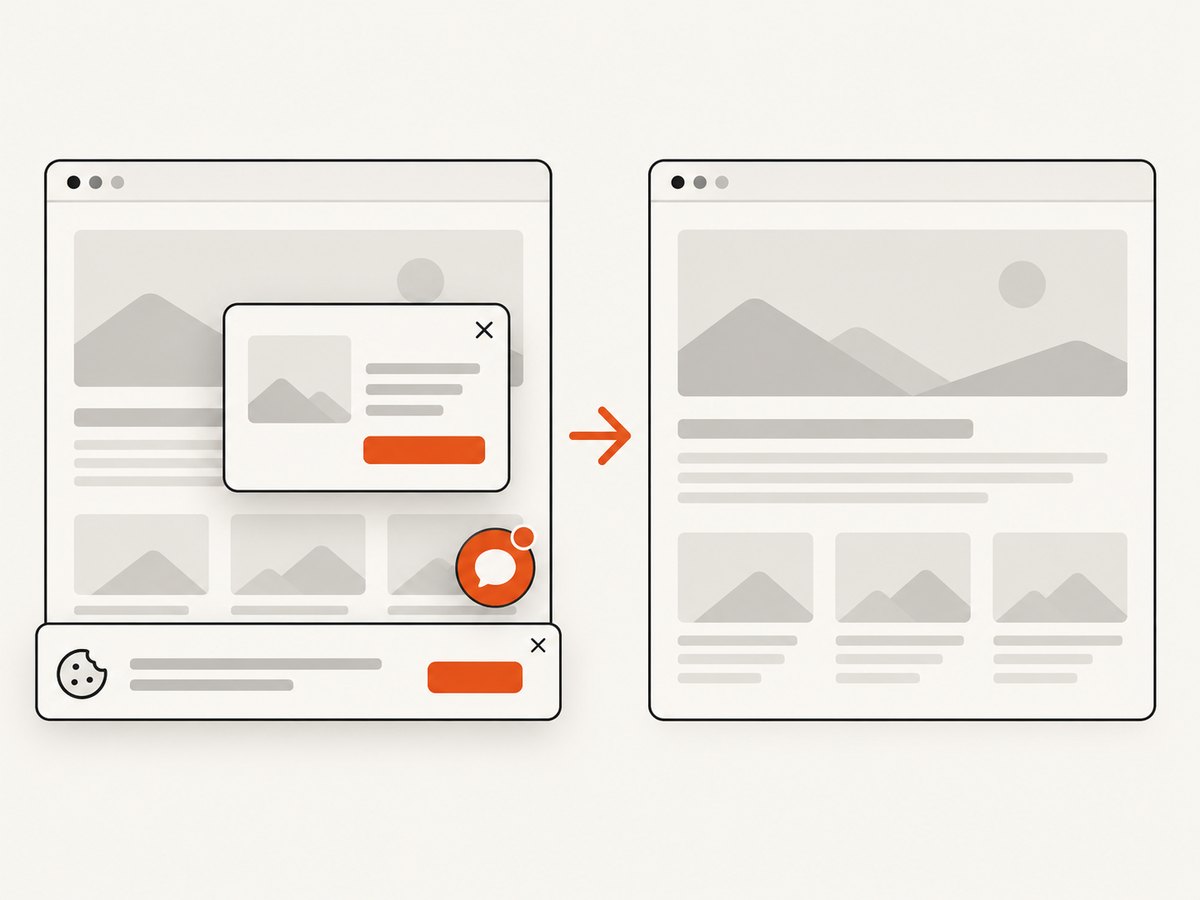
ScreenshotNeo removes cookie and consent banners, newsletter popups, and chat widgets before capture; each cleanup step can be disabled. Bot checks or CAPTCHAs, blank pages, timeouts, failed loads, and cache hits are not billed. The response identifies the result with X-Page-Verdict and X-Billed headers. An MCP server exposes take_screenshot, get_page_info, and capture_pdf to Claude, Cursor, and other MCP clients.
The Free plan includes 1,000 screenshots per month without a card. Paid plans start at $5 for 3,000 shots; yearly billing gives two months free. Create a free ScreenshotNeo account to try the API.
8. Selenium versus a screenshot API
| Need | RemoteWebDriver | ScreenshotNeo |
|---|---|---|
| Interact with a logged-in application | Strong: drive clicks, forms, frames, and tabs. | Use request cookies, headers, authorization, or JavaScript where applicable. |
| Exact test-state evidence | Strong: capture after assertions and interactions. | Best for URL-driven captures and repeatable page snapshots. |
| Full-page image | Browser and driver dependent. | Built-in full-page option with lazy images loaded. |
| Consent cleanup | You must automate it. | Known consent platforms, popups, and chat widgets are removed before capture. |
| AI-agent workflow | Requires your own Selenium integration. | MCP tools are available for compatible clients. |
9. FAQ
Can RemoteWebDriver take screenshots?
Yes. In Java, use the TakesScreenshot contract; in Python, use the Remote WebDriver screenshot methods.
Where is a remote screenshot saved?
A file path passed to the Java or Python client API is written by the client process. It is not automatically a path on the Selenium node.
Should I use FILE or bytes?
Use a file when you need a durable local artifact and bytes when you will upload, attach, or process the image immediately.
Does the basic command guarantee a full-page screenshot?
No. Treat it as a current-window or viewport capture unless your browser and driver explicitly support full-page behavior.
How can I capture only one component?
Locate the element and call the element screenshot method, then verify that the selected driver supports element screenshots.
When is an API more practical than Selenium?
For URL-based previews, documentation images, bulk jobs, or scheduled captures where browser interaction is unnecessary, a screenshot API avoids session and node management.


