How to Fix Selenium’s “Timed Out Receiving Message From Renderer” Screenshot Error in Python
This Selenium error means Chrome’s renderer did not answer a WebDriver command in time. Diagnose whether the cause is headless mode, Chrome startup, container limits, or one specific site.
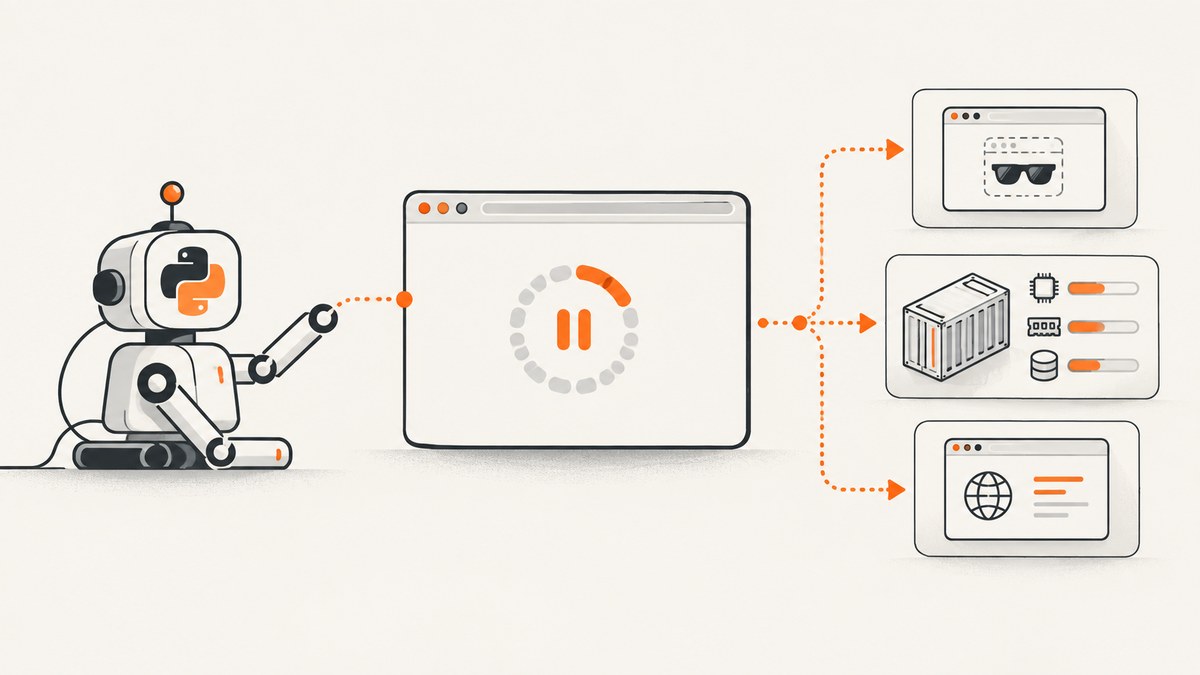
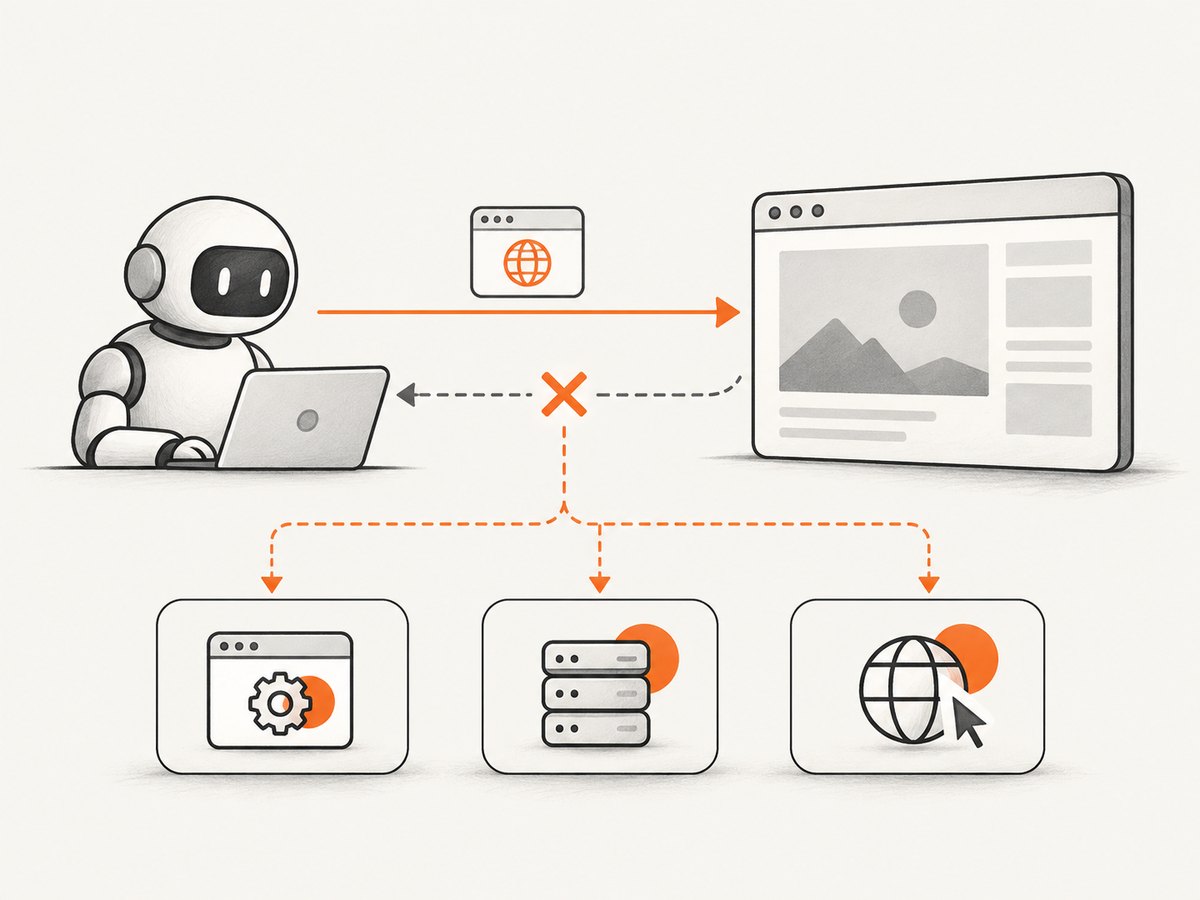
Selenium’s “Timed out receiving message from renderer” error means ChromeDriver sent a WebDriver command to Chrome—often navigation or screenshot capture—and Chrome’s renderer did not answer before the command timed out. The timeout is a symptom, not a diagnosis: the renderer might be stalled on a particular page, Chrome might have crashed during startup, or the browser may be running into a headless-mode, container, resource, or flag issue.
Start by reproducing the failure with a minimal script and recording the exact versions and launch arguments. Then change one variable at a time: compare visible Chrome with headless Chrome, compare local with container execution, and test whether the failure is limited to one URL. Increase a timeout only after you know Chrome is still healthy. A longer wait cannot recover a crashed renderer or make a site answer.
1. What the renderer timeout means
ChromeDriver controls Chrome through browser communication channels. For a command such as driver.get() or save_screenshot(), it waits for Chrome to respond. If the renderer process handling the page does not answer by the deadline, ChromeDriver reports a timeout. The exception can surface during navigation, screenshot capture, or even session creation if Chrome crashes before a usable renderer is available.
The Selenium issue reports in the research show why the message alone is not enough to identify a fix. One report shows a timeout of 299.926 seconds during navigation in headless Chrome; another shows a 60-second timeout while creating a Chrome session in Docker after Chrome crashed. Those are individual incidents, not general timeout recommendations or failure rates. See [Selenium issue #14399](https://github.com/SeleniumHQ/selenium/issues/14399) and [Selenium issue #13376](https://github.com/SeleniumHQ/selenium/issues/13376).
First determine which stage is failing:
- Session creation: investigate Chrome startup, ChromeDriver compatibility, container security and shared memory.
- Navigation: investigate a slow or unresponsive page, headless-only behavior, or a site-specific problem.
- Screenshot command: confirm the page loaded and Chrome remains responsive; then isolate screenshot-specific timing, page size, and resource behavior.
2. Build a minimal reproduction and record versions
Strip the job down to one URL, one browser session, one navigation and one screenshot. Avoid carrying a large production flag list into the first reproduction. Save the exception and record your runtime context so that a later result can be compared fairly.
import platform
import sys

import selenium
from selenium import webdriver
from selenium.webdriver.chrome.options import Options

URL = "https://example.com"
options = Options()
# During diagnosis, test with no extra flags first.
# Add one headless mode in a separate run if needed:
# options.add_argument("--headless=new")

driver = None
try:
    driver = webdriver.Chrome(options=options)
    print("Python:", sys.version)
    print("Platform:", platform.platform())
    print("Selenium:", selenium.__version__)
    print("Browser:", driver.capabilities.get("browserVersion"))
    print("ChromeDriver:", driver.capabilities.get("chrome", {}).get("chromedriverVersion"))
    driver.get(URL)
    driver.save_screenshot("page.png")
finally:
    if driver is not None:
        driver.quit()
This script is a baseline, not a promise that a particular URL will load in every environment. If Chrome fails before the version information is printed, inspect Chrome and ChromeDriver startup logs and the session-creation exception. If it prints versions and then times out at get(), focus on navigation and renderer responsiveness.
Record at least the Python and Selenium versions, Chrome and ChromeDriver versions, operating system, container image, target URL, headless setting, and every Chrome argument. The documented reports span multiple Selenium and Chrome versions, so a version pairing is part of the evidence, not incidental detail.
3. Diagnose in a controlled order
Step 1: Compare headful and headless Chrome
Run the same URL with visible Chrome, then in separate runs with --headless and --headless=new. Keep the rest of the setup identical. Do not combine the two headless arguments in one test. If visible Chrome works but one headless mode freezes, you have narrowed the failure to the headless execution path or to how that site responds to it.
Headless-only failures can be URL-specific. In issue #14399, the reporter described visible mode loading sample pages quickly while headless modes froze on some URLs. A successful GUI run therefore does not prove that the site, browser, or network path will behave the same in headless mode.
Step 2: Compare local execution with Docker or CI
If the same script succeeds on a workstation and fails in a container, investigate Chrome startup and the runtime environment before changing Python waits. Check whether Chrome exits, whether the container has sufficient shared memory, and whether its sandbox policy is compatible with the environment. Use container logs and ChromeDriver output to locate the failure stage.
One Docker incident in the dossier records Chrome crashing during session creation while the reporter experimented with --no-sandbox, --disable-dev-shm-usage and --remote-debugging-pipe. Treat these as diagnostic clues, not a universal launch recipe. In particular, understand and validate the security implications of changing sandbox behavior in your deployment. Add a container-specific argument only when the observed startup or shared-memory problem justifies it.
Step 3: Remove risky flags, then add them back individually
Start with the smallest viable set of Chrome options. Remove arguments that are not required by your application and test again. In one Selenium report, combining --headless=new, --disable-gpu and --single-process reproduced renderer or DevTools disconnect behavior. That does not establish that any one flag causes every timeout; it shows why a long, copied flag list makes diagnosis harder.
Once the minimal case is stable, add one option at a time and repeat the same URL and execution mode. Keep a short log of the exact argument set for each run. Avoid treating --disable-gpu or --single-process as required just because a container example on the internet includes it.
Step 4: Check whether only one domain fails
Run a known simple page and the failing page under the same browser configuration. If only one domain hangs, repeat that URL in visible mode, outside the container, and—where appropriate—as a user-agent experiment. A ChromeDriver Users response in the research suggested that a site might not respond to headless Chrome and proposed trying a regular Chrome user-agent string. Treat this as a diagnostic experiment: a changed user-agent can help distinguish site-specific behavior, but it does not repair a crashed renderer or guarantee access.
Step 5: Check Chrome and ChromeDriver as a pair
Capture the versions that actually ran, rather than relying on a package file or a local browser version. Confirm the browser starts independently in the target runtime and that the driver can create a session. If versions changed recently, reproduce with the old and new pair where feasible, holding the URL, flags and runtime constant. The incident reports cover different Chrome and Selenium versions; they do not establish a single universally affected version or a blanket upgrade fix.
4. Set timeouts after the renderer is healthy
There are several distinct waits in a Selenium job. Increasing one does not automatically change the others:
| Wait or timeout | What it controls | Use it when |
|---|---|---|
| Page-load timeout | How long navigation is allowed before Selenium raises a timeout | The renderer remains responsive and the page legitimately takes longer to load |
| Script timeout | How long asynchronous JavaScript execution may run | Your own async script needs more time |
| Explicit wait | How long your code waits for a specific condition | The page responds, but a particular element or state appears later |
| ChromeDriver/renderer command timeout | How long the driver waits for Chrome to answer a command | Investigate Chrome responsiveness and startup; do not assume a Selenium wait changes this underlying failure |
A page-load timeout is useful when navigation is simply slow. It cannot revive a renderer that has crashed, resolve a DevTools disconnect, or make an unresponsive server return. A community report in the dossier continued to fail at navigation after timeout behavior was changed. Establish that Chrome remains responsive before extending waits.
from selenium import webdriver
from selenium.webdriver.chrome.options import Options
from selenium.webdriver.support.ui import WebDriverWait
from selenium.webdriver.support import expected_conditions as EC
from selenium.webdriver.common.by import By

options = Options()
# Use headless mode only if this is the mode you are diagnosing.
# options.add_argument("--headless=new")

driver = webdriver.Chrome(options=options)
try:
    driver.set_page_load_timeout(90)
    driver.set_script_timeout(30)
    driver.get("https://example.com")
    WebDriverWait(driver, 15).until(
        EC.presence_of_element_located((By.TAG_NAME, "body"))
    )
    driver.save_screenshot("page.png")
finally:
    driver.quit()
The values above are illustrative application settings, not values established by the incident reports. Tune them to your own service-level needs and page behavior. Keep waits bounded so one bad URL cannot occupy a worker indefinitely.
5. Screenshot timing and page behavior
If navigation returns but the screenshot command times out, separate “page loaded” from “page is ready for the image you want.” Some pages continue rendering, load images lazily, or update after JavaScript runs. Wait for a meaningful element or application-specific state before capturing rather than relying on an arbitrary sleep. If the renderer becomes unresponsive even after the page is ready, return to the headless, flag, resource and site-specific checks above.
For a useful reproduction, try a screenshot immediately after navigation and then a second run with a condition-based wait. Keep the URL and launch arguments unchanged. If only a very tall or complex page fails, record that pattern; the dossier does not establish a universal page-size limit, so avoid assuming that a particular viewport or document length is the cause without testing.
6. Troubleshooting common errors
| Symptom | Likely area to investigate | Next action |
|---|---|---|
Timeout at driver.get(), but session starts |
Unresponsive URL, headless-specific behavior, slow navigation, or renderer stall | Compare headful and headless runs; test another URL; inspect whether the page is responsive before changing the page-load timeout. |
| Timeout while creating the session | Chrome startup crash, browser/driver setup, container resource or sandbox issue | Inspect Chrome and driver logs, verify the version pair and check the container runtime and shared memory. |
| Works locally, fails in Docker | Container-specific startup, shared-memory or sandbox behavior | Compare logs and runtime details; introduce only a justified container setting and validate its implications. |
| Works in headful mode, hangs in headless | Headless-specific browser path or site behavior | Test each headless mode separately and compare the same URL under identical conditions. |
| Only one website hangs | Site response, anti-automation behavior, or URL-specific page code | Try visible mode and a normal user-agent experiment; compare with a known working URL. |
| Adding flags makes it worse | Conflicting or unnecessary Chrome arguments | Return to the minimal argument set and add each flag back separately. |
| Longer timeout delays the same failure | Renderer crash or nonresponse rather than ordinary slowness | Diagnose Chrome health and the failing stage; do not keep increasing the wait as the only fix. |
| Failure appears intermittent | Timing, resource pressure, site variability, or a mode-specific condition | Repeat a controlled minimal run and log each outcome with versions and arguments. Do not infer a general rate from a single incident. |
7. Reliability, performance and cost considerations
For a browser automation service, reliability comes from isolating failures and retaining evidence. Log the URL, stage, browser and driver versions, Selenium version, runtime image, headless mode and complete argument list. Bound navigation and worker time, close the driver in a finally block, and avoid changing several settings in one deployment. This makes a failed capture actionable and prevents an unresponsive page from consuming a worker without limit.
Performance tuning follows diagnosis. A healthy renderer with a legitimately slow page may benefit from a suitable page-load budget and a precise readiness condition. A crashed browser or a page that never responds will not become faster when the timeout is raised. Container resource constraints can also affect startup and stability, so monitor the environment in which Chrome actually runs rather than attributing every issue to Python.
Cost depends on how you run the browser: self-managed workers consume your infrastructure and engineering time, while an API service has its own per-plan usage terms. For self-hosted Selenium, estimate browser worker capacity, retries and failed-job handling from your own workload; the supplied Selenium reports do not provide a general benchmark, failure rate or cost estimate.
8. Or skip the browser setup
If your goal is a screenshot file rather than control over a Selenium browser session, [ScreenshotNeo](https://screenshotneo.com) provides a screenshot API and MCP server. Its one-call request takes a URL and returns an image or PDF. See the [ScreenshotNeo API docs](https://screenshotneo.com/docs/) for request options.

import requests

r = requests.get(
    "https://api.screenshotneo.com/v1/shot",
    params={"access_key": "YOUR_API_KEY", "url": "https://stripe.com"},
    timeout=90,
)
open("shot.webp", "wb").write(r.content)
ScreenshotNeo removes cookie banners, newsletter popups and chat widgets before capture. Bot checks, blank pages and failed loads are never billed, and each response identifies the page verdict and billing status in headers. Its MCP server lets AI agents use screenshot tools. The Free plan includes 1,000 screenshots a month with no card; paid plans start at $5 for 3,000 screenshots. Start at [ScreenshotNeo’s free sign-up](https://screenshotneo.com/account/sign-up/).
9. FAQ
Does this error always mean my screenshot code is wrong?
No. It reports that Chrome’s renderer did not answer a WebDriver command in time. The cause may be browser startup, the execution environment, a specific site, or a renderer stall.
Should I always add --no-sandbox in Docker?
No universal prescription follows from the incident report. Determine whether sandbox compatibility is related to your startup failure, and validate the security implications before changing it.
Will a regular Chrome user-agent fix every headless timeout?
No. It is a diagnostic experiment for a possible site-specific response to headless Chrome. It does not fix Chrome crashes, shared-memory problems or incompatible flags.
Is the 299.926-second timeout a recommended setting?
No. It is the value reported in one Selenium issue, not a recommended timeout or a general threshold.
Sources
- SeleniumHQ issue #14399: headless renderer timeout during navigation.
- SeleniumHQ issue #13376: Chrome crash and timeout during Docker session creation.


