How to Run an OnClick JavaScript Function with Selenium Without Clicking
Call an onclick handler with Selenium’s JavaScript execution bridge, choose the right approach for event listeners and async code, and troubleshoot frames and results.
To run an element’s onclick handler without clicking it, execute JavaScript in the current browser context and call the element’s handler directly. In Python:
from selenium.webdriver.common.by import By

button = driver.find_element(By.CSS_SELECTOR, "#save")
result = driver.execute_script(
    "if (typeof arguments[0].onclick !== 'function') "
    "throw new Error('onclick is not callable'); "
    "return arguments[0].onclick.call(arguments[0]);",
    button,
)
This calls the function stored in the element’s onclick property, with the element as this. It does not perform WebDriver’s pointer interaction. If the page registered its click logic with addEventListener, the onclick property may be null; dispatch a click event instead. Selenium runs scripts in the currently selected frame or window, and values passed to the script are available through JavaScript’s arguments object. See the official Selenium JavaScript API and Java JavascriptExecutor API.
1. Choose the right way to invoke the handler
First identify how the application attached its behavior and what your test needs to prove. An inline handler, a named function, and an event listener are different entry points.
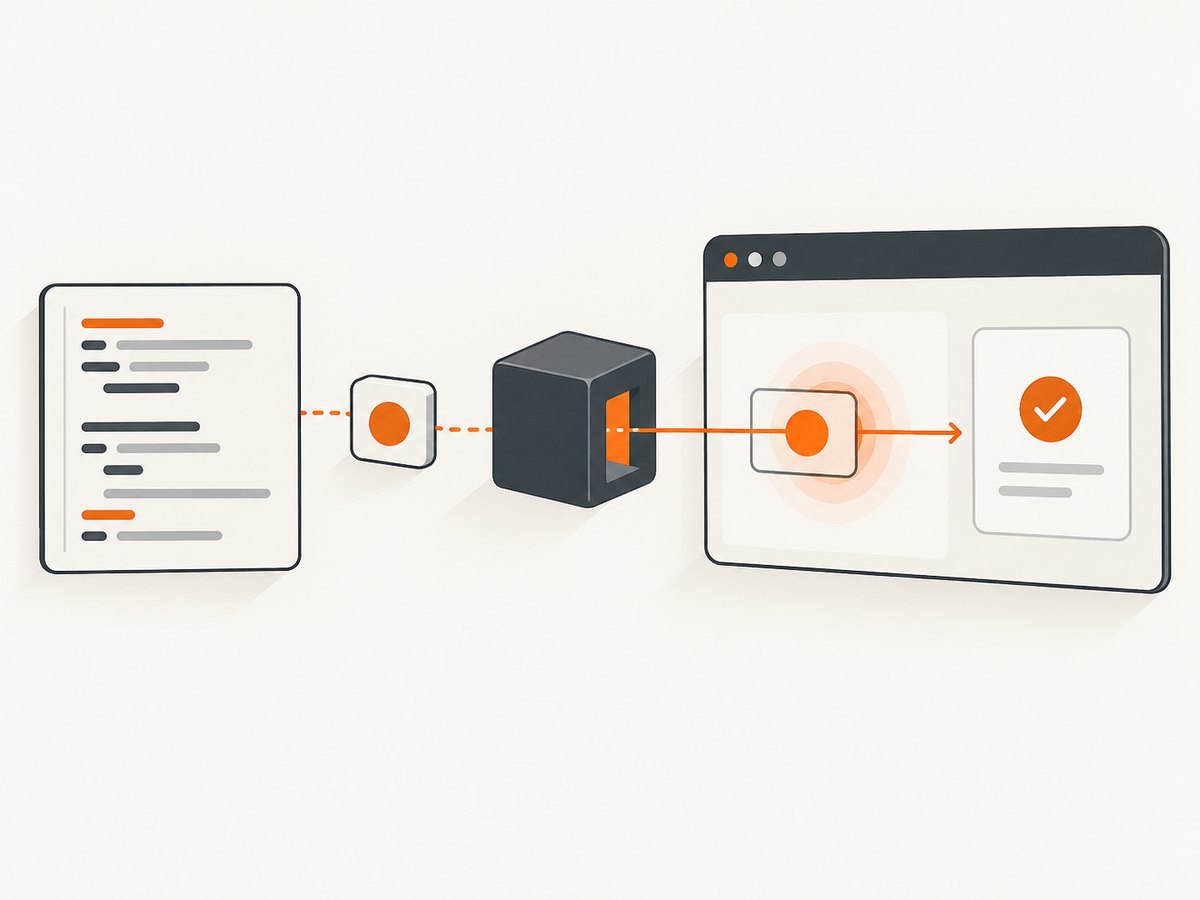
| Page implementation | Use | What it means |
|---|---|---|
onclick property or inline handler |
Call element.onclick.call(element) |
Invokes that function directly, preserving its receiver. |
| Globally reachable named function | Call window.someFunction(...) |
Invokes the function directly, without dispatching a click. |
addEventListener('click', ...) |
Dispatch a MouseEvent |
Runs listeners registered for the event. |
| Behavior requires a genuine user gesture | Use WebDriver’s normal element.click() |
Exercises browser interaction rather than calling page code. |
Use direct invocation when your test specifically needs to run page logic without a physical click. Use a normal Selenium click when the requirement is to verify that a user can interact with the control. A script-triggered event does not reproduce every browser-level user gesture condition, so it is not a substitute for interaction coverage.
2. Complete Python examples
Call the element’s onclick property
This version checks that the property contains a function and returns its result to Python. It passes the element as a Selenium argument, rather than building a selector into a JavaScript string.
from selenium import webdriver
from selenium.webdriver.common.by import By

# Start and configure driver according to your Selenium installation.
driver = webdriver.Chrome()
try:
    driver.get("https://example.com/form")
    button = driver.find_element(By.CSS_SELECTOR, "#save")

    result = driver.execute_script(
        "if (typeof arguments[0].onclick !== 'function') "
        "throw new Error('onclick is not callable'); "
        "return arguments[0].onclick.call(arguments[0]);",
        button,
    )
    print("Handler result:", result)
finally:
    driver.quit()
The target URL and selector are examples; replace them with the page and element in your test. Selenium’s execute_script evaluates the supplied snippet as a function body in the selected browsing context. Passing the element as an argument avoids fragile quoting and keeps data separate from executable source.
Call a named page function with arguments
If the page exposes a function such as window.saveRecord, pass values through Selenium’s argument channel:
record_id = "record-42"
result = driver.execute_script(
    "return window.saveRecord(arguments[0]);",
    record_id,
)
For multiple values, use arguments[0], arguments[1], and so on:
result = driver.execute_script(
    "return window.updateRecord(arguments[0], arguments[1]);",
    record_id,
    {"status": "saved"},
)
Avoid concatenating variable values into JavaScript source. Passing values as script arguments handles quotes and other characters without requiring hand-written escaping, and prevents data from accidentally being interpreted as part of the script.
Trigger listeners registered with addEventListener
If element.onclick is null, the page may have registered a listener with addEventListener. Dispatch a bubbling, cancelable click event:
button = driver.find_element(By.CSS_SELECTOR, "#save")
dispatched = driver.execute_script(
    "return arguments[0].dispatchEvent(new MouseEvent('click', "
    "{bubbles: true, cancelable: true, view: window}));",
    button,
)
print("Event was not canceled:", dispatched)
The boolean from dispatchEvent indicates whether the event was canceled; it does not by itself prove that the application completed its save operation. Assert the resulting page state or wait for the relevant response or UI change. If the application exposes a stable named function or API, calling it directly may be more deterministic than synthesizing an event.
Handle a promise or callback
execute_script is synchronous from the client’s perspective. If the page function returns a promise, use Selenium’s asynchronous script API and call the injected completion callback when work is done:
driver.set_script_timeout(10)
result = driver.execute_async_script("""
    const done = arguments[arguments.length - 1];
    window.saveRecordAsync(arguments[0])
      .then(value => done({value}))
      .catch(error => done({error: String(error)}));
""", record_id)

if "error" in result:
    raise RuntimeError(result["error"])
print(result.get("value"))
Set a script timeout that suits the operation. This example converts a rejected promise to a result object so Python can report the failure. The asynchronous callback must be called on every path that should complete; otherwise the script waits until Selenium times out. For callback-style page APIs, pass a callback that forwards the result to Selenium’s final done argument.
3. Java: execute the handler with JavascriptExecutor
In Java, cast the driver to JavascriptExecutor, locate the element, and supply it as a script argument:
import org.openqa.selenium.By;
import org.openqa.selenium.JavascriptExecutor;
import org.openqa.selenium.WebDriver;
import org.openqa.selenium.WebElement;

WebElement button = driver.findElement(By.cssSelector("#save"));
JavascriptExecutor js = (JavascriptExecutor) driver;
Object result = js.executeScript(
    "if (typeof arguments[0].onclick !== 'function') "
  + "throw new Error('onclick is not callable'); "
  + "return arguments[0].onclick.call(arguments[0]);",
    button
);
System.out.println("Handler result: " + result);
The Java API documents that scripts run in the currently selected frame or window and that supplied values are exposed through JavaScript’s arguments variable. The returned value is an Object; Selenium maps common JavaScript result types to corresponding Java types. For a page function, pass the value separately:
String recordId = "record-42";
Object result = js.executeScript(
    "return window.saveRecord(arguments[0]);",
    recordId
);
For asynchronous work, Java also provides executeAsyncScript. Set a script timeout on the driver, then call the final injected callback after the page operation resolves. The Selenium APIs describe the callback as the last script argument; confirm your script invokes it for success and failure.
4. Work in the correct frame or window
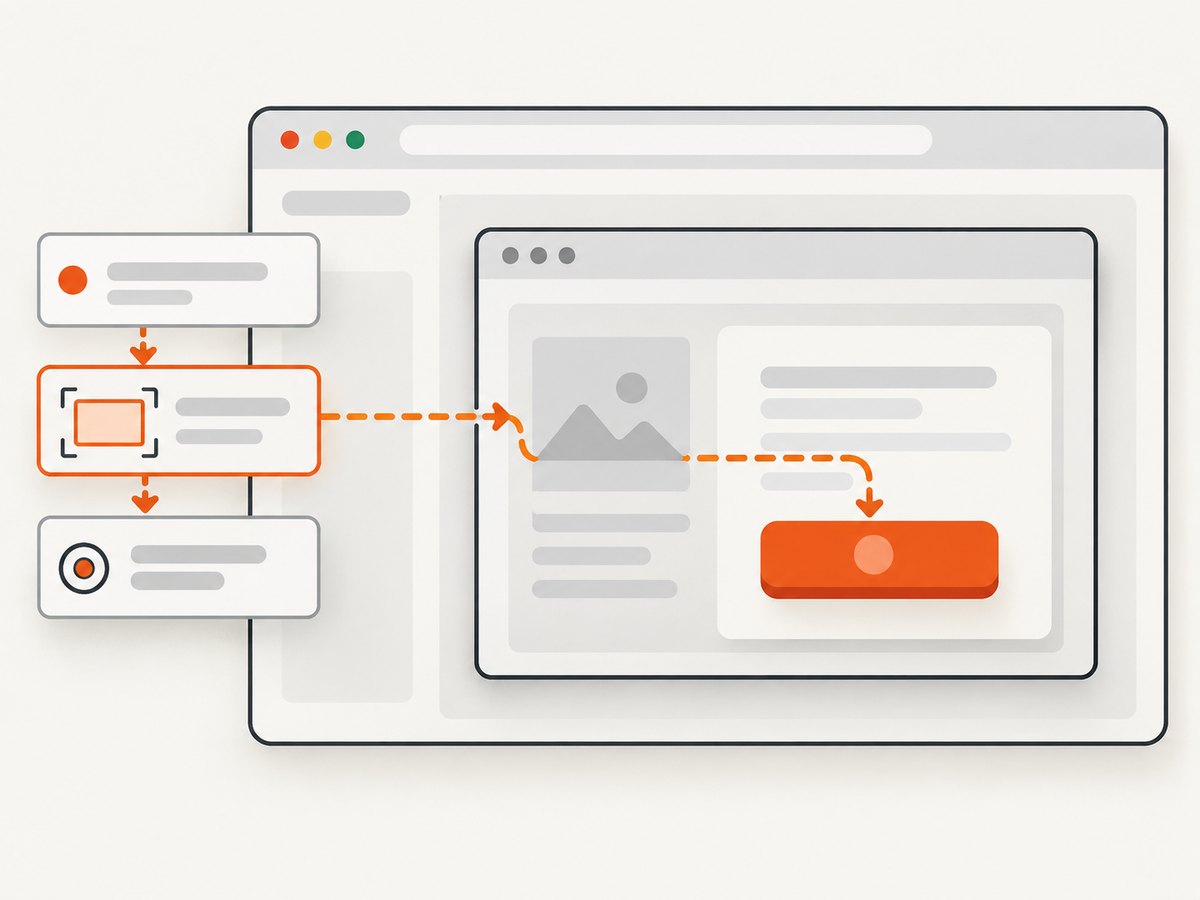
Selenium evaluates JavaScript in the currently selected browsing context. If the target element is inside an iframe, switch to that frame before finding the element or executing the script. Switch back to the top document when finished if later test steps need it.
from selenium.webdriver.common.by import By

frame = driver.find_element(By.CSS_SELECTOR, "iframe.payment")
driver.switch_to.frame(frame)
try:
    button = driver.find_element(By.CSS_SELECTOR, "#save")
    driver.execute_script(
        "return arguments[0].onclick.call(arguments[0]);",
        button,
    )
finally:
    driver.switch_to.default_content()
If the page opens a new window or tab, switch to its window handle before looking up the element and running the script. A common failure is finding the correct-looking selector in the wrong document. Cross-origin frame policies can also prevent JavaScript from reaching into another origin. Switching into the frame through WebDriver is the appropriate context change; trying to reach into it from the parent page’s JavaScript may fail.
5. Verify the application outcome
A successful call to execute_script only confirms that Selenium executed the script and returned its result. It does not establish that the application’s asynchronous work completed or that the expected state persisted.
- Invoke the handler using the method matching its attachment style.
- Wait for a meaningful result, such as a confirmation element, updated value, or application state change.
- Assert that result independently of the handler’s JavaScript return value.
- Keep a normal
element.click()test if user-facing click behavior matters.
This division makes failures easier to interpret: a direct-call test checks page logic, while a native-click test checks the browser interaction path and the control’s usability.
6. Troubleshooting common failures
| Symptom | Likely cause | Fix |
|---|---|---|
onclick is not callable or onclick is null |
The element has no property handler; behavior may use addEventListener. |
Inspect how the page attaches behavior. Dispatch a click event for listeners or call a documented named function. |
Cannot read properties of null |
The selector did not find an element, or the element is in another frame. | Wait for the element, verify the selector, and switch to the correct frame or window before locating it. |
| The script works in DevTools but not in Selenium | Selenium may be executing in a different frame, tab, or page state. | Check the selected window and frame, then confirm the page has loaded the expected application code. |
| Handler runs but the UI does not change | The code may require a browser user gesture, or the visible change may be asynchronous. | Use a native WebDriver click when testing user interaction; otherwise wait for and assert the actual completion state. |
| Async script times out | The injected callback was never called, the promise did not settle, or the script timeout is too short. | Call the callback on resolve and reject paths, inspect the page operation, and set an appropriate script timeout. |
| Argument causes syntax error or unexpected behavior | Data was interpolated into the script string and quoting was corrupted. | Pass the value as an additional Selenium argument and read it from arguments. |
| Cross-origin access error | Code attempted to reach into a frame from a different origin. | Switch WebDriver into the target frame before locating and invoking its element; avoid parent-page access to its internals. |
| Expected save did not persist | The handler may only start work; the test checked too soon or asserted only the handler return value. | Wait for an application-level confirmation or persisted state and assert that result. |
7. Reliability, performance, and cost considerations
Direct JavaScript calls avoid the pointer interaction path, but they are coupled to the page’s implementation. A selector, handler property, or global function can change as the application changes. Prefer stable selectors and page APIs where available, and assert observable outcomes rather than relying on internal return values.
Do not interpret the absence of a numeric benchmark as a performance guarantee. This technique executes a script in the active browser session; total test time still depends on page load, script work, and any asynchronous application operation. Avoid fixed sleeps when a specific selector or state can be awaited. Keep the script timeout aligned with the operation so genuinely slow work can finish while hangs still fail in a bounded time.
For cost, this approach runs in the Selenium browser session you already operate. The dossier provides no topic-specific benchmark, success rate, or cost figure, so none is claimed here. Account for the browser and test infrastructure in your own environment, especially when capturing many pages or running concurrent sessions.
8. Or skip the browser setup
If your goal is to capture a rendered page rather than test its interaction logic, ScreenshotNeo returns a screenshot or PDF from one request. Its API is documented at ScreenshotNeo docs. For example:
curl -G "https://api.screenshotneo.com/v1/shot" -d access_key=YOUR_API_KEY --data-urlencode url=https://stripe.com -o shot.webpOr use Python:
import requests
r = requests.get("https://api.screenshotneo.com/v1/shot", params={"access_key": "YOUR_API_KEY", "url": "https://stripe.com"}, timeout=90)
open("shot.webp", "wb").write(r.content)
Or Node.js:
const q = new URLSearchParams({ access_key: 'YOUR_API_KEY', url: 'https://stripe.com' });
const res = await fetch(`https://api.screenshotneo.com/v1/shot?${q}`);
ScreenshotNeo removes cookie banners, newsletter popups, and chat widgets before the shot. Bot checks, blank pages, and failed loads are never billed. An MCP server lets AI agents take screenshots, and 1,000 screenshots a month are free with no card; paid plans start at $5 for 3,000. Get 1,000 free screenshots a month with no card.
9. Short FAQ
Can Selenium run JavaScript directly on a button?
Yes. Pass the WebElement to execute_script or Java’s executeScript and operate on arguments[0].
Does calling onclick mean the button was clicked?
No. It directly invokes a function. Dispatching a click event is also script-driven. Use WebDriver’s normal click when the test needs to cover user interaction.
Why is onclick empty when the button responds to clicks?
The page may have attached one or more listeners with addEventListener, which are not exposed through the element’s onclick property.
Can I pass objects into executeScript?
Yes. Pass supported values as script arguments and access them through arguments; avoid embedding serialized values into source code.
When should I use executeAsyncScript?
Use it when page work completes through a callback or promise and Selenium must wait for an explicit completion signal.


