How to Run Selenium as a Scheduled Task on Windows Server
Configure Selenium to run reliably from Windows Task Scheduler, diagnose failures caused by non-interactive sessions, and decide when to use Grid.
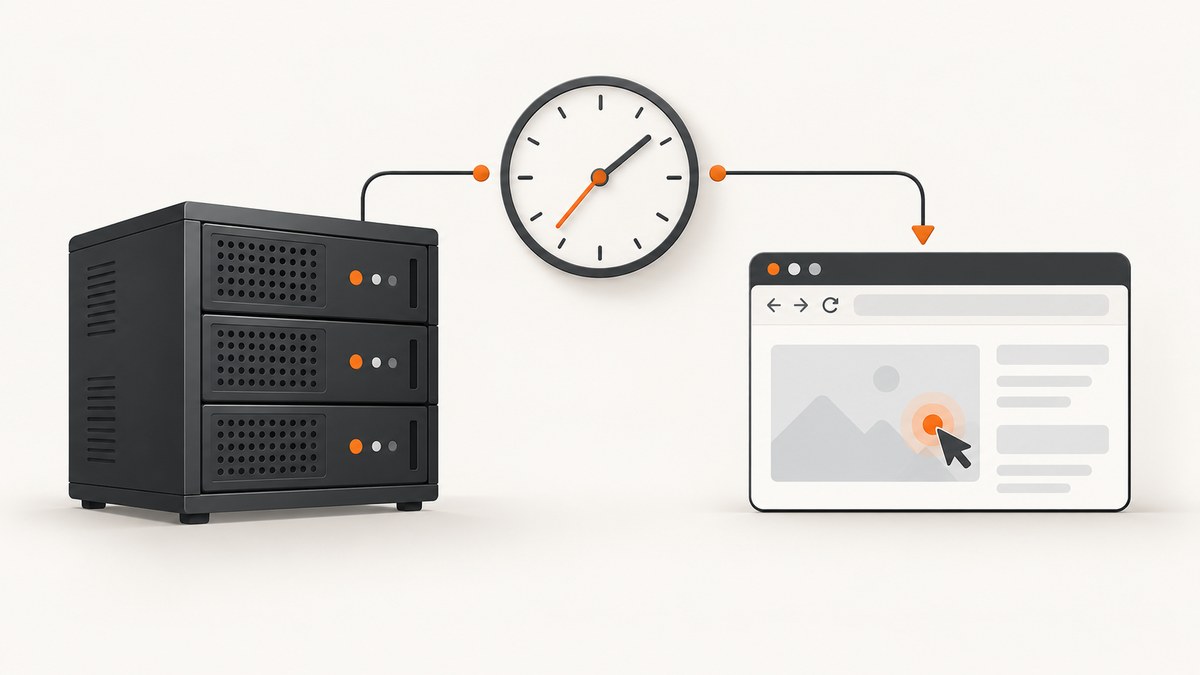
To run Selenium as a scheduled task on Windows Server, configure Task Scheduler to start your language runtime or test runner under an account that can read the script and configuration, launch the browser, and write results. Set a stable working directory, make paths explicit, and test using the same account and logon mode the production task will use. “Run whether user is logged on or not” is non-interactive: a workflow that depends on a visible desktop, prompts, mapped drives, or user-only profile data may fail or wait indefinitely.
The scheduled task’s identity and logon mode are part of the browser environment. First make the manual run’s dependencies explicit; then run a small diagnostic task; then run the browser workflow and inspect its logs. Selenium Manager can handle driver discovery and download when needed, but network restrictions, cache permissions, and browser installation permissions still matter.
1. Record what the manual run depends on
Before changing Task Scheduler, write down the inputs that make the current manual run work. You do not need to hard-code every item, but you need to know where each comes from so the scheduled process can resolve it.
- Script or test-runner path, language runtime, Selenium binding version, and any command-line arguments.
- Browser name, installed version, installation path, and whether the run uses a local or remote WebDriver.
- Driver strategy: Selenium Manager, a driver installed in a known location, or a Grid endpoint.
- Environment variables, configuration files, secrets, and any user profile data the workflow reads.
- Input, log, screenshot, download, and result paths, including any network shares.
- Whether the script waits for a visible browser window, user input, or a desktop-only resource.
Use absolute paths for scripts, configuration, and outputs. A drive letter visible in your own desktop session may not exist in another logon context. If a network resource is required, verify access under the task account rather than assuming your interactive access carries over.
2. Choose the task identity and logon mode
Choose an account with only the access the job needs: read access to the code and configuration, permission to launch the browser and driver, and write access to logs and results. Keep secrets in an approved location accessible to that identity. Do not rely on a developer’s profile or credentials being available to a separate task account.
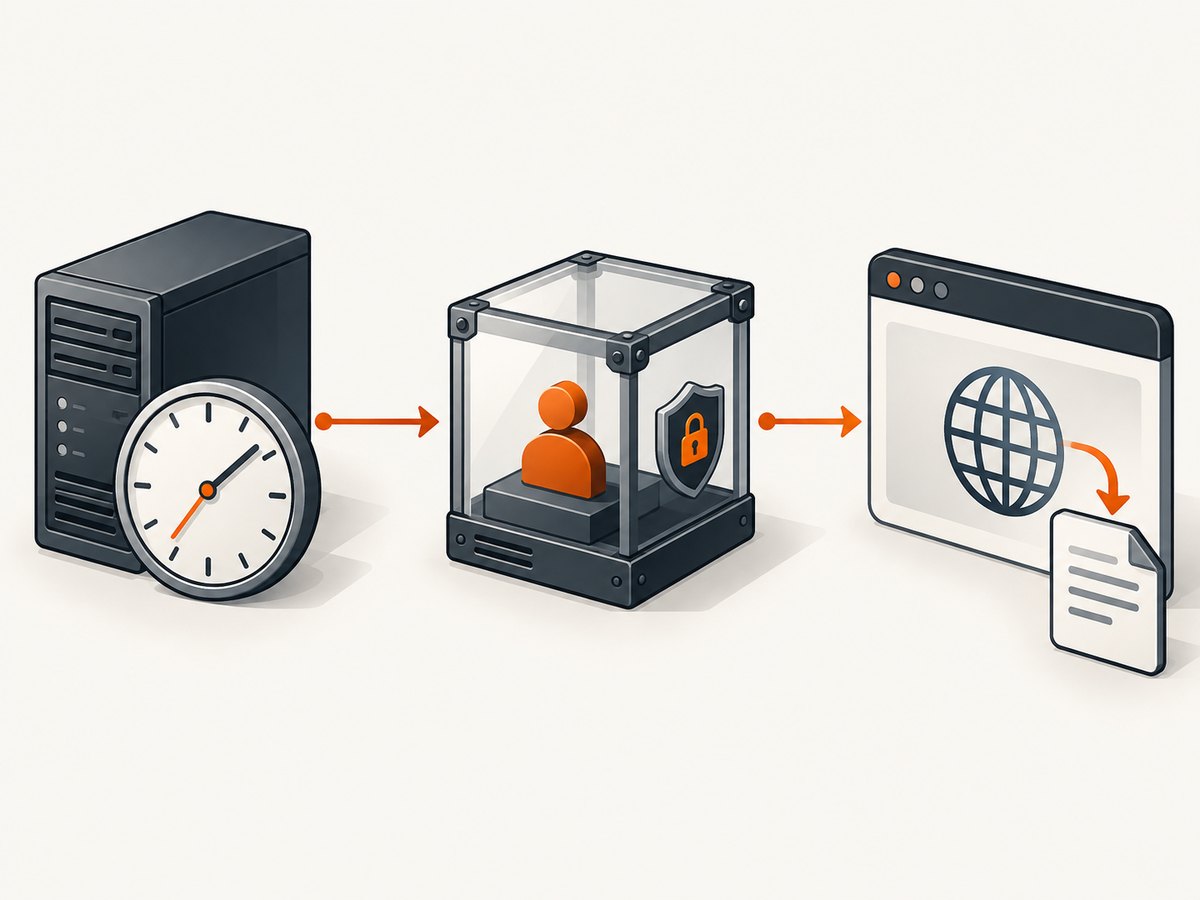
| Task mode | What to expect | Good fit |
|---|---|---|
| Run only when user is logged on | The task runs in an interactive user session. Desktop-dependent behavior may be available, but the account must be logged in. | A workflow that deliberately needs an interactive desktop, after verifying it under the intended account. |
| Run whether user is logged on or not | The task is non-interactive. It should not expect a visible desktop, a person to dismiss a prompt, mapped drives, or user-only state. | Unattended automation designed to run without desktop interaction. |
The exact options and labels can vary by Windows Server release. Configure the mode that production will actually use and test in that mode. A successful run launched manually, or under a different task mode, does not establish that the production task can launch and complete the browser workflow.
3. Configure an action that starts the real runtime
Create or edit a task and set its trigger according to the schedule you need. Configure its action to start the language runtime or test runner directly, passing the script or test arguments. Set the task’s working directory explicitly when the runner expects relative paths; put outputs in a directory that the task identity can write.
For example, a Python action should conceptually start the intended Python executable with the script path as an argument. A Node.js action should start the intended Node executable with the script path. A test suite should start its actual runner with the right configuration. These are patterns, not universal command lines: use the runtime location and arguments installed on your server.
Before the full workflow, have the script write a timestamp, process identity, working directory, and a simple progress marker to a log file. That confirms the task launched the expected code and gives you a first point of comparison when browser startup fails.
4. Make browser and driver setup predictable
A Selenium session needs a language binding, a browser, and a compatible driver path. Selenium Manager is included with Selenium releases since 4.6. When the binding has not been given a driver, it can discover the browser version, resolve a matching driver, download it, and cache it. Selenium describes it as “the official driver manager of the Selenium project.” See the Selenium Manager documentation and driver location guidance.
Manager automation still depends on the environment. It may need outbound access to browser and driver metadata or download endpoints. A proxy, firewall, or restricted server can prevent discovery or downloading; the task identity must also be able to use the relevant cache. Automatic Edge installation on Windows requires administrator permissions. If automatic management is unsuitable, install a controlled driver and configure Selenium’s Service with its explicit path.
For a remote session, the client must instead point to the Grid URL, and the Grid components must be running and reachable. Local driver setup and Grid connectivity are different failure paths: confirm which one the script is using before debugging.
5. Test the exact scheduled environment
- Run the diagnostic task using the production account and logon mode. Confirm the timestamp, identity, working directory, and log output.
- Check that the account can read every required file and write every output directory. Replace mapped drive paths with explicit paths where appropriate.
- Start a minimal Selenium session and log each milestone: session requested, browser started, page navigation completed, and result written.
- Run the real workflow with the same settings. Capture exception details and the final progress marker so a hang can be distinguished from an early launch failure.
- Compare interactive and non-interactive results only after confirming both runs use the intended account, browser, configuration, and paths.
If the task starts but appears to do nothing, determine whether it is waiting for a prompt, trying to access a desktop resource, or blocked before it can write its first log. A browser window is not a sufficient health check for a non-interactive task; use explicit progress and result files.
6. Runnable Selenium examples
The following examples show a local Chrome session that opens a page, records its title, and quits cleanly. They demonstrate browser-session structure; adapt the target URL and result path, and use your installed browser and Selenium version. Run the same script from the scheduled account and mode you selected.
Python
from pathlib import Path
from selenium import webdriver

output = Path(r"C:\Selenium\output\page-title.txt")
output.parent.mkdir(parents=True, exist_ok=True)

driver = webdriver.Chrome()
try:
    driver.get("https://example.com")
    output.write_text(driver.title, encoding="utf-8")
finally:
    driver.quit()
Install the Selenium binding in the Python environment used by the task. If you maintain a virtual environment, point Task Scheduler at that environment’s Python executable rather than assuming the interactive shell’s activation carries over.
Node.js
const fs = require('node:fs');
const path = require('node:path');
const { Builder } = require('selenium-webdriver');
const chrome = require('selenium-webdriver/chrome');

(async () => {
  const output = 'C:\\Selenium\\output\\page-title.txt';
  fs.mkdirSync(path.dirname(output), { recursive: true });
  const options = new chrome.Options();
  const driver = await new Builder()
    .forBrowser('chrome')
    .setChromeOptions(options)
    .build();
  try {
    await driver.get('https://example.com');
    fs.writeFileSync(output, await driver.getTitle(), 'utf8');
  } finally {
    await driver.quit();
  }
})().catch(error => {
  console.error(error);
  process.exitCode = 1;
});
Install the Selenium package in the Node.js installation available to the task. Keep the cleanup in a finally block so failed navigation does not leave a browser session running.
cURL for a Grid endpoint
When Selenium is configured to use a reachable Grid, its WebDriver endpoint accepts the WebDriver protocol. This basic request creates a session; replace the host and capabilities with the Grid’s actual configuration. A session must be deleted when finished. Consult the Selenium Grid getting started guide for deployment and client configuration.
curl -X POST http://grid-host:4444/session \
  -H "Content-Type: application/json" \
  -d '{"capabilities":{"alwaysMatch":{"browserName":"chrome"}}}'
The response includes a session identifier when creation succeeds. Use that identifier with the WebDriver session commands required by your workflow, then send DELETE to the session endpoint to release it. This is a protocol illustration; a Selenium language binding is usually more convenient for navigation, waits, and cleanup.
7. Troubleshooting scheduled Selenium runs
| Symptom | Likely cause | What to check or change |
|---|---|---|
| Works manually, fails when scheduled | Different account, logon mode, working directory, environment, or file permissions. | Log the task identity and working directory; use absolute paths; grant the task account the required file access; test the exact production mode. |
| Task starts but never completes | A prompt, desktop dependency, or wait condition needs interaction that is unavailable. | Inspect progress logs and waits. Remove interactive steps or run in a mode that supports the required desktop, if that is a valid operational requirement. |
| Driver or browser cannot be found | Driver discovery failed, versions do not match, or the process sees a different installation. | Confirm browser location/version and Selenium version. Let Selenium Manager resolve the driver, or install a controlled driver and configure its explicit Service path. |
| Selenium Manager cannot download | Outbound endpoints are blocked, proxy configuration is missing, or cache access is denied. | Check network and proxy policy from the task context and ensure the identity can access its cache. If egress is not available, manage the driver installation explicitly. |
| Edge setup fails under the task account | Automatic Edge installation on Windows requires administrator permissions. | Use an approved administrator context for installation or arrange the browser installation separately, then configure the task to use that installed browser. |
| Results are missing or overwritten | Output path is relative, unwritable, or shared by overlapping runs. | Use an absolute writable directory and a run-specific filename where overlap is possible; log the final output path. |
| Grid session cannot be created | Wrong endpoint, unreachable Grid, stopped components, or unsupported capabilities. | Check the configured Grid URL, network route, running Hub/Nodes, and requested browser capabilities. |
| IE driver fails when hosted as a service | Selenium expressly says IEDriverServer.exe as part of a Windows Service is unsupported and untested. | Do not generalize that warning to every scheduled task: Task Scheduler is a separate execution model. Check whether the process is actually installed as a Windows Service. |
8. Reliability, performance, and cost
A single scheduled task is operationally simple, but it runs within one server’s installed browser, permissions, network access, and available capacity. If runs overlap, their resource use and output handling can conflict; choose a schedule and task behavior that match the workload, and avoid shared temporary paths when concurrent sessions are possible. Record duration, milestones, and errors so you can spot failures without depending on a visible browser.
Selenium Manager can reduce manual driver maintenance, but it is not a substitute for a planned update and network policy. A pinned browser and driver can make a controlled environment more predictable; it also means you need to own their update process. Automatic discovery is convenient where the task can reach the needed endpoints and use its cache. Neither approach removes the need to test under the task identity.
There is no universal cost or speed figure for a scheduled run: it depends on server capacity, browser startup, page behavior, and how often the task runs. Compare the ongoing work of maintaining local browsers and drivers with the operational cost and policy requirements of remote execution. Where results are safety- or business-critical, log each run’s outcome and treat missing output or an incomplete run as a failure to investigate, not proof of success.
9. When to move beyond one server
Use a local scheduled run when one server and one browser environment meet the requirement. Selenium Grid is the next step when runs need multiple machines or browser and platform combinations. Grid’s standalone mode is for one machine; Hub/Node or a larger Grid deployment supports multiple machines. See the Grid documentation for deployment choices.
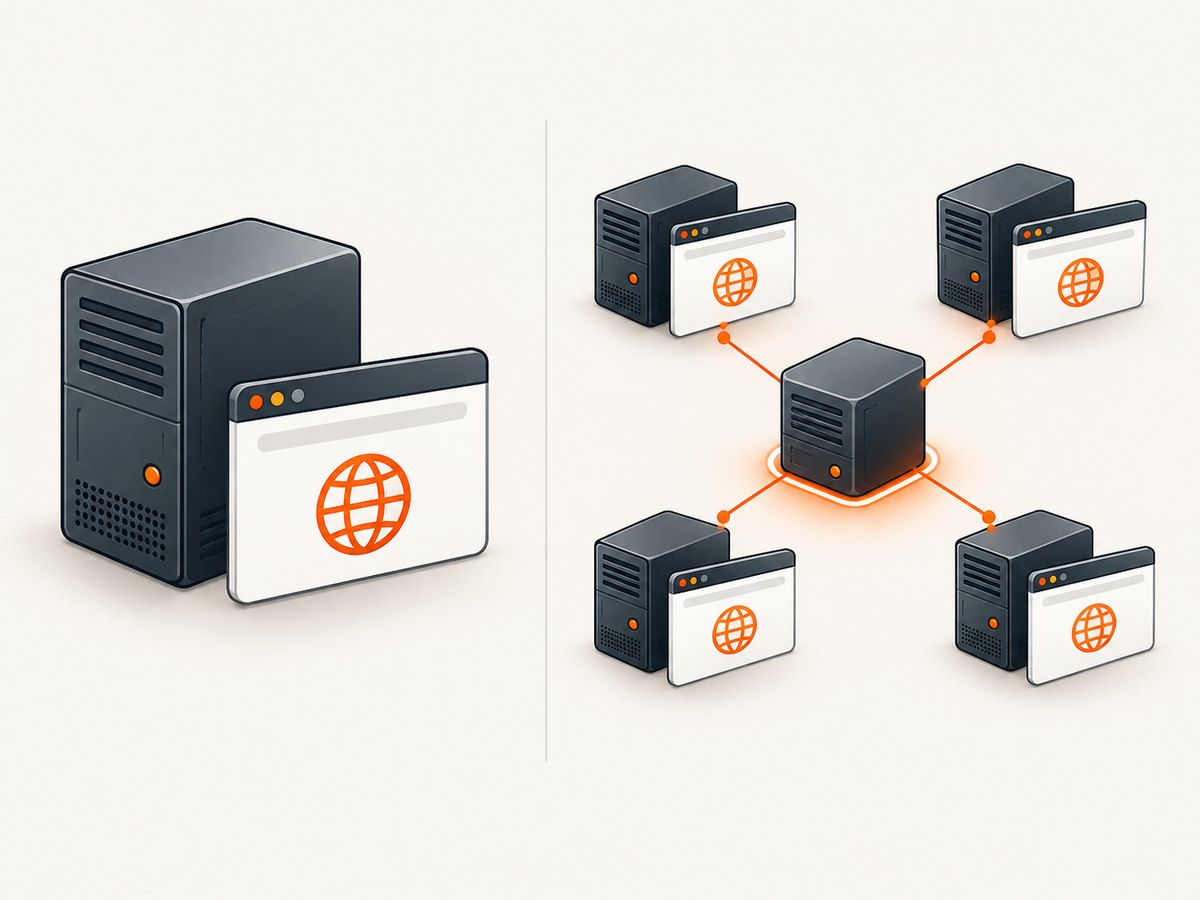
A hosted browser testing service is another option when operating the execution infrastructure is not desirable, subject to your organization’s security, network, and data-handling requirements. Evaluate execution location, environment coverage, concurrency, maintenance burden, and provider dependency. Whatever the execution location, the test client still needs the correct remote endpoint and credentials.
Or skip the browser setup
If the job is to capture a website image rather than interact with it as a browser test, ScreenshotNeo provides a screenshot API and MCP server. One GET request returns a PNG, JPEG, WebP, or PDF; see ScreenshotNeo and the API documentation.
curl -G "https://api.screenshotneo.com/v1/shot" -d access_key=YOUR_API_KEY --data-urlencode url=https://stripe.com -o shot.webpCookie banners are accepted and removed before capture, along with known newsletter popups and chat widgets. Bot checks, blank pages, failed loads, timeouts, and cache hits are not billed, and response headers report the page verdict and billing status. Its MCP server gives AI agents tools to take screenshots, inspect page information, and capture PDFs. The free plan includes 1,000 screenshots per month with no card; paid plans start at $5 for 3,000. This is useful for screenshot capture; Selenium remains the fit for browser interaction and test assertions.
Sign up for 1,000 free screenshots a month, with no card.
FAQ
Can Selenium run when nobody is logged in?
A scheduled process can run in the non-interactive “Run whether user is logged on or not” mode, but its workflow must not depend on an interactive desktop, prompt, mapped drive, or user-only state. Test that exact mode.
Is Task Scheduler the same as a Windows Service?
No. Selenium’s specific unsupported and untested warning concerns IEDriverServer.exe running as part of a Windows Service. It is not a blanket statement about Task Scheduler.
Does Selenium Manager install the browser too?
It can manage browsers in supported cases, but behavior depends on browser, operating system, permissions, and network access. On Windows, automatic Edge installation requires administrator privileges.
When should I use Grid?
Use Grid when you need execution across machines or multiple browser and platform environments. Standalone Grid serves one machine; a multi-machine deployment uses Hub/Node or a larger Grid setup.


