Selenium Screen Scraping with Python
Use Selenium and Python to scrape JavaScript-rendered pages reliably with explicit waits, stable locators, extraction patterns, troubleshooting, and API alternatives.
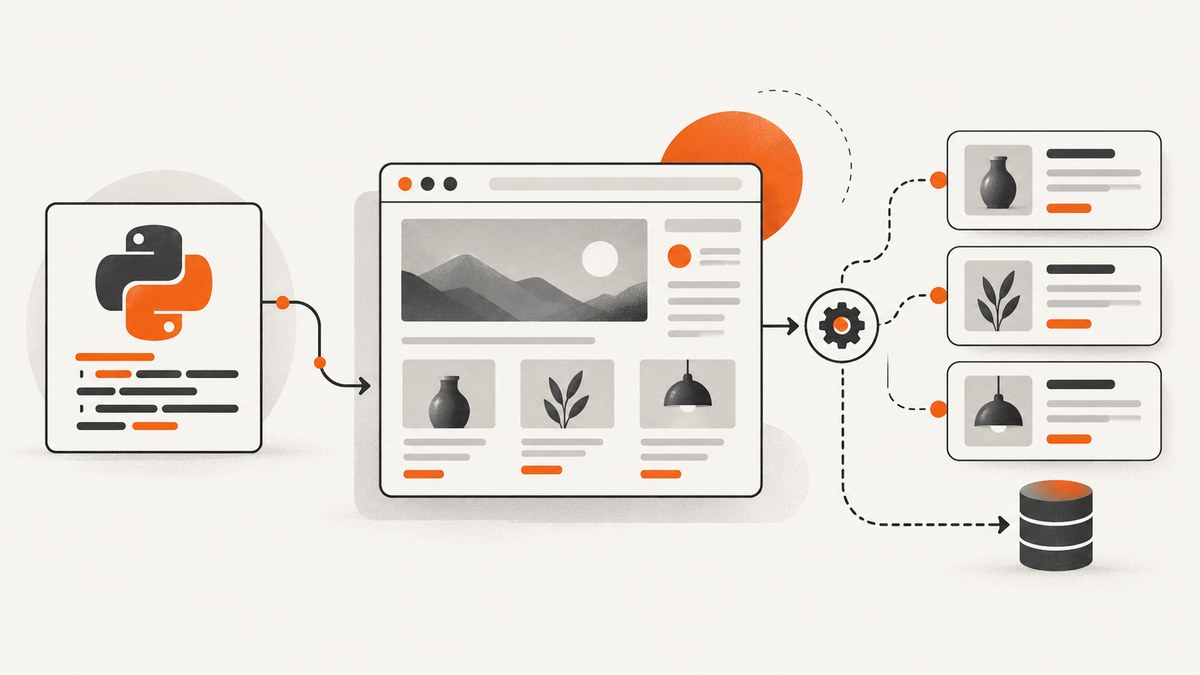
Short answer: Selenium screen scraping with Python means driving a real browser with WebDriver, waiting for the rendered state you need, locating elements with stable selectors, extracting text or attributes, and always closing the browser. driver.get() only waits for the page-load event; JavaScript may still be rendering data, so condition-based explicit waits are essential.
Before collecting data, check the target site’s published API, terms, authentication requirements, robots guidance, and rate limits. Prefer an official API or direct HTTP request when it provides the data you need. Use a browser when JavaScript execution, user interactions, or the rendered DOM is required.
1. Install Selenium and a browser
Create an isolated environment and install the Python bindings:
python -m venv .venv
# macOS/Linux
source .venv/bin/activate
# Windows PowerShell
# .venv\Scripts\Activate.ps1

python -m pip install --upgrade pip selenium
Selenium WebDriver drives a browser natively and follows the W3C WebDriver standard. Modern Selenium can manage compatible browser drivers for common local setups; otherwise install a driver that matches your browser and put it on PATH. See the official WebDriver documentation.
2. A complete Python scraper
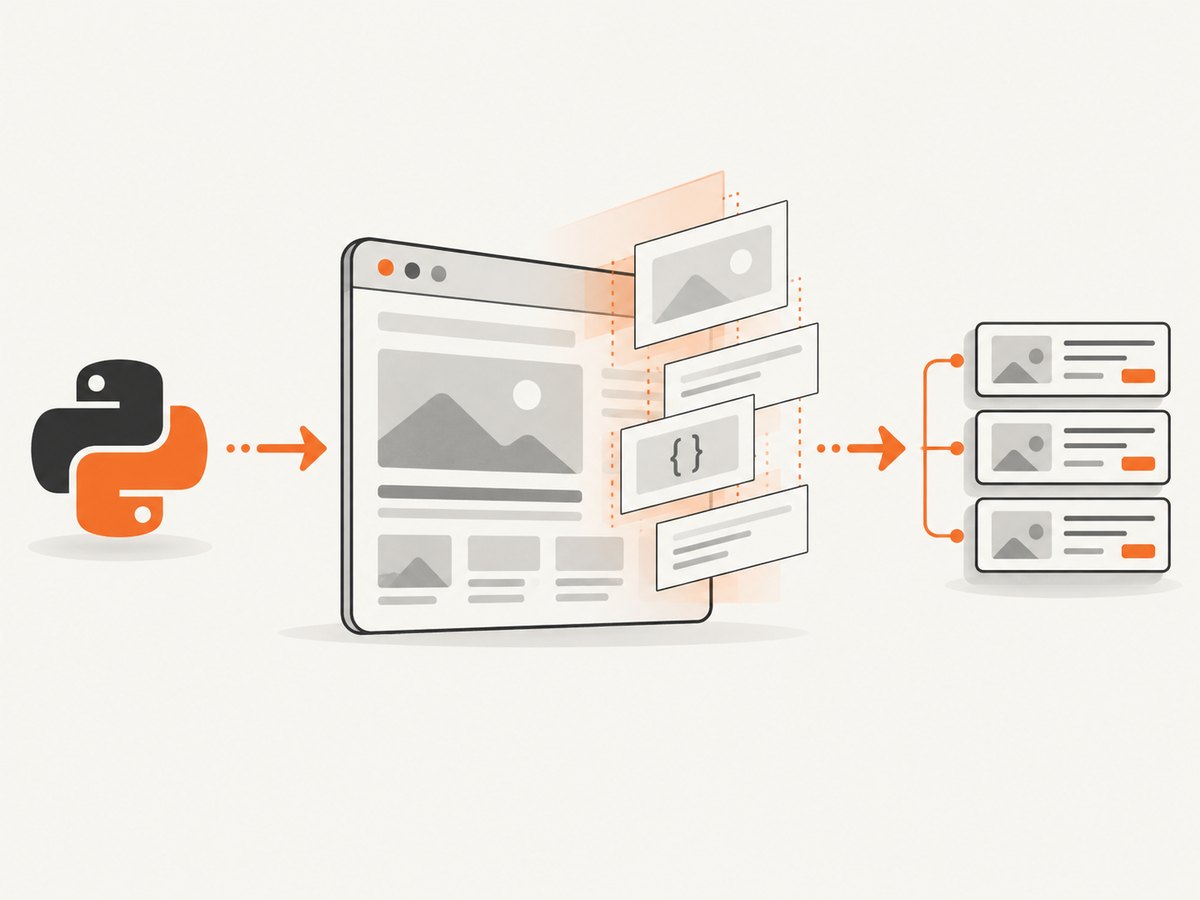
The example below loads a page, waits for article cards to become visible, extracts selected fields, and writes JSON. Replace the URL and selectors with those from the site you are allowed to access.
from __future__ import annotations

import json
from pathlib import Path
from typing import Any

from selenium import webdriver
from selenium.common.exceptions import TimeoutException
from selenium.webdriver.chrome.options import Options
from selenium.webdriver.common.by import By
from selenium.webdriver.support import expected_conditions as EC
from selenium.webdriver.support.ui import WebDriverWait

URL = "https://example.com/articles"
OUTPUT = Path("articles.json")


def build_driver() -> webdriver.Chrome:
    options = Options()
    # Uncomment for a server without a desktop session.
    # options.add_argument("--headless=new")
    options.add_argument("--window-size=1440,1000")
    options.page_load_strategy = "normal"

    driver = webdriver.Chrome(options=options)
    # Set each timeout deliberately. The implicit timeout remains zero.
    driver.set_page_load_timeout(45)
    driver.set_script_timeout(30)
    return driver


def scrape() -> list[dict[str, Any]]:
    driver = build_driver()
    wait = WebDriverWait(driver, 15, poll_frequency=0.5)
    try:
        driver.get(URL)

        # Wait for the rendered list, not merely document.readyState.
        cards = wait.until(
            EC.visibility_of_all_elements_located(
                (By.CSS_SELECTOR, "article.card")
            )
        )

        records: list[dict[str, Any]] = []
        for card in cards:
            title = card.find_element(By.CSS_SELECTOR, "h2").text.strip()
            link = card.find_element(By.CSS_SELECTOR, "a").get_attribute("href")
            summary = card.find_element(
                By.CSS_SELECTOR, ".summary"
            ).text.strip()
            records.append({"title": title, "url": link, "summary": summary})
        return records
    except TimeoutException as exc:
        raise RuntimeError("The expected content did not appear before the timeout") from exc
    finally:
        driver.quit()


if __name__ == "__main__":
    data = scrape()
    OUTPUT.write_text(json.dumps(data, indent=2, ensure_ascii=False), encoding="utf-8")
    print(f"Wrote {len(data)} records to {OUTPUT}")
The Selenium getting-started guide covers driver creation, navigation, element interaction, assertions, and closing a session.
3. Choose reliable locators
Python bindings support ID, name, XPath, link text, partial link text, tag name, class name, and CSS selector strategies. Prefer a stable attribute deliberately exposed by the site, and scope the selector to the smallest useful container.
| Strategy | Example | When to use |
|---|---|---|
| ID | (By.ID, "results") |
A unique, stable ID exists |
| CSS | (By.CSS_SELECTOR, "article.card h2") |
Most normal extraction tasks; concise and easy to scope |
| Name | (By.NAME, "q") |
Forms with stable name attributes |
| XPath | (By.XPATH, "//button[@aria-label='Next']") |
Relationships or text conditions that CSS cannot express |
| Link text | (By.LINK_TEXT, "Next") |
A uniquely labelled link |
Avoid generated class names, position-based XPath such as (//div)[7], and selectors that match unrelated widgets. Use find_elements when zero or more matches are valid; it returns a list instead of raising for an absent match.
4. Wait for the state you actually need
Selenium documents that readyState covers assets defined in the initial HTML, while JavaScript can add or reveal elements afterward. Explicit waits poll until an expected condition succeeds; the current Python API documents a default polling interval of 0.5 seconds.
from selenium.webdriver.support import expected_conditions as EC
from selenium.webdriver.support.ui import WebDriverWait

wait = WebDriverWait(driver, 20)

# Element exists in the DOM.
node = wait.until(EC.presence_of_element_located((By.ID, "price")))

# Element is displayed and has usable dimensions.
price = wait.until(EC.visibility_of_element_located((By.ID, "price")))

# Element can be interacted with.
button = wait.until(EC.element_to_be_clickable((By.CSS_SELECTOR, "button.load")))
button.click()

# Wait for a particular value or DOM state.
wait.until(lambda d: d.find_element(By.ID, "status").text == "Complete")

# Wait until a loading node disappears.
wait.until(EC.invisibility_of_element_located((By.CSS_SELECTOR, ".spinner")))
Do not mix implicit and explicit waits. Set an explicit timeout for each meaningful state rather than adding a fixed sleep. A short time.sleep() can be useful for reproducing a timing bug, but it is a poor synchronization strategy for production scraping.
5. Extract text, attributes, and page source
# Visible, rendered text
text = element.text

# Attribute values such as href, src, data-id, or aria-label
href = element.get_attribute("href")

# The current DOM after JavaScript changes
html = driver.page_source

# A property when an attribute and property differ
value = element.get_property("value")
Read from the narrowest element that contains the field. Normalize whitespace at the boundary, preserve raw values when they may be needed for auditing, and convert numbers or dates only after handling locale-specific formats.
6. Interact before extracting
For menus, filters, tabs, and pagination, wait for clickability, perform the action, then wait for a post-action condition that proves the new state has arrived.
next_button = wait.until(
    EC.element_to_be_clickable((By.CSS_SELECTOR, "button.next"))
)
old_first_title = driver.find_element(By.CSS_SELECTOR, "article.card h2").text
next_button.click()
wait.until(
    lambda d: d.find_element(By.CSS_SELECTOR, "article.card h2").text != old_first_title
)

# Scroll an element into view before clicking when a sticky header or lazy list is involved.
driver.execute_script(
    "arguments[0].scrollIntoView({block: 'center'});", next_button
)
next_button.click()
Selenium 4 performs interactability checks through script execution. If an element is covered, outside the viewport, disabled, or still moving, fix the page state and synchronization rather than forcing a JavaScript click.
7. Handle common dynamic-page patterns
Lazy-loaded lists
previous_count = 0
while True:
    cards = driver.find_elements(By.CSS_SELECTOR, "article.card")
    if len(cards) == previous_count:
        break
    previous_count = len(cards)
    driver.execute_script("window.scrollTo(0, document.body.scrollHeight);")
    try:
        WebDriverWait(driver, 5).until(
            lambda d: len(d.find_elements(By.CSS_SELECTOR, "article.card")) > previous_count
        )
    except TimeoutException:
        break
Pagination
Capture a page’s records before navigating, stop when the next control is absent or disabled, and deduplicate by a stable URL or record ID. Wait for a page indicator or changed first record after every click.
Infinite scroll
Set a maximum number of scrolls and a maximum runtime. Stop when the item count stops increasing, because some sites keep a spinner present forever.
Shadow DOM
Regular selectors do not cross a shadow root boundary. Locate the host, obtain its shadow root, and then search inside that root; nested shadow roots require repeating the process.
host = driver.find_element(By.CSS_SELECTOR, "my-component")
shadow = host.shadow_root
label = shadow.find_element(By.CSS_SELECTOR, ".label").text
Frames
frame = wait.until(EC.presence_of_element_located((By.CSS_SELECTOR, "iframe.results")))
driver.switch_to.frame(frame)
try:
    rows = wait.until(EC.presence_of_all_elements_located((By.CSS_SELECTOR, "tr")))
finally:
    driver.switch_to.default_content()
Downloads and new tabs
Record the original window handle, wait for a new handle after the click, switch explicitly, and close or return to the original handle. For downloads, configure the browser profile and verify the file appears with a bounded wait.
8. Configure navigation and timeouts
driver.get() waits according to the configured page-load strategy. AJAX work can continue after that event. Selenium exposes page-load, script, and implicit element-location timeouts; the default implicit timeout is zero.
options = Options()
options.page_load_strategy = "eager"  # normal, eager, or none

driver = webdriver.Chrome(options=options)
driver.set_page_load_timeout(45)
driver.set_script_timeout(30)
# If you choose an implicit wait, set it once and do not combine it with explicit waits.
# driver.implicitly_wait(5)
For deterministic scrapers, leave the implicit timeout at zero and use explicit waits tied to visible application states.
9. A reusable scraper architecture
- Input: validate URLs and keep a queue with a maximum item count.
- Session: create one driver per worker and reuse it for related pages.
- Navigation: apply a page-load timeout and catch navigation failures.
- Synchronization: wait for a selector, state change, or network-idle signal exposed by the page.
- Extraction: return structured records plus source URL and collection timestamp.
- Validation: reject records missing required fields and log the page URL and selector.
- Cleanup: call
driver.quit()in afinallyblock.
Keep selectors in one module, add a fixture page for each important layout, and log browser console or driver errors when diagnosing production failures. WebDriver BiDi can expose browser events, console messages, JavaScript errors, and network-related reactions as implementations support those features; see Selenium’s WebDriver BiDi documentation.
10. Browser scraping versus requests or an API
| Approach | Strength | Trade-off |
|---|---|---|
| Selenium | Executes JavaScript and reproduces browser interactions | Higher runtime and browser resource cost; waits and selectors add maintenance |
| HTTP client | Fast, lightweight requests to an HTML or JSON endpoint | Cannot render client-side data or perform browser-only flows |
| Site API | Structured fields, documented authentication and limits | May not expose every field or workflow |
Use the target site’s API when it satisfies the requirement. If you use direct HTTP for a static endpoint, a cURL request looks like this:
curl -L --fail --max-time 30 "https://example.com/data.json" -o data.jsonThat request does not execute page JavaScript. A Node.js Selenium equivalent for a browser-rendered page is:
import { Builder, By, until } from "selenium-webdriver";

const driver = await new Builder().forBrowser("chrome").build();
try {
  await driver.get("https://example.com/articles");
  const card = await driver.wait(
    until.elementLocated(By.css("article.card")),
    15000
  );
  console.log(await card.getText());
} finally {
  await driver.quit();
}
11. Troubleshooting
| Symptom | Likely cause | Fix |
|---|---|---|
TimeoutException |
Wrong selector, slow rendering, consent gate, or failed request | Inspect the final DOM, verify the selector, wait for the actual state, and capture logs/screenshots for diagnosis |
NoSuchElementException |
Lookup happened before insertion or inside the wrong frame/shadow root | Use an explicit wait and switch to the correct context |
| Element is not clickable | Overlay, animation, disabled control, or off-screen element | Wait for clickability, scroll into view, and handle overlays according to the site’s normal flow |
| Empty text | Text is in an attribute, child node, or not yet rendered | Use get_attribute/get_property and wait for non-empty content |
| Stale element reference | JavaScript replaced the node after you located it | Wait for the update, then locate the element again |
| Wrong page after a click | New tab/window or navigation not synchronized | Track window handles and wait for a URL, title, or page marker |
| Driver or browser mismatch | Incompatible browser and driver binaries | Update both, use Selenium’s driver management, and check PATH |
| Headless-only failure | Different viewport, timing, fonts, or blocked resources | Set a fixed window size, compare headed mode, and increase targeted waits |
| Bot challenge or CAPTCHA | Site access control detected automation | Do not attempt to bypass it; use the site’s approved API or request permission |
12. Performance, reliability, and cost
- Browser cost: each browser session consumes substantially more CPU and memory than an HTTP request. Reuse a session for related pages, limit concurrency, and close idle drivers.
- Wait cost: explicit waits poll until success; the documented default poll interval is 0.5 seconds. Choose deadlines from observed page behavior and fail clearly when they expire.
- Reliability: use stable selectors, bounded retries for transient navigation failures, idempotent output writes, and checkpoints for long queues.
- Observability: log URL, selector, elapsed time, exception type, and browser console information. Save HTML or a diagnostic screenshot only when policy permits.
- Access limits: obey published rate limits and avoid unnecessary reloads. A slower, bounded crawler is easier to operate than unlimited parallel browsers.
13. Or skip the browser setup
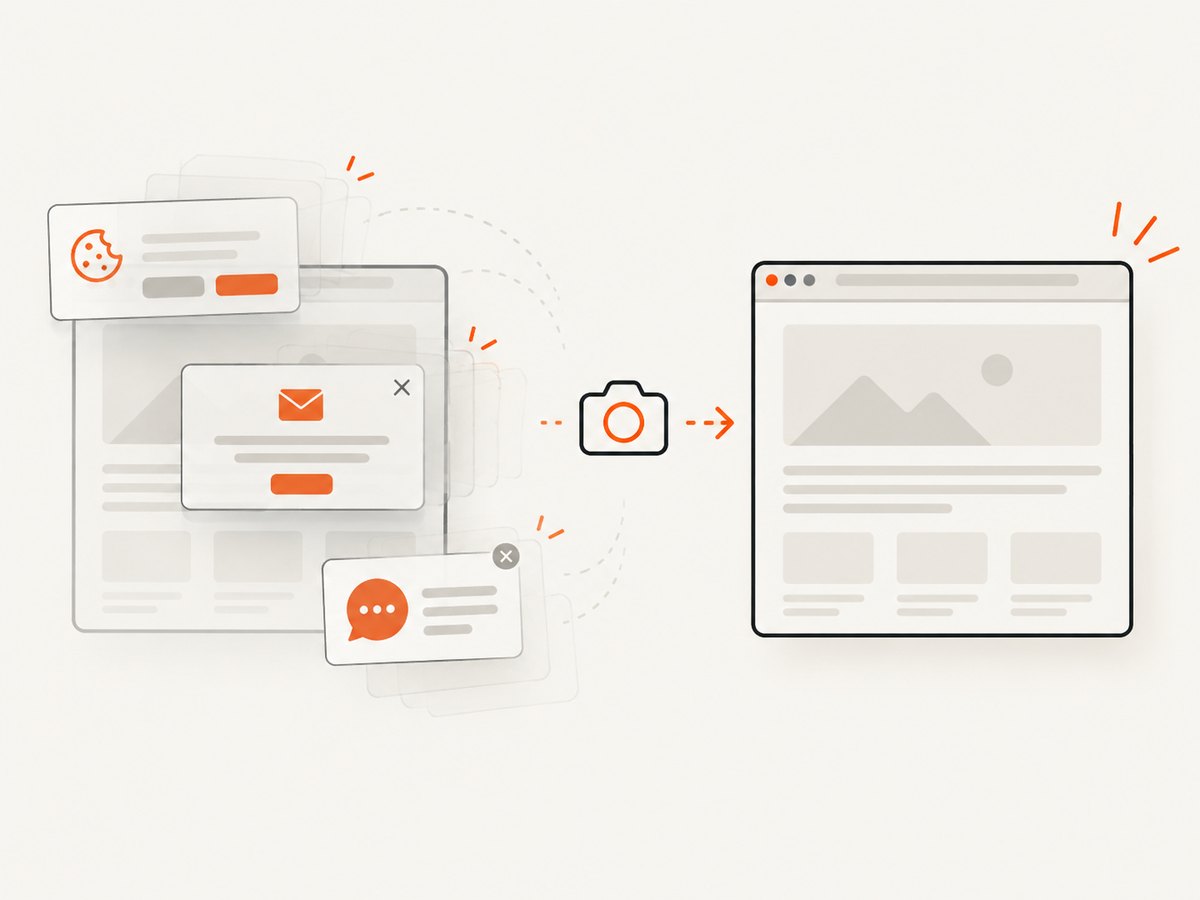
ScreenshotNeo provides a website screenshot API and MCP server. One GET request returns a PNG, JPEG, WebP, or PDF. It accepts cookie and consent banners before capture and removes more than 60 known consent platforms, newsletter popups, and chat widgets; each step can be turned off. Bot checks, blank pages, timeouts, failed loads, and cache hits are not billed, and response headers identify the page verdict and billing result.
Use the ScreenshotNeo API documentation for all options. The basic calls are:
curl -G "https://api.screenshotneo.com/v1/shot" -d access_key=YOUR_API_KEY --data-urlencode url=https://stripe.com -o shot.webpimport requests
r = requests.get("https://api.screenshotneo.com/v1/shot", params={"access_key": "YOUR_API_KEY", "url": "https://stripe.com"}, timeout=90)
r.raise_for_status()
open("shot.webp", "wb").write(r.content)const q = new URLSearchParams({ access_key: 'YOUR_API_KEY', url: 'https://stripe.com' });
const res = await fetch(`https://api.screenshotneo.com/v1/shot?${q}`);It also supports full-page and element capture, dark mode, device presets, custom viewports, retina scale, PDF options, custom CSS and JavaScript, clicks, selector hiding, selector or network-idle waits, request blocking, headers, cookies, user agents, authorization, timezone, geolocation, transparent backgrounds, resizing, chosen cache TTLs, signed links, asynchronous jobs with signed webhooks, bulk capture of up to 100 URLs per call, usage reporting, and an OpenAPI specification. Its MCP server exposes take_screenshot, get_page_info, and capture_pdf for Claude, Cursor, and other MCP clients.
There are 1,000 free screenshots each month with no card. Paid plans start at $5 for 3,000 screenshots, and every feature is included on every plan. Create a free ScreenshotNeo account.
14. FAQ
Does Selenium scrape JavaScript-rendered content?
Yes. WebDriver controls a browser that executes JavaScript, so the rendered DOM can contain data absent from the initial HTML. You still need a wait for the application state that contains the data.
What is the best Selenium locator?
Use the most stable locator the site exposes, usually a unique ID or scoped CSS selector. Use XPath when you need relationships or text conditions that CSS cannot express.
Should I use implicit or explicit waits?
Use explicit, condition-based waits for predictable synchronization. Selenium warns against mixing implicit and explicit waits because their timing can interact unpredictably.
When should I avoid Selenium?
Use a documented API or direct HTTP request when it provides the required data. Selenium is appropriate when browser JavaScript or user interaction is necessary.
Why must I call quit()?
It closes the browser and ends the WebDriver session. Put it in finally so exceptions do not leave orphaned processes running.
15. Final checklist
- Confirm the site’s access rules, API, authentication, and rate limits.
- Use a stable, narrowly scoped locator.
- Wait for a specific rendered condition instead of assuming
driver.get()is enough. - Set page-load, script, and explicit wait deadlines deliberately.
- Handle frames, shadow roots, pagination, and lazy loading explicitly.
- Validate extracted fields and record the source URL.
- Bound retries and concurrency.
- Always call
driver.quit().


