How to Capture a Screenshot When a Selenium Assertion Passes
Save a Selenium screenshot only after an assertion succeeds, with Python and Java examples, pytest patterns, remote-driver handling, and troubleshooting.
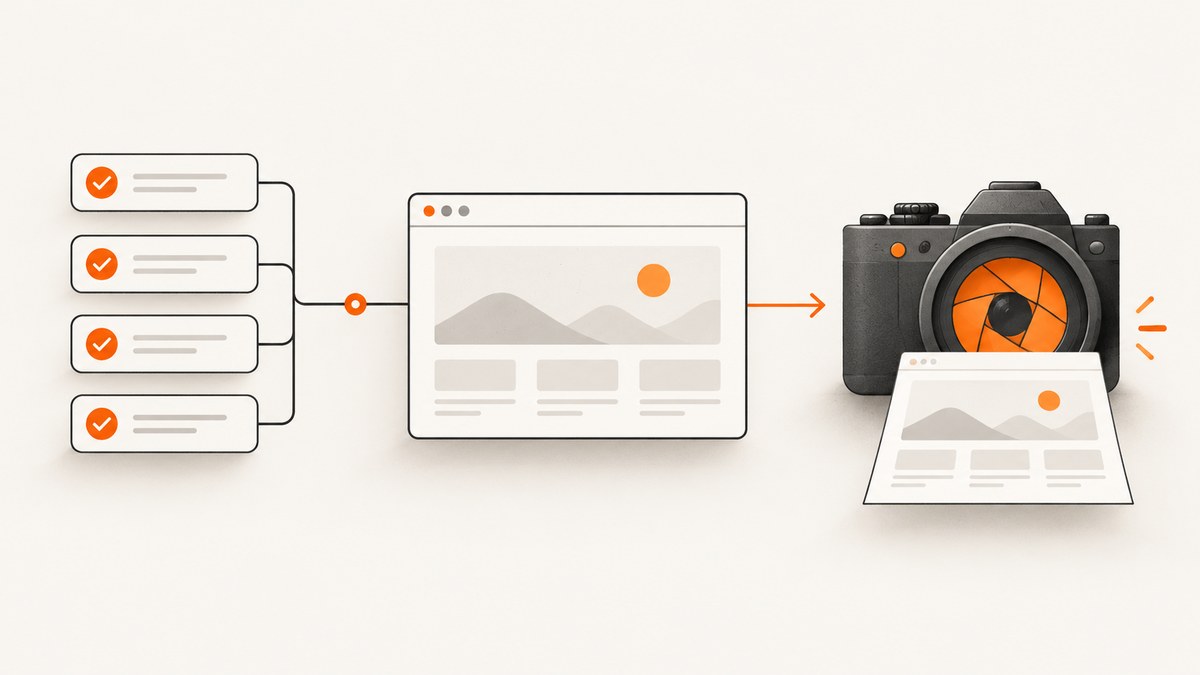
Run the assertion first, then capture the screenshot on the next successful statement, before calling driver.quit(). In Python:
from pathlib import Path

Path("artifacts").mkdir(parents=True, exist_ok=True)
assert driver.title == "Expected"
ok = driver.save_screenshot("artifacts/assertion-passed.png")
assert ok, "Screenshot file could not be written"
The assertion controls the flow: if it fails, execution stops and the passing-state screenshot is never written. If it succeeds, Selenium captures the current browser window. Selenium documents save_screenshot() and get_screenshot_as_file() as PNG file methods that return False when an I/O error occurs. Python WebDriver API
1. Put the screenshot after the assertion
A screenshot taken before the assertion records the state being tested, but it does not prove that the assertion passed. Place the call immediately after the assertion and before teardown:
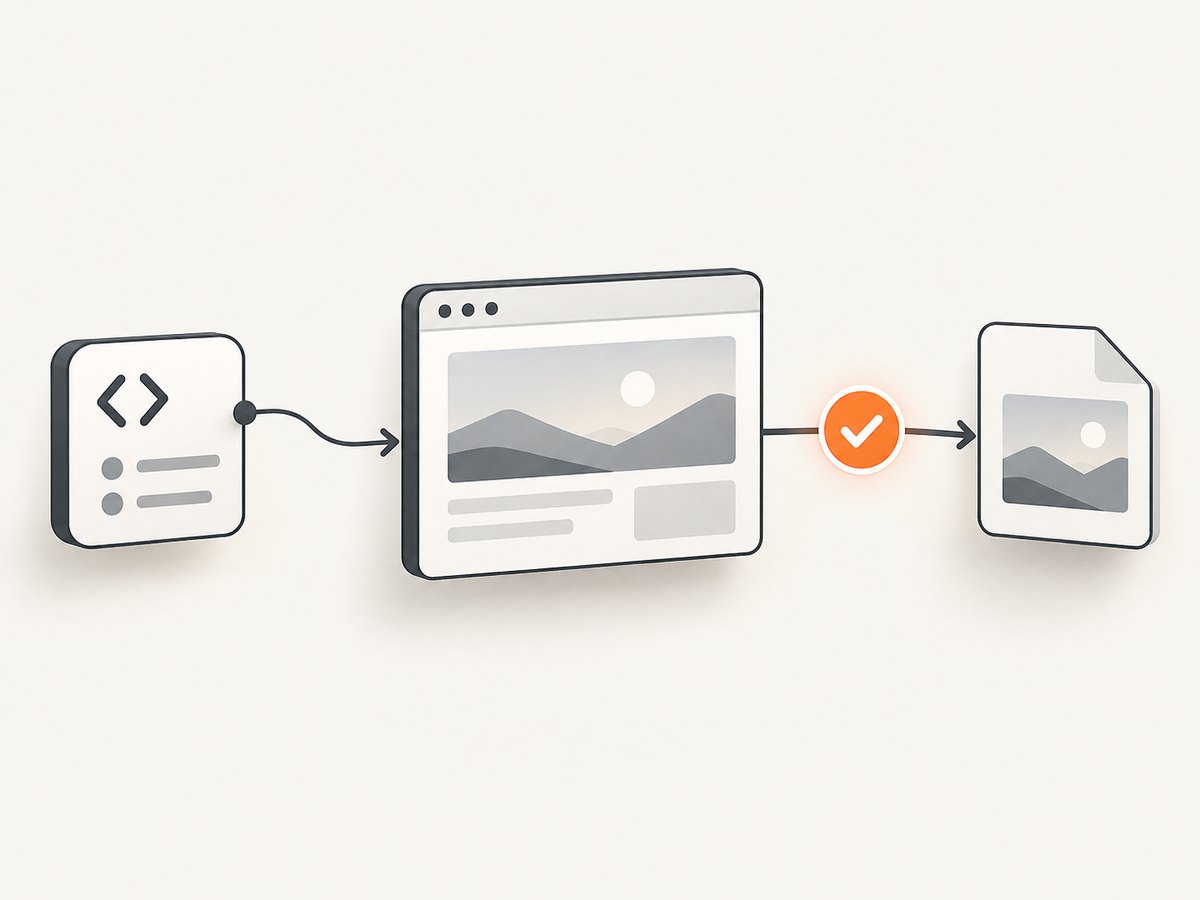
driver.get("https://example.test/account")

assert driver.title == "Account | Example"
driver.save_screenshot("artifacts/account-title-passed.png")

driver.quit()
Use a boolean check when a missing artifact should fail the test:
assert driver.title == "Account | Example"
ok = driver.get_screenshot_as_file("artifacts/account-title-passed.png")
assert ok, "Selenium could not write the screenshot"
Both methods save a PNG of the current window. The filename should end in .png; Selenium warns when it does not.
2. Complete Python example
This example creates its output directory, waits for the page condition, checks the assertion, saves a uniquely named artifact, and always closes the driver.
from datetime import datetime, timezone
from pathlib import Path

from selenium import webdriver
from selenium.webdriver.common.by import By
from selenium.webdriver.support import expected_conditions as EC
from selenium.webdriver.support.ui import WebDriverWait

ARTIFACTS = Path("artifacts")
ARTIFACTS.mkdir(parents=True, exist_ok=True)

driver = webdriver.Chrome()
try:
    driver.get("https://example.test/account")
    WebDriverWait(driver, 15).until(
        EC.visibility_of_element_located((By.CSS_SELECTOR, "h1"))
    )

    assert driver.title == "Account | Example"

    stamp = datetime.now(timezone.utc).strftime("%Y%m%dT%H%M%SZ")
    path = ARTIFACTS / f"account-title-passed-{stamp}.png"
    ok = driver.save_screenshot(str(path))
    assert ok, f"Screenshot file could not be written: {path}"
finally:
    driver.quit()
get_screenshot_as_file(path) is the equivalent file-oriented method:
assert driver.title == "Account | Example"
assert driver.get_screenshot_as_file("artifacts/assertion-passed.png")
3. Capture only a passing element
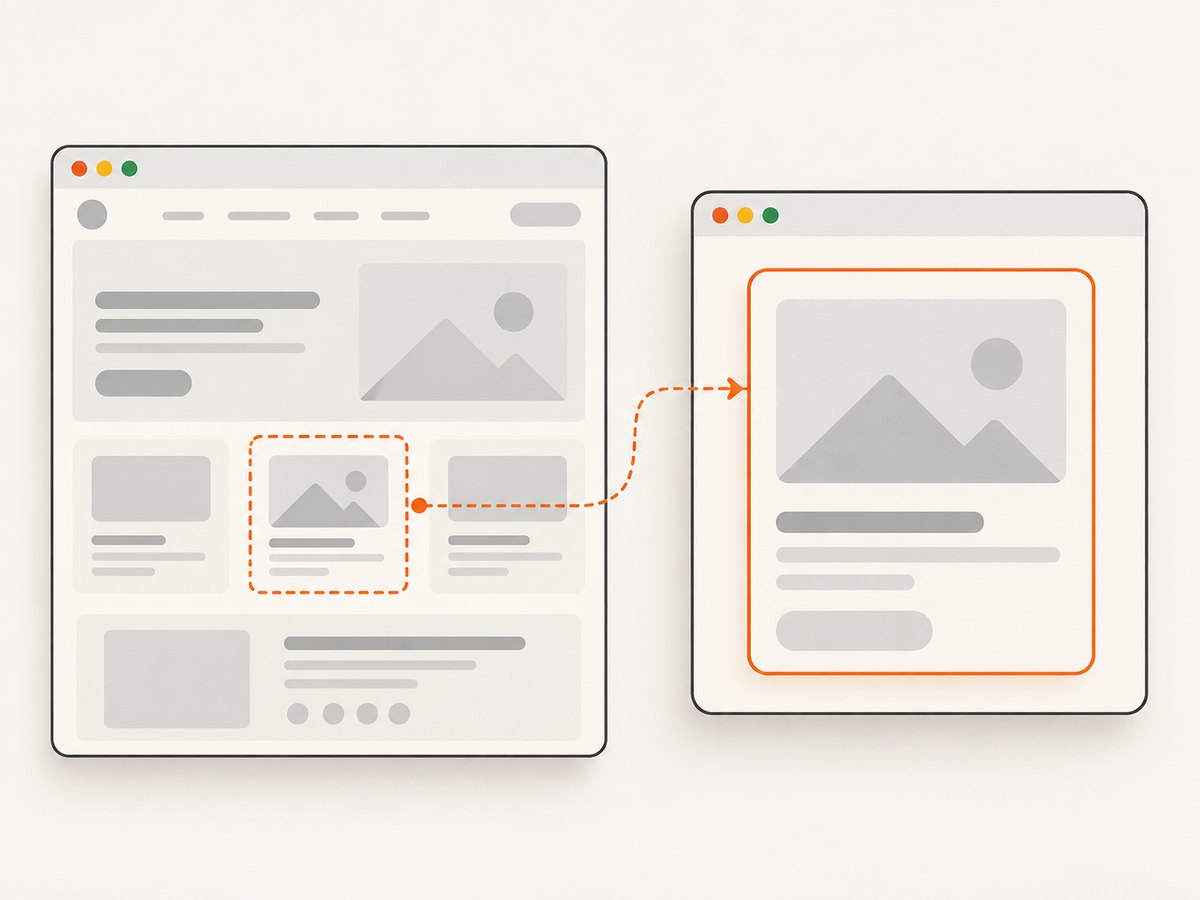
Use the driver for the full current browser window. Use a web element when the evidence should focus on one component, such as a confirmation panel or chart.
from selenium.webdriver.common.by import By

confirmation = driver.find_element(By.CSS_SELECTOR, "[data-testid='confirmation']")
assert confirmation.is_displayed()
assert confirmation.screenshot("artifacts/confirmation-passed.png")
Element screenshots are useful when a full-window image contains unrelated navigation, ads, or dynamic content. The element must be present and rendered before capture; wait for it when its appearance is asynchronous.
4. Return PNG bytes or base64 instead of writing a file
Local file output is convenient for a developer workstation. In a remote WebDriver run, the file may be written on the machine running the driver rather than the test runner. Selenium also supports binary PNG and base64 output.
# Binary PNG bytes
assert driver.title == "Account | Example"
png_bytes = driver.get_screenshot_as_png()
Path("artifacts/assertion-passed.png").write_bytes(png_bytes)

# Base64 text
import base64

assert driver.title == "Account | Example"
png_base64 = driver.get_screenshot_as_base64()
Path("artifacts/assertion-passed.b64").write_text(png_base64)
# Decode later with: base64.b64decode(png_base64)
Use bytes or base64 when your CI system uploads attachments, stores objects, or receives artifacts through a test report API.
5. Java implementation
In Java, assert first and call TakesScreenshot.getScreenshotAs next. OutputType.FILE returns a temporary file that you copy to your artifact path.
import java.nio.file.Files;
import java.nio.file.Path;
import java.nio.file.StandardCopyOption;

import org.openqa.selenium.WebDriver;
import org.openqa.selenium.chrome.ChromeDriver;
import org.openqa.selenium.OutputType;
import org.openqa.selenium.TakesScreenshot;

public class PassingAssertionScreenshot {
    public static void main(String[] args) throws Exception {
        WebDriver driver = new ChromeDriver();
        try {
            driver.get("https://example.test/account");

            assert driver.getTitle().equals("Account | Example");

            Path destination = Path.of("artifacts", "assertion-passed.png");
            Files.createDirectories(destination.getParent());
            var screenshot = ((TakesScreenshot) driver)
                    .getScreenshotAs(OutputType.FILE);
            Files.copy(screenshot.toPath(), destination,
                    StandardCopyOption.REPLACE_EXISTING);
        } finally {
            driver.quit();
        }
    }
}
Java also supports OutputType.BASE64 and OutputType.BYTES when the artifact must be transferred instead of copied locally. The TakesScreenshot interface covers driver and element capture.
6. pytest patterns
Capture explicitly in the test body
The test body is the most direct and deterministic location:
def test_account_title(driver, tmp_path):
    driver.get("https://example.test/account")

    assert driver.title == "Account | Example"
    output = tmp_path / "account-title-passed.png"
    assert driver.save_screenshot(str(output))
Prepare a shared artifact directory with a fixture
import pytest
from pathlib import Path

@pytest.fixture
def artifact_dir(tmp_path):
    path = tmp_path / "screenshots"
    path.mkdir()
    return path

def test_account_title(driver, artifact_dir):
    driver.get("https://example.test/account")
    assert driver.title == "Account | Example"
    assert driver.save_screenshot(
        str(artifact_dir / "account-title-passed.png")
    )
For a whole suite, pytest integrations such as pytest-selenium and pytest-selenium-auto can provide Selenium or event-driven workflows. Their hook names and settings are version-specific, so follow the selected plugin’s current documentation.
7. Make artifacts reliable in CI and remote WebDriver
- Create the directory first. Selenium reports an I/O failure when the parent directory does not exist or is not writable.
- Use a unique name. Include the test name, browser, worker, or UTC timestamp to prevent parallel tests overwriting one another.
- Capture before teardown. After
quit(), the session and current window no longer exist. - Know where the file is written. With a remote driver, a path may refer to the remote host. Prefer
get_screenshot_as_png()or base64 and upload the result from the test process. - Attach the artifact on success deliberately. If you only want passing-state evidence, keep the call after the assertion. If you also need failure diagnostics, add a separate failure hook rather than moving this call before the assertion.
- Wait for stable content. A passing title assertion does not guarantee that images, animations, or data widgets have finished rendering.
8. Common errors and fixes
| Error or symptom | Cause | Fix |
|---|---|---|
| No screenshot after a failed test | The assertion raises an exception, so later statements do not run. | Expected for a passing-only screenshot. Add a separate failure hook if failure evidence is also required. |
save_screenshot() returns False |
The destination cannot be written, commonly because the directory is missing or permissions are insufficient. | Create the directory, use a writable path, and assert the return value. |
FileNotFoundError |
The artifact parent directory does not exist. | Call Path(path).parent.mkdir(parents=True, exist_ok=True) before capture. |
| Screenshot is from the wrong page | Navigation or a redirect has not completed. | Wait for a URL, title, or distinctive element before asserting and capturing. |
| Element screenshot fails | The selector matched nothing, the element is not displayed, or it is outside a usable rendered state. | Wait for presence and visibility, verify the selector, and scroll the element into view when needed. |
| Artifact is missing in CI | The file was saved on a remote driver host or was not uploaded by the runner. | Capture PNG bytes/base64 and attach them through the CI test-report mechanism. |
| Only part of a long page appears | A normal window screenshot captures the current viewport. | Use a full-page capability supported by your browser/driver, or capture the relevant element; verify the result in your target browser. |
| Intermittent visual differences | Animations, late network responses, fonts, or time-dependent content are still changing. | Wait for a stable application condition, disable animations in test CSS where appropriate, and use deterministic test data. |
Java assert appears ignored |
The JVM was started without assertions enabled. | Run Java with -ea, or use the assertion mechanism provided by your test framework. |
9. Performance, reliability, and cost considerations
A screenshot adds image encoding and file or network I/O to the successful path. Keep capture after the assertion so unsuccessful cases do not pay that cost in a passing-state workflow. Use element capture when a smaller artifact is sufficient, and avoid repeatedly capturing the same state inside loops.
For parallel suites, unique names and isolated directories prevent races. For remote sessions, transferring bytes once is usually simpler than guessing which host owns a filesystem path. Retain only the artifacts your debugging and reporting policy needs.
Selenium itself does not define a universal screenshot duration or storage cost: both depend on browser, page complexity, image size, filesystem, network, and CI retention. Measure these in your own environment if screenshot volume affects suite time.
10. Or skip the browser setup
If you need a screenshot of a URL after your test has established the expected state, ScreenshotNeo provides a single HTTP request that returns PNG, JPEG, WebP, or PDF. Its capture options include full-page shots, element selectors, custom waits, JavaScript, headers, cookies, device presets, and more. Read the ScreenshotNeo API documentation for the complete parameter list.
curl -G "https://api.screenshotneo.com/v1/shot" -d access_key=YOUR_API_KEY --data-urlencode url=https://example.test/account -o shot.webpimport requests
r = requests.get("https://api.screenshotneo.com/v1/shot", params={"access_key": "YOUR_API_KEY", "url": "https://example.test/account"}, timeout=90)
open("shot.webp", "wb").write(r.content)const fs = require('node:fs/promises');
const q = new URLSearchParams({ access_key: 'YOUR_API_KEY', url: 'https://example.test/account' });
const res = await fetch(`https://api.screenshotneo.com/v1/shot?${q}`);
if (!res.ok) throw new Error(`ScreenshotNeo request failed: ${res.status}`);
await fs.writeFile('shot.webp', Buffer.from(await res.arrayBuffer()));Cookie banners, newsletter popups, and chat widgets are removed before the shot. Bot checks, blank pages, timeouts, failed loads, and cache hits are not billed, and response headers identify the page verdict and billing result. An MCP server lets AI agents such as Claude and Cursor call screenshot, page-info, and PDF tools. The free plan includes 1,000 screenshots a month with no card; paid plans start at $5 for 3,000.
Create a free ScreenshotNeo account.
11. FAQ
Can I capture only when the assertion passes?
Yes. Place the screenshot call after the assertion. A raised assertion prevents the following capture statement from running.
Does Selenium save screenshots as JPEG?
The documented Selenium file methods save PNG files. Convert the PNG afterward if another format is required.
Can I screenshot an element?
Yes. Find the element, wait until it is rendered, then call its screenshot method. This keeps the artifact focused on the component under test.
What should I do with a remote driver?
Use PNG bytes or base64 and attach them through your test runner. A local-looking path may belong to the remote browser machine.
How do I capture both passing and failing states?
Keep the passing screenshot after the assertion, then add a separate framework failure hook for diagnostics. Mixing the two paths can make the intent unclear.


