How to Get a Screenshot as Base64 with Selenium
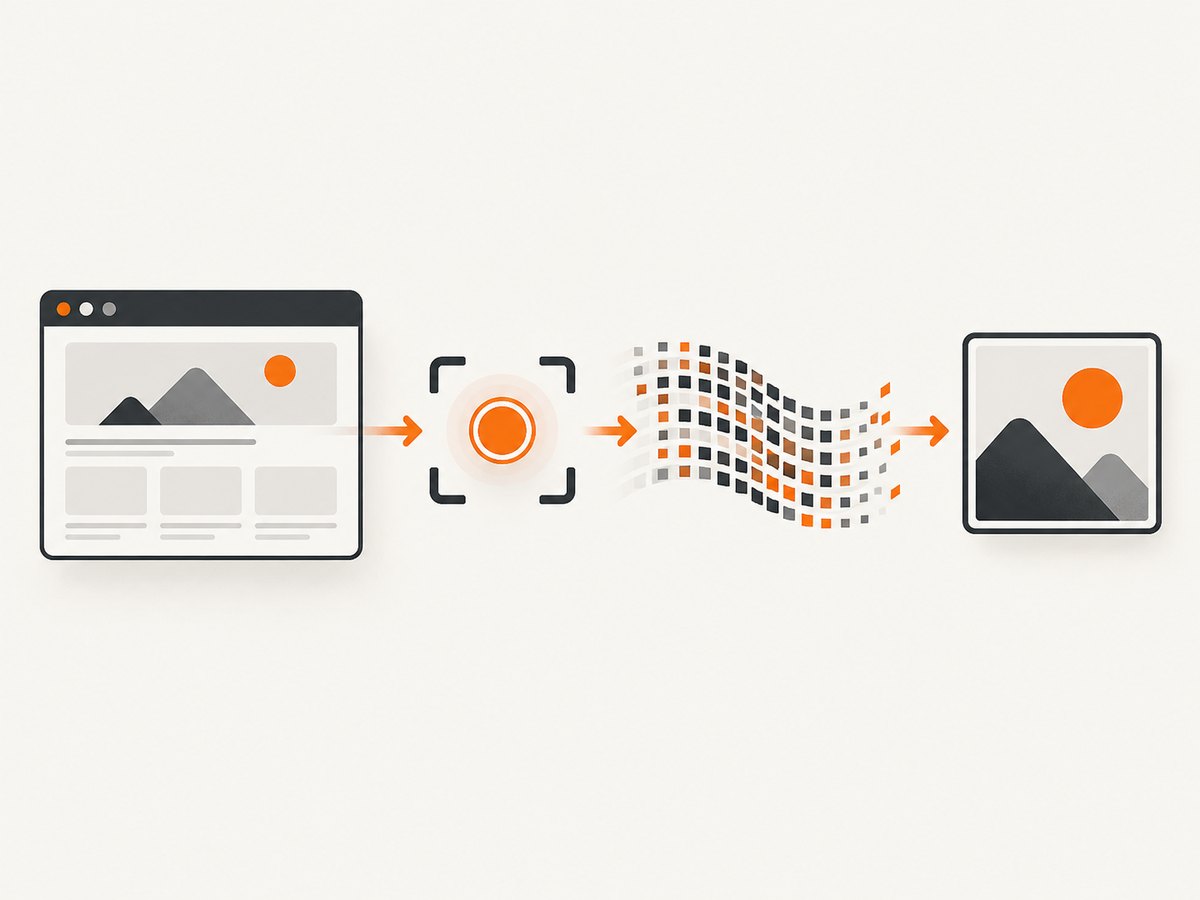
Use Selenium’s screenshot methods to get a Base64 string for the current window or an element, then embed, decode, or save the image.

In Selenium Python, call driver.get_screenshot_as_base64() to capture the current browser window as a Base64-encoded string. For one element, use element.screenshot_as_base64. Selenium returns the Base64 payload; it does not document that payload as already containing a data:image/png;base64, prefix.
Use Base64 when the next step needs text for HTML embedding, JSON transport, or a text-only message. If your next step needs image bytes or a file, use Selenium’s PNG-byte or file method instead: Base64 adds size and requires decoding before image processing.
1. Capture the current window as Base64 in Python
The Selenium Python WebDriver API describes get_screenshot_as_base64() as returning a Base64-encoded screenshot of the current window. The string is the encoded screenshot content. [Selenium Python WebDriver API]
from selenium import webdriver
from selenium.webdriver.chrome.options import Options

options = Options()
options.add_argument("--headless=new")

driver = webdriver.Chrome(options=options)
try:
    driver.get("https://example.com")
    image_b64 = driver.get_screenshot_as_base64()
    print(image_b64[:80])  # Print a small prefix, not the entire image.
finally:
    driver.quit()
The example uses current Selenium Python conventions and Selenium Manager can handle the driver setup in common installations. Install Selenium with python -m pip install selenium. If your environment requires a separately managed browser or driver, configure that environment before creating the WebDriver.
Do not print or log the complete Base64 string in normal application logs. A screenshot can contain personal information, authentication state, or other sensitive page content, and the string can be very large.
Capture after the page is ready
driver.get() waits for the page load strategy’s load condition, but client-side applications may continue rendering afterward. Wait for a meaningful page element rather than relying on an arbitrary sleep:
from selenium.webdriver.common.by import By
from selenium.webdriver.support.ui import WebDriverWait
from selenium.webdriver.support import expected_conditions as EC

# After driver.get(url):
WebDriverWait(driver, 15).until(
    EC.visibility_of_element_located((By.CSS_SELECTOR, "main"))
)
image_b64 = driver.get_screenshot_as_base64()
Choose a selector that indicates the content you actually need. If an application paints content asynchronously, wait for its loaded state or the specific data to appear. A wait for document.readyState alone may not cover later JavaScript rendering.
2. Turn the string into an HTML image
An HTML data URL combines a media-type prefix with Base64 data. Because Selenium’s method returns the encoded screenshot and does not promise the prefix, construct it when creating the src value. This pattern assumes the screenshot is PNG, as Selenium’s screenshot API represents PNG screenshots.
image_b64 = driver.get_screenshot_as_base64()
data_url = "data:image/png;base64," + image_b64

html = f'<img alt="Page screenshot" src="{data_url}">'
For an actual HTML document, escape values appropriately if you build markup from untrusted input. Often it is simpler to pass the data URL as a value to a template or browser automation framework rather than concatenate a complete HTML string. The Base64 string is not encrypted: anyone who can read it can decode the image.
Embed it in a page
A data URL is convenient for a small, self-contained image or an HTML artifact that must travel as one document. For large screenshots, it increases document size and may be less efficient than serving an image file or URL. Consider your HTML size limits, browser handling, and transport constraints.
3. Decode Base64 into PNG bytes or a file
Use Python’s standard base64 module to recover binary image data. These bytes can be passed to an image library, uploaded as a binary body, or written to disk.
import base64

image_b64 = driver.get_screenshot_as_base64()
png_bytes = base64.b64decode(image_b64, validate=True)

with open("screenshot.png", "wb") as image_file:
    image_file.write(png_bytes)
validate=True rejects characters outside the Base64 alphabet. Use it when the string may have been modified or received from another service. If the string is a data URL, remove and validate the prefix separately before decoding; do not pass the entire data:image/png;base64,... value directly to b64decode.
When you want bytes without a Base64 round trip, use driver.get_screenshot_as_png(). Selenium’s Python implementation decodes the Base64 screenshot into bytes for this method. [Selenium Python WebDriver API]
png_bytes = driver.get_screenshot_as_png()
with open("screenshot.png", "wb") as image_file:
    image_file.write(png_bytes)
For a direct file capture, use save_screenshot() or get_screenshot_as_file(). The Python API documents a Boolean result and a filename ending in .png. Check the result so a failed save is not mistaken for a created artifact:
saved = driver.save_screenshot("screenshot.png")
if not saved:
    raise RuntimeError("Selenium could not save the screenshot")
4. Capture one element as Base64
Locate the element first, then read its screenshot_as_base64 property. This is the element-specific API; the driver method captures the current window. The element API describes the property as that element’s screenshot encoded as Base64. [Selenium Python WebElement API]

from selenium.webdriver.common.by import By
from selenium.webdriver.support.ui import WebDriverWait
from selenium.webdriver.support import expected_conditions as EC

card = WebDriverWait(driver, 15).until(
    EC.visibility_of_element_located((By.CSS_SELECTOR, ".product-card"))
)
card_b64 = card.screenshot_as_base64
Element screenshots are useful for a chart, component, card, or other isolated region. They depend on the element being present and visible, and the captured area follows WebDriver’s element screenshot behavior. If you need the whole page, use a full-page capture strategy supported by your browser tooling; the basic WebDriver screenshot method is documented as a screenshot of the current window, not a cross-browser guarantee of a stitched full document.
5. Java: request Base64 with Selenium
In Java, cast the driver to TakesScreenshot and request OutputType.BASE64. The Selenium Java API exposes this Base64 output type. Its documentation notes W3C-conformant implementations follow the WebDriver specification; non-conformant implementations are best effort, so do not assume every implementation has identical capture scope. [Selenium Java TakesScreenshot API]
import org.openqa.selenium.OutputType;
import org.openqa.selenium.TakesScreenshot;
import org.openqa.selenium.WebDriver;
import org.openqa.selenium.chrome.ChromeDriver;

public class Base64Screenshot {
    public static void main(String[] args) {
        WebDriver driver = new ChromeDriver();
        try {
            driver.get("https://example.com");
            String imageBase64 = ((TakesScreenshot) driver)
                    .getScreenshotAs(OutputType.BASE64);
            System.out.println(imageBase64.substring(0, 80));
        } finally {
            driver.quit();
        }
    }
}
Use OutputType.BYTES when the consumer needs binary data, or OutputType.FILE when a temporary file is more convenient. Confirm the actual driver supports the screenshot interface and handle driver errors around the call.
6. Choose the right output method
| Need | Python method | Result |
|---|---|---|
| Text form for embedding or text transport | driver.get_screenshot_as_base64() |
Base64 string for current window |
| Base64 for one element | element.screenshot_as_base64 |
Base64 string for that element |
| Image bytes in memory | driver.get_screenshot_as_png() |
PNG bytes |
| PNG file | driver.save_screenshot(path) |
Boolean success result |
Base64 is a representation, not a different image format. It is useful when a protocol or destination accepts text, but it uses more space than the binary PNG representation and needs decoding before most image operations. Prefer the format your next step consumes.
7. API alternatives when you do not need Selenium
If the requirement is simply “give me an image of this URL,” a hosted screenshot API can avoid setting up a local browser, driver, browser lifecycle, and Base64 encoding step. Selenium remains appropriate when you need to interact with an authenticated session, inspect a live browser, or automate a workflow beyond capturing a page.
cURL
curl -G "https://api.screenshotneo.com/v1/shot" \
  -d access_key=YOUR_API_KEY \
  --data-urlencode url=https://stripe.com \
  -o shot.webp
Python
import requests

r = requests.get(
    "https://api.screenshotneo.com/v1/shot",
    params={"access_key": "YOUR_API_KEY", "url": "https://stripe.com"},
    timeout=90,
)
r.raise_for_status()
open("shot.webp", "wb").write(r.content)
Node.js
const q = new URLSearchParams({
  access_key: 'YOUR_API_KEY',
  url: 'https://stripe.com'
});
const res = await fetch(`https://api.screenshotneo.com/v1/shot?${q}`);
if (!res.ok) throw new Error(`Screenshot request failed: ${res.status}`);
await Bun.write('shot.webp', new Uint8Array(await res.arrayBuffer()));
These calls return an image response rather than a Selenium Base64 string; encode the response bytes yourself only if your downstream consumer requires Base64. The [ScreenshotNeo API documentation] covers request options. ScreenshotNeo is a website screenshot API and MCP server from Yorker Media. Its request options include PNG, JPEG, WebP, PDF, full-page and element capture, device and viewport settings, custom CSS and JavaScript, wait conditions, caching, signed links, async jobs, and bulk capture.
8. Or skip the browser setup
For a URL screenshot without managing Selenium, make one request:
curl -G "https://api.screenshotneo.com/v1/shot" \
  -d access_key=YOUR_API_KEY \
  --data-urlencode url=https://stripe.com \
  -o shot.webp
Cookie banners, popups, and chat widgets are removed before the shot. Bot checks, blank pages, and failed loads are never billed; response headers report page verdict and billing status. An MCP server lets AI agents use screenshot tools. The free plan includes 1,000 screenshots each month with no card; paid plans start at $5 for 3,000 screenshots. See the API docs, then sign up free for 1,000 screenshots a month with no card.
9. Troubleshooting
| Symptom | Likely cause | What to do |
|---|---|---|
| Screenshot string is empty or capture raises a WebDriver error | Browser or driver session ended, page navigation is still in progress, or the browser failed. | Check that the driver is active, wait for the page state you need, and capture before calling quit(). |
| Image does not render from the string | Missing or wrong data URL prefix, truncated Base64, or the string was altered during transport. | For PNG, use data:image/png;base64, followed by the untouched payload. Check transport size limits and decode with validation. |
| Decoder rejects the value | A data URL prefix or whitespace was included, or payload text was corrupted. | Separate the prefix from the Base64 portion, normalize only expected whitespace, and validate before decoding. |
| Captured page is blank or incomplete | Capture occurred before client rendering, a resource failed, or the page requires interaction. | Wait for a meaningful selector or application-ready condition. Perform required interactions before capture. |
| Element screenshot fails | The locator matched nothing, the element is hidden, stale, or outside the current page state. | Wait for visibility, reacquire stale elements after navigation or rerender, and confirm the selector matches the intended node. |
| Image is larger than expected | Base64 expands the binary representation, and a high-resolution viewport produces more pixels. | Use PNG bytes or a file when text is unnecessary; reduce viewport or device scale where appropriate, or resize after capture. |
| Saved file cannot be opened | Write mode was text rather than binary, or file saving failed. | Write decoded bytes with "wb", use a .png filename, and check the Boolean return from save_screenshot(). |
10. Performance, reliability, and cost
A Selenium screenshot includes the time to start or reuse a browser, navigate, wait for content, and capture. Reusing a driver for a batch can avoid repeated startup cost, but isolate sessions when pages have different cookies, accounts, or state. Always close drivers in a finally block so failed captures do not leave browser processes behind.
Base64 is typically larger than the source PNG representation. Avoid holding multiple copies of a large screenshot in memory: the encoded string, decoded bytes, and serialized request body can coexist. If the recipient accepts a binary upload or file path, use those forms directly. For high-volume workflows, bound concurrency according to available memory and browser capacity, and retry only failures that are plausibly transient. A retry should use a fresh or known-good page state when the prior browser session is compromised.
Capture output can vary with viewport, device scale, fonts, browser version, remote resources, animations, and dynamic page content. For repeatable images, set a consistent window size, wait for required content, and reduce motion or hide unstable elements through your page setup where allowed. Selenium itself has no per-screenshot API charge in the cited method documentation, but running browsers consumes compute, memory, and infrastructure resources. Hosted screenshot APIs instead have plan quotas and request options; check the current provider terms before estimating production cost.
11. FAQ
Does Selenium return a complete data URL?
No such prefix is specified by the Python method documentation. Treat the result as Base64 content and add a MIME prefix yourself when creating an HTML data URL.
Can I use the Base64 value directly as a PNG file?
No. Decode it to bytes and write those bytes in binary mode, or call get_screenshot_as_png().
How do I capture only a chart or component?
Find its WebElement and use element.screenshot_as_base64.
Does the standard method capture the entire long page?
The documented Python method describes the current window screenshot. Do not rely on it as a portable full-document stitch across browsers and drivers.
Can I send the string to another service?
Yes, if the service accepts a Base64 field and its payload limits are sufficient. Protect it as image content and avoid exposing it in logs.


