What Is the Screenshot Command in Selenium?
In Selenium Python, use driver.save_screenshot("screenshot.png") to save the current browser window as a PNG. Here are runnable Python and Java examples, output options, full-page capture, and fixes for common errors.
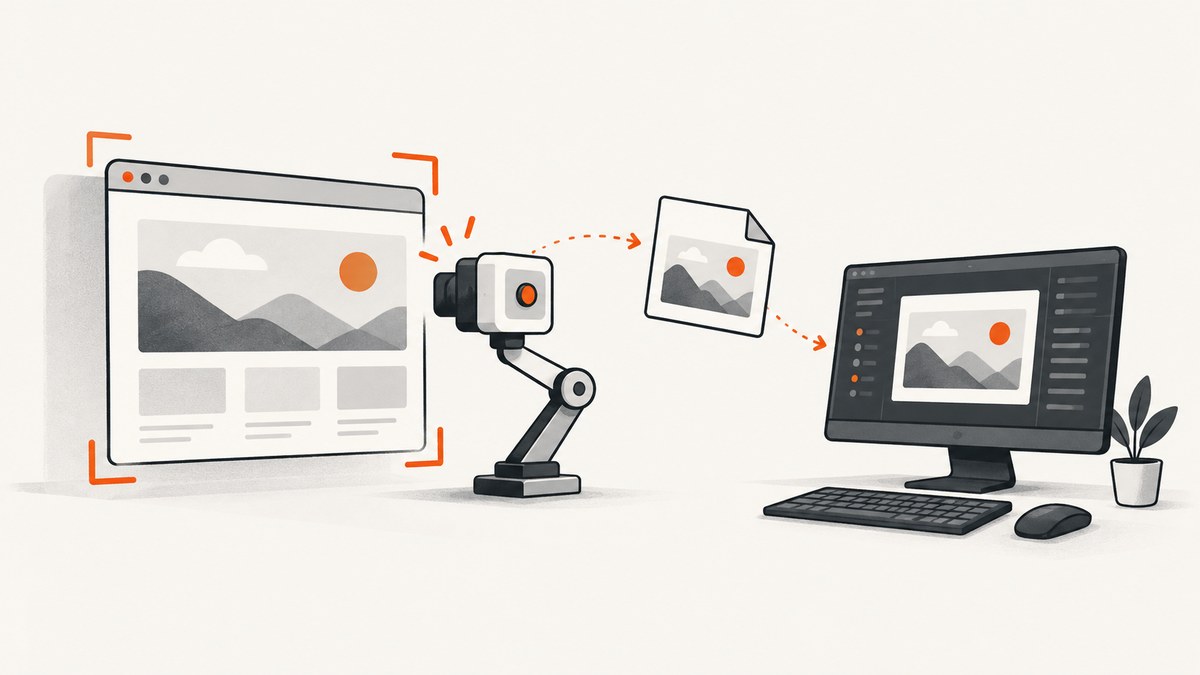
In Selenium Python, the screenshot command is driver.save_screenshot("screenshot.png"). It saves the current browser window as a PNG file. The equivalent Python method is driver.get_screenshot_as_file("screenshot.png"). In Java, use Selenium’s TakesScreenshot interface and call getScreenshotAs.
These commands capture the current browser state. Navigate to the page and wait for the content you need before calling them. The basic command does not automatically capture an entire long page, a specific element, or a screenshot after an unfinished load.
1. Selenium screenshot commands at a glance
| Language or need | Command | Result |
|---|---|---|
| Python: save current window | driver.save_screenshot("screenshot.png") |
PNG file; returns a Boolean |
| Python: equivalent file method | driver.get_screenshot_as_file("screenshot.png") |
PNG file; returns a Boolean |
| Python: image bytes | driver.get_screenshot_as_png() |
PNG bytes in memory |
| Python: base64 | driver.get_screenshot_as_base64() |
Base64-encoded PNG string |
| Java: save to file | getScreenshotAs(OutputType.FILE) |
Temporary image file |
| Firefox Python: full document | driver.save_full_page_screenshot(...) |
Full-page PNG using Firefox’s specific method |
Selenium’s Python API describes save_screenshot as saving the current window to a PNG image file. Use a filename ending in .png and a full path when you need a predictable destination. The method returns False if an I/O error prevents the save. See the official Selenium Python WebDriver API.
2. Python: save the current browser window
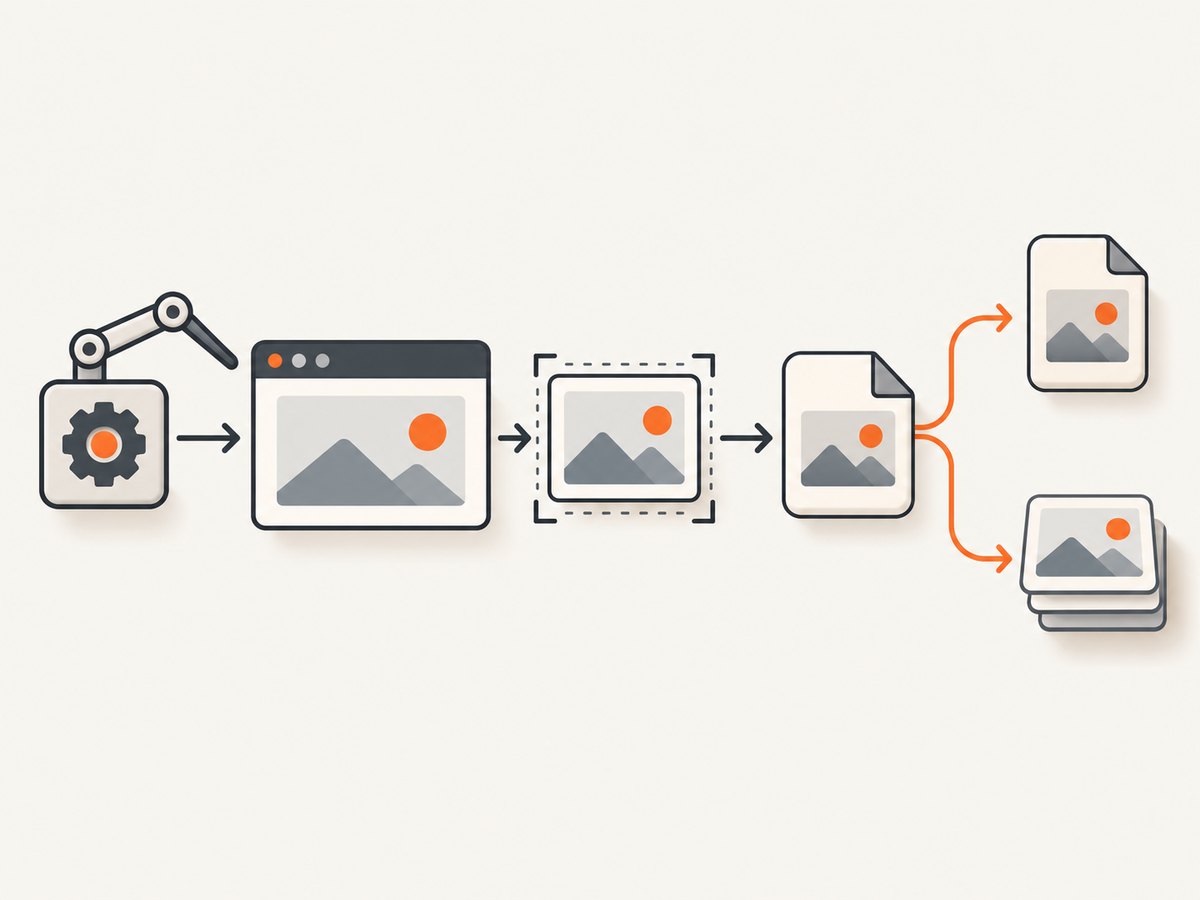
This complete example opens a page, captures it, checks the return value, and always closes the browser. It uses Selenium Manager, which is included in current Selenium Python releases to manage browser drivers for supported setups.
from pathlib import Path
from selenium import webdriver

output = Path("artifacts/home.png")
output.parent.mkdir(parents=True, exist_ok=True)

driver = webdriver.Chrome()
try:
    driver.get("https://example.com")
    saved = driver.save_screenshot(str(output))
    if not saved:
        raise OSError(f"Could not write screenshot to {output}")
    print(f"Saved screenshot: {output.resolve()}")
finally:
    driver.quit()
Install Selenium with python -m pip install selenium, then run the script in an environment with Chrome installed. Change webdriver.Chrome() to webdriver.Firefox() if you use Firefox and have a compatible setup. In CI or a headless environment, configure the browser options for that environment before creating the driver.
The alternative file method works the same way:
saved = driver.get_screenshot_as_file("artifacts/home.png")
if not saved:
    raise OSError("Screenshot could not be written")
Both methods capture the current window. Save the result after navigation and after the page has reached the visual state you want. If a consent dialog, animation, loading placeholder, or popup is visible, it may appear in the capture.
3. Choose file, bytes, or base64 output
Writing a file is convenient for test artifacts and debugging. If the next step uploads the image, attaches it to a report, or sends it to an image-processing function, keep it in memory instead.
Get PNG bytes
png_bytes = driver.get_screenshot_as_png()
with open("artifacts/home.png", "wb") as image_file:
    image_file.write(png_bytes)
get_screenshot_as_png() returns binary PNG data. The Python API also provides get_screenshot_as_base64(), which returns the same kind of image encoded as a base64 string. These methods avoid choosing a file path at capture time. See the Selenium Python API reference.
Get base64 output
base64_image = driver.get_screenshot_as_base64()
print(base64_image[:40])
Base64 is useful when an integration explicitly expects a string, such as a JSON report field. It is larger than the raw binary representation, so prefer bytes for in-memory image handling unless the consumer requires base64. Avoid printing or logging the entire value; it adds noise and can make logs unnecessarily large.
4. Java: capture a screenshot with TakesScreenshot
In Java, cast the driver to TakesScreenshot and request the desired output type. For file output, Selenium returns a temporary file. Copy it to the destination you want to keep.
import java.io.File;
import java.io.IOException;
import java.nio.file.Files;
import java.nio.file.Path;
import java.nio.file.StandardCopyOption;

import org.openqa.selenium.OutputType;
import org.openqa.selenium.TakesScreenshot;
import org.openqa.selenium.WebDriver;
import org.openqa.selenium.chrome.ChromeDriver;

public class CaptureScreenshot {
    public static void main(String[] args) throws IOException {
        WebDriver driver = new ChromeDriver();
        try {
            driver.get("https://example.com");

            File temporaryImage = ((TakesScreenshot) driver)
                    .getScreenshotAs(OutputType.FILE);
            Path destination = Path.of("artifacts", "home.png");
            Files.createDirectories(destination.getParent());
            Files.copy(temporaryImage.toPath(), destination,
                    StandardCopyOption.REPLACE_EXISTING);
            System.out.println("Saved screenshot: " + destination.toAbsolutePath());
        } finally {
            driver.quit();
        }
    }
}
The Java interface supports OutputType.FILE and OutputType.BASE64. For base64, request OutputType.BASE64 and handle the returned string according to your reporting or transport needs. The official TakesScreenshot API describes the interface and its supported capture targets.
A Java WebElement can also implement TakesScreenshot, allowing an element-scoped capture where the driver and browser support it. Selenium notes that element capture support can vary for non-W3C drivers and is best effort. Test the behavior with the browser-driver combination used in your deployment before relying on it for visual assertions.
5. Capture after the page is ready
A screenshot command captures what is rendered at the time of the command. Calling it immediately after get can be too early for pages that load content asynchronously. Use a wait condition tied to the element or state that matters, rather than an arbitrary long sleep.
from pathlib import Path
from selenium import webdriver
from selenium.webdriver.common.by import By
from selenium.webdriver.support import expected_conditions as EC
from selenium.webdriver.support.ui import WebDriverWait

driver = webdriver.Chrome()
try:
    driver.get("https://example.com")
    WebDriverWait(driver, 15).until(
        EC.visibility_of_element_located((By.CSS_SELECTOR, "main"))
    )
    Path("artifacts").mkdir(exist_ok=True)
    if not driver.save_screenshot("artifacts/ready.png"):
        raise OSError("Screenshot save failed")
finally:
    driver.quit()
Choose a selector that indicates the content is actually ready for your use case. Presence in the DOM is not always the same as visibility or completion: an image might still be loading, a chart may still be rendering, or a client-side application may replace the initial page content later.
6. Current window, element, and full-page screenshots
Current window
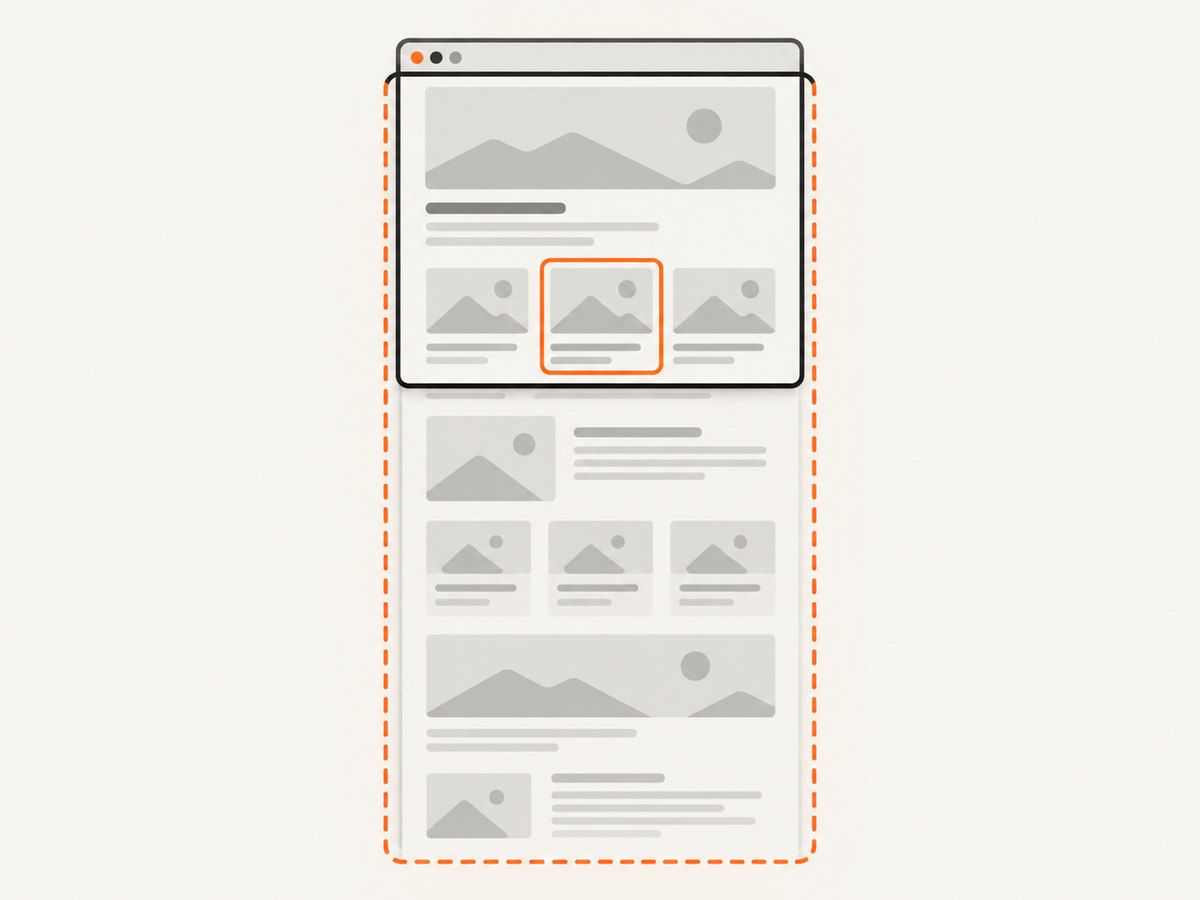
driver.save_screenshot(...) captures the current browser window. It is the right choice for reproducing what a user sees in the active viewport at that moment. Set the window size before navigation if viewport dimensions matter to your test.
One element
For a specific component, look up the element and use the element’s screenshot capability when supported by your Selenium binding and browser driver. In Python, a typical call is element.screenshot("artifacts/card.png"). This is distinct from the driver screenshot: the target is the element, not the whole viewport. Browser behavior, clipping, and support can vary, so verify the output for your target browsers.
Full document in Firefox
Firefox’s Python driver exposes get_full_page_screenshot_as_file and save_full_page_screenshot for a full-document screenshot. For example:
from pathlib import Path
from selenium import webdriver

driver = webdriver.Firefox()
try:
    driver.get("https://example.com")
    Path("artifacts").mkdir(exist_ok=True)
    if not driver.save_full_page_screenshot("artifacts/full-page.png"):
        raise OSError("Full-page screenshot could not be saved")
finally:
    driver.quit()
This is a Firefox-specific Python facility; do not assume the same method is available in every browser binding. Check the official Firefox WebDriver API for the methods supported by the version you use.
7. Or skip the browser setup
If your goal is a screenshot of a public URL rather than a browser automation test, ScreenshotNeo can return an image or PDF through one GET request. The ScreenshotNeo website describes its screenshot API and MCP server for developers. See the API documentation for request options.
curl -G "https://api.screenshotneo.com/v1/shot" -d access_key=YOUR_API_KEY --data-urlencode url=https://stripe.com -o shot.webpimport requests
r = requests.get(
"https://api.screenshotneo.com/v1/shot",
params={"access_key": "YOUR_API_KEY", "url": "https://stripe.com"},
timeout=90,
)
open("shot.webp", "wb").write(r.content)const q = new URLSearchParams({ access_key: 'YOUR_API_KEY', url: 'https://stripe.com' });
const res = await fetch(`https://api.screenshotneo.com/v1/shot?${q}`);ScreenshotNeo removes cookie and consent banners, newsletter popups, and chat widgets before capture. Bot checks, blank pages, failed loads, and cache hits are not billed, and responses indicate the page verdict and billing status in headers. Its MCP server provides take_screenshot, get_page_info, and capture_pdf tools for Claude, Cursor, and other MCP clients. The free plan includes 1,000 screenshots per month with no card; paid plans start at $5 for 3,000 shots. Sign up for 1,000 free screenshots a month, no card required.
8. Troubleshooting common Selenium screenshot errors
| Symptom | Likely cause | Fix |
|---|---|---|
| Screenshot file is missing | Relative path resolves somewhere other than expected, parent directory does not exist, or the process cannot write there. | Print the resolved path, create parent directories, and check write access. Use an absolute path in CI when artifact locations are known. |
save_screenshot returns False |
An I/O error prevented writing the image. | Check the path, permissions, available storage, and whether the destination is a directory. Treat False as a failed capture and surface it in the test. |
| PNG exists but appears blank or incomplete | The capture happened before the relevant content rendered, or the page is showing a loading state. | Wait for a meaningful visible element or application-ready condition before capturing. Check whether images, charts, or client-rendered content load later. |
| Screenshot has the wrong dimensions | The browser window or device scale differs from the expected test setup. | Set window dimensions before navigation and keep the browser and display configuration consistent across runs. |
| Driver does not support screenshot command | The selected driver does not implement the screenshot interface or the required endpoint. | Use a supported browser-driver combination and update Selenium and the driver together. For Java, confirm the driver can be cast to TakesScreenshot. |
| Full-page method is unavailable | The method is specific to Firefox’s Python driver and is not a generic WebDriver command. | Use the Firefox-specific API with Firefox, or choose a capture strategy supported by the browser and binding in use. |
| Java temporary file disappears | The returned file is temporary and may not be retained by the test environment. | Copy it to the permanent artifact path immediately, as in the Java example. |
| Element screenshot is clipped or inconsistent | Element screenshot support and behavior vary by driver and browser. | Check the target driver documentation and test the exact element capture in each supported browser. |
9. Performance, reliability, and storage
A screenshot requires the browser to render the page and encode an image, so it adds work and time to a test. Capture only where the image is useful: for example, on failure, at defined visual checkpoints, or when producing a report. Capturing every step can increase test runtime and artifact volume.
For reliable results, control the viewport, wait for stable page content, and use deterministic test data. Animations, rotating banners, personalized content, and current timestamps can make otherwise successful screenshots differ between runs. If exact visual comparisons matter, disable or stabilize those elements in the test environment and keep browser versions consistent.
Use PNG when lossless output and crisp interface details matter. Keep image bytes in memory when passing them directly to another process; save files when you need durable CI artifacts. Base64 is convenient for string-based integrations, but adds encoding overhead. Make artifact paths unique per test or run to avoid parallel tests overwriting one another. Retain screenshots according to their debugging value and storage budget.
10. Frequently asked questions
What is the simplest Selenium screenshot command?
In Python, call driver.save_screenshot("screenshot.png"). In Java, use ((TakesScreenshot) driver).getScreenshotAs(OutputType.FILE).
Does Selenium save screenshots as PNG by default?
The Python file screenshot methods save PNG images. Use a .png filename as the API documentation specifies.
Can Selenium return a screenshot without writing a file?
Yes. Python provides PNG bytes through get_screenshot_as_png() and a base64 string through get_screenshot_as_base64().
Does the basic command capture the entire page?
It captures the current window. Firefox Python has separate full-document screenshot methods; other browser and binding combinations may differ.
Why did Selenium save a screenshot of the wrong page state?
The command captures the state visible when it runs. Wait for the specific content or state your test needs before taking the screenshot.
11. Quick checklist
- Navigate to the intended page and wait for the relevant content.
- Choose driver, element, or supported full-page capture according to the scope you need.
- Use a writable PNG path and create its parent directory.
- Check Python’s Boolean return value; in Java, copy the temporary file to a durable destination.
- Keep viewport and browser configuration consistent when comparing images.
- Save screenshots selectively and manage their storage as test artifacts.


