Selenium Screenshot Examples: Capture and Save a Browser Screenshot
Learn how to capture Selenium screenshots in Python and Java, save files, capture elements or full pages, troubleshoot failures, and automate reliably.
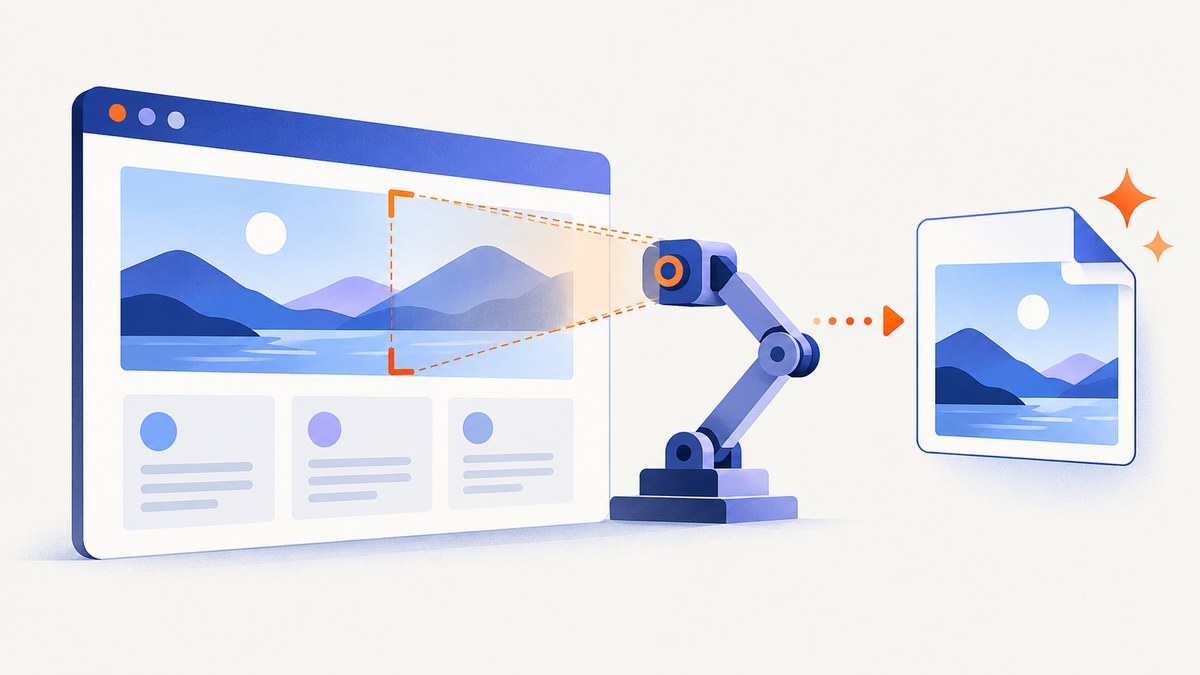
Selenium can capture the current browser window as a PNG, return the image in memory, or capture a supported element. In Python, the shortest reliable pattern is driver.save_screenshot("artifacts/example.png"). Create the destination directory first, check the Boolean return value, and always quit the driver in a finally block.
from pathlib import Path
from selenium import webdriver

out = Path("artifacts")
out.mkdir(parents=True, exist_ok=True)

driver = webdriver.Chrome()
try:
    driver.get("https://example.com")
    ok = driver.save_screenshot(str(out / "example.png"))
    if not ok:
        raise OSError("Selenium could not write the screenshot")
finally:
    driver.quit()
This guide explains the equivalent APIs in Python and Java, the difference between viewport, element, and full-page captures, and the failure modes that appear in CI. The examples use official Selenium APIs; behavior can vary by browser and driver.
1. Install Selenium and a browser driver
Install the language binding and make a compatible browser available. Recent Selenium releases can manage drivers automatically in many environments, but a locked-down CI image may still require an explicitly installed driver.
Python
python -m pip install seleniumUse a supported Chrome, Chromium, Firefox, or another WebDriver-compatible browser. The Python API documents save_screenshot(filename) and get_screenshot_as_file(filename) as PNG file operations. The filename should end in .png. See the Selenium Python API documentation.
Java
Add the Selenium Java dependency to Maven or Gradle. With Maven:
<dependency>
  <groupId>org.seleniumhq.selenium</groupId>
  <artifactId>selenium-java</artifactId>
  <version>4.35.0</version>
</dependency>
Use a dependency version approved by your project. The Java API exposes screenshots through TakesScreenshot; its contract applies to drivers and, where supported, WebElements. See the Java TakesScreenshot API.
2. Capture and save a viewport screenshot in Python
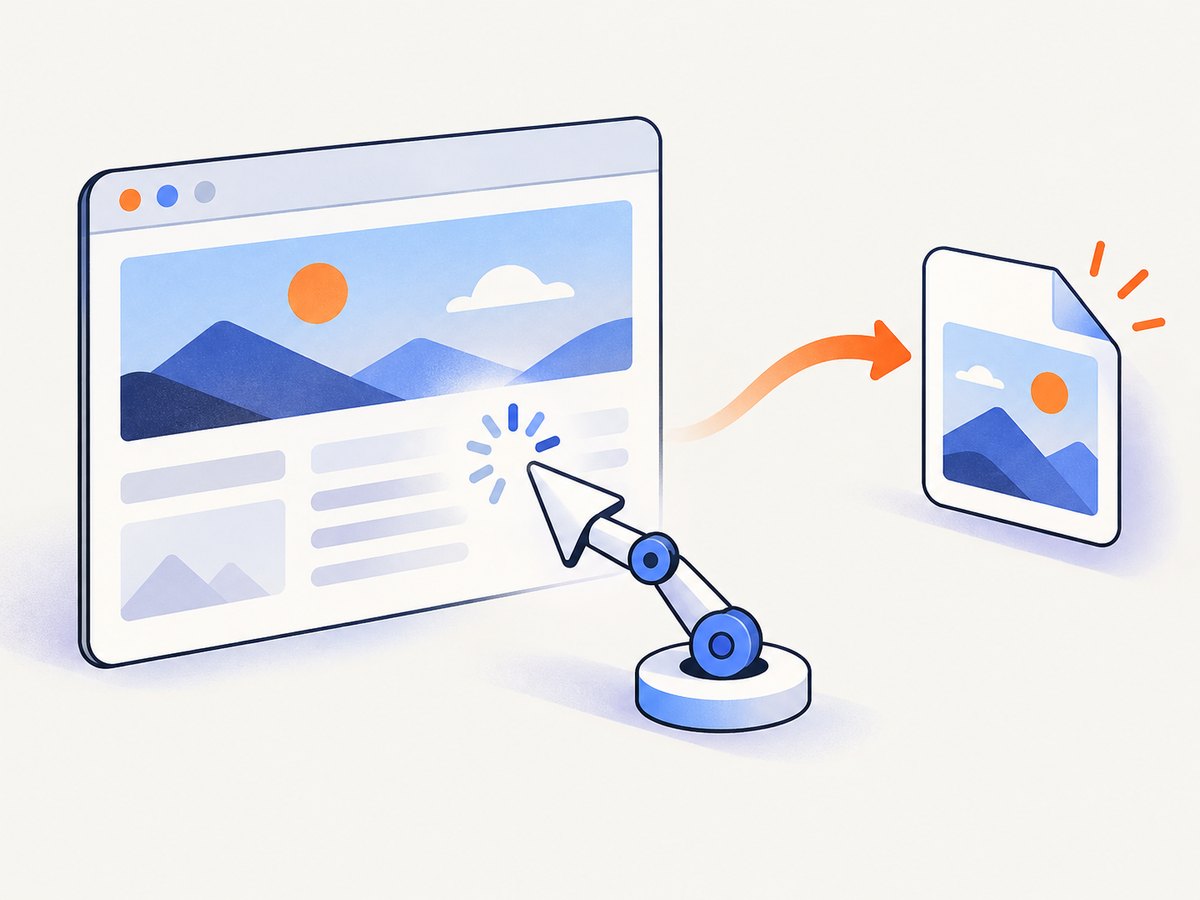
save_screenshot captures the current browser context, usually the visible viewport. It returns True when the file is saved and False for an I/O failure. Use an absolute or deliberately controlled relative path so CI artifacts are easy to find.
from pathlib import Path
from selenium import webdriver
from selenium.webdriver.chrome.options import Options

output = Path("artifacts")
output.mkdir(exist_ok=True)

options = Options()
# options.add_argument("--headless=new")  # useful on CI
options.add_argument("--window-size=1440,1000")

driver = webdriver.Chrome(options=options)
try:
    driver.get("https://example.com")
    filename = output / "homepage.png"
    if not driver.save_screenshot(str(filename)):
        raise OSError(f"Screenshot was not written: {filename}")
    print(filename.resolve())
finally:
    driver.quit()
get_screenshot_as_file is the file-oriented alternative:
ok = driver.get_screenshot_as_file("artifacts/homepage.png")
if not ok:
    raise OSError("Screenshot save failed")
Get PNG bytes or Base64 instead of writing a file
png_bytes = driver.get_screenshot_as_png()
Path("artifacts/from-bytes.png").write_bytes(png_bytes)

base64_png = driver.get_screenshot_as_base64()
html = f'<img alt="capture" src="data:image/png;base64,{base64_png}">'
Path("artifacts/preview.html").write_text(html, encoding="utf-8")
Bytes are useful when uploading directly to object storage or attaching evidence to a test report. Base64 is convenient for embedding in HTML, but it increases the size of the text payload.
3. Capture and save a screenshot in Java
Java uses TakesScreenshot and an OutputType. The file returned by the driver is temporary, so copy it to a path owned by your test or application.
import java.io.File;
import java.nio.file.Files;
import java.nio.file.Path;
import java.nio.file.StandardCopyOption;
import org.openqa.selenium.WebDriver;
import org.openqa.selenium.chrome.ChromeDriver;
import org.openqa.selenium.OutputType;
import org.openqa.selenium.TakesScreenshot;

public class SaveScreenshot {
  public static void main(String[] args) throws Exception {
    Path output = Path.of("artifacts");
    Files.createDirectories(output);

    WebDriver driver = new ChromeDriver();
    try {
      driver.get("https://example.com");
      File source = ((TakesScreenshot) driver)
          .getScreenshotAs(OutputType.FILE);
      Files.copy(source.toPath(), output.resolve("example.png"),
          StandardCopyOption.REPLACE_EXISTING);
    } finally {
      driver.quit();
    }
  }
}
For in-memory output, request OutputType.BYTES or OutputType.BASE64:
byte[] png = ((TakesScreenshot) driver)
    .getScreenshotAs(OutputType.BYTES);
Files.write(Path.of("artifacts", "bytes.png"), png);

String base64 = ((TakesScreenshot) driver)
    .getScreenshotAs(OutputType.BASE64);
4. Capture one element instead of the whole viewport
Element screenshots are useful for a component visual test, a chart, or a receipt. Find the element after the page has rendered, then call the binding’s element screenshot method when the driver and element implement the screenshot contract.
Python
from selenium.webdriver.common.by import By

card = driver.find_element(By.CSS_SELECTOR, "main .pricing-card")
card.screenshot("artifacts/pricing-card.png")
Java
import org.openqa.selenium.By;
import org.openqa.selenium.WebElement;

WebElement card = driver.findElement(By.cssSelector("main .pricing-card"));
File source = card.getScreenshotAs(OutputType.FILE);
Files.copy(source.toPath(), Path.of("artifacts", "pricing-card.png"),
    StandardCopyOption.REPLACE_EXISTING);
Wait for the element to exist and be displayed before capturing it. A hidden element, a zero-size element, or a selector that matches the wrong responsive variant can produce an exception or an unexpected image.
5. Capture a full-page screenshot
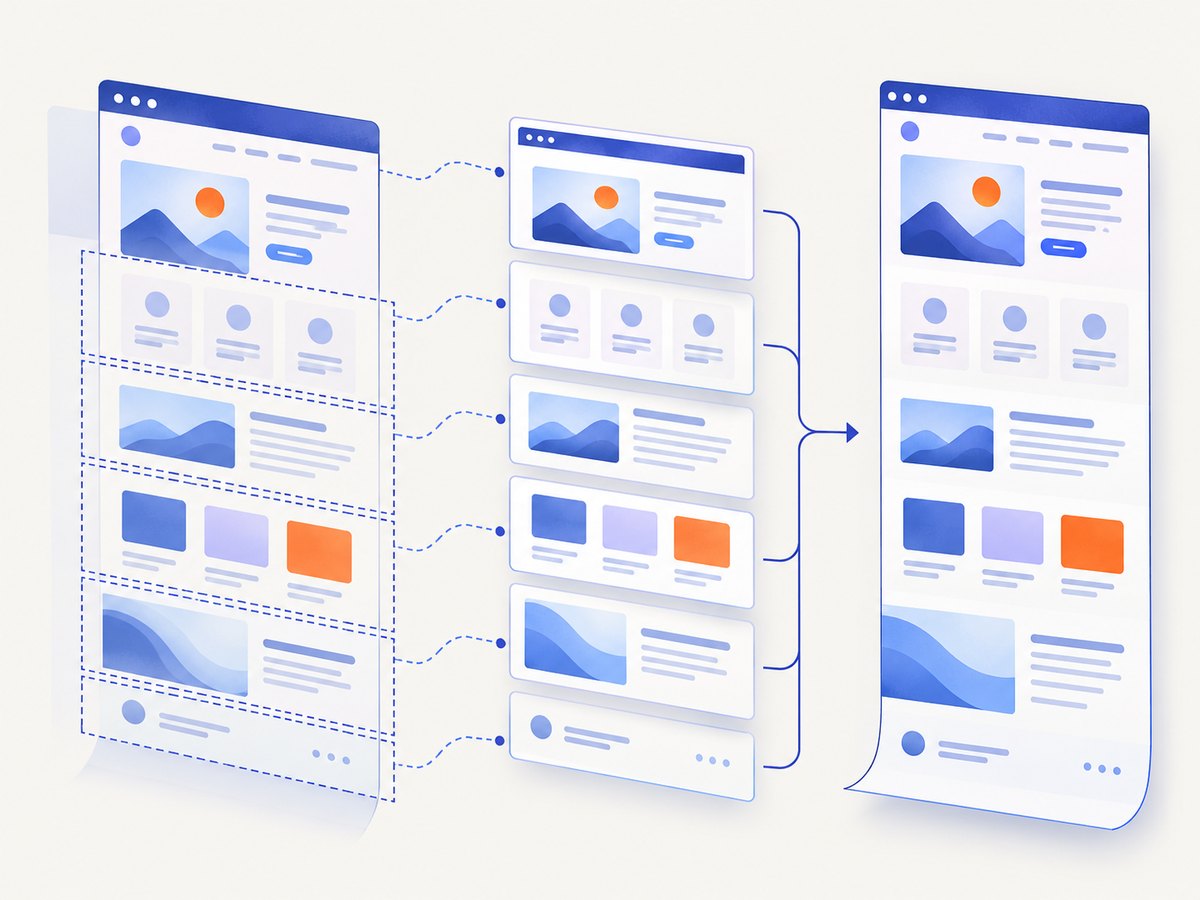
A normal screenshot represents the current window or visible browser context. Full-document capture is a separate capability and is driver-specific. Firefox’s Python WebDriver API documents get_full_page_screenshot_as_file("artifacts/full.png").
from selenium import webdriver

firefox = webdriver.Firefox()
try:
    firefox.get("https://example.com/long-page")
    firefox.get_full_page_screenshot_as_file("artifacts/full.png")
finally:
    firefox.quit()
Do not assume that the same full-page method works identically in every browser. If your driver lacks a native implementation, common alternatives are scrolling and stitching viewport images, using a browser-specific DevTools command, or changing the capture tool. Stitching needs care around fixed headers, sticky elements, animations, and lazy-loaded content.
6. Make captures deterministic
Most screenshot differences come from page state rather than the save call. Apply these controls before capture:
- Set the viewport. Use a fixed window size or driver window dimensions.
- Wait for a meaningful condition. Prefer an explicit element or state over a blind sleep.
- Disable motion. Inject CSS that sets animation and transition durations to zero when visual stability matters.
- Control data. Seed test data and use a predictable account, locale, and timezone.
- Wait for fonts and images. A screenshot taken while fonts swap or images decode can differ between runs.
- Close overlays. Cookie dialogs, chat launchers, and promotional modals can cover the target.
from selenium.webdriver.support.ui import WebDriverWait

wait = WebDriverWait(driver, 20)
hero = wait.until(lambda d: d.find_element("css selector", "main"))
wait.until(lambda d: hero.is_displayed())
driver.execute_script("""
  const style = document.createElement('style');
  style.textContent = `*, *::before, *::after {
    animation-duration: 0s !important;
    animation-delay: 0s !important;
    transition-duration: 0s !important;
    caret-color: transparent !important;
  }`;
  document.head.appendChild(style);
""")
driver.save_screenshot("artifacts/stable.png")
7. Choose the right output and capture scope
| Need | Recommended API | Notes |
|---|---|---|
| Visible browser state | save_screenshot / getScreenshotAs(FILE) |
Captures the current window or viewport. |
| Upload without a temporary file | get_screenshot_as_png / OutputType.BYTES |
Keep the bytes in memory and send them to storage. |
| Embed in an HTML report | Base64 output | Convenient, but larger than a binary file. |
| One component | Element screenshot | Requires driver and element support. |
| Entire document | Driver-specific full-page API | Firefox documents a dedicated Python method; support differs by driver. |
8. Troubleshooting Selenium screenshots
“Screenshot was not written” or a false return value
Cause: The directory does not exist, the process lacks write permission, or the path points to a read-only workspace.
Fix: Create the directory with mkdir or Files.createDirectories, use a writable absolute path, and check the Boolean result.
WebDriverException or a blank image
Cause: Browser and driver versions are incompatible, the page has not rendered, or the capture occurs during navigation.
Fix: Align browser and driver versions, wait for a stable selector, and capture after navigation completes. Save the page URL and browser logs alongside the image.
Element screenshot fails with “element not interactable”
Cause: The element is hidden, has zero dimensions, is outside a responsive layout, or is covered by an overlay.
Fix: Wait for visibility, verify its bounding rectangle with JavaScript, close overlays, and set a viewport where the element is displayed.
The image is clipped
Cause: A regular screenshot only covers the current window. It does not automatically include content below the fold.
Fix: Use a supported full-page method, or scroll and stitch images with explicit handling for fixed-position elements.
Text or images change between runs
Cause: Web fonts, lazy loading, animation, ads, timestamps, randomized content, or network timing.
Fix: Wait for the required resources, freeze animation, block or mock volatile content in a test environment, and use deterministic data.
Works locally but fails in CI
Cause: Missing display support, different fonts, a smaller default viewport, sandbox restrictions, or a different working directory.
Fix: Use headless mode configured for your browser, set the window size explicitly, install required fonts, create artifact directories, and publish screenshots on failure.
9. Performance, reliability, and cost considerations
Selenium starts a browser and loads the page for every session, so startup and network time usually dominate the file-writing call. Reuse a driver for related captures when isolation rules permit, but reset cookies, local storage, and navigation state between tests. Parallel sessions can reduce wall-clock time while increasing CPU, memory, and network pressure; size concurrency for the CI worker rather than assuming unlimited scaling.
For reliable visual comparisons, keep browser versions, fonts, viewport dimensions, device scale, locale, timezone, and test data stable. Store the URL, commit identifier, browser version, and capture timestamp as metadata. Retry navigation failures only when the failure is transient; retries can hide real regressions if every failed screenshot is silently replaced.
Selenium itself does not charge per screenshot. Your costs are the machines, CI minutes, browser containers, bandwidth, and any external test infrastructure. The official API references do not publish a universal screenshot timing or success-rate benchmark, so measure your own pages and environment.
10. Or skip the browser setup
ScreenshotNeo provides a website screenshot API when you want an HTTP request instead of managing WebDriver. Its API accepts one GET request and returns PNG, JPEG, WebP, or PDF output. Full-page capture, element selectors, dark mode, device presets, custom CSS and JavaScript, waits, request blocking, headers, cookies, user agents, geolocation, resizing, caching, signed links, asynchronous jobs, bulk capture, and PDF options are available through the documented parameters.
cURL:
curl -G "https://api.screenshotneo.com/v1/shot" -d access_key=YOUR_API_KEY --data-urlencode url=https://stripe.com -o shot.webpPython:
import requests
r = requests.get("https://api.screenshotneo.com/v1/shot", params={"access_key": "YOUR_API_KEY", "url": "https://stripe.com"}, timeout=90)
open("shot.webp", "wb").write(r.content)
Node.js:
const q = new URLSearchParams({ access_key: 'YOUR_API_KEY', url: 'https://stripe.com' });
const res = await fetch(`https://api.screenshotneo.com/v1/shot?${q}`);
See the ScreenshotNeo documentation for all parameters. Consent banners are accepted and more than 60 known consent platforms, newsletter popups, and chat widgets are removed before capture; each step can be disabled. Bot checks, blank pages, timeouts, failed loads, and cache hits cost nothing, and the response reports the result with X-Page-Verdict and X-Billed headers. An MCP server exposes take_screenshot, get_page_info, and capture_pdf for Claude, Cursor, and other MCP clients. The Free plan includes 1,000 screenshots per month without a card; paid plans start at $5 for 3,000 screenshots.
Start with 1,000 free screenshots per month.
11. Frequently asked questions
Does Selenium save screenshots as JPEG?
The documented Selenium file APIs save PNG screenshots. Convert the resulting bytes with an image library if another format is required.
Can I take a screenshot before calling quit?
Yes. Capture inside the try block and call quit in finally so the browser closes even when saving fails.
Why should I check the Python return value?
save_screenshot and get_screenshot_as_file return a Boolean that indicates whether the file operation succeeded. Checking it turns a missing artifact into an immediate, diagnosable error.
Is full-page capture standardized across browsers?
No. Full-document screenshot support is driver-specific. Verify the API for the browser you run in production and keep a fallback for other drivers.
Can an element produce a screenshot in every driver?
No. Element capture depends on the driver and element implementing the screenshot contract. Test the exact browser and driver combination used by your suite.


