How to Take Screenshots with Selenium in Fullscreen Mode
Use Selenium’s fullscreen window API, capture the current viewport, and choose a separate full-page method when you need the entire document.
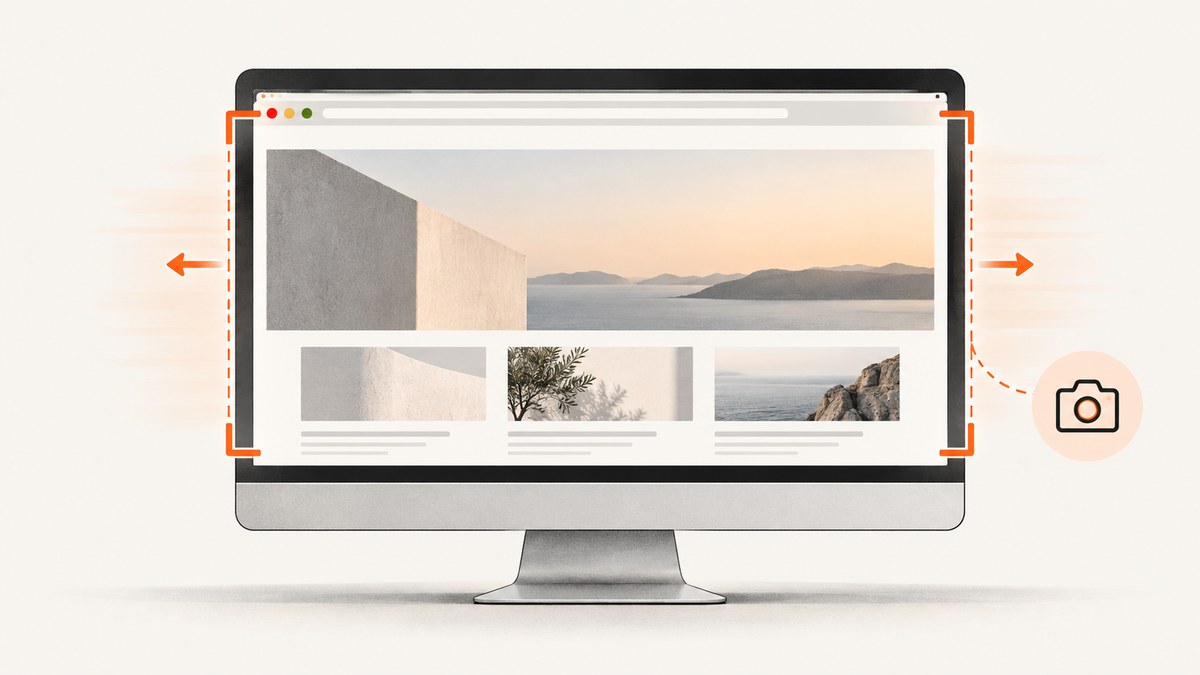
Direct answer: navigate to the page, call Selenium’s fullscreen window method, then take the screenshot as a separate operation. In Python:
from selenium import webdriver

# Selenium Manager can provide a compatible driver in current Selenium releases.
driver = webdriver.Chrome()
try:
    driver.get("https://example.com")
    driver.fullscreen_window()

    if not driver.save_screenshot("screenshot.png"):
        raise RuntimeError("Could not write screenshot")
finally:
    driver.quit()
fullscreen_window() changes the browser window state. save_screenshot() captures the current browsing context. They are distinct calls, so fullscreen must happen first. Selenium describes fullscreen as filling the entire screen, similar to pressing F11, while maximize enlarges the window within the normal desktop mode. See the official Selenium window-management documentation and the Python WebDriver API.
What fullscreen screenshot means in Selenium
A normal WebDriver screenshot represents the current browsing context, usually the visible browser viewport. Fullscreen changes the window manager state before that capture. It does not automatically stitch a long page, scroll through the document, or switch to a full-document screenshot API.
That distinction matters because “fullscreen screenshot” can mean two different deliverables:
| Requirement | Use | Result |
|---|---|---|
| Browser fills the display | fullscreen_window(), then a normal screenshot |
The visible viewport in fullscreen window state |
| Largest normal desktop window | maximize_window(), then a normal screenshot |
Viewport with operating-system menus and browser chrome available |
| Entire HTML document | A documented full-page method or a stitching workflow | Content beyond the initial viewport |
Operating systems, window managers, browser versions, headless mode, display dimensions, device scale, and remote sessions can all affect the resulting dimensions. Treat the image size as an environment result rather than a fixed promise.
Python: a complete fullscreen capture
Install Selenium, create a driver, navigate, enter fullscreen, and save the PNG. The save_screenshot method returns True when the file is written and False on an I/O failure, so check it when a pipeline must detect missing artifacts.
from pathlib import Path
from selenium import webdriver
from selenium.webdriver.chrome.options import Options

output = Path("artifacts/fullscreen.png")
output.parent.mkdir(parents=True, exist_ok=True)

options = Options()
# Leave headless disabled when you need a real fullscreen desktop window.
driver = webdriver.Chrome(options=options)
try:
    driver.get("https://example.com")
    driver.fullscreen_window()

    # Optional: wait for a page-specific condition before capturing.
    # WebDriverWait(driver, 20).until(
    #     EC.visibility_of_element_located((By.CSS_SELECTOR, "main"))
    # )

    if not driver.save_screenshot(str(output)):
        raise OSError(f"Screenshot could not be written: {output}")
    print(f"Saved {output}")
finally:
    driver.quit()
For in-memory processing, use get_screenshot_as_png() instead of writing directly:
png_bytes = driver.get_screenshot_as_png()
with open("screenshot.png", "wb") as image_file:
    image_file.write(png_bytes)
get_screenshot_as_base64() is available when another system expects a Base64 string. All three methods capture the current context after the window operation.
Fullscreen versus maximize
Use fullscreen when the requirement is equivalent to F11: the browser occupies the complete display. Use maximize when you want the largest ordinary browser window while retaining the normal desktop environment.
# Fullscreen
 driver.fullscreen_window()

# Or, for a normal maximized window
 driver.maximize_window()
Do not use --start-maximized as a substitute for fullscreen. Selenium’s Chrome documentation identifies that option as a request to start maximized. It does not request the fullscreen state. For Chrome, keep the Chrome and ChromeDriver major versions compatible; Selenium’s Chrome setup guidance documents that requirement.
Other Selenium languages
Java
import org.openqa.selenium.WebDriver;
import org.openqa.selenium.chrome.ChromeDriver;

public class FullscreenShot {
  public static void main(String[] args) {
    WebDriver driver = new ChromeDriver();
    try {
      driver.get("https://example.com");
      driver.manage().window().fullscreen();
      // Use the appropriate Selenium screenshot method here.
    } finally {
      driver.quit();
    }
  }
}
JavaScript
const { Builder } = require('selenium-webdriver');

(async function () {
  const driver = await new Builder().forBrowser('chrome').build();
  try {
    await driver.get('https://example.com');
    await driver.manage().window().fullscreen();
    const png = await driver.takeScreenshot();
    require('fs').writeFileSync('screenshot.png', png, 'base64');
  } finally {
    await driver.quit();
  }
})();
C#
using OpenQA.Selenium;
using OpenQA.Selenium.Chrome;

using IWebDriver driver = new ChromeDriver();
driver.Navigate().GoToUrl("https://example.com");
driver.Manage().Window.FullScreen();
((ITakesScreenshot)driver).GetScreenshot().SaveAsFile("screenshot.png");
The method spelling differs by language, but the sequence remains the same: navigate, fullscreen, capture, verify the artifact, and close the session.
Wait for the page you actually want to capture
Fullscreen does not wait for application rendering. A page can have a loaded document while its main content, fonts, charts, or images are still changing. Add an explicit wait for a meaningful condition.
from selenium.webdriver.common.by import By
from selenium.webdriver.support.ui import WebDriverWait
from selenium.webdriver.support import expected_conditions as EC

# after driver.get(...)
WebDriverWait(driver, 20).until(
    EC.visibility_of_element_located((By.CSS_SELECTOR, "main"))
)
driver.fullscreen_window()
driver.save_screenshot("ready.png")
For dynamic pages, wait for a loading marker to disappear, a result count to appear, or a JavaScript application state to become stable. A fixed sleep can be useful for a known animation, but condition-based waits usually reduce unnecessary delay and flaky captures.
Fullscreen is not full-page capture
A viewport screenshot after fullscreen still covers the visible area only. A long article, dashboard, or documentation page extends below that area. Selenium documents Firefox-specific full-page methods such as save_full_page_screenshot(filename). Use the browser-specific API when it matches your support matrix:
# Firefox-specific full-document method documented by Selenium
from selenium import webdriver

driver = webdriver.Firefox()
try:
    driver.get("https://example.com/long-page")
    driver.save_full_page_screenshot("full-document.png")
finally:
    driver.quit()
Do not assume that entering fullscreen turns an ordinary screenshot into a full-document image. If you need consistent full-page behavior across browsers, define a separate capture strategy, such as browser-supported full-page capture or a carefully maintained scrolling and stitching routine, and validate it against pages with fixed headers, lazy images, sticky elements, and very tall canvases.
Headless, remote, and CI environments
Fullscreen is a window-manager operation, so it has different meaning when no physical display exists. In headed local runs, the browser can request the display’s fullscreen state. In headless or remote CI, the effective viewport is controlled by browser flags, virtual display configuration, and session capabilities. If reproducible dimensions matter, set the window size explicitly and record the resulting image dimensions.
from selenium.webdriver.chrome.options import Options

options = Options()
options.add_argument("--headless=new")
options.add_argument("--window-size=1440,900")
driver = webdriver.Chrome(options=options)
try:
    driver.get("https://example.com")
    # In headless mode, validate the effective viewport rather than assuming
    # a desktop fullscreen display exists.
    print(driver.get_window_size())
    driver.save_screenshot("ci.png")
finally:
    driver.quit()
Use the same browser image, fonts, viewport, and device scale in CI when pixel comparisons are involved. Save diagnostic metadata with the screenshot: browser version, operating system, requested size, actual size, URL, and timestamp.
Common errors and fixes
| Symptom | Likely cause | Fix |
|---|---|---|
fullscreen_window() fails or has no visible effect |
The session is headless, remote, or blocked by the window manager. | Run headed with a display for true fullscreen, or use an explicit viewport size and verify the dimensions. |
| Screenshot has the old viewport size | The capture ran before the window transition settled, or a later command resized it. | Read driver.get_window_size() after fullscreen and capture only after the state is established. |
| Only the top of a long page appears | A normal screenshot captures the current viewport. | Use a documented full-page method or a tested scrolling and stitching workflow. |
save_screenshot returns False |
The destination is unwritable or the path is invalid. | Create the directory, use an absolute or verified path, and check permissions. |
| Session cannot start | Browser and driver versions are incompatible, or the browser is unavailable. | Install a supported browser, keep Chrome and ChromeDriver major versions aligned, and inspect the driver startup log. |
| Blank or half-rendered capture | The application is still loading, an overlay is present, or content is lazy-loaded. | Wait for a page-specific element or state, dismiss test-only overlays, and confirm the page is complete before capture. |
| Different pixels on developer and CI machines | Fonts, device scale, browser build, OS rendering, or viewport differs. | Pin the environment, set dimensions explicitly, and compare with tolerances appropriate to your test. |
Reliability and performance checklist
- Call
driver.quit()in afinallyblock so failed captures do not leak browser processes. - Use an explicit page-ready condition instead of a large universal sleep.
- Check the boolean result of
save_screenshotand verify that the file exists and is non-empty. - Keep capture URLs deterministic for visual tests; disable rotating content where your test permits.
- Reuse a driver for a controlled batch of pages when startup cost matters, but reset cookies and state between unrelated tests.
- Set timeouts for navigation and waits so a broken page cannot hold a worker indefinitely.
- For full-document output, test pages with lazy loading, sticky navigation, cross-origin frames, and very large heights.
Fullscreen itself is normally a small state change. The expensive parts are browser startup, navigation, JavaScript execution, image loading, and any full-page scrolling or stitching. Measure the complete workflow in the environment that will run it; Selenium’s documentation does not promise fixed dimensions or timing across machines.
Or skip the browser setup
If you need a clean website image rather than a locally managed browser session, ScreenshotNeo provides a GET-based screenshot API. The DIY Selenium approach above gives you direct control over a browser window; ScreenshotNeo handles the capture service and returns PNG, JPEG, WebP, or PDF.
Read the ScreenshotNeo API documentation for the complete option list. A minimal request is:
cURL
curl -G "https://api.screenshotneo.com/v1/shot" -d access_key=YOUR_API_KEY --data-urlencode url=https://stripe.com -o shot.webpPython
import requests

r = requests.get("https://api.screenshotneo.com/v1/shot", params={"access_key": "YOUR_API_KEY", "url": "https://stripe.com"}, timeout=90)
r.raise_for_status()
open("shot.webp", "wb").write(r.content)
Node.js
const q = new URLSearchParams({ access_key: 'YOUR_API_KEY', url: 'https://stripe.com' });
const res = await fetch(`https://api.screenshotneo.com/v1/shot?${q}`);
if (!res.ok) throw new Error(`HTTP ${res.status}`);
require('fs').writeFileSync('shot.webp', Buffer.from(await res.arrayBuffer()));
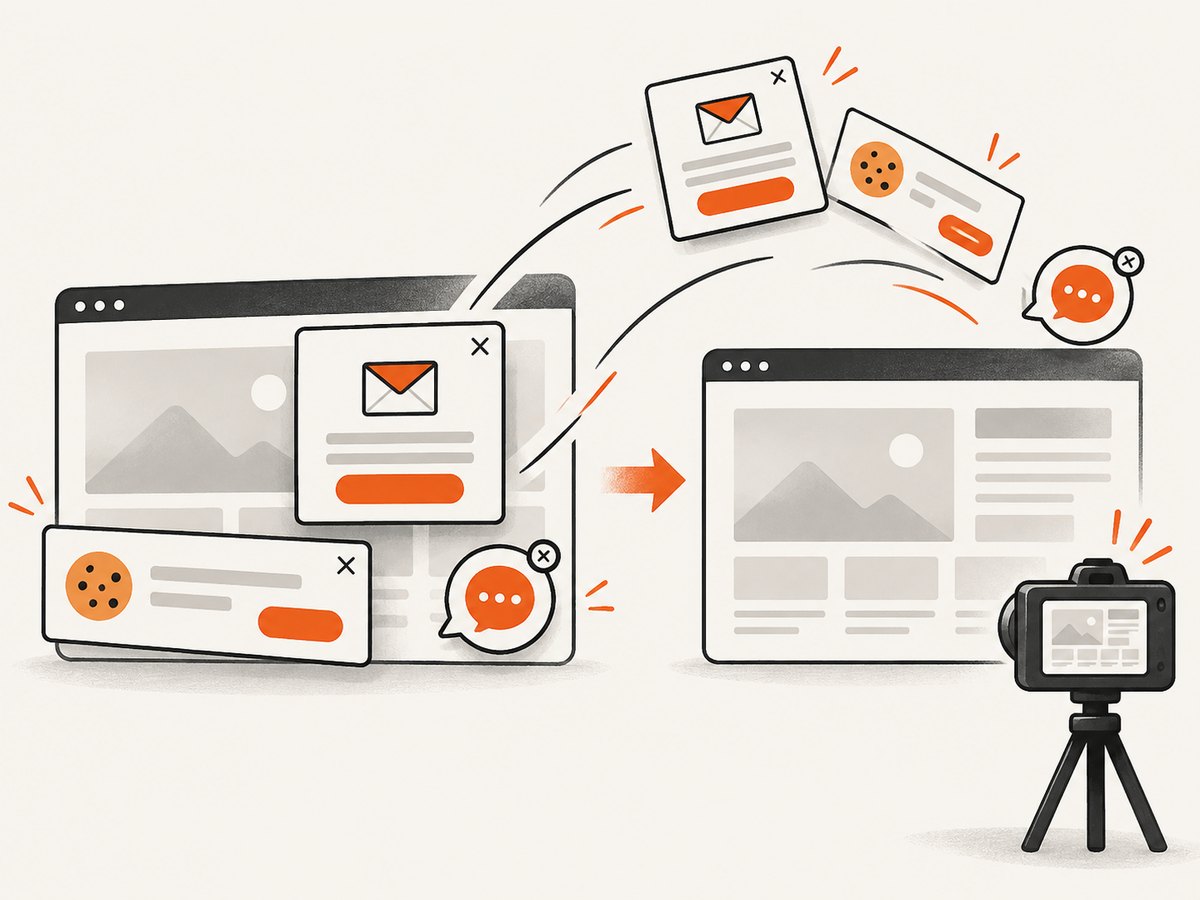
ScreenshotNeo removes cookie and consent banners, newsletter popups, and chat widgets before capture; each step can be turned off. Bot checks or CAPTCHAs, blank pages, timeouts, failed loads, and cache hits are not billed, and response headers identify the page verdict and billing result. Options include full-page capture with lazy images loaded, CSS-selector element capture, dark mode, device presets or custom viewports, retina scale, custom CSS and JavaScript, clicks, selector or network-idle waits, request blocking, headers, cookies, user agents, authorization, timezone, geolocation, transparent backgrounds, resizing, configurable caching, signed links, asynchronous jobs with signed webhooks, bulk capture of up to 100 URLs per call, usage reporting, and PDF output.
It also provides an MCP server with take_screenshot, get_page_info, and capture_pdf tools for Claude, Cursor, and other MCP clients. Plans include 1,000 screenshots per month free with no card; paid plans start at $5 for 3,000 shots. Create a free ScreenshotNeo account.
Cost and operational choices
With Selenium, your direct software cost may be low, but you operate browser processes, drivers, display infrastructure, storage, retries, and concurrency. A local fullscreen capture is appropriate when the test must exercise your own browser environment or when you need OS-level window behavior.
An API is useful when you want a repeatable HTTP boundary, parallel URL capture, signed public images, or managed handling for failed and non-content pages. Select the approach based on the artifact and control you need: Selenium for browser-session control, a full-page browser method for document scope, and ScreenshotNeo for an API workflow with cleaning, verdict headers, caching, bulk jobs, and MCP access.
FAQ
Does fullscreen make the screenshot full page?
No. It changes the browser window state. A normal screenshot still captures the current viewport; use a full-page method for the entire document.
Should I call fullscreen before or after navigation?
Either order can be valid, but the reliable sequence for this task is navigate, wait for the desired page state, enter fullscreen, then capture. This makes the final window state explicit.
Can I use maximize instead?
Yes, when you want the largest normal window. It does not provide the same fullscreen state as F11-style browser fullscreen.
Why are dimensions different in CI?
Window managers, headless settings, virtual displays, browser builds, fonts, and device scale differ. Set an explicit viewport and inspect the actual window size.
What image format does Selenium save?
The standard WebDriver screenshot methods produce PNG data. Convert it afterward if your pipeline needs another format.


