How to Set the Screenshot Image Format in Selenium
Selenium screenshots are PNG by default. Learn how to convert them to JPEG or WebP, preserve transparency, troubleshoot errors, and automate the workflow.
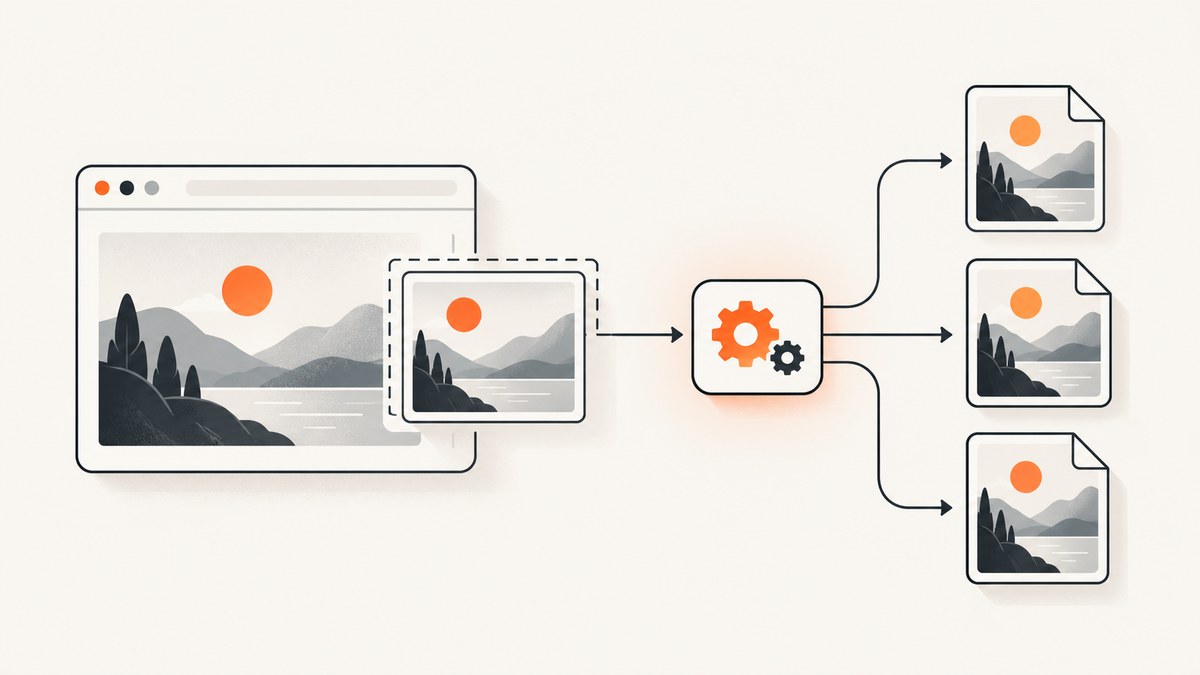
Direct answer: Selenium’s standard WebDriver screenshot methods produce PNG images. There is no format argument that makes save_screenshot() or get_screenshot_as_png() return JPEG or WebP. Capture the screenshot as PNG, then encode those bytes with an image library such as Pillow.
Changing screenshot.png to screenshot.jpg does not convert the file. The bytes remain PNG, and applications that inspect the file signature or MIME type can reject it. The reliable workflow is:
- Open the page with Selenium.
- Capture PNG bytes or save a PNG file.
- Convert the image to JPEG or WebP with an image encoder.
- Flatten transparency before writing JPEG, because JPEG has no alpha channel.
- Check the output MIME type and dimensions before sending it to downstream systems.
What Selenium actually supports
The Selenium Python API describes get_screenshot_as_file() and save_screenshot() as saving the current window to a PNG image file. get_screenshot_as_png() returns PNG bytes, and get_screenshot_as_base64() returns a base64-encoded PNG. See the Selenium WebDriver Python API.
| Method | Result | Use it when |
|---|---|---|
save_screenshot(path) |
Writes PNG bytes to a file | You only need a PNG artifact |
get_screenshot_as_file(path) |
Writes PNG bytes to a file | You want Selenium’s boolean success result |
get_screenshot_as_png() |
PNG bytes in memory | You will convert, upload, or process the image |
get_screenshot_as_base64() |
Base64 PNG string | An API requires base64 input |
Selenium’s element screenshot methods follow the same PNG-oriented behavior. A filename ending in .jpg is not a request to change the encoder. It is only a filename, and Selenium still obtains PNG data.
Complete Python example: Selenium PNG to JPEG
Install the dependencies:
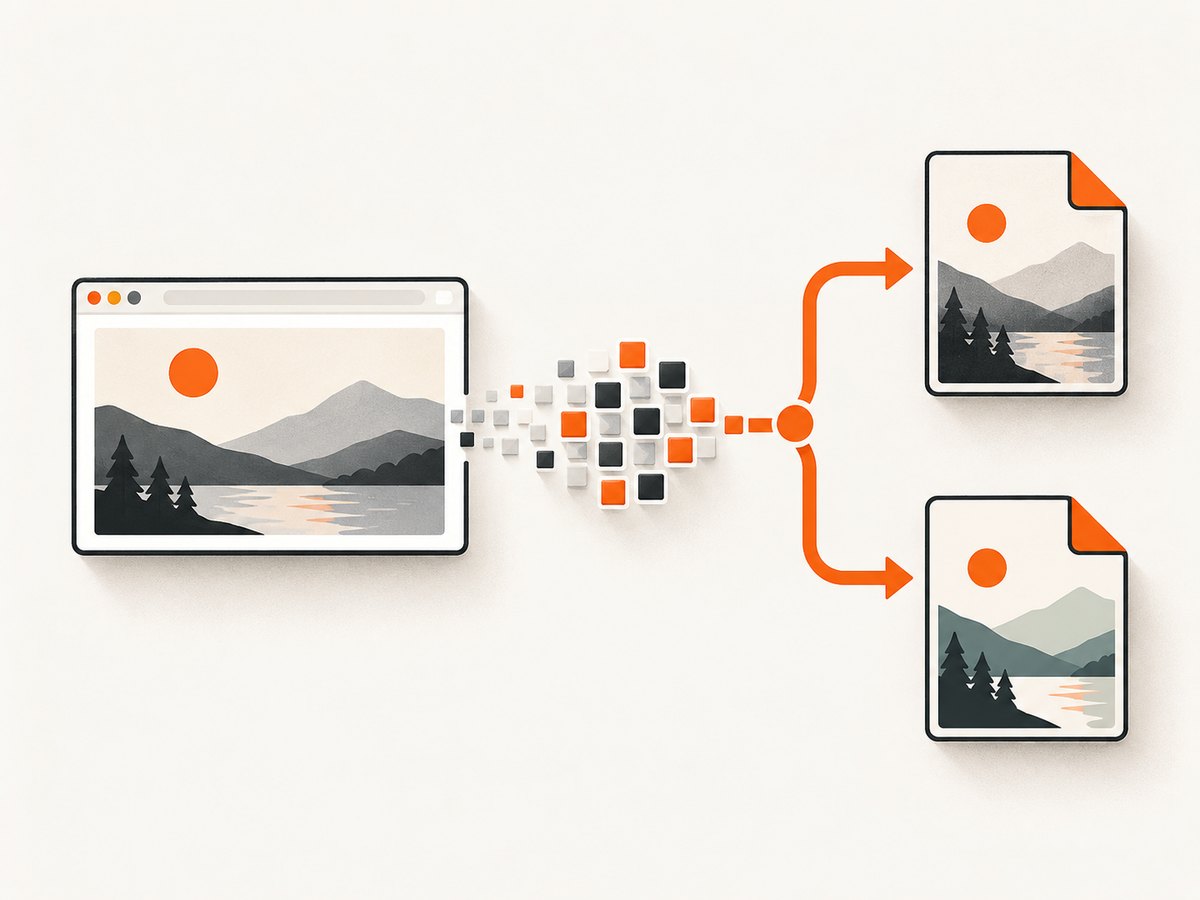
python -m pip install selenium pillowThe following script captures a page, converts the PNG bytes to an RGB JPEG, and writes the result:
from io import BytesIO
from pathlib import Path

from PIL import Image
from selenium import webdriver
from selenium.webdriver.chrome.options import Options


def png_bytes_to_jpeg(png_bytes: bytes, output_path: str, quality: int = 90) -> None:
    """Convert PNG bytes to a JPEG file, flattening transparency onto white."""
    with Image.open(BytesIO(png_bytes)) as source:
        image = source

        # JPEG cannot store an alpha channel. Composite transparent pixels
        # against white before converting to RGB.
        if image.mode in ("RGBA", "LA", "P"):
            rgba = image.convert("RGBA")
            background = Image.new("RGB", rgba.size, "white")
            background.paste(rgba, mask=rgba.getchannel("A"))
            image = background
        elif image.mode != "RGB":
            image = image.convert("RGB")

        image.save(output_path, "JPEG", quality=quality, optimize=True)


options = Options()
# Remove this argument when you want to watch the browser.
options.add_argument("--headless=new")
options.add_argument("--window-size=1440,1000")

driver = webdriver.Chrome(options=options)
try:
    driver.get("https://example.com")
    driver.implicitly_wait(0)

    png_bytes = driver.get_screenshot_as_png()
    png_path = Path("screenshot.png")
    jpg_path = Path("screenshot.jpg")
    png_path.write_bytes(png_bytes)
    png_bytes_to_jpeg(png_bytes, str(jpg_path), quality=90)

    print(f"Wrote {png_path} and {jpg_path}")
finally:
    driver.quit()
The call to convert("RGB") handles screenshots that already have no transparency. The explicit compositing path preserves the visible appearance of transparent pixels by placing them over a white background. Use another background color if your page design requires it.
Saving directly to PNG
If PNG is the correct output, no conversion is needed:
from selenium import webdriver

with webdriver.Chrome() as driver:
    driver.get("https://example.com")
    ok = driver.save_screenshot("screenshot.png")
    if not ok:
        raise RuntimeError("Selenium could not save the screenshot")
Keep PNG when you need lossless pixels, sharp text, transparent areas, or an image that will be edited again. PNG files are often larger than JPEG for photographic pages, but repeated JPEG encoding can introduce visible artifacts around text and icons.
Converting to JPEG correctly
JPEG quality and color mode
Pillow’s image format documentation shows explicit format selection with image.save(..., "JPEG"). JPEG encoders require an RGB or grayscale image. RGBA, LA, and palette images must be converted first. A quality value around 85–92 is a practical starting point; inspect your own pages because text-heavy screenshots can need a higher value.
from io import BytesIO
from PIL import Image

with Image.open(BytesIO(png_bytes)) as image:
    rgb = image.convert("RGB")
    rgb.save("screenshot.jpg", format="JPEG", quality=90, optimize=True, progressive=True)
optimize=True asks Pillow to optimize JPEG tables. progressive=True can help browsers display a large image incrementally, but some strict consumers prefer baseline JPEG. Omit it when compatibility with an older decoder matters.
Why transparency disappears
JPEG has no alpha channel. If you call image.convert("RGB") on an RGBA screenshot, transparent pixels are composited according to the conversion rules and may become black or otherwise unexpected. Composite explicitly onto the intended background:
from PIL import Image

rgba = image.convert("RGBA")
background = Image.new("RGB", rgba.size, (255, 255, 255))
background.paste(rgba, mask=rgba.getchannel("A"))
background.save("screenshot.jpg", "JPEG", quality=90)
If transparency is a requirement, keep the PNG or use WebP with alpha instead of JPEG.
Converting to WebP
WebP can be lossy or lossless and can retain transparency. Pillow supports explicit WebP encoding when the WebP feature is available in your installation:
from io import BytesIO
from PIL import Image

with Image.open(BytesIO(png_bytes)) as image:
    image.save("screenshot.webp", format="WEBP", quality=85, method=6)

# Lossless WebP, including alpha when present:
with Image.open(BytesIO(png_bytes)) as image:
    image.save("screenshot-lossless.webp", format="WEBP", lossless=True, method=6)
Check support before relying on WebP in a deployment image:
from PIL import features

if not features.check("webp"):
    raise RuntimeError("This Pillow build does not include WebP support")
Element screenshots and full-page captures
Capture one element, then convert
Element screenshots are also PNG-oriented. Locate the element, capture it, and pass the returned bytes through the same conversion function:
from io import BytesIO
from PIL import Image
from selenium import webdriver

with webdriver.Chrome() as driver:
    driver.get("https://example.com")
    element = driver.find_element("css selector", "main")
    png_bytes = element.screenshot_as_png

    with Image.open(BytesIO(png_bytes)) as image:
        image.convert("RGB").save("main.jpg", "JPEG", quality=90)
Wait for the element to be present and visible when the page renders asynchronously. A selector that exists in the DOM can still have zero size, be covered by a modal, or contain unloaded images.
Full-page screenshots
Setting a large window size is not identical to a true full-page capture. Browser and driver versions differ in how they handle the document’s scroll height, fixed headers, and lazy-loaded content. A common approach is to read the document dimensions, resize the window, and capture:
from selenium import webdriver

with webdriver.Chrome() as driver:
    driver.get("https://example.com")
    width = driver.execute_script("return document.documentElement.scrollWidth")
    height = driver.execute_script("return document.documentElement.scrollHeight")
    driver.set_window_size(width, height)
    driver.save_screenshot("full-page.png")
For pages that lazy-load images as they enter the viewport, scroll through the page first and wait for images to finish before measuring height. Very tall pages can exceed browser or image-library limits; split them into sections or use a capture service designed for full-page rendering.
Timing, fonts, and deterministic output
A screenshot is only as stable as the page state at capture time. Use explicit waits rather than a large arbitrary sleep:
from selenium.webdriver.common.by import By
from selenium.webdriver.support.ui import WebDriverWait

wait = WebDriverWait(driver, 30)
driver.get("https://example.com/dashboard")
wait.until(lambda d: d.execute_script("return document.fonts.status") == "loaded")
wait.until(lambda d: d.find_element(By.CSS_SELECTOR, "[data-ready='true']").is_displayed())
For repeatable images, set a fixed viewport, device scale factor where supported, timezone, locale, and user-agent. Disable animations with injected CSS when motion causes inconsistent frames:
driver.execute_script("""
const style = document.createElement('style');
style.textContent = `*, *::before, *::after {
  animation: none !important;
  transition: none !important;
  caret-color: transparent !important;
}`;
document.head.appendChild(style);
""")
Using other languages and command-line tools
The conversion principle is language-independent: Selenium emits PNG, and a second library performs encoding. In Node.js, capture the PNG buffer with Selenium WebDriver and convert it with a package such as sharp:
import { Builder } from 'selenium-webdriver';
import sharp from 'sharp';

const driver = await new Builder().forBrowser('chrome').build();
try {
  await driver.get('https://example.com');
  const pngBase64 = await driver.takeScreenshot();
  const png = Buffer.from(pngBase64, 'base64');
  await sharp(png).flatten({ background: '#ffffff' }).jpeg({ quality: 90 }).toFile('screenshot.jpg');
} finally {
  await driver.quit();
}
From a shell, Selenium itself is not a cURL service. If you already have a PNG, ImageMagick can convert it:
magick screenshot.png -background white -alpha remove -alpha off -quality 90 screenshot.jpgFor a Python HTTP workflow that receives an image, Pillow can read the response bytes in memory:
import requests
from io import BytesIO
from PIL import Image

response = requests.get("https://example.com/screenshot.png", timeout=30)
response.raise_for_status()
with Image.open(BytesIO(response.content)) as image:
    image.convert("RGB").save("screenshot.jpg", "JPEG", quality=90)
Or skip the browser setup
If you need an image in PNG, JPEG, WebP, or PDF without maintaining WebDriver, ScreenshotNeo provides a website screenshot API. One GET request renders the URL and returns the requested artifact. The API accepts the parameter names used by many other screenshot services, which can simplify migration. See the ScreenshotNeo documentation for the complete option list.
cURL
curl -G "https://api.screenshotneo.com/v1/shot" -d access_key=YOUR_API_KEY --data-urlencode url=https://stripe.com -o shot.webpPython
import requests
r = requests.get("https://api.screenshotneo.com/v1/shot", params={"access_key": "YOUR_API_KEY", "url": "https://stripe.com"}, timeout=90)
open("shot.webp", "wb").write(r.content)
Node.js
const q = new URLSearchParams({ access_key: 'YOUR_API_KEY', url: 'https://stripe.com' });
const res = await fetch(`https://api.screenshotneo.com/v1/shot?${q}`);
ScreenshotNeo can capture full pages with lazy images loaded, a single element by CSS selector, dark mode, device presets or custom viewports, retina scale, custom CSS and JavaScript, clicks, selector or network-idle waits, blocked ads and resource types, custom headers and cookies, timezone and geolocation, transparent backgrounds, image resizing, cache TTLs, signed image links, asynchronous jobs with signed webhooks, bulk capture of up to 100 URLs per call, and PDF output.
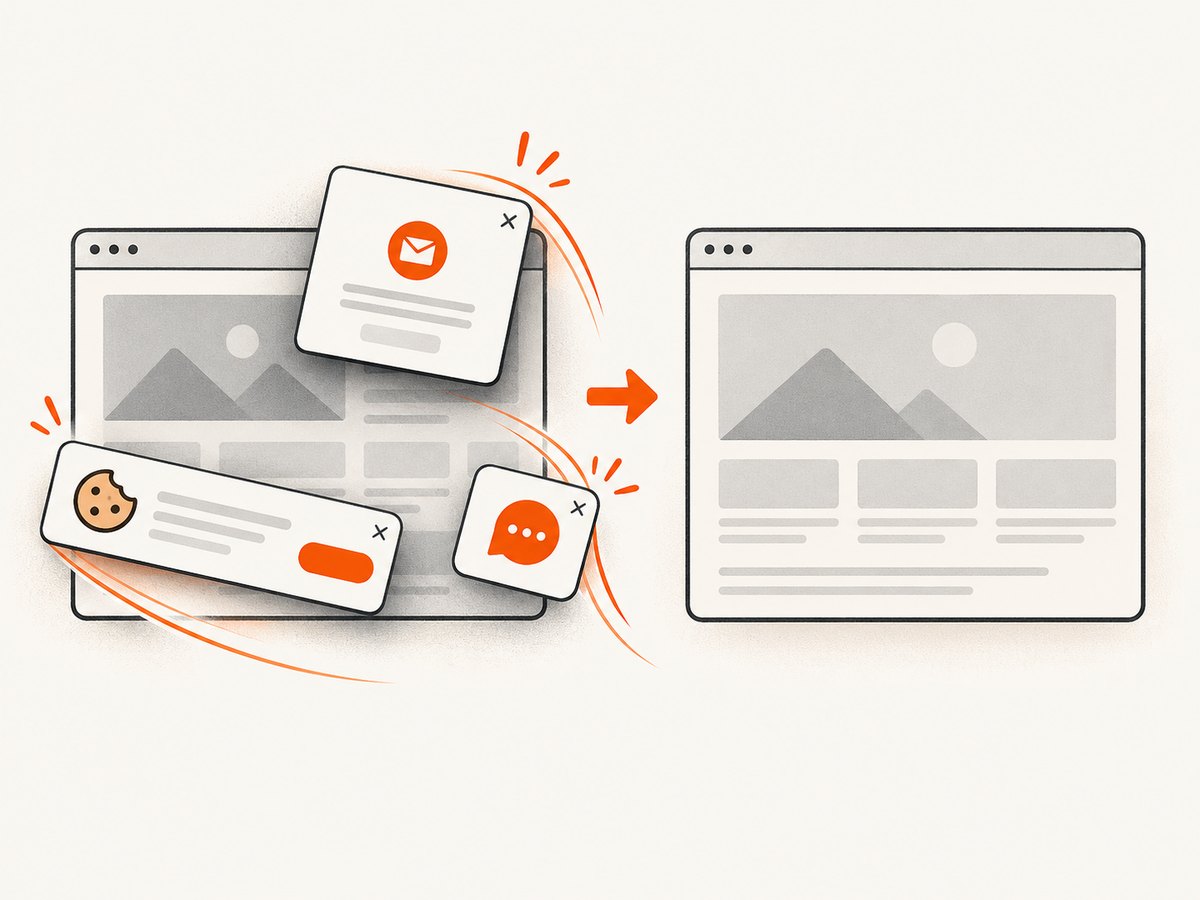
It removes cookie and consent banners, newsletter popups, and chat widgets before capture; each cleanup step can be disabled. Bot checks and CAPTCHAs, blank pages, timeouts, failed loads, and cache hits are not billed. The response identifies the result with X-Page-Verdict and X-Billed headers. An MCP server provides take_screenshot, get_page_info, and capture_pdf tools for Claude, Cursor, and other MCP clients.
The Free plan includes 1,000 screenshots per month with no card. Paid plans start at $5 for 3,000 shots; yearly billing gives two months free, and every feature is available on every plan. Create a free ScreenshotNeo account and start with the 1,000 included screenshots.
Troubleshooting common failures
| Symptom | Likely cause | Fix |
|---|---|---|
File named .jpg is rejected as PNG |
PNG bytes were written with a JPEG extension | Decode and re-encode with Pillow, Sharp, or ImageMagick |
cannot write mode RGBA as JPEG |
JPEG cannot store alpha | Composite onto a background, then convert to RGB |
| Screenshot is blank | Capture occurred before navigation or rendering completed | Wait for a meaningful selector, fonts, and application-ready state |
| Element screenshot fails | Element is hidden, zero-sized, detached, or covered | Wait for visibility, scroll it into view, and verify its bounding rectangle |
| Fonts or icons differ between runs | Web fonts or external assets were not ready | Wait for document.fonts.status, use stable network conditions, and set a fixed viewport |
| Full-page image cuts off content | Window dimensions were measured before lazy content loaded | Scroll through the page, wait for images, then measure and capture |
| WebP conversion raises an unsupported-format error | Pillow was built without WebP support | Install a current Pillow wheel or use another encoder; verify with features.check("webp") |
| Chrome fails to start in CI | Browser binary, driver, sandbox, or shared-memory configuration | Install compatible browser and driver versions, use headless mode, and inspect the driver log |
Performance, reliability, and cost considerations
Performance
Capture PNG once and convert in memory when you need multiple output formats. This avoids opening and decoding the same file repeatedly. JPEG encoding quality, WebP method, image dimensions, and full-page height all affect CPU time and output size. Resize only after deciding whether the output must remain pixel-perfect; resizing can change text sharpness.
Reliability
Always call driver.quit() in a finally block so failed conversions do not leak browser processes. Check that the navigation completed, verify the screenshot byte length is nonzero, and inspect the output with Pillow before publishing it. For batch jobs, record the source URL, viewport, browser version, image format, and encoder settings alongside the file.
Cost
Self-hosted Selenium consumes browser, CPU, memory, storage, and maintenance resources. Conversion adds local CPU work but no Selenium-specific licensing fee. A hosted API trades browser operations for per-capture billing. With ScreenshotNeo, only clean shots are billed; failed loads, bot checks, blank pages, timeouts, and cache hits cost nothing, and the response headers show the verdict and billing result.
Checklist before shipping screenshots
- Confirm the bytes are actually PNG, JPEG, or WebP by opening them with an image decoder.
- Use PNG for transparency and lossless screenshots.
- Flatten RGBA or palette images before JPEG encoding.
- Choose and document JPEG quality or WebP settings.
- Set a deterministic viewport, scale, locale, and timezone.
- Wait for fonts, images, and application data before capture.
- Use element screenshots when a full page would include irrelevant content.
- Close WebDriver instances even when conversion fails.
- For unattended rendering, consider an API with explicit waits, cleanup, verdict headers, and usage controls.
FAQ
Can Selenium take a JPEG screenshot directly?
No. Standard Selenium screenshot methods return or write PNG data. Convert the PNG after capture.
Does changing the extension convert the image?
No. The extension does not alter the encoded bytes. Use an image encoder.
Which format is best for screenshots?
PNG is best for lossless detail and transparency. JPEG is useful for smaller photographic images when loss is acceptable. WebP supports lossy, lossless, and transparent output when your consumers support it.
Can an element screenshot be saved as JPEG?
Yes. Capture the element’s PNG bytes, then apply the same Pillow, Sharp, or ImageMagick conversion used for a full-window screenshot.
Why does my JPEG have a black background?
The source image has transparency and was converted without choosing a background. Composite the RGBA image onto white or another intended color before converting to RGB.
When should I use a screenshot API instead of Selenium?
Use an API when you need repeatable remote captures, cleanup of consent and chat overlays, asynchronous or bulk jobs, signed links, or an MCP workflow for AI agents without managing browser drivers.


