How to Fix Selenium’s “Screenshot Parameter Is Not Valid” Error
“Screenshot parameter is not valid” does not point to one confirmed cause. Use this step-by-step workflow to isolate the WebDriver command, browser context, and image-saving code.
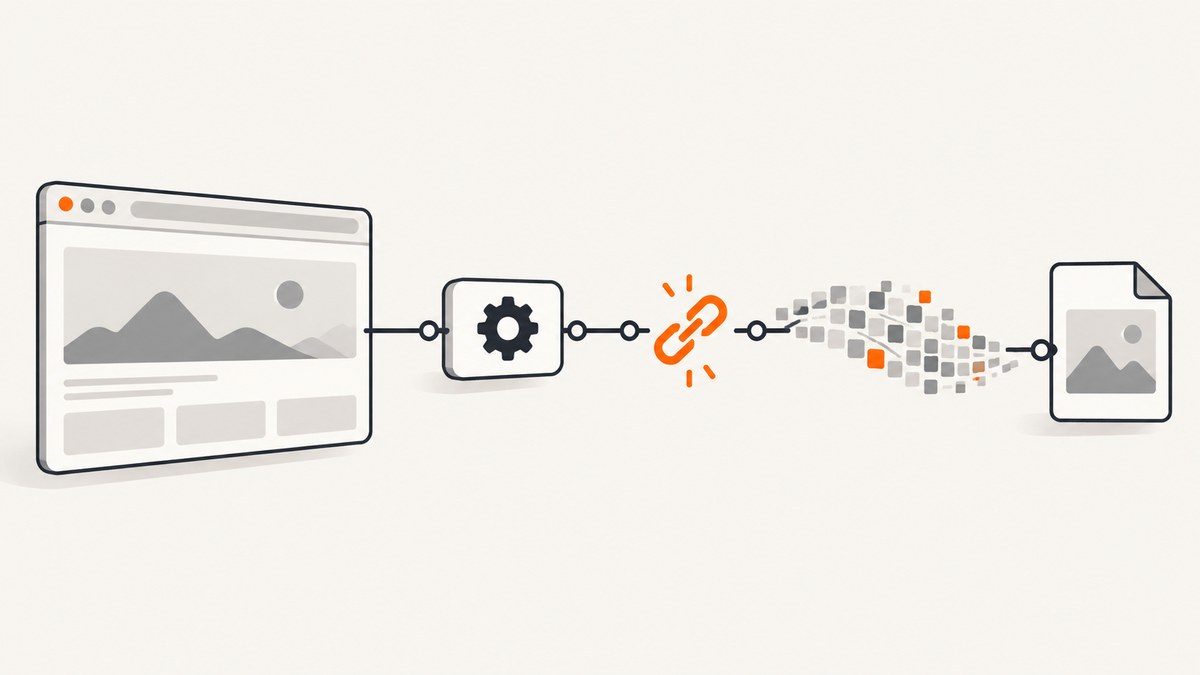
The message “Screenshot parameter is not valid” is a symptom, not a diagnosis. A historical question with that title points to a C# test using InternetExplorerDriver, but the available listing does not expose enough of the original code or accepted answer to verify a single cause. So there is no evidence-based universal parameter change to recommend. Instead, isolate whether the failure happens when WebDriver requests the screenshot or afterward, when your code handles the returned image.
This guide uses a minimal C# reproduction and a troubleshooting sequence you can apply to local drivers, Remote WebDriver, page screenshots, and element screenshots. It also explains what changes if your setup still depends on Internet Explorer.
1. Capture the complete failure before changing anything
Record the exception class and full message, inner exception, stack trace, and exact failing line. Also note:
- Selenium language binding and package version.
- Browser, browser-driver, and Windows versions.
- Whether the session is local or remote, such as Selenium Grid.
- Whether the call captures the page or a single element.
- Whether the exception occurs at the screenshot call, while decoding bytes, or while writing a file.
Keep the original error and driver logs. Changing the output extension, upgrading a package, or moving the file path may be useful diagnostic experiments, but none is an established fix for the historical report. Change one variable at a time so the result tells you something.
2. Reproduce with one page screenshot in C#
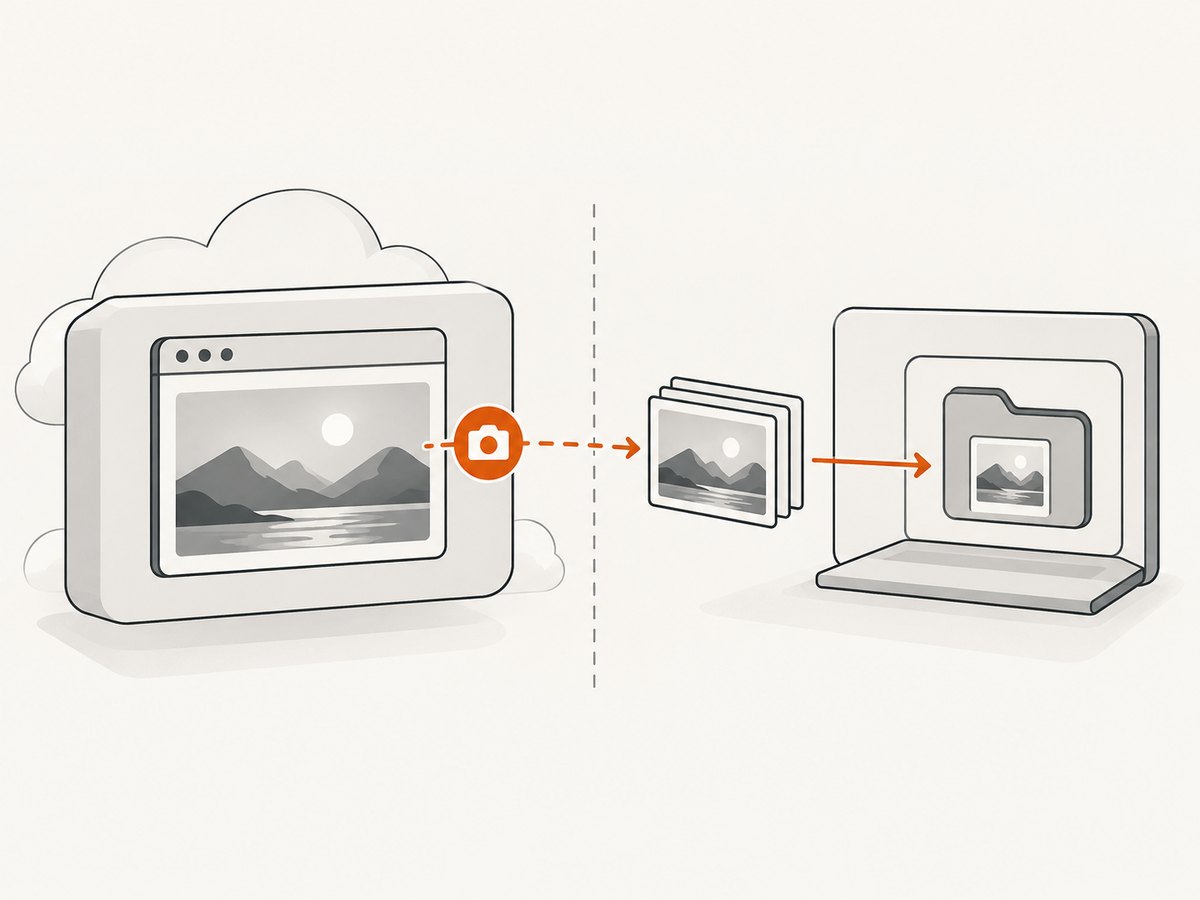
Use a fresh browser session, navigate to a simple reachable page, and save the screenshot directly. This excludes test-framework teardown hooks, report attachments, and other code that can obscure which operation failed. Install the Selenium.WebDriver package and ensure the driver for your browser can be started in your environment. Selenium’s current getting-started guide describes the general setup process: Selenium WebDriver getting started.
using System;
using System.IO;
using OpenQA.Selenium;
using OpenQA.Selenium.Chrome;

class Program
{
    static void Main()
    {
        IWebDriver driver = new ChromeDriver();
        try
        {
            driver.Navigate().GoToUrl("https://example.com");

            // Keep the capture operation separate from any test framework hooks.
            Screenshot shot = ((ITakesScreenshot)driver).GetScreenshot();
            string outputPath = Path.GetFullPath("page.png");
            shot.SaveAsFile(outputPath);

            Console.WriteLine($"Saved screenshot to {outputPath}");
        }
        finally
        {
            driver.Quit();
        }
    }
}
The example requests a page screenshot and writes the Selenium screenshot object to a path. Do not infer from a .png filename that the underlying browser command accepts an arbitrary image format parameter; use the binding’s documented screenshot API. The page and element capture commands belong to the WebDriver protocol; exact method and file APIs are language-binding details. The W3C WebDriver document cited here is a Working Draft, so treat it as protocol context rather than an immutable final specification: W3C WebDriver Working Draft.
Check the boundary between capture and saving
If the screenshot object is returned, then the browser command succeeded far enough for the client to receive image data. Focus next on the output directory, permissions, stream lifetime, decoding, or later report attachment. If the screenshot call itself throws before returning data, inspect browser-driver logs, session state, and browser/driver compatibility instead.
Keep the output path explicit during diagnosis. Path.GetFullPath makes the destination visible, but it does not create a missing parent directory. Create that directory before saving if needed. Avoid disposing a stream before an asynchronous or downstream consumer has finished reading it.
3. Isolate page capture from element capture
Start with a page screenshot. If that works but an element screenshot does not, the issue is narrowed to the element path or the target element’s state. Confirm the element exists in the current document, is attached to the DOM, and can be brought into view. Wait for the page’s own readiness condition rather than assuming navigation completion means an animation, lazy-loaded content, or a client-rendered component is ready.
IWebElement element = driver.FindElement(By.CssSelector("main"));
Screenshot elementShot = ((ITakesScreenshot)element).GetScreenshot();
elementShot.SaveAsFile(Path.GetFullPath("element.png"));
Run this only after the page screenshot test is stable. Some bindings or remote ends expose element screenshot behavior differently; the protocol defines a distinct element screenshot operation, while binding APIs can differ. If an element is outside the viewport, WebDriver’s element screenshot behavior may scroll it into view, but application overlays, frame boundaries, or a stale element can still complicate the operation. Re-find the element after navigation or DOM replacement rather than reusing an old reference.
4. Verify the active window or tab
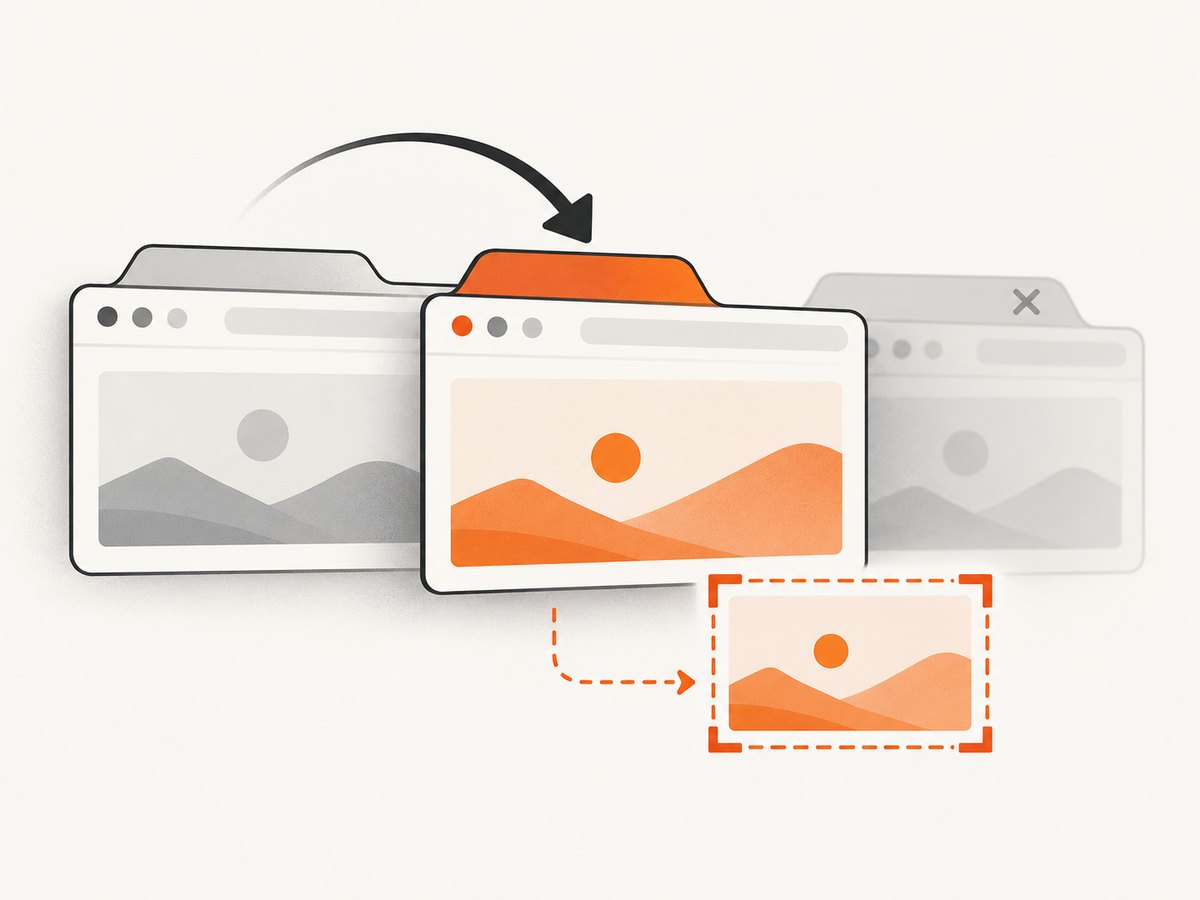
A test can look focused on a newly opened tab while WebDriver still controls a different browsing context. Selenium documents that clicking a link may focus a new operating-system window, but WebDriver must switch to its handle to work with it. Before capture, print the current handle and available handles, then explicitly switch to the intended one.
foreach (string handle in driver.WindowHandles)
{
    Console.WriteLine(handle);
}

// Switch only after identifying the intended handle.
driver.SwitchTo().Window(targetHandle);
Screenshot shot = ((ITakesScreenshot)driver).GetScreenshot();
Do not assume the second handle is always the target if tests can open multiple tabs. Identify it using the test’s expected title, URL, or other stable condition. After closing a tab, switch back to a still-open handle before issuing more commands. See Selenium’s windows and tabs guide.
5. Apply Internet Explorer guidance only when it matches your environment
The indexed historical example mentions InternetExplorerDriver. That context matters, but it does not prove that Internet Explorer support caused the reported screenshot error. Selenium says that standalone Internet Explorer is no longer officially supported as of June 2022. For a legacy compatibility requirement, Selenium documents using IE Driver with Microsoft Edge in IE Compatibility Mode and recommends the 32-bit driver because of known limitations with the 64-bit version. Read the current Selenium IE-specific guidance and confirm that it applies to your operating system and setup.
If you are on standalone IE, treat the support status as a reason to test a supported compatibility route, not as proof of the error’s root cause. Compare a minimal test on the existing configuration and the documented Edge compatibility configuration, preserving logs for both.
6. Compare the failure layers systematically
| Observation | Next check |
|---|---|
| Page screenshot fails in a minimal local session | Collect driver logs; compare browser and driver versions and verify the session can perform other WebDriver commands. |
| Local works, Remote WebDriver fails | Check the remote node’s browser/driver logs, session capabilities, and whether the screenshot response reaches the client. |
| Page works, element fails | Re-find the element, wait for it, confirm the correct frame and window, and try a stable visible target. |
| Screenshot object returns, file is missing | Check the absolute destination, parent directory, permissions, file lock, and save/stream handling. |
| Error follows a tab switch or close | Print handles and explicitly switch to an open intended handle. |
| Only legacy IE configuration fails | Check Selenium’s IE support guidance and compare the documented Edge IE Compatibility Mode route. |
WebDriver is a remote-control protocol: the local client sends browser-control commands to a remote end. That division is useful for diagnosis. An exception during the remote screenshot command points toward the session/browser/driver path; an exception during local file handling points toward your application code. In a Grid environment, collect evidence from both client and node instead of relying only on the test-runner summary.
7. Common errors and practical fixes
“No such window” or an invalid browsing context
Cause: The active handle was closed or the test never switched to the new tab. Fix: List handles, choose an open intended context, and switch back after closing temporary windows.
Stale element or element not found
Cause: The page replaced the element after it was located, the selector is wrong, or the test is in another frame. Fix: Wait for the page condition, switch to the correct frame, and locate the element immediately before capture.
Screenshot returned but save fails
Cause: Missing directory, unwritable location, invalid path, locked file, or stream lifetime issue. Fix: Log the absolute path, create the parent directory, use a unique filename, and isolate saving from capture.
Remote command times out
Cause: Browser or node is unresponsive, page state is still changing, or the remote path has a connectivity/resource issue. Fix: reproduce on a simple page, inspect node logs, reduce concurrent work, and record whether other commands complete. A timeout alone does not establish that a screenshot parameter is invalid.
Changing output type appears to have no effect
Cause: The failure may not be in encoding or extension handling. Fix: Determine whether bytes were returned first. Treat output type and path changes as controlled experiments, not assumed remedies.
8. Reliability, performance, and cost considerations
Screenshots add browser work and image data transfer to a test. Capture only when needed for an assertion, failure artifact, or documented workflow; avoid taking repeated full-page shots in tight polling loops. For consistent comparisons, hold the browser size, page state, and capture timing steady. Wait for application-specific readiness where the page uses asynchronous rendering, and make filenames unique when parallel tests share a workspace.
For reliability, preserve a screenshot failure as a secondary artifact without masking the original test failure. Wrap diagnostic capture in its own error handling, log the capture exception, then rethrow or report the initial failure. In Grid runs, account for the fact that the browser and file-saving code may execute in different environments; a path on the test runner is not automatically a path on the remote node.
Cost is mainly operational: browser time, Grid capacity, storage, and artifact retention. Capture less often in successful runs, keep targeted evidence for failures, and define retention for large image artifacts. No benchmark or universal timing estimate can be inferred for this particular error.
Or skip the browser setup
If your goal is a website image rather than a browser automation test, ScreenshotNeo offers a screenshot API and MCP server. One GET request returns an image or PDF; see the ScreenshotNeo API documentation.
curl -G "https://api.screenshotneo.com/v1/shot" -d access_key=YOUR_API_KEY --data-urlencode url=https://stripe.com -o shot.webpimport requests
r = requests.get("https://api.screenshotneo.com/v1/shot", params={"access_key": "YOUR_API_KEY", "url": "https://stripe.com"}, timeout=90)
open("shot.webp", "wb").write(r.content)const q = new URLSearchParams({ access_key: 'YOUR_API_KEY', url: 'https://stripe.com' });
const res = await fetch(`https://api.screenshotneo.com/v1/shot?${q}`);Cookie banners are accepted before capture and 60+ known consent platforms, newsletter popups, and chat widgets are removed; each step can be turned off. Bot checks, blank pages, and failed loads are never billed, and response headers report the page verdict and billing status. Its MCP server includes screenshot, page-info, and PDF tools for AI agents. The free plan includes 1,000 screenshots a month with no card; paid plans start at $5 for 3,000 screenshots. Those details are for website capture; Selenium remains the appropriate tool when the screenshot is part of an automated browser test.
Sign up free for 1,000 screenshots a month, with no card.
FAQ
Is “Screenshot parameter is not valid” a known Selenium setting?
The available historical listing does not establish that it refers to one setting. Capture the full exception and isolate the command before changing parameters.
Should I update Selenium to fix it?
Compare a minimal reproduction with a compatible current browser-driver setup if evidence points to that layer. An update is a diagnostic check, not a verified fix for the historical report.
Can a screenshot fail because the wrong tab is selected?
Yes, a wrong or closed browsing context can make subsequent WebDriver operations fail. Inspect and switch window handles explicitly.
Does this workflow apply to Java or Python?
The isolation steps apply across bindings. The screenshot method names and file APIs differ by language, so use the documentation for your binding when translating the C# example.
Sources
- Selenium: IE Driver — current IE compatibility guidance.
- Selenium: Working with windows and tabs — window-handle behavior.
- W3C WebDriver Working Draft — protocol-level screenshot context.


