How to Save Selenium Screenshots as PDFs in Python on Windows
Choose between Selenium’s printed-page PDF and a PDF made from screenshot pixels, with runnable Python examples, Windows paths, and troubleshooting.
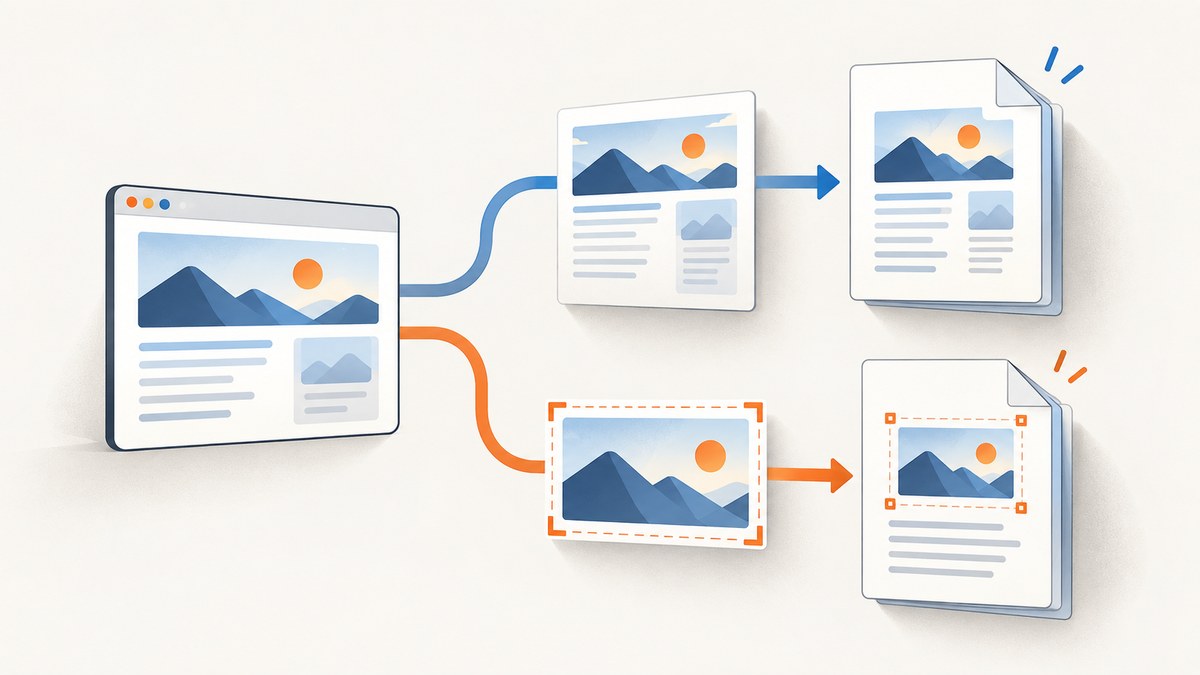
To save a Selenium page as a PDF in Python on Windows, first decide what the PDF should contain. For the browser’s printed page layout, use Selenium’s driver.print_page() in headless Chromium and write its base64 result as a PDF. To preserve the pixels of a browser screenshot, use driver.save_screenshot() to create a PNG, then convert that PNG to PDF with a separate library. Selenium’s screenshot method creates PNG files; changing the filename extension to .pdf does not convert the image. Selenium documents print-page behavior and its Chromium headless requirement, and its Python API documents PNG screenshot output and recommends a full path.
1. Choose the kind of PDF you need
These two outputs serve different purposes. Pick based on the artifact you need to deliver, archive, or inspect.
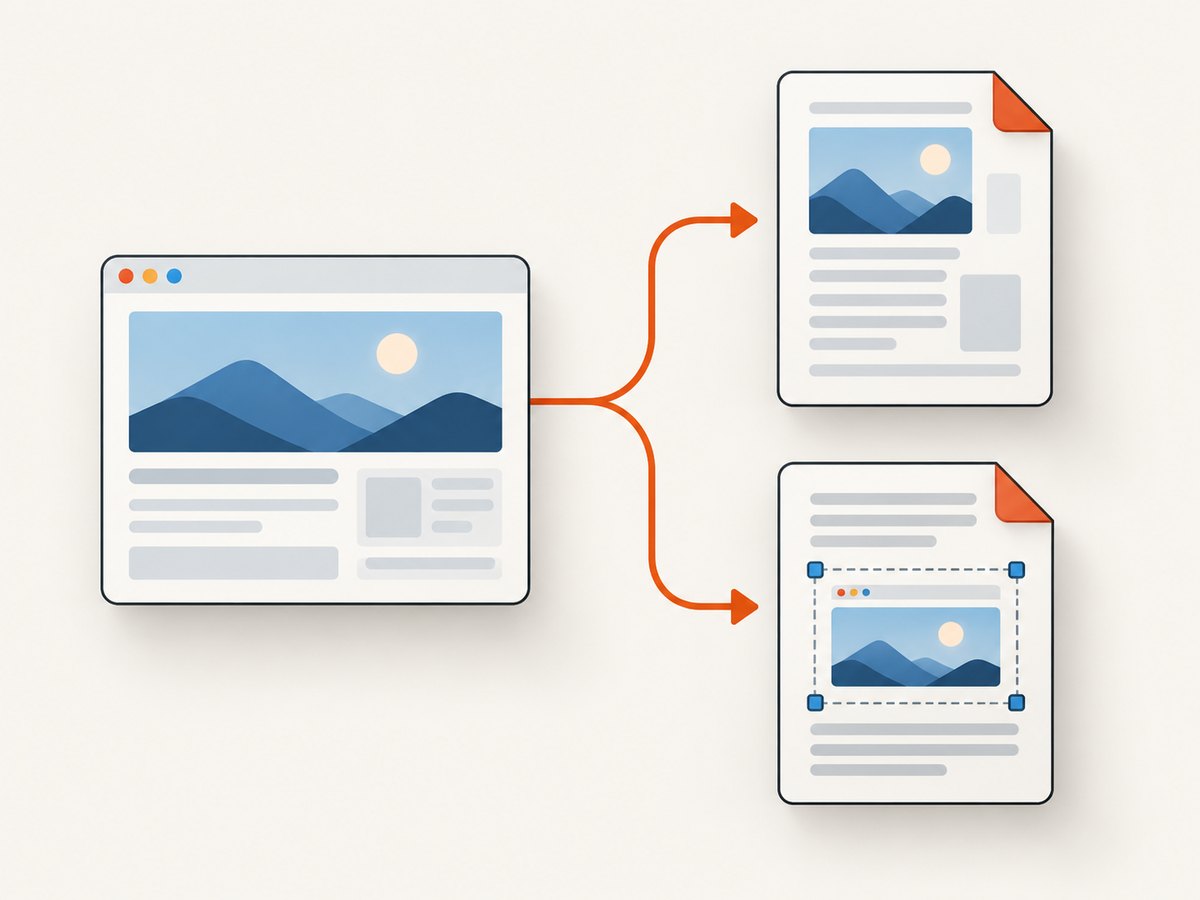
| Method | What the PDF contains | Use it when | Requirements |
|---|---|---|---|
driver.print_page() |
The browser’s printed representation of the current page. | You want a document-like rendering of webpage content. | Selenium’s Chromium print support requires headless mode. The API returns base64-encoded PDF data. |
| Screenshot then image-to-PDF | The pixels in the captured PNG, placed into a PDF page. | The screenshot itself is the record and visual fidelity to that capture matters. | A separate image/PDF library is needed for conversion. Selenium’s screenshot operation captures the current browser window. |
The sources establish these API behaviors; they do not promise identical rendering across websites, selectable text in every generated PDF, or a particular conversion library. Inspect the output for your page and use case.
2. Set up Selenium on Windows
Install Selenium in the Python environment that will run your script. This command uses pip:
py -m pip install seleniumUse a browser supported by your installed Selenium setup. The examples below use Chrome. Selenium’s browser and driver setup can depend on the versions installed on your machine; the sources cited here do not provide a complete Windows version matrix.
Choose an absolute output path and make its parent directory before saving. A pathlib.Path avoids manual backslash escaping and helps ensure you know where the file will be written. A Windows raw string such as r"C:\reports\page.pdf" is another valid way to express a path.
3. Save the browser’s printed page as PDF
Use this approach when you want the page’s browser print rendering. Selenium returns the PDF as base64-encoded data; decode it to bytes and write those bytes directly to a .pdf file.
from pathlib import Path
import base64
from selenium import webdriver

output = Path(r"C:\reports\page.pdf")
output.parent.mkdir(parents=True, exist_ok=True)

options = webdriver.ChromeOptions()
options.add_argument("--headless")

driver = webdriver.Chrome(options=options)
try:
    driver.get("https://example.com")
    pdf_base64 = driver.print_page()
    output.write_bytes(base64.b64decode(pdf_base64))
finally:
    driver.quit()

print(f"Saved PDF to {output}")
This follows Selenium’s documented print-page flow: configure Chromium headless, call print_page(), decode its base64 result, and write the PDF. The sample is a practical synthesis of that documentation, not a claim that it has been run on every Windows installation.
Make the print capture more predictable
- Open the target page. Call
driver.get()with the page URL you need. - Wait for page readiness when necessary. If your site renders important content asynchronously, wait for a meaningful element or condition before printing. A capture made too early can omit content that has not appeared yet.
- Print only after the desired page state is present. Check that the browser is on the expected URL and that the content you need has loaded.
- Write to a known location. Create the output directory and use an absolute path, as in the example.
- Close the browser in a
finallyblock. This ensures the driver is quit after a successful capture or an exception.
print_page() does not mean “put the current viewport screenshot in a PDF.” It requests the page’s printed representation. If the deliverable must preserve captured pixels, use the next method.
4. Put Selenium screenshot pixels into a PDF
Selenium’s save_screenshot() saves a PNG of the current browser window. To create an image-only PDF, save that PNG and pass it to an image/PDF conversion library. This example uses Pillow, a separate dependency; Selenium’s documentation does not prescribe a conversion library.
from pathlib import Path
from selenium import webdriver
from PIL import Image

output_dir = Path(r"C:\reports")
output_dir.mkdir(parents=True, exist_ok=True)
png_path = output_dir / "page.png"
pdf_path = output_dir / "page.pdf"

options = webdriver.ChromeOptions()
options.add_argument("--headless")

driver = webdriver.Chrome(options=options)
try:
    driver.get("https://example.com")
    saved = driver.save_screenshot(str(png_path))
    if not saved:
        raise RuntimeError("Selenium did not save the screenshot")
finally:
    driver.quit()

with Image.open(png_path) as image:
    image.convert("RGB").save(pdf_path, "PDF")

print(f"Saved screenshot PDF to {pdf_path}")
Install the additional dependency with:
py -m pip install pillowThe conversion places the screenshot image into a PDF; it does not recreate the page’s printed layout. The conversion code converts to RGB before saving, which avoids carrying an alpha channel into this simple PDF workflow. The example captures Selenium’s current browser window, not automatically every pixel of a long page.
Capture a longer page
The documented screenshot operation is a current-window capture. If your requirement is a full-page image, do not assume that save_screenshot() has expanded the browser viewport to include all scrollable content. You need a capture technique that explicitly handles full-page capture, or you can use the browser’s printed-page PDF if that output suits the requirement. Whichever route you choose, inspect pages with lazy-loaded content: images or sections may appear only after scrolling or waiting.
5. Windows paths and output handling
Windows path mistakes are a common reason for a missing output file. Prefer a Path object with a raw string for a drive path, then create the parent directory:
from pathlib import Path

output = Path(r"C:\reports\page.pdf")
output.parent.mkdir(parents=True, exist_ok=True)
output.write_bytes(b"example")  # Replace with the actual PDF bytes
Other valid patterns include forward slashes in a path such as C:/reports/page.pdf, or constructing the path from components:
from pathlib import Path

output = Path("C:/reports") / "page.pdf"
Use a full path rather than relying on the process’s current working directory. Ensure the account running Python can write to the destination. For screenshot saving, pass a path ending in .png; for the decoded print result, write the PDF bytes to a .pdf file.
6. Configuration, edge cases, and capture quality
Headless mode
Selenium documents Chromium print-page support in headless mode. Set the headless option before creating the driver and before navigating to the page. If printing fails or behaves unexpectedly, verify that the browser is actually running headless and that the installed Selenium and browser setup work together.
Page loading and dynamic content
A navigation call can return before a modern page has finished rendering all application content. If the page depends on JavaScript, wait for the content you need rather than printing immediately. A fixed delay can help with a known, stable workflow, but waiting for a specific element is generally more targeted. Pages that load images on scroll may need scrolling or another explicit loading step before capture.
Print layout versus screenshot appearance
Websites can render differently for print and screen. If the PDF must document exactly what was visible in a screenshot, use the PNG-to-PDF path. If the page should flow as a document, use browser printing. The supplied Selenium sources do not guarantee identical output between screen and print, so verify the resulting PDF against the actual requirement.
Large pages and resource use
Image-to-PDF conversion retains a raster image, so large screenshots can produce large files and use more memory during conversion. The print API avoids the explicit PNG conversion step, but the sources do not provide size or speed benchmarks. Keep captures scoped to the content you need, use a writable destination with enough room, and close the driver when finished. For repeated captures, reuse a browser session where appropriate instead of starting a fresh browser for every URL, while ensuring each page is fully loaded and the correct page state is captured.
7. Troubleshooting
| Symptom | Likely cause | Fix |
|---|---|---|
| PDF file contains unreadable text or is not a PDF. | The base64 result was written as text, or screenshot output was merely given a .pdf extension. |
For print output, call base64.b64decode() and write the resulting bytes. For screenshot output, convert the PNG with an image/PDF library. |
print_page() raises an error or returns no usable PDF. |
Chromium is not running in headless mode, or browser and Selenium setup are incompatible. | Set --headless before driver creation and check the installed browser/Selenium versions and driver setup. |
| The output file is missing. | The parent directory does not exist, the relative path points somewhere unexpected, or Python lacks write access. | Use an absolute Windows path, create output.parent, and choose a location writable by the Python process. |
| The screenshot does not include the whole page. | save_screenshot() captures the current browser window. |
Use a method that explicitly captures the full page, or use print-to-PDF if a printed page representation is acceptable. |
| The PDF is blank or misses application content. | The capture ran before asynchronous content finished loading, or a site challenge prevented the expected page from appearing. | Wait for a meaningful page element, verify the loaded URL and visible content, and handle site-specific access requirements. Do not treat a blank output as a successful capture. |
| The screenshot PDF has unexpected color or transparency. | The PNG’s color mode or alpha channel may not suit the PDF conversion path. | Convert the opened image to RGB before saving, as in the Pillow example. |
| The script hangs or leaves browser processes running. | The driver cleanup was skipped after an exception. | Keep capture code inside try and call driver.quit() in finally. |
8. Performance, reliability, and cost
With Selenium, the work happens on the machine running Python: browser startup, page loading, capture, and file writing all consume local time and resources. A browser session can be reused for multiple pages, but each capture still depends on the target site, browser state, and content readiness. Set realistic expectations for pages with heavy scripts, delayed media, or access checks, and make failures visible in your automation rather than silently treating an empty or incomplete file as success.
The Selenium sources provide no performance benchmarks or cost estimates. Your direct costs depend on your own Windows machine or hosted runner, browser installation, and any conversion library you add. The PNG-to-PDF path adds disk and memory use for the intermediate image. The print-page path returns PDF data directly through Selenium, though page rendering still uses the browser.
9. Or skip the browser setup
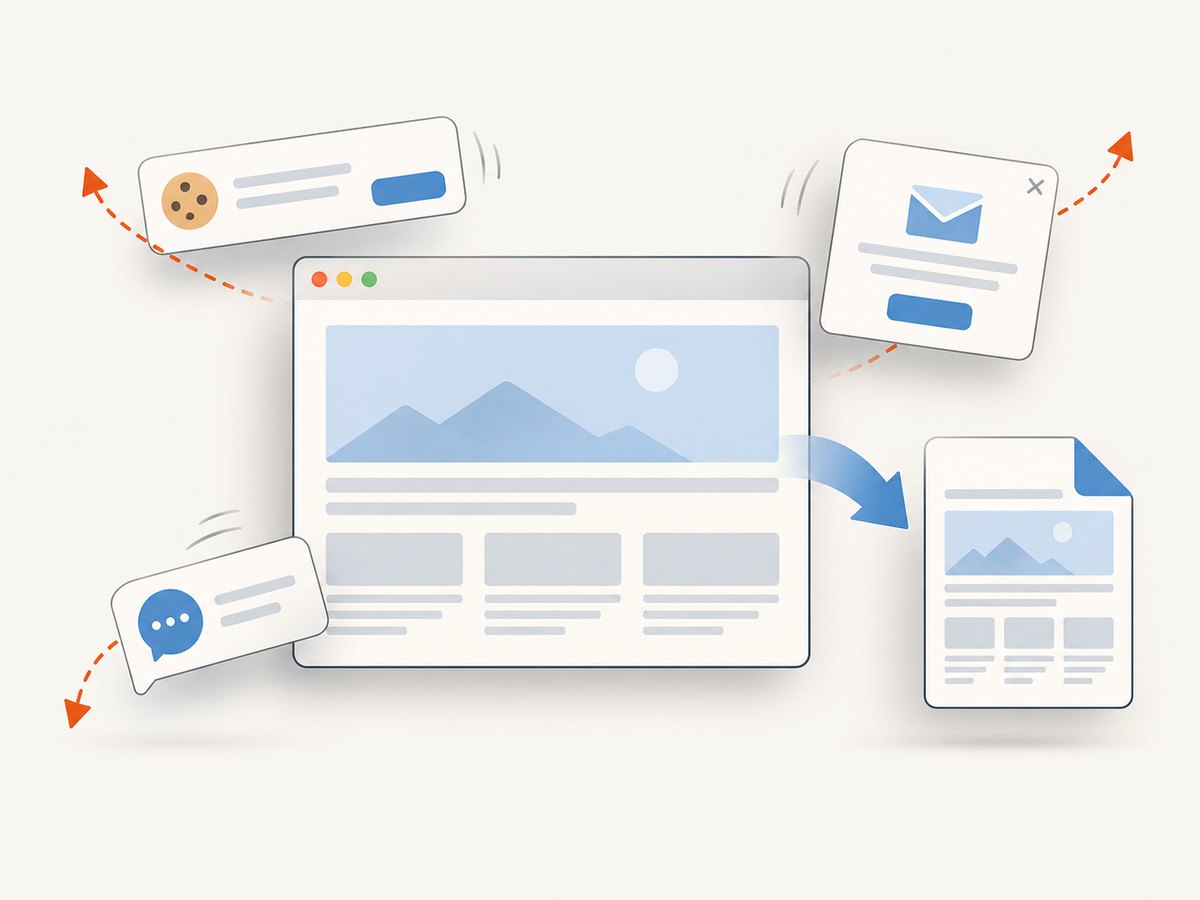
If you need a screenshot or PDF through an API rather than managing a browser in your Windows script, ScreenshotNeo is a website screenshot API and MCP server from Yorker Media. Its API accepts a URL in one GET request and can return an image or PDF. See the ScreenshotNeo API documentation for request options.
import requests

r = requests.get(
    "https://api.screenshotneo.com/v1/shot",
    params={"access_key": "YOUR_API_KEY", "url": "https://example.com"},
    timeout=90,
)
open("page.pdf", "wb").write(r.content)
For a PDF response, configure the requested output format according to the API documentation. This example shows the request pattern and writes the response bytes; use the documented PDF parameter for your request.
- Cookie banners are accepted before capture, and cookie banners, newsletter popups, and chat widgets are removed before the shot; each of these steps can be turned off.
- Bot checks and CAPTCHAs, blank pages, timeouts, failed loads, and cache hits are not billed. The response includes
X-Page-VerdictandX-Billedheaders describing the result and billing status. - An MCP server provides
take_screenshot,get_page_info, andcapture_pdftools for AI agents and MCP clients. - The Free plan includes 1,000 screenshots per month with no card. Paid plans start at $5 for 3,000 screenshots; every feature is on every plan.
Sign up for ScreenshotNeo’s free plan to get 1,000 screenshots a month with no card.
10. FAQ
Can I save a Selenium screenshot directly as a PDF?
Not with save_screenshot() alone: it saves PNG. Convert the PNG with a separate library, or use print_page() when a browser print rendering is what you need.
Does Selenium print-to-PDF work with Chrome on Windows?
Selenium documents Chromium print-page support in headless mode. Configure headless Chromium before creating the driver; exact compatibility depends on the installed setup.
Which method should I use to preserve the visible browser pixels?
Capture a PNG and convert it to PDF. Browser print output represents the page’s print rendering, which may differ from the visible screen.
Why is my PDF blank even though a file was created?
A file can be written before the page’s content is ready, or the requested site may have returned a blank page or access challenge. Wait for expected content and inspect the page state and resulting PDF.


