How to Capture a Selenium Screenshot at the Right Moment in Python
Wait for the page state you need, then capture it reliably with Selenium’s explicit waits and Python screenshot APIs.
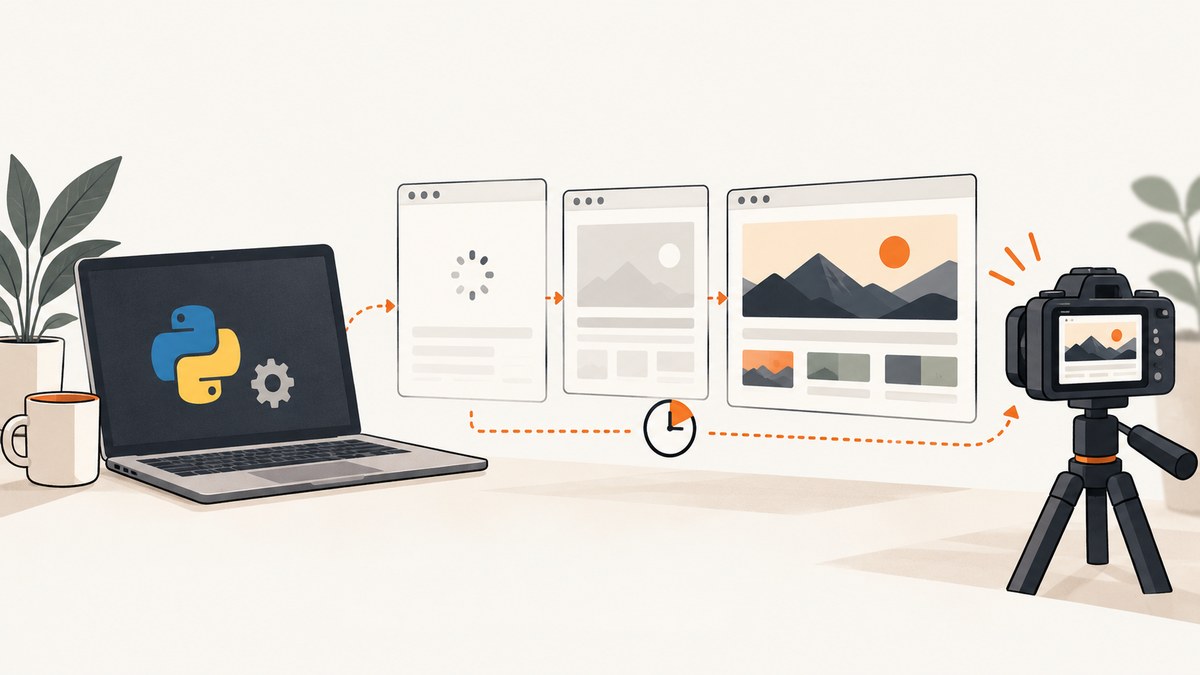
Direct answer: wait for the exact browser condition that proves the page is ready, then save the screenshot immediately. In Python, the core pattern is WebDriverWait(driver, timeout).until(condition) followed by driver.save_screenshot("capture.png"). A completed driver.get() call only means the configured document-load state was reached; JavaScript may still be rendering, replacing content, or hiding a loading state.
Selenium’s official documentation covers the screenshot methods, waiting strategies, expected conditions, and element screenshots used below: WebDriver Python API, waiting strategies, expected conditions, and window and element screenshots.
1. The reliable capture sequence
- Navigate to the page or perform the action that starts rendering.
- Wait for a state that represents the image you need: a visible result, expected text, a disappeared spinner, a stable application-specific flag, or another explicit condition.
- Capture the current window or the target element.
- Check Selenium’s Boolean return value when writing directly to a file.
from selenium import webdriver
from selenium.webdriver.common.by import By
from selenium.webdriver.support import expected_conditions as EC
from selenium.webdriver.support.wait import WebDriverWait

options = webdriver.ChromeOptions()
options.add_argument("--headless=new")
driver = webdriver.Chrome(options=options)

try:
    driver.get("https://example.com/results")

    wait = WebDriverWait(driver, 15)
    wait.until(EC.visibility_of_element_located((By.ID, "result")))

    saved = driver.save_screenshot("capture.png")
    if not saved:
        raise OSError("Selenium could not write capture.png")
finally:
    driver.quit()
Choose the timeout for the application and environment. Fifteen seconds is only an example; it is not a universal value.
2. Why navigation completion is not visual completion
Selenium waits for the page-load strategy’s readyState (normally complete) during navigation. That state covers resources declared in the document, but JavaScript applications can fetch data, create elements, animate components, or reveal content afterward. Capturing immediately after get() therefore creates race conditions and flaky images.
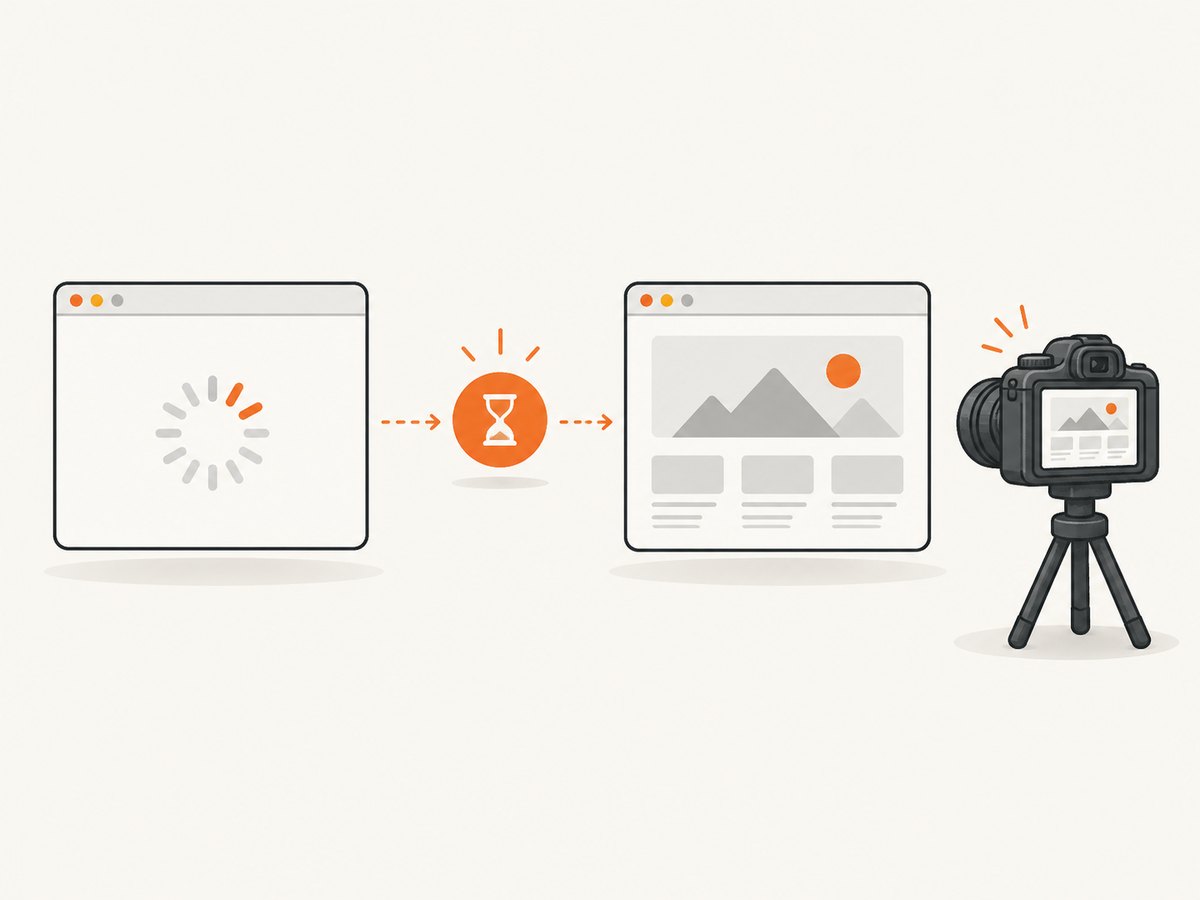
A fixed time.sleep() can finish too early on a slow run and waste time on a fast run. An explicit wait continues as soon as the required condition becomes true and fails with a timeout when the condition never appears.
3. Selecting the right readiness condition
Wait for a visible result
wait.until(
    EC.visibility_of_element_located((By.CSS_SELECTOR, "[data-testid='result']"))
)
Wait for expected text
wait.until(
    EC.text_to_be_present_in_element(
        (By.ID, "status"),
        "Complete"
    )
)
Wait for a loading indicator to disappear
wait.until(
    EC.invisibility_of_element_located((By.CSS_SELECTOR, ".loading-spinner"))
)
Wait for an element to exist, then become useful
wait.until(EC.presence_of_element_located((By.ID, "report")))
wait.until(EC.visibility_of_element_located((By.ID, "report")))
Use a custom predicate for application-specific completion
def report_is_ready(driver):
    report = driver.find_element(By.ID, "report")
    return (
        report.is_displayed()
        and report.get_attribute("data-status") == "ready"
        and report.text.strip() != ""
    )

wait.until(report_is_ready)
Use the condition closest to the evidence required by the screenshot. Visibility alone does not prove that an animation, chart, image decode, or later data update has finished.
4. Complete Python example with interaction, waits, and diagnostics
from pathlib import Path
from selenium import webdriver
from selenium.common.exceptions import TimeoutException
from selenium.webdriver.common.by import By
from selenium.webdriver.support import expected_conditions as EC
from selenium.webdriver.support.wait import WebDriverWait

output = Path("artifacts/capture.png")
output.parent.mkdir(parents=True, exist_ok=True)

options = webdriver.ChromeOptions()
options.add_argument("--headless=new")
options.add_argument("--window-size=1440,1000")
driver = webdriver.Chrome(options=options)

try:
    driver.get("https://example.com/dashboard")
    wait = WebDriverWait(driver, 20)

    # Optional action that triggers the state to capture.
    driver.find_element(By.ID, "load-report").click()

    wait.until(EC.invisibility_of_element_located((By.CSS_SELECTOR, ".spinner")))
    result = wait.until(EC.visibility_of_element_located((By.ID, "report")))
    wait.until(EC.text_to_be_present_in_element((By.ID, "status"), "Complete"))

    if not result.is_displayed():
        raise RuntimeError("Report is present but not visible")

    if not driver.save_screenshot(str(output)):
        raise OSError(f"Could not save {output}")

except TimeoutException:
    # Save the failure state for diagnosis, if possible.
    driver.save_screenshot("artifacts/timeout.png")
    raise
finally:
    driver.quit()
5. Window screenshots versus element screenshots
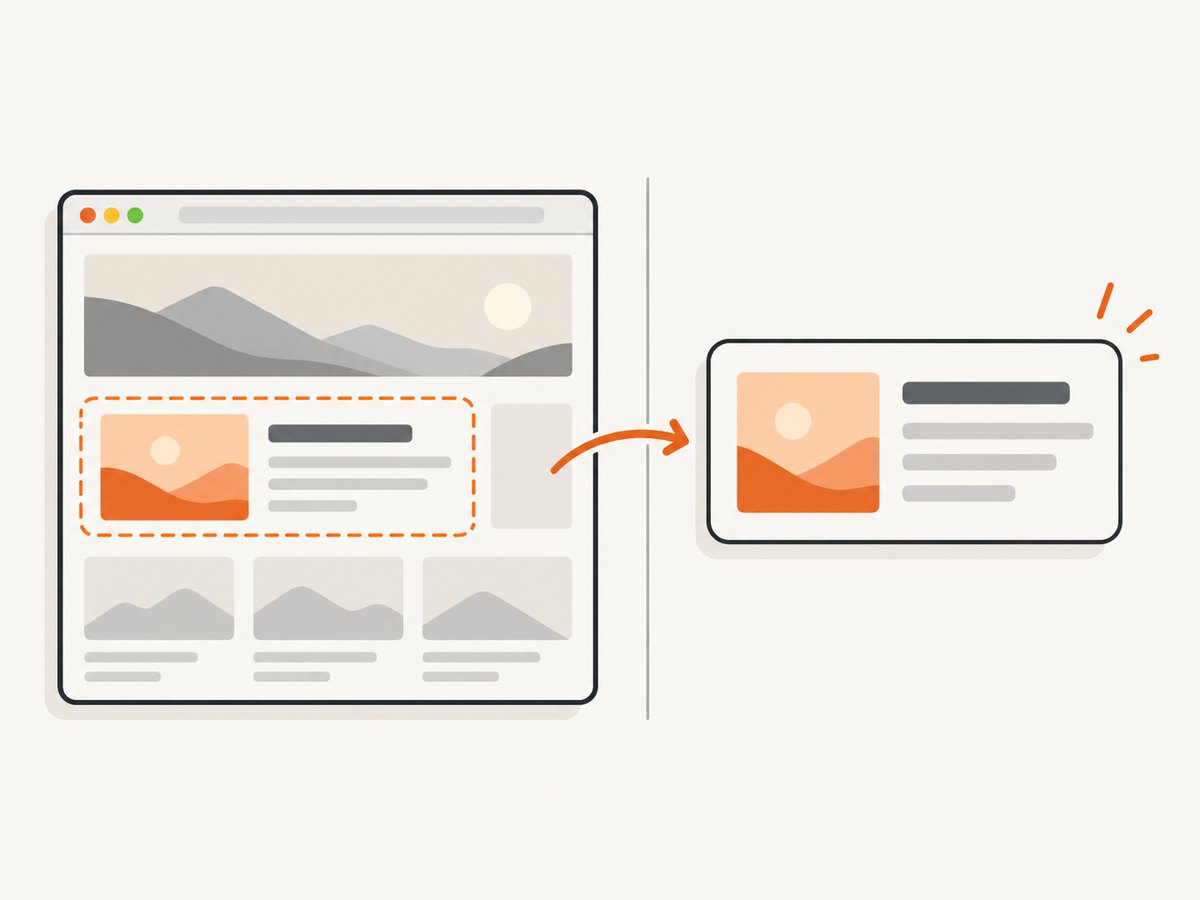
Use a window screenshot when surrounding navigation, filters, or layout context matters. Use an element screenshot when the deliverable is one chart, card, table, or component.
Current browser window
driver.save_screenshot("window.png")
# Equivalent file API:
# driver.get_screenshot_as_file("window.png")
Screenshot bytes
png_bytes = driver.get_screenshot_as_png()
with open("window.png", "wb") as image_file:
    image_file.write(png_bytes)
Base64 for HTML embedding
encoded = driver.get_screenshot_as_base64()
html = f"<img src='data:image/png;base64,{encoded}'>"
One element
card = wait.until(EC.visibility_of_element_located((By.CSS_SELECTOR, ".result-card")))
card.screenshot("result-card.png")
The file-based methods return a Boolean: True on success and False for an I/O failure. The filename should end in .png. Element screenshots are useful when a focused component is more valuable than the full viewport.
6. Make the captured state deterministic
- Set the viewport: use a fixed window size so responsive breakpoints do not change between runs.
- Use a stable browser and driver: keep browser, driver, and Selenium versions compatible.
- Disable or finish animations: inject test CSS or wait for an application-specific completion signal when motion changes pixels.
- Wait for images and charts: an element can be visible before its images decode or canvas drawing completes.
- Control data: use seeded fixtures or a test account when changing API data would change the screenshot.
- Keep one wait strategy: Selenium warns that mixing implicit and explicit waits makes observed timeout durations unpredictable.
# Optional: apply deterministic CSS before the final capture.
reduce_motion = """
* {
  animation: none !important;
  transition: none !important;
  caret-color: transparent !important;
}
"""
driver.execute_script(
    "var style = document.createElement('style');"
    "style.id = 'capture-stability';"
    "style.textContent = arguments[0];"
    "document.head.appendChild(style);",
    reduce_motion,
)
Only use injected CSS when it matches the image you intend to document. It can hide a real rendering problem if applied indiscriminately.
7. Full-page and viewport limits
save_screenshot() captures the current browser window. It does not automatically guarantee a full, stitched page image. For a long page, either resize the window to the document height (when practical) or use a browser-specific full-page capability and verify the result in your environment.
page_height = driver.execute_script(
    "return Math.max(document.body.scrollHeight, document.documentElement.scrollHeight);"
)
driver.set_window_size(1440, page_height)
driver.save_screenshot("full-height.png")
Very tall pages can exceed browser or image memory limits. Capturing a specific element or splitting the page into sections is often more reliable.
8. Troubleshooting checklist
| Symptom | Likely cause | Fix |
|---|---|---|
| Screenshot shows a spinner or empty shell | Capture happened after navigation but before JavaScript finished | Wait for the result, expected text, or spinner invisibility. |
TimeoutException |
Selector is wrong, state never occurs, or timeout is too short | Verify the selector, inspect the failure screenshot, and choose a timeout based on observed application behavior. |
| Intermittent failures | Race with network responses, animation, or data updates | Replace sleeps with explicit conditions and wait for an application-specific ready signal. |
| Timeout duration seems much longer than configured | Implicit and explicit waits are combined | Keep the implicit wait at zero when using explicit waits, or remove the explicit wait. |
| Element is present but screenshot misses it | Element is hidden, off-screen, covered, or still transitioning | Wait for visibility, scroll it into view, check overlays, and wait for the transition to finish. |
| Text is correct but chart is incomplete | Canvas or image rendering finishes after the text | Wait for a chart-specific marker, image completion state, or a custom predicate. |
save_screenshot() returns False |
Output path cannot be written | Create the directory, use a writable path, and check disk permissions. |
| Driver cannot start | Browser/driver mismatch or missing binary | Install a compatible browser and driver, then confirm the versions used by the runtime. |
| Different pixels in CI and locally | Viewport, fonts, device scale, timezone, or data differ | Pin viewport and test data, install required fonts, and standardize the runtime. |
| Cookie banner covers the target | Consent UI is part of the page state | Accept or dismiss it before waiting for the final condition, or hide it only when that matches your test objective. |
9. Performance, reliability, and cost considerations
- Performance: condition-based waits avoid unnecessary idle time. A run proceeds as soon as the required state is true.
- Reliability: use stable selectors such as IDs or test-specific attributes, and capture a diagnostic screenshot when a wait times out.
- Parallel runs: isolate browser profiles, output paths, test data, and ports when running multiple drivers.
- Retries: retry only transient navigation or infrastructure failures. Repeating a bad selector hides a deterministic defect.
- Storage: PNG is lossless but larger; choose the format and retention policy required by your workflow.
- Cost: self-hosted Selenium costs compute, browser startup time, maintenance, and CI minutes. A hosted screenshot API can move those responsibilities to a request-based service.
10. Or skip the browser setup
ScreenshotNeo provides a website screenshot API and MCP server. One GET request returns a PNG, JPEG, WebP, or PDF. It can wait for a selector, delay, or network idle; load lazy images for full-page captures; capture an element by CSS selector; run custom JavaScript; click before capture; set viewport, device, headers, cookies, user agent, timezone, geolocation, and authorization; block ads, trackers, requests, or resource types; resize images; cache with a chosen TTL; create signed links; run asynchronous jobs with signed webhooks; and capture up to 100 URLs per bulk call. See the ScreenshotNeo API documentation for parameter details.
curl -G "https://api.screenshotneo.com/v1/shot" -d access_key=YOUR_API_KEY --data-urlencode url=https://stripe.com -o shot.webpimport requests
r = requests.get(
"https://api.screenshotneo.com/v1/shot",
params={"access_key": "YOUR_API_KEY", "url": "https://stripe.com"},
timeout=90,
)
r.raise_for_status()
open("shot.webp", "wb").write(r.content)const q = new URLSearchParams({ access_key: 'YOUR_API_KEY', url: 'https://stripe.com' });
const res = await fetch(`https://api.screenshotneo.com/v1/shot?${q}`);
if (!res.ok) throw new Error(`ScreenshotNeo request failed: ${res.status}`);
const buffer = Buffer.from(await res.arrayBuffer());
await import('node:fs/promises').then(fs => fs.writeFile('shot.webp', buffer));ScreenshotNeo accepts cookie and consent banners before capture and removes more than 60 known consent platforms, newsletter popups, and chat widgets; each step can be turned off. Bot checks or CAPTCHAs, blank pages, timeouts, failed loads, and cache hits are not billed, and the response identifies the result with X-Page-Verdict and X-Billed headers. Its MCP server provides take_screenshot, get_page_info, and capture_pdf for Claude, Cursor, and other MCP clients. The Free plan includes 1,000 screenshots per month without a card; paid plans start at $5 for 3,000.
Create a free ScreenshotNeo account and get 1,000 screenshots a month with no card.
11. FAQ
Should I wait for document.readyState == "complete"?
It can be a useful navigation milestone, but it does not prove that a JavaScript application has finished rendering. Wait for the visible state your screenshot requires.
Is time.sleep() ever acceptable?
It can be a small supplement for a known animation, but an explicit condition should be the primary synchronization mechanism.
When should I use an element screenshot?
Use it when the output should contain one component without surrounding page context. Use a window screenshot for debugging or evidence that depends on the full layout.
What happens if the target never appears?
WebDriverWait raises TimeoutException. Save a failure screenshot and inspect the page, selector, network behavior, and application state before changing the timeout.
Can Selenium return screenshot data without writing a file?
Yes. Use get_screenshot_as_png() for bytes or get_screenshot_as_base64() for an embeddable string.


