Selenium Screenshot Testing: Capture, Debug, and Compare
Capture Selenium screenshots for debugging and visual checks. Learn the Python workflow, output options, failure handling, comparison basics, and common fixes.
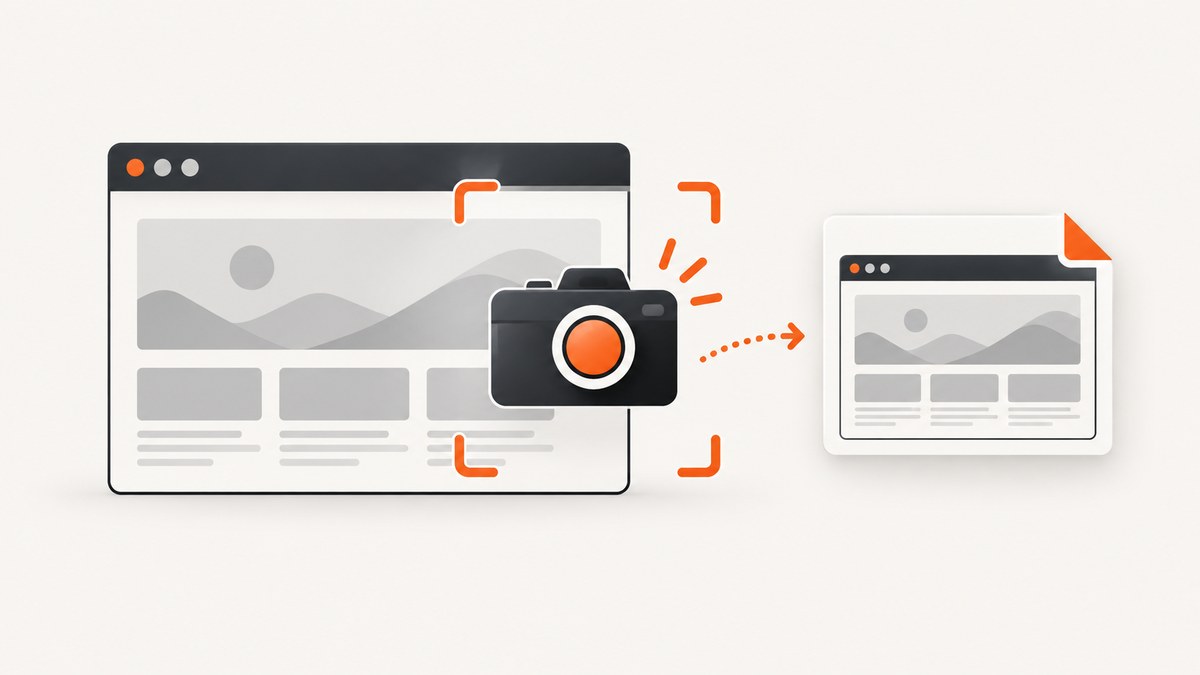
Selenium WebDriver can capture a browser screenshot through the browser driver’s screenshot API. In Python, you can save the current-window screenshot as a PNG, keep the PNG bytes in memory, or retrieve Base64-encoded image data. Capture only after the page has reached the state you want to inspect: navigate, wait for the relevant content, then save the screenshot.
A screenshot is useful evidence for debugging a failed test and can be an input to visual comparison. Capture alone does not make a visual regression system: that also requires a baseline, a comparison method, repeatable rendering conditions, and review of differences. APIs and screenshot scope vary by language binding, browser, and driver, so verify behavior against the versions you run. Selenium documents screenshots through its driver API; see also the ScreenshotNeo website for an API alternative when you need a screenshot without setting up a browser driver.
1. Capture a Selenium screenshot in Python
Install Selenium, start a supported browser and its driver, navigate to the target page, wait for the content that matters, and call save_screenshot. The following example uses Selenium’s Python API and writes a PNG to disk.

from pathlib import Path
from selenium import webdriver
from selenium.webdriver.common.by import By
from selenium.webdriver.support import expected_conditions as EC
from selenium.webdriver.support.ui import WebDriverWait

output = Path("artifacts")
output.mkdir(parents=True, exist_ok=True)

driver = webdriver.Chrome()
try:
    driver.get("https://example.com")

    # Wait for a meaningful page condition instead of guessing with a sleep.
    WebDriverWait(driver, 15).until(
        EC.visibility_of_element_located((By.TAG_NAME, "h1"))
    )

    saved = driver.save_screenshot(str(output / "example.png"))
    if not saved:
        raise RuntimeError("WebDriver did not save the screenshot")
finally:
    driver.quit()
Run it in an environment with Selenium installed and a compatible browser/driver available. For example, install the Python package with python -m pip install selenium, then run the script. Browser and driver setup is environment-specific; CI containers and remote grids may require additional configuration.
Choose a useful capture point
- Navigate to the exact URL and establish the required state, including authentication or test data.
- Wait for a semantic condition such as a visible heading, a completed loading indicator, or a specific result. A fixed delay can be useful for known animation or delayed rendering, but it is usually less reliable than waiting for the condition itself.
- Capture immediately after the condition is true. If the page changes asynchronously, wait for that change too.
- Check the return value and confirm the artifact exists. Keep the image together with the test name, browser version, viewport, and other context needed to interpret it.
In Python, save_screenshot(path) and get_screenshot_as_file(path) save PNG output. The API also exposes in-memory PNG bytes with get_screenshot_as_png() and Base64-encoded data with get_screenshot_as_base64(). The exact available methods and their behavior should be checked for the binding and driver in use. Python WebDriver API documentation describes these forms.
2. Pick the screenshot scope and output form
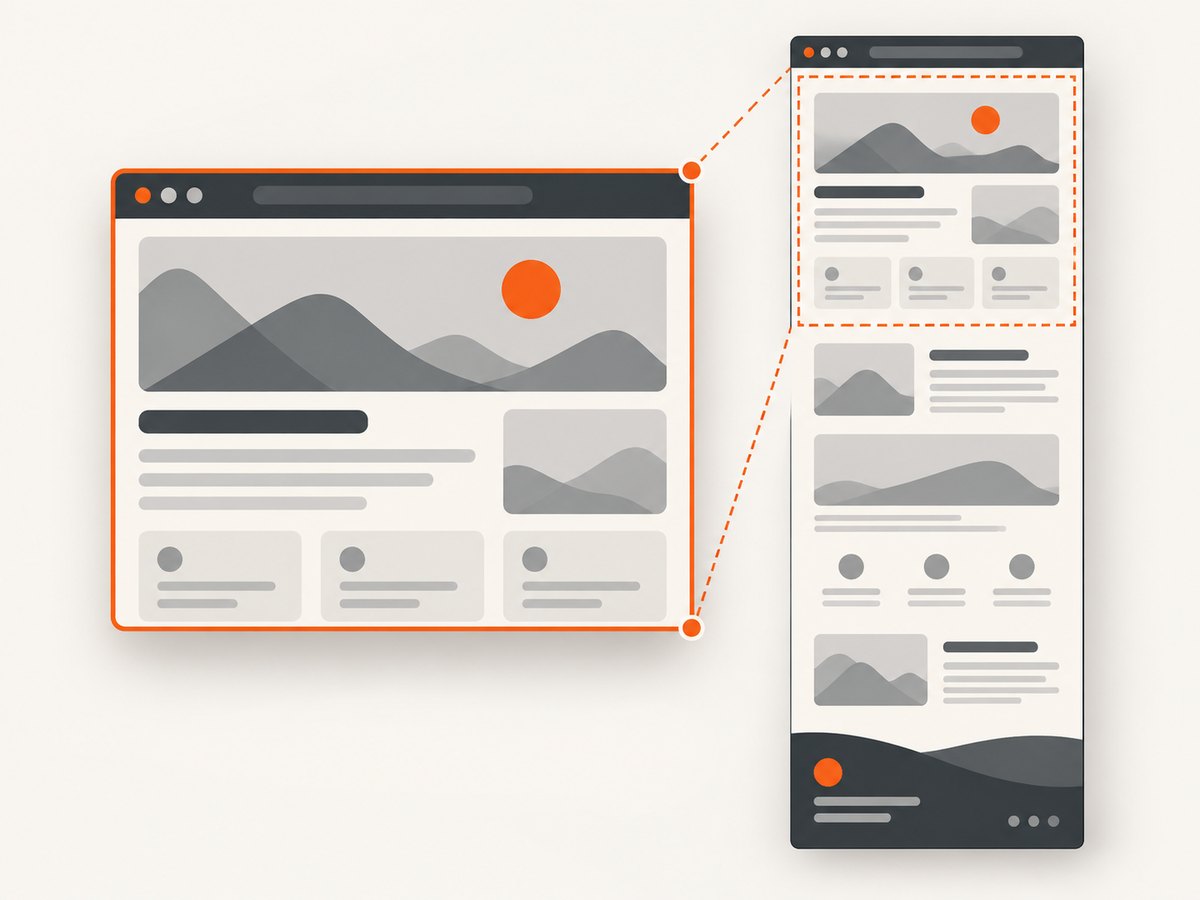
“Screenshot” can mean different capture areas. A current-window capture is appropriate for most failure evidence. An element capture can isolate a component. Full-document capture is useful for long pages, but support is implementation-specific: Selenium’s Firefox Python API documents a full-document screenshot method, while that should not be assumed to exist identically for every browser or driver.
| Need | Approach | Considerations |
|---|---|---|
| See what the test user saw | Capture the current window | Usually reflects the active viewport; record viewport and device scale for comparisons. |
| Inspect a control or component | Use the element screenshot API where supported | Confirm the binding’s method and driver support. Ensure the element is visible and not covered. |
| Inspect a long page | Use a documented full-document method for the specific browser binding | Do not assume viewport capture includes content outside the viewport or that every driver stitches the full page. |
| Write a PNG file | save_screenshot or get_screenshot_as_file in Python |
Use an explicit artifact directory and handle a failed save. |
| Pass image data to another function | PNG bytes or Base64 output | Bytes avoid an intermediate file; Base64 is convenient for text-based transport but expands the representation. |
The Java API’s TakesScreenshot interface describes capture from a driver or an HTML element and examples returning a file or Base64 data. Python has its own method names and documented forms. Treat these as binding APIs, not a promise that every language, driver, and browser exposes the same capture scope. See the Java TakesScreenshot API and the Firefox Python API.
3. Capture screenshots on test failures
Failure-only screenshots preserve evidence where it is most useful while avoiding an artifact for every passing test. Capture in the test framework’s failure hook or teardown path, before the driver is closed. If the test runner can retry failures, make artifact names unique by test, retry, and worker so that parallel runs do not overwrite one another.
from pathlib import Path
import re

ARTIFACTS = Path("artifacts/screenshots")
ARTIFACTS.mkdir(parents=True, exist_ok=True)

def safe_name(value):
    return re.sub(r"[^A-Za-z0-9_.-]+", "_", value).strip("_") or "test"

def save_failure_screenshot(driver, test_id):
    path = ARTIFACTS / f"{safe_name(test_id)}.png"
    if not driver.save_screenshot(str(path)):
        raise RuntimeError(f"Could not save screenshot to {path}")
    return path
Call save_failure_screenshot from your framework’s failure hook while the browser session is still alive. Adapt the hook to the runner you use; the snippet is deliberately framework-neutral. Keep screenshot capture errors from hiding the original test failure: report the artifact error as secondary diagnostic information.
Selenide’s screenshot documentation describes automatic screenshots on test failure and configuration for the reports folder. Its integrations can also capture on successful tests, but that behavior is optional and framework-specific. For large suites, failure-only capture is often easier to store and review; choose the policy according to how often you need passing-state evidence.
4. Use captures in visual regression checks
A Selenium screenshot is an image, not a verdict. A visual regression workflow compares a new capture with an approved baseline and presents differences for review. Establish the baseline intentionally, choose a comparison method and acceptable-difference policy, and decide who approves baseline updates. A mismatch may indicate a real interface change, test-data variation, or rendering noise.
Make captures repeatable
- Use the same browser and browser version, operating system, fonts, and relevant rendering configuration for baseline and candidate captures.
- Set a fixed viewport and device scale factor where your setup allows it. Record those settings with the artifact.
- Use stable test data and wait until the relevant page state is ready. Consider whether animations, timestamps, rotating content, ads, or personalized data need to be disabled or controlled.
- Keep baseline changes reviewable. A changed baseline should have a reason and a human review path.
- Inspect the diff as well as the test result. A pixel difference does not explain whether a change is acceptable.
Rendering can vary with host operating system, browser version, settings, hardware, power source, and headless mode. Playwright’s visual comparison guidance recommends matching the environment used to create baselines; this is comparative guidance about reliable visual testing, not a Selenium feature. See Playwright’s visual comparisons documentation.
5. Capture through an API instead of managing a browser
If your task is to obtain a screenshot of a URL rather than exercise a browser interaction, an API can remove browser and driver setup from that part of the workflow. ScreenshotNeo is a website screenshot API and MCP server for developers. Its one-call API returns an image or PDF; the examples below save a WebP response. See the ScreenshotNeo API documentation for request options.
curl -G "https://api.screenshotneo.com/v1/shot" -d access_key=YOUR_API_KEY --data-urlencode url=https://stripe.com -o shot.webpimport requests
r = requests.get(
"https://api.screenshotneo.com/v1/shot",
params={"access_key": "YOUR_API_KEY", "url": "https://stripe.com"},
timeout=90,
)
r.raise_for_status()
open("shot.webp", "wb").write(r.content)const q = new URLSearchParams({ access_key: 'YOUR_API_KEY', url: 'https://stripe.com' });
const res = await fetch(`https://api.screenshotneo.com/v1/shot?${q}`);
if (!res.ok) throw new Error(`Screenshot request failed: ${res.status}`);
await Bun.write('shot.webp', res);The Node.js example uses the supplied request pattern and Bun’s file writer to save the response. In Node.js environments without Bun, use the response body as bytes and write it with the built-in filesystem API. Treat the access key as a secret: keep it out of source control and public client-side code.
ScreenshotNeo accepts the cookie or consent banner as a visitor and removes more than 60 known consent platforms, newsletter popups, and chat widgets before capture; each step can be turned off. Only clean shots are billed: bot checks or CAPTCHAs, blank pages, timeouts, failed loads, and cache hits cost nothing, and the response identifies outcomes with X-Page-Verdict and X-Billed headers. Its MCP server provides take_screenshot, get_page_info, and capture_pdf for Claude, Cursor, and other MCP clients. The API also supports full-page and element capture, viewport and device presets, PDF settings, custom CSS and JavaScript, waits, request blocking, headers and cookies, caching, signed image links, async jobs, bulk capture, usage information, and more. Parameter names used by other screenshot APIs also work to ease migration.
Or skip the browser setup
Cookie banners, popups, and chat widgets are removed before the shot. Bot checks, blank pages, and failed loads are never billed. An MCP server lets AI agents take screenshots. The free plan includes 1,000 screenshots a month with no card; paid plans start at $5 for 3,000. Yearly billing gives two months free, and every feature is on every plan.
curl -G "https://api.screenshotneo.com/v1/shot" -d access_key=YOUR_API_KEY --data-urlencode url=https://stripe.com -o shot.webpRead the API docs and sign up for 1,000 free screenshots a month, with no card.
6. Troubleshooting Selenium screenshots
| Symptom | Likely cause | Fix |
|---|---|---|
| No screenshot file appears | Wrong or missing directory, permissions, or a false return value | Create the directory first, use an absolute path while diagnosing, check the method result, and retain the test log. |
| Image is blank or shows a loading state | Capture ran before the page or target content was ready | Wait for a meaningful element or application condition, then capture. Check network failures and test data if the condition never arrives. |
| Element screenshot fails | Element is absent, stale, hidden, or unsupported by the driver | Re-find it after navigation or rerendering, wait until visible, scroll if needed, and verify that the binding and driver support element screenshots. |
| Capture is cropped or only shows the viewport | The invoked method captures the current window rather than the full document | Check the binding’s scope. Use a documented full-document API for that browser or capture the relevant sections separately. |
| Images differ between local and CI | Browser, OS, fonts, headless mode, hardware, or timing differ | Align the rendering environment and stabilize content before changing a baseline. |
| Screenshot hook reports a closed session | The driver was quit before the framework’s failure hook ran | Move capture into teardown before quit(); preserve the primary test exception if artifact capture also fails. |
| Parallel tests overwrite artifacts | Multiple runs use the same filename | Include test identity, worker, retry, and a unique run identifier in artifact paths. |
7. Performance, reliability, and cost
Screenshot capture adds browser work and image storage to a test run. Limit artifacts to the cases that help diagnosis, use failure-only capture when that fits your workflow, and set retention in your CI artifact system. Capturing a page does not replace waiting for the correct state; poorly timed captures create misleading evidence and reruns.
For visual checks, reliability depends on repeatable browser conditions and stable content as much as on the capture call. Keep the browser and driver versions compatible, ensure the session remains available until screenshot hooks run, and make artifact writes unique in parallel jobs. For a URL-only capture workflow, an API avoids maintaining a browser/driver pair for that operation. ScreenshotNeo offers 1,000 shots per month free with no card; paid monthly plans are Starter $5 for 3,000, Growth $15 for 15,000, Pro $39 for 60,000, Scale $99 for 250,000, and Business $249 for 1,000,000. Yearly billing gives two months free. Only clean shots are billed, according to the product facts above.
8. Frequently asked questions
Does a Selenium screenshot prove that a visual change is a bug?
No. It records pixels at a particular time and environment. A visual workflow compares it with a baseline, then a person or policy evaluates the difference.
Can Selenium capture a screenshot as Base64?
Python documents a Base64 screenshot method, and Java’s TakesScreenshot API includes Base64 output examples. Check the specific binding and driver documentation for the method available to your setup.
Should I save screenshots from passing tests?
That depends on whether you need routine visual artifacts or primarily failure evidence. Failure-only capture reduces artifact volume; some framework integrations support capture on successful tests as an option.
Can I assume full-page capture works in every browser?
No. Selenium screenshot scope is exposed differently across APIs and implementations. Confirm full-document support for the browser, driver, and language binding you actually run.


