How to Fix Selenium Screenshot Timeouts with Very Large Windows
Diagnose whether Selenium is timing out on the screenshot command or on a page, script, or element wait, then isolate the effect of very large windows.
A Selenium screenshot timeout with a very large browser window does not point to one universal cause. First identify whether the WebDriver screenshot command itself is stalled, or whether the surrounding test timed out waiting for page navigation, an element, or an asynchronous script. Then reproduce the failure with controlled window dimensions and compare a current-window capture with an element capture.
Selenium exposes window sizing, current-context screenshots, and element screenshots as separate operations. Its page-load, asynchronous-script, and implicit-wait settings also govern different work. Changing a wait without identifying which operation expired may leave a blocked screenshot command untouched. [Selenium: Windows and screenshots] [Selenium: Waits]
1. Identify exactly what timed out
Start with the test output and WebDriver logs. A timeout can be reported by the test framework even though Selenium is still waiting on a different operation. Note the last command sent before the failure: navigation, element lookup, script execution, window resize, or screenshot. If the command was save_screenshot and that call itself does not return, investigate the screenshot path; if the failure occurs before it, diagnose the wait that actually expired.
Collect these details before changing the test:
- Full exception and stack trace, including the last WebDriver command.
- Selenium binding and version, browser and driver versions, and operating system.
- Headless or headed mode, and whether execution is local or remote.
- Requested width and height, how those dimensions were set, and elapsed time.
- Whether navigation, an element lookup, or asynchronous JavaScript ran immediately before capture.
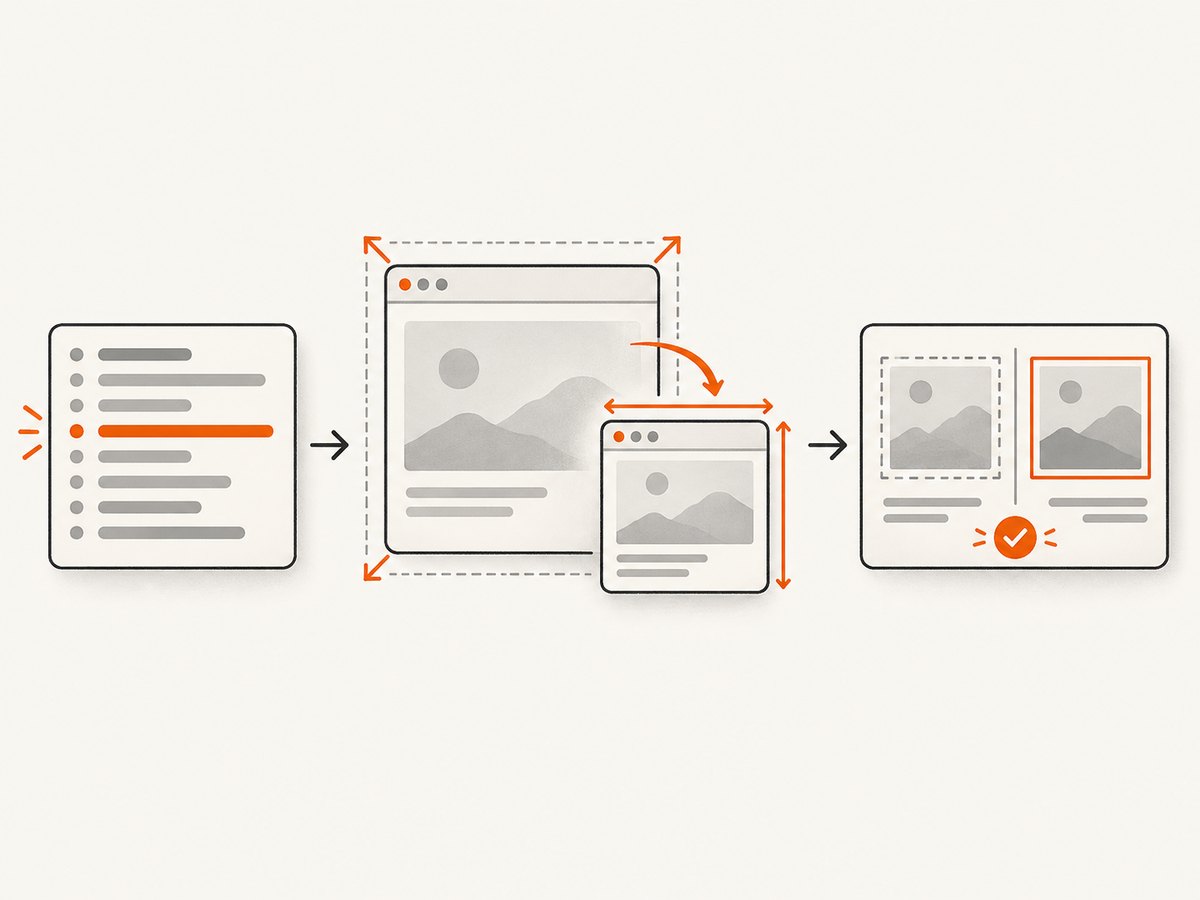
Keep the original failing dimensions and run a comparison at a smaller, fixed size. Change one variable at a time, such as width while holding height steady. Record whether resize succeeds and whether screenshot completion changes. Selenium documents APIs for reading and setting window dimensions, but the reviewed documentation does not specify a universal safe maximum size or a dimension that guarantees a timeout.
2. Use a controlled window size
For a reproducible test, set a known size before capture instead of relying on a maximized window or an unusually large dimension. The following Python example uses Selenium’s documented window and screenshot methods. Install the Selenium Python package and have a compatible browser and driver available to your environment before running it.
from selenium import webdriver

options = webdriver.ChromeOptions()
# Keep the browser size fixed for repeatable comparisons.
options.add_argument("--window-size=1280,900")

driver = webdriver.Chrome(options=options)
try:
    driver.get("https://example.com")
    driver.set_window_size(1280, 900)
    driver.save_screenshot("screenshot.png")
finally:
    driver.quit()
The startup argument and WebDriver resize are two ways to control size, at different times. ChromeDriver documents a window-size=1000,800 argument example and a separate start-maximized switch. Choose a fixed size that preserves the viewport your test needs; do not assume maximization or a larger size improves reliability. [ChromeDriver capabilities]
| Approach | When it applies | Useful diagnostic |
|---|---|---|
Startup --window-size |
When the browser session is created | Compare repeatable runs from a known initial size |
driver.set_window_size(width, height) |
After the session starts | Check whether a resize itself is slow or fails |
| Maximize | When the test explicitly needs the available window size | Compare with fixed dimensions; it may vary by environment |
Read the resulting dimensions where useful, and log them alongside the screenshot result. Window bounds and viewport dimensions are related but should not be assumed to be identical in every browser mode or environment. If setting a requested size returns an error or a different size, preserve that observation rather than treating the requested dimensions as confirmed.
3. Compare full-window and element screenshots
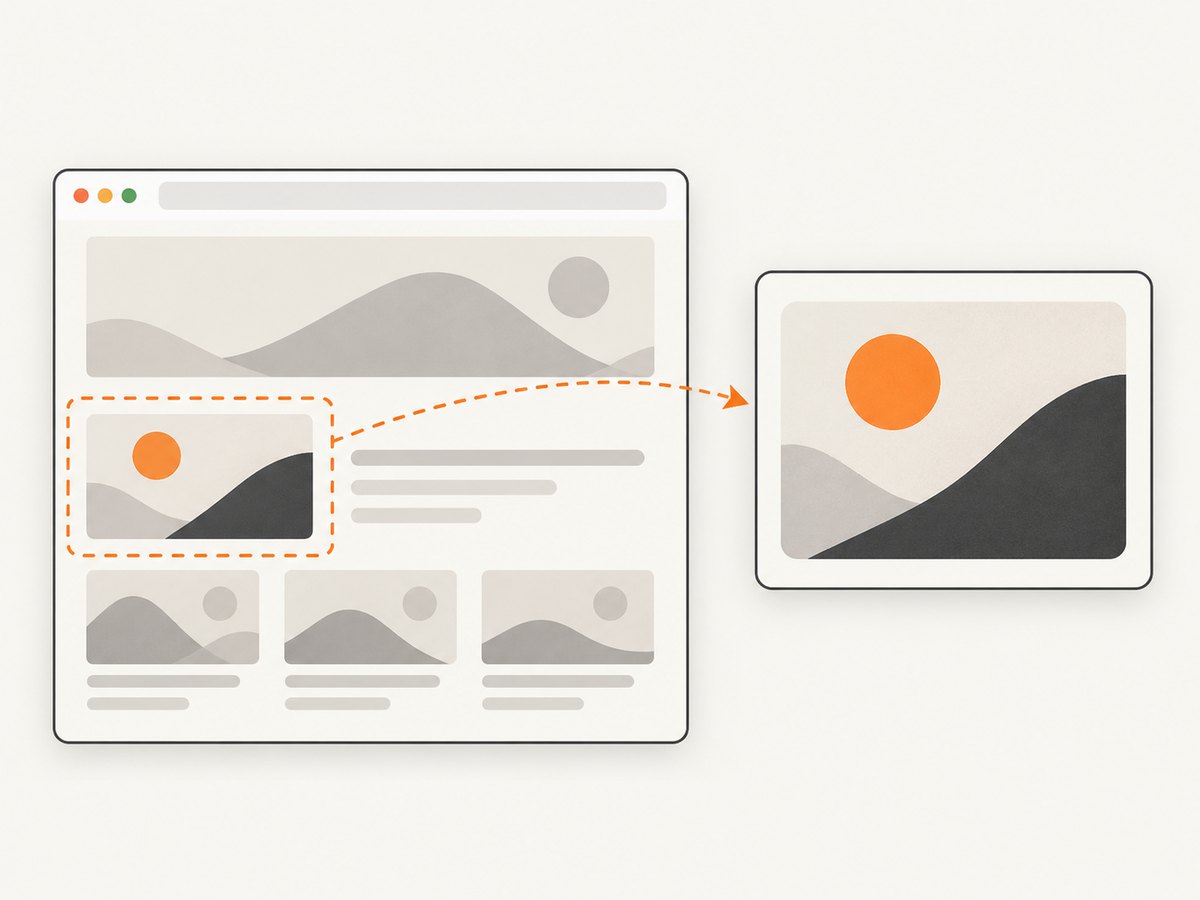
If the test only needs one component, capture that element and compare the result with the current browsing context screenshot. A smaller capture scope can help isolate whether the full capture path is involved, but it is not proof that an element screenshot avoids every browser or driver limit. The target must exist and be located successfully first.
from selenium import webdriver
from selenium.webdriver.common.by import By

options = webdriver.ChromeOptions()
options.add_argument("--window-size=1280,900")
driver = webdriver.Chrome(options=options)
try:
    driver.get("https://example.com")

    # Full current browsing context
    driver.save_screenshot("page.png")

    # Narrower capture when the test only needs this element
    main = driver.find_element(By.CSS_SELECTOR, "main")
    main.screenshot("main.png")
finally:
    driver.quit()
If main is not present on the target page, replace the selector with one that is. An element lookup failure is an element-location problem, not evidence that screenshot serialization timed out. Selenium’s documentation covers screenshot operations for the current context and elements. Check the Python API reference for your installed binding version if a method name or return behavior differs. [Selenium window and screenshot operations] [Selenium Python WebDriver API]
4. Match timeout settings to the operation
Selenium’s timeout categories are not interchangeable:
- Page-load timeout: limits waiting for page-load completion during navigation.
- Script timeout: limits asynchronous script execution.
- Implicit wait: affects how long element-location calls search for an element.
None should be increased by reflex to fix a screenshot command that is already blocked inside WebDriver. First use the stack trace and logs to establish which operation was active when the timeout occurred. If an element lookup or navigation did not complete, adjust the relevant wait based on the page behavior and test requirement. If the screenshot command itself remains pending, investigate the browser/driver capture path, size, logs, and execution load instead. Selenium documents these timeout scopes separately. [Selenium waits]
# Set only the timeout relevant to the operation being diagnosed.
driver.set_page_load_timeout(30)  # navigation completion
driver.set_script_timeout(20)     # asynchronous JavaScript
These values are examples for illustrating scope, not recommended universal settings. Implicit wait is configured separately with driver.implicitly_wait(seconds); avoid combining wait strategies without understanding how they affect the test’s overall waiting behavior.
5. Troubleshoot by symptom
| Symptom | Likely scope to inspect | Next action |
|---|---|---|
| Failure happens before the screenshot line | Navigation, script, or element wait | Identify the active command and adjust only its matching timeout or page condition. |
save_screenshot does not return at the large size |
Screenshot command, browser/driver state, dimensions, or execution load | Retry at a smaller fixed size, retain logs, and compare current-context with element capture. |
| Window resize hangs or reports an error | Window-bounds operation or driver/browser compatibility | Record requested and observed dimensions, versions, and driver logs; compare with a startup size argument. |
| Element screenshot fails locating the target | Selector or page readiness | Confirm the selector exists and use the appropriate element wait before capture. |
| Only some runs fail under load | Timing, resource pressure, or version-specific driver behavior | Compare logs and versions across runs and reduce concurrent load as a diagnostic variable. |
| Failure began after an upgrade | Browser/driver behavior or compatibility | Record exact versions and inspect their release notes before attributing the cause. |
ChromeDriver release notes include a fix concerning window-bounds timeout checking under high load. This shows that version and load context can matter for window operations; it does not establish that a particular screenshot timeout has that cause. Check the notes for the driver version in use and correlate them with captured logs. [ChromeDriver release notes]
6. Keep the reproduction reliable and affordable
Use a fixed browser size, stable test page, and one capture operation per diagnostic run. Save the exception, dimensions, versions, and timing with the output. Change only one factor at a time: size, capture scope, startup versus runtime sizing, or concurrency. This makes the comparison interpretable and avoids turning a timing symptom into an unstructured set of configuration changes.
Very large dimensions can make the requested capture materially larger, but the reviewed Selenium sources do not establish a universal pixel ceiling, memory threshold, or performance percentage. Do not promise a particular speedup from shrinking the window. Choose dimensions based on the test’s required viewport and measure the exact environment. If a smaller viewport changes responsive layout, confirm that it still tests the intended state.
For CI or remote browser runs, preserve browser and driver logs and avoid changing versions and dimensions in the same experiment. If failures happen only under concurrent load, compare a low-concurrency run with the normal run and record the difference. Treat this as diagnostic evidence, not proof of a specific hardware cause. Keep screenshots and logs only as long as needed by the test and your project policy.
7. Or skip the browser setup
If your goal is a website image rather than exercising Selenium itself, ScreenshotNeo provides a screenshot API and MCP server. One GET request captures a URL as PNG, JPEG, WebP, or PDF. Its request options include viewport sizing, full-page and element capture, device presets, wait conditions, custom CSS and JavaScript, and more. See the ScreenshotNeo API documentation for parameter details.
curl -G "https://api.screenshotneo.com/v1/shot" -d access_key=YOUR_API_KEY --data-urlencode url=https://stripe.com -o shot.webpimport requests
r = requests.get(
"https://api.screenshotneo.com/v1/shot",
params={"access_key": "YOUR_API_KEY", "url": "https://stripe.com"},
timeout=90,
)
open("shot.webp", "wb").write(r.content)const q = new URLSearchParams({ access_key: 'YOUR_API_KEY', url: 'https://stripe.com' });
const res = await fetch(`https://api.screenshotneo.com/v1/shot?${q}`);
if (!res.ok) throw new Error(`Screenshot request failed: ${res.status}`);
const image = Buffer.from(await res.arrayBuffer());
require('node:fs').writeFileSync('shot.webp', image);ScreenshotNeo accepts cookie consent banners like a visitor and removes more than 60 known consent platforms, newsletter popups, and chat widgets before capture; each of those steps can be turned off. Bot checks and CAPTCHAs, blank pages, timeouts, failed loads, and cache hits are not billed, and response headers report the page verdict and billing status. Its MCP server offers take_screenshot, get_page_info, and capture_pdf tools for Claude, Cursor, and other MCP clients. The free plan includes 1,000 screenshots per month without a card; paid plans start at $5 for 3,000. Create a free account for 1,000 screenshots a month, with no card.
8. Frequently asked questions
Does Selenium document a maximum screenshot size?
The sources used here document sizing and screenshot operations but do not specify a universal maximum dimension. Test the dimensions and browser/driver combination used by your project.
Should I always use an element screenshot?
No. Use it when the test needs only that element. If the requirement is a full current-window image, an element capture changes the scope and may not satisfy the test.
Will increasing the script timeout fix a screenshot hang?
Only if asynchronous script execution is the operation that timed out. The script timeout does not identify or repair a screenshot command that is stalled.
Should I maximize the browser for visual tests?
Use maximization only when the test needs the available window size. A fixed size is generally easier to reproduce across runs and environments.


