Why Selenium Screenshot Title Bars Appear Mid-Page and How to Fix Them
A bar in the middle of a Selenium screenshot may be page content, an iframe, or a capture-region issue. Diagnose what it is before changing the screenshot code.
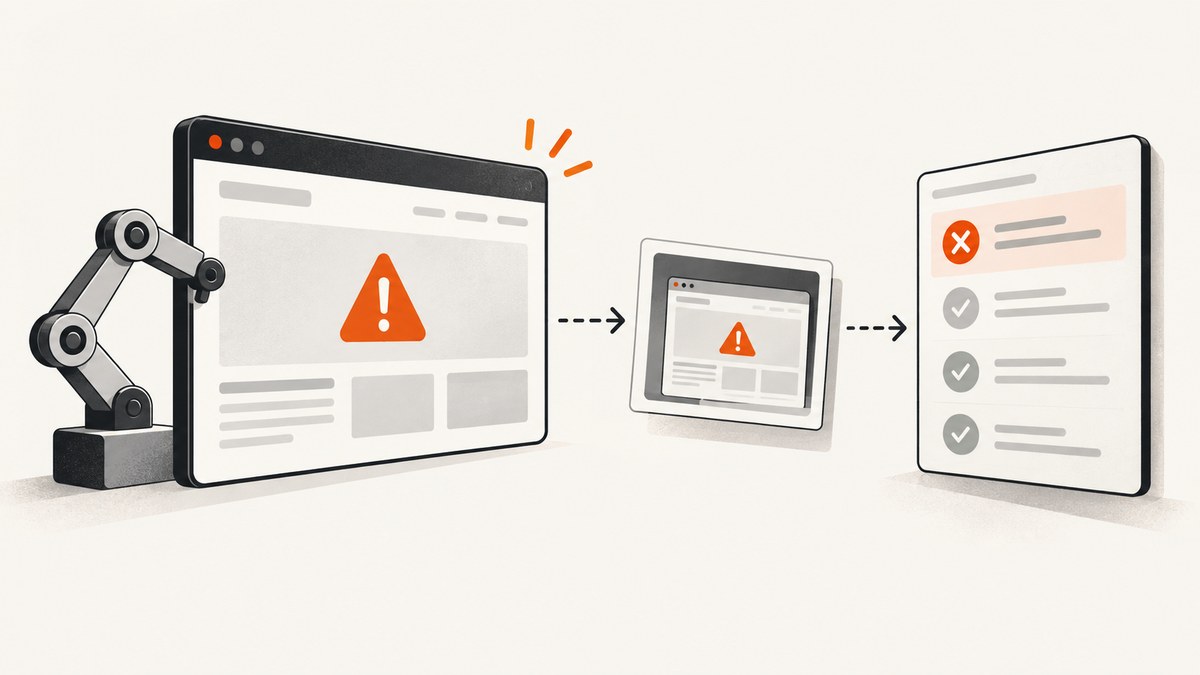
A title-bar-looking strip in the middle of a Selenium screenshot is not enough to conclude that Selenium inserted browser chrome into the page image. First determine whether the strip is an HTML element, iframe content, a browser-like header rendered by the application, or a mismatch between the capture region and the page geometry. The right fix depends on what you want to capture: the current window, one element, or a defined area that extends beyond the viewport.
Selenium documents driver screenshots as captures of the current browsing context, and documents element screenshots separately. Chrome’s DevTools Protocol offers a page screenshot command with a clipping region and a captureBeyondViewport option. Those interfaces provide different capture targets; they do not establish one universal cause for every mid-page bar. See the Selenium screenshot documentation, Selenium element documentation, and the Chrome DevTools Protocol Page reference.
1. Identify what the strip is
Start by comparing the screenshot with the live page at the same URL and scroll position. If the strip appears in the live page too, Selenium may simply be capturing page content that resembles browser chrome. Inspect its text, color, dimensions, and position. Search the DOM for its text or distinctive attributes, and check whether a matching element uses position: fixed or position: sticky.
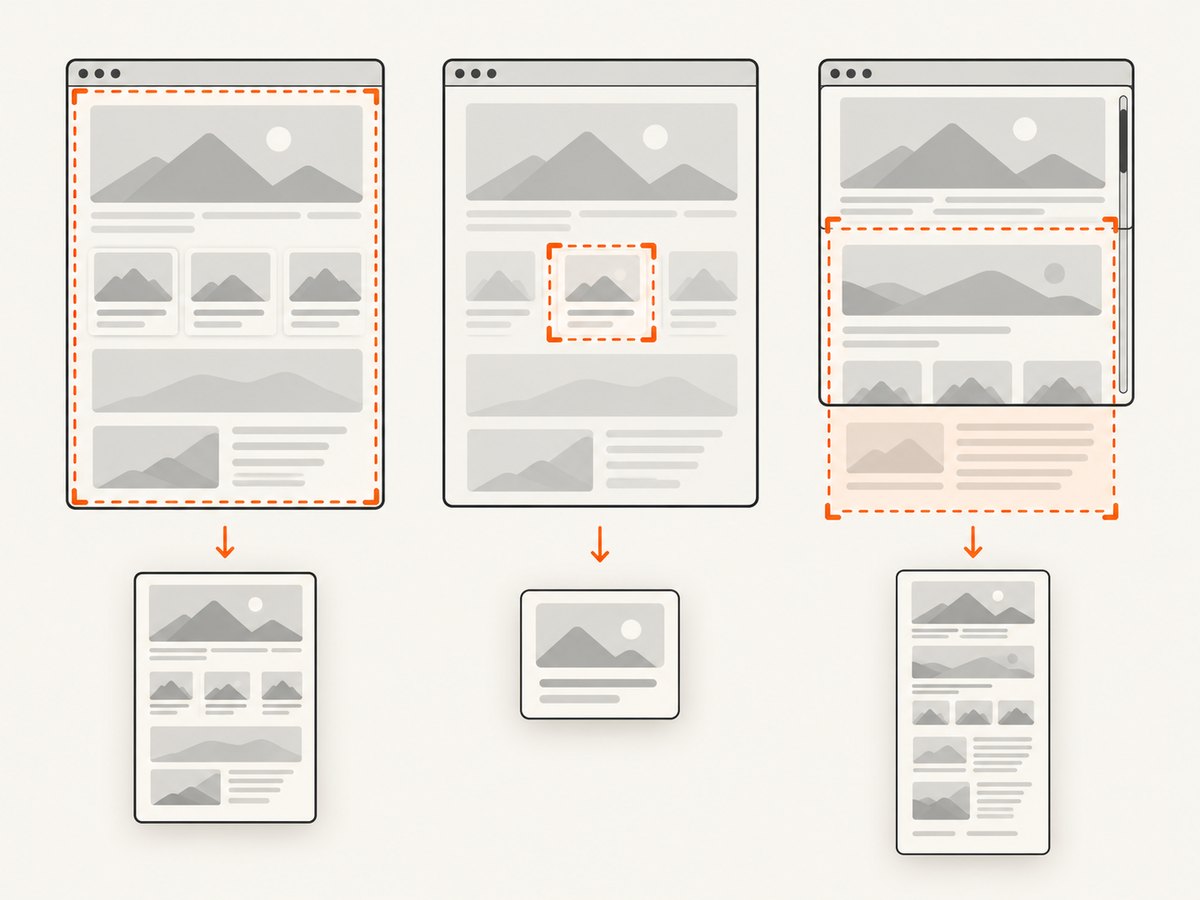
Also check whether the content is inside an iframe. The top-level document’s DOM does not include the inner document’s elements as ordinary descendants; frame interaction is a separate WebDriver concern. If the strip belongs to a frame, switch into the relevant frame to inspect it, then switch back to the default content. Selenium documents frame switching in its frames guide.
If you cannot match the strip to page content, determine whether it is native browser UI or a capture artifact. Native window chrome is outside the page DOM, so CSS selectors cannot remove it. A crop or CDP clip may help when the issue is a wrongly defined capture region, but first verify the image dimensions and intended coordinate system.
2. Reproduce the exact capture
Make a small reproducible script and record the details that can affect the output. There is no single diagnosis available from the title-bar symptom alone.
- Browser name and build, Selenium binding and version, and driver version.
- Headed or headless mode and the exact screenshot method called.
- Current window handle, tab, URL, scroll position, and whether the strip is present in the live page.
- Window size, viewport size, device scale, and screenshot pixel dimensions.
- Whether the target is the visible viewport, a particular element, or content beyond the viewport.
Confirm that the intended window is active and the page has rendered before capturing. Selenium supports multiple windows and tabs; a script can otherwise capture a different browsing context than the one being inspected. A fixed sleep may hide a timing issue on one run and fail on another. Prefer a wait for a page-specific condition, such as a known element becoming visible.
3. Capture the current window with Selenium Python
Use the ordinary WebDriver screenshot when you want the current browsing context’s screenshot. This runnable example waits for a page heading before saving a PNG:
from selenium import webdriver
from selenium.webdriver.common.by import By
from selenium.webdriver.support import expected_conditions as EC
from selenium.webdriver.support.ui import WebDriverWait

options = webdriver.ChromeOptions()
# Uncomment for headless capture:
# options.add_argument("--headless=new")

driver = webdriver.Chrome(options=options)
try:
    driver.set_window_size(1280, 900)
    driver.get("https://example.com")
    WebDriverWait(driver, 20).until(
        EC.visibility_of_element_located((By.TAG_NAME, "h1"))
    )
    driver.save_screenshot("page.png")
finally:
    driver.quit()
The save_screenshot method writes the image to the provided path. Selenium’s API also supports retrieving screenshot bytes through its screenshot interface. This is a current-window capture; it is not a general-purpose guarantee about native browser chrome on every platform or in every runtime.
If you suspect the viewport itself has the wrong dimensions, compare the window and viewport metrics rather than guessing from the image:
print("window:", driver.get_window_size())
print("viewport:", driver.execute_script(
    "return {width: window.innerWidth, height: window.innerHeight, "
    "scrollY: window.scrollY, dpr: window.devicePixelRatio}"
))
Window dimensions include the browser’s windowing context, while innerWidth and innerHeight describe the page viewport. Device pixel ratio can make image pixel dimensions differ from CSS dimensions. Log these values alongside the output when comparing headed and headless runs.
4. Capture one element instead of the whole window
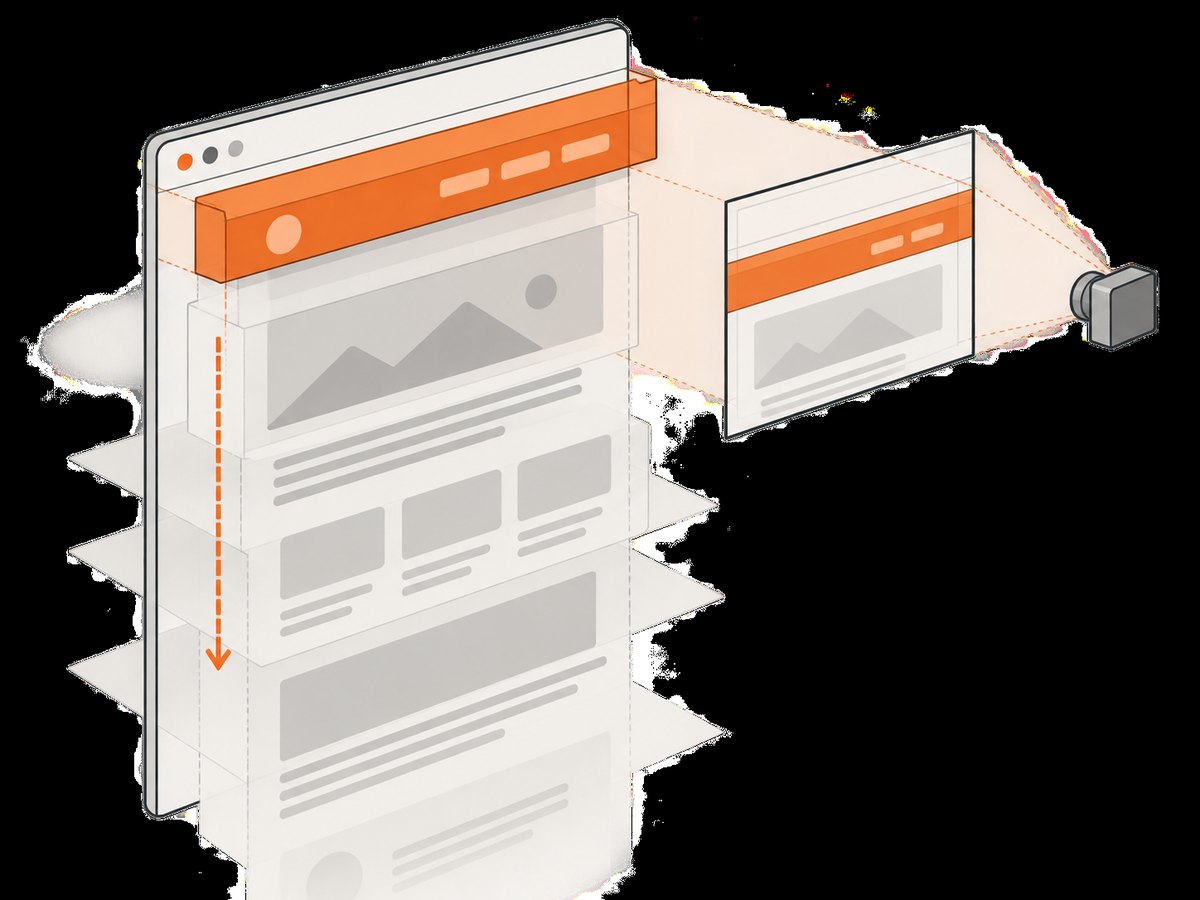
If the wanted image is a component—such as a report card, chart, or application header—use the element screenshot API. It narrows the target and avoids relying on a guessed crop of a full-page image.
from selenium import webdriver
from selenium.webdriver.common.by import By
from selenium.webdriver.support import expected_conditions as EC
from selenium.webdriver.support.ui import WebDriverWait

driver = webdriver.Chrome()
try:
    driver.get("https://example.com")
    card = WebDriverWait(driver, 20).until(
        EC.visibility_of_element_located((By.CSS_SELECTOR, "main"))
    )
    card.screenshot("main.png")
finally:
    driver.quit()
Choose a selector that identifies the intended element uniquely. If it is inside an iframe, switch to that frame before locating the element. If it is outside the viewport, WebDriver may scroll it into view as part of interacting with it; verify the resulting state if the page has sticky elements or scroll-triggered behavior.
5. Use Chrome DevTools Protocol for a defined region
When you need Chrome-specific control over a capture region or content beyond the visible viewport, CDP’s Page.captureScreenshot accepts a clip and a captureBeyondViewport option. The protocol reference documents captureBeyondViewport as defaulting to false. Set the target deliberately and check that coordinates and dimensions correspond to the page geometry you intend.
In Selenium Python with Chrome, a basic CDP call returns a base64-encoded image. This example captures a specified CSS-pixel rectangle; the rectangle values are illustrative and should be set for the target page:
import base64
from selenium import webdriver
from selenium.webdriver.support.ui import WebDriverWait

options = webdriver.ChromeOptions()
driver = webdriver.Chrome(options=options)
try:
    driver.set_window_size(1280, 900)
    driver.get("https://example.com")
    WebDriverWait(driver, 20).until(
        lambda d: d.execute_script("return document.readyState") == "complete"
    )
    result = driver.execute_cdp_cmd("Page.captureScreenshot", {
        "format": "png",
        "captureBeyondViewport": True,
        "clip": {
            "x": 0,
            "y": 0,
            "width": 1280,
            "height": 1600,
            "scale": 1
        }
    })
    with open("region.png", "wb") as image_file:
        image_file.write(base64.b64decode(result["data"]))
finally:
    driver.quit()
This is Chrome protocol guidance rather than a cross-browser WebDriver feature. The clip’s bounds must make sense for the document and the deployed browser. A region that starts or ends at the wrong coordinate can make a page element appear misplaced or omit content. For a normal viewport screenshot, use WebDriver’s screenshot method instead of introducing CDP without a need.
6. Diagnose sticky headers, frames, and timing
Fixed or sticky page element
A fixed header stays at a viewport position while the document scrolls. A sticky element can become fixed-like after crossing a scroll threshold. Either may look like a bar inserted into the screenshot, especially in a full-page or stitched capture. Inspect the element’s computed style and compare screenshots at different scroll positions. If it is application content, decide whether the test should preserve it, change the application state, or capture a component that excludes it.
Iframe content
Inspect the frame tree and test the relevant browsing context explicitly. Do not infer that an element is missing just because a top-level CSS query cannot find it. Switch to the frame, inspect or capture the intended content, and restore default content before continuing with the top-level page.
Page not settled
Navigation completing does not necessarily mean that client-side rendering, fonts, images, or animations have finished. Wait for a meaningful element or application state. If a transition is still moving when the screenshot runs, disable animation in the test environment or wait for the relevant state; avoid adding arbitrary delays as the only synchronization mechanism.
7. Troubleshooting checklist
| Symptom | Likely explanation | Next step |
|---|---|---|
| The strip is visible in the live page | It is likely page content, perhaps a fixed or sticky header, iframe, or app-rendered browser-like component. | Find the matching DOM element, inspect computed styles and frame context, then capture the intended element or correct the test state. |
| The strip is absent live but appears in the file | Capture target, active tab, runtime mode, or dimensions may differ from the inspected browser. | Log the active window handle, URL, window and viewport dimensions, scroll position, and image dimensions; reproduce with the same screenshot method. |
| The bar appears at a different vertical position after scrolling | Sticky or fixed positioning, or a capture region using different coordinates. | Compare at a controlled scroll position and inspect the element’s positioning behavior. Define a CDP clip only if a specific region is required. |
| Part of the page is missing | The driver screenshot may only represent the current window; a CDP clip may be too small or beyond-viewport capture may be disabled. | Choose viewport, element, or beyond-viewport capture intentionally; check clip bounds and the protocol behavior for the installed Chrome version. |
| CDP command fails or behaves differently in another browser | The command is Chrome DevTools Protocol-specific and support depends on browser and binding. | Use WebDriver’s standard screenshot API for portable current-window capture, or align Chrome, driver, Selenium, and CDP usage. |
| Image dimensions do not match CSS dimensions | Window decorations, viewport sizing, or device pixel ratio can affect the relationship. | Record get_window_size(), innerWidth, innerHeight, and devicePixelRatio; set the window size explicitly. |
| Screenshot changes between runs | Rendering state, asynchronous content, animations, or a different active tab may vary. | Wait for an application-specific condition, fix the target window and viewport, and capture at a repeatable scroll position. |
8. Performance, reliability, and cost
Capture the smallest target that satisfies the task. A viewport or element image generally involves less page area than a very tall beyond-viewport capture, which can increase image size and work. Do not add a delay after every navigation if a specific readiness condition can be awaited. For reliable visual checks, keep the browser build, viewport, device scale, data, and capture method consistent across runs.
WebDriver screenshots use the standard WebDriver interface. CDP can expose Chrome-specific controls, but introduces a browser-specific dependency. Record the runtime versions when the exact output matters. A screenshot call itself does not explain whether a suspicious strip is page content; DOM inspection and a minimal reproduction are necessary to diagnose that.
For a hosted capture option, ScreenshotNeo is a website screenshot API and MCP server. It returns PNG, JPEG, WebP, or PDF from one GET request, so a developer can avoid managing a local browser for a capture job. Its billing rule is that only clean shots are billed; bot checks/CAPTCHAs, blank pages, timeouts, failed loads, and cache hits cost nothing, with the result identified by X-Page-Verdict and X-Billed headers. Review the ScreenshotNeo API documentation for request options.
Or skip the browser setup
Use the direct Selenium approaches above when you need to debug or control a local browser. For a hosted screenshot, this one-call request returns an image:
curl -G "https://api.screenshotneo.com/v1/shot" \
  -d access_key=YOUR_API_KEY \
  --data-urlencode url=https://example.com \
  -o shot.webp
ScreenshotNeo accepts cookie and consent banners like a visitor and removes 60+ known consent platforms, newsletter popups, and chat widgets before capture; each step can be turned off. Bot checks, blank pages, and failed loads are never billed. Its MCP server gives AI agents tools for screenshots, page information, and PDF capture. The free plan includes 1,000 screenshots a month with no card; paid plans start at $5 for 3,000. See the API docs for configuration.
Sign up for 1,000 free screenshots a month, with no card.
FAQ
Does Selenium add a browser title bar to screenshots?
The symptom alone does not establish that. Selenium documents a screenshot of the current browsing context, but the strip may be page content or a capture-region/runtime issue. Inspect the live page and DOM first.
How do I capture only the visible viewport?
Use the ordinary WebDriver screenshot method, such as Python’s driver.save_screenshot("page.png"), and compare the result against the actual viewport dimensions.
How do I capture one element?
Locate the element and call its screenshot method, for example element.screenshot("element.png") in Selenium Python.
Is full-page capture portable across browsers?
The CDP controls described here are Chrome-specific. Match the chosen method to the browser and Selenium support in your runtime, and verify the resulting output.


