How to Capture a Screenshot with the URL Bar Using Python Selenium
Selenium captures webpage content, not the browser’s address bar. Learn how to capture the visible URL bar with Python desktop tools, and when to use a page-only screenshot instead.
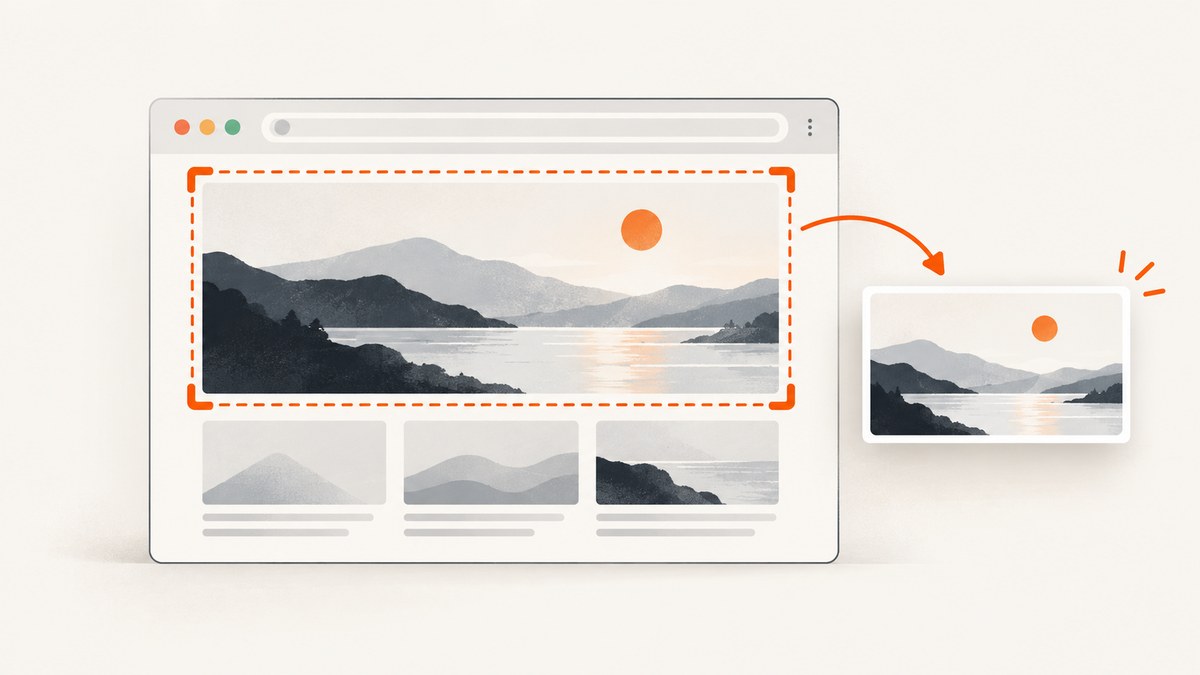
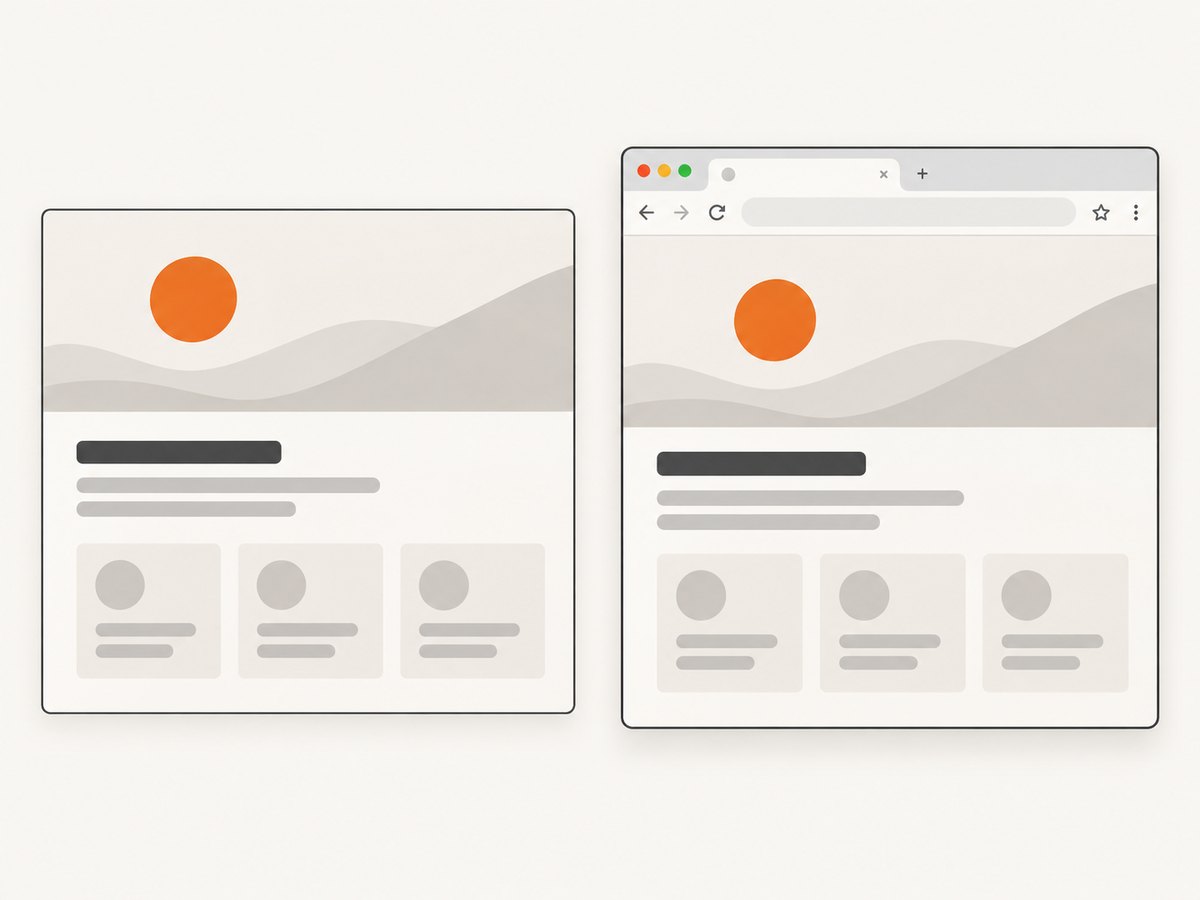
If your screenshot must show the browser’s URL bar, Selenium alone is not enough. Selenium’s driver.save_screenshot("page.png") captures the current browser browsing context: the webpage viewport, without promising the browser’s tabs, title bar, or address bar. To include the visible URL bar, use Selenium to navigate and prepare the page, then capture the displayed browser window or screen with a desktop screenshot tool such as PyAutoGUI or Pillow ImageGrab. Selenium’s documentation describes WebDriver screenshots; PyAutoGUI and Pillow ImageGrab provide desktop capture options.
First decide what the image needs to prove: page content, a visible browser frame and URL, the whole scrollable document, or one element. Those are different outputs. A full-page screenshot still does not include browser chrome.
1. Choose the capture target
| What you need | Method | What to expect |
|---|---|---|
| Visible page viewport | Selenium screenshot API | Page content in the current browsing context; browser chrome is not part of the documented output. |
| Visible URL bar and browser frame | Selenium plus desktop screen capture | Captures displayed pixels. Requires a graphical desktop, a visible browser window, and suitable focus and screen state. |
| Entire scrollable page | A browser API with explicit full-page support | Captures the page document, not the address bar. Playwright Python documents full_page=True. |
| One page element | Element screenshot API | Captures the selected page element, not the browser interface. |
The distinction matters when sharing evidence. If the URL itself must be visible, a WebDriver viewport image is not a browser-window screenshot. If the requirement is simply to save page content, use Selenium’s screenshot API and avoid desktop capture dependencies.
2. Capture the page with Selenium
For a page-only PNG, Selenium’s Python API offers save_screenshot(path) and get_screenshot_as_file(filename). Use a PNG filename and make sure the destination directory exists. The method returns False if it encounters an I/O error, so check the result in automation.
from pathlib import Path
from selenium import webdriver

output = Path("screenshots/page.png")
output.parent.mkdir(parents=True, exist_ok=True)

with webdriver.Chrome() as driver:
    driver.get("https://example.com")
    saved = driver.save_screenshot(str(output))
    if not saved:
        raise OSError(f"Could not save screenshot to {output}")
This example uses Selenium’s current Python interface and Chrome’s WebDriver support. Install Selenium and ensure a compatible browser is available. Selenium Manager can help manage drivers in supported setups; consult the official Selenium documentation for browser-specific setup details. The capture itself contains the browser page context, not the visible desktop frame.
Wait for the page state you need
A successful navigation call does not guarantee every dynamic component, image, or client-side render is ready. Prefer waiting for a meaningful condition over sleeping an arbitrary number of seconds. For example, wait for a page element that indicates the content you intend to show:
from pathlib import Path
from selenium import webdriver
from selenium.webdriver.common.by import By
from selenium.webdriver.support.ui import WebDriverWait
from selenium.webdriver.support import expected_conditions as EC

output = Path("screenshots/page.png")
output.parent.mkdir(parents=True, exist_ok=True)

with webdriver.Chrome() as driver:
    driver.get("https://example.com")
    WebDriverWait(driver, 20).until(
        EC.visibility_of_element_located((By.CSS_SELECTOR, "main"))
    )
    if not driver.save_screenshot(str(output)):
        raise OSError(f"Could not save screenshot to {output}")
Replace main with a selector that fits the target site. If the page has several loading stages, wait for the specific state you need. A screenshot can be technically valid and still show a spinner, an incomplete chart, or a consent overlay if the capture begins too early.
3. Include the visible URL bar with desktop capture
To show the address bar, navigate with Selenium in a graphical desktop session and capture screen pixels. PyAutoGUI can save a screenshot to a filename and capture a rectangular region. Pillow ImageGrab can capture the full screen or a bounding box; its documented single-window capture support and display-server behavior vary by operating system.
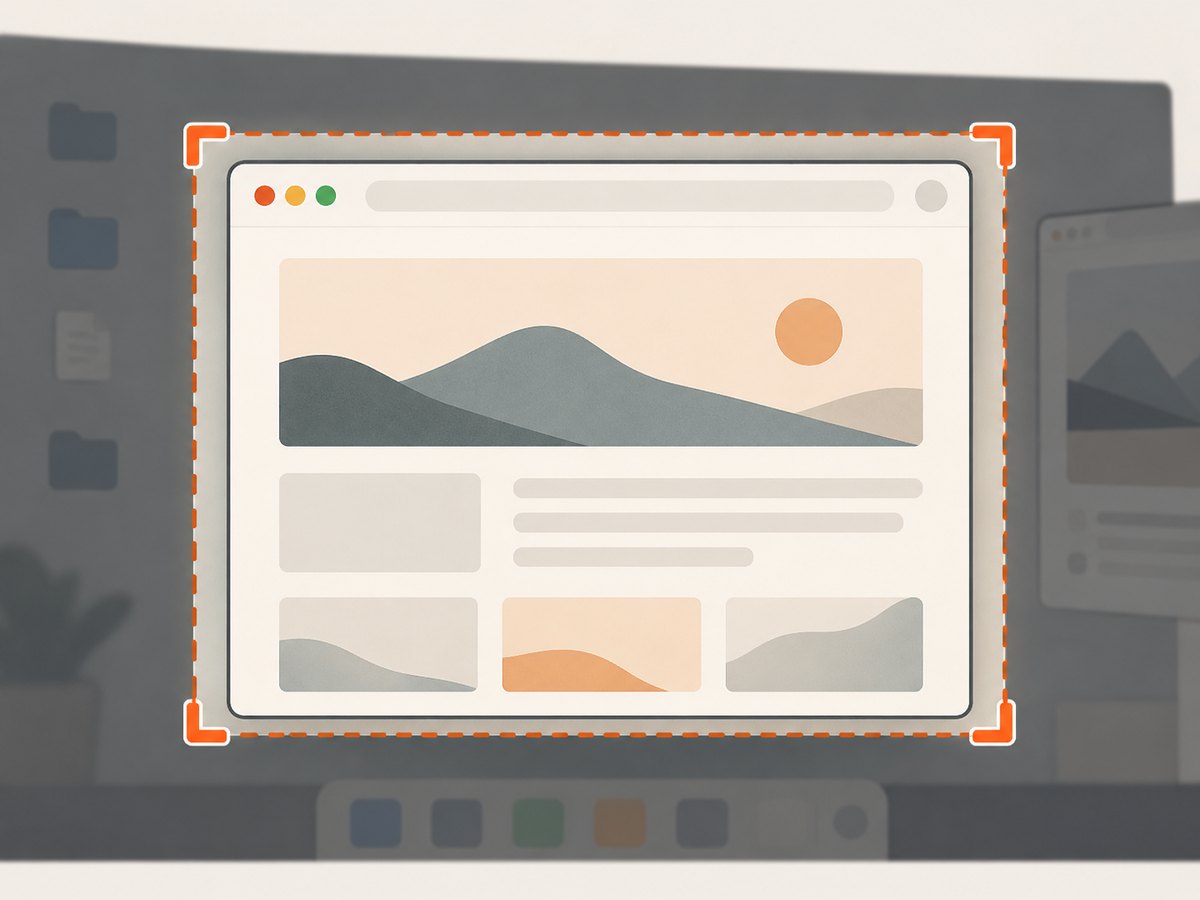
Here is a straightforward whole-screen example. It is illustrative: the delay gives the window a moment to appear, but a fixed sleep is not a reliable readiness check. In a real workflow, wait for the relevant page condition and confirm the browser is foregrounded before capturing.
import time
from pathlib import Path

import pyautogui
from selenium import webdriver
from selenium.webdriver.support.ui import WebDriverWait

output = Path("screenshots/browser-with-url.png")
output.parent.mkdir(parents=True, exist_ok=True)

with webdriver.Chrome() as driver:
    driver.maximize_window()
    driver.get("https://example.com")
    WebDriverWait(driver, 20).until(
        lambda d: d.execute_script("return document.readyState") == "complete"
    )
    time.sleep(1)  # illustrative settling delay, not a readiness guarantee
    pyautogui.screenshot(str(output))
Install PyAutoGUI and Pillow in the environment where the desktop session runs. PyAutoGUI’s documentation notes that screenshot support needs Pillow and describes platform-specific capture dependencies, including scrot for Linux in that documentation. Check the current installation requirements for your operating system and display setup.
A whole-screen image may include other windows, desktop panels, notifications, or personal information. If screen dimensions and browser placement are stable, capture a region instead:
import pyautogui

# left, top, width, height in screen coordinates
pyautogui.screenshot(
    "screenshots/browser-region.png",
    region=(100, 80, 1400, 900),
)
Those coordinates are examples, not universal browser bounds. Window decorations, display scaling, resolution, and multi-monitor layout affect them. A window-specific capture API can be a better fit where the platform supports it. Pillow ImageGrab documents bbox for a rectangular crop and supports capturing a single window on Windows and macOS; Linux behavior depends on the display environment and available fallbacks.
Make sure the URL bar shows the right URL
- Open the target URL with Selenium and wait for the page state you need.
- Bring the intended browser window to the foreground; ensure another window does not cover the address bar or page.
- Check the browser is displaying the expected navigation and that the address bar is visible. Browser fullscreen mode may hide browser chrome.
- Capture the screen or a carefully measured browser region.
- Review the saved image for clipped edges, overlays, notifications, and unrelated desktop content before sharing it.
A desktop capture records what is visible at that instant. Focus, occlusion, permissions, screen scaling, monitor arrangement, and whether a graphical display exists all affect the result. Selenium controls browser navigation and page state; it does not control what other desktop pixels the capture library records.
4. Full-page and element screenshots
“Full page” means the page’s scrollable document, not the browser window. Selenium’s standard screenshot call captures the current browsing context. If you need an explicitly documented full-page mode or a locator-level image, Playwright Python documents both capabilities. The following snippets show the distinction; use the library that fits the required scope.
# Playwright Python: full scrollable page
from pathlib import Path
from playwright.sync_api import sync_playwright

Path("screenshots").mkdir(exist_ok=True)
with sync_playwright() as p:
    browser = p.chromium.launch()
    page = browser.new_page()
    page.goto("https://example.com")
    page.screenshot(path="screenshots/full-page.png", full_page=True)
    browser.close()
# Playwright Python: one element
from playwright.sync_api import sync_playwright
with sync_playwright() as p:
browser = p.chromium.launch()
page = browser.new_page()
page.goto("https://example.com")
page.locator("main").screenshot(path="screenshots/main.png")
browser.close()These outputs are page-level images; neither adds the browser’s address bar. If your evidence needs both a long page and the URL bar, decide how to represent that requirement: a desktop capture shows the visible portion and chrome, while a full-page image captures the document. They are not interchangeable.
5. Common errors and fixes
| Symptom | Likely cause | Fix |
|---|---|---|
| Address bar is missing | driver.save_screenshot() captures the browsing context, not a documented browser frame. |
Use a visible desktop session and capture the screen or browser window with PyAutoGUI or ImageGrab. |
| Screenshot is blank or the browser is absent | The browser is headless, minimized, behind another window, or not on the display being captured. | Run in a graphical session, foreground and maximize the browser, and verify the active monitor. Use WebDriver screenshots if a visible desktop is unnecessary. |
save_screenshot returns false or no file appears |
Bad path, missing parent directory, or filesystem write error. | Create the parent directory, use a writable path with a .png filename, and check the return value. |
| PyAutoGUI screenshot import or capture fails | Pillow or an OS-specific capture dependency is missing, or the display environment is unsupported. | Install the documented dependencies for the OS and verify that the process can access the graphical display. |
| The image shows the wrong URL or another app | The browser was not foregrounded, navigation had not completed, or another window covered it. | Wait for the intended page state, bring the correct window forward, and inspect the captured image. |
| URL bar is clipped | Region coordinates do not match the current resolution, scaling, or window position. | Recalculate bounds for the actual display or use a supported window-capture method. |
| Page image misses content below the fold | A viewport capture was mistaken for a full-page capture. | Use a full-page feature explicitly, such as Playwright’s full_page=True. |
| Content is still loading | Navigation finished before application content or lazy assets became ready. | Wait for a meaningful selector or application condition; a fixed sleep alone can be too short or wasteful. |
6. Performance, reliability, and cost
For a single page-only image, Selenium’s WebDriver screenshot is usually the simplest capture path because it avoids desktop focus and screen-coordinate concerns. A desktop capture adds a visible GUI requirement and environmental variables: foreground window, occlusion, display permissions, scaling, and monitor layout. Those factors matter especially in CI or server environments, where a graphical desktop may not be available.
For repeatable automation, make the target deterministic: set the viewport and browser state, wait for a site-specific readiness condition, use a stable output path, check that the file was written, and review representative captures after changing dependencies or display settings. Avoid arbitrary long sleeps; they slow each run and still do not guarantee readiness. Desktop screenshots may capture unrelated content, so use a controlled desktop and crop only when bounds are stable.
Cost is primarily operational: your own browser automation consumes machine time and requires maintaining browser, driver, Python packages, and (for URL-bar captures) a desktop environment. The cited Selenium, PyAutoGUI, Pillow, and Playwright documentation does not establish a per-screenshot service price. A hosted screenshot API can remove browser setup from your script, but compare its capture scope and billing behavior to your actual requirement.
7. Or skip the browser setup
If you need a clean page screenshot without managing Selenium, a desktop session, or screen coordinates, ScreenshotNeo is a website screenshot API and MCP server for developers. One GET request returns a PNG, JPEG, WebP, or PDF. This captures webpage output; it does not make the browser’s visible address bar part of the image. See the ScreenshotNeo API documentation.
curl -G "https://api.screenshotneo.com/v1/shot" \
  -d access_key=YOUR_API_KEY \
  --data-urlencode url=https://example.com \
  -o shot.webp
import requests
r = requests.get(
"https://api.screenshotneo.com/v1/shot",
params={"access_key": "YOUR_API_KEY", "url": "https://example.com"},
timeout=90,
)
r.raise_for_status()
open("shot.webp", "wb").write(r.content)const q = new URLSearchParams({
access_key: 'YOUR_API_KEY',
url: 'https://example.com'
});
const res = await fetch(`https://api.screenshotneo.com/v1/shot?${q}`);
if (!res.ok) throw new Error(`Screenshot request failed: ${res.status}`);
await Bun.write('shot.webp', res);In Node.js environments without Bun, write the response bytes with your preferred filesystem API. Keep the access key on the server; do not expose it in public client-side code. ScreenshotNeo removes cookie/consent banners, newsletter popups, and chat widgets before capture. Bot checks or CAPTCHAs, blank pages, timeouts, failed loads, and cache hits are not billed; response headers report the page verdict and billing status. Its MCP server provides take_screenshot, get_page_info, and capture_pdf for AI agents. The free plan includes 1,000 screenshots per month with no card; paid plans start at $5 for 3,000 shots. Every feature is on every plan.
Sign up free for 1,000 screenshots a month with no card.
8. FAQ
Can Selenium show the address bar in a screenshot?
Not with its standard WebDriver screenshot call. Use a desktop screenshot tool to capture the visible browser window when the URL bar must appear.
Does maximizing the browser make Selenium include its tabs?
No. Maximizing changes the browser window size; the documented WebDriver screenshot is still a browsing-context capture.
Can I take an address-bar screenshot in headless CI?
A desktop screen capture needs visible graphical output. In headless or server automation, use a page-context image if the browser chrome is not essential, or provide a suitable graphical display for desktop capture.
Does a full-page screenshot include the URL?
No. Full-page describes the scrollable webpage. The browser interface is separate from the page document.
Which method should I use for proof of the destination URL?
Capture the visible browser chrome and verify the address bar in the resulting image. A page-only capture does not visually prove what appeared in the browser’s URL field.


