How to Set the Browser Window Size for Selenium Screenshots
Set Selenium’s browser window dimensions before capture, then verify the viewport and output image. Includes runnable Python, Java, JavaScript, and C# examples.
To control the size of a Selenium screenshot, set the active browser window dimensions before loading the page or taking the capture. In Python, call driver.set_window_size(width, height). For example, driver.set_window_size(1024, 768) requests a 1024-by-768-pixel window. Then navigate to the page and capture it with save_screenshot().
from selenium import webdriver

options = webdriver.ChromeOptions()
# Uncomment when running without a visible desktop:
# options.add_argument("--headless=new")

driver = webdriver.Chrome(options=options)
try:
    driver.set_window_size(1024, 768)
    driver.get("https://example.com")
    driver.save_screenshot("screenshot.png")
finally:
    driver.quit()
This sets the browser window rectangle; it does not guarantee that every operating system, driver, and browser will produce exactly the same CSS viewport or image dimensions. If layout breakpoints or pixel-level comparisons matter, read the effective size and inspect the saved artifact in the same environment used by your test.
1. Understand window size, viewport size, and screenshot size
These three sizes are related, but they are not interchangeable:
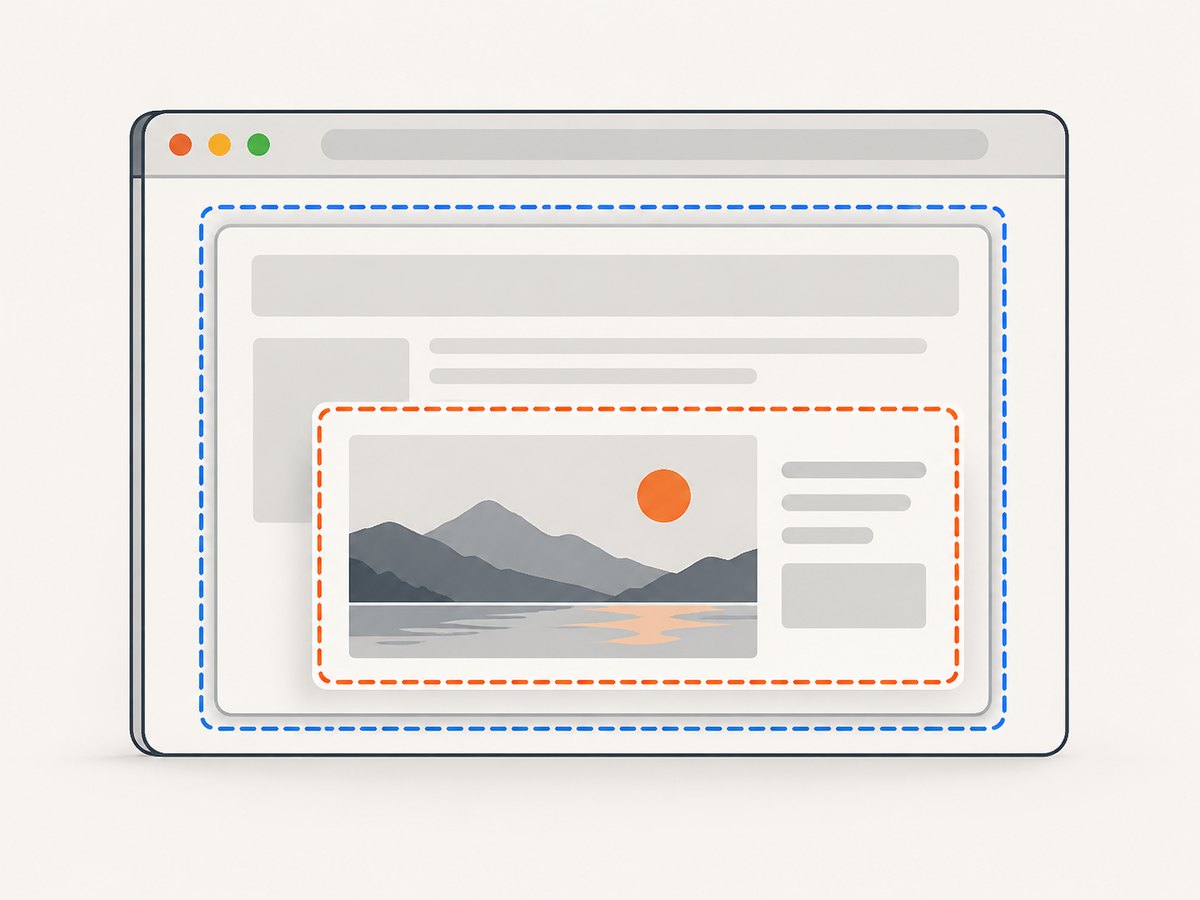
- Window size is the width and height Selenium asks the browser window to use.
- Viewport size is the page’s visible CSS layout area. Browser chrome and platform window handling can affect its relationship to the requested window dimensions.
- Screenshot size is the pixel width and height of the resulting image. Browser and capture behavior can affect this too.
Selenium provides window controls because screen resolution can change how an application renders. Its window-management API sets a browser window’s dimensions, but the actual result may depend on the browser and operating-system window manager. Therefore, treat the requested dimensions as an input to verify, not as proof that the page had a particular viewport.
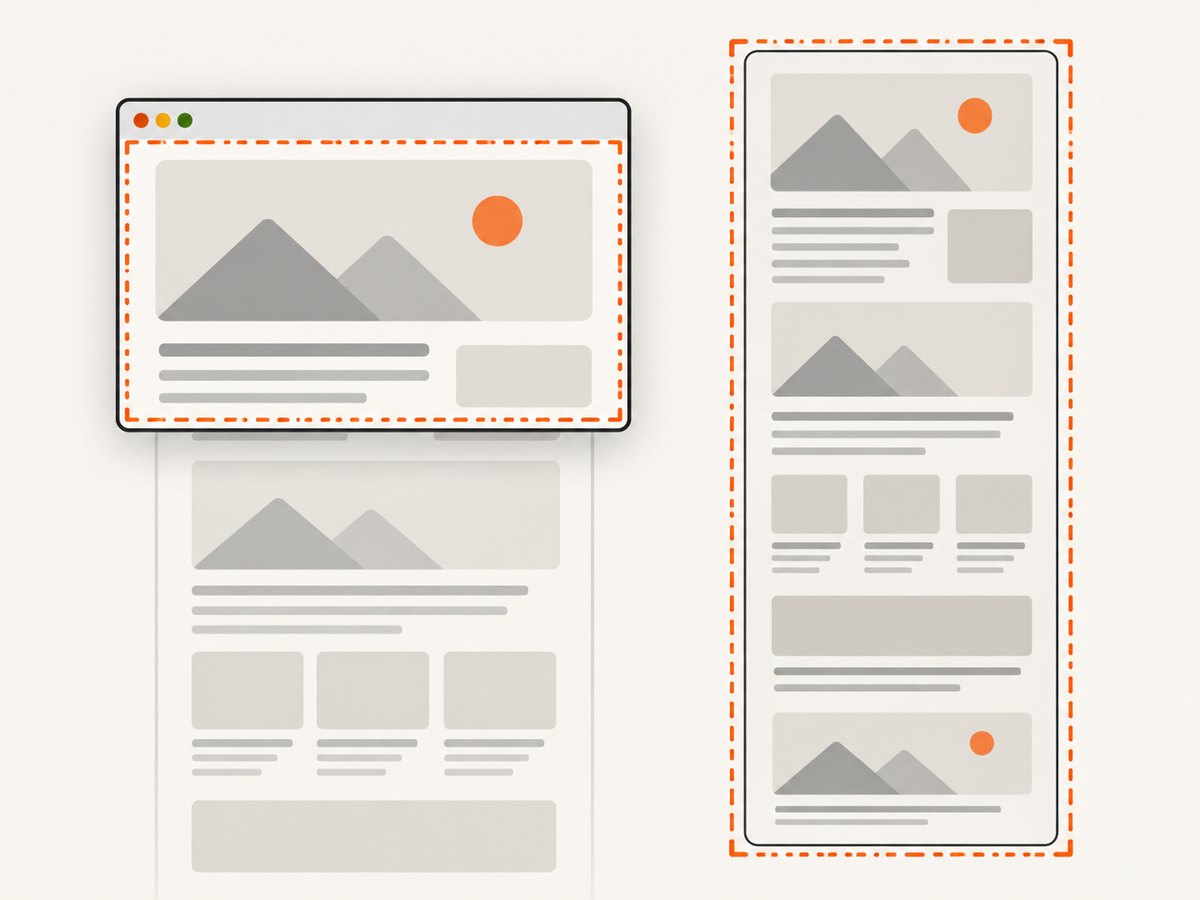
Also distinguish a current-window screenshot from a full-page screenshot. Ordinary screenshot methods capture the current window. Making the window taller does not by itself mean the entire document was captured. Firefox’s Python API documents separate full-document screenshot methods; use an explicitly supported full-page API when that is your requirement.
2. Python: set the dimensions and capture
Install Selenium in the Python environment used by your script, make a browser driver available as required by your Selenium setup, and save this as screenshot.py. Replace the example URL and dimensions as needed.
from selenium import webdriver

options = webdriver.ChromeOptions()
# For a headless run, enable the line below and keep it consistent in CI.
# options.add_argument("--headless=new")

driver = webdriver.Chrome(options=options)
try:
    driver.set_window_size(1440, 900)
    print("Requested window:", driver.get_window_size())

    driver.get("https://example.com")
    driver.save_screenshot("page.png")
finally:
    driver.quit()
get_window_size() reports the current window width and height according to WebDriver. It is a useful check, but when the page’s CSS layout is the key concern, also inspect the viewport from the page itself:
viewport = driver.execute_script(
    "return { width: window.innerWidth, height: window.innerHeight, "
    "dpr: window.devicePixelRatio }"
)
print("Page viewport:", viewport)
For a stable visual test, record the requested window size, reported window size, viewport dimensions, device pixel ratio, browser, driver, headless setting, and operating system with the resulting screenshot. This is practical reproducibility guidance: Selenium does not promise a universal identical result for every platform combination.
Set position and dimensions together
Selenium’s Python binding also provides set_window_rect(), which can set position and dimensions in one call:
driver.set_window_rect(x=0, y=0, width=1440, height=900)
print(driver.get_window_rect())
The Python API documents this method for W3C-compatible browsers and points other browsers toward the separate position and size methods. If it is unsupported by your browser, use set_window_size() for dimensions and the position method only if needed and supported.
3. Other Selenium language bindings
The API spelling depends on the binding. In each example, set the size on the active driver’s window before navigating or capturing. Keep the browser and driver setup appropriate for your project; the snippets below focus on the size and capture calls.
Java
import org.openqa.selenium.Dimension;
import org.openqa.selenium.WebDriver;
import org.openqa.selenium.chrome.ChromeDriver;

public class Capture {
    public static void main(String[] args) {
        WebDriver driver = new ChromeDriver();
        try {
            driver.manage().window().setSize(new Dimension(1440, 900));
            driver.get("https://example.com");
            driver.getScreenshotAs(org.openqa.selenium.OutputType.FILE)
                  .renameTo(new java.io.File("page.png"));
        } finally {
            driver.quit();
        }
    }
}
JavaScript
const { Builder } = require('selenium-webdriver');

(async () => {
  const driver = await new Builder().forBrowser('chrome').build();
  try {
    await driver.manage().window().setRect({ width: 1440, height: 900 });
    await driver.get('https://example.com');
    const image = await driver.takeScreenshot();
    require('node:fs').writeFileSync('page.png', image, 'base64');
  } finally {
    await driver.quit();
  }
})();
C#
using OpenQA.Selenium;
using OpenQA.Selenium.Chrome;

using var driver = new ChromeDriver();
driver.Manage().Window.Size = new System.Drawing.Size(1440, 900);
driver.Navigate().GoToUrl("https://example.com");
driver.GetScreenshot().SaveAsFile("page.png");
Selenium’s official window-management guide documents equivalent window sizing APIs across Java, Python, C#, Ruby, JavaScript, and Kotlin. Check the current binding reference when adapting this to another language or a browser-specific driver.
4. Choose dimensions for the layout you need
Pick dimensions based on the rendering condition you want to test, not just a familiar monitor size. A responsive page may cross a CSS breakpoint when its viewport width changes by only a few pixels. If your purpose is to verify a breakpoint, use widths on both sides of that breakpoint and inspect the page’s viewport rather than assuming the requested window width equals it.
| Goal | Approach | Check |
|---|---|---|
| Reproduce a desktop layout | Set the intended window dimensions before navigation. | Read viewport dimensions and inspect the image. |
| Test a responsive breakpoint | Capture at widths just below and above the breakpoint. | Confirm the page’s actual CSS viewport for each run. |
| Compare screenshots in CI | Keep browser, driver, headless mode, and operating system consistent. | Record the environment and inspect output dimensions. |
| Capture a whole long document | Use a documented full-page or full-document capture method. | Confirm the resulting image includes content beyond the viewport. |
Do not infer full-page capture from a large height request. A tall window can still produce a viewport capture, and window managers may constrain the requested rectangle. Use the capture scope supported by the specific browser and binding.
5. Capture timing and repeatability
Set the dimensions before navigation when the page’s initial responsive layout matters. Changing dimensions after a page loads can trigger a resize and reflow, but pages with scripts or responsive behavior may not settle immediately. If the screenshot is taken too early, it may capture an intermediate state. Wait for a meaningful page condition, such as a known element, before saving the image.
For comparison runs, keep these inputs fixed:
- Requested window dimensions and, where relevant, window position.
- Browser and driver versions and the browser’s headless or headed mode.
- Operating system and available display or window-manager environment.
- Page state, including whether animations, dynamic content, or delayed assets have settled.
- Screenshot scope: current window or an explicitly supported full-document capture.
When dimensions are part of a regression test, save the output as an artifact and verify its pixel dimensions. A successful WebDriver command alone does not prove that the image matches the intended layout.
6. Troubleshooting
| Symptom | Likely cause | Fix |
|---|---|---|
| The screenshot is smaller or larger than requested. | Window dimensions, CSS viewport, and output pixels differ; platform or browser behavior can affect the result. | Print get_window_size(), inspect window.innerWidth and window.innerHeight, and check the saved image’s dimensions. |
| The page shows a mobile or tablet layout unexpectedly. | The effective viewport crossed a responsive breakpoint, even if the requested window seemed wide enough. | Measure the actual viewport. Adjust the requested window and confirm the resulting layout in the same environment. |
set_window_rect() is unsupported. |
The browser may not support that W3C window operation through its driver. | Use set_window_size() for dimensions; avoid relying on position control unless supported. |
| The screenshot contains only the visible portion of the page. | The standard screenshot method captured the current window, not the full document. | Use a full-document capture method explicitly supported by your browser and binding. |
| The command succeeds but the CI screenshot differs from a local capture. | Browser, driver, headless mode, operating system, or window-manager behavior may differ. | Align those inputs and record them with the image. Compare viewport values as well as requested dimensions. |
| The layout is correct but some content is missing. | The screenshot may have been taken before the page finished rendering or loading assets. | Wait for a page-specific condition before capture, then inspect whether the missing content is outside the viewport. |
7. cURL, Python, and Node.js alternatives
If the task is simply to obtain a screenshot at a chosen output viewport and you do not need to control a Selenium session, a screenshot API can avoid local browser and driver setup. ScreenshotNeo accepts a URL and capture parameters in one request. Its API options include viewport dimensions, device presets, full-page capture, image format, and other page controls. See the ScreenshotNeo API documentation for the supported parameter names and details.
Or skip the browser setup
For a direct screenshot request, call ScreenshotNeo with your API key and target URL. This example returns a WebP file; use the documented options to choose a viewport and other capture settings.
curl -G "https://api.screenshotneo.com/v1/shot" -d access_key=YOUR_API_KEY --data-urlencode url=https://stripe.com -o shot.webpimport requests
r = requests.get(
"https://api.screenshotneo.com/v1/shot",
params={"access_key": "YOUR_API_KEY", "url": "https://stripe.com"},
timeout=90,
)
open("shot.webp", "wb").write(r.content)const q = new URLSearchParams({ access_key: 'YOUR_API_KEY', url: 'https://stripe.com' });
const res = await fetch(`https://api.screenshotneo.com/v1/shot?${q}`);
if (!res.ok) throw new Error(`Screenshot request failed: ${res.status}`);
require('node:fs').writeFileSync('shot.webp', Buffer.from(await res.arrayBuffer()));ScreenshotNeo accepts cookie or consent banners and removes more than 60 known consent platforms, newsletter popups, and chat widgets before the shot; each of those steps can be turned off. Bot checks or CAPTCHAs, blank pages, timeouts, failed loads, and cache hits are not billed, and response headers indicate the page verdict and billing status. An MCP server provides screenshot tools for AI agents, including Claude, Cursor, and other MCP clients. The Free plan includes 1,000 screenshots per month with no card; paid plans start at $5 for 3,000 screenshots. Every feature is available on every plan. See the docs for API parameters and setup.
Sign up for ScreenshotNeo’s free plan: 1,000 screenshots a month, no card required.
8. Performance, reliability, and cost
For Selenium, the work includes starting and managing a browser session, loading the target page, waiting for the desired state, and writing the screenshot. Reusing a driver for multiple captures can avoid repeated browser startup, but isolate page state between captures and make sure each capture has its own dimensions and waits. Browser startup and page loading often dominate the time; do not assume that changing window size is the costly part.
Reliability depends on controlling the capture environment and page state. Window sizing can be affected by the platform, and dynamic pages may render differently between runs. For pixel comparisons, keep the runtime environment fixed, inspect the viewport and artifact, and use a deterministic page state where possible. Standard Selenium screenshots are useful when you need browser automation alongside the image; an API is an alternative when you only need a URL-to-image capture.
Local Selenium has no per-screenshot API charge, but it consumes the compute and maintenance effort of the machine or CI environment running the browser. ScreenshotNeo’s published plan amounts are Free: 1,000 shots per month; Starter: $5 for 3,000; Growth: $15 for 15,000; Pro: $39 for 60,000; Scale: $99 for 250,000; and Business: $249 for 1,000,000. Yearly billing gives two months free. Only clean shots are billed under the product’s stated policy; consult the product documentation for the current request behavior and plan details.
9. FAQ
How do I set the browser window size in Selenium?
Use the active driver’s window API before capture. In Python, the straightforward call is driver.set_window_size(width, height).
How can I take a Selenium screenshot at a specific resolution?
Set the window size, navigate, capture, and inspect the resulting file. Also check the page viewport because requested window dimensions do not guarantee identical CSS viewport or output dimensions in every environment.
Does setting a taller window capture the full page?
No. A standard screenshot method captures the current window. Use a documented full-document method when you need a full-page image.
Should I use set_window_size or set_window_rect?
Use set_window_size for dimensions. Use set_window_rect when you also need position and the browser supports the W3C operation; Selenium’s Python reference documents a compatibility caveat.
Why is my viewport not exactly the requested width?
The window manager and browser affect the relationship between window dimensions and page viewport. Read the actual viewport in the browser running your test and adjust based on that measurement.


