How to Display Selenium Screenshots in Extent Reports on GitLab CI/CD
Capture Selenium screenshots, attach them to ExtentReports, and publish both the report and images in GitLab CI. Add JUnit attachments for screenshots in GitLab test details.

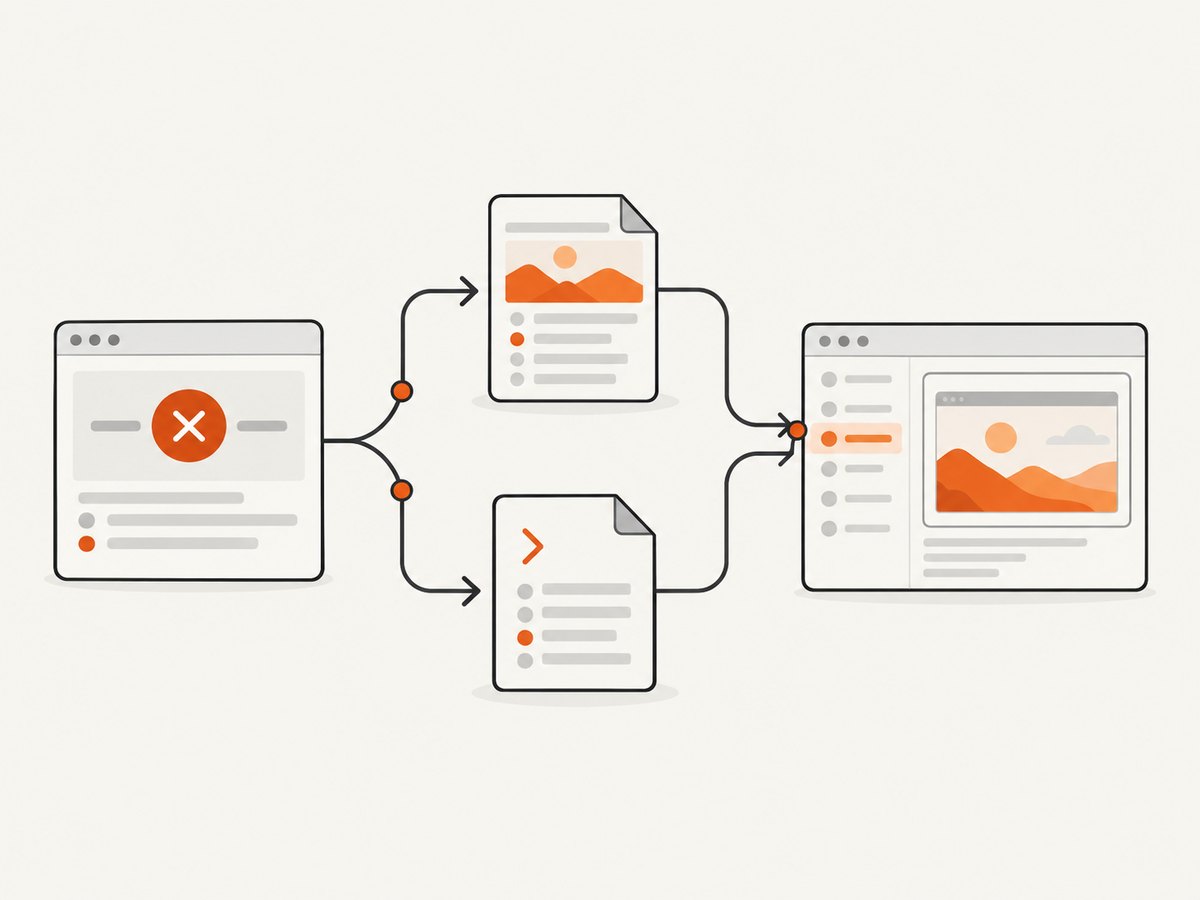
To display Selenium screenshots in ExtentReports on GitLab CI/CD, do three things: save the screenshot inside the CI job workspace, attach its path to the matching Extent test or log entry, then upload both the report and screenshot files as GitLab job artifacts. Call extent.flush() before the job exits so the report is written. If you also want a screenshot link in GitLab’s failed-test details, generate JUnit XML with GitLab’s attachment tag and upload the referenced image. An Extent HTML report is a separate artifact; GitLab does not turn it into its native JUnit test-results view.
The examples below use Java, ExtentReports v5, Selenium WebDriver and Maven-style output paths. They are integration patterns: adapt the driver lifecycle, reporter configuration and test framework hooks to your project’s pinned versions. Extent’s API documents path-based screenshot media and report flushing; GitLab documents JUnit screenshot attachments and job artifacts. ExtentReports v5 Java documentation, GitLab unit test reports.
1. Capture and attach a screenshot to the right Extent test
Save the screenshot after the browser reaches the state you want to diagnose—commonly in a failure handler or after a relevant test step. Give each test a stable, unique filename. This matters when tests run concurrently: a shared filename such as failure.png can be overwritten, leaving the report with the wrong test’s image. Keep images under a directory in the job workspace, such as target/screenshots/, so the artifact configuration can include them.

ExtentReports v5 supports adding a screenshot to a log entry with MediaEntityBuilder.createScreenCaptureFromPath(path).build(), or adding a snapshot to a test with addScreenCaptureFromPath(path). A missing path can raise IOException. The example below shows the capture and log operations; driver creation and test execution are intentionally supplied by your test framework.
import com.aventstack.extentreports.ExtentReports;
import com.aventstack.extentreports.ExtentTest;
import com.aventstack.extentreports.MediaEntityBuilder;
import com.aventstack.extentreports.Status;
import com.aventstack.extentreports.reporter.ExtentSparkReporter;
import org.openqa.selenium.OutputType;
import org.openqa.selenium.TakesScreenshot;
import org.openqa.selenium.WebDriver;

import java.io.File;
import java.io.IOException;
import java.nio.file.Files;
import java.nio.file.Path;
import java.nio.file.Paths;
import java.nio.file.StandardCopyOption;

public final class ExtentScreenshotExample {
    private static final Path SCREENSHOTS = Paths.get("target", "screenshots");
    private static final ExtentReports EXTENT = createReport();

    private static ExtentReports createReport() {
        ExtentSparkReporter spark =
            new ExtentSparkReporter("target/extent-report/index.html");
        ExtentReports extent = new ExtentReports();
        extent.attachReporter(spark);
        return extent;
    }

    public static void recordFailure(WebDriver driver, String testName,
                                     Throwable failure) throws IOException {
        Files.createDirectories(SCREENSHOTS);
        String safeName = testName.replaceAll("[^A-Za-z0-9._-]", "_");
        Path image = SCREENSHOTS.resolve(safeName + ".png");
        File source = ((TakesScreenshot) driver).getScreenshotAs(OutputType.FILE);
        Files.copy(source.toPath(), image, StandardCopyOption.REPLACE_EXISTING);

        ExtentTest test = EXTENT.createTest(testName);
        test.log(Status.FAIL, failure.toString(),
            MediaEntityBuilder.createScreenCaptureFromPath(
                image.toString()).build());
    }

    // Call once after test reporting is complete, including after failures.
    public static void finishReport() {
        EXTENT.flush();
    }
}
In an actual test, create or retrieve the Extent test corresponding to the test case before logging. If you create a new Extent test only inside a failure helper, make sure the test framework has not already created the same case elsewhere; otherwise, attach the media to the existing entry. Keep the failure message as text as well as an image: screenshots show the visible state, while the exception and stack trace explain what assertion or command failed.
The sample uses a path relative to the project workspace. Extent must be able to resolve the path when it generates the report, and the screenshot must remain available wherever the report is opened. Verify the link after downloading the artifact, because a path that resolves on the runner may not resolve from the report’s output directory or after files are moved.
2. Flush the report and retain output in GitLab
GitLab job files are temporary unless you publish them. Add the report directory and screenshot directory under artifacts:paths. Set artifacts:when: always when you want diagnostic output uploaded even if the test command fails. Paths are relative to the repository workspace. Adjust the report and JUnit locations to match your reporter and test framework.
selenium-tests:
  stage: test
  image: maven:3.9-eclipse-temurin-17
  script:
    - mvn test
  artifacts:
    when: always
    paths:
      - target/extent-report/
      - target/screenshots/
      - target/surefire-reports/TEST-*.xml
    reports:
      junit: target/surefire-reports/TEST-*.xml
GitLab’s artifacts:paths lets you browse or download ordinary job output. The reports:junit entry separately tells GitLab where to find test-result XML for its test summary. Including JUnit XML as a report does not itself publish your Extent HTML directory; keep the HTML and screenshot paths in artifacts:paths. See GitLab job artifacts and unit test reports.
Make report finalization part of teardown or an equivalent framework lifecycle hook that runs after test results have been recorded. For example, a JUnit @AfterAll or TestNG suite teardown can call extent.flush(). Ensure the hook still runs when an assertion fails; otherwise the screenshot may exist while the report never receives its final update. Avoid calling flush() concurrently from multiple test threads unless your report setup explicitly supports that pattern.
3. Show screenshots in GitLab’s failed-test details
To see an image in GitLab’s test-details dialog, include an attachment tag in the relevant testcase element’s system-out in JUnit XML. The path points to the screenshot relative to $CI_PROJECT_DIR, and the screenshot file must also be uploaded as an artifact. Example:
<testsuites>
  <testsuite name="Browser tests">
    <testcase classname="LoginTest" name="invalid_password" time="1.00">
      <failure>Expected an error message after invalid login</failure>
      <system-out>[[ATTACHMENT|target/screenshots/invalid_password.png]]</system-out>
    </testcase>
  </testsuite>
</testsuites>
Configure your framework or a report-generation step to produce this structure. Do not assume the Extent report will write GitLab’s JUnit attachment tag for you. Confirm that the XML attachment path and artifact path refer to the same file. The GitLab docs specify that the attachment tag is read from the testcase’s system-out; a tag at the suite level is not the documented placement.
4. Choose the report view that fits the task
| View | Where it appears | Configure | Useful for |
|---|---|---|---|
| ExtentReports HTML | GitLab job artifacts | Flush the report; publish HTML and referenced screenshots in artifacts:paths |
Extent’s richer test and log presentation |
| GitLab JUnit attachment | Test summary, in failed-test details | Write the attachment tag in testcase system-out; publish the image file |
Opening a failure screenshot alongside the test result |
You can use both. Keep the JUnit entry associated with the actual failed case, and attach the same image to the corresponding Extent test if you want both navigation paths. GitLab’s test summary and the downloadable Extent report are distinct outputs.
5. Path, parallelism and report configuration details
Use paths that survive CI
Keep the report and images below the checked-out project directory. GitLab artifact paths are workspace-relative, while Extent screenshot references are interpreted by the report. A relative path can behave differently depending on where the report HTML is written. If the report is at target/extent-report/index.html and an image is at target/screenshots/test.png, check whether your reporter expects a path relative to the process working directory or to the report. Retain the image files alongside the report and inspect the downloaded artifact to confirm the actual link works.
Make filenames deterministic and collision-safe
Use a sanitized test name plus a unique identifier when parameterized or parallel tests can share names. For example, include a case index or worker identifier. Do not use sensitive data such as passwords, session tokens or personally identifying values in filenames. If the test framework retries cases, decide whether each attempt gets its own image or whether the latest attempt replaces the prior image; use matching names and test labels so the report stays understandable.
Attach at the right point in the test lifecycle
Capture before teardown closes the browser. If the driver is already quit, screenshot capture cannot inspect the browser session. When capturing after a failed assertion, place screenshot logic in a failure listener or a finally block that can still access the driver. Preserve the original test failure if screenshot capture itself fails: log the capture exception as diagnostic information rather than masking the assertion that caused the test to fail.
Keep report generation centralized
For a suite-wide report, initialize the reporter once per test run, create or obtain one Extent test per test case, then flush once after result logging is complete. If you run multiple CI jobs or shards, give each job its own report and artifact directory. Combining outputs from multiple jobs requires an explicit aggregation step; a single job’s artifact list cannot collect files that were never placed in that job’s workspace.
6. Troubleshooting common problems
| Symptom | Likely cause | Fix |
|---|---|---|
| Image is broken in Extent HTML | The path is missing, points to a runner-only location, or is wrong relative to report output | Check the file exists before attachment, use a workspace path, retain the image with the report, and test the downloaded artifact. Surface path-related IOException. |
| Report is absent after the job | flush() was not called, the destination is outside the workspace, or its directory is not an artifact path |
Flush in finalization, write below the project directory and add the report directory to artifacts:paths. |
| Artifacts disappear after a failed test | The job only uploads artifacts on success | Set artifacts:when: always for the job output you need to inspect. |
| Screenshot missing from GitLab test details | Only Extent HTML was produced, the XML tag is missing or misplaced, or the image is not uploaded | Generate a JUnit testcase attachment in system-out, point it at the workspace-relative image and publish that image. |
| GitLab says no matching artifact files were found | The configured path does not match the output location or the file was never created | Compare the job log’s working directory and actual generated files with each configured artifact path. |
| Wrong test’s image appears | Concurrent tests overwrote a shared screenshot filename | Use a collision-safe filename per test case and attempt. |
| Screenshot capture throws or returns no useful state | The driver has already closed, the browser is in an unexpected state, or capture runs outside the active session | Capture before driver teardown and handle capture errors without hiding the original test result. |
| Report links work on runner but fail after download | Image references depend on an absolute or workspace-only path | Keep relative references and image files together; inspect the artifact after downloading it. |
7. Performance, reliability and cost
A screenshot adds browser capture work and image bytes to the job artifact. Capturing every step can increase execution time and artifact size; a practical default is to capture on failure and at a small number of important checkpoints. Capture only the viewport unless the full page is needed to diagnose the issue. A larger image can be useful for layout problems, but it can also increase storage and transfer costs.
Reliability depends on preserving the chain: active browser session, successful file write, valid Extent reference, report flush, and artifact upload. Treat each as a separate check in the job. A screenshot file on disk does not prove the report references it, and a report visible on the runner does not prove GitLab retained either file. Set artifact expiration according to your team’s debugging and retention needs using your project’s GitLab configuration; verify the applicable project policy rather than assuming a fixed retention period.
The DIY approach uses Selenium, ExtentReports, your CI runners and GitLab artifact storage. Costs therefore depend on those services and the amount of browser execution and artifact data; the documentation cited here does not establish a universal cost or performance benchmark. GitLab artifacts are useful for short-lived CI evidence, while long-term retention may require a separate storage policy.
Or skip the browser setup
For a screenshot of a URL’s rendered page, ScreenshotNeo is a website screenshot API and MCP server. It does not replace Selenium when you need a screenshot of a particular in-test browser session or application state. It can handle URL-based page captures without setting up a browser runner:
curl -G "https://api.screenshotneo.com/v1/shot" -d access_key=YOUR_API_KEY --data-urlencode url=https://stripe.com -o shot.webpSee the ScreenshotNeo API documentation for request options. Cookie banners, popups and chat widgets are removed before the shot; bot checks, blank pages and failed loads are never billed. An MCP server lets AI agents take screenshots, and 1,000 screenshots a month are free with no card; paid plans start at $5 for 3,000. Sign up for 1,000 free screenshots a month, with no card.
FAQ
Can GitLab display an ExtentReports HTML file inside the test summary?
The documented native test summary uses JUnit XML. Publish Extent HTML as a browsable or downloadable job artifact, and generate JUnit attachment tags if you also want screenshots in failed-test details.
Do I need JUnit XML if I only want the Extent report?
No. Publish the Extent report and screenshot directory as job artifacts. JUnit XML is needed for GitLab’s test-results presentation and attachment mechanism.
Should screenshots be captured for passing tests?
That depends on the diagnostic need. Capturing failures by default keeps routine artifact output smaller; checkpoint screenshots can help when a passing test needs visual evidence.
Why does an image work in the report before download but break afterward?
The report likely references a path unavailable outside the CI runner, or the image directory was not retained with the HTML. Use a stable relative reference and publish both together.
Implementation checklist
- Capture the browser state before closing the WebDriver session.
- Use a unique, workspace-relative screenshot path and create its parent directory.
- Attach the image to the correct Extent test or log entry.
- Call
extent.flush()after logging, including on test failure. - Publish both report and image directories with
artifacts:paths. - Use
artifacts:when: alwayswhen evidence should survive a failing job. - For GitLab’s native screenshot link, add the JUnit attachment tag to testcase
system-outand upload the image. - Download and open an artifact once to verify paths and links end to end.


