How to Add Selenium Screenshots to Extent Reports When Tests Have Multiple Statuses
Capture Selenium evidence for passed, failed, and skipped tests, attach it correctly in ExtentReports, and avoid broken report links.
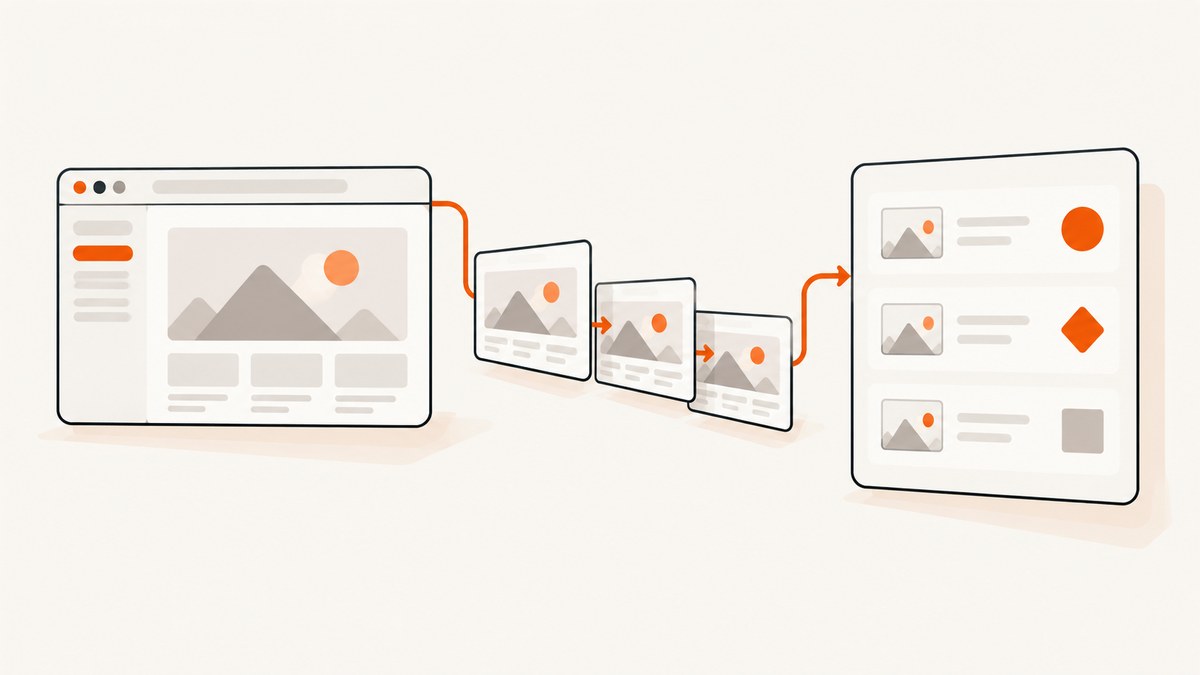
To add Selenium screenshots to ExtentReports when tests can pass, fail, or skip, make the screenshot policy explicit, capture while the WebDriver session is still available, map the framework result to the matching Extent status, attach the image at test or log level, and flush the report once after execution. A failure-only listener is not enough when passed and skipped tests also need defined behavior.
This example uses Java, Selenium WebDriver, TestNG, and ExtentReports. The exact adapter and dependency versions in your project may differ, so verify method names against the versions you install. ExtentReports documents Pass, Fail, and Skip statuses, path and Base64 screenshot APIs, and TestNG listener integration in its official documentation (Java v4 documentation, Spark reporter documentation, and TestNG adapter documentation).
Choose a status policy before writing the listener
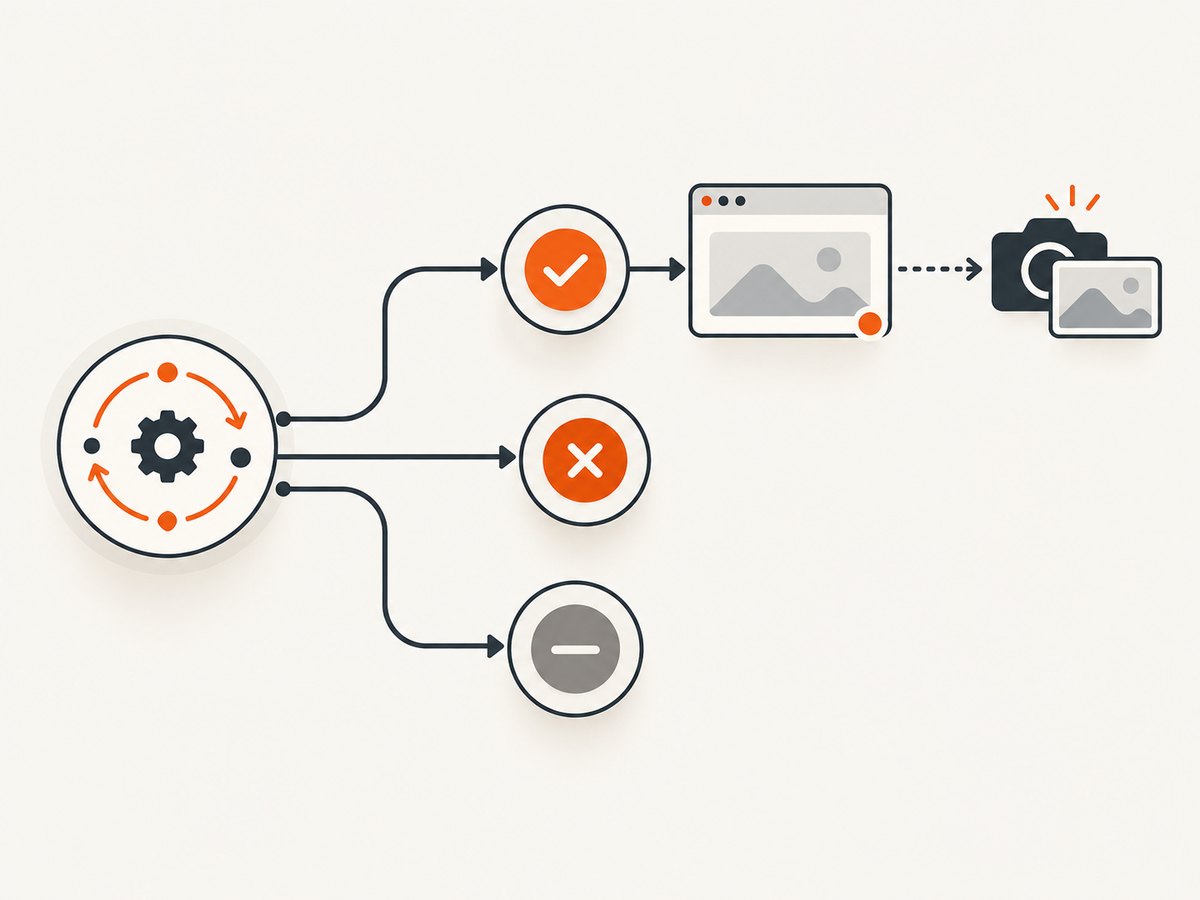
“Multiple statuses” describes two decisions: which outcomes receive screenshots and which Extent status each framework result becomes. Write this policy down before implementing callbacks.
| TestNG outcome | Extent status | Typical screenshot policy | Lifecycle concern |
|---|---|---|---|
| Success | PASS | Capture every pass for visual evidence, or omit to reduce storage. | The driver should still be alive in the completion callback. |
| Assertion or unexpected exception | FAIL | Usually capture the final browser state and error details. | Capture before the driver is quit. |
| Skipped or disabled | SKIP | Capture only if setup created a usable browser. | A skipped test may never start WebDriver. |
| Configuration failure | FAIL or a separately named setup entry | Capture when a session exists; otherwise log the setup error. | Framework configuration callbacks can run outside the test method. |
Do not turn every result into a failure merely because you want to attach an image. Keep the status and the evidence separate: a passing test can have a screenshot, and a skipped test can have no screenshot if there is no browser session.
How ExtentReports screenshot attachment works
Test-level attachment
Use test.addScreenCaptureFromPath(path) when the image describes the overall test record. The path is stored on disk and referenced by the report. It is not embedded into file-based reporters, so the image must remain at a location reachable from the generated report when you move or publish it.
Log-level attachment
Use MediaEntityBuilder.createScreenCaptureFromPath(path).build() when the image belongs to a particular event. For example, a failure message can carry its own screenshot:
test.fail("Checkout assertion failed", MediaEntityBuilder.createScreenCaptureFromPath(path).build());Replace fail with the appropriate log method for the outcome. Log-level media is useful when a test has several checkpoints and each checkpoint needs separate evidence.
Path versus Base64
Path-based screenshots keep report data smaller, but the image files must travel with the report. ExtentReports also documents Base64 APIs for test and log attachments. Base64 makes the report package more portable because the image data travels with the result, while increasing report size and memory use. Choose one representation consistently for a given report.
Project setup
Add Selenium, TestNG, and ExtentReports dependencies using the versions approved by your project. A Maven outline is:
<dependencies>
  <dependency>
    <groupId>org.seleniumhq.selenium</groupId>
    <artifactId>selenium-java</artifactId>
    <version>YOUR_SELENIUM_VERSION</version>
  </dependency>
  <dependency>
    <groupId>org.testng</groupId>
    <artifactId>testng</artifactId>
    <version>YOUR_TESTNG_VERSION</version>
    <scope>test</scope>
  </dependency>
  <dependency>
    <groupId>com.aventstack</groupId>
    <artifactId>extentreports</artifactId>
    <version>YOUR_EXTENT_VERSION</version>
  </dependency>
</dependencies>
Keep the versions in one dependency-management file. ExtentReports v4 and v5 have different reporter setup details, and a code sample copied from one generation may not compile unchanged against the other.
A complete Java/TestNG implementation
The following example creates one Extent test per TestNG method, captures all outcomes when a driver exists, and uses a unique PNG path. It demonstrates the lifecycle rather than claiming to be a universal drop-in adapter.
import com.aventstack.extentreports.ExtentReports;
import com.aventstack.extentreports.ExtentTest;
import com.aventstack.extentreports.Status;
import com.aventstack.extentreports.MediaEntityBuilder;
import com.aventstack.extentreports.reporter.ExtentSparkReporter;
import org.openqa.selenium.OutputType;
import org.openqa.selenium.TakesScreenshot;
import org.openqa.selenium.WebDriver;
import org.testng.ITestResult;
import org.testng.annotations.*;

import java.io.File;
import java.nio.file.Files;
import java.nio.file.Path;
import java.nio.file.StandardCopyOption;
import java.time.Instant;

public class StatusScreenshotListener {
  private static ExtentReports extent;
  private static final ThreadLocal<ExtentTest> tests = new ThreadLocal<>();
  private static final ThreadLocal<WebDriver> drivers = new ThreadLocal<>();

  @BeforeSuite
  public void startReport() {
    ExtentSparkReporter spark = new ExtentSparkReporter("target/extent/index.html");
    extent = new ExtentReports();
    extent.attachReporter(spark);
  }

  @BeforeMethod
  public void startTest(org.testng.ITestContext context) {
    String name = context.getName() + " - " + Instant.now();
    tests.set(extent.createTest(name));
    // Create the driver here in a real suite, then store it in drivers.
    // drivers.set(new ChromeDriver());
  }

  @AfterMethod(alwaysRun = true)
  public void finishTest(ITestResult result) {
    ExtentTest test = tests.get();
    WebDriver driver = drivers.get();
    if (test == null) return;

    String detail = result.getThrowable() == null
        ? "Test completed with status " + result.getStatus()
        : result.getThrowable().toString();

    try {
      if (driver != null) {
        String path = saveScreenshot(driver, result);
        if (path != null) {
          test.addScreenCaptureFromPath(path);
        }
      }
    } catch (Exception captureError) {
      test.log(Status.WARNING, "Screenshot capture failed: " + captureError);
    }

    switch (result.getStatus()) {
      case ITestResult.SUCCESS:
        test.pass(detail);
        break;
      case ITestResult.SKIP:
        test.skip(detail);
        break;
      case ITestResult.FAILURE:
      default:
        if (driver != null) {
          try {
            String path = saveScreenshot(driver, result);
            test.fail(detail, MediaEntityBuilder.createScreenCaptureFromPath(path).build());
          } catch (Exception e) {
            test.fail(detail + " (media unavailable: " + e + ")");
          }
        } else {
          test.fail(detail);
        }
        break;
    }

    if (driver != null) {
      driver.quit();
      drivers.remove();
    }
    tests.remove();
  }

  private String saveScreenshot(WebDriver driver, ITestResult result) throws Exception {
    File source = ((TakesScreenshot) driver).getScreenshotAs(OutputType.FILE);
    Path directory = Path.of("target", "extent", "screenshots");
    Files.createDirectories(directory);
    String method = result.getMethod().getMethodName();
    String fileName = method + "-" + result.getStartMillis() + "-" + Thread.currentThread().getId() + ".png";
    Path destination = directory.resolve(fileName);
    Files.copy(source.toPath(), destination, StandardCopyOption.REPLACE_EXISTING);
    return destination.toString();
  }

  @AfterSuite(alwaysRun = true)
  public void closeReport() {
    if (extent != null) extent.flush();
  }
}
In production, create the driver in setup and put it in drivers. The sample intentionally leaves driver creation open because browser options, remote-grid URLs, and parallel execution vary by suite. The important ordering is: inspect the result, capture while the session exists, attach media, log the matching status, quit the driver, and flush after all tests finish.
Making the listener safe for parallel tests
TestNG can execute methods or classes concurrently. A single mutable ExtentTest or WebDriver field then allows one thread to attach another thread’s screenshot. Use ThreadLocal for both objects, include a timestamp and thread identifier in filenames, and create directories before copying files. If your adapter already manages test objects, retrieve the adapter’s current test instead of creating a second one.
Do not call extent.flush() after every method in a parallel run unless your chosen reporter explicitly supports that pattern. Flush once in an after-suite lifecycle hook. A second listener that also logs the same result can produce duplicate entries, so choose either the official adapter or your custom status listener for ownership.
Capturing only the outcomes you need
Capturing every passing page can consume disk space quickly. Common policies include:
- Failures only: best for fast CI runs; skipped tests receive a status and reason but no image.
- Failures and skips: useful when a skip indicates an environment or dependency problem and a partially initialized browser exists.
- Every outcome: useful for visual audit trails, acceptance evidence, and debugging flaky passes.
- Selected checkpoints: capture after login, before submission, and on failure rather than after every command.
Implement the policy before the switch statement. For example, guard the capture with result.getStatus() == ITestResult.FAILURE when failures only are required. For skips, check both the result status and whether a live driver is present; a disabled test commonly has no session at all.
Alternative attachment patterns
Attach once at test level
String path = saveScreenshot(driver, result);
test.addScreenCaptureFromPath(path);
test.pass("Payment form displayed");
This keeps the evidence associated with the test record without repeating the same media on multiple log events.
Attach to a specific failure event
try {
  checkoutPage.submit();
  test.pass("Submit clicked");
} catch (AssertionError error) {
  String path = saveScreenshot(driver, result);
  test.fail("Submit assertion failed",
      MediaEntityBuilder.createScreenCaptureFromPath(path).build());
  throw error;
}
Use this when the report reader needs to see exactly which step produced the image. Avoid attaching the same path at both test and log level unless that duplication is intentional.
Use Base64 when the report must be self-contained
Convert the screenshot to Base64 with the API documented for your ExtentReports version and pass it through the corresponding test or media builder method. This avoids broken relative paths when an HTML report is downloaded alone, but increases the report payload. Validate the generated report size in CI before adopting it for high-volume suites.
Keeping paths valid after CI publishes the report
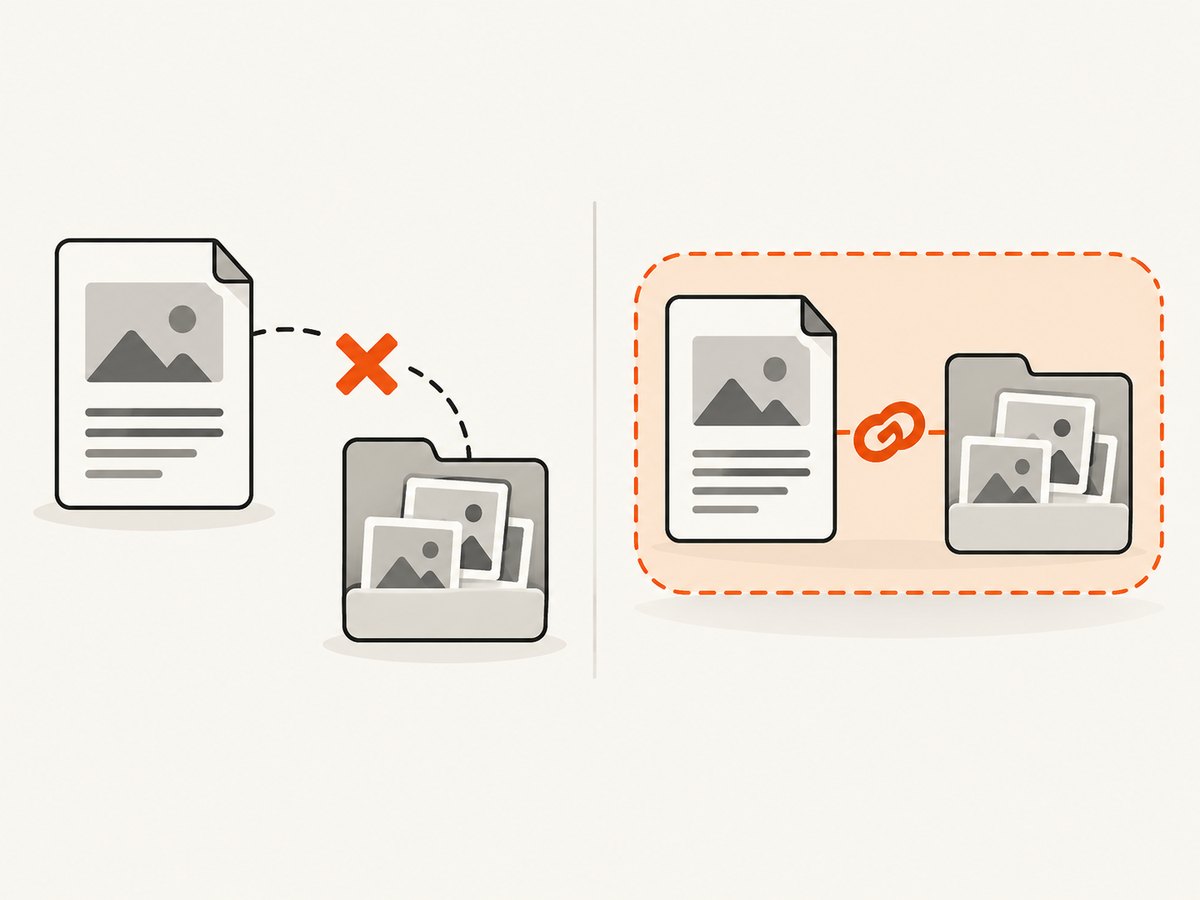
ExtentReports path attachments reference files; they do not copy the image into the HTML generated by file-based reporters. Store screenshots below the report directory, use relative paths where supported, and publish the directory as one artifact. If your CI system uploads only index.html, the report will show broken images. A reliable artifact layout is:
artifacts/
  extent/
    index.html
    screenshots/
      loginTest-1720000000000-12.png
When reports are moved between machines, preserve the relative directory structure. Sanitize parameter values used in filenames, limit filename length, and avoid characters rejected by Windows or object-storage keys.
Troubleshooting
| Symptom | Cause | Fix |
|---|---|---|
| Screenshot icon appears but image is broken | The path points to a CI workspace that was not published. | Publish the screenshots directory with the HTML report and preserve relative paths. |
| No screenshot for a skipped test | No browser session was created. | Log SKIP with the framework reason; capture only when a non-null, live driver exists. |
| Screenshot shows the next test | The driver was reused or the callback ran after teardown. | Capture in an always-run completion hook before quit(); isolate drivers per test or thread. |
| Duplicate tests in the report | The adapter and custom listener both create or log the result. | Assign one component ownership of test creation and final status. |
| All results are marked failed | A generic failure callback logs media with fail() for every outcome. |
Map SUCCESS, FAILURE, and SKIP separately and use matching methods. |
| Parallel runs overwrite images | Every test uses the same filename. | Include method, start time, parameter identity, and thread ID, or generate a UUID. |
ClassCastException for screenshot capture |
The configured driver does not implement the screenshot interface. | Use a WebDriver implementation that supports screenshots, or capture through the remote driver’s supported API. |
NullPointerException in teardown |
Setup failed before creating the driver or test object. | Use null checks, log setup failures, and keep teardown annotated with alwaysRun = true. |
| Report is extremely large | Base64 images or screenshots for every step are embedded. | Prefer paths, capture fewer checkpoints, resize images, and archive old artifacts. |
Performance and reliability considerations
A screenshot is an additional browser command and file operation. Capture at deliberate boundaries rather than after every assertion. Use a unique directory per run, create it once, and avoid network storage for temporary files when local workspace storage is available. On remote browsers, allow for transfer time and confirm the screenshot call completes before quitting the session.
For reliability, keep screenshot capture inside a separate try/catch. A failed screenshot should be logged as a warning without hiding the original assertion failure. Always preserve the original throwable in the Extent log. Use alwaysRun teardown hooks so skipped and setup-failed tests still receive a status when the framework provides one.
For cost, the library itself does not define a hosted screenshot charge: your costs are browser execution, CI minutes, storage, and artifact retention. Capturing all passes can multiply storage; failure-only capture usually produces a smaller, more useful artifact. If you need a hosted capture service instead of maintaining browser setup, ScreenshotNeo can handle page capture through one request.
Or skip the browser setup
ScreenshotNeo provides a website screenshot API and MCP server. Its endpoint accepts a URL and returns PNG, JPEG, WebP, or PDF. The same request can be used from CI when you need a page image for a report:
curl -G "https://api.screenshotneo.com/v1/shot" -d access_key=YOUR_API_KEY --data-urlencode url=https://stripe.com -o shot.webpPython:
import requests
r = requests.get("https://api.screenshotneo.com/v1/shot", params={"access_key": "YOUR_API_KEY", "url": "https://stripe.com"}, timeout=90)
open("shot.webp", "wb").write(r.content)
Node.js:
const q = new URLSearchParams({ access_key: 'YOUR_API_KEY', url: 'https://stripe.com' });
const res = await fetch(`https://api.screenshotneo.com/v1/shot?${q}`);
See the ScreenshotNeo documentation for request options. Cookie and consent banners are accepted and removed before capture, along with more than 60 known consent platforms, newsletter popups, and chat widgets. Bot checks, blank pages, failed loads, timeouts, and cache hits are not billed; response headers identify the page verdict and whether the shot was billed. An MCP server provides take_screenshot, get_page_info, and capture_pdf tools for Claude, Cursor, and other MCP clients. The Free plan includes 1,000 screenshots per month without a card; paid plans start at $5 for 3,000 shots. Create a free ScreenshotNeo account.
FAQ
Should a skipped test have a screenshot?
Only when a browser session exists and your policy says the setup state is useful. A disabled test often has no driver, so record SKIP and its reason instead.
Can I attach one image to several Extent log entries?
Yes, but avoid duplicate media unless each event needs the same evidence. One test-level attachment is usually clearer for a final-state image.
Why does the report work locally but fail in CI?
Local paths remain available beside the HTML file. CI often publishes only the HTML. Publish the screenshots directory and keep the relative layout intact.
Where should flush() run?
After all test and listener callbacks have logged their results, normally in an after-suite hook owned by the reporting lifecycle.
Does Selenium automatically save screenshots in ExtentReports?
No. Selenium captures the image; your listener or test code must save it and call the ExtentReports attachment API.


