Can Selenium Take Screenshots in Headless Mode?
Yes. Configure Chrome or Firefox for headless execution, load the page, and call Selenium’s screenshot API. Learn viewport, element, and full-page options.
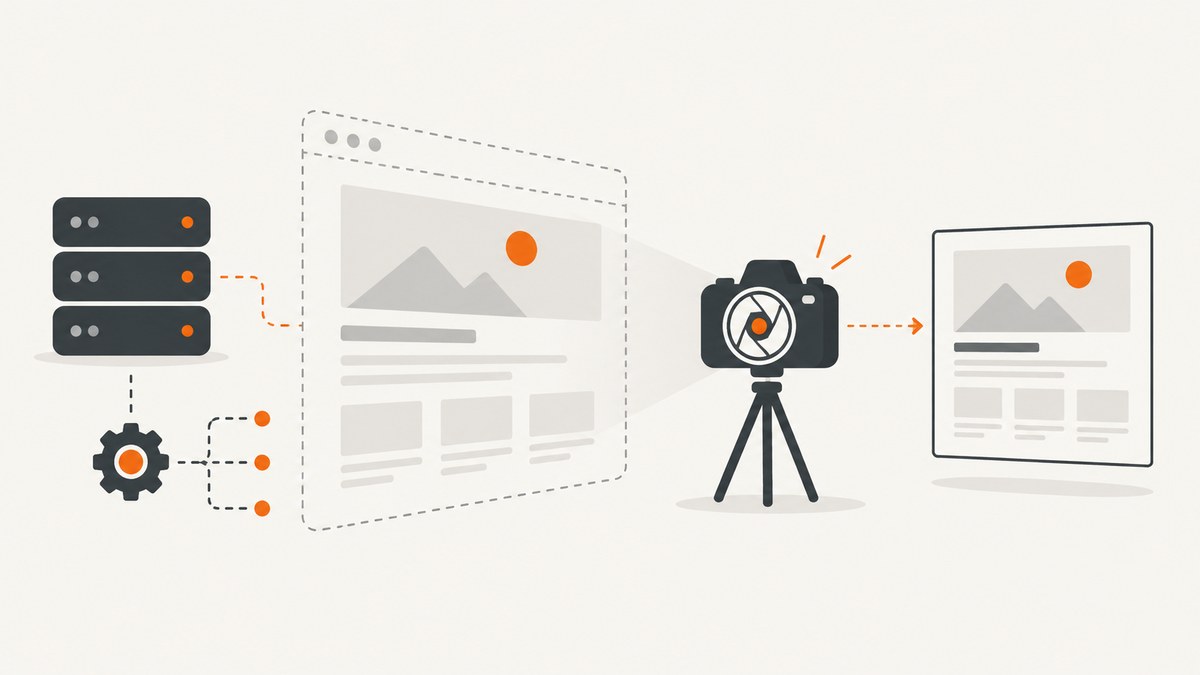
Yes. Selenium can capture screenshots while Chrome or Firefox runs headlessly. Add a headless browser argument, create the driver, navigate to the page, call the binding’s screenshot method, save the result, and quit the driver.
A standard driver screenshot usually means the current browser window or viewport. Element screenshots and full-document captures are separate cases with different browser and driver behavior. Set the window size explicitly when pixel dimensions or responsive breakpoints matter.
What headless screenshots mean
Headless mode removes the visible browser window; it does not remove WebDriver’s screenshot capability. Selenium’s TakesScreenshot contract applies to drivers and elements. Depending on the binding and output type, the result can be written to a file, returned as Base64, or returned in another supported form.

| Capture | What you get | Typical Selenium call |
|---|---|---|
| Viewport/current window | The visible area of the current window or frame | save_screenshot or getScreenshotAs |
| Element | The element’s content or visible portion, depending on driver support | element.screenshot(...) |
| Full document | The complete page height, when supported by the browser/driver | Browser-specific full-page behavior or stitched captures |
Configure headless Chrome correctly
Selenium’s convenience headless setter was deprecated in Selenium 4.8.0 and removed in 4.10.0. Use browser arguments instead. For Chromium, current guidance commonly uses --headless=new; Chrome documentation also shows the --headless form.
Chrome 112 unified headless and headful modes. From Chrome 132, the old headless implementation is distributed separately as chrome-headless-shell. If a CI image pins an older Chrome binary, document which implementation it contains and keep the Chrome and Selenium versions compatible.
Python: minimal headless screenshot
from selenium import webdriver
from selenium.webdriver.chrome.options import Options

options = Options()
options.add_argument("--headless=new")
options.add_argument("--window-size=1440,900")

driver = webdriver.Chrome(options=options)
try:
    driver.get("https://example.com")
    driver.save_screenshot("screenshot.png")
finally:
    driver.quit()
The Python API also exposes get_screenshot_as_file for saving the current window to a PNG.
Java: minimal headless screenshot
import java.io.File;
import org.openqa.selenium.OutputType;
import org.openqa.selenium.TakesScreenshot;
import org.openqa.selenium.WebDriver;
import org.openqa.selenium.chrome.ChromeDriver;
import org.openqa.selenium.chrome.ChromeOptions;

public class HeadlessShot {
    public static void main(String[] args) {
        ChromeOptions options = new ChromeOptions();
        options.addArguments("--headless=new");
        options.addArguments("--window-size=1440,900");

        WebDriver driver = new ChromeDriver(options);
        try {
            driver.get("https://example.com");
            File file = ((TakesScreenshot) driver)
                .getScreenshotAs(OutputType.FILE);
            System.out.println(file.getAbsolutePath());
        } finally {
            driver.quit();
        }
    }
}
Firefox
Firefox supports headless execution as well. Use the Firefox option exposed by your Selenium binding, then call the same driver screenshot API. Keep Firefox, geckodriver, and Selenium versions pinned together in CI.
Make viewport screenshots reproducible
- Set a fixed window size such as
1440x900. - Navigate to the URL.
- Wait for the page state your test requires.
- Capture the current window.
- Quit the driver in a
finallyblock.
Without an explicit size, a local machine and a CI runner can render different responsive layouts. Chrome’s headless command-line documentation recommends pairing screenshots with --window-size; the same principle applies to Selenium.
Wait for the page before capturing
from selenium.webdriver.common.by import By
from selenium.webdriver.support.ui import WebDriverWait
from selenium.webdriver.support import expected_conditions as EC

# after driver.get(...)
wait = WebDriverWait(driver, 20)
wait.until(EC.visibility_of_element_located((By.CSS_SELECTOR, "main")))
driver.save_screenshot("ready.png")
A fixed sleep can be useful for a known animation, but an explicit condition is usually more reliable. For pages that load images lazily, scroll through the document or wait for the specific image state before capturing.
Element screenshots
Element screenshots ask the driver to capture an element’s entire content or its visible portion. They are useful for cards, charts, receipts, and components where a viewport shot contains unrelated content.
from selenium.webdriver.common.by import By

card = driver.find_element(By.CSS_SELECTOR, "article.card")
card.screenshot("card.png")
Make sure the element exists and is rendered before calling the method. If it is outside the viewport, scroll it into view first. Shadow DOM, transforms, sticky elements, and overflowing containers can produce browser-specific results.
Full-page screenshots in headless Selenium
A normal driver screenshot is generally the current window, not the entire document. Full-page capture is browser- and driver-dependent. Do not assume that increasing the viewport height is equivalent to a true full-document screenshot: it can change responsive breakpoints, omit content loaded only after scrolling, or create very large bitmaps.
Practical full-page options
- Use a driver/browser full-page capability when the specific browser and Selenium binding support it.
- Resize the viewport to document height for simple pages, after measuring
document.documentElement.scrollHeight. This is easy but can trigger a different layout. - Capture and stitch scroll segments when you need predictable coverage across browsers. Hide sticky headers during stitching or account for their overlap.
- Use a screenshot API when you need lazy-image loading, full-page behavior, retries, and delivery without maintaining a browser process.
height = driver.execute_script(
    "return Math.max(document.body.scrollHeight, "
    "document.documentElement.scrollHeight);"
)
driver.set_window_size(1440, height)
driver.save_screenshot("page.png")
This resize technique is not a universal full-page implementation. Test pages with fixed-position navigation, very tall documents, lazy loading, and responsive breakpoints.
Output formats and storage
Java’s getScreenshotAs supports file and Base64 output forms. Python’s file methods write PNG screenshots. Store files with deterministic names that include the URL or test case and a run identifier. Avoid overwriting artifacts when parallel workers capture the same route.
Headless screenshots in CI
- Pin the Chrome/Firefox binary, driver, and Selenium versions.
- Set the viewport dimensions explicitly.
- Run the browser with the headless argument supported by that version.
- Use a reliable wait condition instead of assuming navigation means rendering is complete.
- Save the screenshot and browser logs as CI artifacts on failure.
- Use a temporary output directory and clean it after the job.
- Limit parallel browsers to the CPU and memory available on the runner.
Remote WebDriver is also supported by Selenium and is useful with hosted CI grids. The same concerns remain: browser version, viewport, waits, permissions, and network access can differ between workers.
Common errors and fixes
| Error or symptom | Likely cause | Fix |
|---|---|---|
--headless is ignored or the setter is missing |
Old Selenium examples use the removed convenience API | Add --headless=new or the documented --headless argument to browser options. |
| Driver fails to start in CI | Browser/driver mismatch, missing binary, or incompatible container | Pin compatible versions, verify the binary path, and inspect the driver log. |
| Screenshot is the wrong size | Window dimensions were left to the runner defaults | Set --window-size=WIDTH,HEIGHT or call set_window_size. |
| Screenshot is blank or incomplete | Capture happened before rendering, after a failed navigation, or before lazy content loaded | Check the URL response, wait for a meaningful selector, and trigger the required scroll or image load. |
| Element screenshot throws an exception | Selector is wrong, element is detached, hidden, or not yet rendered | Wait for presence/visibility, locate it again, and scroll it into view. |
| Full-page output cuts off content | Driver only captured the viewport or document height was measured too early | Use a browser-supported full-page method, measure after rendering, or stitch segments. |
| Fonts or images differ from local runs | CI lacks the font, has different network timing, or blocks external resources | Install required fonts, wait for resource completion, and make dependencies available to the runner. |
| Chrome exits immediately in a container | Sandbox or shared-memory limits | Use a maintained container image and apply only the container flags required by that environment; do not copy flags blindly between runners. |
Performance, reliability, and cost
Performance
Launching a browser is substantially more work than making an HTTP request. Reuse one driver for related captures when isolation permits, avoid unnecessary full-document images, and wait for a specific readiness condition rather than a long fixed delay. Large viewport heights and high device scale factors increase memory use and output size.
Reliability
Screenshot determinism depends on the browser build, fonts, viewport, timezone, locale, network, animations, and page state. Disable or wait for animations when visual comparison matters. Record the browser and Selenium versions with each artifact. For remote execution, treat worker availability and network access as additional failure points.
Cost
Self-hosted Selenium costs the compute time and maintenance of browser processes, drivers, CI workers, and storage. A hosted screenshot service can move that operational work outside your application. Compare services by capture scope, rendering controls, failure handling, caching, and billing semantics rather than request count alone.
Or skip the browser setup
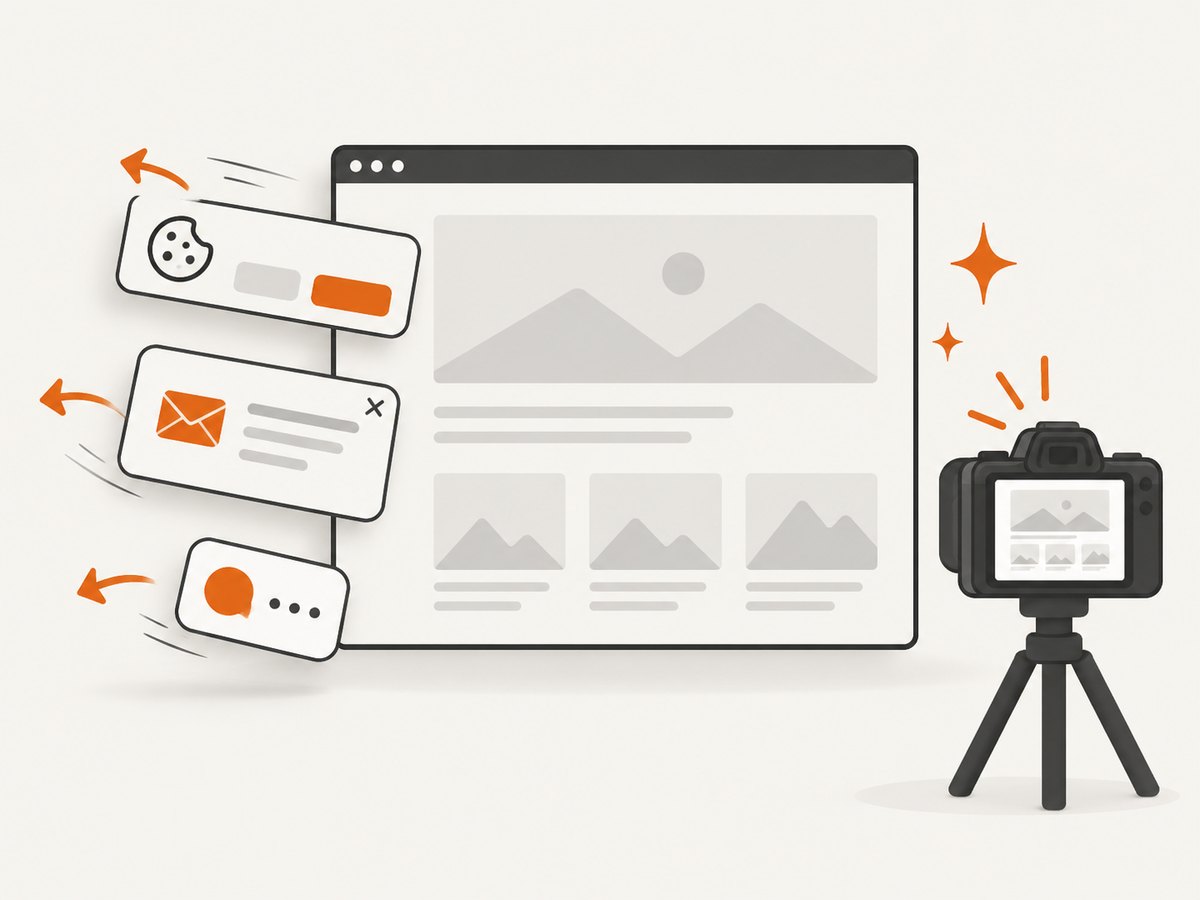
ScreenshotNeo provides a website screenshot API and MCP server. One GET request returns a PNG, JPEG, WebP, or PDF. Before capture it accepts cookie or consent banners like a visitor and removes more than 60 known consent platforms, newsletter popups, and chat widgets. Bot checks, blank pages, timeouts, failed loads, and cache hits are not billed; response headers identify the page verdict and whether the request was billed.
See the ScreenshotNeo API documentation for the complete option list, including full-page capture with lazy images loaded, CSS-selector element capture, dark mode, device presets, arbitrary viewports, retina scale, PDF settings, custom CSS and JavaScript, clicks, waits, blocked resources, headers, cookies, user agents, authorization, timezone, geolocation, transparent backgrounds, resizing, caching, signed links, asynchronous jobs, bulk capture, usage, and the OpenAPI specification.
cURL
curl -G "https://api.screenshotneo.com/v1/shot" \
  -d access_key=YOUR_API_KEY \
  --data-urlencode url=https://example.com \
  -o shot.webp
Python
import requests

r = requests.get(
    "https://api.screenshotneo.com/v1/shot",
    params={"access_key": "YOUR_API_KEY", "url": "https://example.com"},
    timeout=90,
)
r.raise_for_status()
open("shot.webp", "wb").write(r.content)
Node.js
const fs = require('node:fs/promises');

const q = new URLSearchParams({
  access_key: 'YOUR_API_KEY',
  url: 'https://example.com'
});
const res = await fetch(`https://api.screenshotneo.com/v1/shot?${q}`);
if (!res.ok) throw new Error(`Screenshot failed: ${res.status}`);
await fs.writeFile('shot.webp', Buffer.from(await res.arrayBuffer()));
ScreenshotNeo also has an MCP server with take_screenshot, get_page_info, and capture_pdf tools for Claude, Cursor, and other MCP clients. The Free plan includes 1,000 screenshots per month with no card; paid plans start at $5 for 3,000 screenshots, and every feature is available on every plan. Create a free ScreenshotNeo account.
FAQ
Can headless Chrome take screenshots without opening a window?
Yes. Headless mode runs Chrome without a visible window, while Selenium still exposes the driver screenshot APIs.
Is --headless=new required?
Use the headless argument supported by the Chrome version in your environment. Current Chromium examples commonly use --headless=new, while Chrome documentation also shows --headless.
Does Selenium automatically capture the whole page?
No. A normal screenshot is generally the current window or viewport. Full-document capture depends on browser and driver support or requires resizing or stitching.
Can I capture only one component?
Yes. Locate the element and call the binding’s element screenshot method after it is rendered.
Should I use Selenium or an API?
Use Selenium when you need browser-level control inside your own test or automation environment. Use an API when you want a managed capture request, repeatable rendering options, and no browser process to maintain.