How to Take Selenium Screenshots on HTTP-Authenticated Pages
Authenticate with HTTP Basic Auth, verify the protected page loaded, then capture reliable Selenium screenshots with Python, JavaScript, and full-page options.
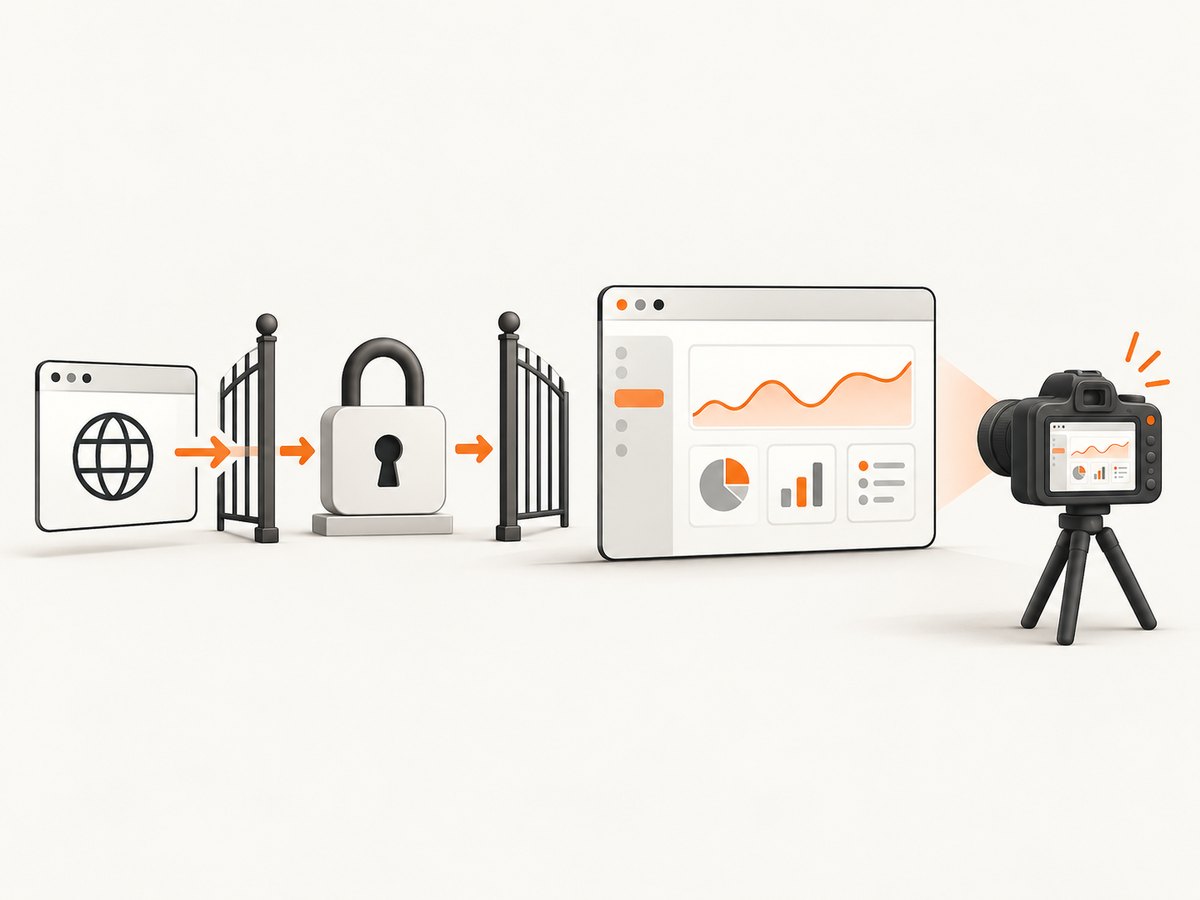
Direct answer: authenticate before capturing, wait for a page-specific post-login marker, then call Selenium’s screenshot method. For an initial navigation, browsers that support URL credentials can open https://username:password@example.test/. Never save immediately after get(); a successful HTTP response does not prove that the protected application finished rendering.
Selenium WebDriver controls a real browser through a language-neutral API and requires a Selenium binding, a browser, and a matching driver. The normal lifecycle is create a driver, navigate, wait or interact, capture, and quit. See the official WebDriver documentation.
1. Prerequisites
- Python 3 and the Selenium package:
python -m pip install selenium. - A supported browser such as Chrome, Firefox, Edge, or Safari, plus its WebDriver support.
- Credentials supplied through environment variables or a secret manager.
- A selector that exists only after authentication, such as
main.dashboard.
Selenium Manager can obtain matching drivers for many local setups. In CI, pin browser and driver versions when your environment requires reproducibility.
2. Python: HTTP Basic Auth and a viewport screenshot
This complete example URL-encodes credentials, opens the protected page, waits for an authenticated marker, and saves the current viewport.
import os
from urllib.parse import quote

from selenium import webdriver
from selenium.webdriver.common.by import By
from selenium.webdriver.support.ui import WebDriverWait
from selenium.webdriver.support import expected_conditions as EC

username = os.environ["BASIC_AUTH_USER"]
password = os.environ["BASIC_AUTH_PASSWORD"]
host = "protected.example.test"
url = f"https://{quote(username, safe='')}:{quote(password, safe='')}@{host}/dashboard"

driver = webdriver.Chrome()
try:
    driver.get(url)

    # Replace this with a marker that proves your application is authenticated.
    WebDriverWait(driver, 15).until(
        EC.visibility_of_element_located((By.CSS_SELECTOR, "main.dashboard"))
    )

    driver.save_screenshot("dashboard.png")
finally:
    driver.quit()
The current-window method is documented as driver.save_screenshot("page.png"). Selenium also exposes PNG bytes and Base64 forms when you need to upload the image instead of writing a file.
Credential URL caveats
- Use URL credentials for the initial protected navigation only where the browser supports them.
- Percent-encode usernames and passwords. Characters such as
@,:,#, and spaces can otherwise change the URL. - Do not commit credentials, print the credentialed URL, or include it in test reports.
- If authentication redirects to another origin, authenticate that origin as required and verify the final URL.
- A URL credential is not a replacement for a form login, SSO, client certificate, bearer token, or another authentication scheme.
3. Capture an authenticated element
Use an element screenshot when the full page contains unrelated navigation, sensitive content, or unstable widgets.
panel = WebDriverWait(driver, 15).until(
    EC.visibility_of_element_located((By.CSS_SELECTOR, "main.dashboard .report-panel"))
)
panel.screenshot("report-panel.png")
The element must be visible and attached to the current document. Scroll it into view or wait for its final layout if the application animates it.
4. Capture the full authenticated document
Full-document screenshots are driver-dependent. Where the selected driver supports Selenium’s full-page API, use:
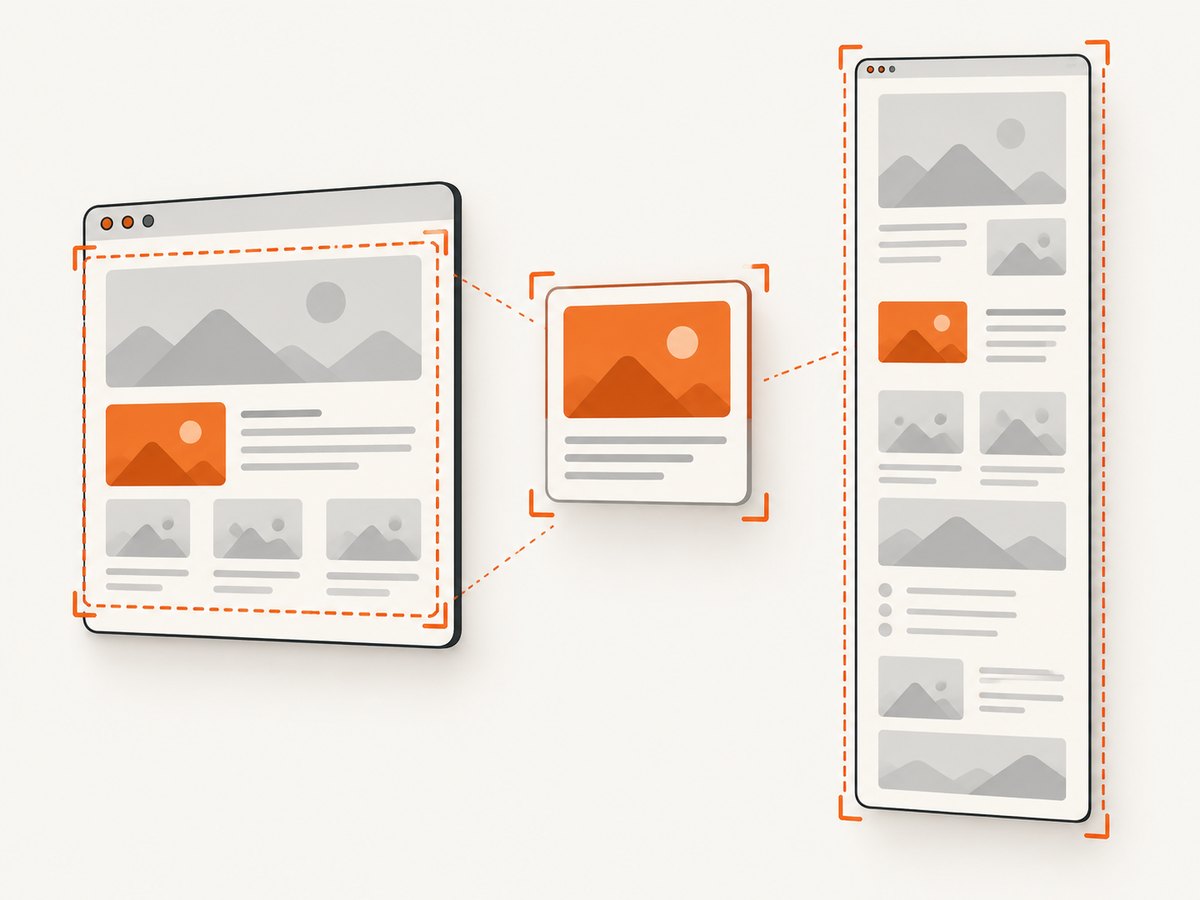
driver.get_full_page_screenshot_as_file("dashboard-full.png")Some drivers instead expose get_full_page_screenshot_as_png(), which returns PNG bytes. If your driver does not implement a full-page command, use a browser-specific capture strategy or capture the page in sections after scrolling. A normal save_screenshot() captures the current viewport, not the entire document.
5. JavaScript and Node.js Selenium example
The same workflow works with the JavaScript binding. Keep credentials in environment variables and wait for an authenticated element before taking the image.
import { Builder, By, until } from "selenium-webdriver";
import chrome from "selenium-webdriver/chrome.js";

const user = encodeURIComponent(process.env.BASIC_AUTH_USER);
const pass = encodeURIComponent(process.env.BASIC_AUTH_PASSWORD);
const url = `https://${user}:${pass}@protected.example.test/dashboard`;

const driver = await new Builder().forBrowser("chrome").setChromeOptions(new chrome.Options()).build();
try {
  await driver.get(url);
  await driver.wait(until.elementLocated(By.css("main.dashboard")), 15000);
  await driver.takeScreenshot().then((png) => import("node:fs/promises").then((fs) => fs.writeFile("dashboard.png", png, "base64")));
} finally {
  await driver.quit();
}
6. cURL: verify Basic Auth before involving a browser
cURL cannot render a browser screenshot, but it is useful for checking credentials, redirects, and server responses first.
curl --fail --silent --show-error \
  --user "$BASIC_AUTH_USER:$BASIC_AUTH_PASSWORD" \
  --location \
  --dump-header response-headers.txt \
  --output protected.html \
  https://protected.example.test/dashboard
Inspect the status and redirect chain without logging the password. A successful cURL response still does not prove that client-side rendering, cookies, or browser-only authentication completed.
7. When URL credentials do not work
Safari on macOS
BrowserStack documents that Safari on macOS does not support Basic Authentication through a username and password in the URL. Their documented alternative is header injection. See BrowserStack’s Basic Authentication guidance.
Later navigations and redirects
A credentialed first URL may not authenticate a later navigation to a different host or realm. Confirm each origin, switch to the intended window or tab, and wait for a marker on the final page.
Authentication popups
An HTTP Basic Auth challenge is handled before page content is available. If a browser displays a native authentication dialog, page JavaScript cannot reliably interact with it. Use the browser-supported credential URL, header injection, or the authentication mechanism recommended by your test platform.
8. Reliability checklist
- Start the driver with a known browser and matching driver.
- Navigate to the protected URL.
- Wait for a page-specific authenticated marker, not merely document readiness.
- Check the final URL and title when redirects are expected.
- Switch to the correct window or tab before capturing.
- Capture the viewport, element, or full document according to the requirement.
- Quit the driver in a
finallyblock so failed tests do not leave browser processes running.
9. Troubleshooting
| Symptom | Likely cause | Fix |
|---|---|---|
| Screenshot shows a login prompt | Credentials were rejected, unsupported, or the challenge belongs to another origin. | Check the final URL and response status, URL-encode credentials, authenticate each redirected origin, and use header injection where URL credentials are unsupported. |
main.dashboard times out |
The selector is wrong, the page is still rendering, or authentication failed. | Choose a marker unique to the authenticated view; inspect title and URL safely; increase the wait only after fixing the condition. |
| Element screenshot is blank or clipped | The element is hidden, moving, or outside the current layout. | Wait for visibility, scroll into view, and wait for the final size before capture. |
| Full-page method is unavailable | The selected driver does not implement the driver-specific command. | Use a supported driver, capture the viewport, or create a scrolling capture workflow. |
| Credentials appear in logs | The credentialed URL was logged by a test runner or exception. | Use environment variables, redact URLs, and never print the password or complete credentialed URL. |
| Works locally but fails in CI | Browser versions, proxy rules, certificates, or secret variables differ. | Pin the environment, verify secrets exist, configure the CI proxy and certificate trust, and save safe diagnostics such as title and final URL. |
| Screenshot captures the wrong tab | The flow opened a new window or tab. | Enumerate window handles and switch to the handle containing the authenticated marker. |
10. Performance, reliability, and cost considerations
- Launching a browser is usually the expensive step. Reuse a driver for multiple captures when isolation requirements allow it.
- Wait for a stable marker rather than a large fixed delay. This reduces idle time while avoiding incomplete images.
- Full-document screenshots consume more memory than viewport or element captures, especially on long pages.
- Block irrelevant third-party resources only when your test still represents the page you intend to capture.
- Use a separate browser profile or isolated session for each credential set to prevent cookies leaking between accounts.
- Retry transient navigation failures with a bounded retry policy, but do not blindly retry authentication failures.
- Store screenshots and diagnostic metadata separately from secrets. Retain only the data your test or audit requires.
11. Or skip the browser setup
ScreenshotNeo provides a website screenshot API and MCP server. One GET request returns a PNG, JPEG, WebP, or PDF. For protected pages, configure the supported custom headers, cookies, user agent, or Authorization settings in the API documentation.
curl -G "https://api.screenshotneo.com/v1/shot" -d access_key=YOUR_API_KEY --data-urlencode url=https://protected.example.test/dashboard -o shot.webpimport requests
r = requests.get("https://api.screenshotneo.com/v1/shot", params={"access_key": "YOUR_API_KEY", "url": "https://protected.example.test/dashboard"}, timeout=90)
open("shot.webp", "wb").write(r.content)const q = new URLSearchParams({ access_key: 'YOUR_API_KEY', url: 'https://protected.example.test/dashboard' }); const res = await fetch(`https://api.screenshotneo.com/v1/shot?${q}`);Cookie banners, newsletter popups, and chat widgets are removed before the shot. Bot checks, blank pages, failed loads, timeouts, and cache hits are not billed; response headers identify the page verdict and whether the shot was billed. Its MCP server lets Claude, Cursor, and other MCP clients call take_screenshot, get_page_info, and capture_pdf. The Free plan includes 1,000 screenshots per month with no card, and paid plans start at $5 for 3,000 shots. Create a free ScreenshotNeo account.
12. FAQ
Can Selenium bypass every authentication popup?
No. URL credentials work only where the browser supports them and only for HTTP Basic Auth. Form login, SSO, client certificates, and bearer-token flows need their own browser or network setup.
Should I wait for document.readyState?
It can be one signal, but an application-specific authenticated element is stronger because client-side rendering may continue after the document reports ready.
Which screenshot method should I choose?
Use the viewport for a normal browser view, an element screenshot for a focused component, and a driver-supported full-page method for the complete document.
Is a successful HTTP status enough?
No. Follow redirects and verify the final URL, title, and a marker that appears only after authentication.


