How to Capture Selenium Screenshots on a Jenkins Agent
Save Selenium screenshots from Jenkins agents, keep failure evidence, and archive files reliably from local or remote browsers.
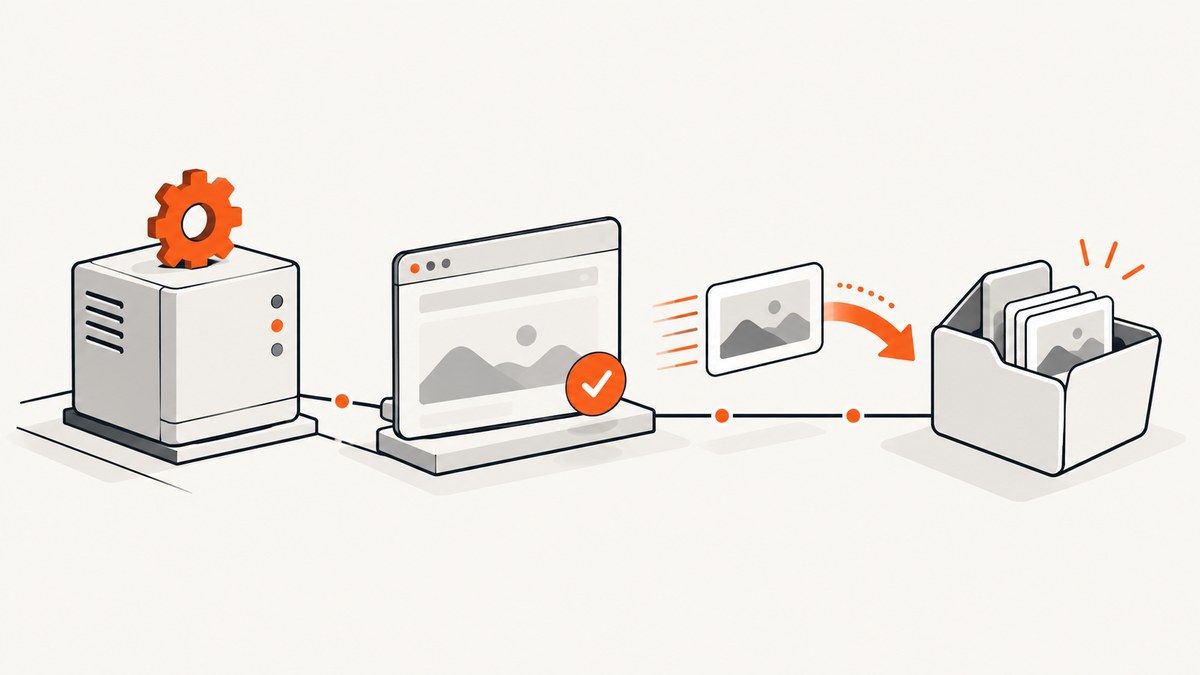
Run Selenium on the Jenkins agent, save each PNG inside the agent workspace, and archive that directory with archiveArtifacts. If screenshots must be available after failed tests, put the archive step in Declarative Pipeline’s post { always { ... } } block. Jenkins can archive only files that exist in the workspace and match the include pattern. With a remote browser, the test process still needs to write the returned screenshot bytes into the Jenkins workspace before archiving.
This guide covers Python, JavaScript, and Java Selenium bindings, failure screenshots, full-page versus element captures, containers, Selenium Grid, artifact retention, troubleshooting, and a hosted alternative.
1. The capture-to-artifact workflow
- Jenkins allocates a workspace on an agent.
- Your test starts a WebDriver session and navigates to the page.
- Selenium captures the current browsing context or a selected element.
- The test writes the PNG under a path such as
screenshots/in the workspace. - Jenkins runs
archiveArtifactswith a matching Ant-style pattern.
Selenium’s language bindings expose WebDriver screenshot operations. The exact method differs by binding, but the result is a PNG or PNG bytes. See the Selenium WebDriver documentation for binding-specific behavior and element screenshot examples.
Jenkins’ Declarative Pipeline and archiveArtifacts step define the workspace and artifact rules used below.
2. A minimal Jenkins Pipeline
The following pipeline runs tests and archives every PNG below screenshots/, whether the build succeeds or fails:
pipeline {
    agent any

    stages {
        stage('Browser tests') {
            steps {
                sh 'pytest'
            }
        }
    }

    post {
        always {
            archiveArtifacts(
                artifacts: 'screenshots/**/*.png',
                allowEmptyArchive: true
            )
        }
    }
}
Your test code must create files matching that pattern. Paths are relative to the workspace. If screenshots are mandatory evidence, remove allowEmptyArchive: true; Jenkins will then report an error when no file matches. Keep it when screenshots are conditional and an empty set should not fail the build.
Use a predictable directory layout
project/
├── Jenkinsfile
├── tests/
└── screenshots/
    ├── login-failure.png
    └── checkout-failure.png
Create the directory before writing. Include a build or test name in filenames when several tests can run in one workspace:
screenshots/${BUILD_TAG}/test-name.pngIf you use that layout, change the archive pattern to screenshots/**/*.png. Jenkins artifact matching is case-sensitive by default, so .PNG will not match a lowercase .png pattern.
3. Python Selenium: save a screenshot on failure
Install Selenium in the same environment used by the Jenkins agent:
python -m pip install selenium pytestA pytest fixture can capture the current page whenever a test fails:
from pathlib import Path
import pytest
from selenium import webdriver
from selenium.webdriver.chrome.options import Options

SCREENSHOT_DIR = Path('screenshots')

@pytest.fixture
def driver(request):
    options = Options()
    options.add_argument('--headless=new')
    options.add_argument('--window-size=1440,1000')
    browser = webdriver.Chrome(options=options)
    yield browser

    # request.node.rep_call is set by the hook below.
    if getattr(request.node, 'rep_call', None) and request.node.rep_call.failed:
        SCREENSHOT_DIR.mkdir(parents=True, exist_ok=True)
        safe_name = request.node.nodeid.replace('/', '_').replace('::', '_')
        browser.save_screenshot(str(SCREENSHOT_DIR / f'{safe_name}.png'))
    browser.quit()

@pytest.hookimpl(hookwrapper=True)
def pytest_runtest_makereport(item, call):
    outcome = yield
    report = outcome.get_result()
    setattr(item, f'rep_{report.when}', report)

def test_homepage(driver):
    driver.get('https://example.com')
    assert 'Example' in driver.title
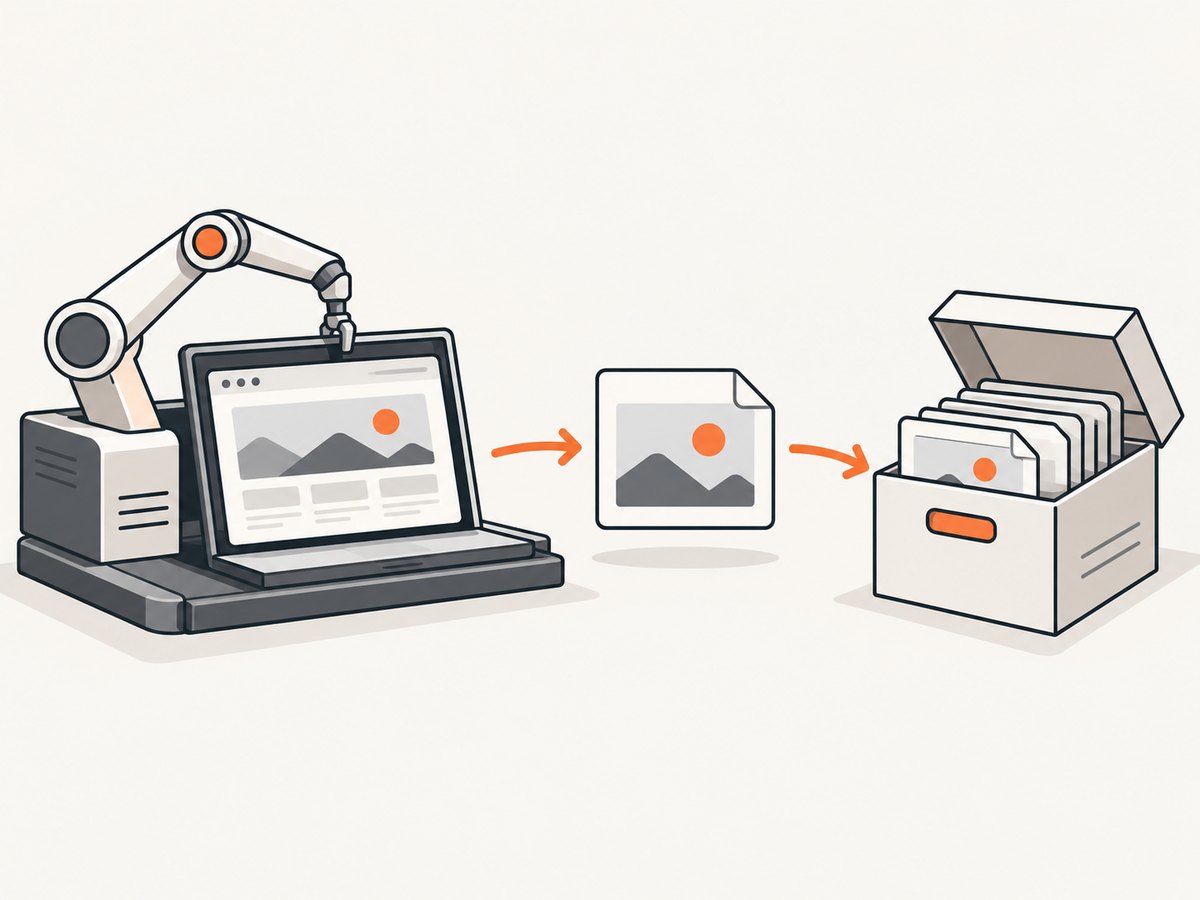
driver.save_screenshot('./image.png') writes a PNG through Selenium’s Python binding. The fixture captures after the test call fails but before the browser is closed. If your framework already has a failure hook, use that hook and keep the output path under the workspace.
Capture an element instead of the viewport
card = driver.find_element('css selector', '[data-testid="checkout-summary"]')
Path('screenshots').mkdir(exist_ok=True)
card.screenshot('screenshots/checkout-summary.png')
Use an element screenshot for a focused component. Use a browser screenshot when headers, navigation, overlays, and surrounding layout are relevant to diagnosis. Browser and driver versions can differ in how much of a page a full screenshot includes; verify the behavior of the driver you run in CI.
4. JavaScript Selenium: write the Base64 result
Selenium’s JavaScript API returns screenshot data as a Base64-encoded PNG. Create the destination directory and decode it when writing:
const fs = require('node:fs/promises');
const { Builder } = require('selenium-webdriver');

(async () => {
  const driver = await new Builder().forBrowser('chrome').build();
  try {
    await driver.get('https://example.com');
    const title = await driver.getTitle();
    if (!title.includes('Example')) {
      throw new Error(`Unexpected title: ${title}`);
    }
  } catch (error) {
    await fs.mkdir('screenshots', { recursive: true });
    const encoded = await driver.takeScreenshot();
    await fs.writeFile('screenshots/failure.png', encoded, 'base64');
    throw error;
  } finally {
    await driver.quit();
  }
})();
In a test runner, put the same capture logic in an afterEach or failure hook and use a unique filename. The process that calls takeScreenshot() must be the process that writes the file into the Jenkins workspace.
5. Java Selenium: use TakesScreenshot
import java.io.File;
import java.nio.file.Files;
import java.nio.file.Path;
import java.nio.file.StandardCopyOption;
import org.openqa.selenium.OutputType;
import org.openqa.selenium.TakesScreenshot;
import org.openqa.selenium.WebDriver;
import org.openqa.selenium.chrome.ChromeDriver;
import org.openqa.selenium.chrome.ChromeOptions;

public class ScreenshotExample {
  public static void main(String[] args) throws Exception {
    ChromeOptions options = new ChromeOptions();
    options.addArguments("--headless=new", "--window-size=1440,1000");
    WebDriver driver = new ChromeDriver(options);
    try {
      driver.get("https://example.com");
      if (!driver.getTitle().contains("Example")) {
        throw new AssertionError("Unexpected title");
      }
    } catch (Throwable failure) {
      Files.createDirectories(Path.of("screenshots"));
      File source = ((TakesScreenshot) driver).getScreenshotAs(OutputType.FILE);
      Files.copy(source.toPath(), Path.of("screenshots/failure.png"),
          StandardCopyOption.REPLACE_EXISTING);
      throw failure;
    } finally {
      driver.quit();
    }
  }
}
6. Archive screenshots after every result
The post section runs after the stages complete. always runs for successful, failed, and aborted results, which is why it is appropriate for failure evidence:
post {
    always {
        archiveArtifacts artifacts: 'screenshots/**/*.png',
                         fingerprint: true,
                         allowEmptyArchive: false
    }
}
fingerprint: true is optional and records fingerprints for artifact tracking. It does not change where files are found. Archive only the files you need; large full-page images increase storage and transfer time.
Archive only on success
post {
    success {
        archiveArtifacts artifacts: 'screenshots/**/*.png'
    }
}
This is unsuitable when the screenshots explain failures. Prefer always for diagnostic captures.
7. Containers, agents, and Selenium Grid
Container agents
The screenshot must be written to the workspace visible to the Pipeline step. A browser container may have a different filesystem from the Jenkins process. Mount or reuse the Jenkins workspace according to your agent configuration, then confirm with:
sh 'pwd && find screenshots -type f -maxdepth 3 -print || true'Do not rely on a browser container’s temporary directory unless that directory is mounted into the workspace.
RemoteWebDriver and Selenium Grid
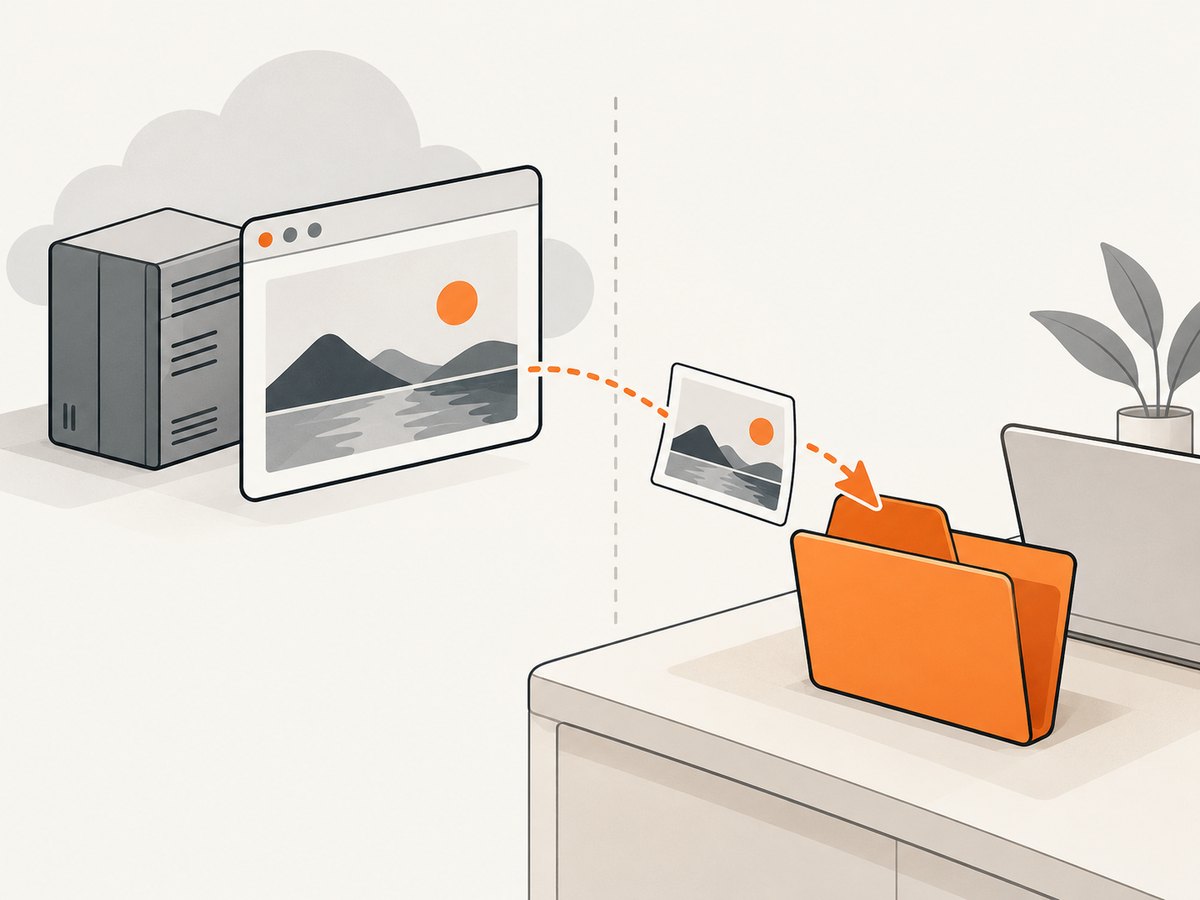
With Grid, WebDriver returns screenshot data to the test process. The file is archiveable only after that process writes it into its own Jenkins workspace. A file saved on a Grid node is not automatically visible to Jenkins. Keep capture and file-write code in the test process, and use an explicit workspace-relative path.
Parallel tests
Parallel workers can overwrite failure.png. Include a worker identifier, test name, and timestamp or UUID in each filename. If each worker receives a separate workspace, archive from each workspace or merge files before the archive step.
8. Full-page, viewport, and element screenshots
| Capture | Use it when | Operational detail |
|---|---|---|
| Viewport | You need the exact visible state at failure time. | Set a deterministic window size and device scale. |
| Full page | Layout below the fold matters. | Driver support varies; long pages can create large files. |
| Element | A component is the diagnostic target. | Wait for the element and capture after it is displayed. |
For stable captures, wait for the page condition that matters instead of sleeping for an arbitrary interval. Wait for a selector, document readiness, or a known application state. Keep browser dimensions, timezone, locale, and test data consistent so image diffs remain meaningful.
9. Reliability and performance checklist
- Create the output directory before the first capture.
- Capture in an exception or test-failure hook before quitting the driver.
- Use
post { always { ... } }when failed builds need evidence. - Keep output paths relative to
WORKSPACE. - Use unique names for parallel tests.
- Print the directory contents before archiving when diagnosing missing files.
- Limit captures to failure cases or key checkpoints to reduce artifact volume.
- Set a deterministic viewport and wait for stable application state.
- Ensure browser, driver, and Selenium versions are installed on the agent.
- Retain artifacts long enough to investigate failures, then apply Jenkins retention policies.
Screenshot capture itself is usually cheaper than rerunning a failed browser test, but full-page images and many parallel captures consume workspace, controller, and artifact storage. Compressing PNGs after capture can reduce storage, but do not alter the file before your visual-diff or debugging process expects it.
10. Troubleshooting missing or unusable screenshots
| Symptom | Likely cause | Fix |
|---|---|---|
| “No artifacts found” | The glob does not match, or no file was written. | Run find screenshots -type f; correct the extension, case, or directory. |
| Archive works on success but not failure | Archive is inside a normal stage or success block. |
Move it to post { always { ... } }. |
| File exists locally but not in Jenkins | The path is outside the workspace. | Write to a workspace-relative path or $WORKSPACE/screenshots. |
| Remote browser file is missing | The file was saved on a Grid node or separate container. | Write returned screenshot bytes from the test process into the agent workspace. |
| Screenshot is blank | Capture happened before navigation or rendering completed. | Wait for a URL, selector, or application-ready condition. |
| Screenshot is overwritten | Parallel tests share one filename. | Include test and worker IDs in filenames. |
| Browser cannot start | Missing browser/driver, sandbox restrictions, or incompatible versions. | Install matching dependencies on the agent and use the agent’s supported headless flags. |
| Archive step hides a problem | allowEmptyArchive: true accepts zero matches. |
Remove it when every failed test must produce an image. |
| Old screenshots appear in a new build | Workspace reuse left stale files. | Clean the screenshot directory at the start, or include the build ID in the path. |
11. Or skip the browser setup
If the goal is a clean screenshot rather than browser-test interaction, ScreenshotNeo captures a URL with one request. Its API accepts the cookie or consent banner like a visitor, removes more than 60 known consent platforms plus newsletter popups and chat widgets, and returns PNG, JPEG, WebP, or PDF. Bot checks, blank pages, timeouts, failed loads, and cache hits are not billed; response headers identify the page verdict and billing result.
See the ScreenshotNeo API documentation for request options and authentication.
cURL
curl -G "https://api.screenshotneo.com/v1/shot" \
  -d access_key=YOUR_API_KEY \
  --data-urlencode url=https://stripe.com \
  -o shot.webp
Python
import requests

r = requests.get(
    "https://api.screenshotneo.com/v1/shot",
    params={"access_key": "YOUR_API_KEY", "url": "https://stripe.com"},
    timeout=90,
)
r.raise_for_status()
open("shot.webp", "wb").write(r.content)
Node.js
const q = new URLSearchParams({
  access_key: 'YOUR_API_KEY',
  url: 'https://stripe.com'
});
const res = await fetch(`https://api.screenshotneo.com/v1/shot?${q}`);
if (!res.ok) throw new Error(`Screenshot failed: ${res.status}`);
await require('node:fs/promises').writeFile(
  'shot.webp',
  Buffer.from(await res.arrayBuffer())
);
You can use full-page capture with lazy images loaded, CSS selector element capture, dark mode, device presets or custom viewports, retina scale, custom CSS and JavaScript, clicks, waits, blocked resource types, headers, cookies, user agents, authorization, timezone, geolocation, transparent backgrounds, resizing, caching, signed links, asynchronous jobs, bulk capture, and PDF options. An MCP server provides take_screenshot, get_page_info, and capture_pdf tools for Claude, Cursor, and other MCP clients.
Plans include 1,000 screenshots per month free with no card; paid plans start at $5 for 3,000 shots. Create a free ScreenshotNeo account and start with the included monthly screenshots.
12. FAQ
Does Jenkins take the screenshot for me?
No. Selenium or another test process creates the image. Jenkins stores the file after it exists in the workspace.
Should I archive screenshots on every build?
Archive failure screenshots with always. For successful runs, archive only checkpoints that your review or visual testing requires.
Can I archive screenshots from Selenium Grid?
Yes, when the test process writes the screenshot returned by WebDriver into the Jenkins workspace. A node-local file alone is not sufficient.
Why use an element screenshot?
It isolates a component and reduces irrelevant layout, which is useful for focused assertions and smaller artifacts.
Can a screenshot prove that a test failed?
It records the rendered state at capture time. Keep the test result, logs, URL, and exception alongside it for complete diagnosis.


