How to Take Selenium Screenshots When Mocha Tests Fail
Capture the browser state behind a failed Mocha test with Selenium’s JavaScript WebDriver, save reliable artifacts, and troubleshoot common failure cases.
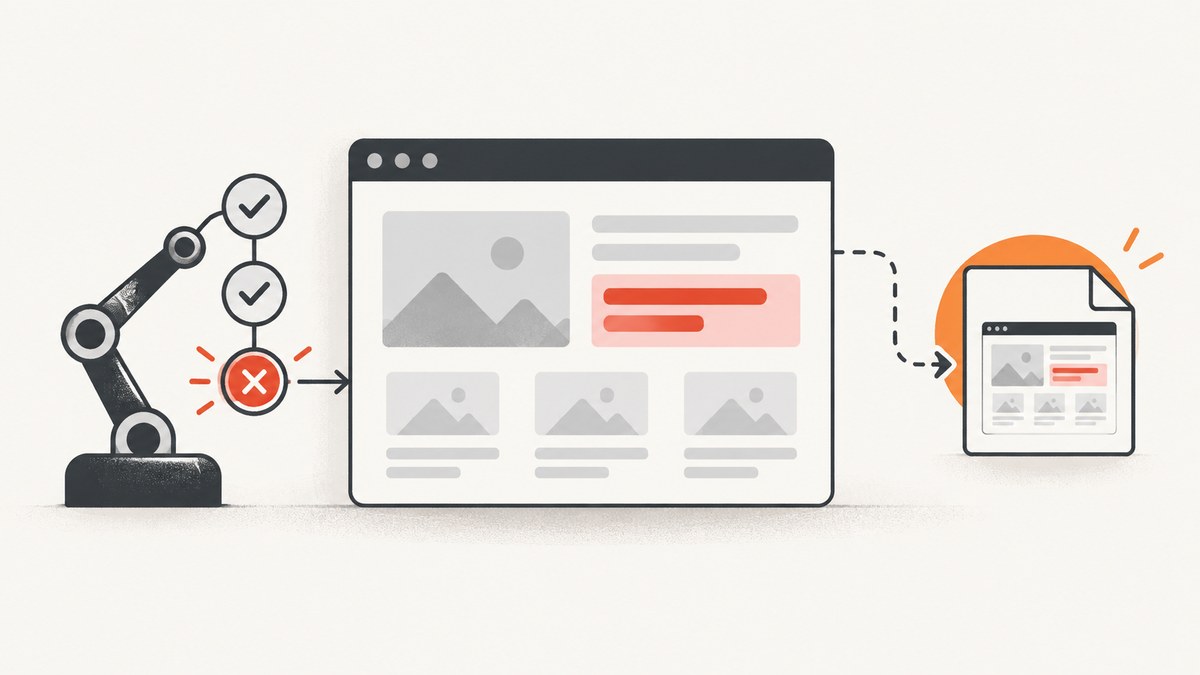
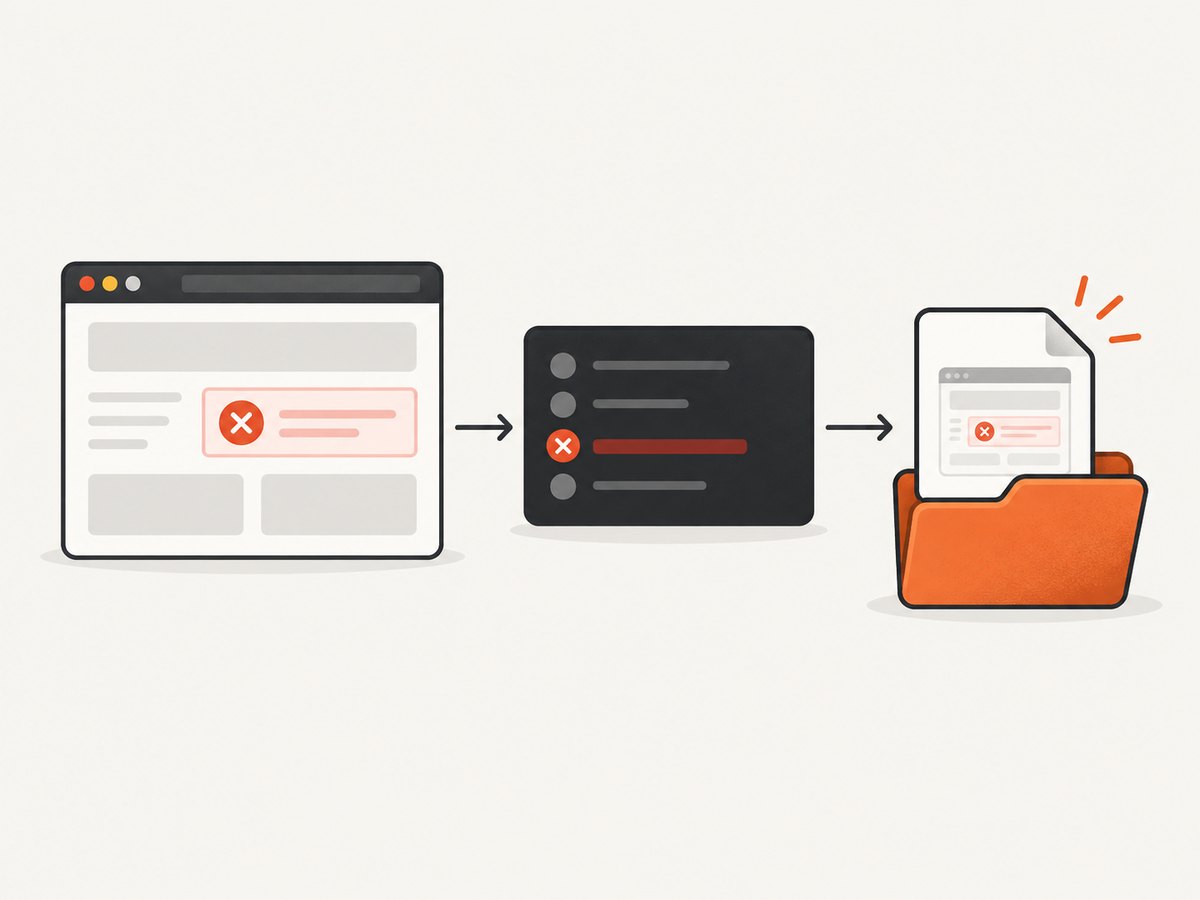
Use Mocha’s afterEach() hook to capture a Selenium screenshot when a test fails. The hook runs after each test and before the suite’s after() teardown, so the browser session is still available. In Selenium’s JavaScript API, driver.takeScreenshot() resolves to a base64-encoded PNG; write that string to a file with base64 encoding.
The example below assumes a suite owns one Selenium WebDriver instance. It saves a screenshot only for failed tests, creates the output directory when needed, and uses the full test title as the filename. Adjust the driver setup, module format, and output path to match your project. See the official Mocha hooks documentation and Selenium JavaScript WebDriver API.
1. Add a failure-only screenshot hook
Install and configure Mocha and Selenium WebDriver as your project requires. This hook uses Node’s built-in file APIs; it does not need a screenshot-specific package. Put it in the test file or in a Mocha setup file that has access to the driver.
import fs from 'node:fs/promises';
import path from 'node:path';

const screenshotDir = 'artifacts/screenshots';
let driver;

function safeName(title) {
  return title.replace(/[^a-z0-9-_]+/gi, '_').slice(0, 120) || 'unnamed-test';
}

afterEach(async function () {
  const test = this.currentTest;
  if (test?.state !== 'failed' || !driver) return;

  await fs.mkdir(screenshotDir, { recursive: true });
  const image = await driver.takeScreenshot();
  const filename = `${safeName(test.fullTitle())}.png`;
  await fs.writeFile(path.join(screenshotDir, filename), image, 'base64');
});

after(async function () {
  if (driver) await driver.quit();
});
The example uses ES modules. In a CommonJS project, use require() for the built-in modules and make sure your Mocha configuration supports the syntax in your test files. Assign driver when your suite creates the WebDriver session. The sample intentionally does not include browser or driver-service setup: that varies by browser, Selenium version, and project environment.
Why this hook works
Mocha’s BDD interface provides before(), after(), beforeEach(), and afterEach(). A test runs before its afterEach() hook; suite teardown runs later. Selenium’s quit() ends the browser session, so capture before calling it. The Selenium browser interaction guide shows the screenshot value being written to a file using base64 encoding.
Use a regular function for the Mocha hook when accessing this.currentTest. Mocha supplies the hook context to regular functions; an arrow function does not receive that Mocha-managed this. The state check limits capture to failures. Remove it if you want a screenshot after every test, or change it to match the reporting behavior your Mocha version exposes.
2. Make artifacts useful and safe to keep
A screenshot is most useful when it can be matched to the exact test run. The simple filename above is readable, but repeated runs of the same test will overwrite it. Parallel workers can also produce files with identical names. Add a timestamp, retry number, worker identifier, or run identifier when your setup can run the same test more than once or at the same time.
function artifactName(test) {
  const title = safeName(test.fullTitle());
  const retry = test.currentRetry?.() ?? 0;
  const stamp = new Date().toISOString().replace(/[:.]/g, '-');
  return `${title}-retry-${retry}-${stamp}.png`;
}

// Inside afterEach, use:
const filename = artifactName(test);
Mocha’s retry APIs and parallel-run details can depend on the installed version and runner configuration. Verify the values available in your project before making them part of a naming scheme. If workers write to a shared directory, include a worker or process identifier too. If artifacts are uploaded by CI, make sure the artifact collection step runs even when the test command exits with a failure.
Choose what the screenshot represents
- Current page:
takeScreenshot()captures the current browser page as a PNG. Selenium describes the method as best-effort; do not assume it produces a full-page image in every browser and driver combination. - Failure moment: Capture in
afterEach()before cleanup changes the page or quits the driver. If your own test teardown navigates away or resets state, arrange capture before that teardown. - One driver per test: Retrieve the driver associated with the failing test. A shared mutable driver variable can point at another test’s browser when tests run concurrently.
- More than a picture: Consider recording the URL, test title, retry number, and relevant console or WebDriver logs alongside the image. Avoid writing secrets, session cookies, or sensitive page content into artifacts.
Capture every test instead
To keep a screenshot for passing tests too, remove the state check. This can help when a test passes locally but behaves differently in CI, though it creates more files and can increase artifact storage. Keep filenames unique and define a retention policy in your CI system.
afterEach(async function () {
  const test = this.currentTest;
  if (!driver || !test) return;

  await fs.mkdir(screenshotDir, { recursive: true });
  const image = await driver.takeScreenshot();
  await fs.writeFile(
    path.join(screenshotDir, `${artifactName(test)}`),
    image,
    'base64'
  );
});
3. Run the tests and find the files
- Make sure the test setup assigns a live driver to the variable used by the hook.
- Run the relevant Mocha test or suite using your project’s normal command.
- Cause or observe a test failure, then check
artifacts/screenshotsfor a PNG named after the test. - Open the image and compare the visible browser state with the assertion and test logs.
- Run a passing test to confirm that failure-only capture does not create an artifact for it.
- Run the same test again, or use parallel workers if your project does that, to check that filenames do not collide.
These are implementation checks, not a claim that the code has been run against your particular Mocha, Selenium, browser, or CI versions. Selenium’s API and Mocha’s hook behavior should be checked against the versions installed in your project.
4. Handle capture errors without hiding test failures
A screenshot hook can itself fail. For example, the browser may already be closed, the WebDriver connection may be gone, or the artifact directory may not be writable. Decide how your reporting setup should handle that secondary failure. At minimum, keep the original test failure visible in logs and report screenshot capture errors separately so they do not replace the problem you are trying to diagnose.
afterEach(async function () {
  const test = this.currentTest;
  if (test?.state !== 'failed' || !driver) return;

  try {
    await fs.mkdir(screenshotDir, { recursive: true });
    const image = await driver.takeScreenshot();
    await fs.writeFile(
      path.join(screenshotDir, artifactName(test)),
      image,
      'base64'
    );
  } catch (error) {
    console.error(`Could not save screenshot for ${test.fullTitle()}:`, error);
  }
});
This example logs the capture error and allows the hook to finish. That may be appropriate when preserving the test’s original failure is the priority. If your CI should fail when required diagnostic artifacts cannot be saved, use your project’s reporting strategy to surface the capture error while retaining the original exception and test details.
5. Package route: check what your project already uses
The npm listing for mocha-webdriver describes automatic screenshots and logs after failed test cases when debug capture is enabled and MOCHA_WEBDRIVER_LOGDIR is configured. If the package is already part of your project, check its current documentation, installed version, and compatibility before relying on its behavior. The listing alone does not establish that it is maintained or compatible with your current Mocha and Selenium versions. See the mocha-webdriver npm listing.
| Choice | Good fit when | Check before adopting |
|---|---|---|
Custom afterEach() hook |
You want direct control of filenames, output path, and which tests create screenshots. | Driver lifetime, retry behavior, parallel collisions, and how capture errors appear in reports. |
| Package already in use | Your project already relies on a package that collects screenshots or logs. | Current maintenance, configuration, dependency versions, and compatibility with your runner. |
Or skip the browser setup
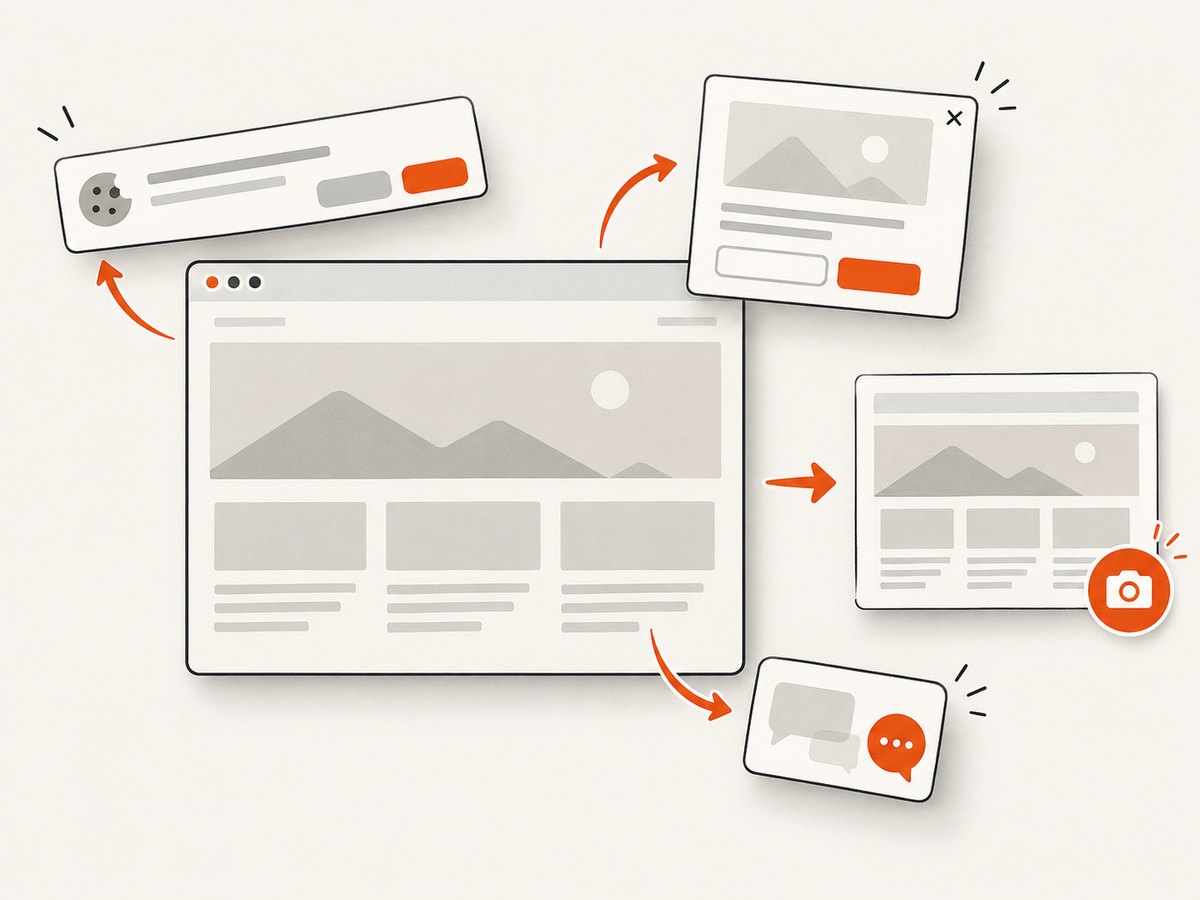
If you need a screenshot of a website rather than the live browser state inside a failing test, ScreenshotNeo is a website screenshot API and MCP server. A GET request takes a URL and returns an image or PDF. It does not replace this Selenium hook when you need the exact test session, authenticated browser state, or moment of failure.
For a standalone page capture, use this one-call request; see the ScreenshotNeo API documentation for parameters and configuration.
curl -G "https://api.screenshotneo.com/v1/shot" -d access_key=YOUR_API_KEY --data-urlencode url=https://stripe.com -o shot.webpScreenshotNeo removes cookie banners, newsletter popups, and chat widgets before the shot. Bot checks, blank pages, and failed loads are never billed. Its MCP server lets AI agents take screenshots. The free plan includes 1,000 screenshots a month with no card; paid plans start at $5 for 3,000. Sign up for 1,000 free screenshots a month, with no card required.
Performance, reliability, and cost
Capturing a PNG adds browser and file work to a test run. Limit captures to failures if that meets your debugging needs, and avoid adding arbitrary waits before the screenshot: the hook runs after the test, so a delay can change the state or make the suite slower. A screenshot can also be large; keep only the artifacts your team needs and configure CI retention for the storage available to your project.
The main reliability dependency is the browser session’s lifetime. Capture before quit() and before any teardown that changes the page. A live driver does not guarantee a successful screenshot if the browser or WebDriver connection has failed, so log capture errors and preserve the original test report. In parallel runs, isolate drivers and artifact filenames per test or worker.
The custom hook uses Node built-ins rather than an additional screenshot library. Its costs are the time to capture and write each image, plus artifact storage and CI transfer if you upload the files. Capturing only failures usually keeps the artifact set smaller than capturing every test. No fixed timing or storage estimate applies across browsers, pages, and CI environments.
Troubleshooting
| Symptom | Likely cause | Fix |
|---|---|---|
| No screenshot appears after a failed test. | The hook cannot see the driver, the test state check does not match the installed Mocha behavior, or the hook is not loaded. | Confirm the setup file is loaded, that driver refers to the active session, and inspect this.currentTest in the hook. |
this.currentTest is undefined. |
The hook uses an arrow function or is running in a context where the test is not available. | Declare the hook with async function () and check Mocha’s hook context for your version. |
| The screenshot command reports an invalid session. | The browser was quit or disconnected before capture. | Move capture before session teardown and confirm the driver is still alive when afterEach() runs. |
| The PNG exists but cannot be opened. | The base64 string was written without base64 decoding. | Pass 'base64' as the file encoding, as in the example. |
| One test’s image replaces another’s. | Repeated titles or parallel workers generated the same path. | Add a retry, timestamp, run, or worker identifier and ensure workers write to separate locations where appropriate. |
| The hook reports a directory or permission error. | The process cannot create or write to the configured artifact path. | Use a writable path, create the directory with recursive: true, and check CI filesystem permissions. |
| The image does not show the whole page. | takeScreenshot() behavior may depend on the browser and driver. |
Treat it as a screenshot of the current browser page; verify full-page support for your environment if you need that behavior. |
| The screenshot shows a later state than the failure. | Test cleanup or another action changed the browser before capture. | Capture before navigation, reset, or other teardown code that changes the page. |
FAQ
Can I take a screenshot only when an assertion fails?
Yes. The example checks whether the current test state is failed and returns for other outcomes. Confirm that the state value matches the Mocha version and reporting setup you use.
Can the screenshot hook also run after a timeout?
If Mocha records the test as failed and the hook still has access to a live driver, the same failure check can capture it. A timed-out or disconnected browser may prevent capture, so keep the capture error visible in logs.
Can I use this with multiple suites?
Yes. Put the hook in a shared Mocha setup file only if it can reliably access the correct driver for each test. With per-test or parallel sessions, associate the driver with the test or worker instead of relying on one global variable.
Does a screenshot include browser developer tools?
The API returns a browser screenshot of the current page. It is not a substitute for browser logs, WebDriver logs, or a recording of the test; collect those separately when needed.


