How to Take Selenium Screenshots with RSpec
Capture Selenium screenshots in RSpec, save them to predictable paths, and automatically keep browser evidence when a test fails.
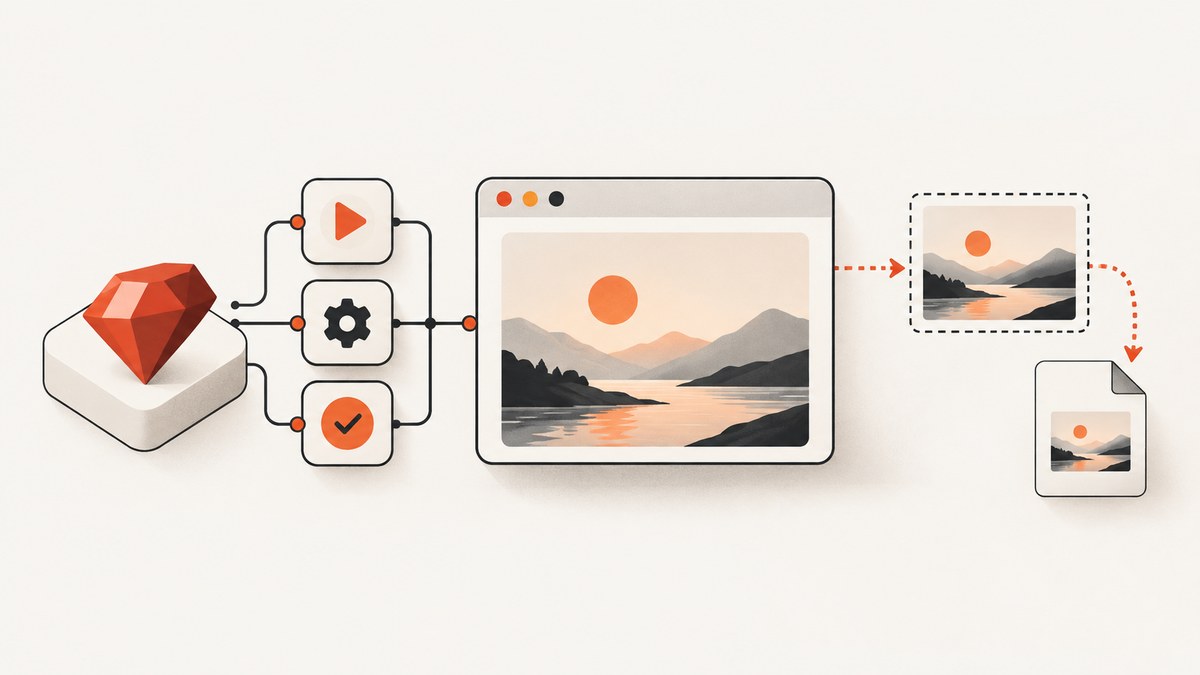
To take a Selenium screenshot in an RSpec example, call driver.save_screenshot('tmp/screenshots/example.png') while the browser session is still open. If your test uses Capybara, call save_screenshot from the example. To capture screenshots automatically when supported browser examples fail, use the capybara-screenshot gem and load its RSpec adapter after Capybara’s RSpec integration.
This guide covers direct Selenium, Capybara, failure hooks, file paths, parallel runs, CI artifacts, common errors, and the limits of viewport screenshots. The right choice depends on who owns the browser session and whether you want explicit or automatic capture.
1. Choose the screenshot approach that matches your test
| Your setup | Use | What you get |
|---|---|---|
| RSpec creates a Selenium driver directly | driver.save_screenshot(path) |
A PNG of the current browser viewport |
| Capybara owns a Selenium-backed session | save_screenshot(path) |
A screenshot through the current Capybara session and driver |
| You want evidence saved automatically on failure | capybara-screenshot |
Automatic screenshots and failed-page HTML for supported drivers |
Use direct Selenium when the spec manages the WebDriver itself. Use Capybara’s helper in feature or system specs so capture follows the session that performed the actions. Add the gem when failures should produce artifacts without adding screenshot calls to each example.
2. Capture a screenshot with Selenium WebDriver directly
The important lifecycle rule is to capture before quitting the driver. Create the destination directory first, and use a PNG extension. Selenium’s Ruby API describes this method as saving a PNG screenshot of the viewport; it is not automatically a full-page capture.
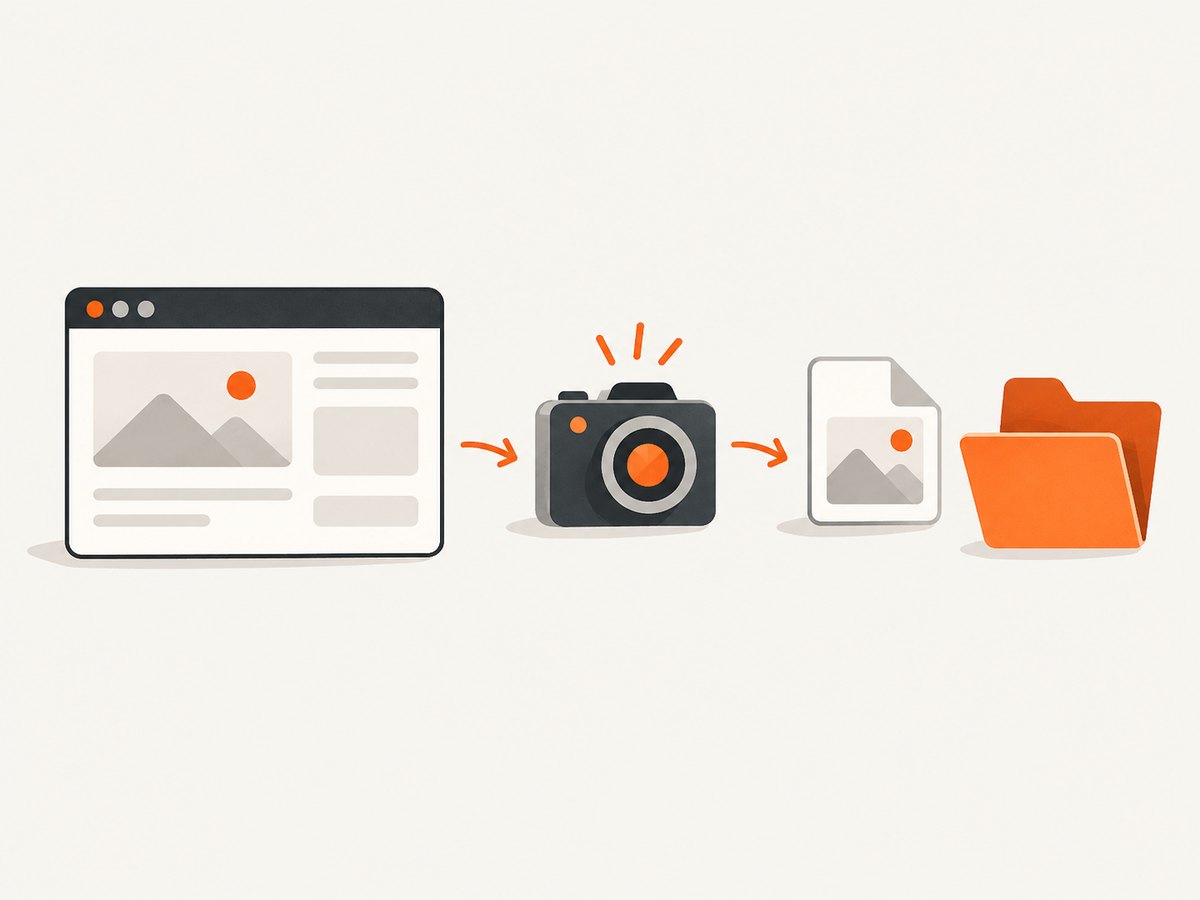
require 'fileutils'
require 'selenium-webdriver'

RSpec.describe 'page behavior' do
  before do
    @driver = Selenium::WebDriver.for :chrome
  end

  after do
    @driver&.quit
  end

  it 'captures the current view' do
    @driver.get('https://example.com')

    FileUtils.mkdir_p('tmp/screenshots')
    @driver.save_screenshot('tmp/screenshots/example.png')
  end
end
Install Selenium WebDriver and make sure a compatible browser and driver are available in your development or CI environment. The code uses the browser lifecycle pattern shown in Selenium’s Ruby getting-started material: create the driver before the example, then quit it afterward. The path is relative to the process working directory, so running the suite from a different directory can change where the file lands.
For a reusable helper, keep path creation and naming in one place:
require 'fileutils'

module ScreenshotSupport
  SCREENSHOT_DIR = 'tmp/screenshots'

  def capture_screenshot(name)
    FileUtils.mkdir_p(SCREENSHOT_DIR)
    path = File.join(SCREENSHOT_DIR, "#{name}.png")
    @driver.save_screenshot(path)
    path
  end
end

RSpec.configure do |config|
  config.include ScreenshotSupport
end
Then call capture_screenshot('checkout-validation') inside an example. Avoid fixed names if examples may execute at the same time: parallel workers can overwrite each other’s files. Include a unique example identifier, worker number, or timestamp in the filename. Keep names readable enough to locate the corresponding spec.
3. Capture through a Capybara session
In a Capybara example, its save_screenshot helper delegates to the active driver. A relative path resolves under Capybara’s configured save_path; if you omit the path, Capybara chooses a generated filename under that directory.
require 'capybara/rspec'

RSpec.describe 'account page', type: :feature do
  it 'saves the rendered account page' do
    visit '/account'
    save_screenshot('account-page.png')
  end
end
This example must run with a browser-backed driver for a real browser screenshot. Capybara’s default :rack_test driver does not launch a browser or execute JavaScript. Configure a Selenium-backed driver for examples that need browser rendering and JavaScript. The Capybara README documents driver choices including :selenium, :selenium_chrome, and headless Selenium options.
Set a stable save directory so local runs and CI artifacts have a predictable location. Configuration APIs and defaults can vary by Capybara version, so check the version installed in the project before copying configuration from another project. A common setup is:
require 'fileutils'
require 'capybara/rspec'

FileUtils.mkdir_p('tmp/capybara')
Capybara.save_path = 'tmp/capybara'
If the setting is unavailable in your installed version, consult that version’s Capybara documentation and use the supported configuration method. You can also pass an explicit relative or absolute path to save_screenshot when you need per-example control.
4. Save screenshots automatically when examples fail
For Capybara and RSpec projects, capybara-screenshot can save a screenshot and the failed page’s HTML when a supported browser-driver example fails. Add it to the test dependencies, install the bundle, and require its RSpec adapter after Capybara’s adapter:
# Gemfile
group :test do
  gem 'capybara'
  gem 'capybara-screenshot'
end
# spec/rails_helper.rb or spec/spec_helper.rb
require 'capybara/rspec'
require 'capybara-screenshot/rspec'The require order matters: load capybara/rspec first, then capybara-screenshot/rspec. For Rails-like applications the documented default output directory is tmp/capybara; outside Rails, the default is the working directory. Check the gem’s current README and the version in your bundle for exact configuration options.
You can also request a capture at a deliberate point in a test with the gem’s screenshot_and_save_page helper. This is useful when a test is still passing but you want a checkpoint, or when capturing immediately before a risky action is more informative than capturing only after an assertion fails.
it 'records the checkout before submitting' do
  visit '/checkout'
  screenshot_and_save_page
  click_button 'Place order'
end
The gem documents options to disable automatic failure capture, customize filename prefixes, control timestamp suffixes, prune older artifacts, and adjust RSpec output links. These are useful in larger suites, but confirm their names and behavior against the installed gem version rather than relying on a copied initializer from a different release.
Review saved HTML before sharing artifacts. It can contain page content or test data. Treat screenshots and HTML as test outputs that may need the same access controls and retention policy as logs.
5. Capture screenshots on failure with a custom RSpec hook
If you use direct Selenium and do not use Capybara, you can add a failure hook. The hook must run while the driver reference is available and before teardown quits it. RSpec supports around-example lifecycle control, which makes ordering explicit:
require 'fileutils'
require 'selenium-webdriver'

RSpec.describe 'browser checks' do
  around do |example|
    driver = Selenium::WebDriver.for :chrome
    @driver = driver

    begin
      example.run
    rescue RSpec::Expectations::ExpectationNotMetError
      FileUtils.mkdir_p('tmp/screenshots')
      filename = example.full_description
        .gsub(/[^a-zA-Z0-9_-]+/, '-')
        .gsub(/\A-|-$|/, '')
      driver.save_screenshot("tmp/screenshots/#{filename}.png")
      raise
    ensure
      driver.quit
      @driver = nil
    end
  end

  it 'shows the expected heading' do
    @driver.get('https://example.com')
    expect(@driver.find_element(tag_name: 'h1').text).to eq('Example Domain')
  end
end
This small hook catches assertion failures, saves the image, then re-raises so RSpec still reports the failure. It does not catch every possible exception type, such as a browser startup error that occurs before the example runs. A general-purpose hook should preserve the original exception if screenshot capture itself fails; otherwise an artifact error can obscure the reason the example failed. For most Capybara suites, the maintained gem is simpler than building a custom failure-capture system.
6. Viewport, full-page, and element screenshots
A normal Selenium Ruby screenshot is a viewport image: it captures the visible browser area at that moment. If the page is taller than the viewport, the saved image should not be assumed to include all content below the fold.
The Selenium Ruby API has an optional full_page parameter, but it only works when the active driver supports full-page capture. An unsupported driver can raise an unsupported-operation error. Check the documentation for your Selenium version and browser driver before making full-page screenshots part of an invariant test requirement.
For an element-focused artifact, locate the element and use the screenshot method available on the element in your installed Selenium version. Driver support and behavior can differ, so verify the method against the versioned API reference. A portable fallback is to scroll the target into view, then capture the viewport:
element = @driver.find_element(css: '[data-testid="order-summary"]')
@driver.execute_script('arguments[0].scrollIntoView({block: "center"})', element)
@driver.save_screenshot('tmp/screenshots/order-summary-viewport.png')
This fallback saves the viewport, not a cropped image of the element. If you need a tightly cropped element file or a full document image across browser and driver combinations, use a capture method specifically supported by your browser stack and validate its behavior in CI.
7. Make screenshots useful in CI and parallel test runs
A screenshot is useful only if the test runner can write it and the CI system retains it after the job ends. Choose an artifact directory such as tmp/screenshots or tmp/capybara, create it before capture, and configure your CI provider to upload that directory when the job fails. The upload and retention settings are provider-specific; the setup depends on the CI system in use.
- Use unique names: include the example description and, for parallel runs, a worker identifier or unique suffix.
- Keep directories predictable: avoid writing to a developer-specific absolute path.
- Capture before teardown: browser quit closes the session needed for capture.
- Keep output manageable: retain failure artifacts for the period your team needs, and prune old files where appropriate.
- Protect sensitive data: screenshots and saved HTML may include account details, tokens displayed in the page, or test records.
Relative paths are resolved from the process working directory for direct Selenium. In a monorepo or CI task that changes directories, establish the expected working directory or build the path from a known project root. Use absolute paths only when the runner’s filesystem layout is stable.
8. Troubleshooting common screenshot failures
| Symptom | Likely cause | Fix |
|---|---|---|
| No screenshot file appears | The directory does not exist, the process cannot write there, or the path is relative to an unexpected working directory. | Create the directory with FileUtils.mkdir_p, check permissions, and print or inspect the resolved path. |
| Screenshot capture reports a closed session | The driver was quit before the capture call. | Move capture into the example or a failure hook that runs before teardown. |
| The screenshot is blank or stale | The page has not finished rendering, navigation failed, or the capture happened before the desired state appeared. | Wait for a page-specific element or condition before capture, and inspect the browser’s actual URL and page state. |
| JavaScript-driven content is missing | The test uses Capybara’s :rack_test driver. |
Run the example with a Selenium-backed driver. |
capybara-screenshot does not run |
The adapter is missing or required before Capybara’s RSpec integration. | Require capybara/rspec first and capybara-screenshot/rspec second. |
| Full-page capture raises an unsupported operation | The active browser driver does not support Selenium’s optional full-page operation. | Use viewport capture, switch to a supported driver, or choose a separately supported full-page strategy. |
| Parallel tests overwrite screenshots | Each example writes to the same filename. | Include an example or worker identifier in the path. |
| Extension warning appears | The destination filename extension does not match the PNG data. | Use a .png filename for Selenium’s screenshot output. |
| Failure artifact is missing after CI completes | The runner did not upload the output directory or only uploads artifacts on success. | Configure the CI job to preserve the screenshot directory on failure. |
9. Performance, reliability, and cost notes
Browser screenshots add work to an already running browser test. An explicit capture adds little complexity but still writes image data to disk; automatic capture can add time and storage when many examples fail together. Keep automatic capture focused on failures, use explicit checkpoints where they provide debugging value, and prune old artifacts if the directory grows.
Reliability depends on the browser session and filesystem: capture before teardown, wait for the state you intend to inspect, make paths writable, and preserve artifacts in CI. A screenshot shows one rendered moment. It does not by itself prove that all page content loaded correctly, nor does a viewport capture show the entire document.
With Selenium and RSpec, the direct financial cost is the browser and CI environment your project already uses; this API call itself has no separate screenshot-service charge. Storage and CI artifact retention can have costs according to your provider. For external website captures where you do not need the browser session to belong to the test, a screenshot API is another option.
10. Or skip the browser setup
If you need a screenshot of a public URL outside an RSpec browser session, ScreenshotNeo returns an image or PDF from one GET request. Its API documentation covers the request options.

curl -G "https://api.screenshotneo.com/v1/shot" -d access_key=YOUR_API_KEY --data-urlencode url=https://example.com -o shot.webpimport requests
r = requests.get(
"https://api.screenshotneo.com/v1/shot",
params={"access_key": "YOUR_API_KEY", "url": "https://example.com"},
timeout=90,
)
open("shot.webp", "wb").write(r.content)const q = new URLSearchParams({
access_key: 'YOUR_API_KEY',
url: 'https://example.com'
});
const res = await fetch(`https://api.screenshotneo.com/v1/shot?${q}`);
if (!res.ok) throw new Error(`Screenshot request failed: ${res.status}`);
await Bun.write('shot.webp', res);ScreenshotNeo removes cookie banners, popups, and chat widgets before the shot. Bot checks, blank pages, and failed loads are never billed, and response headers identify the page verdict and billing status. Its MCP server lets AI agents use screenshot, page-info, and PDF tools. The free plan includes 1,000 screenshots a month with no card; paid plans start at $5 for 3,000 screenshots.
Create a free ScreenshotNeo account and get 1,000 screenshots a month with no card.
11. FAQ
Where does Selenium save the screenshot?
At the path you pass to save_screenshot. A relative path is relative to the Ruby process working directory. Capybara resolves a relative path under its configured save path.
Does Selenium save the full page by default?
No. The Ruby API describes the normal screenshot as a viewport image. Full-page capture depends on driver support.
Can I use screenshots with a headless browser?
Yes, provided the Selenium-backed driver starts successfully. Capybara documents headless Selenium driver choices; the screenshot is still produced through the active browser driver.
Can a failed test save both an image and the page source?
capybara-screenshot documents automatic capture of a screenshot and failed-page HTML for supported browser drivers. Review HTML artifacts for sensitive test content before sharing them.
Should every passing example save a screenshot?
Usually capture on failure, or at a few meaningful checkpoints. Saving an image in every passing example increases artifact volume without necessarily improving diagnosis.


