How to Take Selenium Screenshots on Test Failure
Capture Selenium screenshots at the moment a test fails, attach them to pytest reports, avoid teardown races, and preserve reliable CI artifacts.

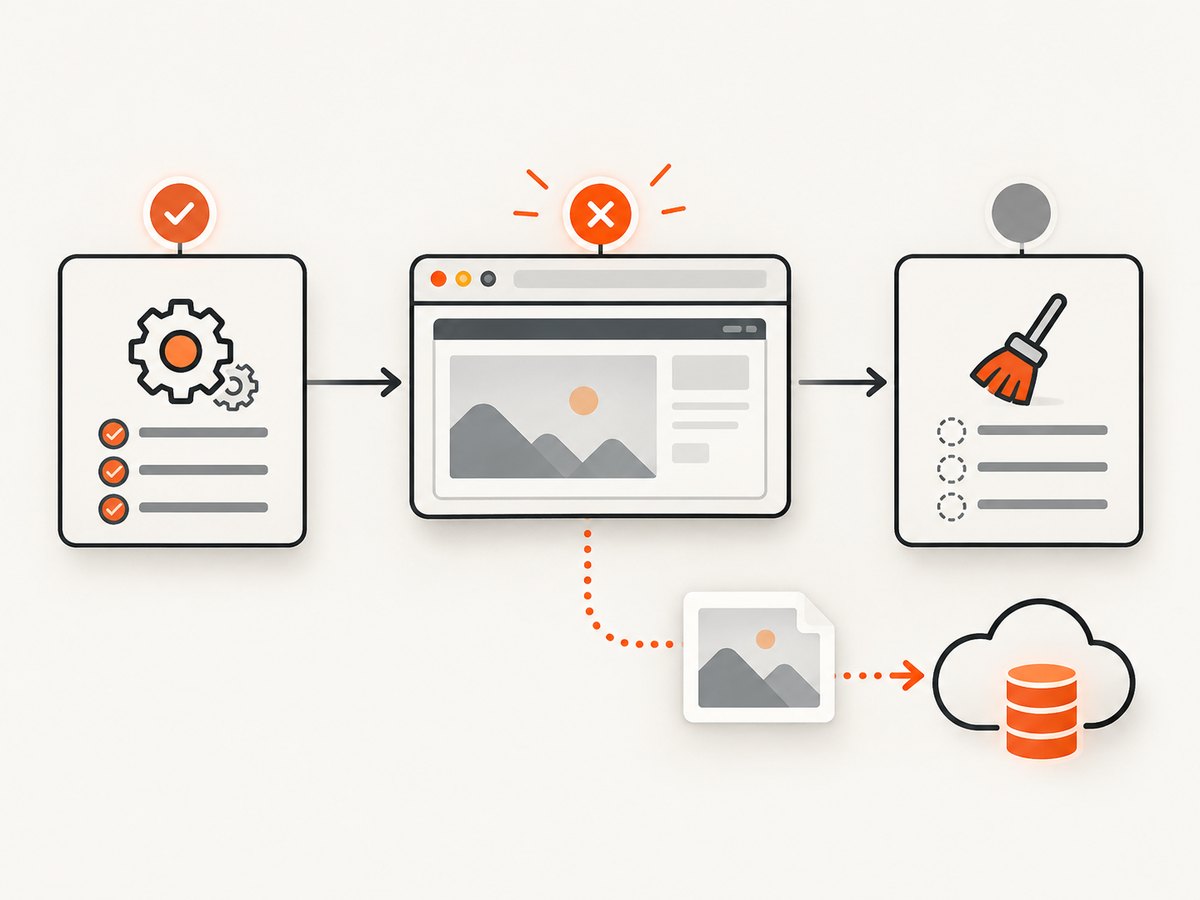
A Selenium screenshot is useful only if it shows the browser state that caused the failure. The reliable pattern is therefore two parts: call Selenium’s screenshot API while the WebDriver session is still alive, and connect that call to your test runner’s failure lifecycle. In Python with pytest, a pytest_runtest_makereport hook can inspect the report and save a PNG during the selected phase, before fixture teardown closes the browser.
Selenium supplies capture methods; it does not decide whether a test has failed. The test framework creates reports for setup, call, and teardown, so choose deliberately which phases should produce evidence. Selenium’s Python API includes save_screenshot(path), get_screenshot_as_file(path), PNG bytes, and Base64 output. The file method returns False on an I/O failure, and WebDriver capture can also raise an exception. Your artifact code must preserve the original assertion failure when collection itself fails.
Save a screenshot when a pytest test fails
Install the dependencies and create a directory for artifacts:
python -m pip install selenium pytest
mkdir -p screenshots
The following conftest.py uses pytest’s wrapper hook. It captures only failures in the test-body (call) phase and looks for a driver attached to the test item. Adapt the driver lookup to your fixture arrangement.
# conftest.py
from pathlib import Path
import re

import pytest


def safe_name(value: str) -> str:
    value = re.sub(r"[^A-Za-z0-9_.-]+", "_", value)
    return value[:180] or "unnamed-test"


@pytest.hookimpl(wrapper=True, tryfirst=True)
def pytest_runtest_makereport(item, call):
    report = yield

    # The call phase is the test body. Add setup/teardown below if required.
    if report.when != "call" or not report.failed:
        return

    driver = getattr(item, "driver", None)
    if driver is None:
        return

    output_dir = Path("screenshots")
    output_dir.mkdir(parents=True, exist_ok=True)
    node_id = safe_name(item.nodeid)
    path = output_dir / f"{node_id}.png"

    try:
        saved = driver.save_screenshot(str(path))
        if not saved:
            item.warn(pytest.PytestWarning(f"Selenium did not save screenshot: {path}"))
    except Exception as exc:
        # Do not replace the assertion error with an artifact error.
        item.warn(pytest.PytestWarning(f"Screenshot capture failed: {exc!r}"))
One simple fixture arrangement attaches the driver to the item before the test executes:
# conftest.py (fixture example)
import pytest
from selenium import webdriver


@pytest.fixture
def driver(request):
    options = webdriver.ChromeOptions()
    options.add_argument("--headless=new")
    options.add_argument("--window-size=1440,1000")
    browser = webdriver.Chrome(options=options)
    request.node.driver = browser
    yield browser
    browser.quit()
# test_checkout.py

def test_checkout_error_message(driver):
    driver.get("https://example.test/checkout")
    assert "Payment complete" in driver.title
Run the suite with pytest. A failed test creates a PNG under screenshots/ while the browser is still available. The pytest documentation describes this report hook as a way to post-process reports while retaining access to the executing environment; see pytest’s report-hook example.
Choose the failure phases you want to capture
Pytest produces reports for setup, call, and teardown. The example checks only call, which covers an assertion or exception in the test function. A fixture can fail during setup before the driver is yielded, or teardown can fail after the browser has already been closed. Capturing those phases requires a driver that still exists and a lifecycle arrangement that keeps it usable.
if report.failed and report.when in {"setup", "call", "teardown"}:
    # Capture only if your fixture guarantees a live driver here.
    ...
For most suites, capture call failures first. Add setup capture when navigation or login fixtures are frequent failure points, and add teardown capture only when teardown itself is meaningful and the driver is not already quit. The report hook runs after the phase’s other hooks have run, so verify ordering if another plugin closes the browser.
Use unique, CI-safe artifact names
Names based only on item.name collide when tests are parameterized or run in parallel. Use the full node ID, sanitize characters, and include a worker identifier when using xdist. A timestamp or UUID is another option. Keep each worker’s files in a separate directory if your CI uploads artifacts concurrently.
import os
from pathlib import Path

worker = os.environ.get("PYTEST_XDIST_WORKER", "master")
output_dir = Path("screenshots") / worker
output_dir.mkdir(parents=True, exist_ok=True)
path = output_dir / f"{safe_name(item.nodeid)}.png"
Also ensure the destination is writable in containers and hosted runners. If an old file can be mistaken for a new capture, remove it before the test or write to a per-run directory.
Attach bytes or Base64 instead of writing a file
Files are convenient for CI retention. Report portals often accept bytes or Base64 directly. Selenium’s Python driver exposes PNG bytes through get_screenshot_as_png() and Base64 through get_screenshot_as_base64().
png_bytes = driver.get_screenshot_as_png()
with open("screenshots/failure.png", "wb") as output:
    output.write(png_bytes)

base64_png = driver.get_screenshot_as_base64()
# Pass base64_png to the reporting system used by your test suite.
These calls still require a live session. They do not capture the full browser history, network log, DOM, or console output. Pair the image with the assertion message, test node ID, URL, and relevant logs.
Capture an element or the whole page
A normal WebDriver screenshot represents the current window. Selenium elements can also implement the screenshot interface, allowing a focused image of the failing component. The Java TakesScreenshot contract describes drivers and HTML elements that can capture an image in different ways; see the Selenium API reference.
# Python element screenshot
error = driver.find_element("css selector", ".payment-error")
error.screenshot("screenshots/payment-error.png")
Element capture is useful for a compact report, while a window capture preserves surrounding context such as navigation, banners, and layout. Selenium’s standard screenshot is not automatically a full, stitched page capture; viewport size and browser behavior determine what is visible. If the failure concerns content below the fold, set an appropriate window size or use a capture service that supports full-page rendering.
Java and Selenide options
If your project already uses Selenide, its documentation describes automatic screenshots for some failed Selenide checks. It also documents a JUnit 4 ScreenShooter.failedTests() rule and a TestNG ScreenShooter listener. Use those integrations when they match your existing stack and desired failure coverage. Automatic capture for Selenide checks does not mean every assertion source in a Java test suite is captured.
// JUnit 4 example from a Selenide-based suite
@Rule
public ScreenShooter screenshots = ScreenShooter.failedTests();
For plain Selenium, implement the equivalent listener or extension in the runner you use. Keep the capture call before driver.quit() and record any capture exception without masking the test result.
Common failures and fixes
| Symptom | Likely cause | Fix |
|---|---|---|
| No image is created | The hook cannot find the driver, or the selected phase has no live session. | Attach the driver to the item or use your fixture’s lookup method. Capture during call before teardown. |
save_screenshot returns False |
The destination directory is missing or not writable. | Create the directory, use an absolute or known workspace path, and check CI permissions. |
WebDriverException during capture |
The browser crashed, disconnected, or was already closed. | Capture earlier, fix driver lifecycle ordering, and preserve the original test failure. |
| Files overwrite one another | Parameterized tests or parallel workers share a name. | Use sanitized node IDs plus worker directories or unique IDs. |
| Setup failures have no screenshot | The hook filters to report.when == "call". |
Add setup handling only when a driver exists during setup; otherwise capture from the fixture after creation. |
| The screenshot looks unrelated | The failure occurred after a redirect, alert, or asynchronous update. | Record the URL and assertion, wait for the relevant state, and capture immediately when the exception is reported. |
| CI cannot display the PNG | The artifact is outside the uploaded directory or the report expects Base64. | Configure artifact upload for the screenshot directory or attach get_screenshot_as_base64() output. |
Reliability and performance checklist
- Keep the screenshot hook independent of application assertions.
- Never let an artifact error replace the original exception.
- Create directories before the failure path, or create them defensively in the hook.
- Use deterministic, collision-resistant names and isolate parallel workers.
- Capture the URL, browser, viewport, test node ID, and phase alongside the image.
- Upload only the artifacts your CI retention policy needs; screenshots can consume storage quickly.
- Use a window size that makes the failing state visible, especially for responsive layouts.
- For flaky tests, pair the screenshot with logs and page source. A screenshot alone cannot prove the cause.
A screenshot adds a browser command and file or report I/O to a failure path, so keep it out of successful tests. The capture itself is normally less expensive than rerunning a failing test, but large artifact sets increase CI upload time and storage. If you capture setup, call, and teardown, consider retaining only the first useful image per test run.
Or skip the browser setup
If you need screenshots outside a test process, ScreenshotNeo provides a GET endpoint that returns a PNG, JPEG, WebP, or PDF. The API handles the browser session for you. See the ScreenshotNeo API documentation for all options.
curl -G "https://api.screenshotneo.com/v1/shot" -d access_key=YOUR_API_KEY --data-urlencode url=https://stripe.com -o shot.webpimport requests
r = requests.get(
"https://api.screenshotneo.com/v1/shot",
params={"access_key": "YOUR_API_KEY", "url": "https://stripe.com"},
timeout=90,
)
r.raise_for_status()
open("shot.webp", "wb").write(r.content)
const q = new URLSearchParams({ access_key: 'YOUR_API_KEY', url: 'https://stripe.com' });
const res = await fetch(`https://api.screenshotneo.com/v1/shot?${q}`);
if (!res.ok) throw new Error(`Screenshot failed: ${res.status}`);
const image = Buffer.from(await res.arrayBuffer());
await fs.promises.writeFile('shot.webp', image);
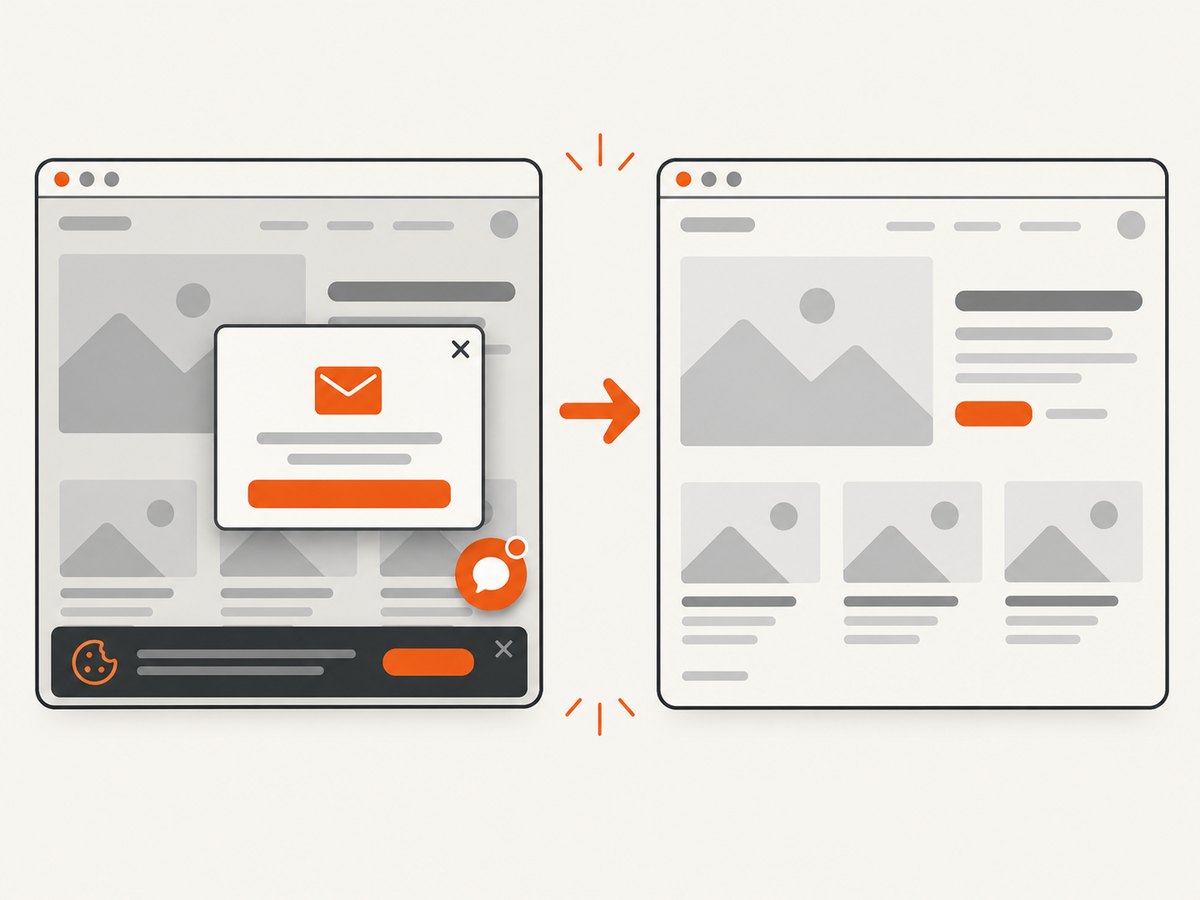
ScreenshotNeo removes cookie and consent banners, newsletter popups, and chat widgets before capture; each cleanup step can be turned off. Bot checks or CAPTCHAs, blank pages, timeouts, failed loads, and cache hits are not billed, and response headers identify the page verdict and billing result. Options include full-page capture with lazy images loaded, CSS-element capture, dark mode, device presets or custom viewports, retina scale, custom CSS and JavaScript, clicks, waits, blocked requests, headers, cookies, user agents, authorization, timezone, geolocation, transparent backgrounds, resizing, TTL caching, signed links, asynchronous jobs, webhooks, bulk capture, and PDF output.
An MCP server exposes take_screenshot, get_page_info, and capture_pdf to Claude, Cursor, and other MCP clients. The Free plan includes 1,000 screenshots per month without a card; paid plans start at $5 for 3,000 shots. Create a free ScreenshotNeo account.
FAQ
Does Selenium automatically screenshot every failed test?
No. Selenium exposes capture APIs. Your test runner, listener, hook, or extension decides when a failure has occurred and when to call them.
Should I capture setup and teardown failures?
Only when the driver is usable in those phases. Start with test-body failures, then add setup or teardown coverage after verifying fixture and plugin ordering.
Why is my screenshot blank?
The page may not have loaded, the browser may have disconnected, or capture may have occurred before the relevant state rendered. Record the URL and wait for a stable selector before the action under test.
Can I attach a screenshot without creating a file?
Yes. Use Selenium’s PNG bytes or Base64 methods and pass the result to your reporting system.
What should accompany a failure screenshot?
Include the assertion or exception, URL, test ID, phase, browser information, and useful logs or page source. The image is visual evidence, not a complete diagnostic record.


