How to Take Screenshots on Test Failures and Exceptions with Selenium
Capture Selenium screenshots when tests fail, attach them to reports, and publish them as CI artifacts without hiding the original error.
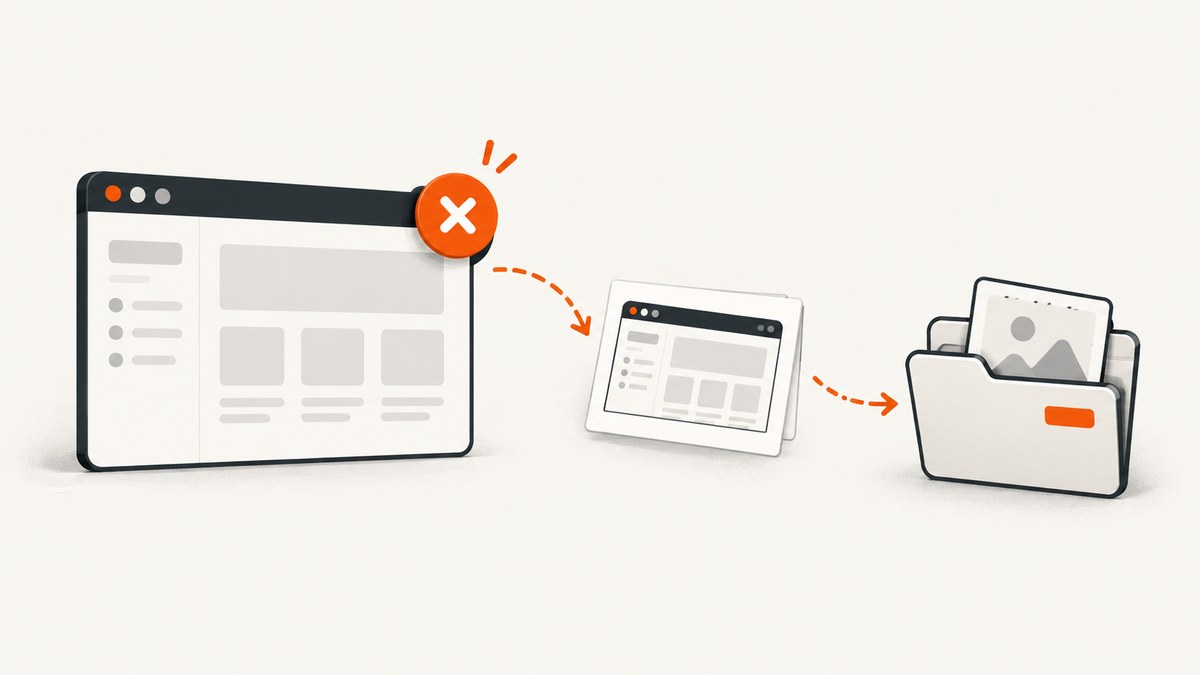
Take the screenshot in your test framework’s failure hook, listener, extension, or teardown finalizer before you quit the WebDriver session. Selenium’s save_screenshot(path) and get_screenshot_as_file(path) save the current browser window to a PNG and return a boolean indicating whether the file was written. Give each screenshot a unique, recognizable filename, preserve the original test failure if capture fails, and publish the resulting directory as a CI artifact.
This pattern works with raw Selenium in Python. Java teams can use the same lifecycle rule with their test framework’s failure callback. If the immediate goal is to capture a website without starting a browser or managing a WebDriver session, ScreenshotNeo is a separate option; its one-call example appears after the Selenium walkthrough.
1. Understand when and what Selenium captures
A WebDriver screenshot is an image of the current browser window at the time the command runs. It can show the page state around an assertion failure, exception, or unexpected result. It does not reconstruct an earlier state: if your test navigated away, closed the tab, or quit the driver, the screenshot cannot recover the page that was there before.
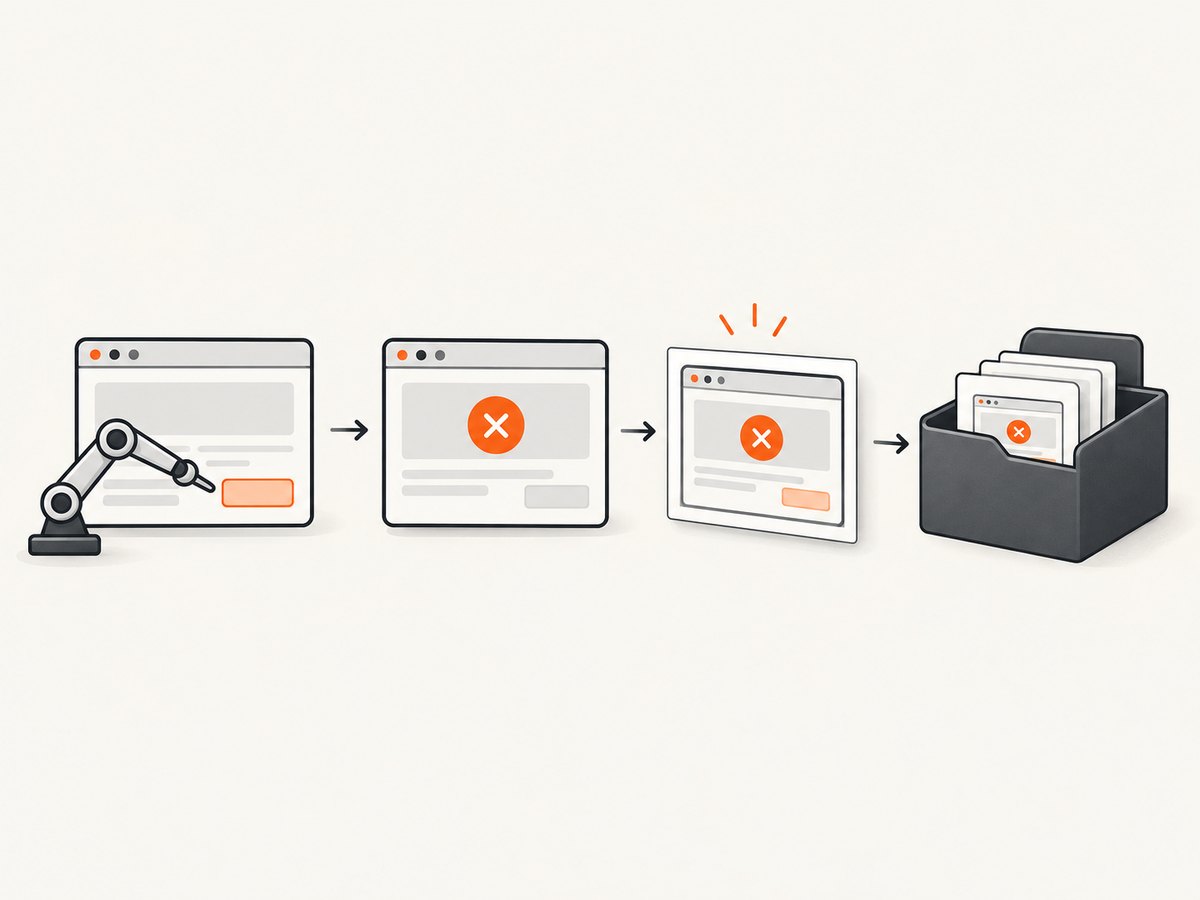
For a file, use driver.save_screenshot(path) or driver.get_screenshot_as_file(path). Both write PNG files and return True on success or False if file I/O fails. Use a filename ending in .png. For reporters that accept bytes or an embedded image, use get_screenshot_as_png() or get_screenshot_as_base64().
| Need | Selenium method | Result |
|---|---|---|
| Save an artifact file | save_screenshot(path) |
Boolean; PNG written at path |
| Save through the file-oriented API | get_screenshot_as_file(path) |
Boolean; PNG written at path |
| Attach binary data to a report | get_screenshot_as_png() |
PNG bytes |
| Embed in HTML or pass as text | get_screenshot_as_base64() |
Base64-encoded PNG string |
These methods capture the current window. They are not full-page capture controls, and they do not select a CSS element. For failure diagnosis, the viewport screenshot is often useful alongside the URL, browser logs, test name, and exception text.
2. Add a safe Python capture helper
The helper below creates the output directory, makes a readable and collision-resistant filename, and returns the path only when Selenium reports success. It deliberately treats screenshot capture as best-effort: a capture problem must not overwrite the test’s actual assertion or exception.
from datetime import datetime, timezone
from pathlib import Path
import re


def safe_filename(value: str) -> str:
    # Replace characters that are awkward in common filesystems.
    cleaned = re.sub(r"[^A-Za-z0-9_.-]+", "_", value).strip("._")
    return cleaned[:120] or "unnamed-test"


def capture_failure(driver, test_name: str, output_dir: str = "artifacts"):
    out = Path(output_dir)
    out.mkdir(parents=True, exist_ok=True)
    stamp = datetime.now(timezone.utc).strftime("%Y%m%dT%H%M%S%fZ")
    path = out / f"{safe_filename(test_name)}-{stamp}.png"

    try:
        saved = driver.save_screenshot(str(path))
        return path if saved else None
    except Exception as capture_error:
        # Log this separately; do not replace the original test failure.
        print(f"Screenshot capture failed: {capture_error}")
        return None
A UTC timestamp with microseconds reduces filename collisions when tests run concurrently. The test name makes artifacts searchable. If a framework exposes a retry number or worker ID, include that too, especially when runs share a workspace. Keep the extension as .png; do not label PNG bytes as JPEG.
3. Call the helper from the failure lifecycle
The exact hook name depends on the test framework. The key is ordering: determine that the test failed, capture while the driver still exists, then let normal teardown close the browser. Avoid a generic teardown that runs after driver.quit().
Pytest example
One practical pattern is to use a fixture finalizer to collect the failure state and capture before quitting the driver. This example assumes a function-scoped fixture named driver that creates a Selenium WebDriver. It uses pytest’s report state, which is set by a hook.
import pytest
from selenium import webdriver


@pytest.hookimpl(hookwrapper=True)
def pytest_runtest_makereport(item, call):
    outcome = yield
    report = outcome.get_result()
    setattr(item, f"rep_{report.when}", report)


@pytest.fixture
def driver(request, tmp_path):
    browser = webdriver.Chrome()

    def finish():
        report = getattr(request.node, "rep_call", None)
        if report is not None and report.failed:
            artifact_dir = tmp_path / "artifacts"
            saved = capture_failure(browser, request.node.nodeid,
                                    str(artifact_dir))
            if saved:
                print(f"Screenshot: {saved}")
        browser.quit()

    request.addfinalizer(finish)
    return browser
Place safe_filename and capture_failure in an importable helper module, or define them above the fixture. The hook records each report phase; the fixture checks the call phase so setup failures and teardown failures are not mistaken for an assertion failure. If your driver fixture can fail during setup, there may be no browser session to capture. Handle setup errors in the fixture itself if they need a separate diagnostic.
Capture directly in an exception handler
For a small script or custom runner, wrap the test action and re-raise the original exception. Put capture in its own protected block:
try:
    run_test_flow(driver)
except Exception:
    path = capture_failure(driver, "checkout-flow")
    if path:
        print(f"Saved failure screenshot to {path}")
    raise
finally:
    driver.quit()
The bare raise keeps the original exception and traceback. A capture exception should be logged separately, not allowed to become the reported failure. If your code uses finally for cleanup, ensure it does not quit the browser before the except block gets its chance to capture.
4. Attach the image directly to a test report
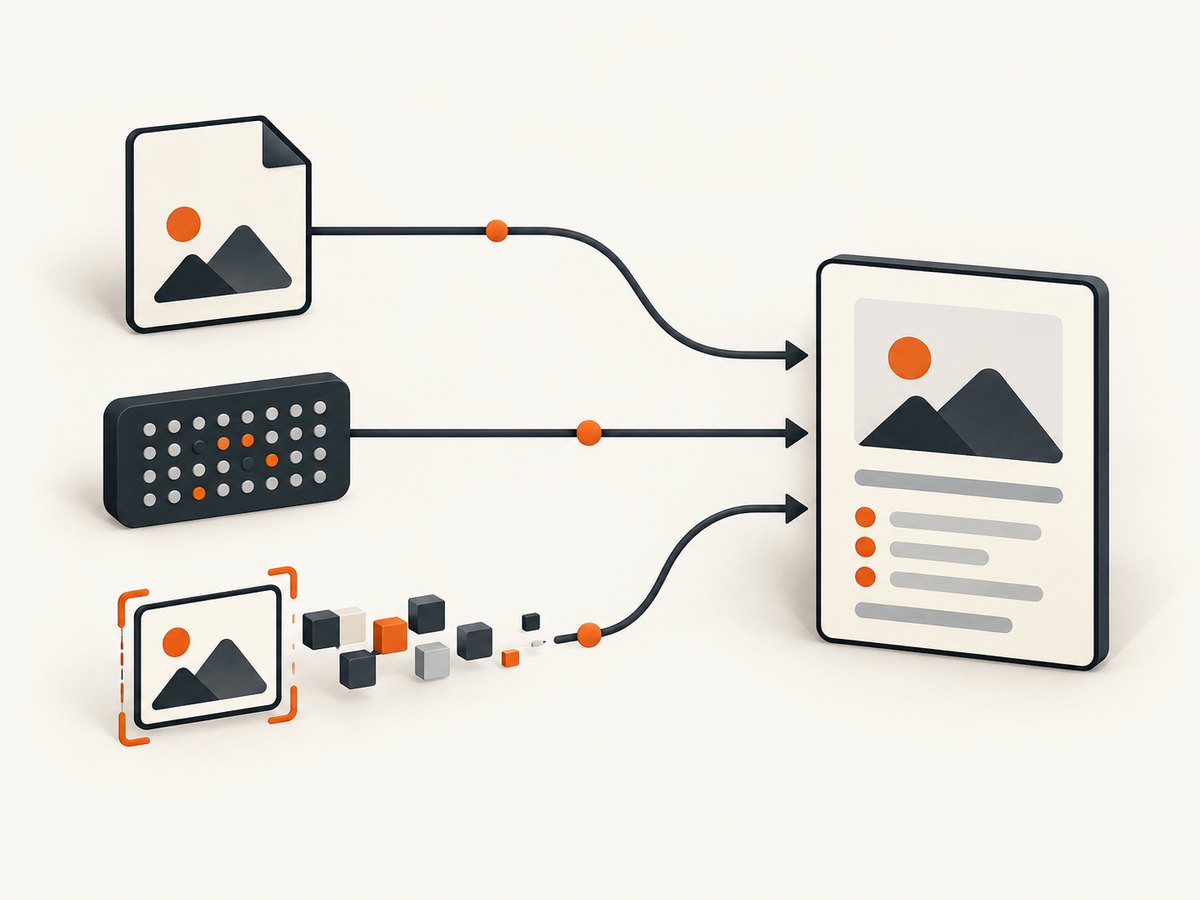
If the report API accepts a file path, pass the returned path to it. If it accepts bytes, capture with get_screenshot_as_png(). If it needs Base64 for HTML, call get_screenshot_as_base64(). The driver must still be active for all three forms.
try:
    run_test_flow(driver)
except Exception:
    try:
        png_bytes = driver.get_screenshot_as_png()
        report_add_attachment(
            name="failure screenshot",
            data=png_bytes,
            content_type="image/png",
        )
    except Exception as capture_error:
        print(f"Could not attach screenshot: {capture_error}")
    raise
report_add_attachment stands for the attachment function supplied by your reporting library; its arguments vary. Avoid printing the Base64 string into ordinary logs. It is bulky, may be truncated, and usually makes the report harder to read than a proper attachment.
5. Keep screenshots useful in CI
- Choose a persistent output directory. A runner’s temporary directory may be removed at job end. Save screenshots under the workspace path that your CI system collects.
- Name artifacts with context. Include the test or scenario ID and, where relevant, a retry or worker identifier. Sanitize names because test IDs can contain slashes, spaces, or other path characters.
- Capture before teardown. Place failure handling ahead of
quit(), session disposal, or container cleanup. - Publish the directory even when tests fail. Configure the CI artifact step to run after a failed test command, rather than only after success. The exact syntax depends on your CI provider.
- Keep the failure primary. Report screenshot errors as secondary diagnostics and preserve the test’s original exception and exit status.
- Protect sensitive pages. Screenshots can contain account details, personal information, or tokens rendered in the browser. Apply the same access, retention, and redaction rules as your test reports.
For parallel jobs, use isolated output directories per worker or a globally unique name. Otherwise two tests can write the same path and one artifact may replace another. If retrying a scenario, record the retry index; the final attempt alone may not explain the intermittent failure.
6. Java and framework integrations
In Java, call the WebDriver screenshot interface from a failure listener, rule, extension, or teardown callback that runs before the driver is closed. The same design decisions apply: use a unique .png path, check the capture result, attach or publish the file, and protect the original assertion.
Teams already using Selenide can use its automatic screenshot behavior: Selenide documents screenshots on test failures, a configurable reports folder, and JUnit and TestNG listener or rule integrations. With raw Selenium, implement the equivalent in the test framework’s extension point. The right choice depends on whether your project already uses that layer and how its report attachments work.
7. Troubleshooting
| Symptom | Likely cause | Fix |
|---|---|---|
| No file appears | The output directory does not exist, is not writable, or the API returned False. |
Create the directory first, check the boolean, and log the absolute output path. |
| Capture raises a session or window error | The driver was quit, the browser crashed, or the current window is gone. | Move capture earlier in the failure hook; handle the possibility that a lost session cannot be captured. |
| Screenshot exists locally but not in CI | The artifact directory is not uploaded, or upload runs only on success. | Configure artifact publication to run after failure and point it at the same workspace directory. |
| Files overwrite each other | Parallel tests or retries share a deterministic path. | Add a timestamp, retry index, worker ID, or unique run directory. |
| Image is invalid or mislabeled | Extension and data format do not match, or a partial/empty output was accepted. | Use a .png path for Selenium’s screenshot file methods and check the returned boolean. |
| Original test error is replaced | Capture or reporting raised while handling the assertion. | Wrap capture and attachment in a separate try block, log secondary errors, then re-raise the original exception. |
| Failure during setup has no screenshot | The browser session was never created or the driver fixture did not complete. | Record setup diagnostics separately; only capture when a live driver is available. |
| Screenshot does not show the state expected | The page changed before the hook ran, an alert obscured it, or the failure happened after navigation. | Capture immediately in the failure path and save the URL and relevant test step alongside the image. |
8. Performance, reliability, and cost
A screenshot adds a browser-driver command, image bytes, filesystem work, and possibly report upload work to the failure path. Since it usually runs only on failure, capturing there limits extra work during passing tests. In a suite with many failures, image storage and upload volume can still grow; prune artifacts according to your debugging and retention needs.
Reliability depends on the browser session remaining usable at the moment of capture. A browser crash, lost remote connection, or already-closed window can make capture impossible. Treat the screenshot as useful diagnostic evidence, not as a guaranteed result. Keep logs, the failing URL, and the exception message as separate evidence.
The direct Selenium method has no separate screenshot API charge in the workflow described here; operational costs come from the browser infrastructure and storing or transferring artifacts. CI storage, retention, and upload charges depend on your provider and configuration. No fixed time or storage estimate applies across browsers, pages, and runners.
Or skip the browser setup
If you need a website screenshot rather than a capture from the exact Selenium test session, ScreenshotNeo takes a screenshot through one API request. See the ScreenshotNeo API docs for request options.
curl -G "https://api.screenshotneo.com/v1/shot" -d access_key=YOUR_API_KEY --data-urlencode url=https://stripe.com -o shot.webpimport requests
r = requests.get("https://api.screenshotneo.com/v1/shot", params={"access_key": "YOUR_API_KEY", "url": "https://stripe.com"}, timeout=90)
open("shot.webp", "wb").write(r.content)const q = new URLSearchParams({ access_key: 'YOUR_API_KEY', url: 'https://stripe.com' });
const res = await fetch(`https://api.screenshotneo.com/v1/shot?${q}`);ScreenshotNeo removes cookie banners, popups, and chat widgets before the shot; bot checks, blank pages, and failed loads are never billed. Its MCP server lets AI agents take screenshots. The free plan includes 1,000 screenshots a month with no card, and paid plans start at $5 for 3,000. Every feature is on every plan. These captures are API screenshots of a URL; use Selenium when you need the actual state of the browser session that failed.
Create a free ScreenshotNeo account for 1,000 screenshots a month with no card.
FAQ
Can I take a screenshot after the test has failed?
Yes, as long as the failure hook runs while the WebDriver session and window still exist. The failure status alone does not close the browser; your teardown order determines whether capture remains possible.
Should I save screenshots for passing tests too?
Usually the failure case gives the best diagnostic value with less storage and report traffic. Capture passing runs when they serve a specific debugging or audit need.
Can I include screenshots in an HTML report without a file?
Yes. Selenium can return PNG bytes or a Base64-encoded screenshot. Use the form your reporter accepts and attach it as an image rather than writing the encoded data to logs.
What if the test framework already captures screenshots?
Use the framework’s capture and attachment integration if it runs before browser shutdown and publishes artifacts where your team can access them. Selenide provides automatic failure screenshots for projects that already use it.


