How to Add Selenium Screenshots to TestNG Reports
Capture Selenium screenshots on TestNG failures and attach them to ExtentReports with reliable paths, Base64, parallel-safe drivers, and CI troubleshooting.

To add Selenium screenshots to TestNG reports, capture the browser while the failing test’s WebDriver session is still open, then attach the image to the report from a TestNG failure callback. Selenium can return a temporary file, raw bytes, or Base64 data. ExtentReports accepts either a saved path or Base64; for a screenshot beside a specific failure message, attach media to that log entry.
The reliable sequence is:
- Keep each test’s driver accessible to the listener.
- Capture in
onTestFailure, before teardown callsquit(). - Persist a unique image file or pass Base64 to the report API.
- Flush the report and publish its image assets together.
1. How the TestNG and Selenium pieces fit together
TestNG exposes failure callbacks through ITestListener. The callback receives an ITestResult, which identifies the test instance, method, parameters, and failure. Your project must map that result to the WebDriver created for that test. Selenium’s TakesScreenshot API provides getScreenshotAs; supported output types include FILE, BYTES, and BASE64 through OutputType.
A listener should not create a new browser after a failure. A new session will show a different state and often cannot reproduce the error. Capture the existing session immediately, then let normal cleanup run.
2. Add the dependencies and report objects
Use the Selenium, TestNG, and ExtentReports dependencies already approved by your build. Extent’s version 4 documentation and TestNG adapter show the relevant APIs, but method signatures and configuration keys are version-specific. Check your dependency version before copying configuration from ExtentReports Java documentation or its TestNG adapter documentation.
The following example uses a per-thread driver and a per-thread Extent test. Replace the driver factory and report initialization with your project’s lifecycle:
public final class TestContext {
    private static final ThreadLocal<WebDriver> DRIVER = new ThreadLocal<>();
    private static final ThreadLocal<ExtentTest> EXTENT_TEST = new ThreadLocal<>();

    public static void setDriver(WebDriver driver) { DRIVER.set(driver); }
    public static WebDriver driver() { return DRIVER.get(); }
    public static void setExtentTest(ExtentTest test) { EXTENT_TEST.set(test); }
    public static ExtentTest extentTest() { return EXTENT_TEST.get(); }

    public static void clear() {
        DRIVER.remove();
        EXTENT_TEST.remove();
    }
}
3. Capture a file and attach it to the failed test
OutputType.FILE is convenient, but Selenium documents the returned file as temporary. Copy it to a stable run directory immediately; do not retain only the temporary path. Generate names from the test method, a unique identifier, and a timestamp so parallel tests cannot overwrite one another.
import java.io.IOException;
import java.nio.file.Files;
import java.nio.file.Path;
import java.nio.file.StandardCopyOption;
import java.time.Instant;
import org.openqa.selenium.OutputType;
import org.openqa.selenium.TakesScreenshot;
import org.openqa.selenium.WebDriver;
import org.testng.ITestListener;
import org.testng.ITestResult;
import com.aventstack.extentreports.MediaEntityBuilder;

public final class ScreenshotListener implements ITestListener {
    @Override
    public void onTestFailure(ITestResult result) {
        WebDriver driver = TestContext.driver();
        if (driver == null) {
            return; // Preserve the original failure when setup did not create a driver.
        }

        try {
            Path runDir = Path.of("build", "test-report", "screenshots");
            Files.createDirectories(runDir);
            String method = result.getMethod().getMethodName();
            String fileName = method + "-" + Instant.now().toEpochMilli() + ".png";
            Path destination = runDir.resolve(fileName);

            Path temporary = ((TakesScreenshot) driver)
                    .getScreenshotAs(OutputType.FILE).toPath();
            Files.copy(temporary, destination, StandardCopyOption.REPLACE_EXISTING);

            TestContext.extentTest().fail(
                "Test failed",
                MediaEntityBuilder.createScreenCaptureFromPath(
                    destination.toString()).build());
        } catch (Exception screenshotError) {
            // Log this separately; do not hide the assertion or application error.
            System.err.println("Screenshot capture failed: " + screenshotError);
        }
    }
}
Register the listener with @Listeners(ScreenshotListener.class), a suite XML listener entry, or your build’s TestNG integration. Ensure the listener is actually loaded; an unregistered listener produces no screenshot even when the test fails.
4. Capture bytes or Base64 instead of a file
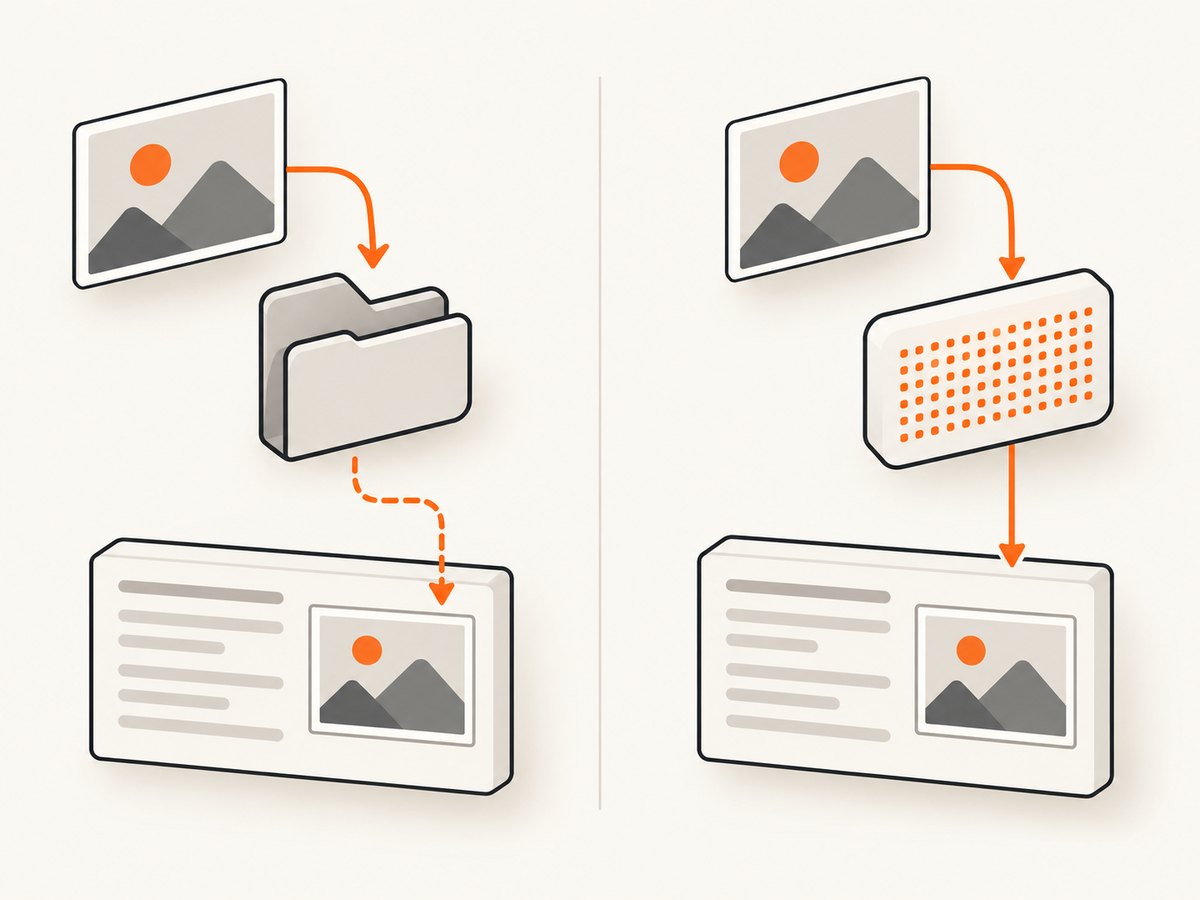
Bytes are useful when your own storage layer controls filenames. Base64 keeps the image data inside the report API, avoiding a separate image reference, but can make large reports substantially bigger.
byte[] png = ((TakesScreenshot) driver).getScreenshotAs(OutputType.BYTES);
String base64 = ((TakesScreenshot) driver).getScreenshotAs(OutputType.BASE64);

// ExtentReports test-level attachment (API availability depends on version)
extentTest.addScreenCaptureFromBase64String(base64, "Failure screenshot");

// Or attach a saved file to a specific failure log:
extentTest.fail("Assertion failed",
    MediaEntityBuilder.createScreenCaptureFromPath(savedPath).build());
Use a file when CI archives images independently or when reports are copied between machines. Use Base64 when report portability is more important than report size. Extent’s file-based reporters reference an image with an HTML path; they do not necessarily embed the image. Keep the image relative to the final report location, or use a path that remains valid after publishing.
5. Attach screenshots to the right ExtentReports scope
There are two useful attachment levels:
| Scope | API shape | Use it when |
|---|---|---|
| Test | addScreenCaptureFromPath or Base64 equivalent |
The screenshot summarizes the test failure. |
| Failure log | MediaEntityBuilder.createScreenCaptureFromPath(...) |
The image must sit beside one assertion or step. |
Keep the Extent test object in the same thread as the driver. A static mutable ExtentTest or driver can attach one parallel test’s image to another test’s log.
6. A complete listener with Base64 fallback
Some environments cannot write to the expected workspace, while others produce reports that are easier to move when data is embedded. You can attempt a persistent file first and fall back to Base64:
@Override
public void onTestFailure(ITestResult result) {
    ExtentTest test = TestContext.extentTest();
    WebDriver driver = TestContext.driver();
    if (test == null || driver == null) return;

    try {
        byte[] bytes = ((TakesScreenshot) driver).getScreenshotAs(OutputType.BYTES);
        Path file = Path.of("build", "test-report", "screenshots",
                result.getMethod().getMethodName() + "-" + System.nanoTime() + ".png");
        Files.createDirectories(file.getParent());
        Files.write(file, bytes);
        test.fail(result.getThrowable(),
                MediaEntityBuilder.createScreenCaptureFromPath(file.toString()).build());
    } catch (Exception captureError) {
        test.fail("Could not capture screenshot: " + captureError.getMessage());
    }
}
Use result.getThrowable() where your ExtentReports version accepts a throwable. Otherwise log its message and stack trace separately.
7. Driver lifecycle and teardown ordering
The most common failure is capturing after the driver has been quit. Put driver.quit() in onAfterMethod or an equivalent teardown that runs after listeners have captured the failure. If your framework performs teardown before onTestFailure, move capture into an earlier hook or retain the driver until the listener completes.
A defensive teardown looks like this:
@AfterMethod(alwaysRun = true)
public void closeBrowser() {
    WebDriver driver = TestContext.driver();
    if (driver != null) {
        driver.quit();
    }
    TestContext.clear();
}
Do not clear the thread-local driver before the failure callback. For setup failures where no browser exists, record a clear “no driver available” message and keep the original TestNG error.
8. Parallel execution and unique artifacts
With parallel="methods" or parallel data providers, each test needs its own driver and report object. Thread-local storage is one option; a concurrent map keyed by a unique test invocation is another. Avoid using only the method name in filenames because data-driven invocations can run simultaneously. Include a run ID, invocation index, or nanosecond timestamp.
When publishing artifacts, copy the entire report directory, including images. A report opened on a different machine cannot resolve an image path that existed only on the test runner.
9. Flush the report and publish it
Extent’s flush() writes reporter output. Call it after the suite has finished, not after every test, unless you have a deliberate streaming design:
@AfterSuite(alwaysRun = true)
public void finishReport() {
    extent.flush();
}
In CI, archive the generated HTML and screenshot directory as one artifact. Verify a report from a clean download, because a local absolute path can hide a broken publication path.
10. Troubleshooting checklist
| Symptom | Cause | Fix |
|---|---|---|
| No screenshot appears | Listener is not registered. | Enable it through annotation, suite XML, or the build integration. |
NoSuchSessionException |
Teardown already quit the browser. | Capture before quit and delay driver cleanup. |
| Wrong test’s screenshot | Shared static driver or Extent test in parallel execution. | Use thread-local or invocation-keyed objects. |
| Image link is broken | Temporary or absolute path was not copied with the report. | Copy to a stable report directory and preserve relative paths. |
Capture throws WebDriverException |
Browser session crashed, capture is unsupported, or the driver is unhealthy. | Catch the exception, retain the original failure, and inspect browser/driver logs. |
| Report is extremely large | Many Base64 images are embedded. | Use compressed PNG/JPEG where appropriate or external files with retained artifacts. |
| Only some browsers capture | Screenshot support differs by driver or session state. | Check the driver’s TakesScreenshot support and test the chosen browser configuration. |
11. Selenide alternative
If the project already uses Selenide, its screenshot documentation describes automatic screenshots on test failure and TestNG ScreenShooter support. It can reduce custom listener code. Confirm compatibility with your Selenide version and verify where files are written before publishing reports.
12. Or skip the browser setup
For a remote capture that does not require Selenium, call ScreenshotNeo. Its API returns a PNG, JPEG, WebP, or PDF from one GET request. See the ScreenshotNeo API documentation for all options.
curl -G "https://api.screenshotneo.com/v1/shot" -d access_key=YOUR_API_KEY --data-urlencode url=https://stripe.com -o shot.webpimport requests
r = requests.get("https://api.screenshotneo.com/v1/shot", params={"access_key": "YOUR_API_KEY", "url": "https://stripe.com"}, timeout=90)
open("shot.webp", "wb").write(r.content)const q = new URLSearchParams({ access_key: 'YOUR_API_KEY', url: 'https://stripe.com' });
const res = await fetch(`https://api.screenshotneo.com/v1/shot?${q}`);ScreenshotNeo removes cookie banners, newsletter popups, and chat widgets before the shot. Bot checks, blank pages, failed loads, timeouts, and cache hits are not billed, and response headers identify the page verdict and billing status. Its MCP server lets Claude, Cursor, and other MCP clients use take_screenshot, get_page_info, and capture_pdf. You get 1,000 screenshots each month free with no card; paid plans start at $5 for 3,000 shots. Create a free ScreenshotNeo account.
13. Performance, reliability, and cost considerations
- Capture timing: A screenshot in the failure callback adds browser and file I/O time only when a test fails. Avoid arbitrary long waits; wait for the state your test needs.
- Storage: Base64 increases report size. External files reduce report payloads but require artifact retention and valid paths.
- Parallelism: Unique names and isolated drivers prevent races and reduce misleading diagnostics.
- Failure handling: Screenshot errors must never replace the assertion, timeout, or application exception that caused the test to fail.
- Reruns: TestNG can write
testng-failed.xmlfor rerunning failed methods. Treat reruns as a separate diagnostic run and give their screenshots a separate output directory.
14. FAQ
Can I attach a screenshot to a passing test?
Yes. Call the same Selenium API from the test or a success callback, but keep success screenshots selective so reports remain manageable.
Should I use PNG or JPEG?
PNG preserves text and sharp UI edges. JPEG can reduce storage for photographic pages, if your report workflow accepts the format.
Does TestNG embed screenshots automatically?
No. TestNG supplies lifecycle callbacks; Selenium captures the image and your reporter integration attaches it.
Why is my screenshot blank?
The page may not have finished rendering, the browser may be minimized or crashed, or the capture occurred after navigation or teardown. Wait for a meaningful selector and capture the live session.
Can a report be opened without the image directory?
Only when the report contains embedded image data. File-based Extent attachments need the referenced image files at the expected paths.


