How to Capture Selenium Screenshots to Memory
Capture Selenium screenshots as in-memory bytes or Base64 in Python, Java, and JavaScript, with timing, scope, errors, and API alternatives.
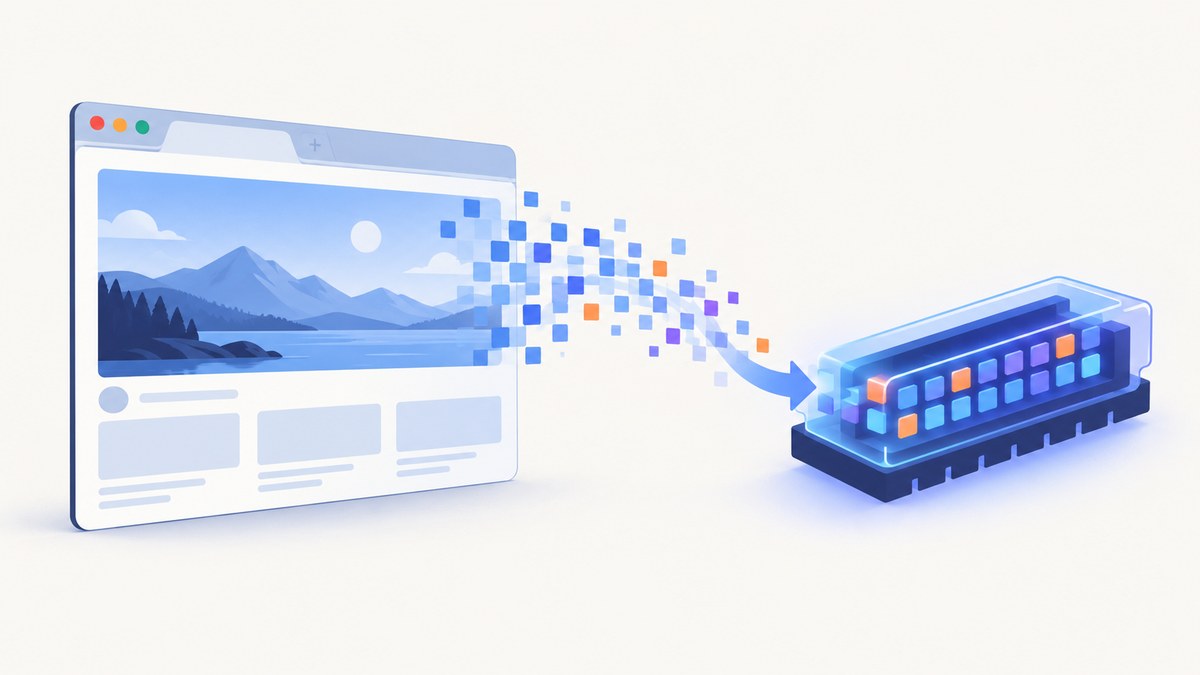
Use Selenium’s return methods instead of file-saving methods. In Python, call driver.get_screenshot_as_png() for PNG bytes or driver.get_screenshot_as_base64() for a Base64 string. In Java, call getScreenshotAs(OutputType.BYTES) or getScreenshotAs(OutputType.BASE64). The returned value can go directly to an image processor, HTTP response, object store, HTML document, or test attachment.
A generic screenshot call represents the current browsing context. It does not automatically guarantee a full-page image on every browser and driver; verify the behavior supported by your specific implementation. Selenium documents these APIs in its Python WebDriver API, Java TakesScreenshot API, and WebDriver window documentation.
Python: capture PNG bytes in memory
from io import BytesIO
from PIL import Image
from selenium import webdriver
from selenium.webdriver.chrome.options import Options

options = Options()
options.add_argument("--headless=new")
options.add_argument("--window-size=1440,900")

driver = webdriver.Chrome(options=options)
try:
    driver.get("https://example.com")

    # Raw PNG data; no screenshot file is created.
    png_bytes = driver.get_screenshot_as_png()

    # Example consumer: decode directly from memory.
    image = Image.open(BytesIO(png_bytes))
    print(image.format, image.size, len(png_bytes))
finally:
    driver.quit()
get_screenshot_as_png() returns binary PNG data as Python bytes. Pass those bytes to a library that accepts file-like objects, upload them with an HTTP client, or return them from a web handler with Content-Type: image/png.
Python: Base64 for HTML or JSON
from selenium import webdriver
from selenium.webdriver.chrome.options import Options

options = Options()
options.add_argument("--headless=new")
driver = webdriver.Chrome(options=options)
try:
    driver.get("https://example.com")
    image_base64 = driver.get_screenshot_as_base64()
    data_uri = "data:image/png;base64," + image_base64
    html = f'<img src="{data_uri}" alt="Page screenshot">'
    print(html)
finally:
    driver.quit()
Selenium describes the Base64 method as useful for embedding an image in HTML. Keep the value as text when the next system expects JSON or a data URI. Base64 is not a different screenshot format; it is an encoded representation of the PNG.
Python: save only when persistence is required
driver.save_screenshot("screenshot.png")
# or
ok = driver.get_screenshot_as_file("screenshot.png")
if not ok:
    raise OSError("Selenium could not write the screenshot")
These methods write a PNG file. They are separate from the in-memory methods and are unnecessary when the consumer accepts bytes or Base64. Selenium documents that get_screenshot_as_file() returns False for an I/O error and otherwise returns True. Source: Selenium Python WebDriver API.
Java: choose bytes or Base64 with OutputType
import java.util.Base64;
import org.openqa.selenium.OutputType;
import org.openqa.selenium.TakesScreenshot;
import org.openqa.selenium.WebDriver;
import org.openqa.selenium.chrome.ChromeDriver;
import org.openqa.selenium.chrome.ChromeOptions;

public class MemoryScreenshot {
    public static void main(String[] args) {
        ChromeOptions options = new ChromeOptions();
        options.addArguments("--headless=new", "--window-size=1440,900");
        WebDriver driver = new ChromeDriver(options);
        try {
            driver.get("https://example.com");

            byte[] pngBytes = ((TakesScreenshot) driver)
                    .getScreenshotAs(OutputType.BYTES);
            System.out.println("PNG bytes: " + pngBytes.length);

            String base64 = ((TakesScreenshot) driver)
                    .getScreenshotAs(OutputType.BASE64);
            String dataUri = "data:image/png;base64," + base64;
            System.out.println(dataUri.substring(0, Math.min(40, dataUri.length())));
        } finally {
            driver.quit();
        }
    }
}
OutputType.BYTES returns raw bytes and OutputType.BASE64 returns Base64 text. OutputType.FILE returns a temporary file; the Java API documents that it is deleted when the JVM exits. Screenshot capture can throw WebDriverException, and drivers that do not support screenshots can throw UnsupportedOperationException. See the TakesScreenshot and OutputType APIs.

JavaScript: receive the encoded screenshot
const { Builder } = require('selenium-webdriver');
const chrome = require('selenium-webdriver/chrome');

(async () => {
  const options = new chrome.Options().addArguments('--headless=new', '--window-size=1440,900');
  const driver = await new Builder().forBrowser('chrome').setChromeOptions(options).build();
  try {
    await driver.get('https://example.com');
    const base64 = await driver.takeScreenshot();
    const pngBytes = Buffer.from(base64, 'base64');
    console.log(`PNG bytes: ${pngBytes.length}`);
    // Send pngBytes to an upload API or attach it to a test result.
  } finally {
    await driver.quit();
  }
})();
The JavaScript binding returns an encoded screenshot string. Decode it with Buffer.from(value, 'base64') when a binary buffer is required, or keep the string for an HTML data URI or JSON payload.
Remote WebDriver and cURL
The WebDriver screenshot endpoint returns the current browsing-context screenshot encoded as Base64. With an existing remote session, the request shape is:
curl -s \
  -H 'Accept: application/json' \
  'http://localhost:4444/session/SESSION_ID/screenshot'
Read the JSON value field and Base64-decode it in your application. Replace SESSION_ID with a real session identifier and use the URL of your Selenium Grid or remote driver. The exact response envelope depends on the WebDriver server implementation; Selenium’s window documentation describes the endpoint and encoding.
When to capture and what the image contains
- Navigate to the target URL.
- Wait for the state your test needs: a specific element, a known application condition, or a deliberate delay for an animation.
- Capture the screenshot from the same driver and browsing context.
- Immediately hand the bytes or Base64 value to the next consumer.
from selenium.webdriver.common.by import By
from selenium.webdriver.support.ui import WebDriverWait

wait = WebDriverWait(driver, 20)
driver.get("https://example.com/dashboard")
wait.until(lambda d: d.find_element(By.CSS_SELECTOR, "[data-ready='true']"))
png_bytes = driver.get_screenshot_as_png()
A generic screenshot is usually the visible window or current browsing context. Full-page behavior varies by browser, driver, and WebDriver conformance; do not infer full-page coverage from the return type alone. Element screenshots can have different support and clipping rules. Check the driver documentation when the exact capture area matters.

Choosing bytes, Base64, or a file
| Output | Use it when | Trade-off |
|---|---|---|
| PNG bytes | An image library, upload client, or HTTP response accepts binary data | Binary value must be carried safely by the receiving API |
| Base64 | You need HTML embedding, JSON, or a text-only transport | Encoded text is larger than the underlying binary image |
| File | A downstream tool requires a filesystem path or you need a persisted artifact | Requires filesystem permissions and cleanup |
The cited Selenium documentation defines the available return types but does not establish a universal speed or memory benchmark for them. Choose the representation required by the next component and avoid converting repeatedly.
Common errors and fixes
| Error or symptom | Likely cause | Fix |
|---|---|---|
AttributeError for a screenshot method |
The object is not a Selenium WebDriver instance, or the method name is from another binding | Call the Python method on the driver; use TakesScreenshot and OutputType in Java; use takeScreenshot() in JavaScript. |
UnsupportedOperationException |
The selected driver does not implement screenshot capture | Use a browser/driver with screenshot support or a conformant remote endpoint. |
WebDriverException |
Browser, driver, session, or transport failure | Check that the session is alive, browser and driver versions are compatible, and the remote server is reachable; retry only after classifying the failure. |
| Blank or stale image | Capture occurred before navigation or asynchronous UI work finished | Wait for a meaningful application condition, then capture; avoid relying on a fixed sleep when a state condition is available. |
| Image is clipped | The call captures the viewport/current context rather than a full page | Use the browser-specific full-page facility or stitch measured scroll regions; document the intended scope in the test. |
| Base64 cannot be decoded | Data URI prefix was passed to a decoder that expects only Base64, or padding was altered | Remove data:image/png;base64, before decoding and preserve the returned string unchanged. |
File method returns False |
Destination path is unavailable or not writable | Check the directory, permissions, and path; use in-memory bytes when persistence is unnecessary. |
Performance, reliability, and cost notes
- Keep one capture in memory only as long as the consumer needs it; release references after upload or assertion.
- Do not Base64-encode and decode repeatedly. Select the representation at the boundary where it is consumed.
- Use explicit waits tied to application state so screenshots are reproducible across machines.
- For remote drivers, include network and session failures in your retry policy, but avoid blindly retrying a screenshot that is evidence of a failed page state.
- Selenium’s screenshot APIs themselves do not provide a billing model. Any cost comes from the browser infrastructure, grid, storage, or service running the session.
Or skip the browser setup
ScreenshotNeo returns a screenshot with one GET request, so you do not need to provision Selenium, Chrome, or a driver. The API supports PNG, JPEG, WebP, and PDF output; see the ScreenshotNeo API documentation for request options.
curl -G "https://api.screenshotneo.com/v1/shot" -d access_key=YOUR_API_KEY --data-urlencode url=https://stripe.com -o shot.webpimport requests
r = requests.get("https://api.screenshotneo.com/v1/shot", params={"access_key": "YOUR_API_KEY", "url": "https://stripe.com"}, timeout=90)
open("shot.webp", "wb").write(r.content)const q = new URLSearchParams({ access_key: 'YOUR_API_KEY', url: 'https://stripe.com' });
const res = await fetch(`https://api.screenshotneo.com/v1/shot?${q}`);Before capture, ScreenshotNeo accepts cookie and consent banners and removes more than 60 known consent platforms, newsletter popups, and chat widgets; each step can be turned off. Bot checks, blank pages, timeouts, failed loads, and cache hits are not billed, and the response reports the verdict and billing status in X-Page-Verdict and X-Billed headers. Its MCP server gives AI agents tools named take_screenshot, get_page_info, and capture_pdf. The Free plan includes 1,000 screenshots per month with no card; paid plans start at $5 for 3,000 shots.
Create a free ScreenshotNeo account and start with the 1,000 monthly screenshots.
FAQ
Does an in-memory screenshot still create a temporary file?
The Python bytes and Base64 methods return data directly. Java’s BYTES and BASE64 outputs are direct return values; FILE is the separate temporary-file option.
Can I return the bytes from a Flask or FastAPI route?
Yes. Return the PNG bytes as the response body with Content-Type: image/png, and keep the WebDriver lifecycle outside the request when your service needs to handle many calls.
Is Base64 required for an HTML image?
No. Base64 is convenient for a data URI. You can also serve the PNG bytes from an endpoint and set the image’s src to that endpoint.
How do I capture a full page?
A generic screenshot call may be viewport-scoped. Use a documented full-page feature for your browser or driver, or capture and stitch scroll regions when your test requires full-page evidence.
Which Selenium method should I use for test attachments?
Use PNG bytes when the test framework accepts binary attachments. Use Base64 when its attachment API is text-based.


