Why Selenium Screenshots Fail on Windows but Work on iOS
Selenium screenshots work across platforms. Diagnose Windows failures by checking the browser, driver, session state, viewport, and output path.
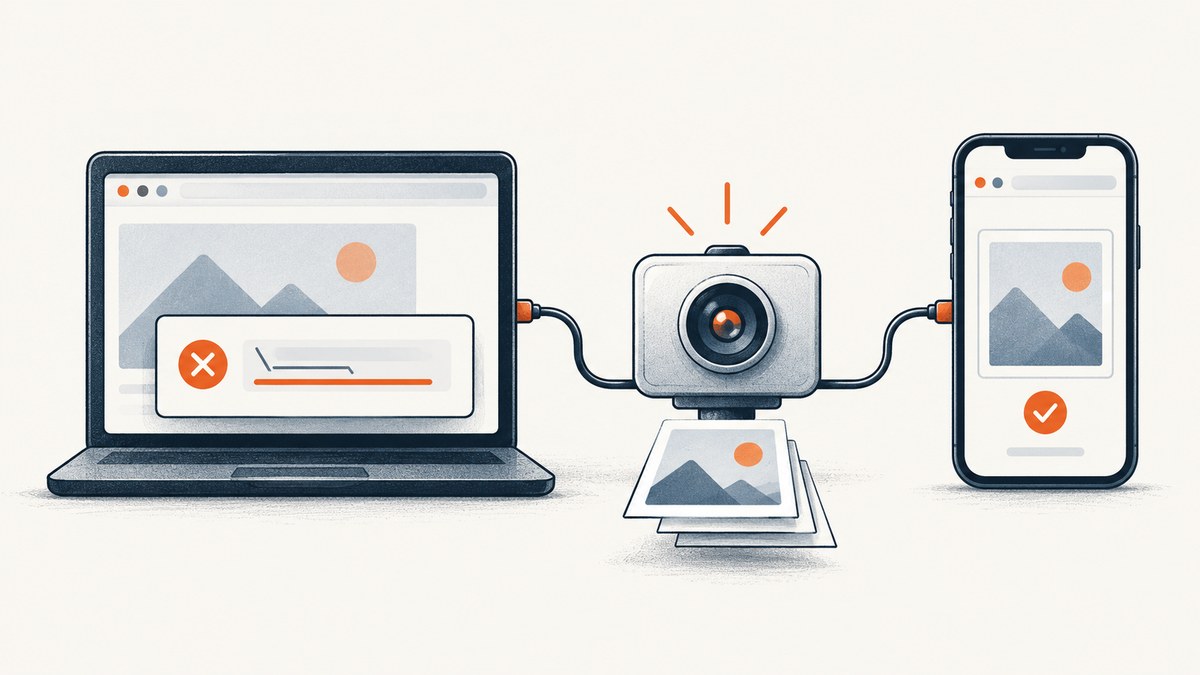
Selenium screenshots are supported WebDriver functionality across platforms. A screenshot failure on Windows does not mean Windows is unsupported, and a screenshot that works on iOS does not prove the same setup will work there consistently. The useful question is which layer differs: Selenium binding, browser, driver or automation bridge, session state, viewport, or file output.
Start by recording the complete exception and versions, set a known window size, dismiss any alert, and save to an absolute writable PNG path. In Python, check the Boolean returned by save_screenshot(); Selenium documents that it returns False when saving fails because of an I/O error. The steps below separate capture failures from ordinary file errors and make the Windows and iOS comparison reproducible.
1. What can fail in a Selenium screenshot
A WebDriver screenshot request has several stages: the client binding sends a command, the driver forwards it to a browser or automation bridge, the page is rendered at a particular viewport, and the returned image is saved by the client. Each stage can fail differently. A WebDriver session can return an error; an element screenshot can fail because its coordinates are invalid; or the screenshot can be captured successfully while the local file write fails.
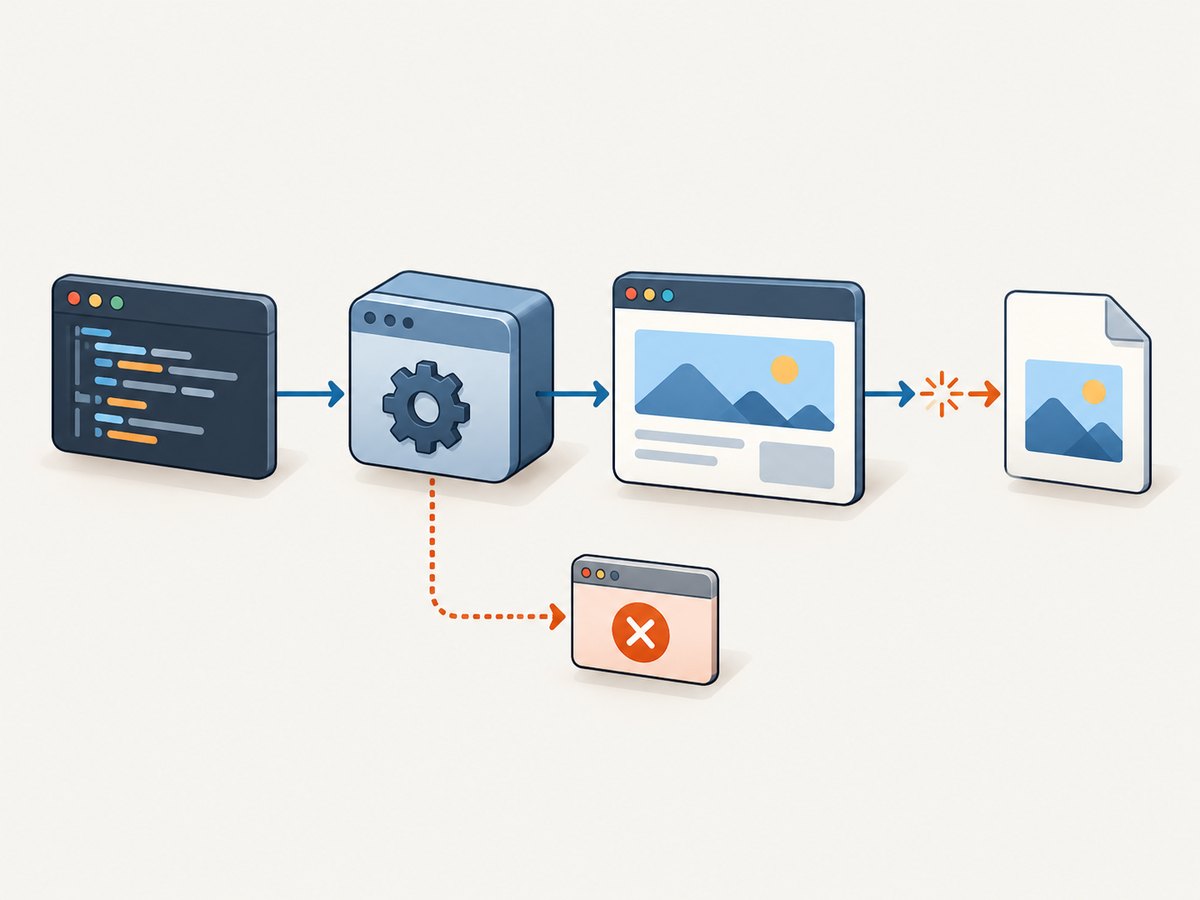
Selenium documents page screenshots and element screenshots, including Python’s driver.save_screenshot(...) and other bindings’ screenshot methods. Chromium lists the session and element screenshot endpoints as complete implementations. This is why the exact exception, HTTP status, method, and output behavior matter more than the OS label alone.
Likewise, “works on iOS” describes one device and software combination, not a guarantee for iOS. Apple’s Safari WebDriver implementation is safaridriver; WebDriver automation on iOS and iPadOS must be enabled, and its automation windows are isolated from ordinary browsing windows. Device model, OS and Safari versions, and any Appium/XCUITest or WebDriverAgent bridge are part of the comparison.
2. Capture a reproducible baseline
Before changing flags or upgrading packages, capture the current setup. Make one attempt with a simple page, a fixed viewport, no modal dialog, and a known output directory. Keep the original error; a retry can conceal a session or version problem.
Python: page and element screenshots
This example uses Selenium’s Python binding and Chrome. Install Selenium and make sure a compatible Chrome browser and driver are available to the environment. Selenium Manager may handle driver setup in supported configurations; otherwise provide the driver through your existing setup.
from pathlib import Path
from selenium import webdriver
from selenium.webdriver.chrome.options import Options
from selenium.webdriver.common.by import By

out_dir = Path.cwd() / "selenium-shots"
out_dir.mkdir(parents=True, exist_ok=True)
page_path = out_dir / "page.png"
element_path = out_dir / "element.png"

options = Options()
options.add_argument("--window-size=1440,1000")
# For a controlled headless comparison, uncomment:
# options.add_argument("--headless")

driver = webdriver.Chrome(options=options)
try:
    driver.set_window_size(1440, 1000)
    driver.get("https://example.com")
    print("URL:", driver.current_url)
    print("Window:", driver.get_window_rect())

    saved = driver.save_screenshot(str(page_path))
    print("Page save returned:", saved)
    print("Page exists:", page_path.exists())
    if page_path.exists():
        print("Page bytes:", page_path.stat().st_size)

    heading = driver.find_element(By.TAG_NAME, "h1")
    print("Element save returned:", heading.screenshot(str(element_path)))
finally:
    driver.quit()
Use a real target URL in place of https://example.com. The example deliberately checks the returned value, file existence, file size, current URL, and actual window rectangle. A zero-byte, missing, or unexpectedly small file tells a different story from a WebDriver exception.
Other Selenium bindings
The screenshot command is available in Selenium bindings beyond Python. Check the binding’s version-specific documentation for exact method names and whether the API returns a file, bytes, or Base64 data. For example, the JavaScript binding exposes a page screenshot operation that returns image data:
const { Builder } = require('selenium-webdriver');
const fs = require('node:fs/promises');

(async () => {
  const driver = await new Builder().forBrowser('chrome').build();
  try {
    await driver.manage().window().setRect({ width: 1440, height: 1000, x: 0, y: 0 });
    await driver.get('https://example.com');
    const pngBase64 = await driver.takeScreenshot();
    await fs.writeFile('page.png', Buffer.from(pngBase64, 'base64'));
  } finally {
    await driver.quit();
  }
})();
For a command-line sanity check outside Selenium, Chrome’s own headless documentation shows a screenshot command with a fixed window size. This helps determine whether the issue is specific to your Selenium session, but it is not a substitute for testing the WebDriver command you use in production:
chrome --headless --window-size=1440,1000 --screenshot=page.png https://example.com3. Compare Windows and iOS one variable at a time
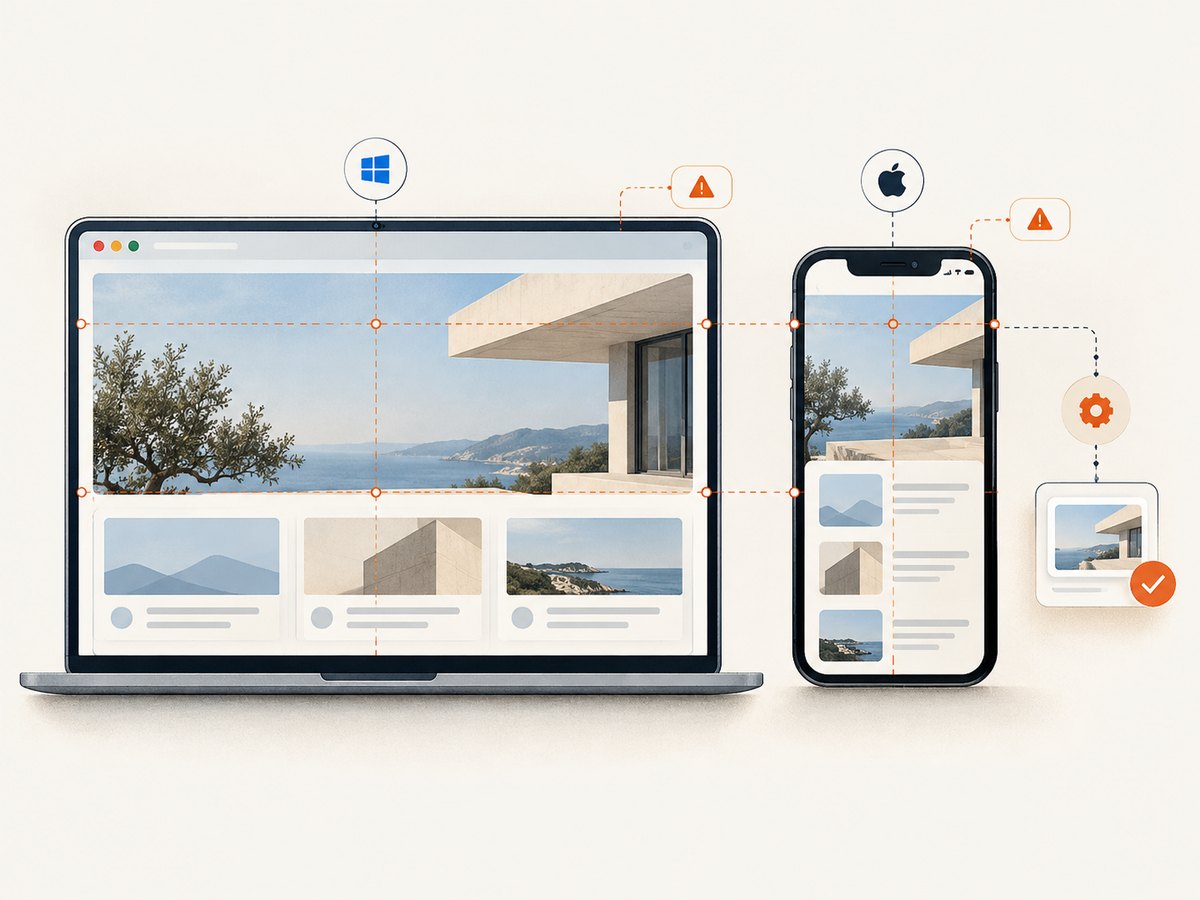
Build a small environment record for each successful or failing attempt. Keep the page, account state, viewport, and timing as close as possible. Change one axis at a time; otherwise a version update plus a new headless flag plus a different path will not identify the cause.
| Record | Why it matters |
|---|---|
| OS version and device model | Distinguishes Windows desktop behavior from the particular iPhone or iPad tested. |
| Browser name and full version | Screenshot rendering and browser bugs can change between releases. |
| Selenium binding and version | Client behavior, command handling, and file-saving code differ by binding and release. |
| Driver or bridge version | Record ChromeDriver on desktop; record safaridriver and any Appium/XCUITest/WebDriverAgent components on iOS. |
| Headed/headless mode and flags | Separates display-related behavior from the session and render path. |
| Window rectangle, viewport, scale | Explains differences in image dimensions and element coordinates. |
| Current URL and modal state | Shows whether navigation is complete, redirected, blocked, or paused by an alert. |
| Exact exception/status and output file details | Separates a WebDriver failure from a client-side path or permission error. |
Do not infer a platform-wide defect from one iOS device and one Windows machine. A Selenium issue documented an HTTP 500 UnknownException for a screenshot on an 11th-generation iPad where the same attempt did not fail on an iPad Air 4. Device model and automation stack can matter on the phone side too.
4. Fix the common Windows causes
Driver and browser versions do not work together
Check the exact browser and driver versions. ChromeDriver release notes document screenshot-related fixes over time, including screenshot-size corrections, Windows headless-shell test fixes, re-enabled screenshot integration tests, and a lock associated with an alert during capture. Pin a known compatible pair in a repeatable environment and consult the release notes when a regression appears. Avoid treating arbitrary Chrome flags as a durable compatibility fix.
The save path is wrong or unwritable
Python’s save_screenshot(path) returns False when it encounters an I/O error. A relative path is resolved against the process working directory, which may differ between a terminal, IDE, service, scheduled task, and CI agent. Create the directory first, use an absolute path while debugging, ensure the process account can write there, and check both the Boolean and resulting file size.
Use a PNG extension for the documented save method. Do not mistake “method returned false” for “browser could not render the page”; investigate local filesystem permissions and path assumptions first.
The window is not the size you assume
Maximized is not a reproducible size. Desktop scaling, window decorations, remote sessions, and headless mode can affect the usable viewport and screenshot dimensions. Set a fixed size with Selenium window controls or Chrome’s --window-size, then log the rectangle the browser reports. If an element screenshot fails while the page screenshot succeeds, inspect the target element’s position, visibility, and size at that actual viewport.
An alert or broken session interrupts capture
A JavaScript alert can block commands. ChromeDriver release notes describe a screenshot lock caused by an alert during capture, so check for prompts and handle them deliberately. If the browser crashed, the session was interrupted, or navigation did not finish, retrying the screenshot command on the same session may not help. Capture the exception and browser log, record current_url if the session still responds, then create a fresh session to distinguish a one-off session failure.
5. Headless versus headed Chrome on Windows
Headless mode can remove dependencies on a visible desktop. Chrome’s official headless documentation provides screenshot and window-size examples and notes that headless Chrome does not require a display server such as Xvfb. A controlled headless run is therefore a useful diagnostic when a test behaves differently in an interactive desktop or remote session.
Keep the browser version in mind when selecting flags. Older Chrome guidance said --disable-gpu was temporarily needed on Windows. Treat that as historical guidance and check the documentation for the Chrome version in use; do not add it by habit. Compare headed and headless captures with the same URL, viewport, browser/driver pair, and output path. If only one mode fails, save that fact along with browser logs and the reported window rectangle.
6. Diagnostic sequence
- Save the evidence. Record the full exception and status, OS/device, browser and driver versions, Selenium/Appium versions, mode and flags, viewport, current URL, and file path.
- Reduce the page. Try a minimal known page and the page-level screenshot command. Then test an element screenshot separately. A failure in both points toward the session/capture path; a page success and element failure narrows attention to coordinates or element state.
- Control geometry and file output. Set a fixed window size, log the returned rectangle, create the output directory, use an absolute PNG path, check the save Boolean, and verify the file exists and is nonempty.
- Check state. Look for JavaScript alerts, failed navigation, a crashed browser, or an interrupted session. Preserve logs before starting a clean session.
- Compare modes. Run a fixed-size headless test. Add version-sensitive flags only when the matching browser documentation or logs support them.
- Align versions. Compare binding, browser, and driver releases. Read the relevant driver release notes for screenshot, alert, or headless fixes before upgrading or pinning.
- Validate iOS separately. Confirm WebDriver is enabled and log model, iOS/Safari versions, safaridriver, and bridge state. Only compare devices after controlling the page and capture conditions.
7. Options and edge cases that affect the image
Once the command succeeds, image differences are often configuration differences rather than failures. For deterministic results:
- Set the viewport before navigation or before any page layout assertions, and record the reported size.
- Use the same page state and wait condition on each platform. A capture taken before fonts, images, or client-side rendering finish can look blank or incomplete.
- Test page and element screenshots separately. Element capture depends on the element being present and its coordinates being meaningful in the current viewport.
- Keep headed/headless mode, browser version, and device scale conditions stable when comparing pixel dimensions.
- Distinguish a blank page image from a failed save: inspect the file size and open the image, while also checking the current URL and page state.
Selenium’s basic screenshot call captures the rendered browser state; it does not by itself promise a full-page image on every browser, wait for all asynchronous content, dismiss consent UI, or normalize operating-system rendering. If those are requirements, handle the page state and capture method explicitly and verify the output dimensions.
8. Performance, reliability, and cost
A screenshot adds browser work and file I/O to a test. Large pages, high pixel dimensions, and slow navigation can increase capture time and memory use. Set a bounded page-load or explicit wait strategy appropriate to the application, reuse a healthy browser session where your test design allows, and avoid repeating captures after a known session crash. In CI, write artifacts to a designated writable directory and retain the environment record alongside failures.
For reliability, pin or deliberately update browser and driver versions, keep screenshot code small, and treat capture and file verification as separate checks. An OS comparison is useful only when the other inputs are controlled. Selenium itself does not charge per screenshot; infrastructure cost comes from the machines, browser sessions, storage, and CI time your workflow uses.
9. Troubleshooting table
| Symptom | Likely cause | Next action |
|---|---|---|
save_screenshot() returns False |
Path or filesystem I/O error | Create the directory, use an absolute writable PNG path, inspect permissions and file size. |
| WebDriver exception or HTTP 500 | Driver/browser/session or automation bridge failure | Keep the full status and stack; check session health and aligned versions; reproduce on a minimal page. |
| Command hangs during capture | Possible alert/modal or stuck browser session | Check for prompts, preserve logs, and retry in a fresh session after resolving the state. |
| Image is blank | Navigation/rendering incomplete, wrong URL, blocked page, or browser issue | Log current URL, wait for the expected page state, and compare with a minimal page. |
| Image has unexpected dimensions | Window size, scaling, or mode differs | Set explicit geometry and log the reported rectangle and resulting image dimensions. |
| Page capture works, element capture fails | Element absent, hidden, off-screen, or coordinates invalid | Locate and inspect the element after page readiness; check its geometry at the fixed viewport. |
| Only Windows headless fails | Version-specific browser/driver behavior or flags | Compare release notes and run the same fixed-size headed/headless test; avoid obsolete flags without evidence. |
| iPhone works but iPad fails | Model, OS, Safari, or automation bridge difference | Log device and bridge versions; compare controlled runs rather than assuming iOS uniformity. |
10. Or skip the browser setup
If the goal is a screenshot rather than browser automation itself, ScreenshotNeo provides a website screenshot API and MCP server. One GET request returns an image or PDF. The request below saves a WebP screenshot of the example page; see the ScreenshotNeo API documentation for options and setup.
curl -G "https://api.screenshotneo.com/v1/shot" -d access_key=YOUR_API_KEY --data-urlencode url=https://example.com -o shot.webpThe same request from Python:
import requests
r = requests.get("https://api.screenshotneo.com/v1/shot", params={"access_key": "YOUR_API_KEY", "url": "https://example.com"}, timeout=90)
open("shot.webp", "wb").write(r.content)
And from Node.js:
const q = new URLSearchParams({ access_key: 'YOUR_API_KEY', url: 'https://example.com' });
const res = await fetch(`https://api.screenshotneo.com/v1/shot?${q}`);- Cookie and consent banners, newsletter popups, and chat widgets are removed before the shot; each cleanup step can be turned off.
- Bot checks, blank pages, timeouts, failed loads, and cache hits are not billed. Responses identify the page verdict and billing status in headers.
- An MCP server gives AI agents tools for screenshots, page information, and PDF capture.
- The Free plan includes 1,000 screenshots each month with no card; paid plans start at $5 for 3,000 screenshots. Every feature is on every plan.
Sign up for 1,000 free screenshots a month, with no card required.
11. FAQ
Does Selenium require headless mode to take screenshots?
No. Screenshot commands work through WebDriver in headed and headless sessions. Headless is a useful controlled diagnostic, not a general requirement.
Does a working iPhone capture prove the Windows code is wrong?
No. The device, browser, driver, bridge, viewport, session state, and output filesystem differ. Compare those inputs and the exact failure before drawing a conclusion.
Why does my Python method return false without throwing?
The Python API documents False for an I/O error while saving. Check path resolution, directory existence, process permissions, and the file after the call.
Can I use an old --disable-gpu workaround?
Only if the Chrome version’s documentation or observed logs justify it. Older Windows guidance was temporary; flags can become unnecessary or behave differently across releases.
Are iOS WebDriver screenshots guaranteed to work across devices?
No. Apple’s automation environment and individual device/bridge versions vary, and a documented Selenium issue reports a model-specific screenshot exception.


