How to Capture Selenium Screenshots with Backgrounds
Set the page background before Selenium captures it, choose window or element screenshots, control the viewport, and save reliable output.
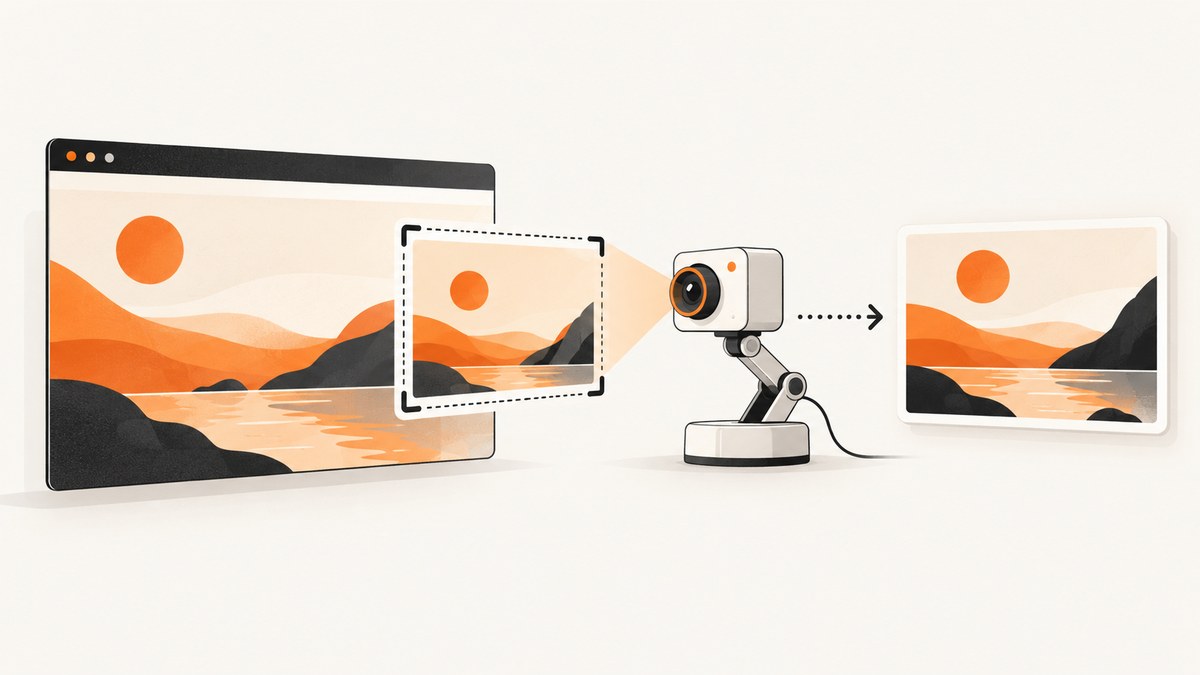
To capture a Selenium screenshot with a background, make the background part of the page’s rendered CSS before calling the screenshot API. Selenium captures the current browser view or a selected element; it does not add a background after the image is captured.
The reliable sequence is:
- Open the page and wait for the state you need.
- Apply or preserve the desired CSS background.
- Set a deliberate browser size so responsive layout is predictable.
- Capture the current window or a specific element.
- Save the PNG (or process the returned image data) and inspect the result.
What “with backgrounds” means in Selenium
A background can come from background-color, a gradient, a background image, or a containing element such as a wrapper. It must be rendered by the page at capture time. A background on .app-shell will not appear if you only change body, and an element screenshot will not include pixels outside that element.
Selenium screenshots are not transparent by default. The Selenium documentation describes screenshot images and capture methods, but does not promise transparent PNG output or a universal transparency workflow. If you need a solid result, render that color or image in the page and verify the saved file.
Complete Python example: set a background and save a screenshot
This example uses Selenium’s Firefox driver, sets a deterministic viewport, applies a temporary page style, and checks the documented boolean result from save_screenshot.

from selenium import webdriver

with webdriver.Firefox() as driver:
    driver.set_window_size(1440, 1000)
    driver.get("https://example.com")

    # Apply a temporary background to the element that owns the page surface.
    # Use background instead of backgroundColor for gradients or images.
    driver.execute_script("""
        const page = document.querySelector('body');
        if (!page) throw new Error('Expected body element was not found');
        page.style.backgroundColor = '#f3f4f6';
    """)

    saved = driver.save_screenshot("./screenshot.png")
    if not saved:
        raise OSError("Screenshot could not be saved")
save_screenshot(filename) saves the current window to a PNG path. The Python API documents a full path ending in .png and returns True on success or False on an I/O error. See the Python WebDriver API.
Preserve existing styles when changing the page
Assigning element.style.backgroundColor changes only the inline property and leaves the stylesheet’s other background properties intact. Assigning element.style.background replaces the shorthand value, so it can remove an existing image, repeat rule, or position. For a controlled test page, use a temporary class when possible:
driver.execute_script("""
    const page = document.querySelector('.app-shell');
    if (!page) throw new Error('Expected .app-shell element was not found');
    page.classList.add('screenshot-background');
""")
Define .screenshot-background in the test fixture or application stylesheet. For a site you do not control, do not silently rewrite production styling unless changing that state is part of the test.
CSS examples for common backgrounds
Use the property that matches the intended rendering:
/* Solid color */
body { background-color: #f3f4f6; }

/* Gradient */
body {
  background: linear-gradient(135deg, #0f172a, #334155);
}

/* Image */
.hero {
  background-image: url('/assets/hero.jpg');
  background-position: center;
  background-size: cover;
  background-repeat: no-repeat;
}

/* A page surface inside a transparent body */
.app-shell {
  min-height: 100vh;
  background: #ffffff;
}
If an image is loaded from another origin, confirm that it is publicly reachable in the test environment and that the page has reached the state where it is displayed. A missing asset or an image that is still loading can make a correct CSS rule look like a screenshot failure.
Window screenshot versus element screenshot
| Need | Capture | What appears |
|---|---|---|
| Page context, navigation, and surrounding layout | Current window | The visible browsing context at the chosen viewport |
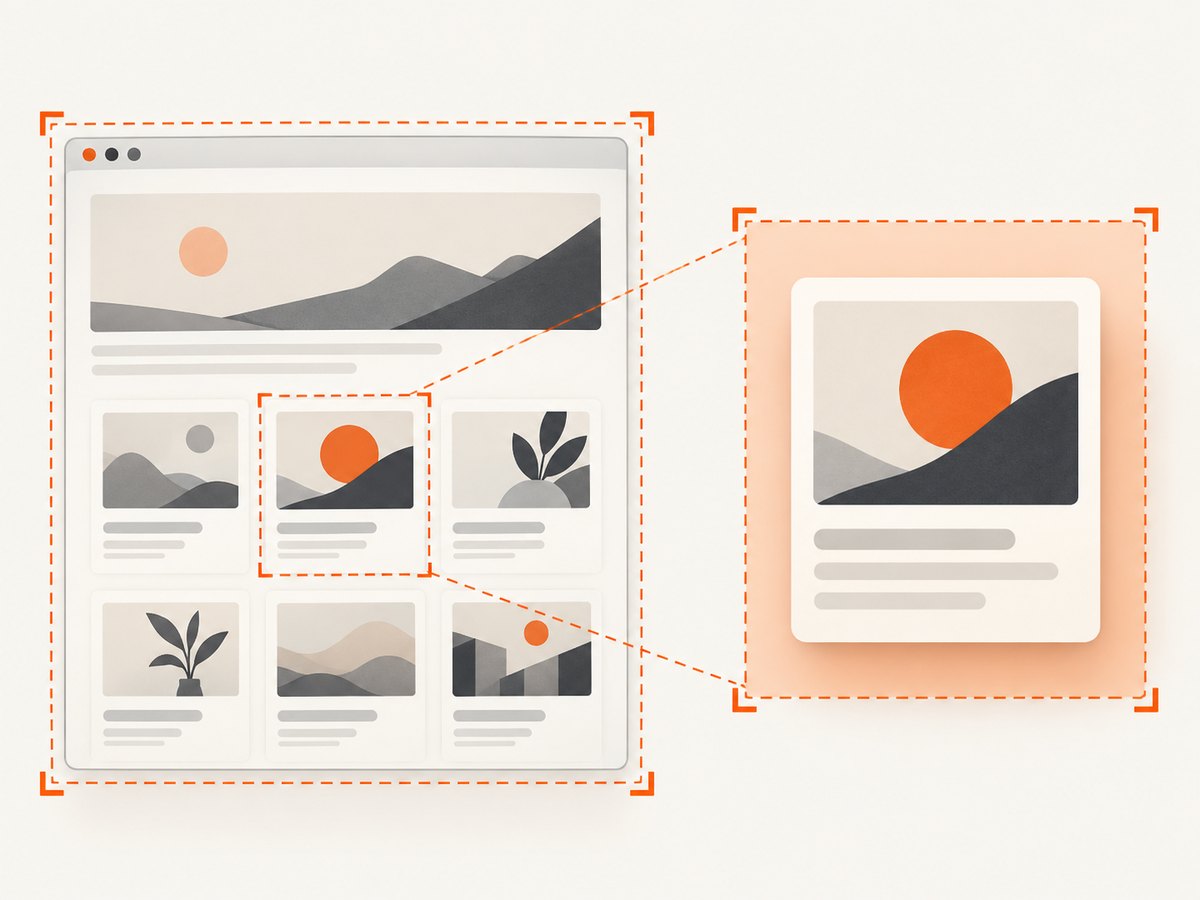
| A card, chart, logo, or component | Selected element | The element’s rendered bounds, cropped from the page |
| The entire document | Full-document method supported by your binding and browser | Document coverage beyond the current viewport |
Selenium’s official examples show both current-window and element screenshots. An element capture is useful when the background belongs to that component, but it will not include a page background outside the element.
from selenium import webdriver
from selenium.webdriver.common.by import By

with webdriver.Firefox() as driver:
    driver.set_window_size(1440, 1000)
    driver.get("https://example.com")

    card = driver.find_element(By.CSS_SELECTOR, ".pricing-card")
    if not card.screenshot("./pricing-card.png"):
        raise OSError("Element screenshot could not be saved")
Inspect the saved image. Cropping, overflow, fixed headers, and shadows can make the output differ from what you expected from the page view.
Waiting for the right rendered state
There is no universal delay that makes every page ready. Wait for an observable condition from the site: a key selector, a loading indicator disappearing, or data being present. A fixed sleep can be useful as a last resort for an animation, but it is less reliable than waiting on the state you actually need.
from selenium.webdriver.common.by import By
from selenium.webdriver.support.ui import WebDriverWait
from selenium.webdriver.support import expected_conditions as EC

wait = WebDriverWait(driver, 30)
wait.until(EC.visibility_of_element_located((By.CSS_SELECTOR, ".hero")))
wait.until(EC.invisibility_of_element_located((By.CSS_SELECTOR, ".loading")))
For background images, wait for the image or the component that displays it. JavaScript can check a known image element:
wait.until(lambda d: d.execute_script("""
    const img = document.querySelector('.hero img');
    return img && img.complete && img.naturalWidth > 0;
"""))
Viewport size and repeatable layout
Set the window dimensions before capture when layout matters. Selenium states that “Screen resolution can impact how your web application renders, so WebDriver provides mechanisms for moving and resizing the browser window.” See the Selenium window and tab documentation.
- Use the same width and height for visual comparisons.
- Use the same browser, driver, and Selenium binding versions in the capture environment.
- Record the device-pixel ratio when comparing pixels across machines.
- Check responsive breakpoints: a 1440-pixel layout can differ substantially from a 390-pixel layout.
driver.set_window_size(1440, 1000)
# Mobile-style layout for a separate capture
# driver.set_window_size(390, 844)
Full-page screenshots
A normal screenshot captures the current view. Full-document capture is a separate capability and is not identical across browsers and bindings. The Python Firefox WebDriver API documents full-document screenshot methods. Verify the method for the exact browser, driver, and Selenium version you deploy instead of assuming a cross-browser API.
When full-page output is unavailable or inconsistent, capture the required sections as elements, or use a capture service that explicitly supports full-page rendering. Keep lazy-loaded content in mind: a document may need scrolling or an application-specific readiness signal before all images exist.
Other output forms
Selenium examples also expose screenshot output as Base64-encoded PNG data. That is useful when the image must be uploaded or processed without writing a temporary file.
png_base64 = driver.get_screenshot_as_base64()
with open("screenshot-base64.txt", "w", encoding="ascii") as f:
    f.write(png_base64)
Use the binding’s documented binary or Base64 method and treat the result as image data. Do not append a CSS background after capture if the goal is to represent the page as rendered.
Common errors and fixes
| Symptom | Likely cause | Fix |
|---|---|---|
| Background is white | The rule targets the wrong element, is overridden, or the page has not reached the intended state. | Inspect the computed style and target the wrapper that owns the surface. Wait for the relevant component. |
| Gradient or image disappears | backgroundColor was used for a non-solid background, or a shorthand assignment removed other properties. |
Use background/backgroundImage deliberately and avoid overwriting existing shorthand values. |
| Element screenshot is unexpectedly cropped | Only the selected element’s bounds are captured. | Capture the window, select a larger wrapper, or adjust the component’s dimensions and overflow. |
| Screenshot file is missing | The path is invalid or the process lacks write access. | Use an absolute writable path ending in .png; check the boolean return value and catch I/O errors. |
| Layout changes between runs | Window size, browser version, fonts, or page readiness differs. | Pin the environment, set dimensions explicitly, load the same fonts, and wait for an observable ready state. |
| Full-page method is unavailable | That browser/binding combination does not expose the method. | Check the current binding documentation, capture elements, or use a service with documented full-page support. |
| Background image is blank | The asset failed to load, is blocked, or is still loading. | Check the network and asset URL, then wait for the image/component readiness condition. |
Performance, reliability, and cost considerations
- Performance: Capture only the region you need when a full window is unnecessary. Large full-page images and high-resolution viewports use more memory and take longer to encode.
- Reliability: Make readiness observable, set the viewport explicitly, and keep browser and driver versions consistent. Dynamic ads, animations, and late network requests can change pixels.
- Repeatability: Disable or freeze animations in a test fixture, use stable test data, and wait for fonts and images before capture.
- Cost: Selenium itself is an automation workflow you run and maintain. Your costs come from the machines, browser infrastructure, and engineering time used to operate it.
Or skip the browser setup
ScreenshotNeo provides a website screenshot API and MCP server. One GET request returns a PNG, JPEG, WebP, or PDF. The API can set viewport and device options, apply custom CSS and JavaScript, wait for a selector, delay, or network idle, capture an element by CSS selector, load lazy images for full-page captures, set headers/cookies/user agent, and more. See the ScreenshotNeo API documentation.
curl -G "https://api.screenshotneo.com/v1/shot" -d access_key=YOUR_API_KEY --data-urlencode url=https://stripe.com -o shot.webpimport requests
r = requests.get("https://api.screenshotneo.com/v1/shot", params={"access_key": "YOUR_API_KEY", "url": "https://stripe.com"}, timeout=90)
open("shot.webp", "wb").write(r.content)const q = new URLSearchParams({ access_key: 'YOUR_API_KEY', url: 'https://stripe.com' }); const res = await fetch(`https://api.screenshotneo.com/v1/shot?${q}`);Cookie and consent banners are accepted and removed before capture, along with more than 60 known consent platforms, newsletter popups, and chat widgets; each cleanup step can be turned off. Bot checks, blank pages, timeouts, failed loads, and cache hits are not billed, and response headers identify the page verdict and billing status. An MCP server provides take_screenshot, get_page_info, and capture_pdf tools for Claude, Cursor, and other MCP clients. The Free plan includes 1,000 screenshots per month with no card; paid plans start at $5 for 3,000.
Create a free ScreenshotNeo account and start with 1,000 screenshots a month without a card.
FAQ
Does Selenium add a background to an existing screenshot?
No. Set the background in the page before capture. Selenium records the rendered browser state.
Can I capture a transparent PNG?
The reviewed Selenium documentation does not promise transparent output. Render and verify the background you need instead.
Should I capture the body or an element?
Capture the current window for page context. Capture an element for an isolated card, chart, or other component.
Why does the same page look different on another machine?
Viewport dimensions, screen resolution, browser and driver versions, fonts, and page readiness can all affect rendering. Standardize them for repeatable captures.
Is a fixed sleep enough?
Use a site-specific readiness condition when possible. A fixed delay can finish before images or data are ready, or waste time after the page is already stable.


