How to Capture Selenium WebDriver Screenshots Without Resizing the Window
Capture Selenium screenshots at the existing browser size, preserve dimensions, and handle full-page output without changing the window.
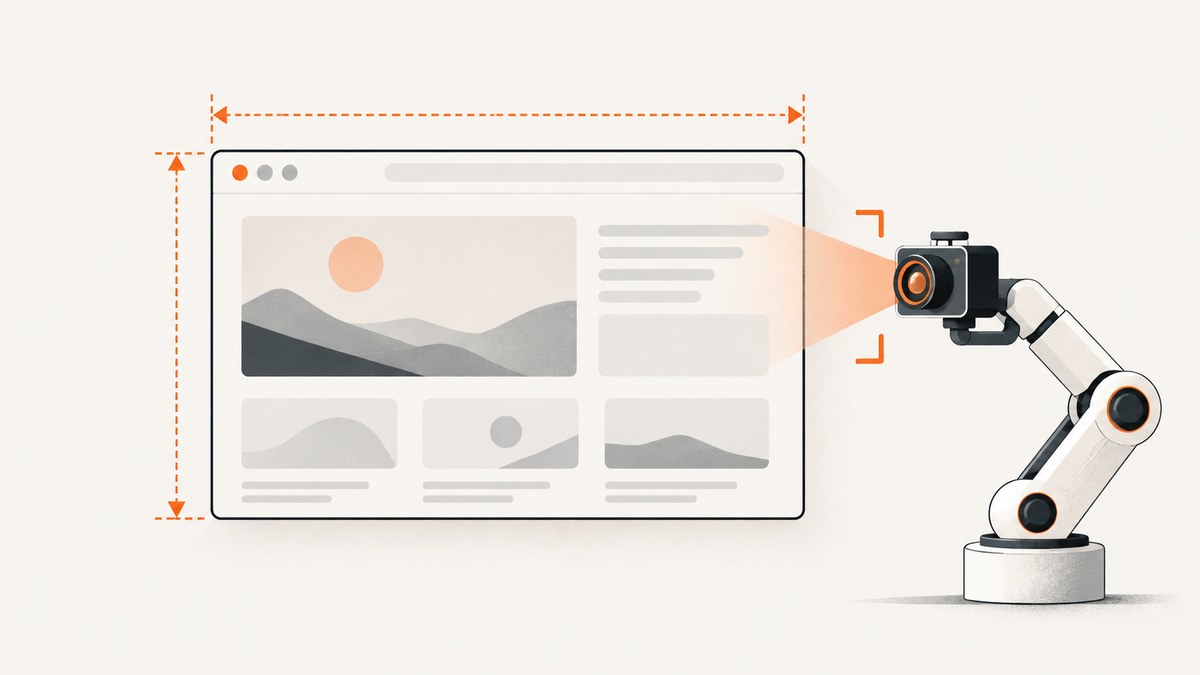
Direct answer: call Selenium’s screenshot method directly. Do not call setSize or set_window_size before the capture. A normal WebDriver screenshot captures the current browsing context at its current browser dimensions; resizing is a separate operation. See Selenium’s Java TakesScreenshot API, window documentation, and Python WebDriver API.
Choose the screenshot scope first
| Need | Use | What it captures |
|---|---|---|
| Visible browser content | Java getScreenshotAs or Python save_screenshot |
The current window and browsing context |
| PNG bytes for processing | Python get_screenshot_as_png or Java Base64 output |
The same current-window capture in memory |
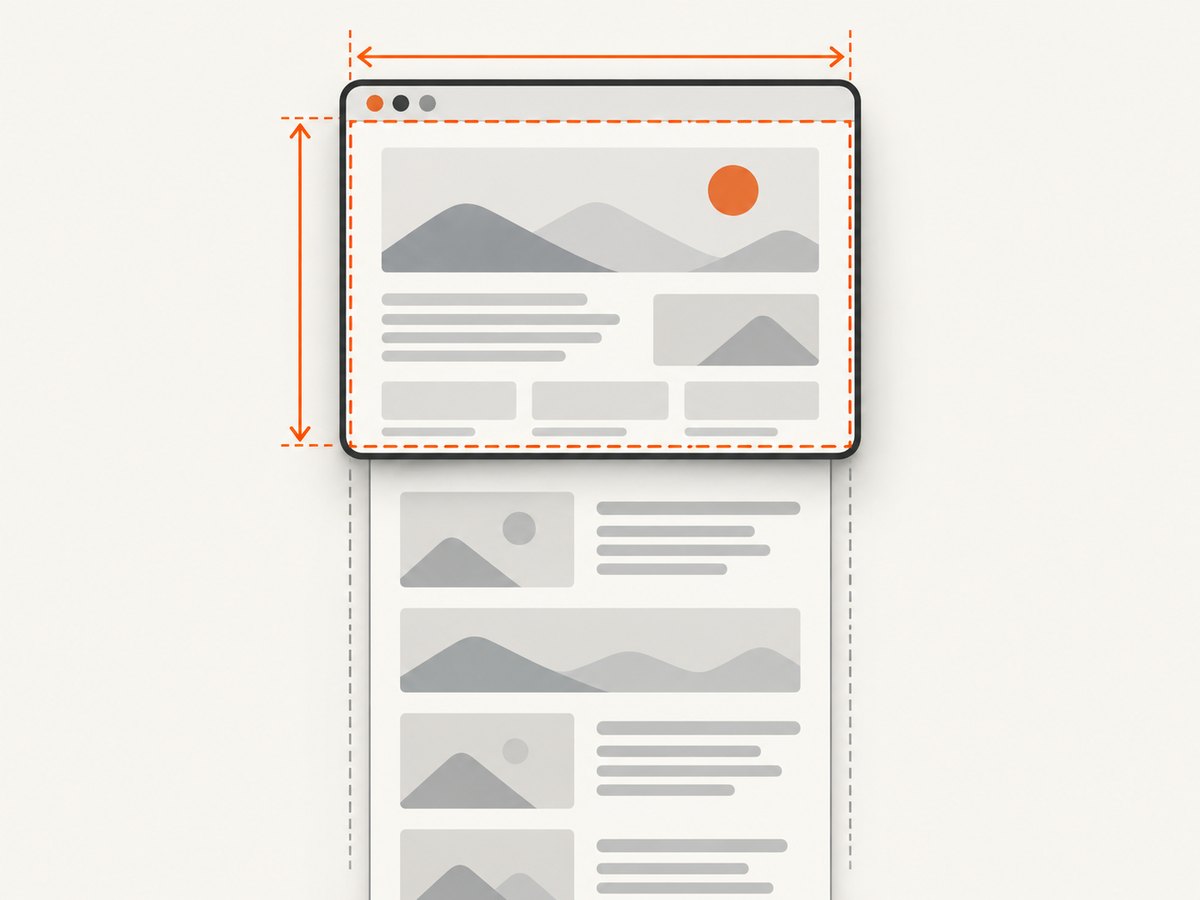
| Entire scrollable document | Firefox Python get_full_page_screenshot_as_file |
A full-document image without manually enlarging the window |
Current-window and full-document screenshots are different requests. The Firefox full-page methods are documented on the Firefox driver API and should not be assumed to work identically in every browser and driver.
Java: capture without changing the window
The Java binding exposes screenshots through TakesScreenshot. This example navigates to a page, records the existing dimensions, captures the current window, and never invokes a resize method.
import java.io.File;
import java.nio.file.Files;
import java.nio.file.StandardCopyOption;

import org.openqa.selenium.Dimension;
import org.openqa.selenium.OutputType;
import org.openqa.selenium.TakesScreenshot;
import org.openqa.selenium.WebDriver;
import org.openqa.selenium.chrome.ChromeDriver;

public class CurrentWindowScreenshot {
    public static void main(String[] args) throws Exception {
        WebDriver driver = new ChromeDriver();
        try {
            driver.get("https://example.com");

            Dimension before = driver.manage().window().getSize();
            File temporary = ((TakesScreenshot) driver)
                    .getScreenshotAs(OutputType.FILE);
            Files.copy(temporary.toPath(),
                    new File("shot.png").toPath(),
                    StandardCopyOption.REPLACE_EXISTING);

            Dimension after = driver.manage().window().getSize();
            System.out.printf("Window before: %dx%d%n",
                    before.getWidth(), before.getHeight());
            System.out.printf("Window after: %dx%d%n",
                    after.getWidth(), after.getHeight());
        } finally {
            driver.quit();
        }
    }
}
getScreenshotAs(OutputType.FILE) returns a temporary file. Java also supports other output forms, including Base64, through the same interface. The dimensions are read with getSize(); reading them does not change them.
Java checklist
- Create the driver and navigate normally.
- Use
driver.manage().window().getSize()only when you need to record dimensions. - Cast to
TakesScreenshotand callgetScreenshotAs. - Copy the temporary file to a path you control.
- Always call
quit()in afinallyblock.
Python: save the current window at its existing size
from selenium import webdriver

options = webdriver.ChromeOptions()
driver = webdriver.Chrome(options=options)
try:
    driver.get("https://example.com")

    before = driver.get_window_size()
    ok = driver.save_screenshot("shot.png")
    after = driver.get_window_size()

    if not ok:
        raise RuntimeError("WebDriver did not save the screenshot")
    print("Window before:", before)
    print("Window after:", after)
finally:
    driver.quit()
Use get_screenshot_as_png() when you need bytes instead of a file:
from selenium import webdriver

with webdriver.Chrome() as driver:
    driver.get("https://example.com")
    png_bytes = driver.get_screenshot_as_png()
    with open("shot.png", "wb") as output:
        output.write(png_bytes)
save_screenshot and get_screenshot_as_png are screenshot operations. Neither changes the browser window size. The Python API’s get_window_size() is a getter; do not replace it with set_window_size() when dimensions must remain unchanged.
Full-page screenshots without enlarging the window
A normal screenshot is not necessarily an image of the entire scrollable document. If you need the full document, Firefox’s Python driver documents a dedicated method:
from selenium import webdriver

options = webdriver.FirefoxOptions()
driver = webdriver.Firefox(options=options)
try:
    driver.get("https://example.com/long-page")
    driver.get_full_page_screenshot_as_file("full-page.png")
finally:
    driver.quit()
Firefox also documents related full-page PNG and Base64 methods. Treat this as Firefox-driver functionality, not a uniform cross-browser contract. For Chrome or another driver, verify the specific binding and driver support before relying on a full-document result. If exact page coverage matters, inspect the output in your target execution environment.
Preserving and verifying dimensions
- Read the reported outer window size before navigation or capture.
- Capture with the screenshot API.
- Read the size again if the test needs to detect accidental changes.
- Compare the image dimensions with the intended content viewport, because browser chrome, headless mode, device scale factor, and the execution environment can affect the relationship between outer window dimensions and rendered page pixels.
Do not infer page-content dimensions solely from the outer window size. If your assertion depends on CSS pixels, measure the viewport in the page with JavaScript as well:
viewport = driver.execute_script(
    "return { width: window.innerWidth, height: window.innerHeight, "
    "devicePixelRatio: window.devicePixelRatio };"
)
print(viewport)
Timing and page state
The screenshot records the page state at the moment the command runs. Wait for the condition that matters to your test instead of adding an arbitrary resize or delay.
from selenium.webdriver.common.by import By
from selenium.webdriver.support.ui import WebDriverWait

wait = WebDriverWait(driver, 20)
driver.get("https://example.com/dashboard")
wait.until(lambda d: d.find_element(By.CSS_SELECTOR, "[data-ready='true']"))
driver.save_screenshot("dashboard.png")
For dynamic pages, also consider waiting for fonts, images, or an application-specific ready marker. A screenshot command does not automatically wait for every asynchronous resource.
Common errors and fixes
| Symptom | Likely cause | Fix |
|---|---|---|
| The image is only the visible area | You used the ordinary current-window API | Use Firefox’s documented full-page method where supported, or choose a browser-specific full-page strategy. |
| The screenshot is blank or partially rendered | Capture ran before the application finished loading | Wait for a meaningful DOM condition, network completion signal, or application ready marker. |
| Dimensions changed unexpectedly | Test setup, browser options, or another helper called a resize method | Search for setSize/set_window_size, log the size before and after capture, and isolate window-management code. |
ClassCastException in Java |
The driver does not implement the screenshot interface in that environment | Use a supported Selenium browser driver and verify the driver version and binding. |
save_screenshot returns false |
The driver could not write the requested output | Use a writable absolute or known working directory and check filesystem permissions. |
| Full-page method is missing | The selected driver or binding does not expose Firefox’s API | Use the ordinary current-window method or a strategy documented for your target browser. |
| Output size differs in headless CI | Headless defaults, device scale factor, or virtual display settings differ | Record viewport and device-pixel-ratio values, then configure the test environment consistently without changing the size immediately before capture. |
Performance and reliability notes
- Capture after readiness: a short, targeted wait is usually more reliable than repeated screenshots.
- Keep drivers isolated: one test’s navigation, tabs, or window management can affect another test if a driver is shared.
- Control output paths: create unique filenames in parallel runs and clean up temporary files.
- Expect driver differences: screenshot scope and full-page behavior can depend on browser, driver, W3C conformance, headless mode, and operating system.
- Choose PNG or bytes deliberately: files are convenient for artifacts; in-memory bytes avoid an extra read when you upload or inspect the image.
- Do not use resize as a readiness workaround: resizing can trigger layout changes and makes the result harder to compare.
Or skip the browser setup
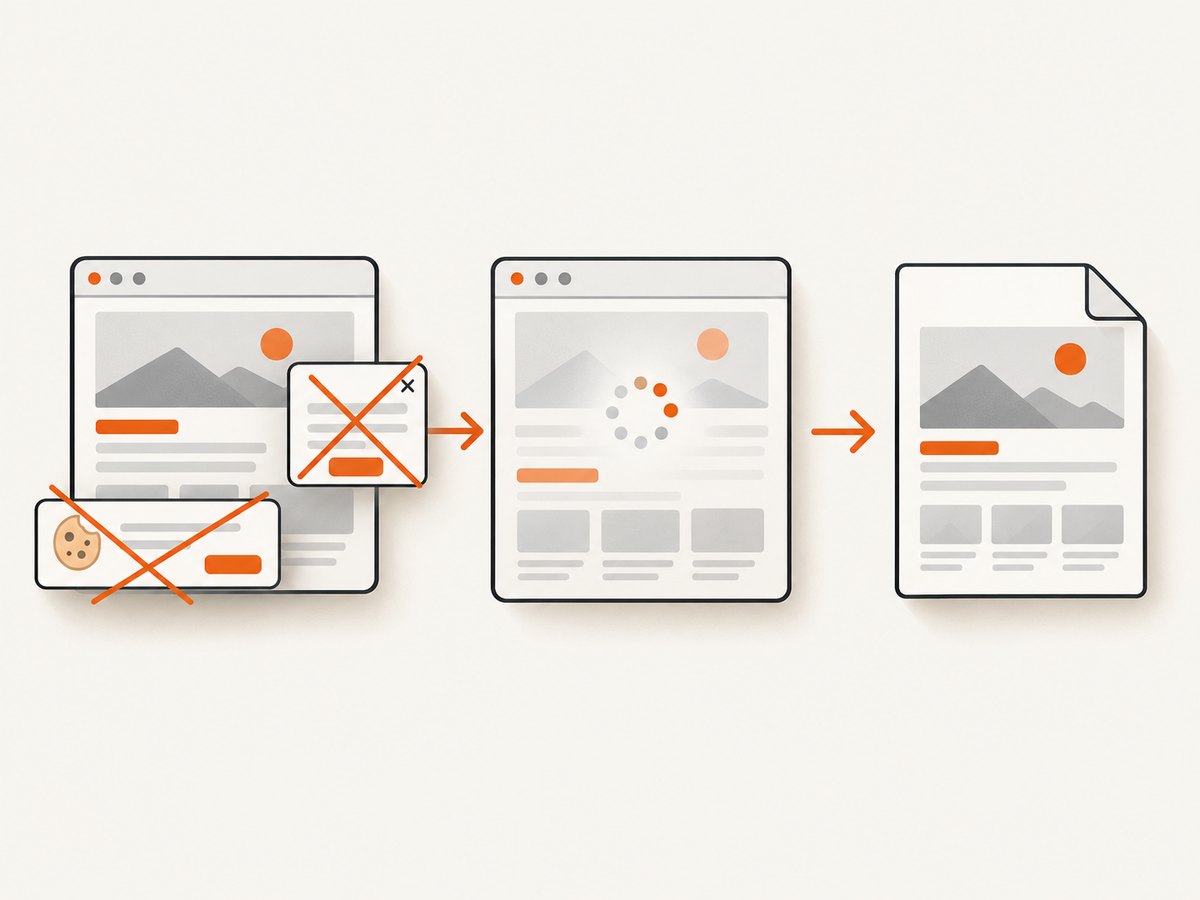
If you only need a clean website image rather than an interactive browser session, ScreenshotNeo provides a single GET request. Its capture steps can accept cookie and consent banners, then remove more than 60 known consent platforms, newsletter popups, and chat widgets before the shot; each step can be turned off. Bot checks and CAPTCHAs, blank pages, timeouts, failed loads, and cache hits are not billed, and the response identifies the result with X-Page-Verdict and X-Billed headers. It also provides an MCP server with take_screenshot, get_page_info, and capture_pdf tools for AI agents.
See the ScreenshotNeo API documentation for the available options.
cURL
curl -G "https://api.screenshotneo.com/v1/shot" -d access_key=YOUR_API_KEY --data-urlencode url=https://stripe.com -o shot.webpPython
import requests
r = requests.get("https://api.screenshotneo.com/v1/shot", params={"access_key": "YOUR_API_KEY", "url": "https://stripe.com"}, timeout=90)
open("shot.webp", "wb").write(r.content)
Node.js
const q = new URLSearchParams({ access_key: 'YOUR_API_KEY', url: 'https://stripe.com' });
const res = await fetch(`https://api.screenshotneo.com/v1/shot?${q}`);
ScreenshotNeo supports full-page capture with lazy images loaded, CSS-selector element capture, dark mode, device presets or custom viewports, retina scale, PDF output, custom CSS and JavaScript, clicks, waits, blocked resources, headers, cookies, user agents, authorization, timezone, geolocation, transparent backgrounds, resizing, configurable caching, signed links, asynchronous jobs with signed webhooks, bulk capture, a usage API, and an OpenAPI specification. Every feature is included on every plan. The Free plan includes 1,000 shots per month with no card; paid plans start at $5 for 3,000 shots.
Create a free ScreenshotNeo account with 1,000 screenshots a month and no card.
FAQ
Does taking a Selenium screenshot resize the browser?
No. The screenshot command and window-size setter are separate WebDriver operations. Avoid calling the setter if the existing dimensions must remain unchanged.
Can I capture the whole page with the standard screenshot call?
Do not assume so. The ordinary call captures the current browsing context. Firefox’s Python driver documents explicit full-page methods; support differs by browser and driver.
Should I record window size before the screenshot?
Yes, when dimensions are part of the test contract. Use the getter, then compare after capture if you need an assertion.
Why is my image pixel size different from the window size?
Outer dimensions, content viewport, browser chrome, headless settings, and device-pixel ratio are different measurements. Log both window dimensions and viewport values.


