Why Selenium sendKeys and Click Sometimes Fail and How to Fix Them
Fix Selenium click and sendKeys failures by diagnosing overlays, element state, timing, stale references, frames, and locators with reliable waits.
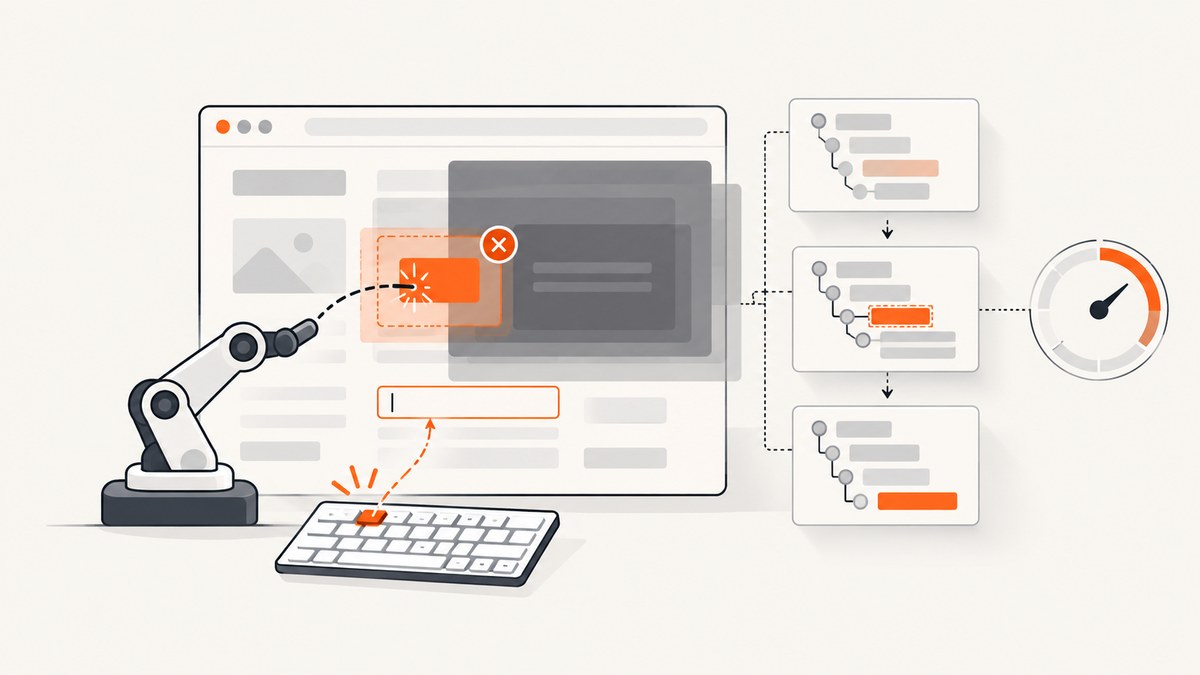
Short answer: Selenium actions fail when the element found by your locator is not the element you think it is, is not ready for interaction, is covered by another element, or has been replaced since you located it. Diagnose the exact exception, verify the page, window, and frame, then wait for the state required by the next action. Re-locate elements after navigation or DOM updates instead of reusing stale references.
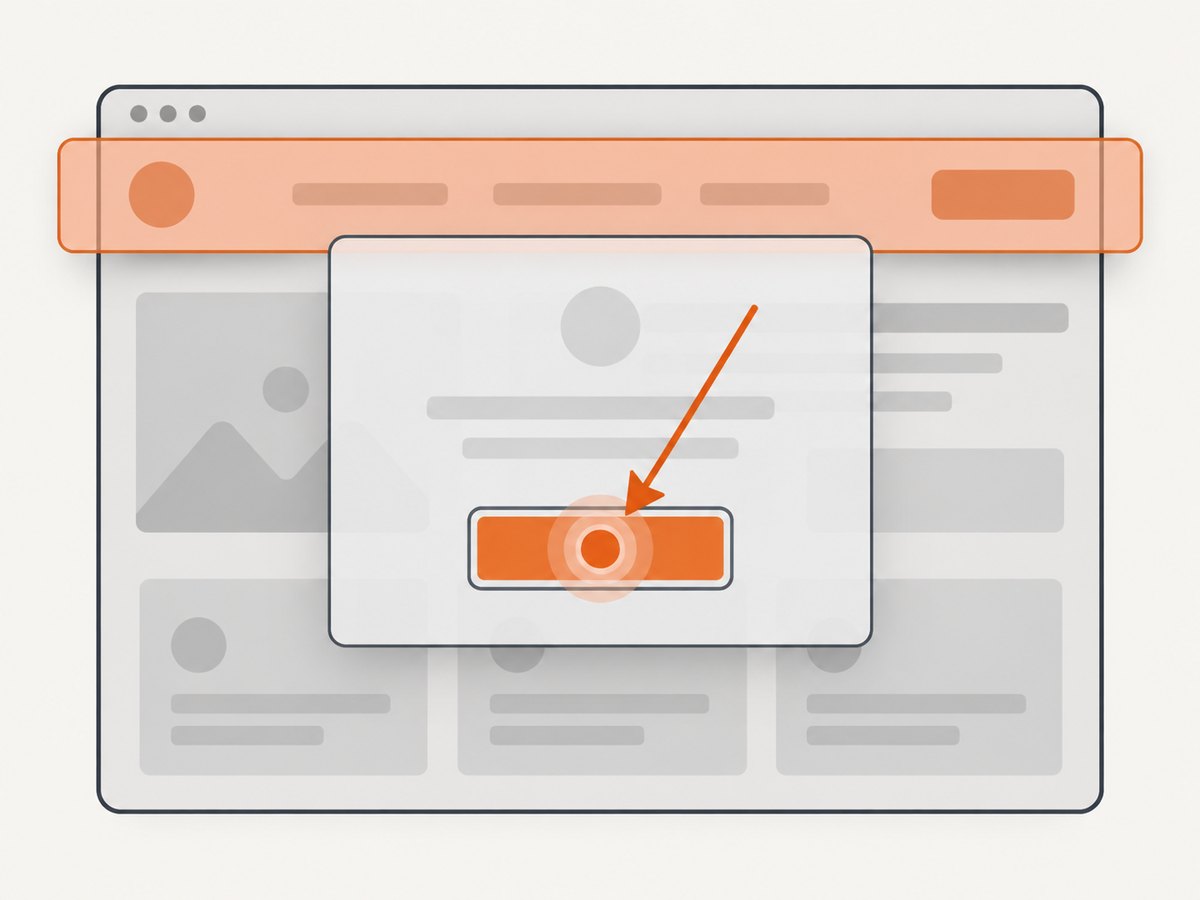
Selenium clicks the center of an element. If a modal, sticky header, consent banner, animation, or another control covers that point, the driver can raise ElementClickInterceptedException. send_keys is intended for keyboard-interactable controls such as inputs and content-editable elements; it fails when the locator selects a hidden, disabled, non-editable, or incorrect element. Selenium’s documentation describes these interaction and error behaviors in detail (element interactions, common errors).
1. Identify the failure before changing the code
Read the exception class and its message first. Each one points to a different class of defect:
| Exception or symptom | What it usually means | First check |
|---|---|---|
ElementClickInterceptedException |
The click point is covered by another rendered element. | Inspect overlays, modals, sticky navigation, and animations at the target’s center. |
ElementNotInteractableException |
The element exists but cannot currently receive the requested interaction. | Check visibility, enabled state, dimensions, and whether it is the correct element. |
InvalidElementStateException |
The operation is invalid for the current state, such as typing into a non-editable node. | Confirm the tag, contenteditable, disabled/read-only attributes, and control type. |
StaleElementReferenceException |
The DOM node represented by your WebElement was replaced or the browsing context changed. |
Locate the element again after the update, navigation, window switch, or frame switch. |
NoSuchElementException |
The locator found nothing in the current page or frame at that instant. | Verify URL, frame, locator, and timing. |
Capture diagnostics when a failure occurs: current URL, title, window handle, frame state, locator values, element attributes, a screenshot, and page source. This tells you whether the test is acting on the wrong page or the right page in the wrong state.
2. Why Selenium click fails
Selenium scrolls an out-of-viewport element into view and then clicks its center. Scrolling alone cannot fix an actual obstruction. A cookie dialog, newsletter prompt, chat widget, loading mask, sticky header, or CSS animation can leave the target visible while intercepting the pointer. Selenium explicitly documents that an obscured center produces an intercepted-click error (Interacting with web elements).
Check the actual target and covering element
from selenium.webdriver.common.by import By
from selenium.webdriver.support.ui import WebDriverWait
from selenium.webdriver.support import expected_conditions as EC
from selenium.common.exceptions import ElementClickInterceptedException

button_locator = (By.CSS_SELECTOR, "button[type='submit']")
wait = WebDriverWait(driver, 15)

button = wait.until(EC.visibility_of_element_located(button_locator))
print("tag:", button.tag_name)
print("text:", button.text)
print("rect:", button.rect)
print("enabled:", button.is_enabled())

try:
    wait.until(EC.element_to_be_clickable(button_locator)).click()
except ElementClickInterceptedException:
    print("Click was covered at execution time")
    print("url:", driver.current_url)
    driver.save_screenshot("intercepted-click.png")
    print(driver.page_source[:2000])
    raise
element_to_be_clickable checks that an element is visible and enabled. It cannot guarantee that an overlay will not move over the center during the next millisecond. If interception still occurs, inspect the rendered page and wait for the covering state to disappear.
Wait for a modal, banner, or animation to finish
Close a dialog through its real close control when that is part of the user flow. Otherwise wait for its invisibility or for a blocking class to be removed. Use a condition that describes the state you need, rather than a guessed delay.
from selenium.webdriver.common.by import By
from selenium.webdriver.support.ui import WebDriverWait
from selenium.webdriver.support import expected_conditions as EC

wait = WebDriverWait(driver, 20)
consent = (By.ID, "cookie-banner")
close_consent = (By.CSS_SELECTOR, "#cookie-banner button.accept")

try:
    wait.until(EC.element_to_be_clickable(close_consent)).click()
    wait.until(EC.invisibility_of_element_located(consent))
except TimeoutException:
    # The banner may not be present for this test account.
    pass

wait.until(EC.element_to_be_clickable(button_locator)).click()
If an animation is the cause, wait on an application-specific class or attribute such as aria-busy="false". A JavaScript check for computed opacity or transition duration can help diagnose, but it is more reliable to expose a deterministic state in the application under test.
Use JavaScript click only as a deliberate exception
driver.execute_script("arguments[0].click()", element) dispatches a DOM click without reproducing a real pointer click at the center. It can bypass an obstruction and therefore hide a real user-facing defect. Use it only when the application intentionally relies on programmatic activation and document that choice. It does not solve a wrong locator, a disabled control, a missing frame, or a stale reference.
3. Why sendKeys (send_keys) fails
Keyboard input requires a keyboard-interactable target. In Python the method is send_keys; Java bindings commonly call it sendKeys. Valid targets include text inputs, textareas, and elements with contenteditable. A locator aimed at a form, label, table cell, hidden clone, or read-only input can fail even though an element with similar text is visible.
Verify the matched element
from selenium.webdriver.common.by import By
from selenium.webdriver.support.ui import WebDriverWait
from selenium.webdriver.support import expected_conditions as EC

field_locator = (By.NAME, "email")
field = WebDriverWait(driver, 15).until(
    EC.visibility_of_element_located(field_locator)
)

print("tag:", field.tag_name)
print("type:", field.get_attribute("type"))
print("readonly:", field.get_attribute("readonly"))
print("disabled:", field.get_attribute("disabled"))
print("contenteditable:", field.get_attribute("contenteditable"))

field.clear()
field.send_keys("dev@example.com")
If the page reveals the input after another action, wait for visibility and enabled state after that action. If multiple nodes match, use a unique label relationship, name, test ID, or container scope. Do not assume the first match is the visible one.
# Scope the locator to the visible dialog instead of a hidden template.
dialog = WebDriverWait(driver, 15).until(
    EC.visibility_of_element_located((By.CSS_SELECTOR, "[role='dialog']"))
)
email = dialog.find_element(By.CSS_SELECTOR, "input[type='email']")
WebDriverWait(driver, 15).until(lambda d: email.is_enabled())
email.send_keys("dev@example.com")
For file uploads, Selenium has special browser behavior for sending a path to a file input, including hidden-control checks. Do not generalize file-upload exceptions to ordinary text fields; ordinary fields still need to be visible and editable. See Selenium’s browser options documentation.
4. Replace fixed sleeps with action-specific waits
Page-load completion is not application readiness. JavaScript can continue inserting controls, enabling buttons, replacing nodes, or revealing dialogs after document.readyState becomes complete. Selenium calls this a race condition: sometimes the browser reaches the needed state first and sometimes the test runs first (Waiting Strategies).
| Next action | Useful condition |
|---|---|
| Read an element’s text or attribute | Presence or visibility, depending on whether it must be rendered. |
| Type into a field | Visibility, enabled state, and editable attributes. |
| Click a control | Visibility plus enabled state, followed by obstruction diagnosis if intercepted. |
| Use content after navigation | A unique element or URL condition on the destination. |
| Continue after an AJAX update | Staleness of the old node, invisibility of a spinner, or a new state marker. |
Implicit waits apply mainly to locating elements. Increasing one does not prove that a located element is visible, enabled, unobstructed, or finished animating. Keep implicit waits modest and use explicit waits for interaction state. Selenium’s Expected Conditions include visibility, text, staleness, and clickability; APIs differ by language binding, and Selenium 4 .NET no longer ships the same helper classes as Python and Java (Expected Conditions).
5. Fix stale element references
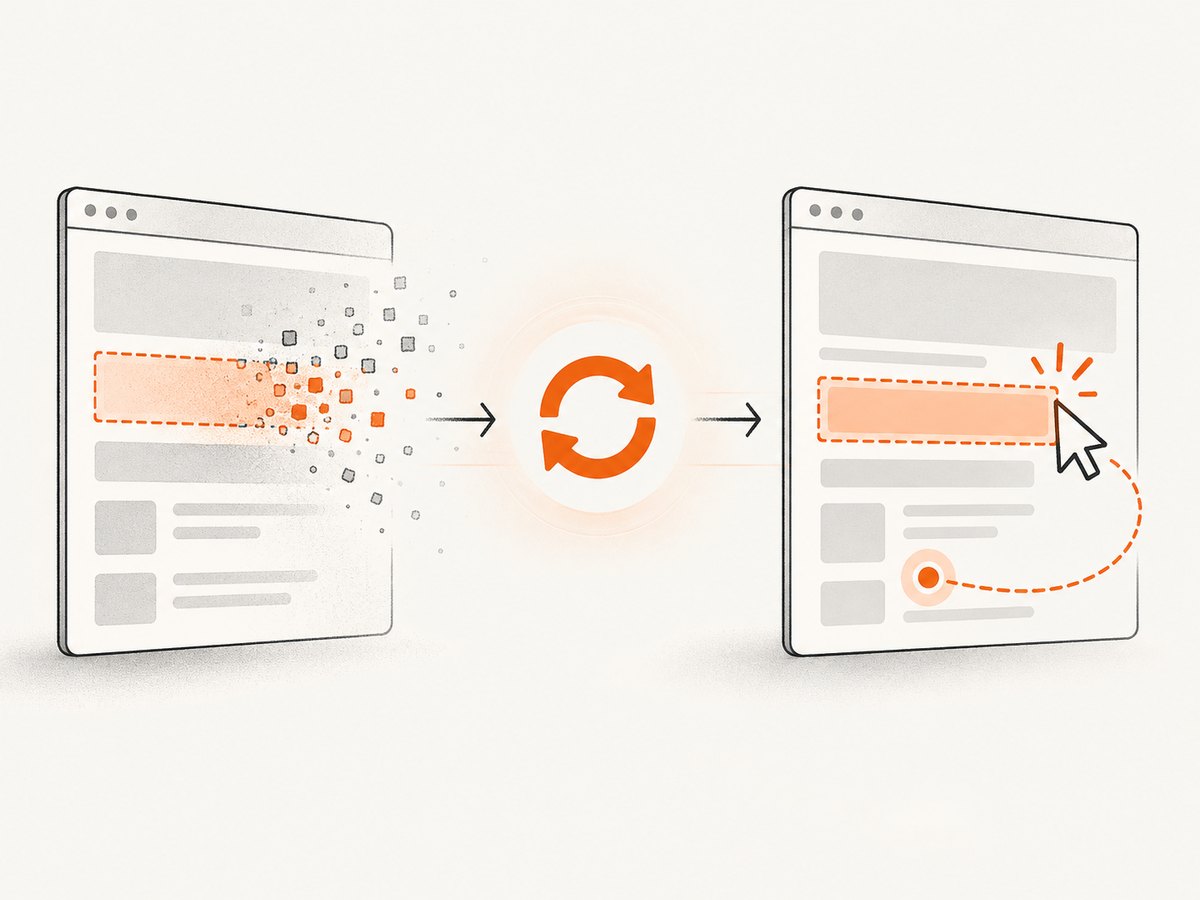
A WebElement is a reference to one DOM node in one page state. A React render, table refresh, navigation, window switch, or frame switch can invalidate it. Storing a locator and locating a fresh element after the transition is the fix.
from selenium.common.exceptions import StaleElementReferenceException
from selenium.webdriver.common.by import By
from selenium.webdriver.support.ui import WebDriverWait
from selenium.webdriver.support import expected_conditions as EC

row_locator = (By.CSS_SELECTOR, "[data-row-id='42']")
old_row = driver.find_element(*row_locator)
refresh = driver.find_element(By.ID, "refresh")
refresh.click()

WebDriverWait(driver, 15).until(EC.staleness_of(old_row))
new_row = WebDriverWait(driver, 15).until(
    EC.visibility_of_element_located(row_locator)
)
print(new_row.text)
A bounded retry is reasonable when a known refresh is expected. Reusing the same stale object cannot repair it. Re-locate after the page transition and wait for the replacement.
6. Frames, windows, and navigation
An accurate locator still fails in the wrong browsing context. Before interacting, confirm the current URL and switch into the frame containing the target. After leaving it, switch back to the default content. For new tabs, wait for the window count and select the new handle before locating elements.
from selenium.webdriver.common.by import By
from selenium.webdriver.support.ui import WebDriverWait
from selenium.webdriver.support import expected_conditions as EC

wait = WebDriverWait(driver, 15)
frame = wait.until(EC.presence_of_element_located((By.CSS_SELECTOR, "iframe.payment")))
driver.switch_to.frame(frame)
wait.until(EC.element_to_be_clickable((By.NAME, "cardnumber"))).send_keys("4242")
driver.switch_to.default_content()

before = len(driver.window_handles)
driver.find_element(By.LINK_TEXT, "Open report").click()
wait.until(lambda d: len(d.window_handles) > before)
driver.switch_to.window(driver.window_handles[-1])
7. A reliable end-to-end pattern
from selenium import webdriver
from selenium.webdriver.common.by import By
from selenium.webdriver.support.ui import WebDriverWait
from selenium.webdriver.support import expected_conditions as EC

options = webdriver.ChromeOptions()
options.add_argument("--headless=new")
driver = webdriver.Chrome(options=options)
wait = WebDriverWait(driver, 20)

try:
    driver.get("https://example.com/login")
    email_locator = (By.CSS_SELECTOR, "input[name='email']")
    password_locator = (By.CSS_SELECTOR, "input[name='password']")
    submit_locator = (By.CSS_SELECTOR, "button[type='submit']")

    email = wait.until(EC.visibility_of_element_located(email_locator))
    wait.until(lambda d: email.is_enabled())
    email.clear()
    email.send_keys("user@example.com")

    password = wait.until(EC.visibility_of_element_located(password_locator))
    password.send_keys("example-password")

    wait.until(EC.element_to_be_clickable(submit_locator)).click()
    wait.until(EC.url_contains("/dashboard"))
finally:
    driver.quit()
8. Troubleshooting checklist
- Confirm context: print URL, title, window handle, and frame selection.
- Validate the locator: check match count and inspect the tag and attributes of the selected node.
- Check state: presence, visibility, enabled status, dimensions, read-only state, and
contenteditable. - Inspect obstruction: look for consent banners, overlays, sticky headers, loaders, and transitions at the center point.
- Wait for the needed state: use explicit conditions tied to the next action.
- Re-locate after change: navigation, rendering, refreshes, frame switches, and window switches invalidate old references.
- Capture evidence: screenshot, page source, browser logs, and the failing locator.
- Keep retries bounded: retry only a known transient transition and wait for its completion condition.
9. Performance, reliability, and cost considerations
Short explicit waits return immediately when the condition is met and avoid the wasted time of large fixed sleeps. A condition tied to a stable application state also makes failures easier to diagnose than a retry loop that repeatedly clicks a moving target. Keep locators stable by preferring semantic attributes or test IDs over deep CSS paths. Use a fresh browser profile when extensions, saved consent, or cached state changes the page.
When debugging visual state, automated screenshots are useful evidence. If you capture pages in a CI pipeline, avoid paying for failed renders while investigating. ScreenshotNeo returns PNG, JPEG, WebP, or PDF from one request and reports whether a response was clean or failed in X-Page-Verdict and X-Billed headers. Its caching TTL, bulk capture, custom headers, cookies, user agent, viewport, device presets, and wait controls can help reproduce the state your Selenium test expects.
10. Or skip the browser setup
For page screenshots, call ScreenshotNeo directly. See the ScreenshotNeo API documentation for all options.
cURL
curl -G "https://api.screenshotneo.com/v1/shot" -d access_key=YOUR_API_KEY --data-urlencode url=https://stripe.com -o shot.webpPython
import requests
r = requests.get("https://api.screenshotneo.com/v1/shot", params={"access_key": "YOUR_API_KEY", "url": "https://stripe.com"}, timeout=90)
open("shot.webp", "wb").write(r.content)
Node.js
const q = new URLSearchParams({ access_key: 'YOUR_API_KEY', url: 'https://stripe.com' });
const res = await fetch(`https://api.screenshotneo.com/v1/shot?${q}`);
ScreenshotNeo accepts cookie and consent banners like a visitor and removes more than 60 known consent platforms, newsletter popups, and chat widgets before the capture; each step can be turned off. Bot checks, blank pages, timeouts, failed loads, and cache hits are not billed, and every response identifies the verdict and billing state. An MCP server provides take_screenshot, get_page_info, and capture_pdf tools for Claude, Cursor, and other MCP clients. The Free plan includes 1,000 screenshots per month with no card; paid plans start at $5 for 3,000 shots. Create a free ScreenshotNeo account.
11. Frequently asked questions
Should I add a longer sleep when click fails?
Usually no. Find the state that blocks the action and wait for that state, such as an overlay becoming invisible or a destination element appearing.
Why does a clickable wait pass but the click still fail?
Clickability checks visibility and enabled status. They do not guarantee that another element will not cover the center when the pointer action runs.
Can I send keys to a div?
Only when it is a keyboard-interactable control, commonly an element with contenteditable and suitable focus behavior. Prefer the actual input when one exists.
Why does retrying a stale element never work?
The stored object still points to the discarded DOM node. Store the locator, wait for the update, and locate a new object.
Does Selenium wait for every JavaScript request?
No. Ready state and page load do not describe all application work. Wait for the specific UI condition required by your next command.


