How to Handle Server Response Timeouts in Selenium WebDriver Tests
Identify which Selenium timeout fired, configure the right limit, synchronize dynamic pages, and diagnose Grid, proxy, driver, and CI delays.
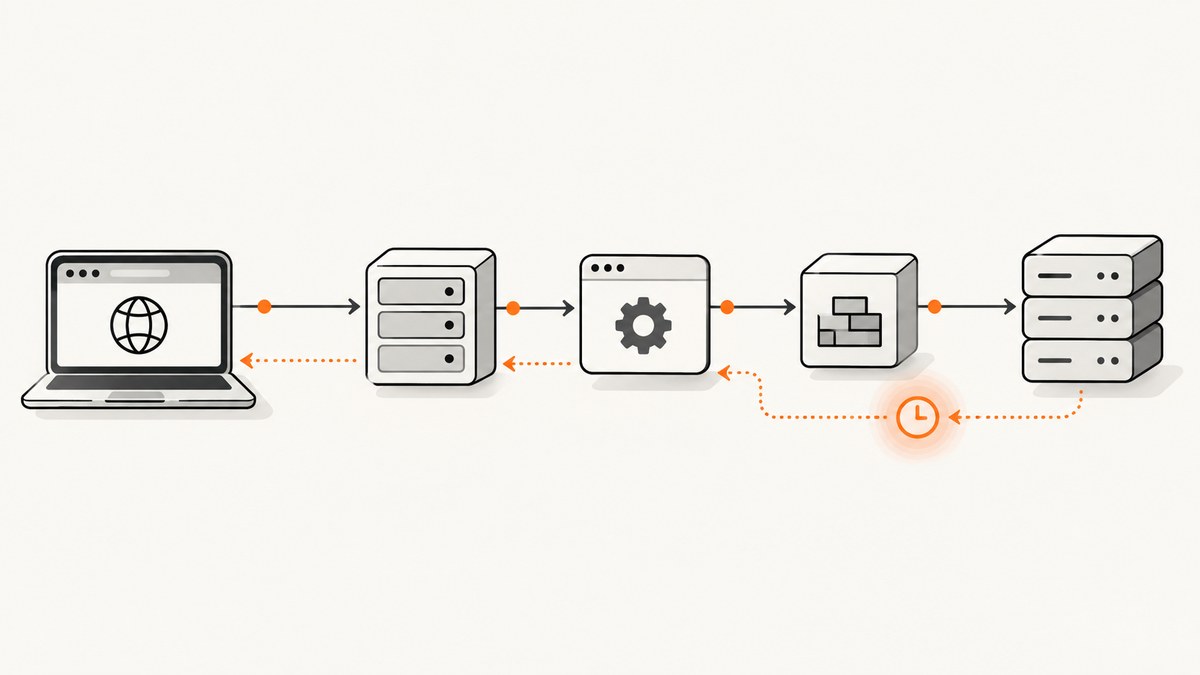
A Selenium timeout is only useful when you know which component stopped waiting. A timeout from driver.get() is usually a page-load timeout; a WebDriverWait failure means a condition never became true; an asynchronous script timeout concerns a JavaScript callback; and a client, Grid, proxy, or CI timeout can occur before WebDriver returns anything.
Capture the complete exception, the operation that failed, timestamps, browser and driver versions, and whether the run is local or remote. Then change the timeout owned by that failing layer. Increasing every timeout can make failures slower without fixing a server, route, browser driver, Grid queue, or application problem.
1. Identify the timeout category
| Symptom | Category | Inspect first |
|---|---|---|
driver.get() does not return before its deadline |
WebDriver page-load timeout | Page-load strategy, redirects, blocking resources, endpoint performance, and whether full load is required. |
| Element lookup fails before the element appears | Implicit wait or an explicit wait around a condition | Locator correctness and application state. Prefer an explicit condition for local synchronization. |
WebDriverWait expires |
Explicit wait timeout | Whether the condition is correct, the UI reached that state, and the application returned an error. |
executeAsyncScript does not finish |
Asynchronous script timeout | Callback completion and the session’s script timeout. |
| Read timeout, connection reset, or slow session creation | Client transport, Grid, proxy, load balancer, or CI deadline | Which component emitted the error and the deadline at every hop. |
Selenium documents separate page-load, script, and implicit timeouts. Its current browser-options documentation lists new-session defaults of 300,000 milliseconds for page load, 30,000 milliseconds for asynchronous scripts, and 0 milliseconds for implicit waits. These are WebDriver session defaults, not universal HTTP, Grid, proxy, or CI limits. See the official browser-options guide.
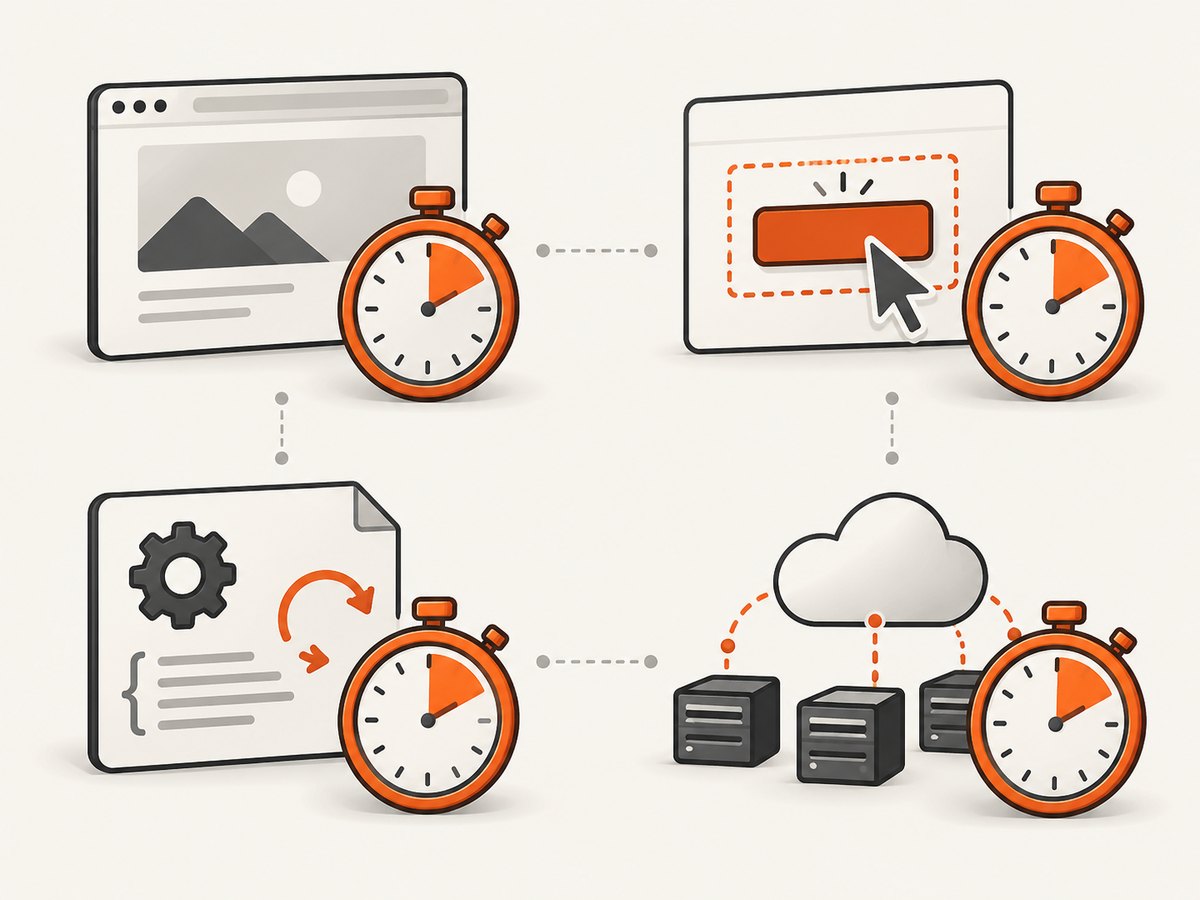
2. Configure navigation timeouts in Java
Selenium 4 Java uses Duration for timeout configuration. Set a page-load timeout when the navigation itself is allowed to take longer, and set a page-load strategy that matches the readiness point your test needs.
import java.time.Duration;
import org.openqa.selenium.By;
import org.openqa.selenium.PageLoadStrategy;
import org.openqa.selenium.WebDriver;
import org.openqa.selenium.WebElement;
import org.openqa.selenium.chrome.ChromeDriver;
import org.openqa.selenium.chrome.ChromeOptions;
import org.openqa.selenium.support.ui.ExpectedConditions;
import org.openqa.selenium.support.ui.WebDriverWait;

public class TimeoutExample {
    public static void main(String[] args) {
        ChromeOptions options = new ChromeOptions();
        // normal waits for the load event; eager waits for DOMContentLoaded.
        options.setPageLoadStrategy(PageLoadStrategy.NORMAL);

        WebDriver driver = new ChromeDriver(options);
        try {
            driver.manage().timeouts().pageLoadTimeout(Duration.ofSeconds(45));
            driver.manage().timeouts().scriptTimeout(Duration.ofSeconds(30));
            // Keep implicit wait at zero when using explicit waits.
            driver.manage().timeouts().implicitlyWait(Duration.ZERO);

            driver.get("https://example.com/account");

            WebDriverWait wait = new WebDriverWait(driver, Duration.ofSeconds(20));
            WebElement account = wait.until(
                ExpectedConditions.visibilityOfElementLocated(By.cssSelector("[data-testid='account']"))
            );
            System.out.println(account.getText());
        } finally {
            driver.quit();
        }
    }
}
The Java upgrade guide documents the move from older (long, TimeUnit) arguments to Duration. The Java timeout API is documented in the WebDriver.Timeouts reference.
Choose a page-load strategy deliberately
| Strategy | Navigation returns when | Synchronization you still need |
|---|---|---|
normal |
The browser reaches the load event. | Wait for the application state your next action requires. |
eager |
The document reaches DOMContentLoaded. | Wait for images, requests, and JavaScript-driven UI that may still be running. |
none |
WebDriver does not block for page readiness. | Explicitly wait for every state needed by the test. |
A successful navigation return does not prove that a single-page application has finished rendering or fetching data. Switching to eager or none can reduce navigation delay, but it moves responsibility to explicit synchronization.
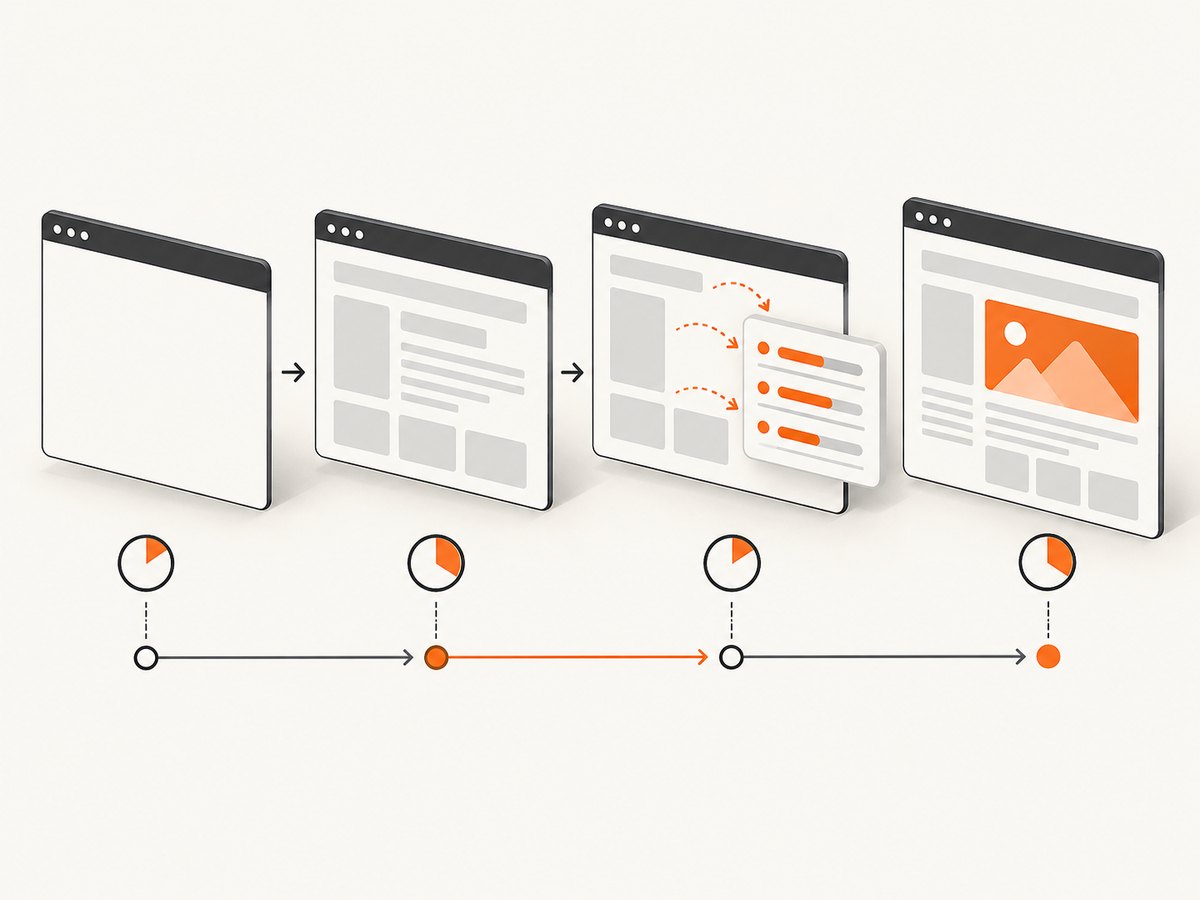
3. Synchronize the UI with explicit conditions
Use a condition that represents the next action: visibility, clickability, expected text, a URL change, a stale element, or a custom predicate. Selenium’s waiting documentation warns: “Do not mix implicit and explicit waits.” Mixing them can make total duration unpredictable.
WebDriverWait wait = new WebDriverWait(driver, Duration.ofSeconds(20));

wait.until(ExpectedConditions.urlContains("/dashboard"));
wait.until(ExpectedConditions.visibilityOfElementLocated(By.id("results")));
wait.until(ExpectedConditions.textToBePresentInElementLocated(
    By.id("status"), "Complete"
));
wait.until(ExpectedConditions.elementToBeClickable(By.cssSelector("button.submit"))).click();
A fixed sleep can hide a race temporarily, but it is too short on a slow run and wasteful on a fast one. Replace it with a condition and include a useful diagnostic message.
WebDriverWait wait = new WebDriverWait(driver, Duration.ofSeconds(30));
wait.withMessage("Results did not become ready after submitting the form");
wait.until(ExpectedConditions.visibilityOfElementLocated(By.id("results")));
Waiting for application-specific readiness
For a custom state, poll a small Java function rather than assuming document.readyState == 'complete' means that asynchronous application work is done.
wait.until(d -> {
    String state = (String) ((org.openqa.selenium.JavascriptExecutor) d)
        .executeScript("return window.appReady === true;");
    return "true".equals(state);
});
Only use a browser global such as window.appReady when the application defines it reliably. Otherwise wait for a user-visible result or network-independent DOM condition.
4. Set script and implicit timeouts separately
The script timeout applies to asynchronous JavaScript, where the script must invoke its callback. It does not control page navigation or element lookup.
driver.manage().timeouts().scriptTimeout(Duration.ofSeconds(30));

Object value = ((org.openqa.selenium.JavascriptExecutor) driver).executeAsyncScript(
    "const done = arguments[arguments.length - 1];" +
    "fetch('/health').then(r => r.ok).then(done).catch(() => done(false));"
);
Keep the implicit timeout at zero when your suite uses explicit waits, or set it intentionally and understand the interaction. The Python binding exposes the same concepts through set_script_timeout and implicitly_wait; see its timeouts API.
5. Complete Python, cURL, and Node.js diagnostics
Python WebDriver example
from selenium import webdriver
from selenium.webdriver.common.by import By
from selenium.webdriver.support.ui import WebDriverWait
from selenium.webdriver.support import expected_conditions as EC

options = webdriver.ChromeOptions()
options.page_load_strategy = "eager"
driver = webdriver.Chrome(options=options)
try:
    driver.set_page_load_timeout(45)
    driver.set_script_timeout(30)
    driver.implicitly_wait(0)
    driver.get("https://example.com/account")
    account = WebDriverWait(driver, 20).until(
        EC.visibility_of_element_located((By.CSS_SELECTOR, "[data-testid='account']"))
    )
    print(account.text)
finally:
    driver.quit()
Check the origin server with cURL
This does not reproduce browser rendering, but it separates basic DNS, TLS, redirect, and server response problems from WebDriver synchronization.
curl --verbose --location --max-time 45 --connect-timeout 10 \
  -o /dev/null -w 'http=%{http_code} total=%{time_total}\n' \
  https://example.com/account
Node.js WebDriver example
const { Builder, By, until } = require('selenium-webdriver');

(async function run() {
  const driver = await new Builder().forBrowser('chrome').build();
  try {
    await driver.manage().setTimeouts({
      pageLoad: 45000,
      script: 30000,
      implicit: 0
    });
    await driver.get('https://example.com/account');
    const account = await driver.wait(
      until.elementLocated(By.css('[data-testid="account"]')),
      20000,
      'Account element did not appear'
    );
    console.log(await account.getText());
  } finally {
    await driver.quit();
  }
})();
6. Diagnose remote WebDriver, Grid, and CI timeouts
Trace the complete path: test client → WebDriver endpoint or Grid → browser driver and browser → application. Add any proxy, load balancer, service mesh, and CI or test-framework deadline to that map.
- Record when session creation starts and finishes.
- Record the command that fails and its start and end timestamps.
- Check Grid distributor and node logs for queueing, node availability, and browser-driver errors.
- Compare the same URL and test locally and remotely.
- Check DNS, TLS, proxy, firewall, and allow-list behavior from the runner.
- Compare browser, driver, Selenium, operating-system, and container versions.
- Find the shortest outer deadline. A client read timeout or CI cancellation can terminate a command before WebDriver’s own page-load timeout fires.
Selenium’s troubleshooting guide says poor synchronization is a common source of Selenium errors and notes that underlying drivers can cause problems. Its troubleshooting documentation is the right reference for driver-level failures. A SeleniumConf deployment presentation illustrates interacting timeout layers, but its values describe one deployment and are not universal Grid defaults.
7. Troubleshooting common errors
| Error or symptom | Likely cause | Fix |
|---|---|---|
TimeoutException from driver.get() |
Navigation exceeded page-load timeout, or a redirect/resource is stuck. | Measure the endpoint, inspect redirects and browser logs, choose an appropriate strategy, and set a measured page-load budget. |
| Explicit wait expires | Wrong locator, wrong expected state, JavaScript error, failed API call, or insufficient condition timeout. | Capture DOM and console evidence, verify the locator, inspect application responses, and wait for the actual state. |
| Element is present but not clickable | Overlay, animation, disabled control, or wrong frame. | Wait for clickability, switch to the correct frame, and identify the overlay instead of adding a long sleep. |
| Async script timeout | Callback is never invoked or a promise path is unhandled. | Ensure every success and failure path calls the callback, then set a script timeout matching the operation. |
| Session creation hangs | Grid queue, unavailable node, driver startup, container resource pressure, or endpoint routing. | Inspect distributor and node logs, capacity, node health, and the outer client deadline. |
| Connection reset or read timeout | Proxy, load balancer, network route, server termination, or client transport deadline. | Identify the emitting layer, compare hop-by-hop deadlines, and test the route from the CI runner. |
| Works locally but fails in CI | Different DNS, proxy, CPU, browser version, viewport, credentials, or network policy. | Log environment details, reproduce from the same container or network, and compare browser-driver versions. |
8. Performance, reliability, and cost practices
- Measure before changing values. Collect navigation, session allocation, command, and application-server timings. Set a test-specific budget from observed behavior rather than copying 30, 60, or 120 seconds.
- Keep budgets ordered. Where possible, let the WebDriver operation finish before the client, proxy, load balancer, and CI deadlines. Otherwise an outer layer can hide the more useful WebDriver exception.
- Use the least blocking page-load strategy.
normalis simplest for full document readiness;eagerornonecan reduce waiting when the test has explicit, reliable readiness checks. - Reduce unnecessary work. Block irrelevant analytics or large resources only when doing so preserves the behavior under test. Avoid changing production behavior in a test that is meant to validate real loading.
- Make retries selective. Retry a known transient Grid allocation or network failure with a limit and logging. Do not retry deterministic locator or application errors indefinitely.
- Protect evidence. On timeout, save the URL, page source, screenshot, browser console log, driver log, request correlation ID, and timestamps.
- Control parallelism. An overloaded Grid node or CI runner can turn healthy requests into queue and CPU timeouts. Match concurrency to available browser and application capacity.
9. Or skip the browser setup
If your goal is a reliable image or PDF of a page rather than an interactive browser test, ScreenshotNeo handles the capture request directly. Cookie and consent banners are accepted and removed before the shot, along with 60+ known consent platforms, newsletter popups, and chat widgets. Bot checks, blank pages, failed loads, timeouts, and cache hits are not billed, and the response identifies the result with X-Page-Verdict and X-Billed headers.
See the ScreenshotNeo API documentation for all options. This one-call example returns a WebP image:
curl -G "https://api.screenshotneo.com/v1/shot" -d access_key=YOUR_API_KEY --data-urlencode url=https://stripe.com -o shot.webpimport requests
r = requests.get("https://api.screenshotneo.com/v1/shot", params={"access_key": "YOUR_API_KEY", "url": "https://stripe.com"}, timeout=90)
open("shot.webp", "wb").write(r.content)const q = new URLSearchParams({ access_key: 'YOUR_API_KEY', url: 'https://stripe.com' }); const res = await fetch(`https://api.screenshotneo.com/v1/shot?${q}`);ScreenshotNeo also provides an MCP server for AI agents such as Claude, Cursor, and other MCP clients, with take_screenshot, get_page_info, and capture_pdf tools. It supports full-page and element capture, device presets, custom waits, headers, cookies, user agents, blocking rules, JavaScript, CSS, geolocation, caching, signed links, asynchronous jobs, bulk capture, and PDFs. 1,000 screenshots per month are free with no card; paid plans start at $5 for 3,000 shots. Create a free ScreenshotNeo account.
10. FAQ
Should I always increase Selenium’s page-load timeout?
No. First determine whether navigation is the failing operation and whether the application genuinely needs full load. A larger value only allows a slow operation more time.
Does implicit wait affect driver.get()?
No. Implicit wait applies to element-location calls. Page navigation has its own timeout.
Does document.readyState == 'complete' mean my SPA is ready?
No. Client-side requests and rendering can continue after the document load event. Wait for the application condition your test needs.
Why does a Grid test fail before the browser opens?
The delay may be session allocation, node health, driver startup, routing, or an outer client or CI deadline. Inspect those layers separately.
What timeout should a CI pipeline use?
Use measured operation budgets and leave room for diagnostics and cleanup. Ensure the outer deadline does not expire before the WebDriver timeout can report its own error.


