Why Selenium Starts Chrome Without Loading a Page
ChromeDriver starts a browser session; Selenium loads a URL only when your code calls get(). Diagnose blank tabs, headless runs, startup crashes and waits.
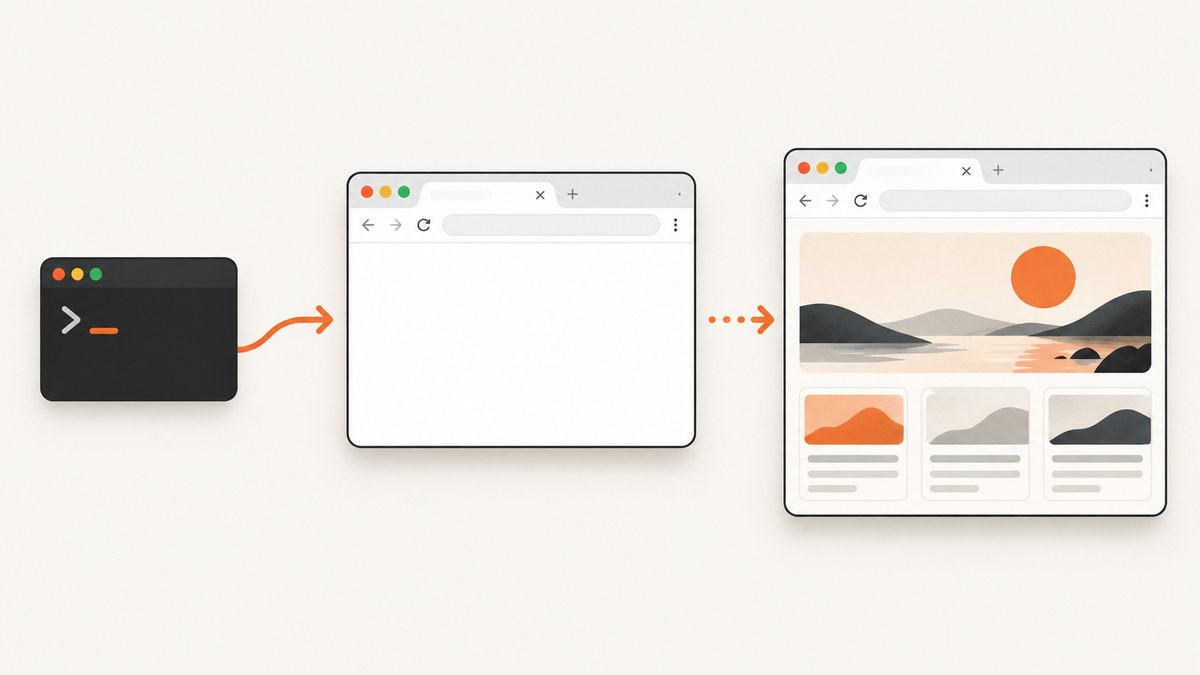
Short answer: creating a Selenium Chrome driver starts a WebDriver session and launches or connects to Chrome. It does not request a website. Navigation is a separate command, usually driver.get("https://example.com"). ChromeDriver’s getting-started example performs these operations separately.
If you see a blank or new-tab window, first verify that execution reaches the navigation line and that the URL includes https:// or http://. Then determine whether Chrome is running headless, whether startup failed, or whether the page loaded but your script checked for content too early.
1. What driver creation actually does
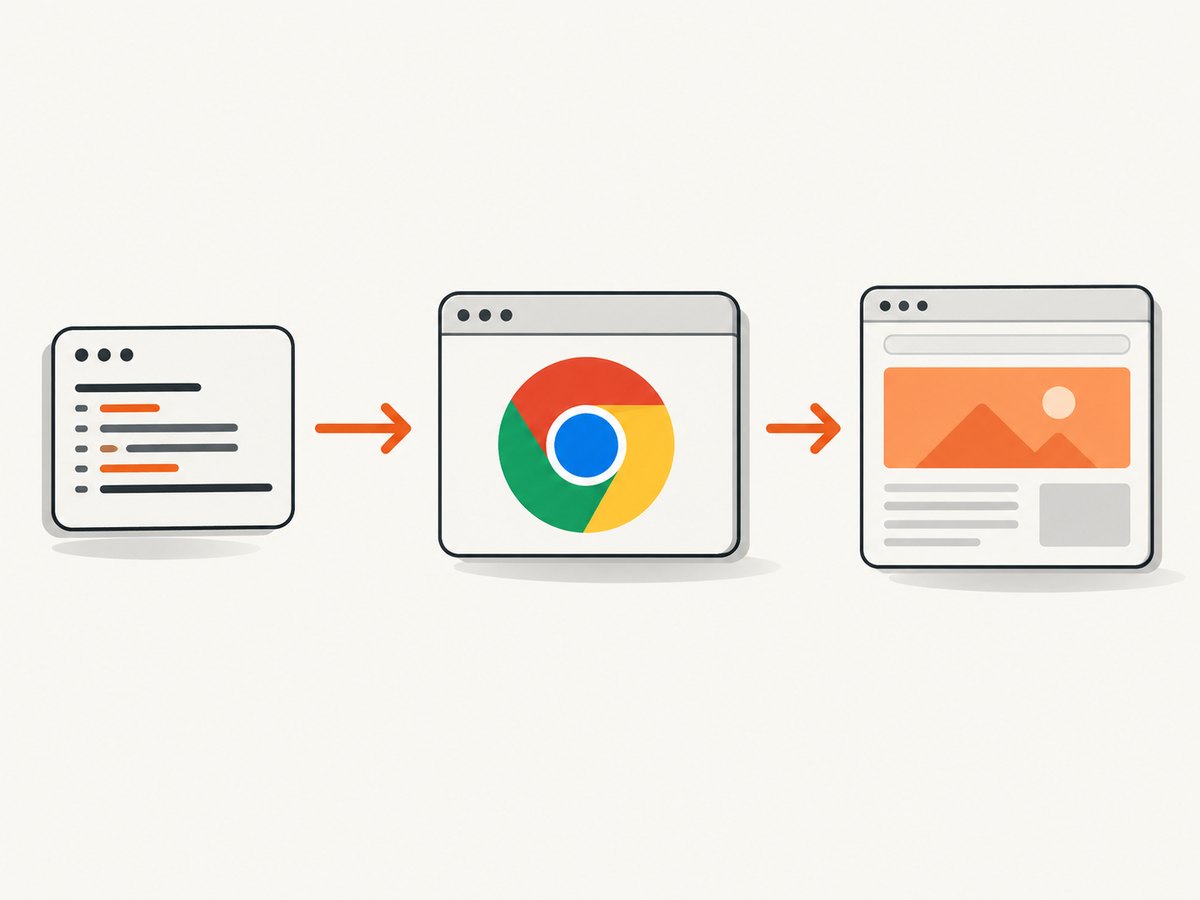
These two lines have different jobs:
from selenium import webdriver

driver = webdriver.Chrome()                 # Starts a WebDriver session

driver.get("https://example.com")           # Navigates the current tab
print(driver.title)
driver.quit()
webdriver.Chrome() starts ChromeDriver and creates a browser session. get() sends a navigation command to the current window or tab. ChromeDriver controls Chrome as a separate executable; it does not infer which website you want to open.
The URL should include a scheme. Use https://example.com, not only example.com. See the Selenium WebDriver API reference.
2. A complete Python example
This script starts Chrome, navigates explicitly, waits for the document to finish loading, prints the title and URL, and closes the session even if an error occurs.
from selenium import webdriver
from selenium.webdriver.chrome.options import Options
from selenium.webdriver.support.ui import WebDriverWait

URL = "https://example.com"

options = Options()
# Uncomment for CI or a server without a display:
# options.add_argument("--headless=new")

# Keep the browser visible while diagnosing startup or navigation problems.
driver = webdriver.Chrome(options=options)
driver.set_page_load_timeout(60)

try:
    driver.get(URL)

    WebDriverWait(driver, 30).until(
        lambda d: d.execute_script("return document.readyState") == "complete"
    )

    print("title:", driver.title)
    print("url:", driver.current_url)
    print("body characters:", len(driver.find_element("tag name", "body").text))
finally:
    driver.quit()
Run it with:
python -m pip install selenium
python selenium_navigation.py
ChromeDriver’s official setup example follows the same create-then-navigate sequence.
3. Diagnostic sequence for a blank tab
- Confirm driver creation completes. Put a log immediately after
webdriver.Chrome(). - Confirm the next line runs. Log immediately before and after
driver.get(URL). - Check the URL. Include
http://orhttps://; print the exact string passed toget(). - Check headless settings. In headless mode the page can load without a visible window. Headless mode still requires
get(). - Inspect the resulting URL. Print
driver.current_urlafter navigation. A redirect, error page or authentication page can look unlike the expected site. - Wait for the page state or an element. A navigation can return before application content is ready. Use an explicit wait for a meaningful selector.
- Separate startup from navigation. If Chrome crashes before the log after driver creation, investigate the browser binary, driver, permissions and startup arguments. If creation succeeds but the page is wrong, investigate navigation, redirects and synchronization.
4. Make the wait match the page
get() waits according to the page-load strategy, but modern applications often render important content after the initial document load. Wait for the condition your test actually needs.
Wait for an element
from selenium.webdriver.common.by import By
from selenium.webdriver.support import expected_conditions as EC
from selenium.webdriver.support.ui import WebDriverWait

wait = WebDriverWait(driver, 30)
hero = wait.until(EC.visibility_of_element_located((By.CSS_SELECTOR, "main")))
Wait for a URL change
wait.until(lambda d: "/dashboard" in d.current_url)Use a page-load strategy deliberately
options = Options()
options.page_load_strategy = "normal"   # Wait for the normal load event
# "eager" returns after the DOM is interactive.
# "none" returns without waiting for page loading.
With eager or none, add explicit waits before reading application content. Do not replace synchronization with arbitrary long sleeps unless the site has a known fixed delay.
5. Headless Chrome: loaded page, no visible window
Headless Chrome runs without a visible desktop window. This is expected in CI, containers and servers. The browser can still navigate, execute JavaScript and capture page content.
from selenium import webdriver
from selenium.webdriver.chrome.options import Options

options = Options()
options.add_argument("--headless=new")
options.add_argument("--window-size=1440,1000")

driver = webdriver.Chrome(options=options)
driver.get("https://example.com")
print(driver.title)
driver.quit()
To debug visually, remove the headless argument and run the same script on a machine with a display. Selenium’s headless documentation still calls get() explicitly.
6. When Chrome never starts or crashes
If the browser process exits before navigation, use the same Chrome binary and startup switches outside your test harness. ChromeDriver’s troubleshooting guide recommends checking the ChromeDriver log to see which binary was selected.
- Check the installed browser. Confirm Chrome launches normally for the same operating-system user.
- Check the driver log. Enable ChromeDriver logging and inspect the selected binary and startup error.
- Reproduce outside the IDE or CI wrapper. An IDE, service account or container can change environment variables, permissions and available display services.
- Run Linux Chrome as a regular user. ChromeDriver identifies running Chrome as root as a common startup-crash cause. The
--no-sandboxworkaround is unsupported and highly discouraged. - Compare browser versions and drivers. A driver-specific problem can appear as a Selenium failure. Reproduce with another supported browser when isolating the cause.
ChromeDriver documentation states: “A common cause for Chrome to crash during startup is running Chrome as root user (administrator) on Linux.”
7. Common errors and fixes
| Symptom | Likely cause | Fix |
|---|---|---|
| Chrome opens to a new tab | No navigation command ran, or execution stopped before get(). |
Add logs before and after get(); verify the call is inside the path being executed. |
| Nothing is visible, but the test continues | Headless mode is enabled. | Remove --headless=new while debugging, or inspect current_url and page content programmatically. |
InvalidArgumentException for URL |
The URL is incomplete or malformed. | Pass a complete URL with https:// or http://. |
TimeoutException during navigation |
The server, network, page scripts or a resource did not finish in the timeout. | Check the URL outside Selenium, increase the timeout only when justified, and wait for a specific usable element. |
SessionNotCreatedException |
Chrome, ChromeDriver or Selenium setup is incompatible or Chrome cannot start. | Check versions, the selected binary, logs, permissions and startup arguments. |
| Title is present but expected elements are missing | The application renders after the initial load. | Use an explicit wait for the element or application-ready condition. |
| Page differs in CI | Different user, viewport, binary, proxy, display environment or permissions. | Log capabilities and browser arguments; reproduce with the same binary and switches outside the harness. |
| Chrome crashes immediately on Linux | Chrome is running as root or cannot access required resources. | Run as a regular user and inspect ChromeDriver logs. Avoid the unsupported --no-sandbox workaround. |
8. A minimal logging harness
from selenium import webdriver
from selenium.webdriver.chrome.service import Service
from selenium.webdriver.chrome.options import Options

options = Options()
# options.add_argument("--headless=new")
service = Service(log_output="chromedriver.log")

driver = webdriver.Chrome(service=service, options=options)
try:
    print("driver created")
    url = "https://example.com"
    print("navigating to:", url)
    driver.get(url)
    print("navigation returned")
    print("current URL:", driver.current_url)
    print("title:", driver.title)
finally:
    driver.quit()
This tells you whether the failure occurs during session creation, during navigation, or after navigation while your test waits for content.
9. Performance, reliability and cost considerations
- Reuse a session when appropriate. Starting Chrome is more expensive than issuing another navigation in an existing session. Isolate tests when state or reproducibility requires a fresh profile.
- Use explicit waits. They reduce flaky failures caused by checking too early and avoid the unnecessary delay of large fixed sleeps.
- Set bounded timeouts. A page-load timeout prevents a hung resource from holding a worker forever; an element wait should reflect the page’s real readiness condition.
- Keep diagnostic data. Record the URL, current URL, title, browser mode, viewport, driver version and relevant logs for failures.
- Control the environment. Different Chrome binaries, users, proxies, fonts and display settings can change behavior even when the test code is identical.
10. Or skip the browser setup
If your goal is a clean image or PDF rather than browser interaction, ScreenshotNeo provides a website screenshot API. It handles the capture request directly, so you do not need to manage ChromeDriver, browser binaries, display services or waits in your application.
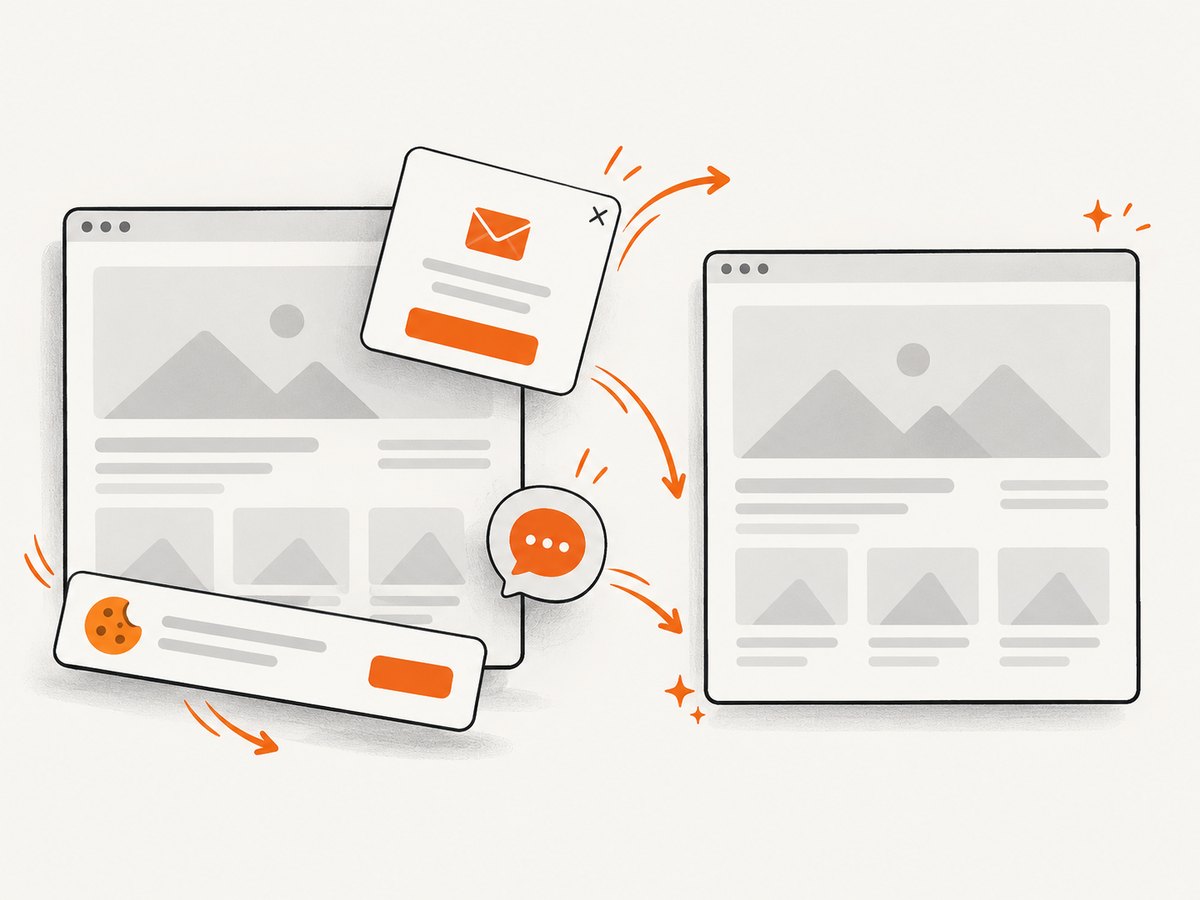
Before capture, ScreenshotNeo can accept cookie or consent banners and remove more than 60 known consent platforms, newsletter popups and chat widgets. Each step can be turned off. Bot checks or CAPTCHAs, blank pages, timeouts, failed loads and cache hits are not billed; the response identifies the result with X-Page-Verdict and X-Billed headers.
See the ScreenshotNeo API documentation for all options.
cURL
curl -G "https://api.screenshotneo.com/v1/shot" -d access_key=YOUR_API_KEY --data-urlencode url=https://stripe.com -o shot.webpPython
import requests
r = requests.get("https://api.screenshotneo.com/v1/shot", params={"access_key": "YOUR_API_KEY", "url": "https://stripe.com"}, timeout=90)
open("shot.webp", "wb").write(r.content)
Node.js
const q = new URLSearchParams({ access_key: 'YOUR_API_KEY', url: 'https://stripe.com' });
const res = await fetch(`https://api.screenshotneo.com/v1/shot?${q}`);
ScreenshotNeo also offers an MCP server with take_screenshot, get_page_info and capture_pdf tools for Claude, Cursor and other MCP clients. The free plan includes 1,000 screenshots per month without a card; paid plans start at $5 for 3,000 shots. Create a free ScreenshotNeo account.
11. FAQ
Does Selenium automatically open a default website?
No. Driver creation starts the session. Your code must call get() with the target URL.
Why does Chrome appear blank for a moment?
Chrome may open before navigation begins, or the page may still be loading. Log around get() and wait for the element your test needs.
Is headless mode broken if I cannot see Chrome?
No. Headless mode intentionally has no visible window. Inspect the current URL, title and DOM, or disable headless mode while debugging.
Should I add --no-sandbox?
ChromeDriver’s guidance calls that workaround unsupported and highly discouraged. Run Chrome as a regular user and diagnose the startup environment instead.
Can a screenshot API replace Selenium?
Only when you need a rendered screenshot or PDF and not browser interactions such as clicking through a workflow, extracting live DOM state or asserting application behavior. For those tasks, Selenium remains the browser automation layer.


